3. Remote control
3. Remote control3.1. Remote Login3.2. VSCode3.3. Transfer files3.3.1 VM and RDK-X3 board3.3.2 Windows and the RDK-X3 board
【Note】
- The RDK-X3 board does not provide a graphical interface (you can install it yourself if necessary), and this tutorial uses SSH to connect the car remotely.
- Because the running of some codes requires root permission, log in as the root user directly.
- The IP of the robot can be displayed via OLED.
3.1. Remote Login
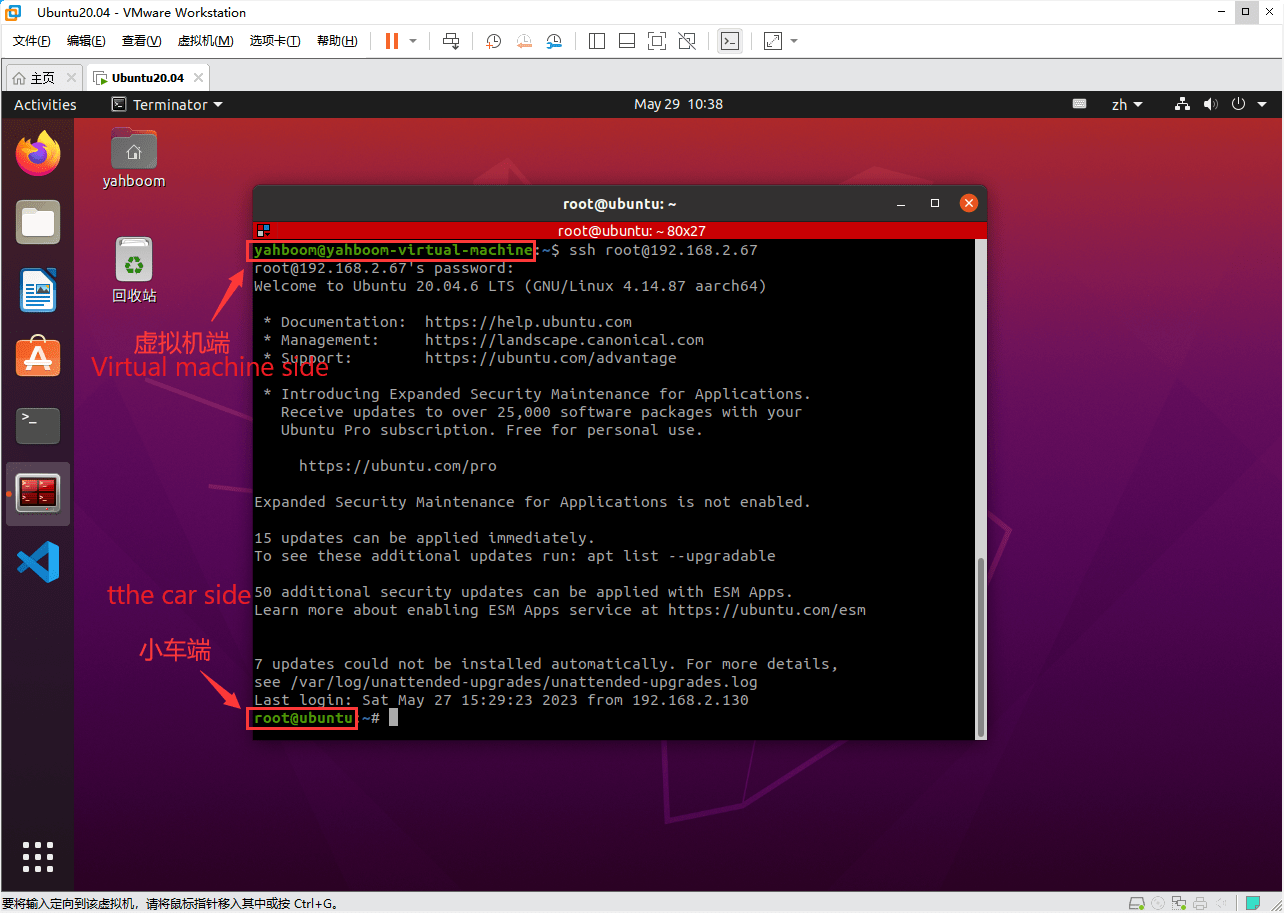
Turn on the car power supply, and the car IP will be displayed on the OLED screen. For example, if the IP address of my car is 192.168.2.67, open the terminal in the virtual machine and type
xxxxxxxxxxssh root@192.168.2.67
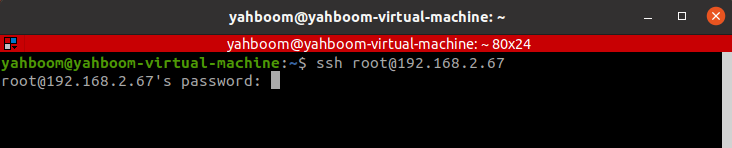
The following may occur during the initial connection: Enter yes and press Enter.

Enter the password [yahboom], press Enter, you can remotely connect to the car.
3.2. VSCode
The above operations realize the development of SSH remote connection car, and then build a visual development environment on the PC side.
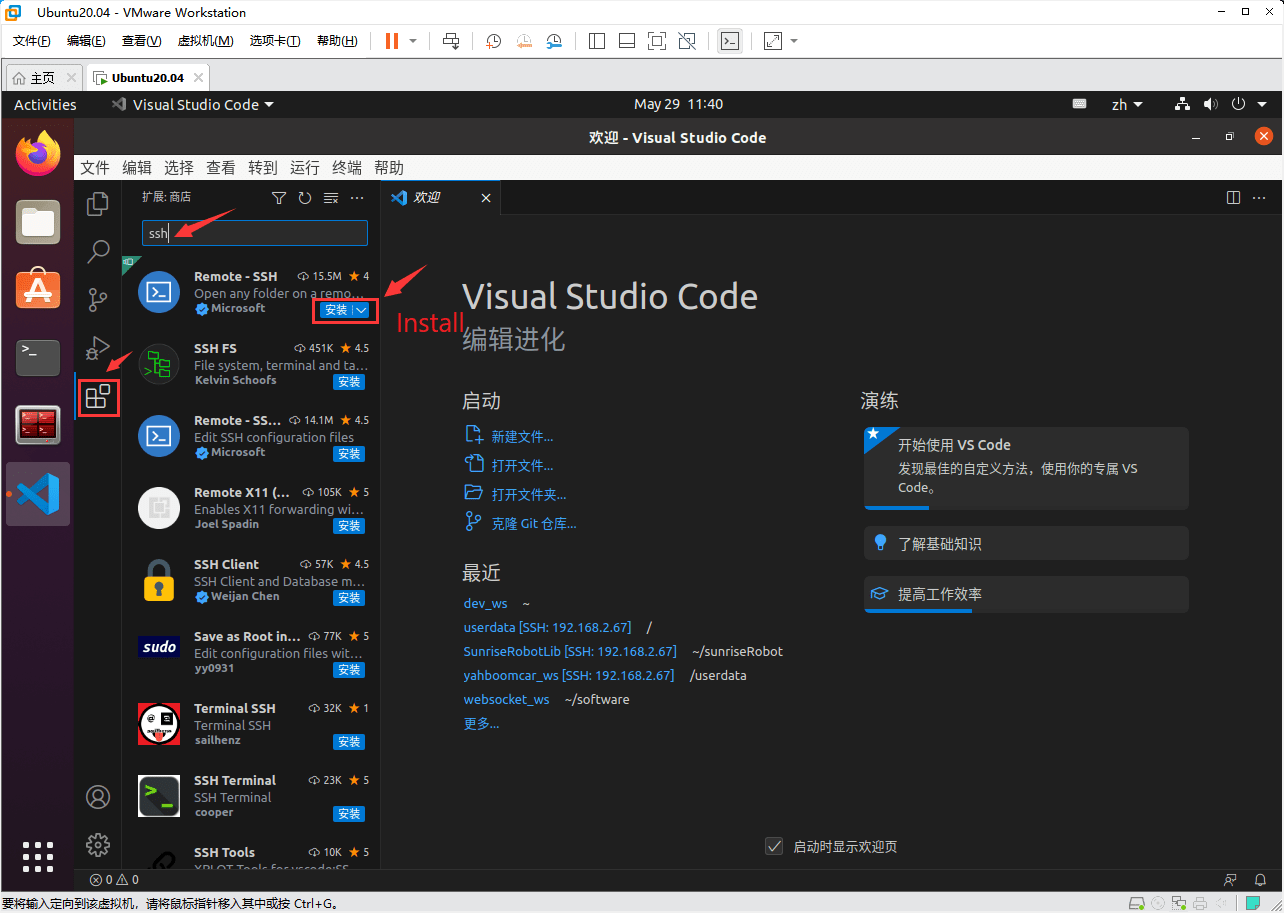
Open VSCode on the VM, click "Extend" plug-in on the left, search for "ssh", and install the "Remote-SSH" plug-in.
After the installation, a Remote Explorer appears on the left.
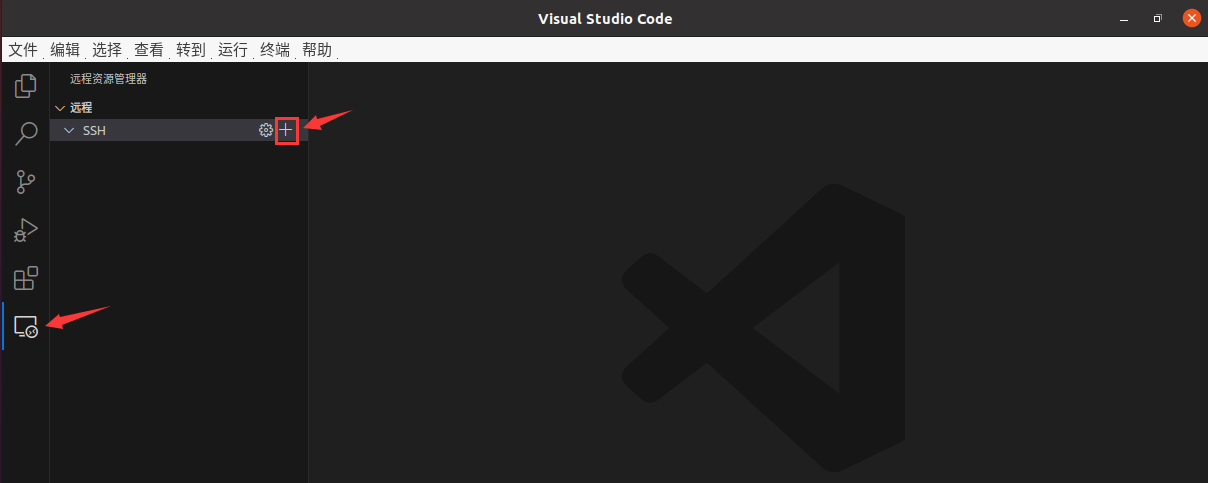
Click the "+" Add button to the right of SSH and type
xxxxxxxxxxssh root@192.168.2.67

Then select the default profile for the first item,
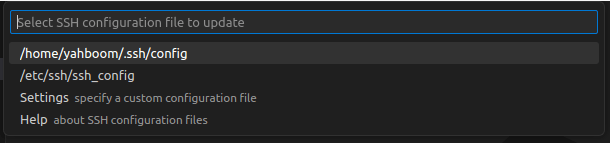
The ssh command information you just entered will be saved, and you do not need to fill in the information the next time you log in remotely. The IP address of the new remote target is displayed in the list on the left.
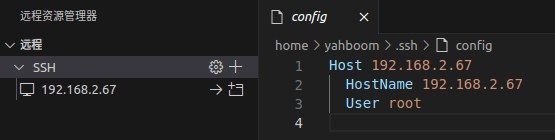
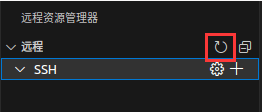
If it does not appear, you can click Refresh.
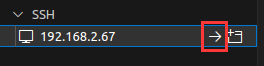
Click the arrow button to connect the RDK-X3 board in the current window,
Enter your password [yahboom], press Enter,
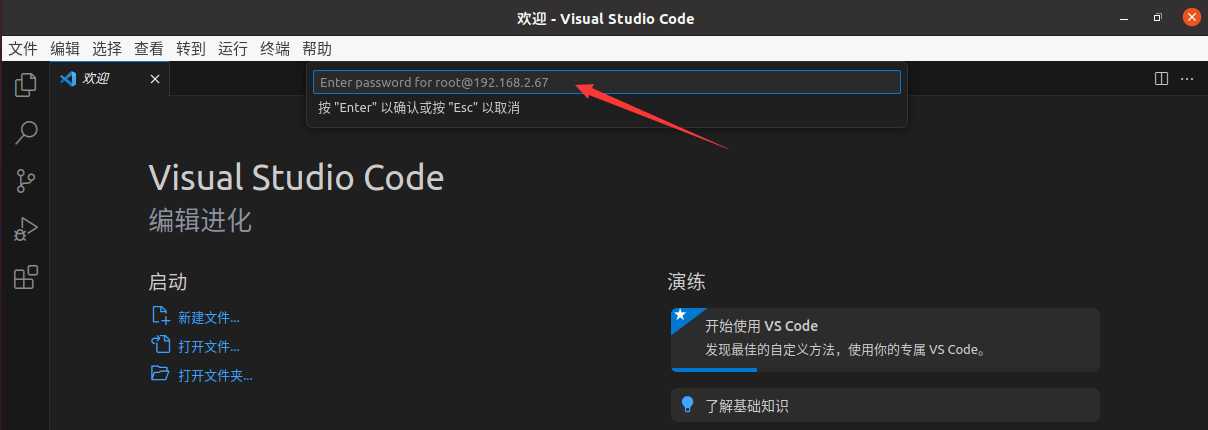
Indicates that you are connected to the remote. Click [Open folder],
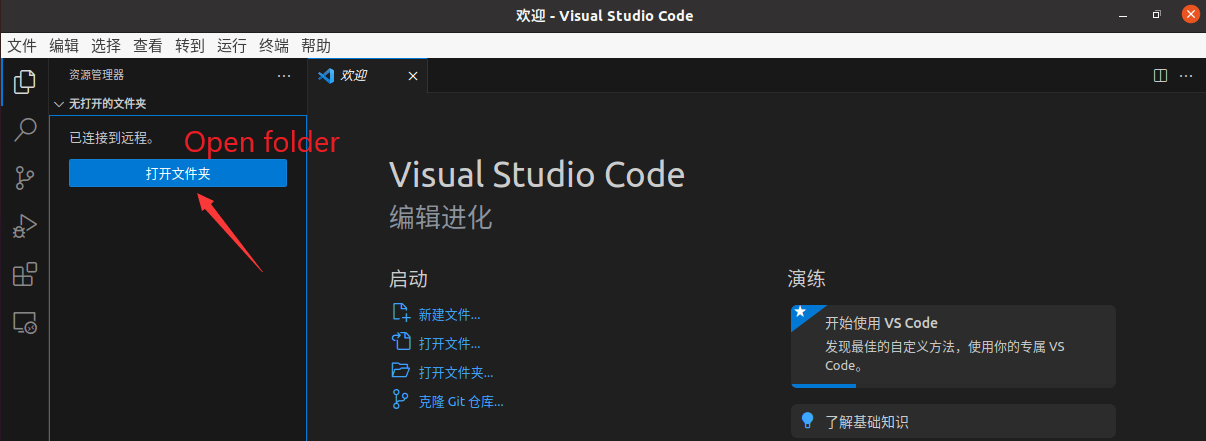
Enter the working space of the car and click [OK]
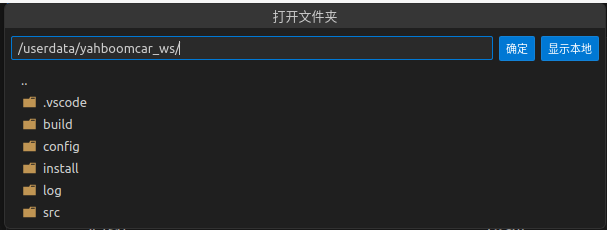
That gives you remote access to the code on the car. After modification, it will be synchronized to the car end, and can be compiled and run by itself.
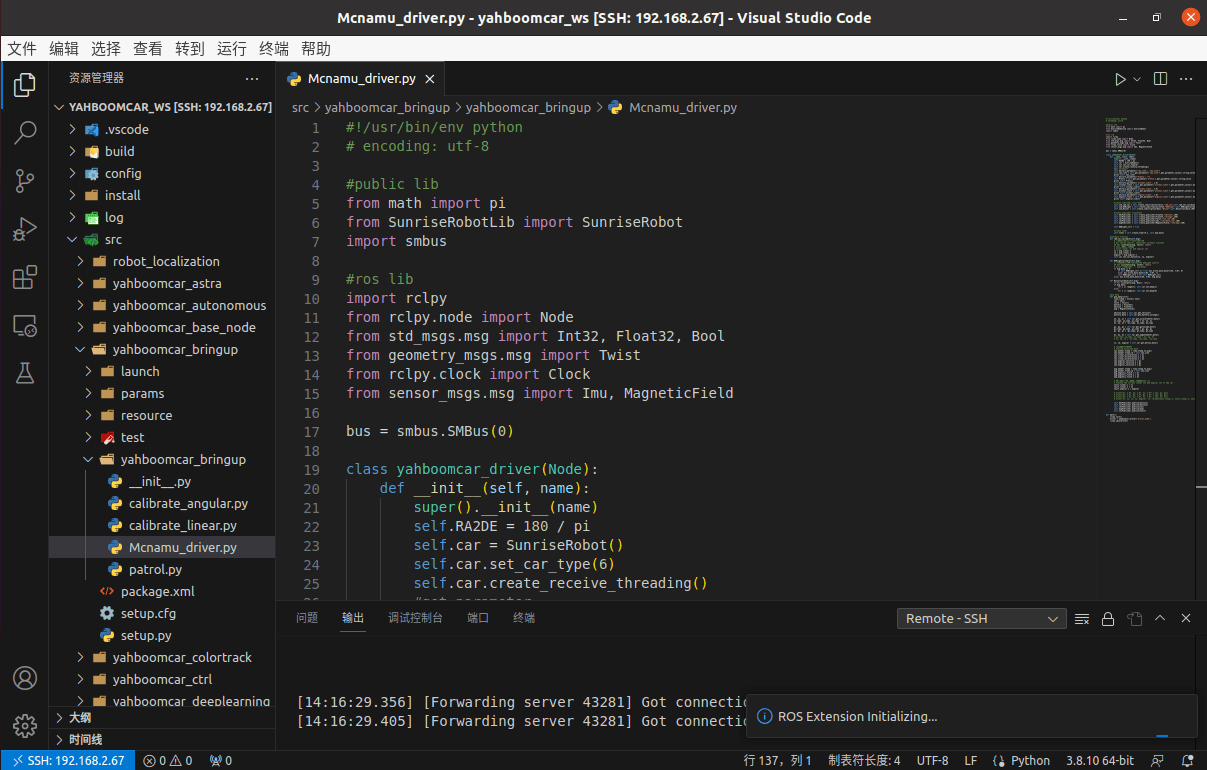
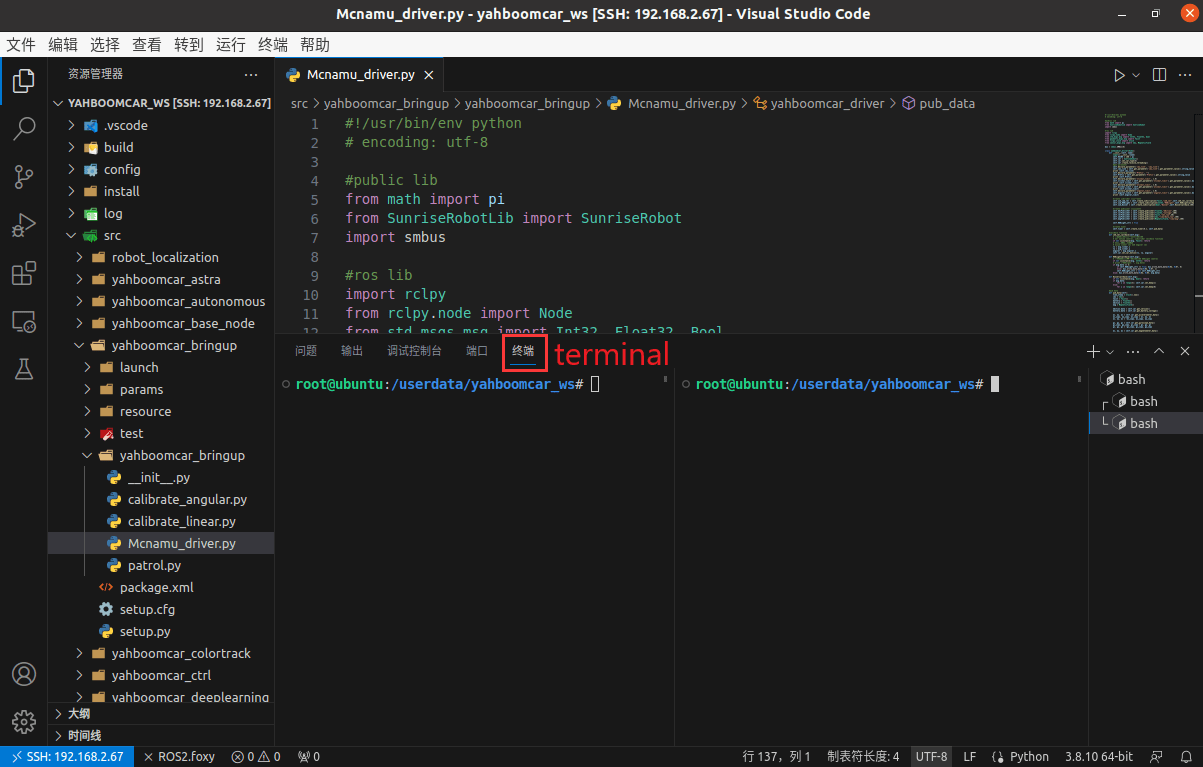
In addition, you can start multiple terminals to run relevant commands in VSCode with a successful connection.
3.3. Transfer files
3.3.1 VM and RDK-X3 board
Suppose the RDK-X3 board IP [192.168.2.67], user name [root], password [yahboom];
Virtual machine user name [yahboom].
xxxxxxxxxxscp root@192.168.2.67:/userdata/xx.py /home/yahboom # 从旭日派复制文件到虚拟机# Copy files from RDK-X3 board to virtual machinescp /home/yahboom/xx.py root@192.168.2.67:/userdata # 从虚拟机复制文件到旭日派# Copy files from the virtual machine to the RDK-X3 boardscp -r root@192.168.2.67:/userdata/test /home/yahboom # 从旭日派复制文件夹到虚拟机# Copy the folder from the RDK-X3 board to the virtual machinescp -r /home/yahboom/test root@192.168.2.67:/userdata # 从虚拟机复制文件夹到旭日派# Copy folder from virtual machine to RDK-X3 board3.3.2 Windows and the RDK-X3 board
Open the link https://winscp.net/eng/download.php in Windows, download WinSCP and then double-click the [.exe] file to install. Double-click the icon below to open the WinSCP software

If the login dialog box does not pop up, click [New session] in the upper left, enter the host name, user name, password, and click login.
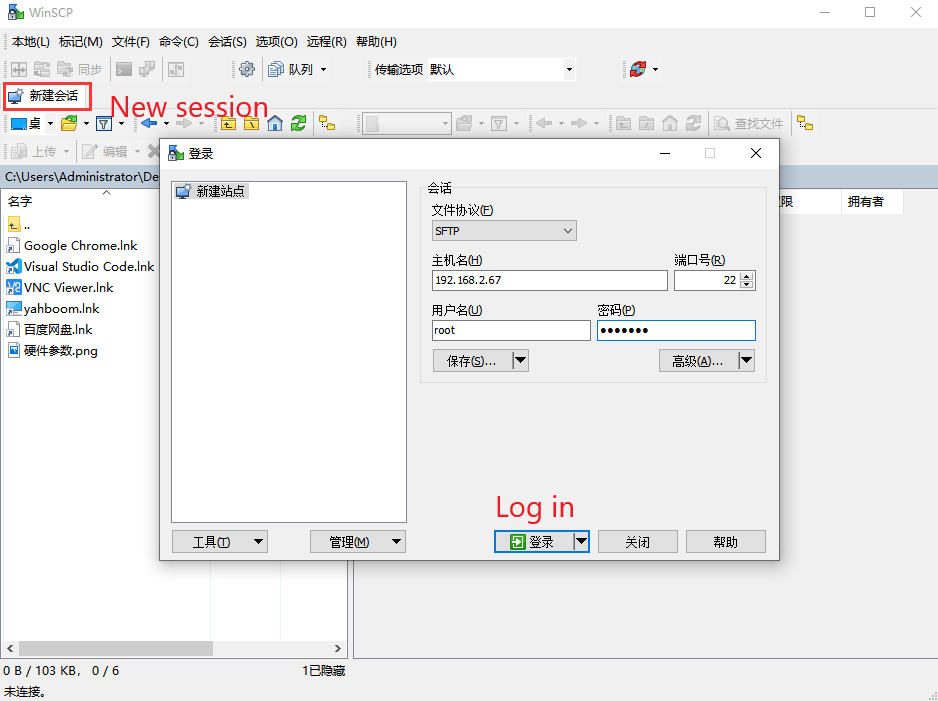
For example, the robot IP address [192.168.2.67], user name [root], and password [yahboom]. The following is an example of a successful login
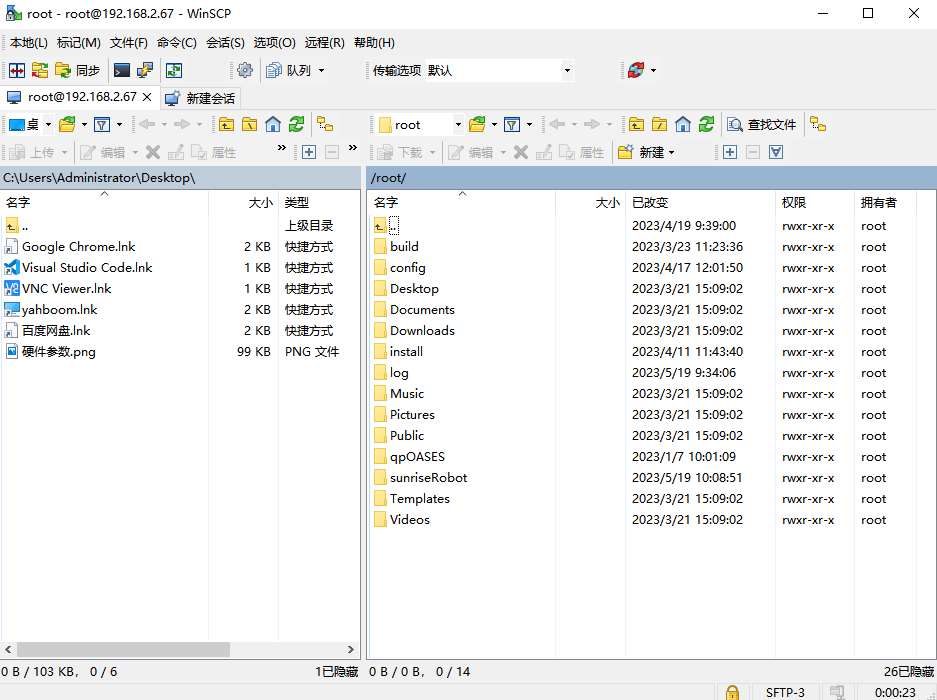
- Windows->the RDK-X3 board: Select the file (folder) you want to transfer and click "Upload".
- the RDK-X3 board ->Windows: Select the file (folder) you want to transfer and click "Download".