Jupyter Lab environment construction
Jupyter Lab environment construction1. Install Jupyter Lab2. Open Jupyter Lab3. Set up LAN to access jupyter lab4. Set up access to jupyter lab5. Set jupyter lab to start automatically after booting
Jupyter Lab is a web-based interactive development environment that supports multiple programming languages; it provides a flexible workspace that can perform various data science tasks such as data cleaning, visualization, and machine learning modeling.
1. Install Jupyter Lab
Check the system python version
Enter the command in the terminal:
python
Install Jupyter Lab
Update the repository list and software before installing the software:
xxxxxxxxxxsudo apt updatesudo apt upgrade
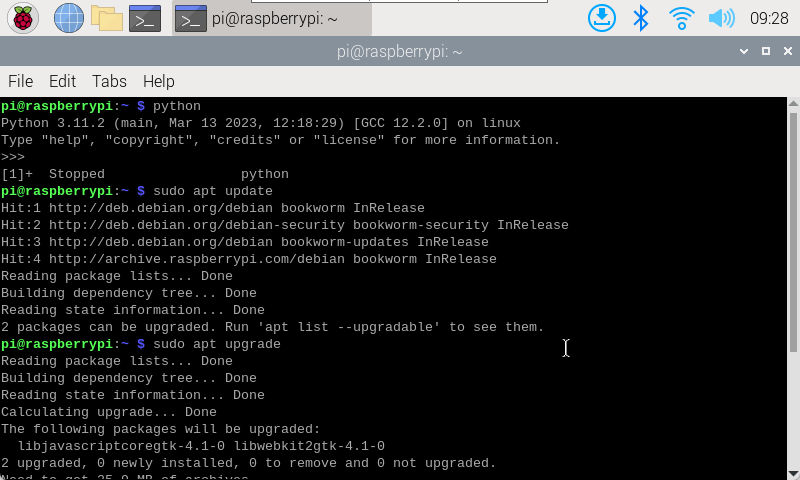
Install Jupyter Lab in a Python 3 environment and enter the command in the terminal:
xxxxxxxxxxsudo pip3 install jupyterlab
If the download fails multiple times, you can specify the Python software package mirror address of Tsinghua University to speed up domestic downloads:
xxxxxxxxxxsudo pip3 install jupyterlab -i https://pypi.tuna.tsinghua.edu.cn/simple
Error reporting and resolution
If you directly enter the command to install Jupyter Lab in the terminal, an "error: externally-managed-environment" error will appear. You can use the following command to solve it: The python version is modified according to the version of your own system. My current system version is 3.11.
xxxxxxxxxxsudo mv /usr/lib/python3.11/EXTERNALLY-MANAGED /usr/lib/python3.11/EXTERNALLY-MANAGED.bk
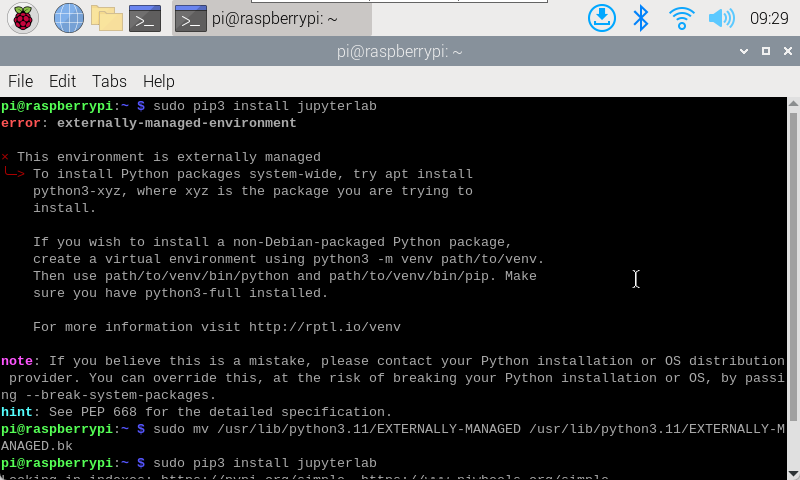
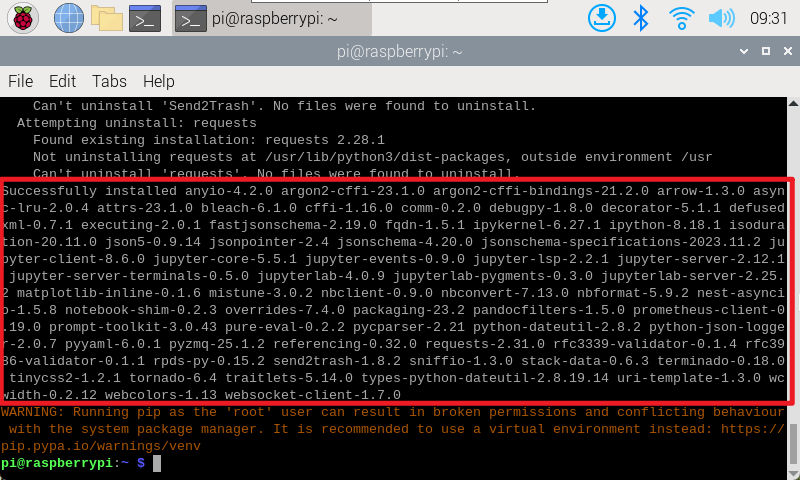
Installation success prompt
The following prompt appears indicating that the installation is successful.
2. Open Jupyter Lab
Just enter jupyter lab in the terminal. If you need a password, you can follow the fourth step of the tutorial to set the password before using it!
xxxxxxxxxxjupyterlab
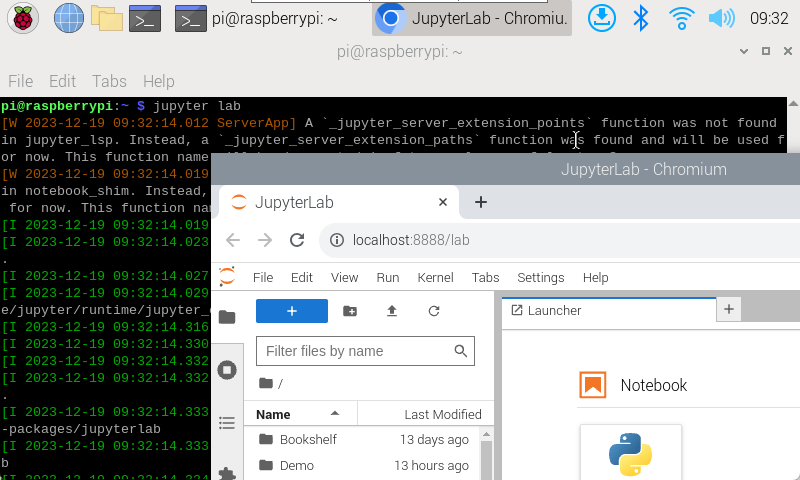
xxxxxxxxxxBefore installing Jupyter Lab, select the system default browser, otherwise Jupyter Lab will not be started directly from the browser;Use the sudo command to install jupyter lab. The warning message that appears can be ignored.
3. Set up LAN to access jupyter lab
Create configuration file
The generated configuration file path is the path to the file that will be modified later.
xxxxxxxxxxjupyter lab --generate-config

Modify configuration file
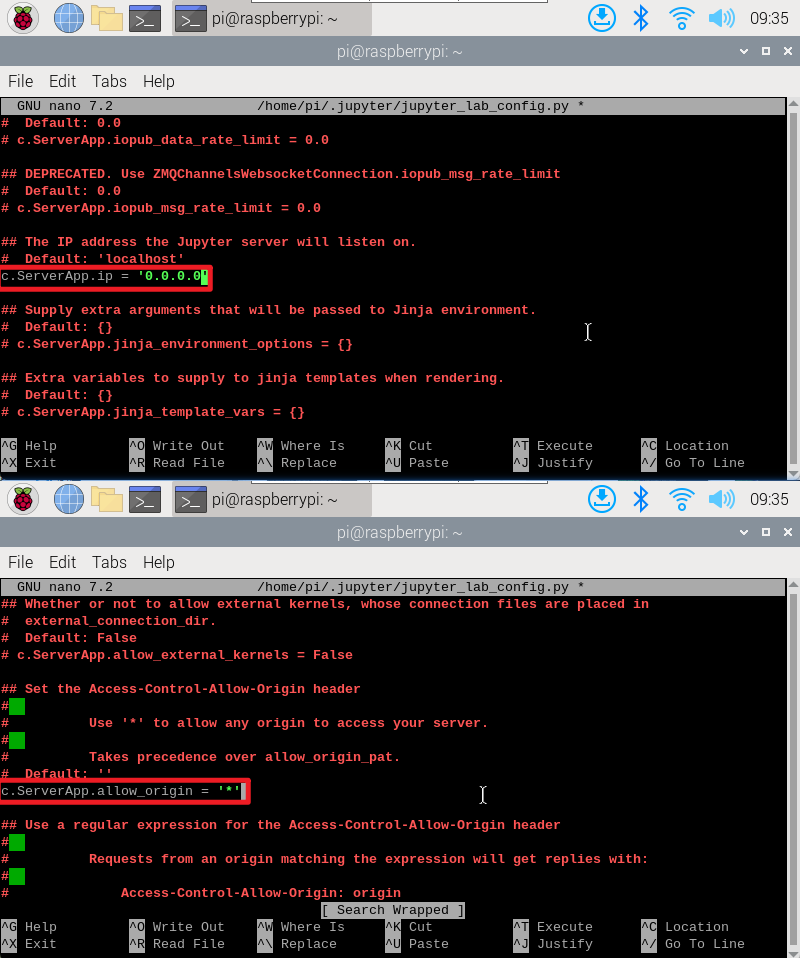
xxxxxxxxxxsudo nano /home/pi/.jupyter/jupyter_lab_config.py
xxxxxxxxxxUncomment the content of the file and modify it to the following content: You can use the Ctrl+W shortcut key to search for keywords in the nano editorc.ServerApp.allow_origin = '*'c.ServerApp.ip = '0.0.0.0'
Press Ctrl+X, enter Y, then press Enter to save and exit editing!
4. Set up access to jupyter lab
Enter the command to set the password on the terminal. You need to enter it twice. Entering the password will not display the input content.
xxxxxxxxxxjupyter lab password

Restart the Raspberry Pi after setting the password!
verify
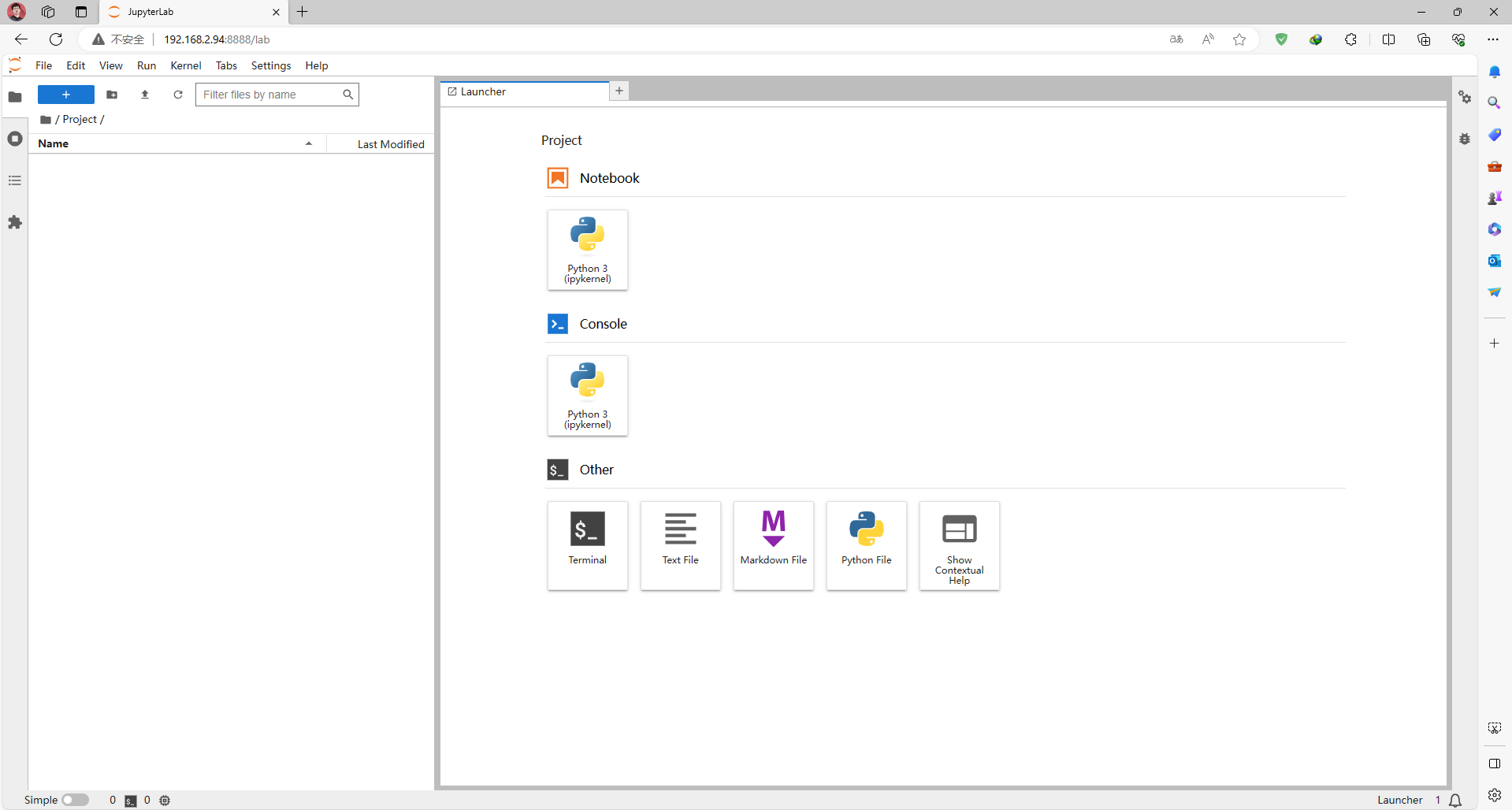
Devices on the same LAN can enter IP:8888 in the browser to access!
xxxxxxxxxxThe password is the password set before: yahboom
5. Set jupyter lab to start automatically after booting
After completing the above steps, you need to enter a command in the terminal every time you use juypter lab; for more convenient use, we can configure jupyter lab to start automatically at boot.
Configure startup items
Enter the following command in the terminal:
xxxxxxxxxxsudo nano /etc/systemd/system/jupyter.service
Add the following content to the file:
xxxxxxxxxx[Unit]Description=Jupyter LabAfter=network.target[Service]Type=simpleExecStart=/usr/local/bin/jupyter-labconfig=/home/pi/.jupyter/jupyter_lab_config.py --no-browserUser=piGroup=piWorkingDirectory=/home/piRestart=alwaysRestartSec=10[Install]WantedBy=multi-user.target
pi: my current system username
ExecStart: The command to start Jupyter lab, change it to the installation path and configuration file path of JupyterLab (if the steps are all according to our operations, then enter the same path)
xxxxxxxxxxCheck the Jupyter-lab installation path: which jupyter-labThe configuration file path refers to the path to the configuration file generated above.
WorkingDirectory: The working directory of Jupyter-lab, which can be changed by yourself
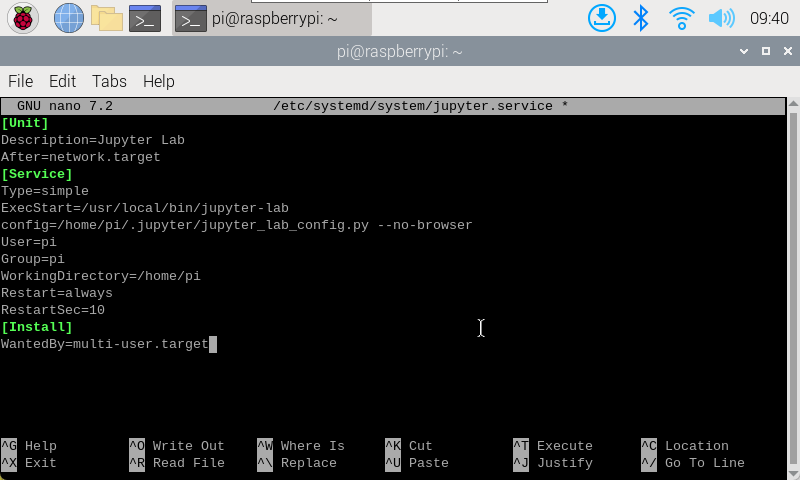
jupyter.service service
Enable auto-start at boot
xxxxxxxxxxsudo systemctl enable jupyter
Disable auto-start at boot
xxxxxxxxxxsudo systemctl disable jupyter
Start service
xxxxxxxxxxsudo systemctl start jupyter
Out of service
xxxxxxxxxxsudo systemctl stop jupyter
Check service status
xxxxxxxxxxsudo systemctl status jupyter
Enter the enable jupyter.service service self-start and start service commands in the terminal and then restart the Raspberry Pi system.

After completing the above steps, you can access the LAN without typing jupyter lab in the terminal!