Set up ESP32-IDF development environment
Set up ESP32-IDF development environment1、Introduction to ESP32 development environment2、Install dependencies3、Download ESP-IDF4、Activate the ESP-IDF development environment5、Compile and flash firmware6、Shortcut command7、ESP-IDF API reference
1、Introduction to ESP32 development environment
The ESP32 development environment supports Windows, Linux and Mac platforms.
On Linux and Mac platforms, you need to download and install the ESP-IDF development environment from the source code.
There are a variety of development environments available on the Windows platform, including the official ESP-IDF environment, the arduino IDE software development environment, and the VS Code+PlatformIO IDE development method.
Here we take the Ubuntu system as an example to download and install the ESP-IDF development environment from the source code.
2、Install dependencies
Open the Ubuntu system terminal and run the following commands to install related dependencies.
sudo apt-get install git wget flex bison gperf python3 python3-pip python3-venv cmake ninja-build ccache libffi-dev libssl-dev dfu-util libusb-1.0-0
3、Download ESP-IDF
Open the Ubuntu system terminal and run the following command to download the esp-idf-v5.1.2 version
xxxxxxxxxxmkdir -p ~/espcd ~/espgit clone -b v5.1.2 --recursive https://github.com/espressif/esp-idf.git
Set the chip esp32s3 supported by the tool.
xxxxxxxxxxcd esp-idf./install.sh esp32s3
4、Activate the ESP-IDF development environment
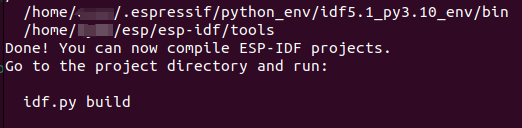
Run the following command in the esp-idf tool directory
xxxxxxxxxxsource ~/esp/esp-idf/export.sh
Note: Every time you open a new terminal, you need to activate the ESP-IDF development environment before you can compile the ESP-IDF project.
5、Compile and flash firmware
Connect the microROS control board to the virtual machine/computer, and then test and compile the hello_world program to generate firmware.
xxxxxxxxxxcd examples/get-started/hello_worldidf.py set-target esp32s3idf.py build
When you see the following prompt, it means the compilation passed.

View the generated firmware
xxxxxxxxxxls build/*.binls build/bootloader/*.binls build/partition_table/*.bin

Run the following command to burn the generated firmware to the microROS control board.
xxxxxxxxxxidf.py flash
Before using this command to burn, you need to confirm that the computer is only connected to one serial port device. If multiple serial port devices are connected, you can manually specify the serial port number in order to distinguish it. For example, specify the serial port number for burning as /dev/ttyUSB0
xxxxxxxxxxidf.py flash -p /dev/ttyUSB0
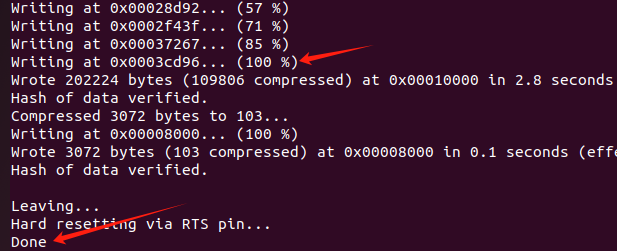
When the download progress reaches 100% and Done is displayed, the burning is completed.
Open the serial port simulator
xxxxxxxxxxidf.py monitor
If you need to exit the serial port simulator, please press Ctrl+] to exit.
6、Shortcut command
If you need to compile, burn, and open the serial port simulator, please enter the following commands
xxxxxxxxxxidf.py build flash monitor
7、ESP-IDF API reference
Open the following link to view the ESP32S3 official API reference content
xxxxxxxxxxhttps://docs.espressif.com/projects/esp-idf/en/v5.1.2/esp32s3/api-reference/index.html