Docker usage
Docker usage1. Start the image2. ROS environment construction2.1. Update system software2.2. Determine the language environment2.2.1. Verify the system environment2.2.2. Set the UTF-8 environment2.3、Set software source2.4、Set key2.5. Install ROS1 desktop version2.6, install ROS1 dependencies2.7, rosdep initialization2.8, Setting environment variables2.8.1, Temporary settings2.8.2, Automatic settings (recommended)3. Submit the image4. Verify the image/ROS4.1. Start the image4.2. Verify the ROS environment
The tutorial builds ROS1:Melodic environment based on ubuntu:18.04!
1. Start the image
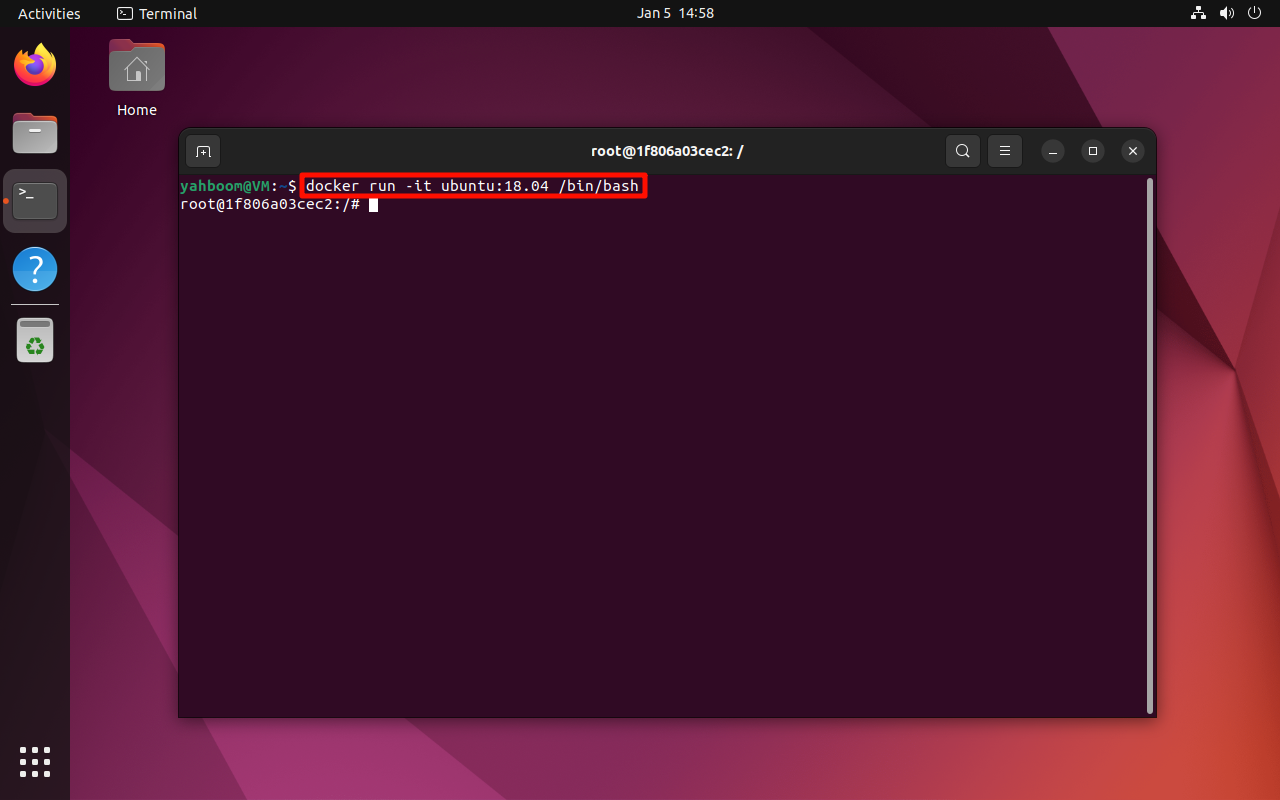
Start the ubuntu:18.04 image in interactive mode:
docker run -it ubuntu:18.04 /bin/bash
2. ROS environment construction
Administrator privileges are not required in Docker. If the host installs the ROS environment, sudo needs to be added to the command.
2.1. Update system software
To install the ROS1 environment, you generally need to ensure that the system software package is up to date:
xxxxxxxxxxapt update && apt upgrade

2.2. Determine the language environment
Make sure the system language environment supports UTF-8!
2.2.1. Verify the system environment
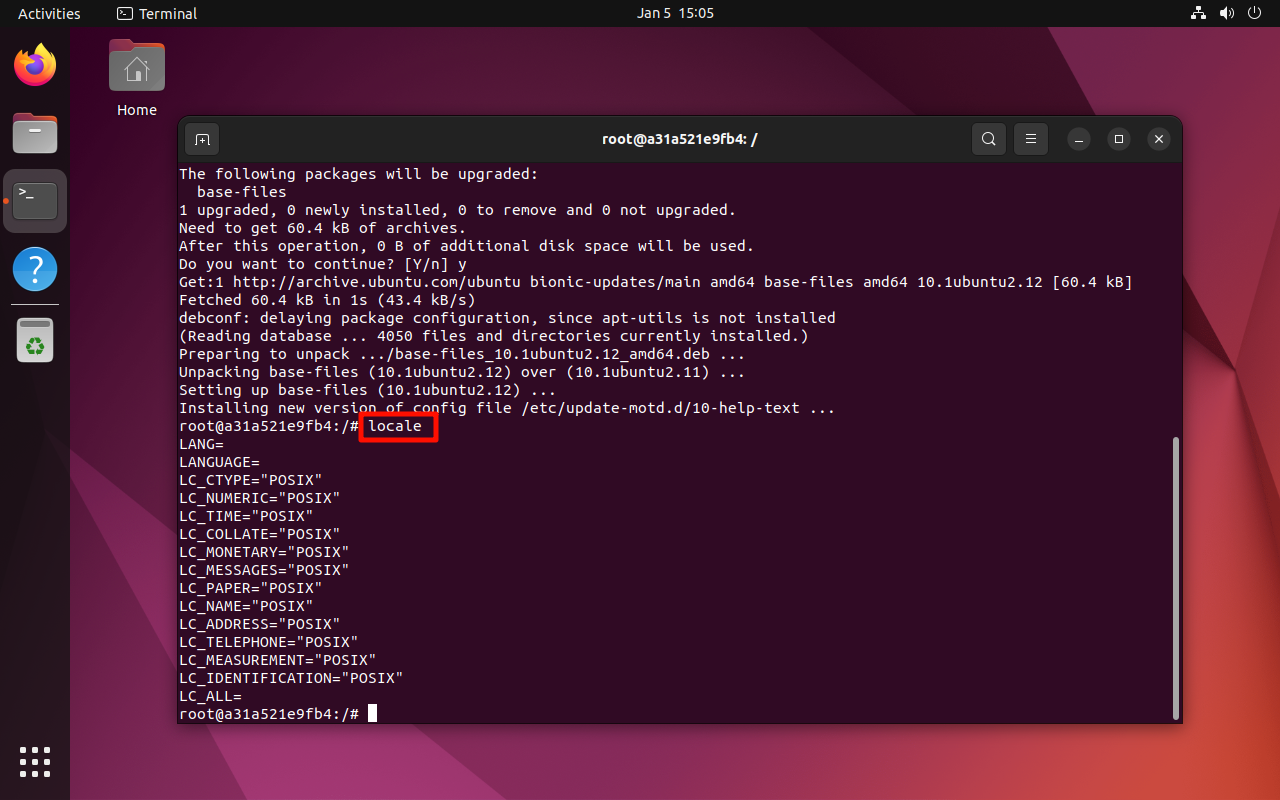
xxxxxxxxxxlocale
2.2.2. Set the UTF-8 environment
If the system language does not support the UTF-8 environment, enter the following commands line by line in the terminal:
xxxxxxxxxxapt install localeslocale-gen en_US en_US.UTF-8update-locale LC_ALL=en_US.UTF-8 LANG=en_US.UTF-8echo "export LANG=en_US.UTF-8" >> ~/.bashrcsource ~/.bashrc

2.3、Set software source
xxxxxxxxxxapt install lsb-core
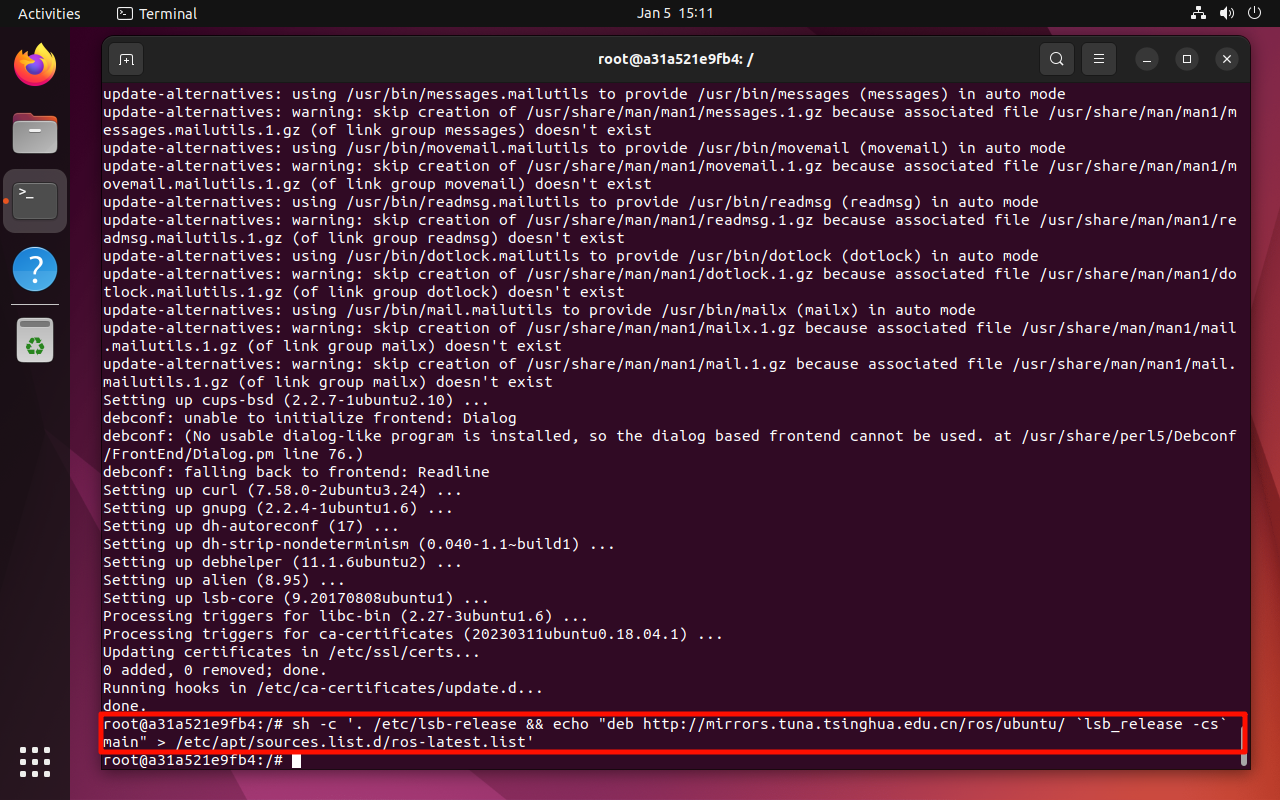
xxxxxxxxxxsh -c '. /etc/lsb-release && echo "deb http://mirrors.tuna.tsinghua.edu.cn/ros/ubuntu/ `lsb_release -cs` main" > /etc/apt/sources.list.d/ros-latest.list'
2.4、Set key
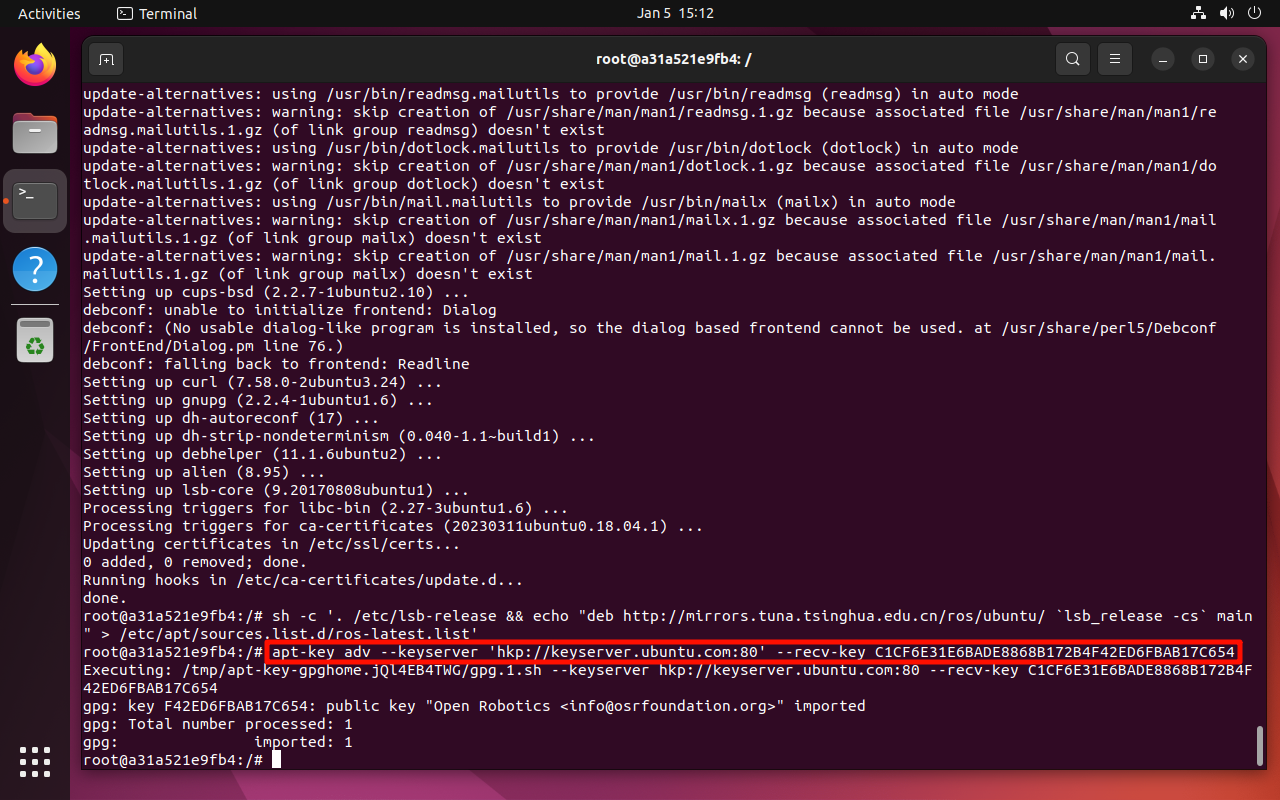
xxxxxxxxxxapt-key adv --keyserver 'hkp://keyserver.ubuntu.com:80' --recv-key C1CF6E31E6BADE8868B172B4F42ED6FBAB17C654
2.5. Install ROS1 desktop version
ROS desktop version includes ROS1 core functions, common tools and libraries:
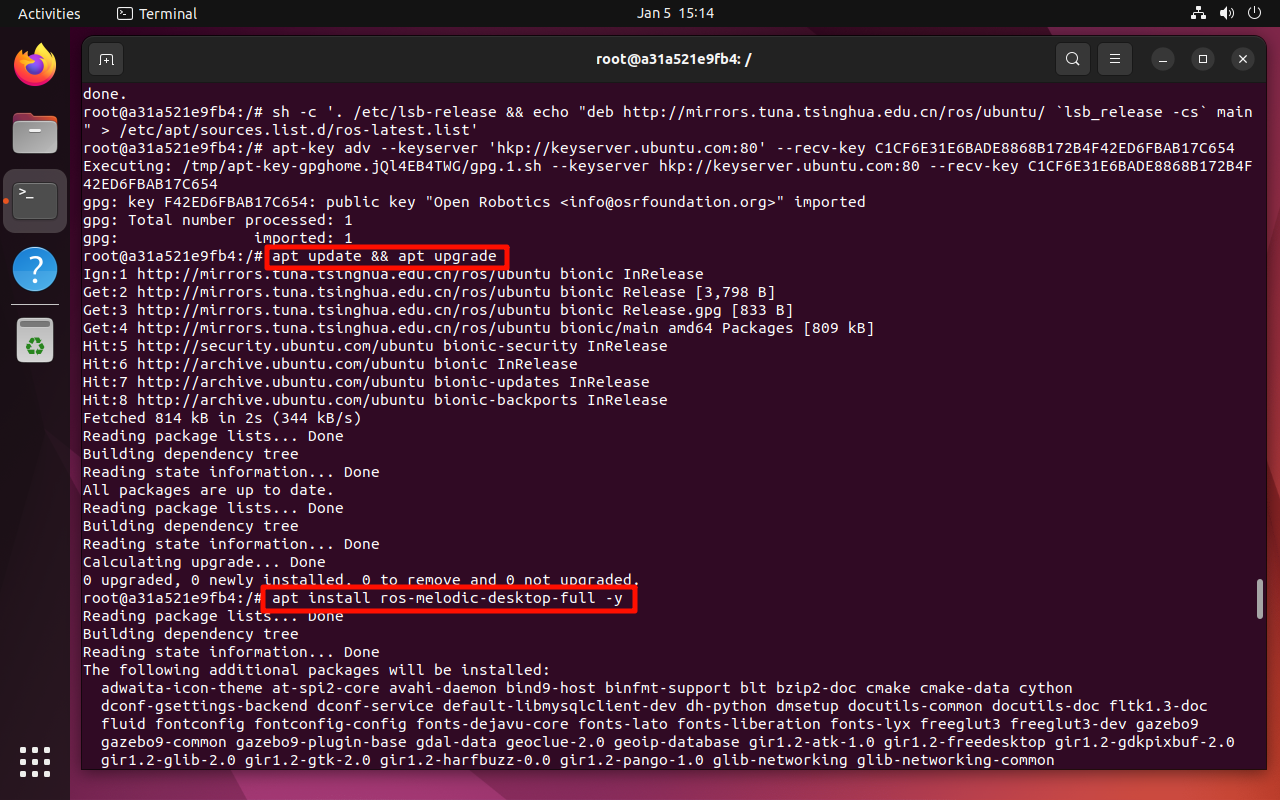
xxxxxxxxxxapt update && apt upgrade
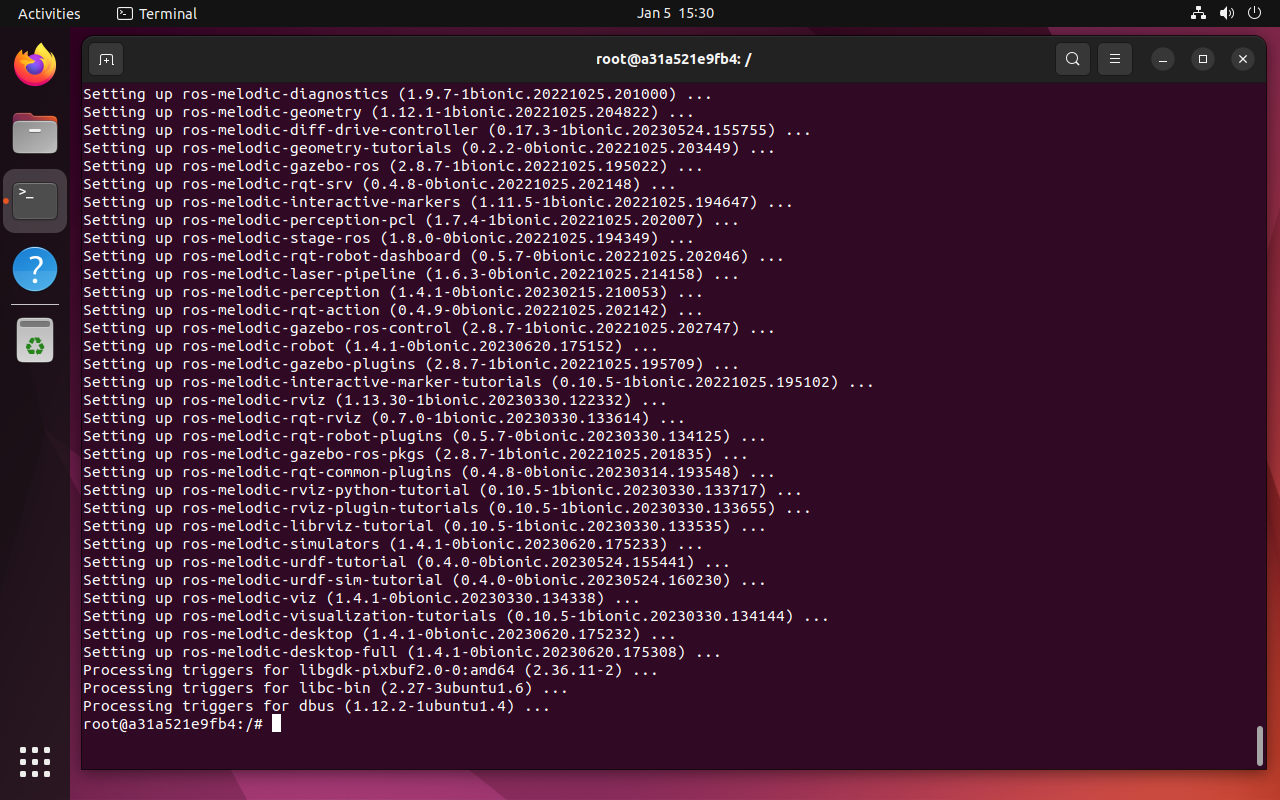
xxxxxxxxxxapt install ros-melodic-desktop-full -y
You need to select the region and city by yourself: not demonstrated here
2.6, install ROS1 dependencies
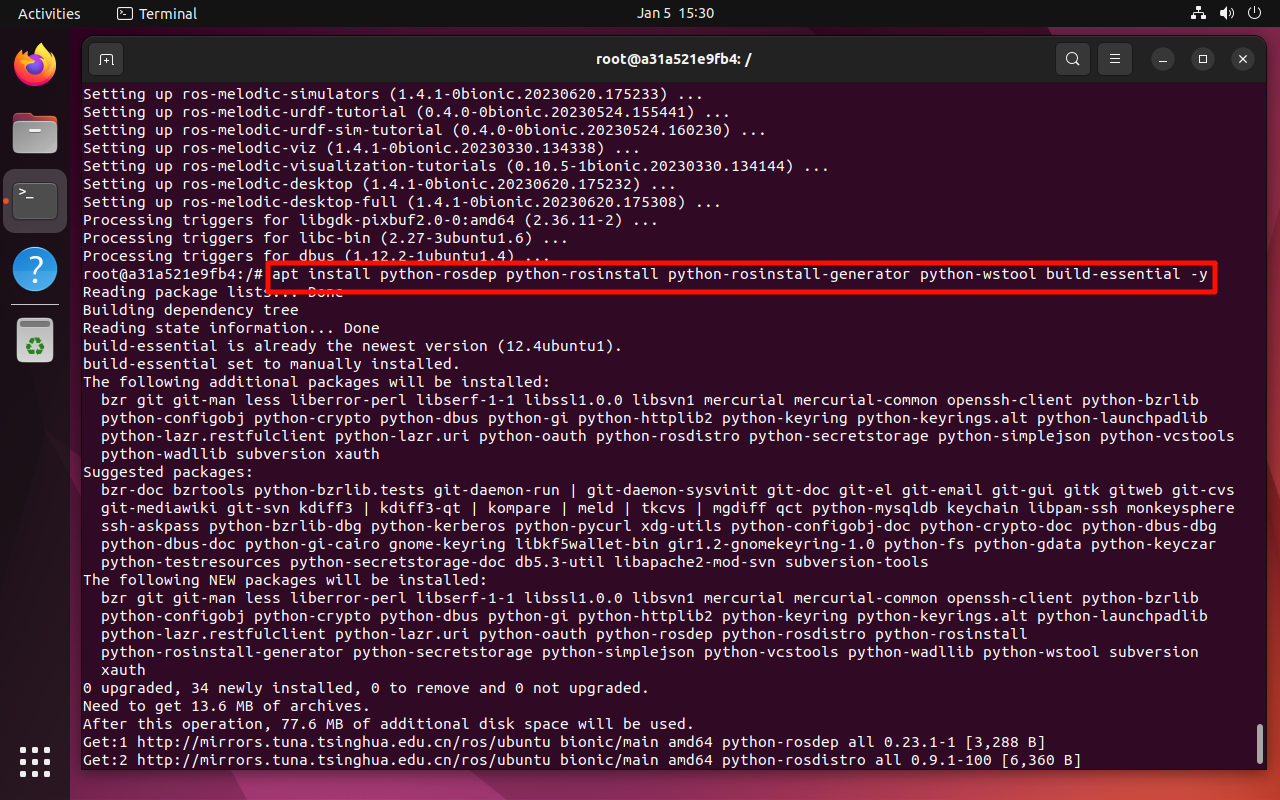
xxxxxxxxxxapt install python-rosdep python-rosinstall python-rosinstall-generator python-wstool build-essential -y
2.7, rosdep initialization
xxxxxxxxxxrosdep initrosdep update
If rosdep init displays the error message ERROR: cannot download default sources list from: https://raw.githubusercontent.com/ros/rosdistro/master/rosdep/sources.list.d/20-default.list Website may be down., visit https://www.ipaddress.com/ and search for the raw.githubusercontent.com domain name, and fill the IP address obtained in the /etc/hosts file:
xxxxxxxxxxapt install nano -y
xxxxxxxxxxnano /etc/hosts
xxxxxxxxxx185.199.110.133 raw.githubusercontent.com
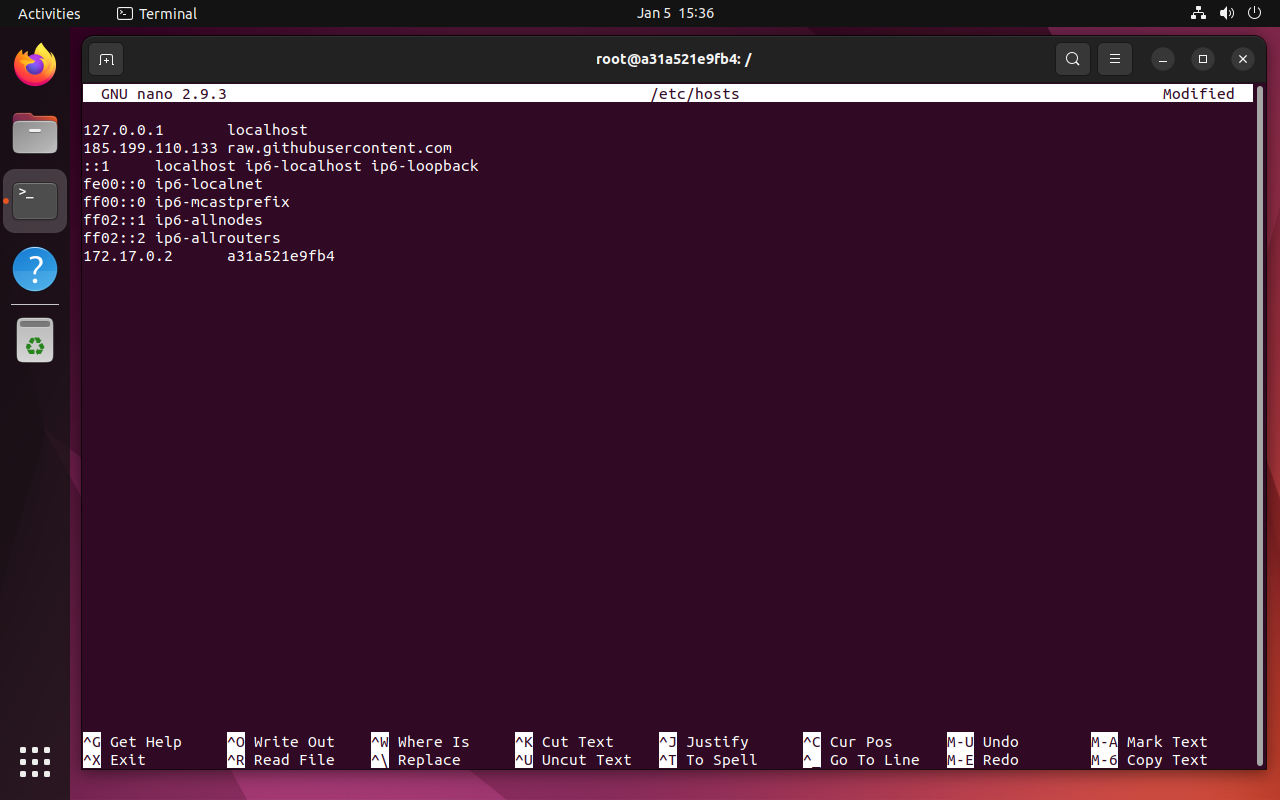
Re-run:
xxxxxxxxxxrosdep initrosdep update
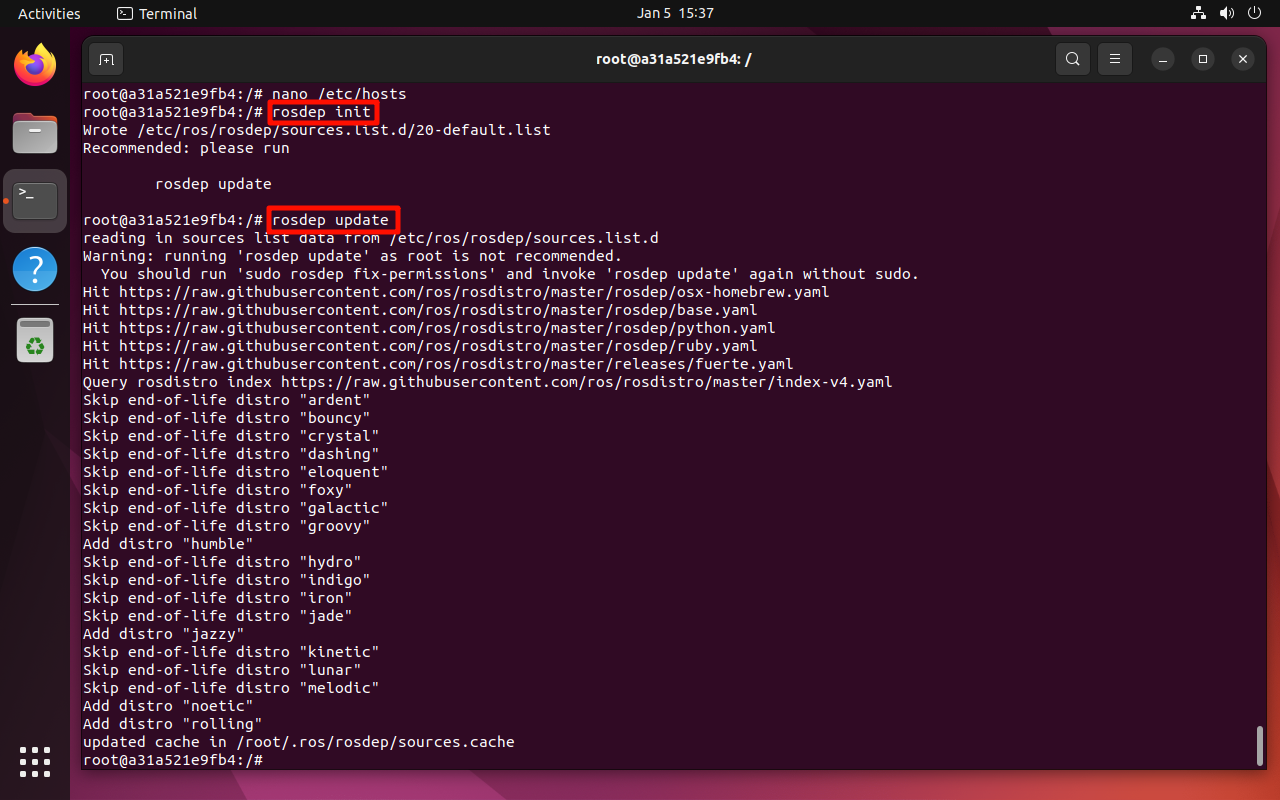
2.8, Setting environment variables
2.8.1, Temporary settings
Refresh the current terminal environment variables:
xxxxxxxxxxsource /opt/ros/melodic/setup.bash
2.8.2, Automatic settings (recommended)
Open the terminal to automatically refresh the environment variables: Open the terminal to automatically refresh the .bashrc file content
xxxxxxxxxxecho "source /opt/ros/melodic/setup.bash" >> ~/.bashrcsource ~/.bashrc
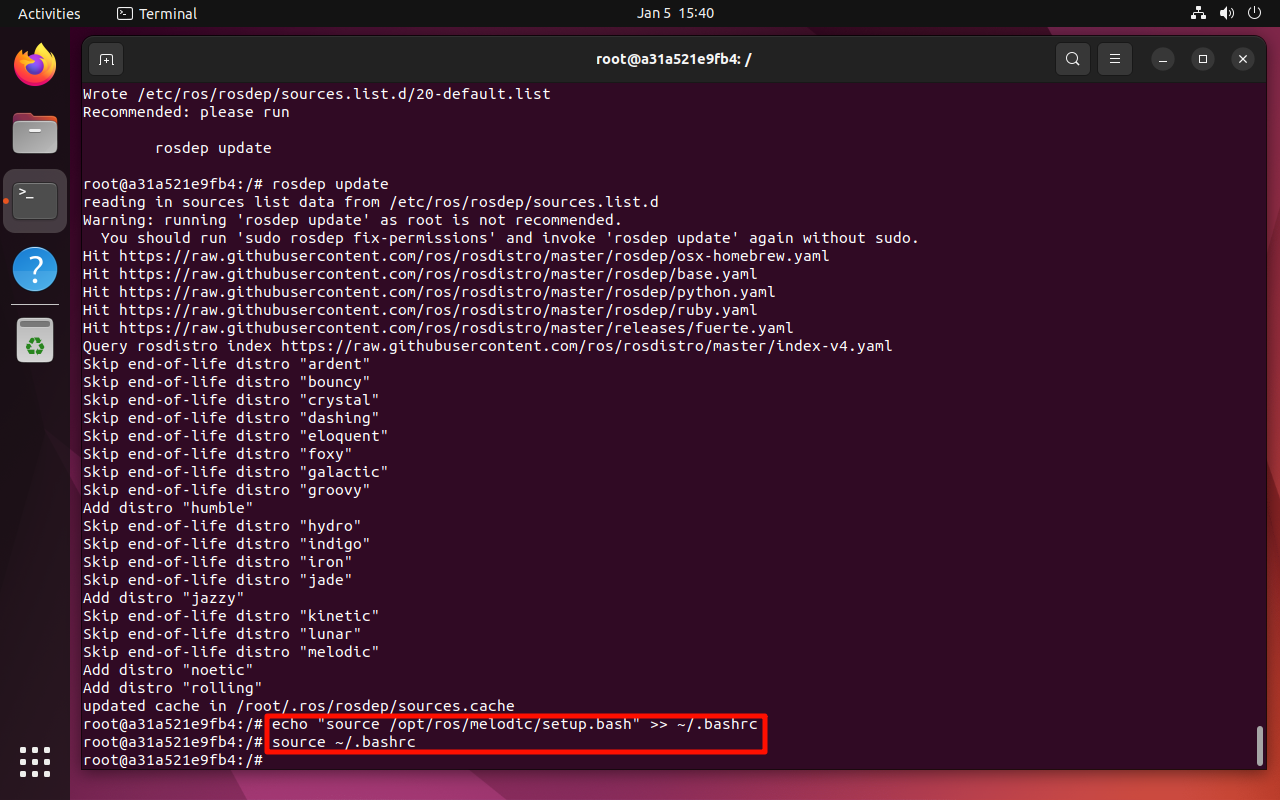
3. Submit the image
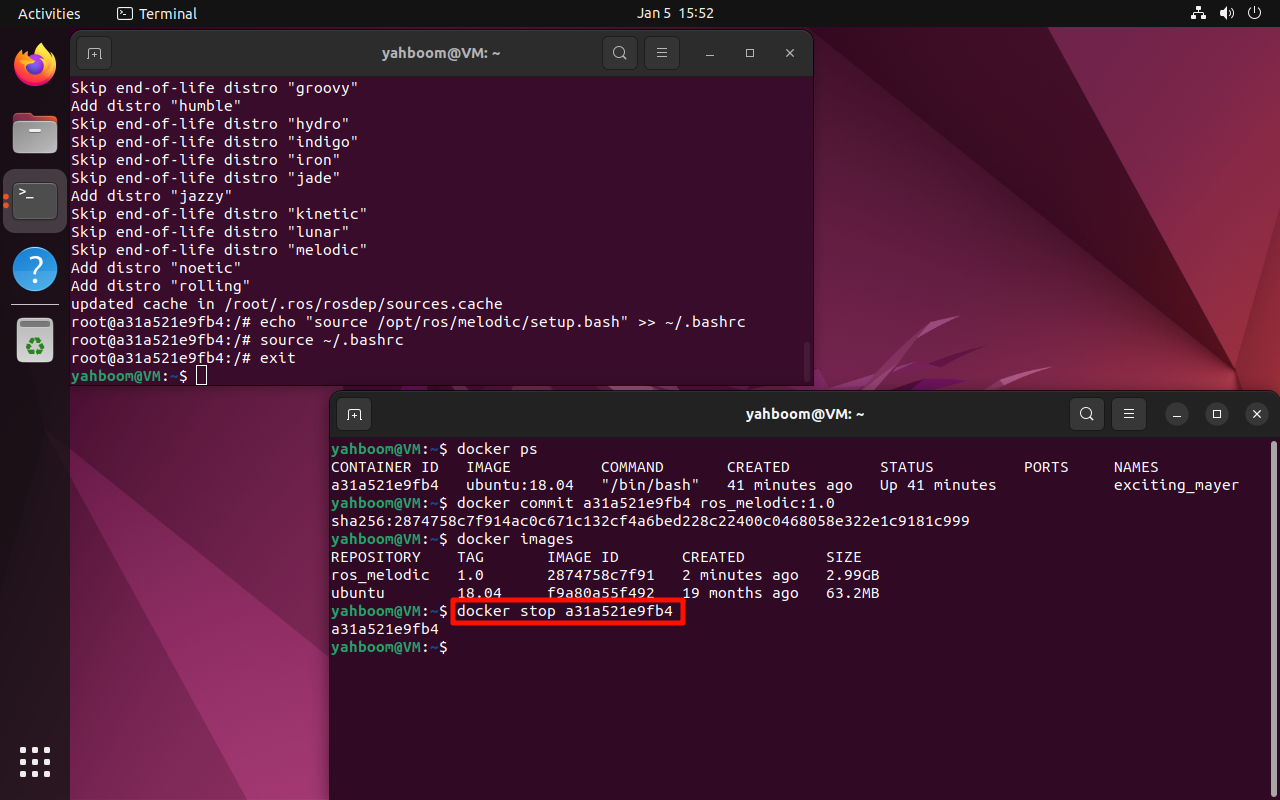
Only by submitting a new image locally can the previously built ROS environment be saved. Otherwise, the next time you start the docker image, there will still be no ROS environment in the container.
Note: Modify according to the actual CONTAINER ID
xxxxxxxxxxdocker commit a31a521e9fb4 ros_melodic:1.0
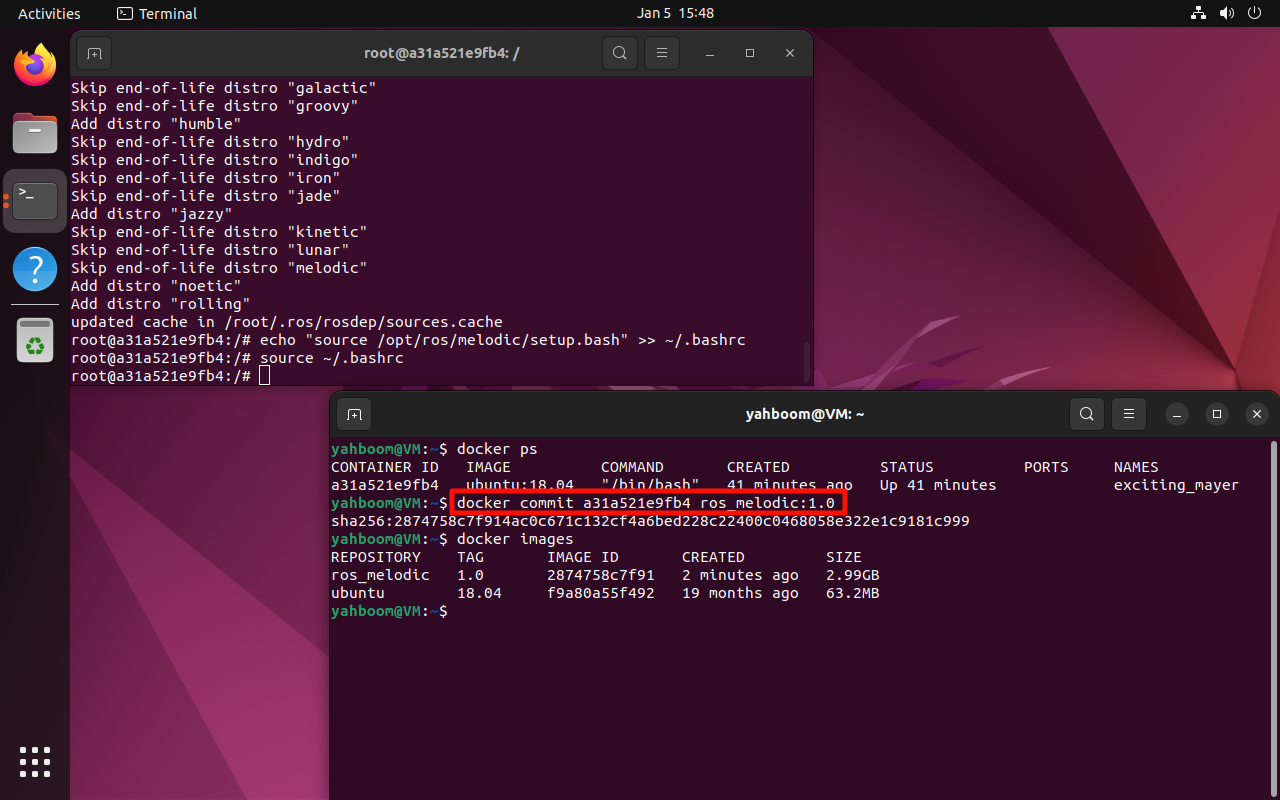
After saving, you can close the ubuntu:18.04 container:
4. Verify the image/ROS
4.1. Start the image
Start the ros_melodic:1.0 image in interactive mode: Since the turtle case needs to be displayed in the graphical interface, Docker needs to be allowed to access the X Display
xxxxxxxxxxxhost +
xxxxxxxxxxdocker run -it -e DISPLAY=$DISPLAY -v /tmp/.X11-unix:/tmp/.X11-unix ros_melodic:1.0 /bin/bash
4.2. Verify the ROS environment
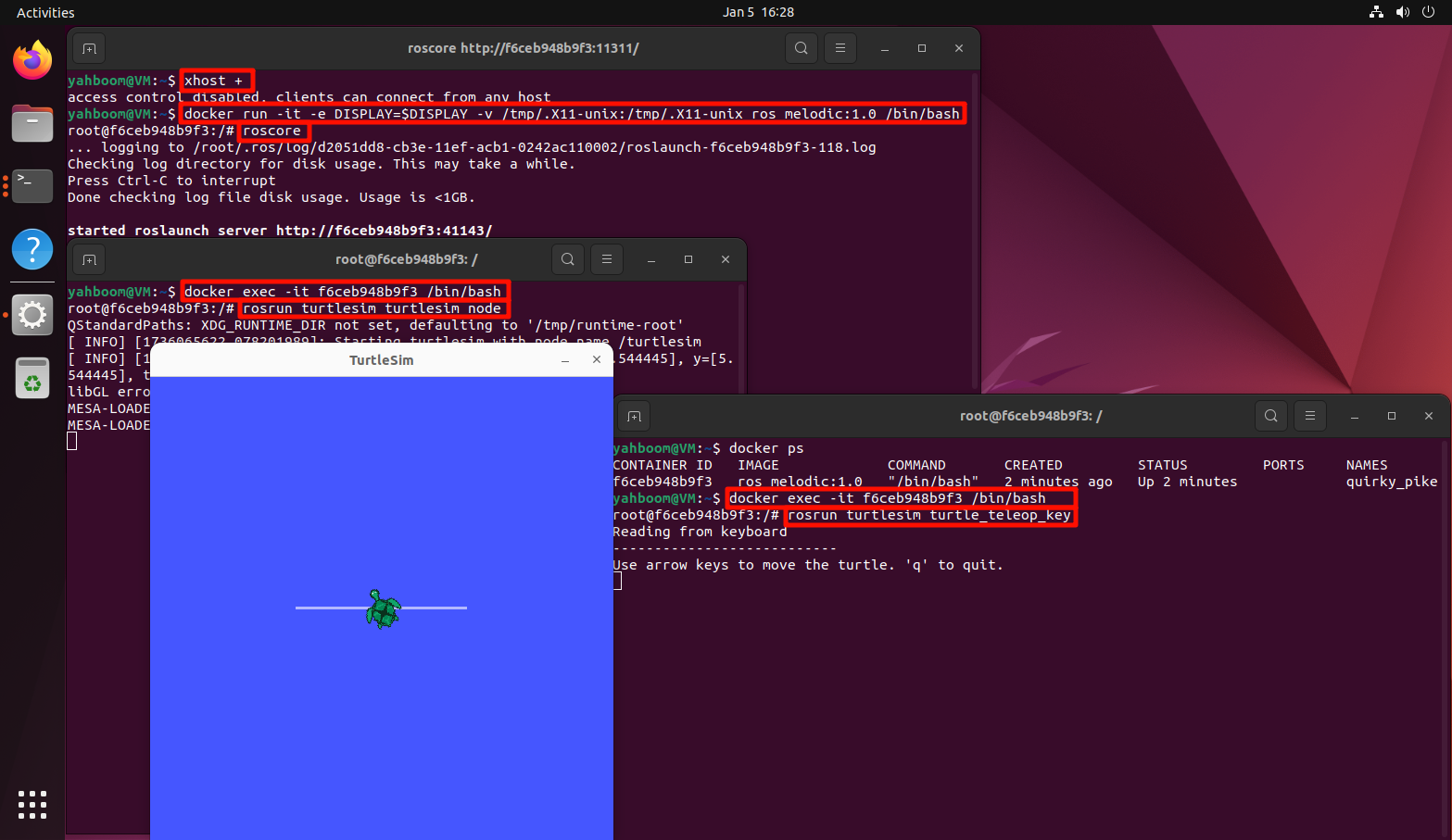
Use the turtle case to test the ROS environment: open three terminals to enter the same container, and then run the following commands respectively
xxxxxxxxxxroscore
xxxxxxxxxxrosrun turtlesim turtlesim_node
xxxxxxxxxxrosrun turtlesim turtle_teleop_key
Note: The mouse must stay in the third command window to control the turtle