STM32CubeIDE installation
STM32CubeIDE installation1、Software download1.1、Software download1.2、Choosing a platform1.3、Filling in information2、Software Installation2.1、Open the installer2.2、Installation Process - Setup3、Software configuration3.1、Open the application3.2、Sign-up - Login to your account3.3、Installing the firmware package4、Software Usage4.1、New construction4.2、Chip selection4.3、Project setup4.4、Pin layout and configuration4.5、Clock configuration4.6、Project management4.7、Generate initialization code4.8、Writing the code4.9、New construction again5、Q&A5.1、Encoding format problem
The development tool used for the tutorial is the STM32CubeIDE software
1、Software download
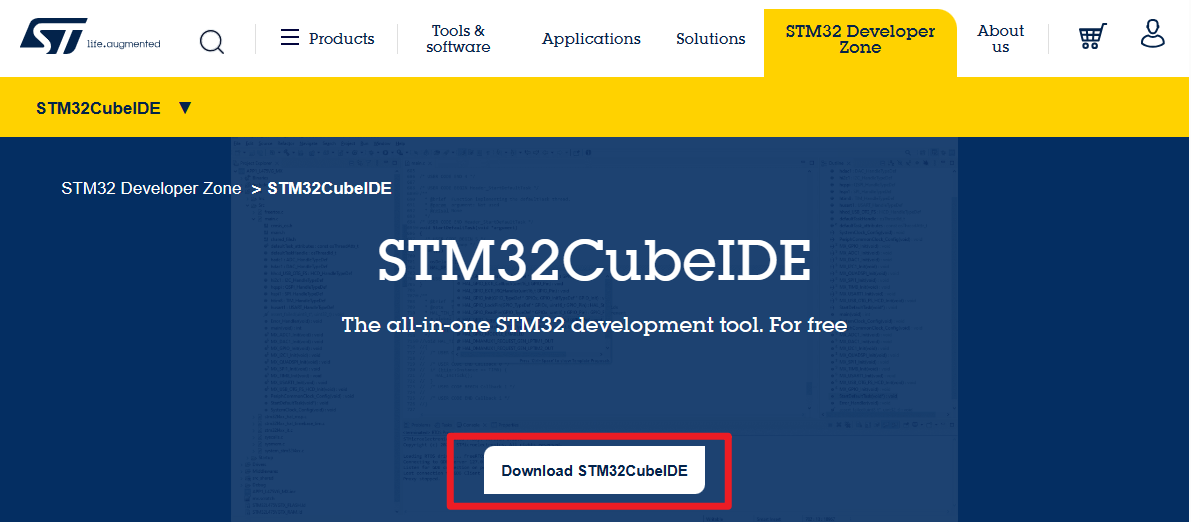
1.1、Software download
ST office website:https://www.st.com/content/st_com/en/stm32cubeide.html
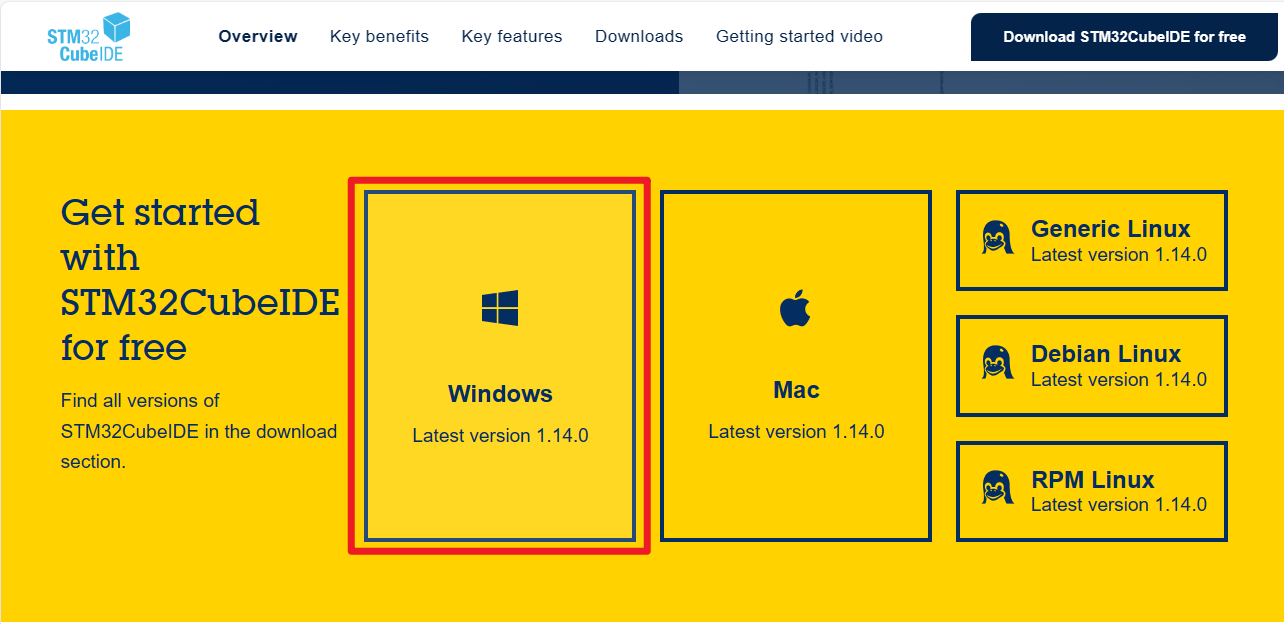
1.2、Choosing a platform
platform:Windows
1.3、Filling in information
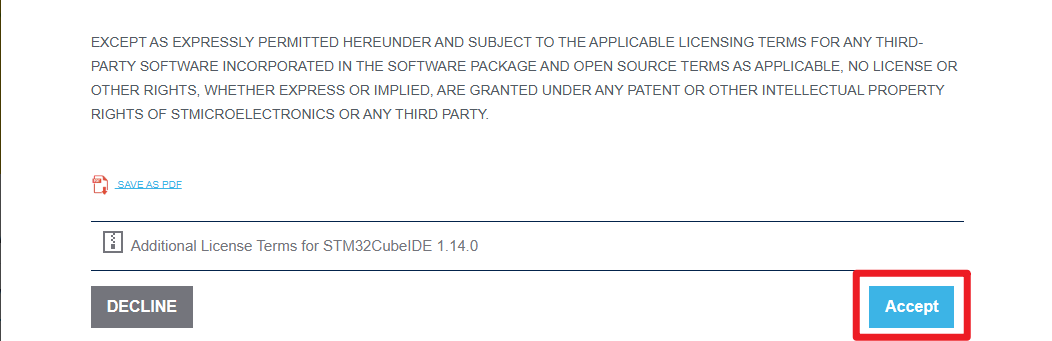
Agreement of consent
Filling in information
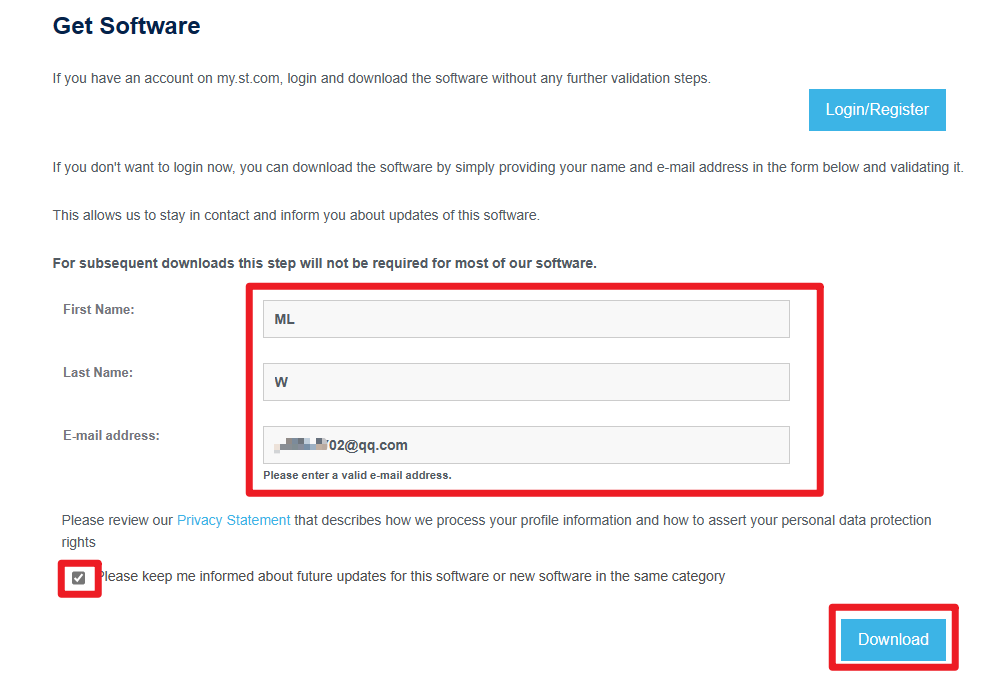
The email address needs to be filled in accurately, and the software download link will be sent to you by email
Complete submission

Email to download the installer
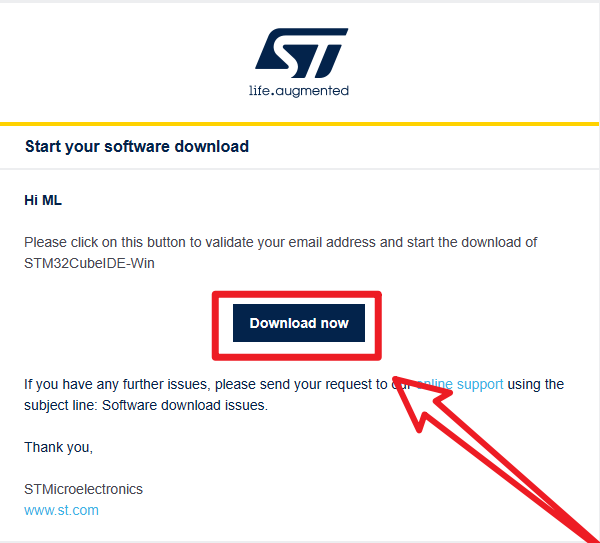
xxxxxxxxxxClick on the link to go to the official website, the website will automatically jump out of the software compressed package download window
2、Software Installation
2.1、Open the installer
Administrator
Open the installation package as an administrator
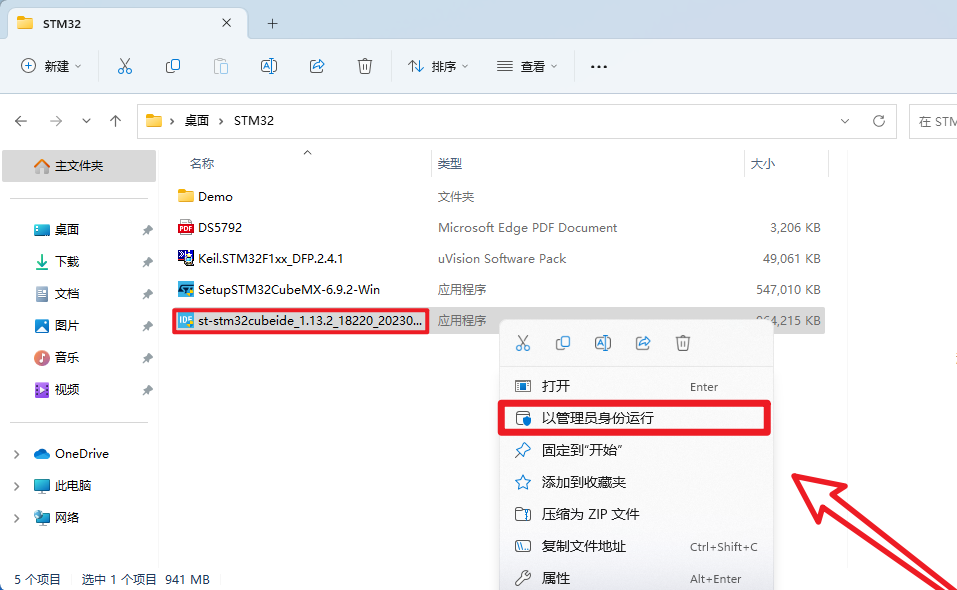
xIf you open the software installation package, then you see "NSIS ERROR: error launching installer" error:Please put the package in the path without Chinese characters
2.2、Installation Process - Setup
Next
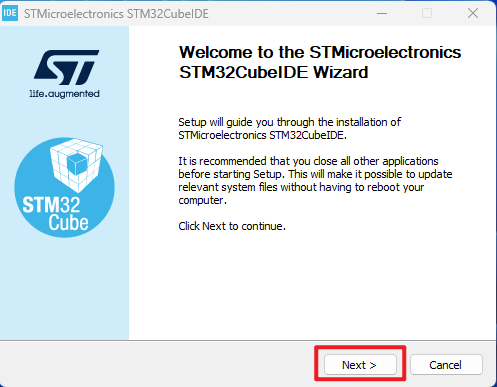
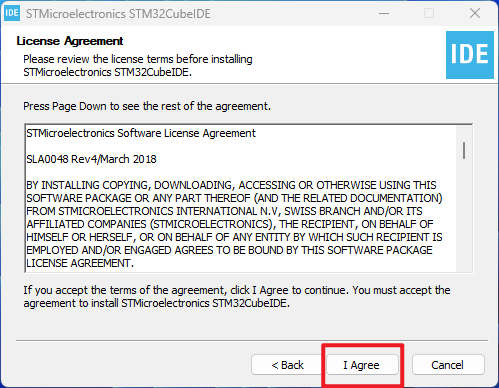
Agreement of consent → I agree
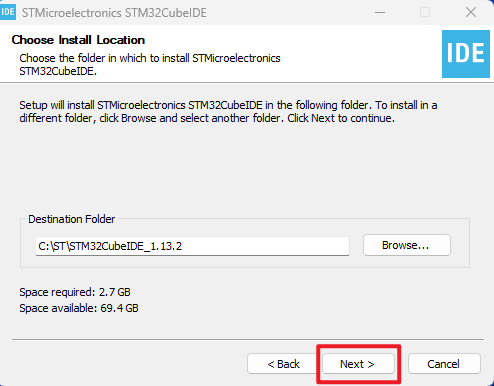
Location of installation → Next → Install
xxxxxxxxxxThe following are recommended to use the default installation location of the software and the path does not contain Chinese characters
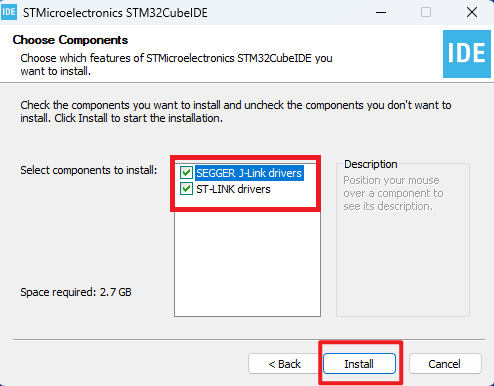
xxxxxxxxxxCheck the option to install ST-Link and J-Link drivers
Installing the driver
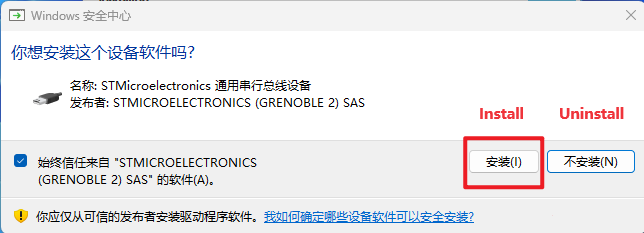
xxxxxxxxxxIf you followed the tutorial in Chapter 2 to this point, you'll notice that the ST-Link, J-Link, and ULINK drivers are all installed
Waiting for installation → Next
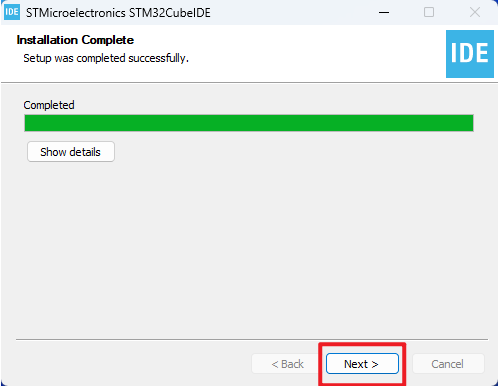
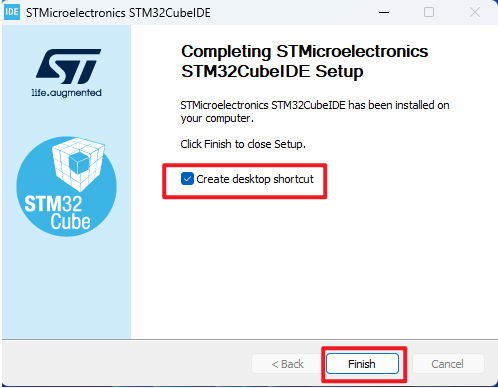
Finish
3、Software configuration
Familiar with software options and functions.
3.1、Open the application
Click on Left mouse button:double-click the desktop app
Choosing a workspace
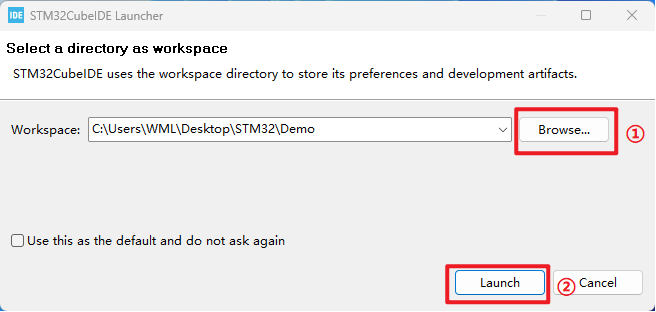
xxxxxxxxxxYou can create a new folder, the folder path can not contain Chinese characters
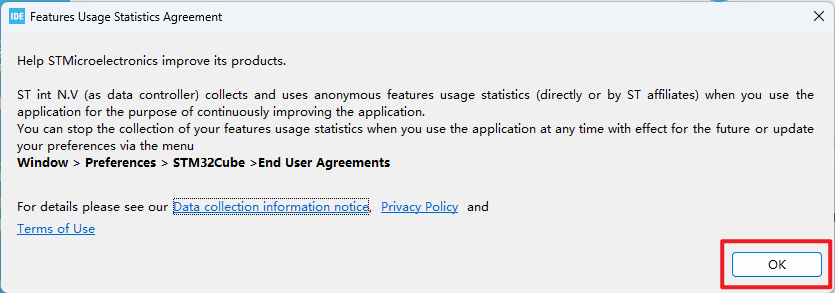
3.2、Sign-up - Login to your account
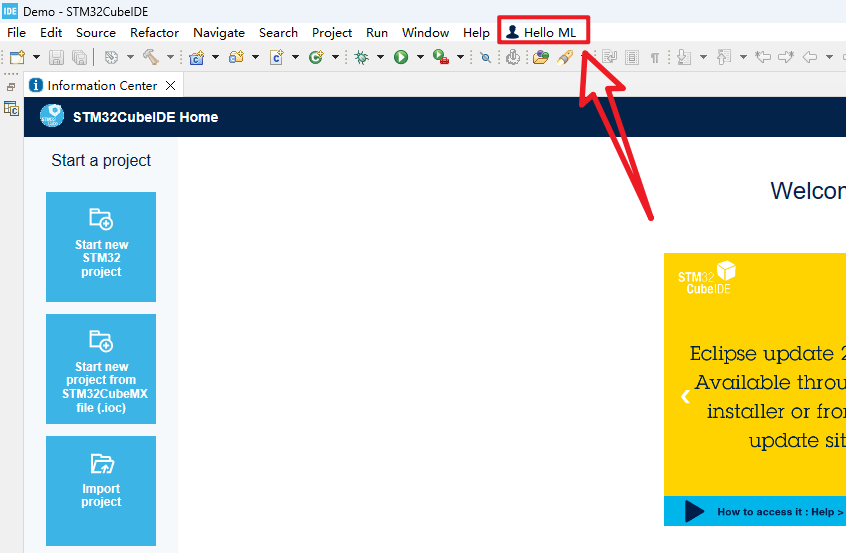
xxxxxxxxxxSince I installed STM32CubeMX before and logged in my account on that software, the system logged in my account by defaultDo not register and login accounts can refer to the "STM32CubeMX installation" tutorial
3.3、Installing the firmware package
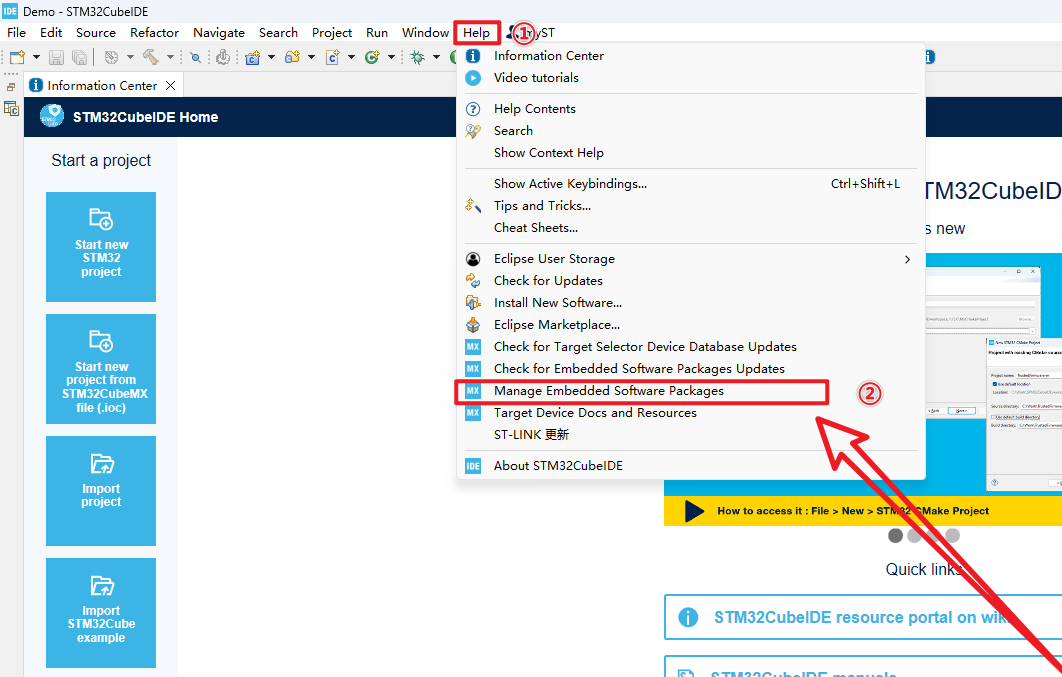
Help → Manage embedded software packages
Install the latest firmware package of the STM32F1 series
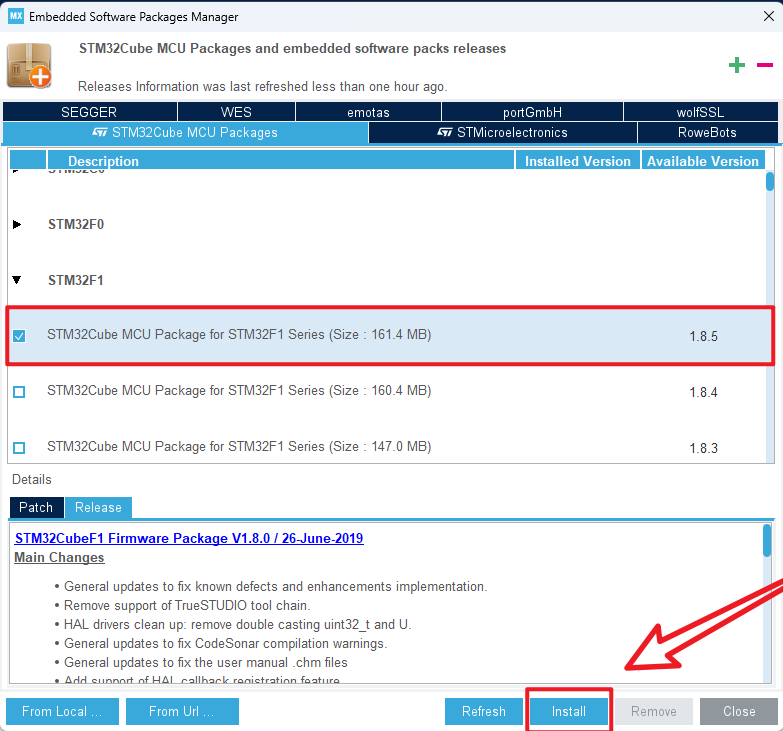
xxxxxxxxxx1. The chip firmware package cannot be installed without logging into the account2. To install or uninstall, check the box in front of the chip firmware package. Click this option and there will be no install and uninstall options
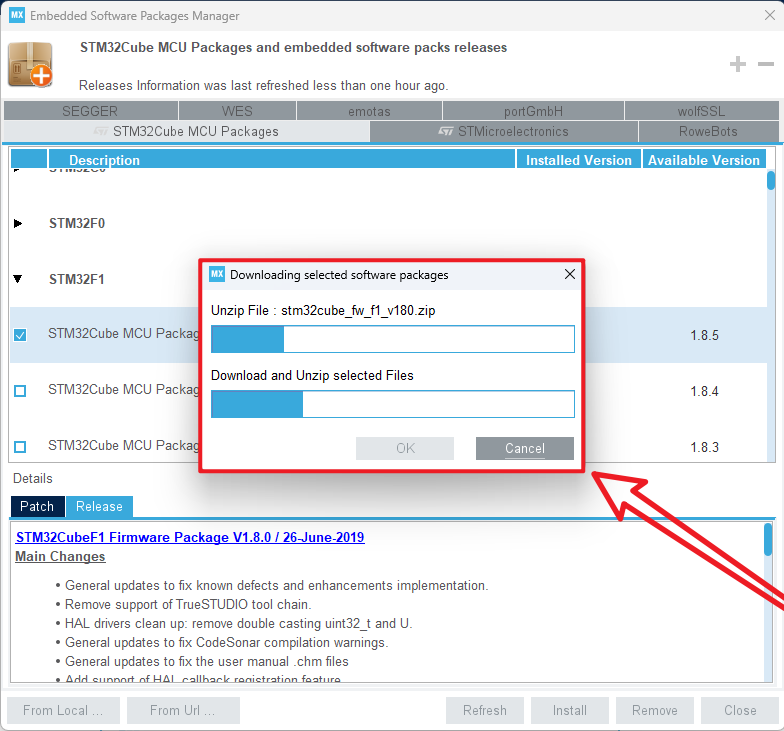
Waiting to download
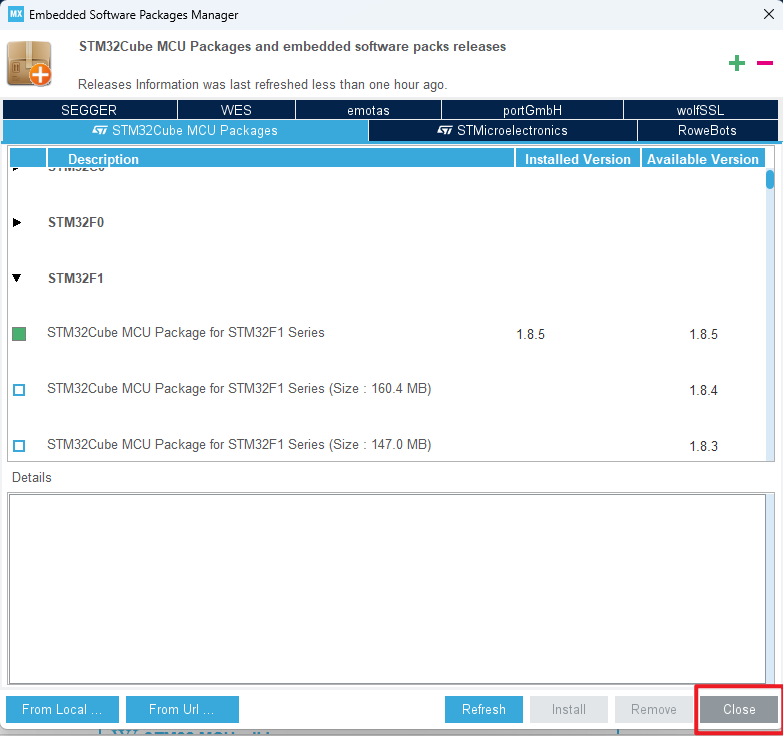
Close the page
4、Software Usage
STM32CubeIDE integrates STM32CubeMX functions, which can be used for pin configuration, and can be directly used for code writing and debugging.
Tips:The following are required for almost every project. Later in the Peripheral driver tutorial, we will skip the following steps and walk through the pin layout and configuration options to guide the user through the configuration.
4.1、New construction
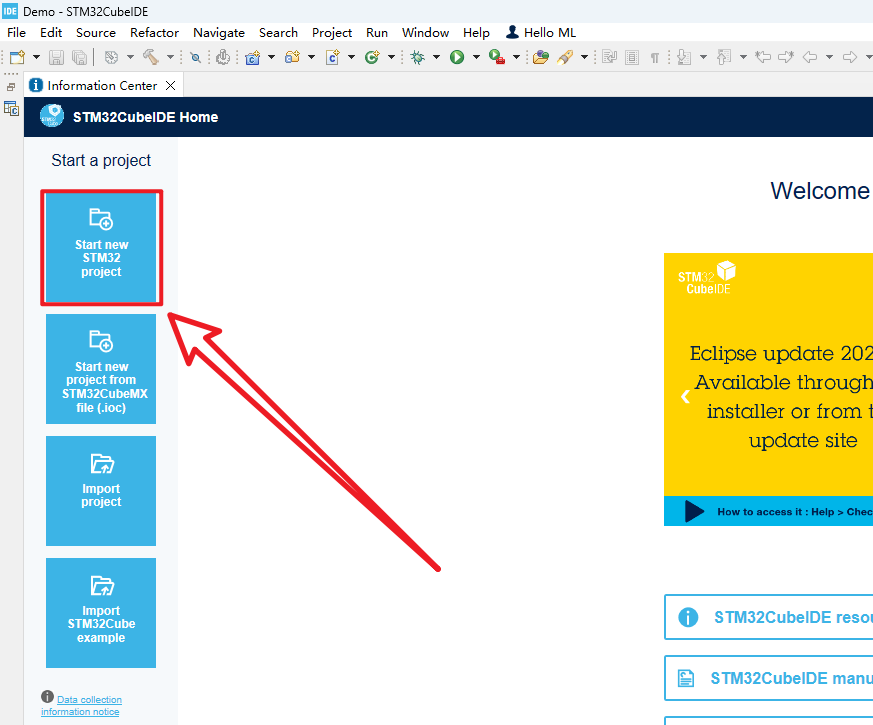
xxxxxxxxxxGenerally, new projects can only be built through this option when the software is used for the first time, and new projects in the later period can be referred to [9, new construction again].
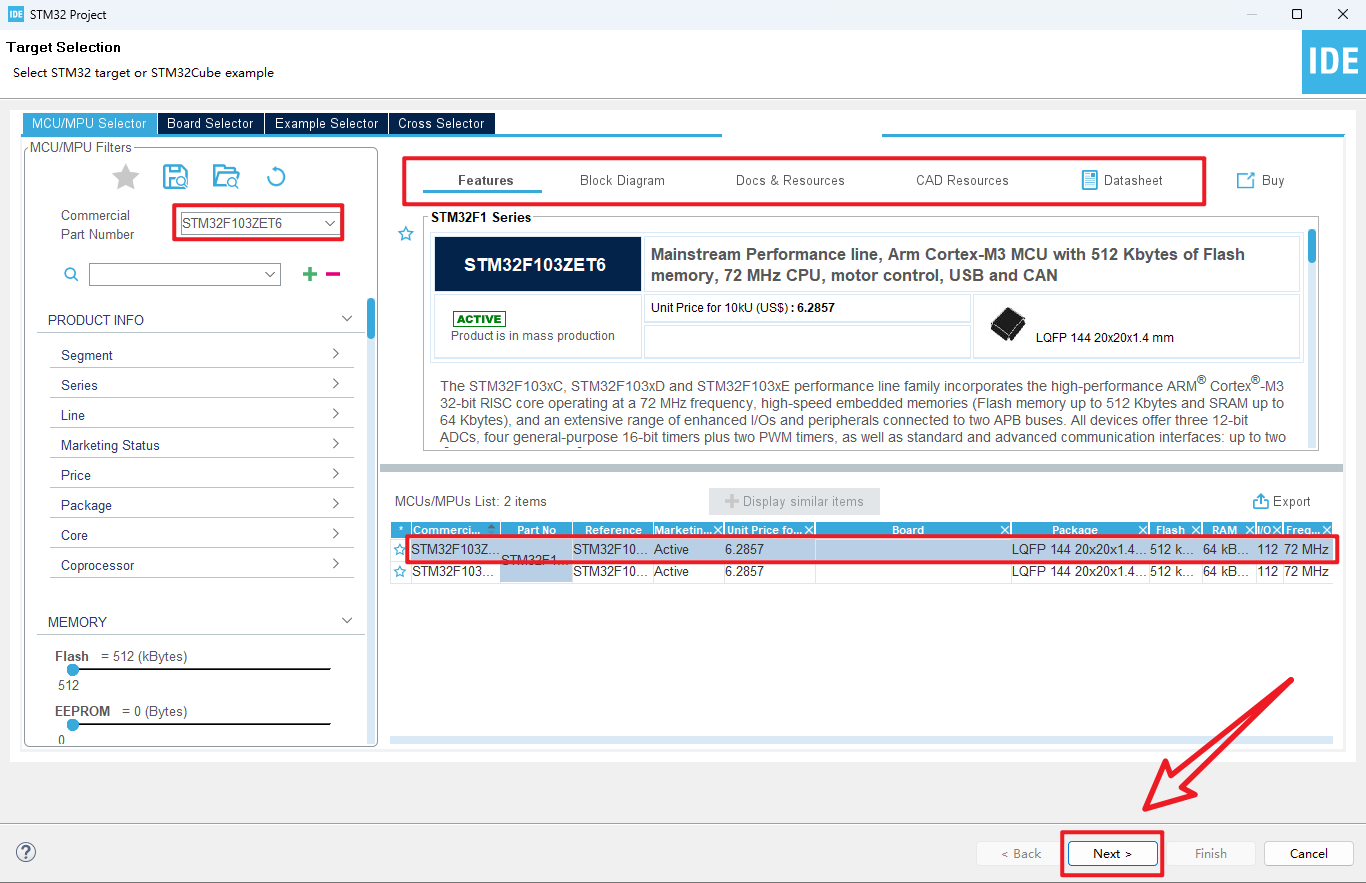
4.2、Chip selection
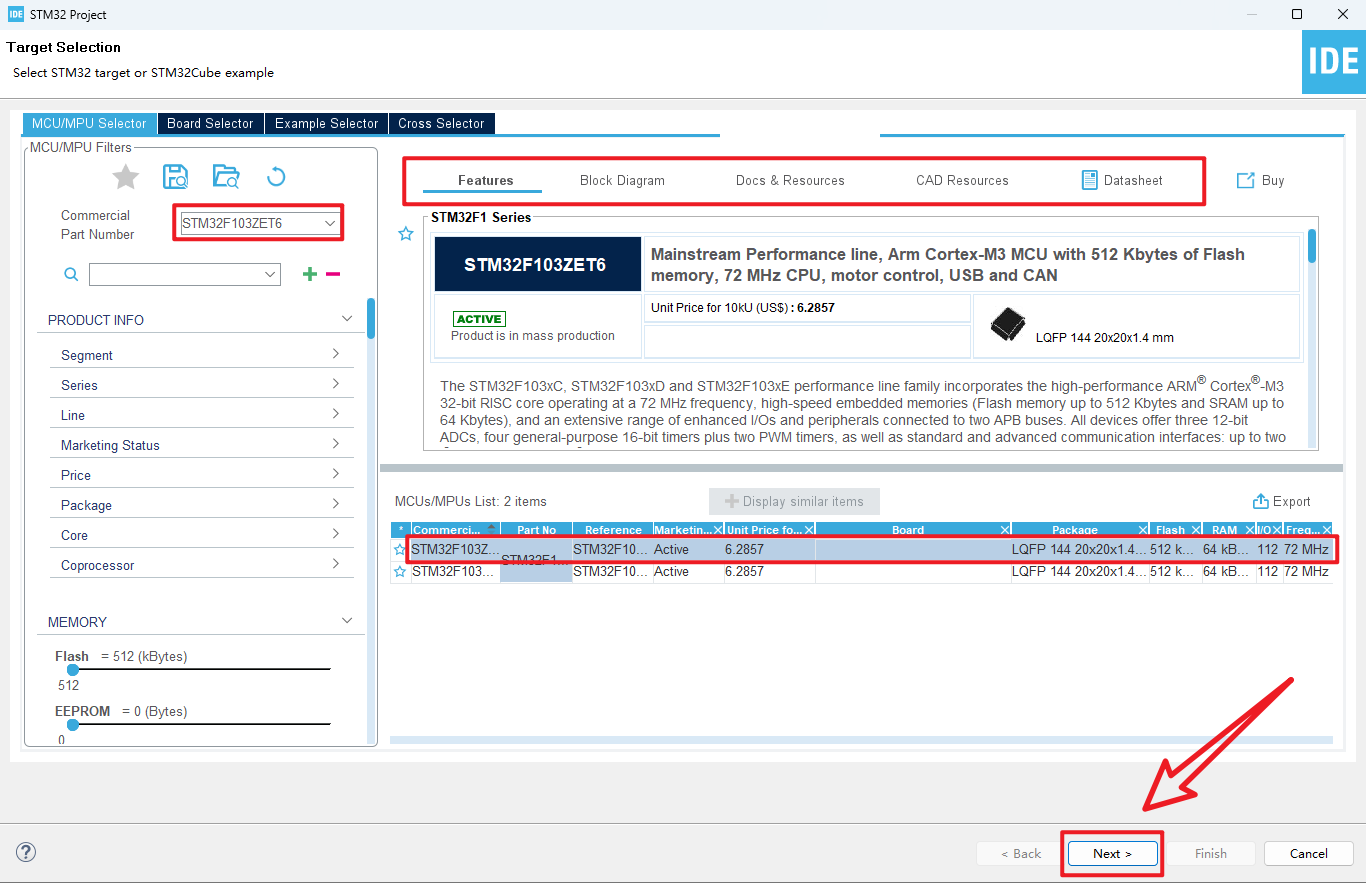
Chip selection and interface
4.3、Project setup
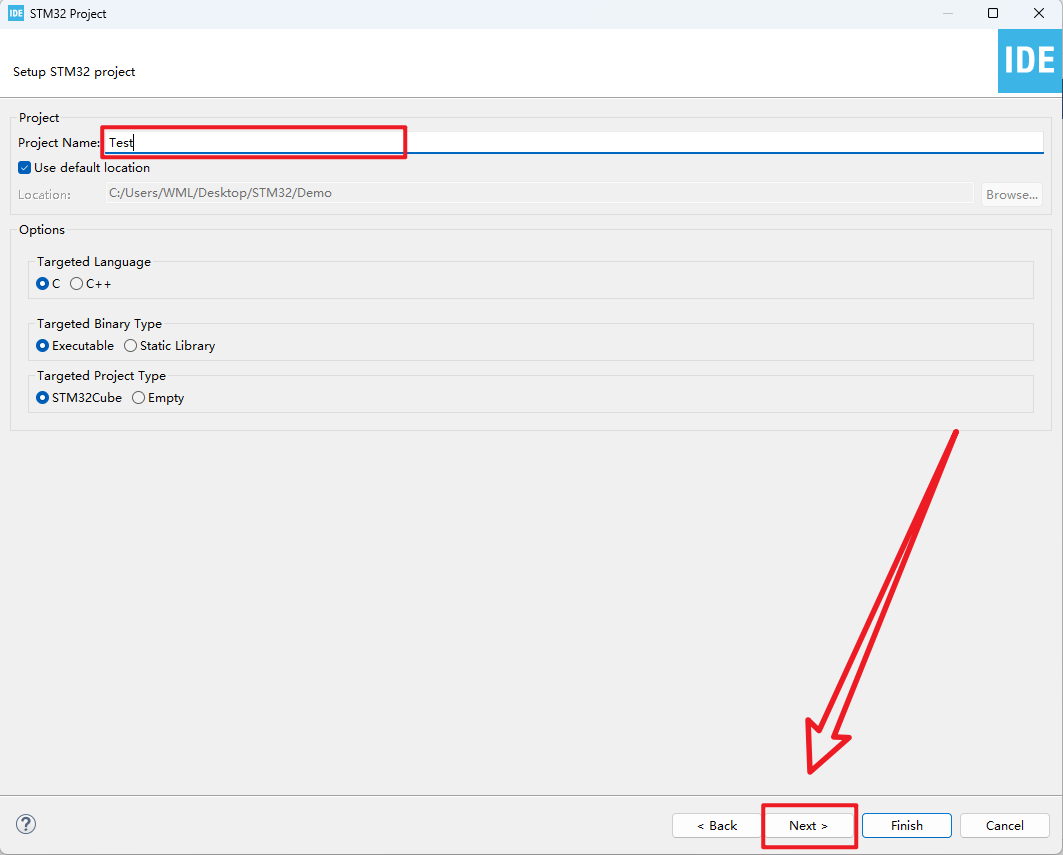
xxxxxxxxxxThe default configuration is enough, and the project file name can be customized
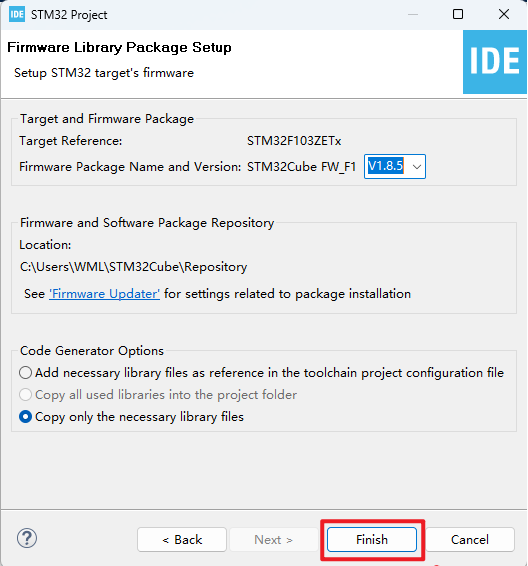
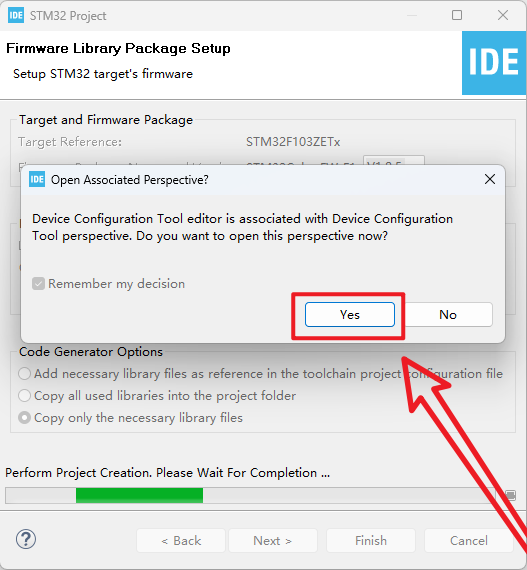
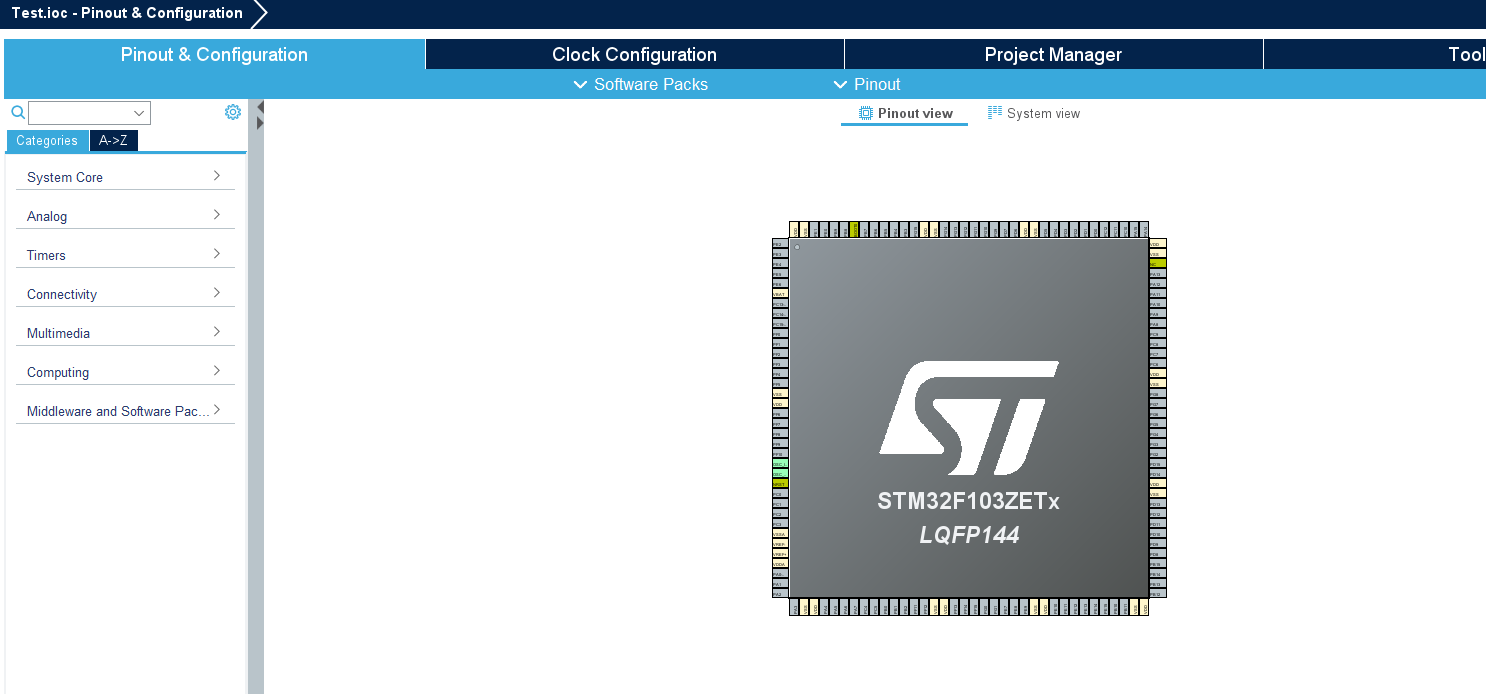
xxxxxxxxxxThe interface is the same as STM32CubeMX
4.4、Pin layout and configuration
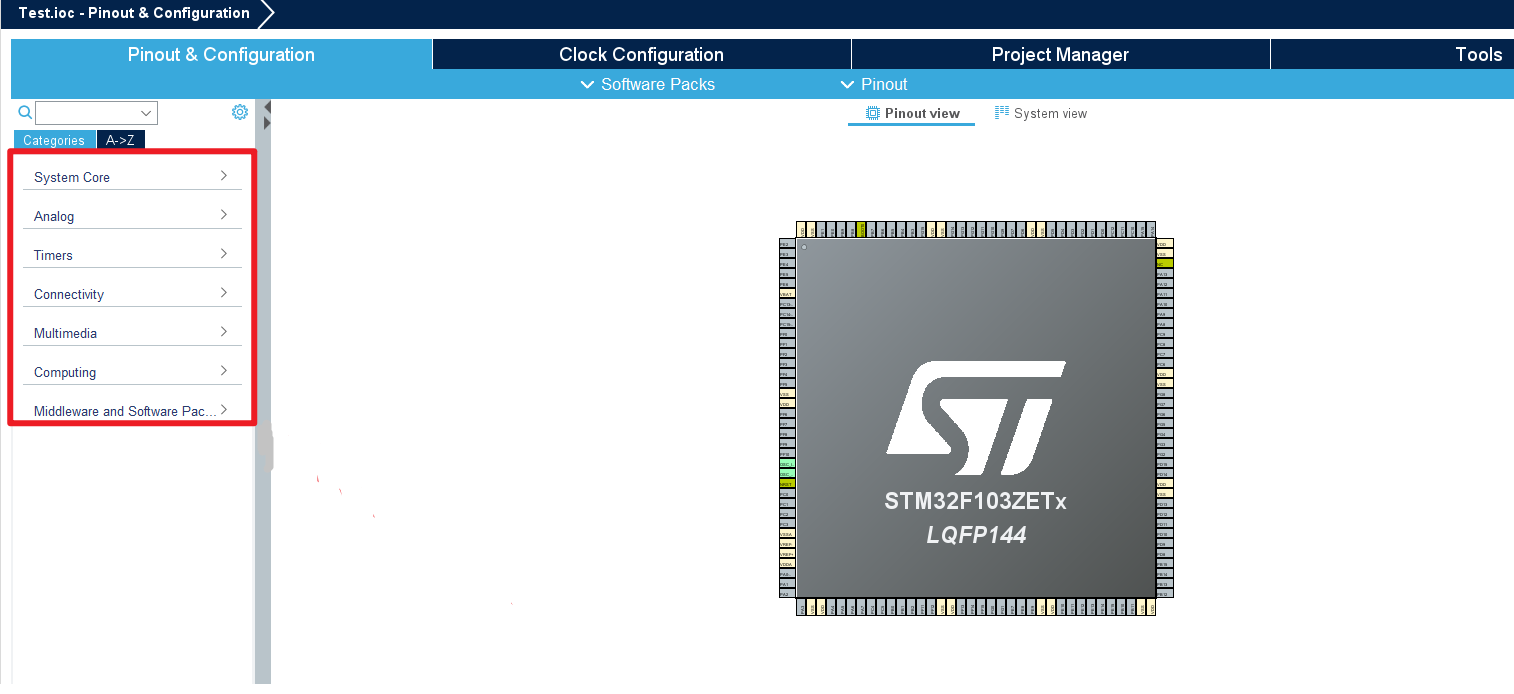
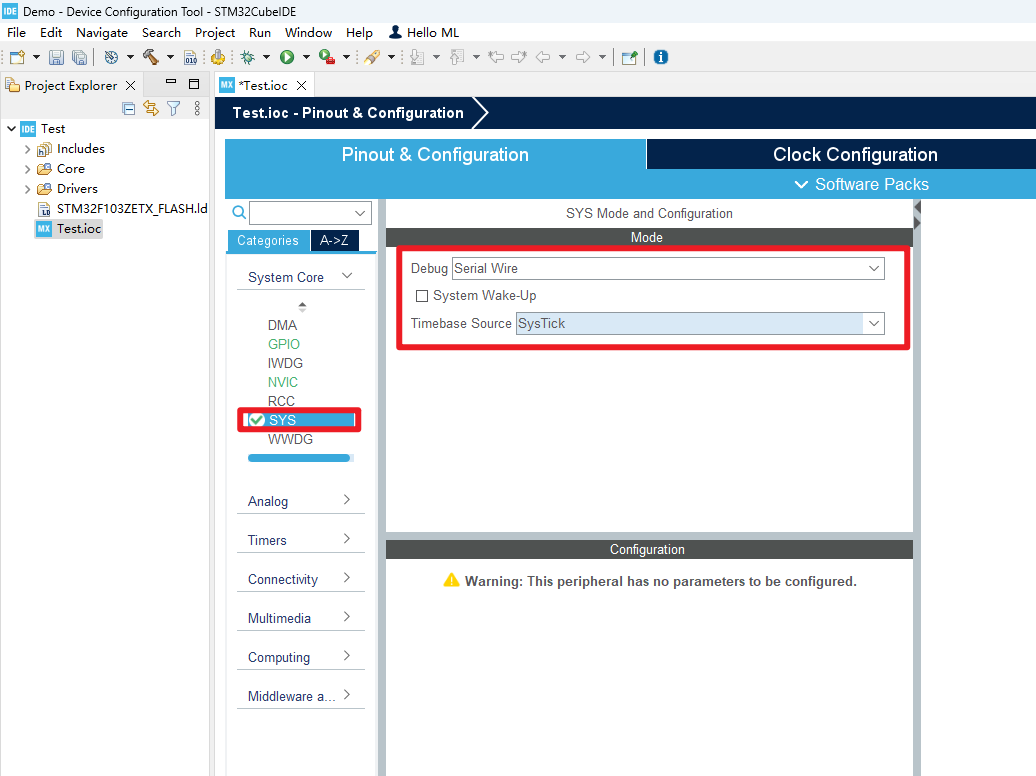
SYS
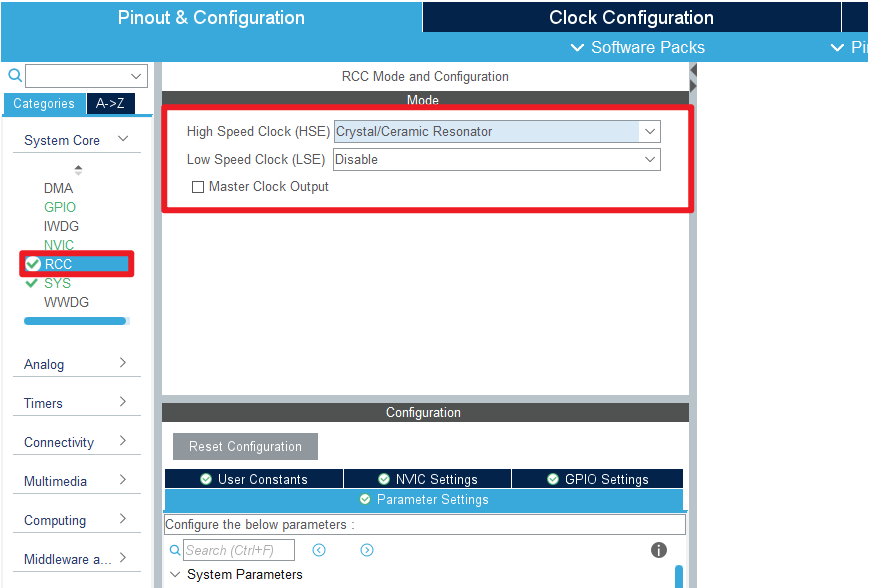
RCC
4.5、Clock configuration
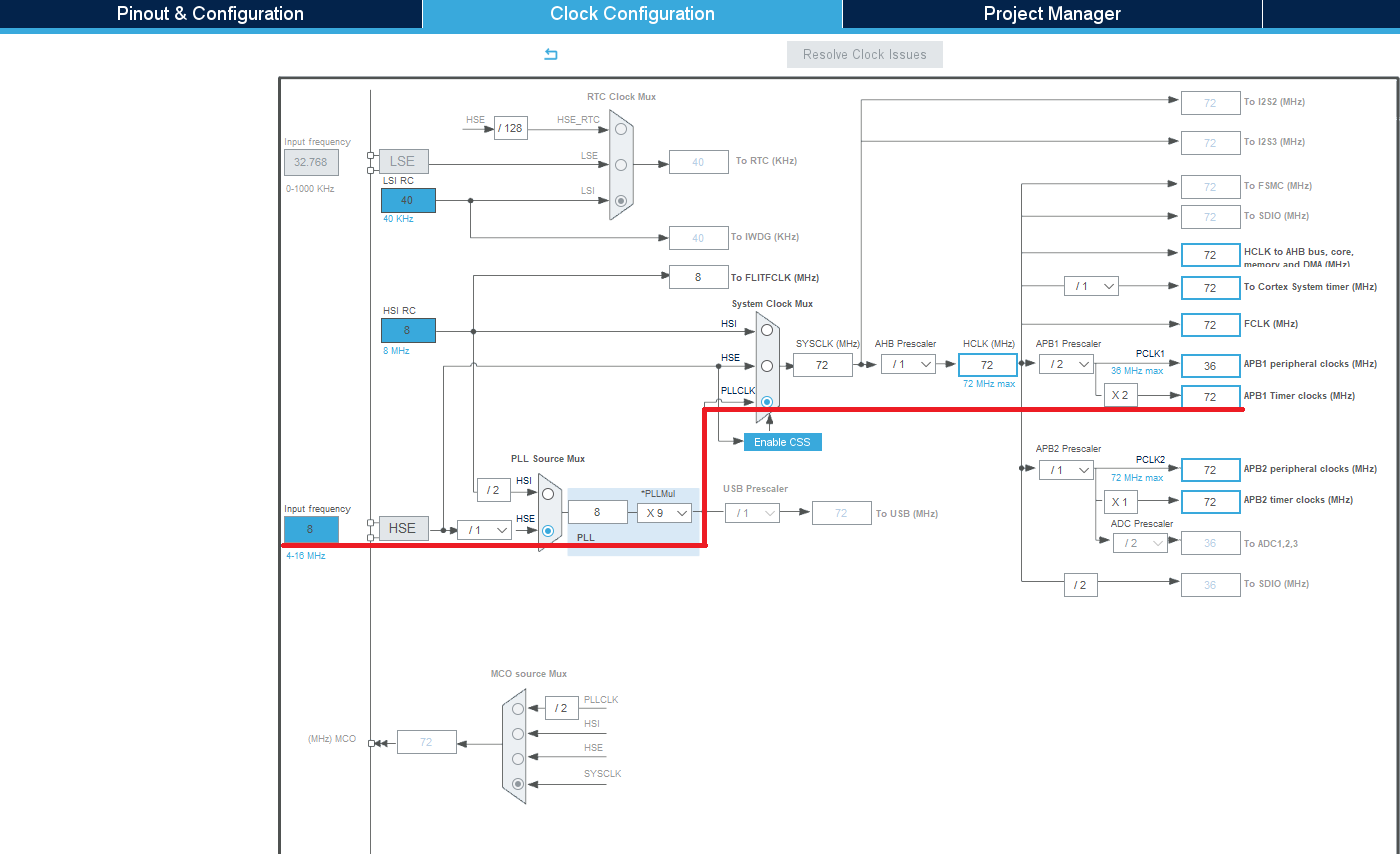
xxxxxxxxxxrefer to the options involved in the red line
4.6、Project management
Project
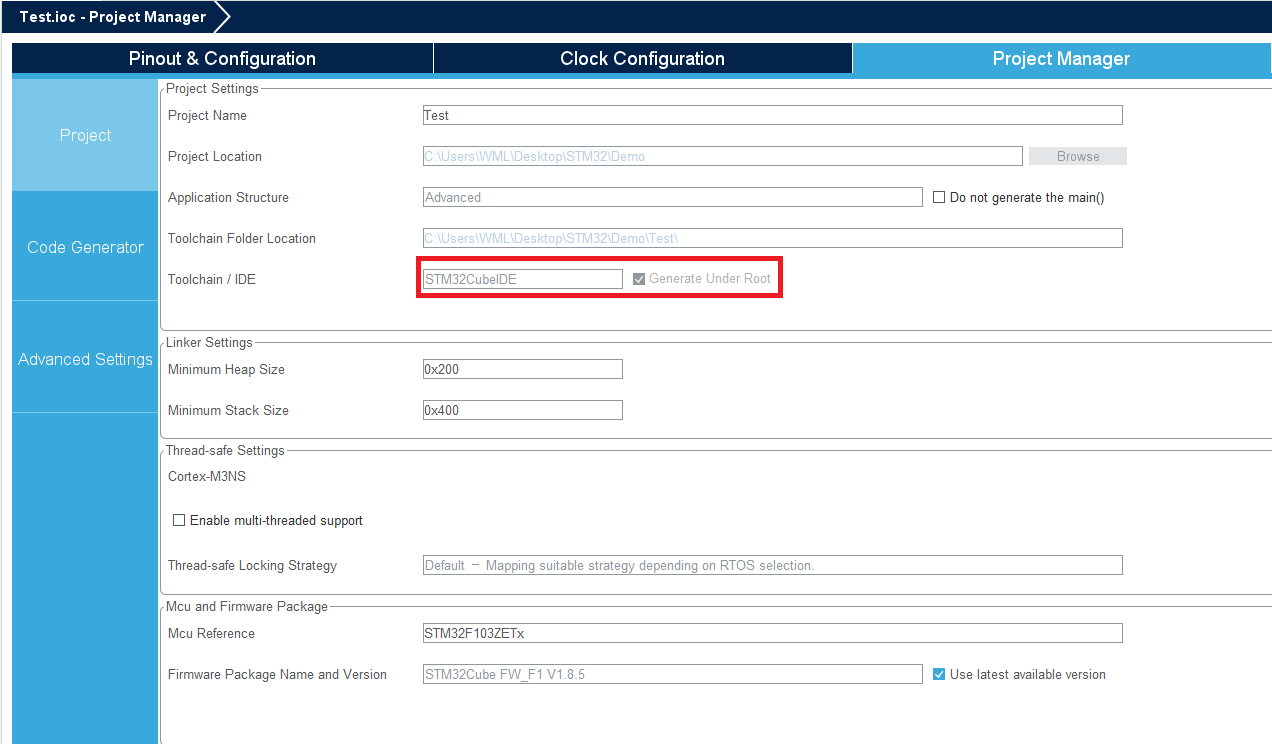
xxxxxxxxxxUsing STM32CubeIDE can not export other project files (such as MDK-ARM project files)
Code Generator
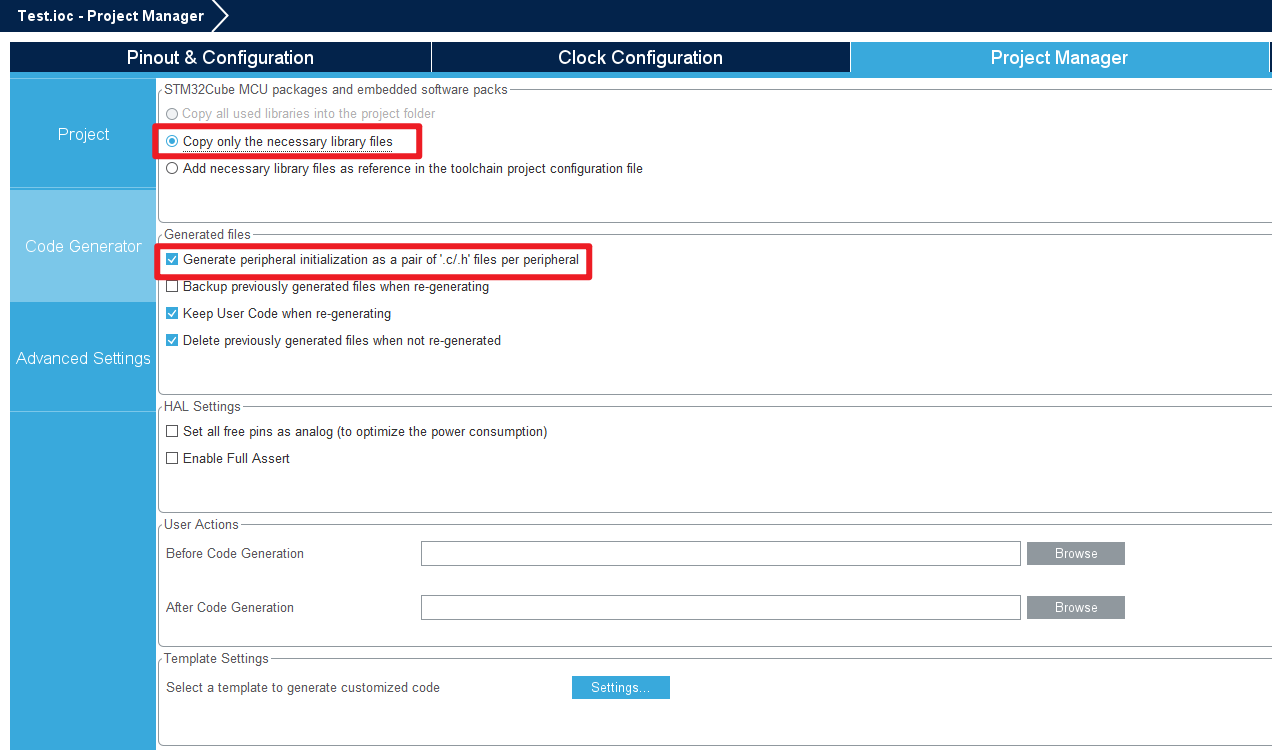
Advance Settings
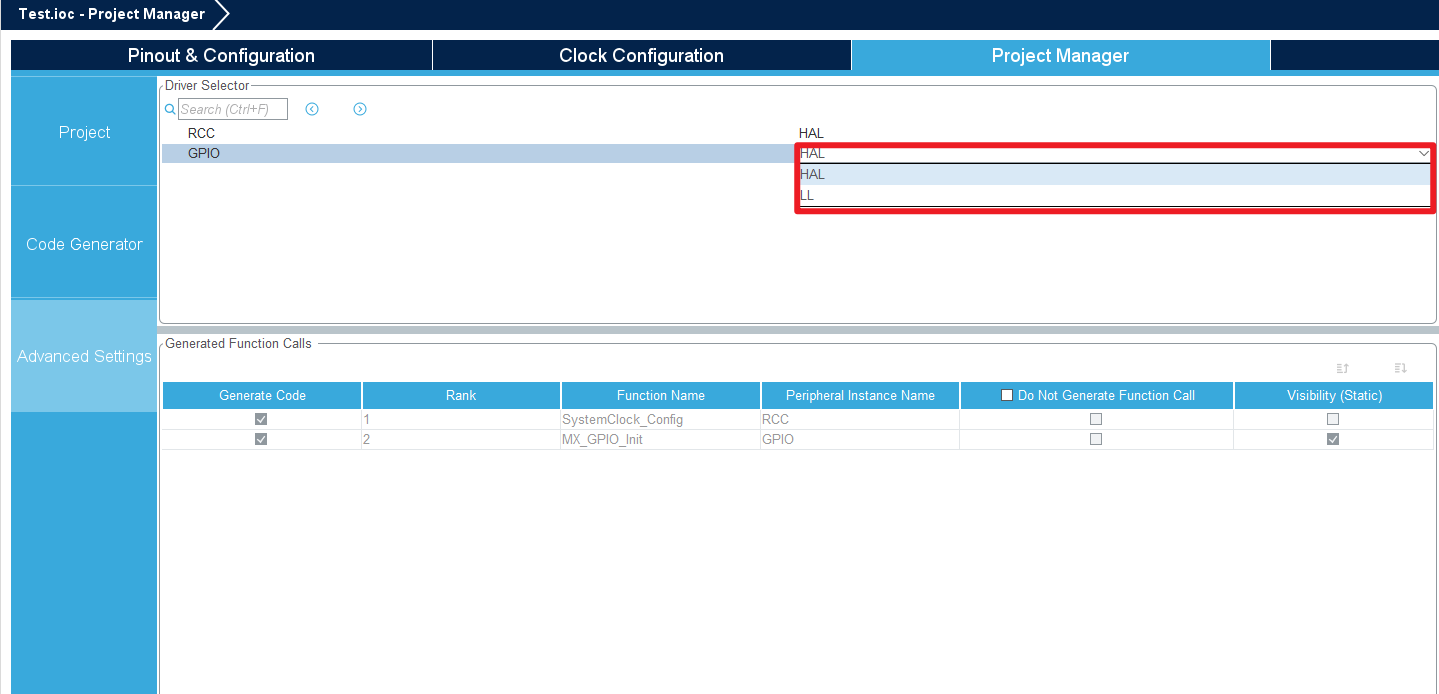
xxxxxxxxxxChoose the library to use for your initialization code: the HAL library is demonstrated here
4.7、Generate initialization code
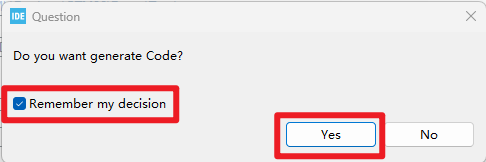
Click the Code Generate or Save button to generate the initialization code
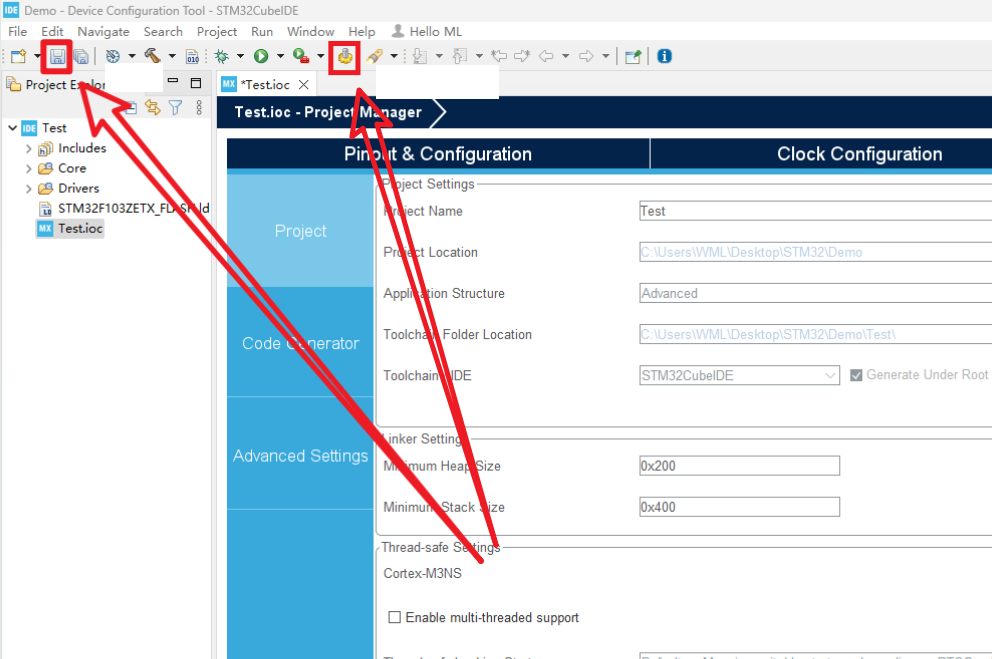
xxxxxxxxxxUsing Ctrl+S to save will also generate initialization code
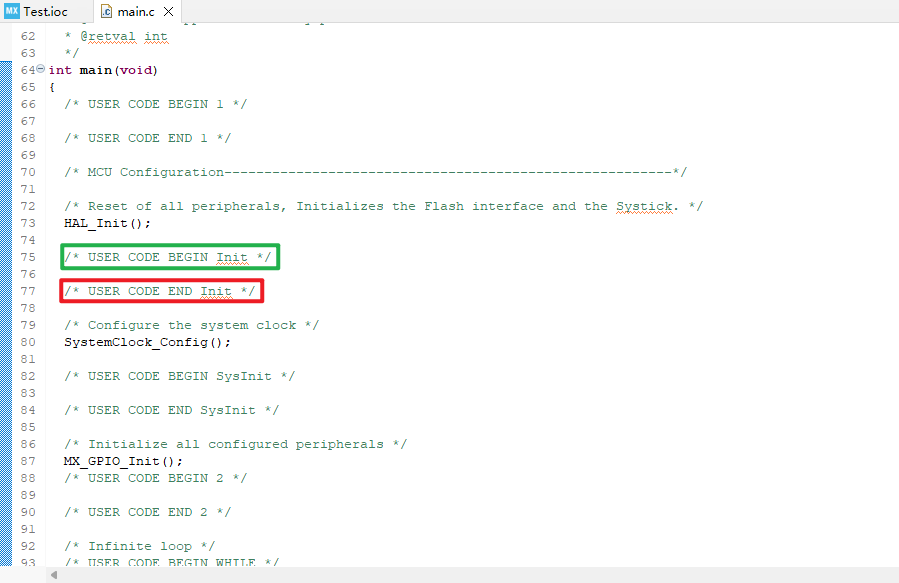
4.8、Writing the code
USER CODE must be located between USER CODE BEGIN and User code END,otherwise the next time you use the STM32CubeMX peripheral configuration feature it will remove code outside that location.
4.9、New construction again
Demonstrate how to create a new project in the project file, which is often used in real development
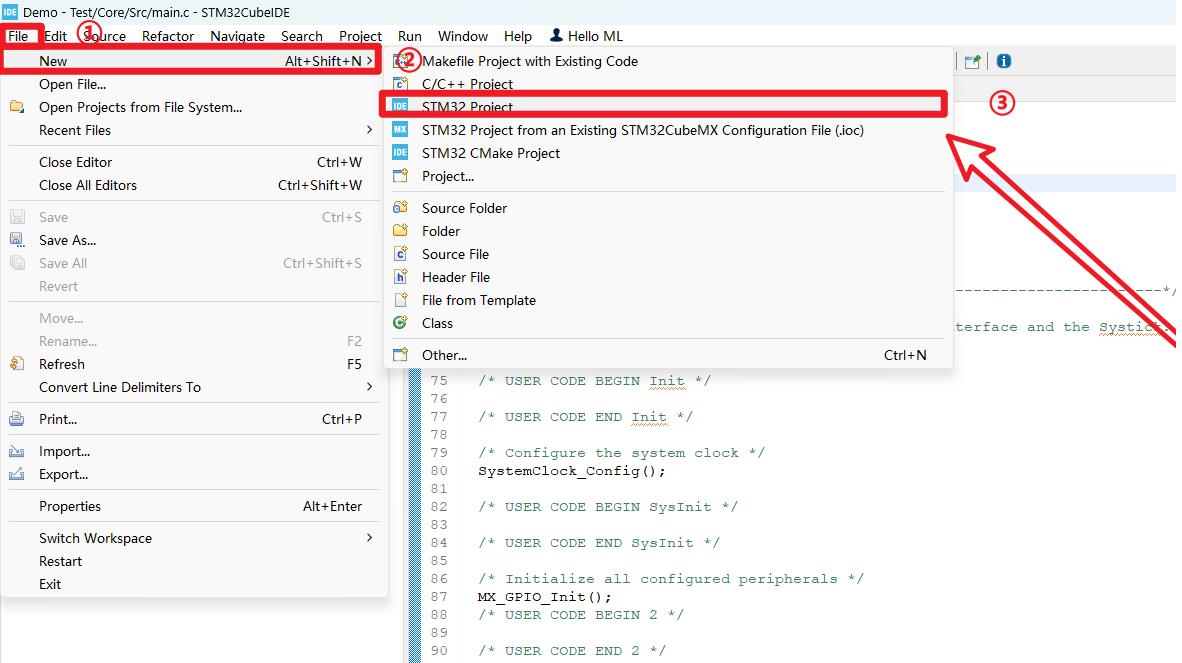
The project file management area will appear for the new project
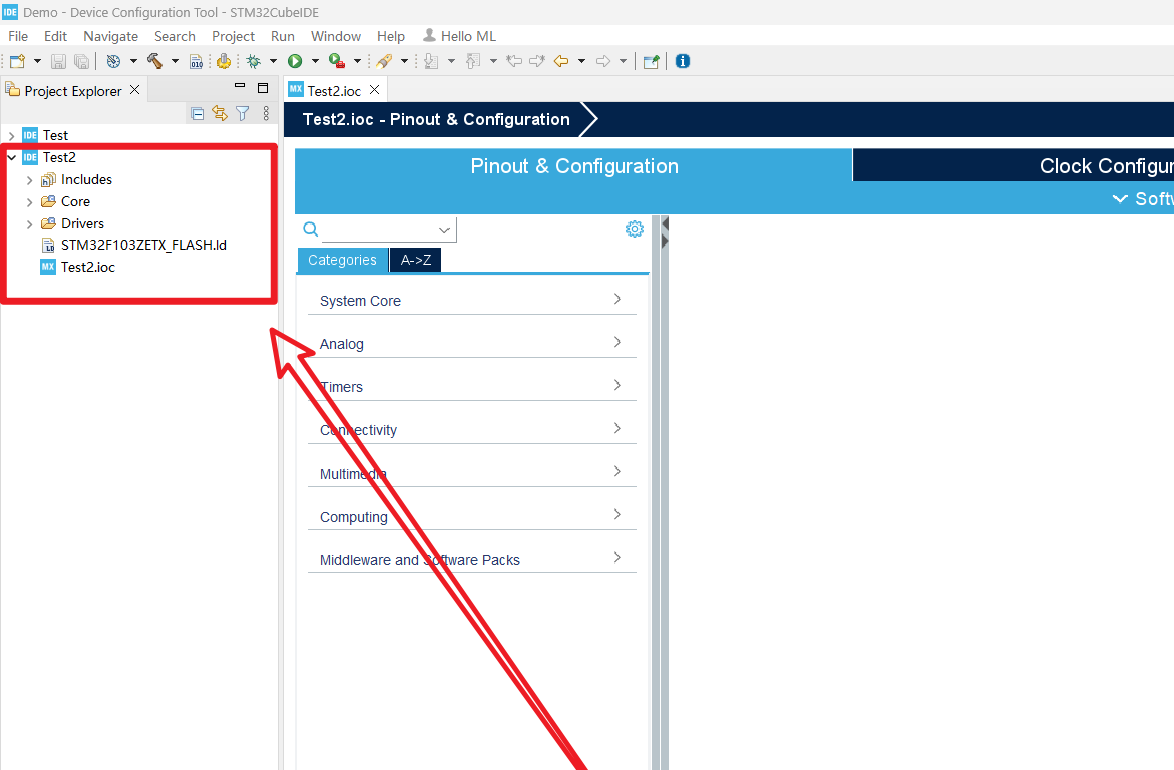
Refer to the previous steps for the next steps.
5、Q&A
5.1、Encoding format problem
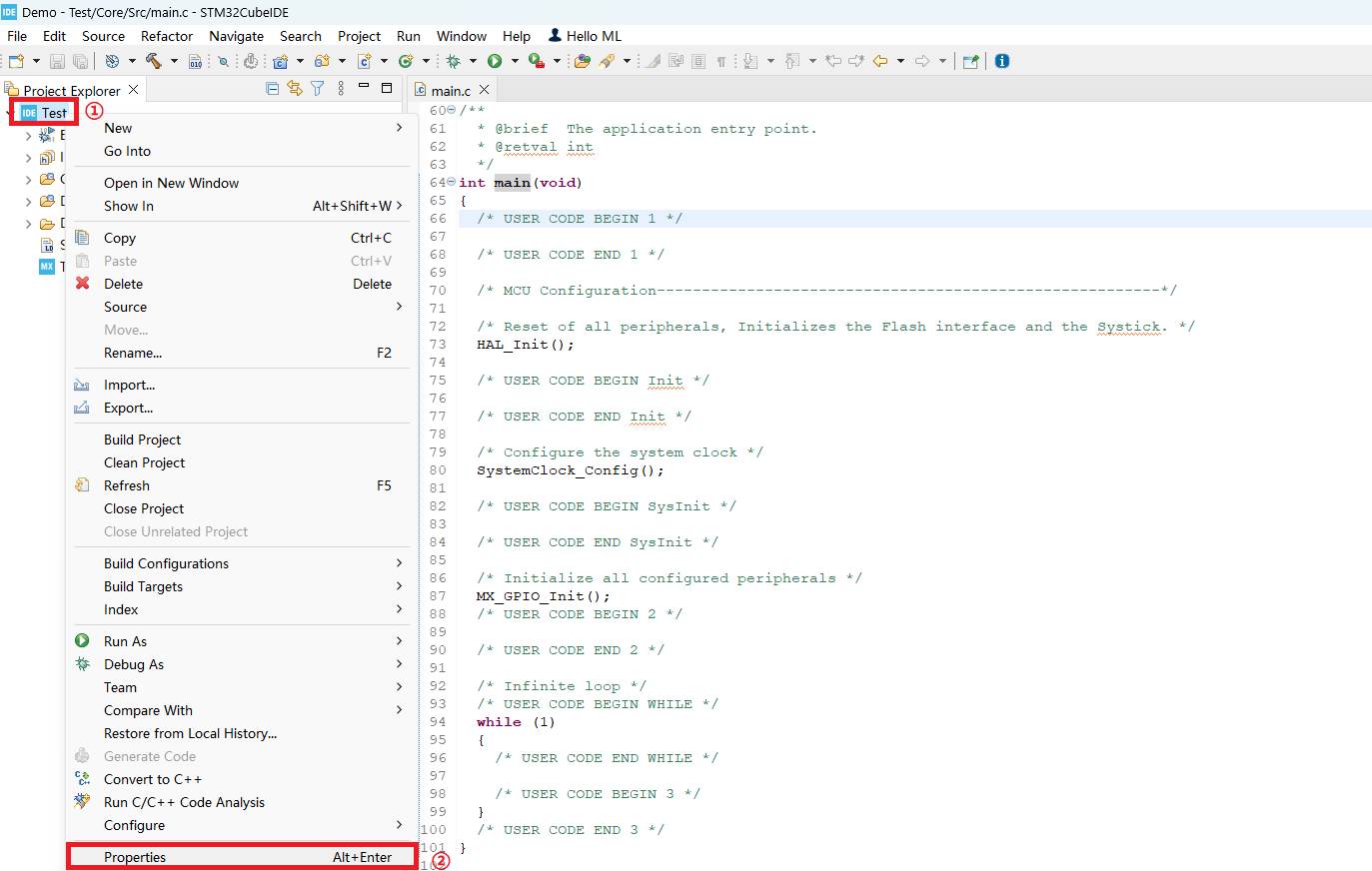
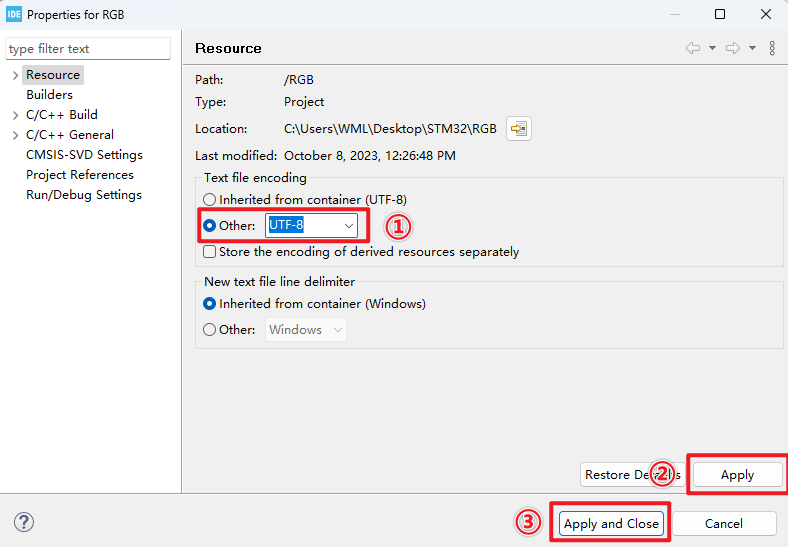
Tip:Project '***' has no explicit encoding set
solution:Change the file encoding → UTF-8