6. Voice control multi-point navigation
6. Voice control multi-point navigation6.1. Description 6.2. Steps6.2.1. Configuration navigation point6.2.2. Use voice multi-point navigation6.2.3. Topic graph6.2.4. Voice control node details6.3. Voice module communication protocol
The operating environment and software and hardware reference configurations are as follows:
Reference model:ROSMASTER X3
Robot hardware configuration: Arm series master, Slan A1 LiDAR, AstraPro Plus depth camera
Robot system: Ubuntu (version not required) + docker (version 20.10.21 and above)
PC VM: Ubuntu (20.04) + ROS2 (Foxy)
Usage scenario: Used on a relatively clean 2D plane
6.1. Description
On the established map, voice control ROSMASTER to navigate to point1, point2, point3. The R2 key on the handle can stop/start this function at any time.
6.2. Steps
6.2.1. Configuration navigation point
Enter the docker, run the following command on the termina
ros2 launch yahboomcar_nav laser_bringup_launch.pyOpen VM, configure multiple machine communication, then run the following command to display the RIVZ node
xxxxxxxxxxros2 launch yahboomcar_nav display_nav_launch.pyExecute navigation nodes in docker
xxxxxxxxxxros2 launch yahboomcar_nav navigation_teb_launch.pyClick [2D Pose Estimate] on the rviz screen of the VM, compare the posture of the robot to mark the initial posture of the robot on the map
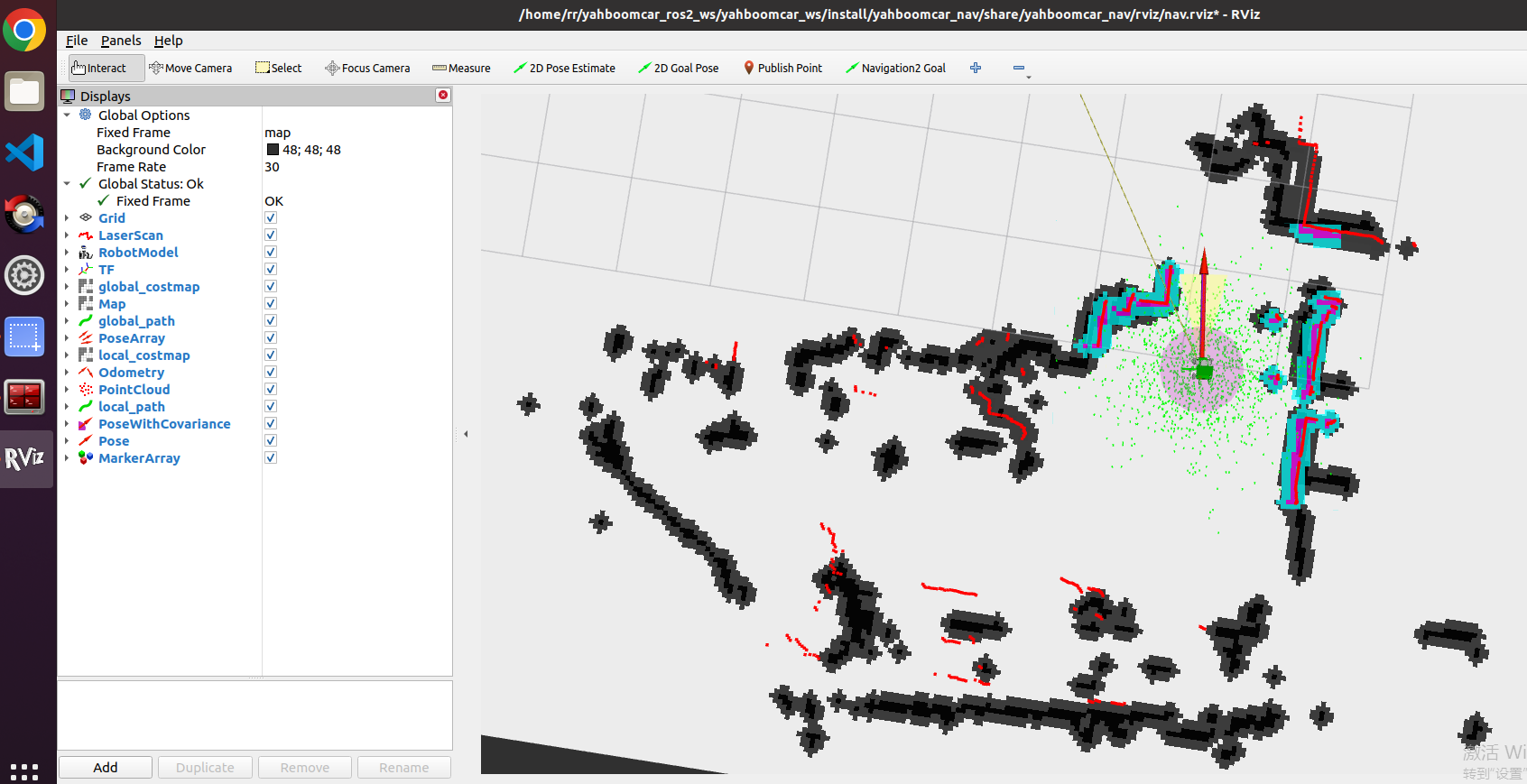
Compare the overlap between radar scan points and obstacles, the initial posture of the robot can be set several times until the radar scanning point and the obstacle roughly coincide
Open another terminal into the docker, then run the following command
xxxxxxxxxxros2 topic echo /goal_pose # display /goal_pose topicClick [2D Goal Pose], set the first navigation target point, at which point the car begins to navigate. In addition, the topic data is received in Step 6
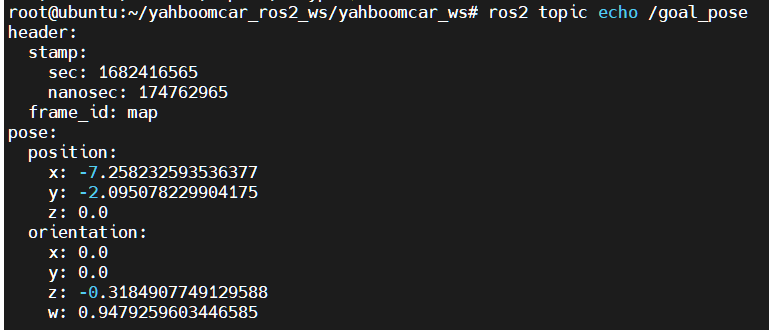
Open the code in the following position
xxxxxxxxxx/root/yahboomcar_ros2_ws/yahboomcar_ws/src/yahboomcar_voice_ctrl/yahboomcar_voice_ctrl/voice_Ctrl_send_mark.pyChange the pose of the first navigation point to the one printed in step 7
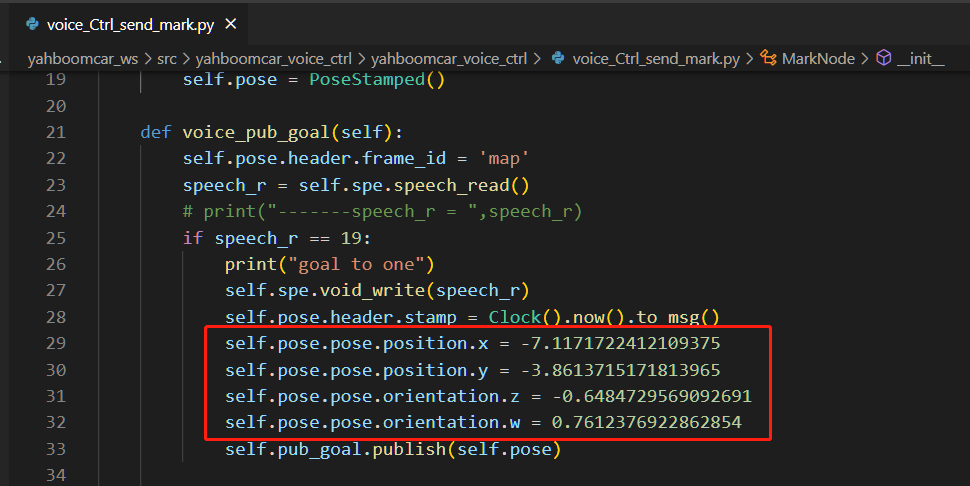
Modify the pose of the other 4 navigation points in the same way
6.2.2. Use voice multi-point navigation
Enter the docker, run the following command on the terminal
xxxxxxxxxxros2 launch yahboomcar_nav laser_bringup_launch.pyOpen VM, configure multiple machine communication, then run the following command to display the RIVZ node
xxxxxxxxxxros2 launch yahboomcar_nav display_nav_launch.pyExecute navigation nodes in docker
xxxxxxxxxxros2 launch yahboomcar_nav navigation_teb_launch.pyClick [2D Pose Estimate] on the rviz screen of the VM, compare the posture of the robot to mark the initial posture of the robot on the map
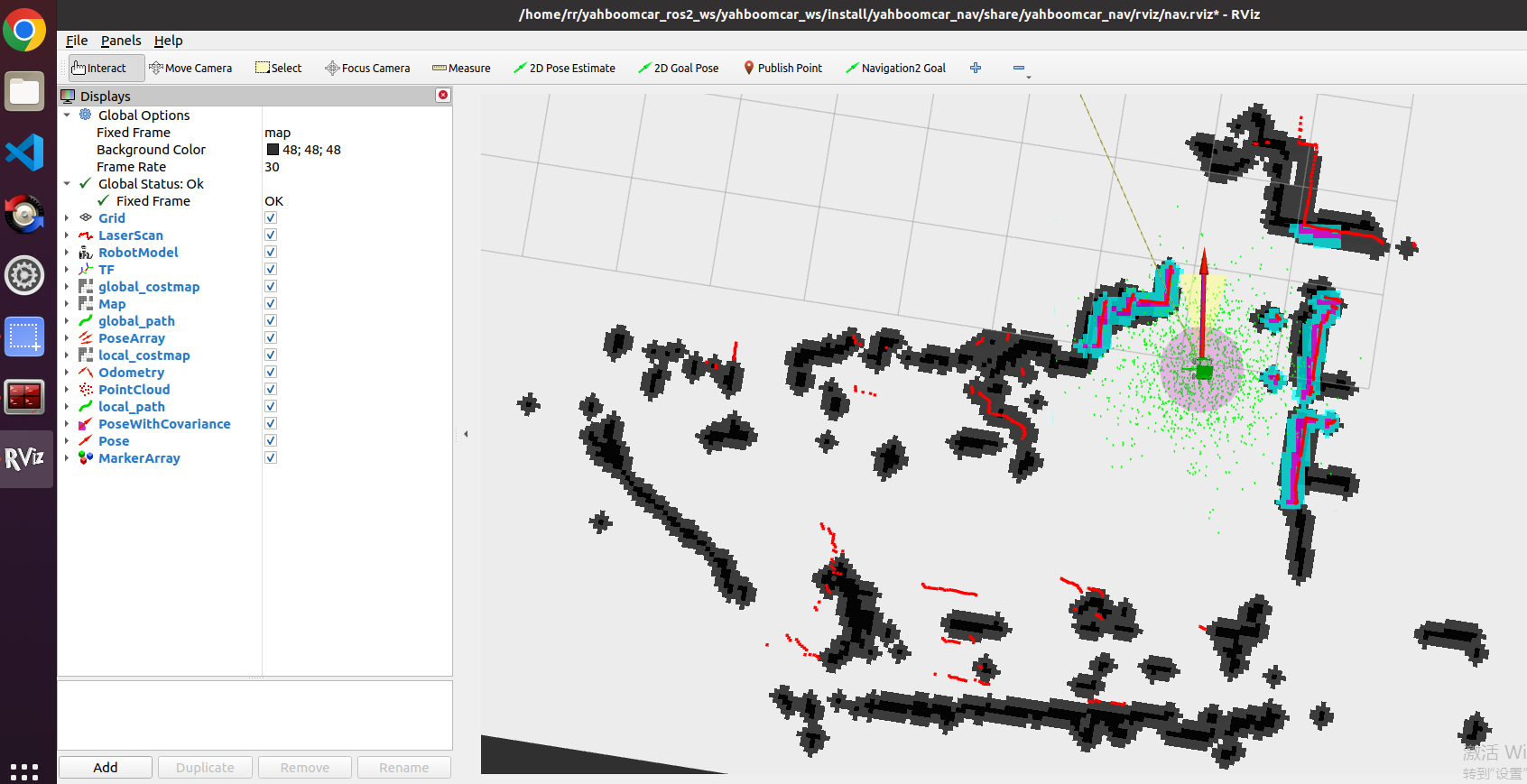
Compare the overlap between radar scan points and obstacles, the initial posture of the robot can be set several times until the radar scanning point and the obstacle roughly coincide
Open another terminal into the docker, then run the voice control navigation node
xxxxxxxxxxros2 run yahboomcar_voice_ctrl voice_Ctrl_send_markAfter calibrating the initial pose in rviz, we can say "Hi Yahboom" to wake up the voice module, until it replies "Hi, i'm here", indicating that the module has been woken up.
We say "Go to the point A", it will reply "OK, I'm going to the point A."
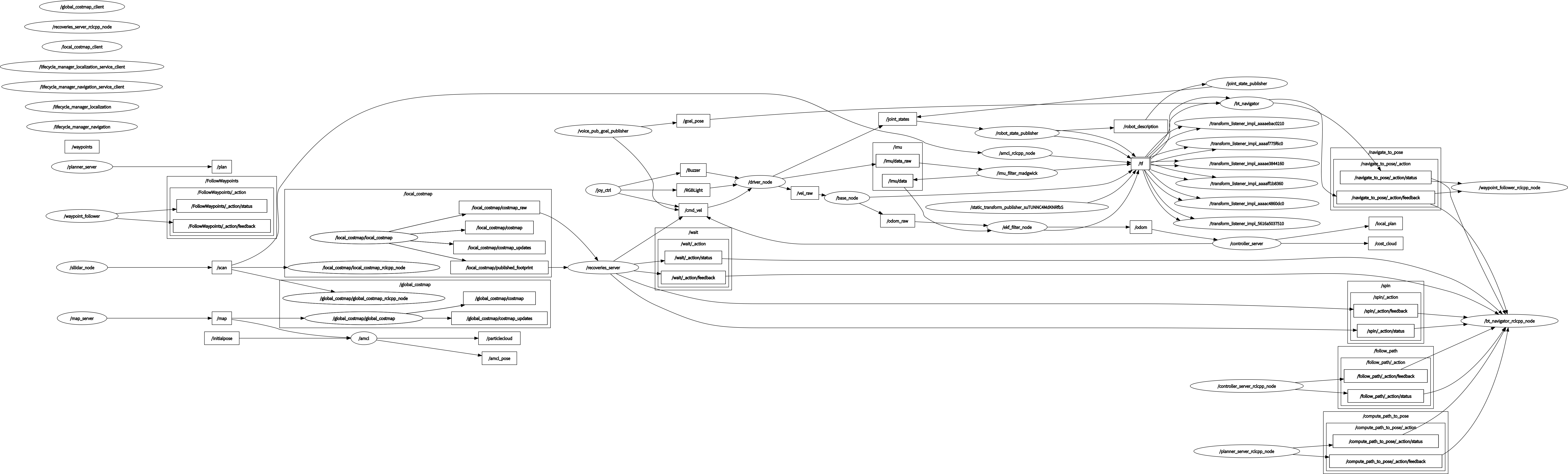
6.2.3. Topic graph
xxxxxxxxxxrqt_graph
6.2.4. Voice control node details
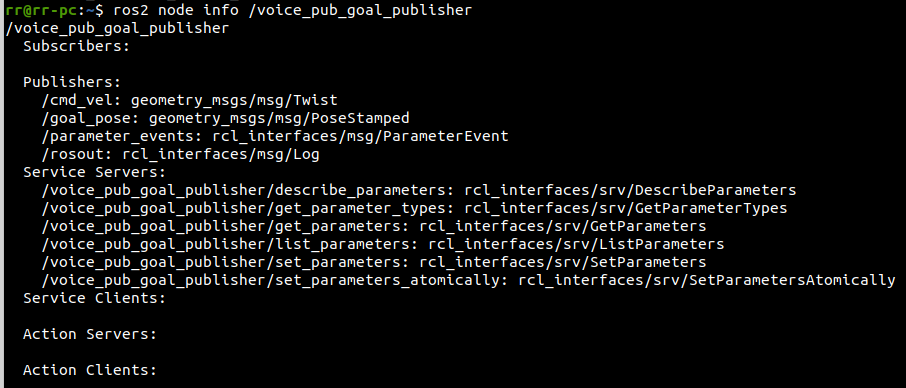
6.3. Voice module communication protocol
You need to configuration navigation point then use voice control
| function word | Speech Recognition Module Results | Voice broadcast content |
|---|---|---|
| Go to the point A | 19 | OK, I'm going to the point A. |
| Go to the point B | 20 | OK, I'm going to the point B. |
| Go to the point C | 21 | OK, I'm going to the point C. |
| Go to the point D | 32 | OK, I'm going to the point D. |
| Return to the original place | 33 | OK, I'm return back. |