2DOF PTZ Color Tracking
2DOF PTZ Color Tracking1. Experiment description2. Lab Objectives3. Experimental operation4. Experimental effect5. Experimental summary
1. Experiment description
This experiment belongs to the expansion class experiment, need to match the 2D servo gimbal, and 24-way servo driver board to use. These additional modules are not part of the K210 module kit, so this experiment is for reference only, if there is no corresponding equipment can not directly use the code of this routine.
Firmware required for 24-way servo driver board: K210-track.hex
Gimbal servos are connected to the 24-way servo driver board, x-axis servos are connected to the servo control board S1 pin, y-axis servos are connected to the servo control board S2 pin.
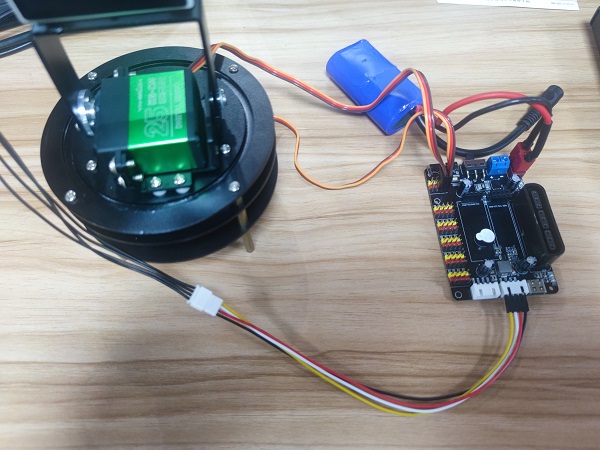
Where the servo line (yellow for the signal line, red for VCC, black for GND) connected to the corresponding colour pins of the control board
24-way servo driver board, please connect the 7.4V lithium battery pack, otherwise it will be low voltage buzzer alarm.
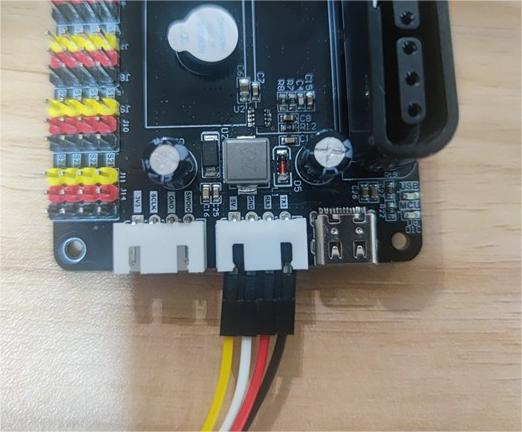
The wiring diagram of K210 vision module and 24-channel servo driver board is shown below.
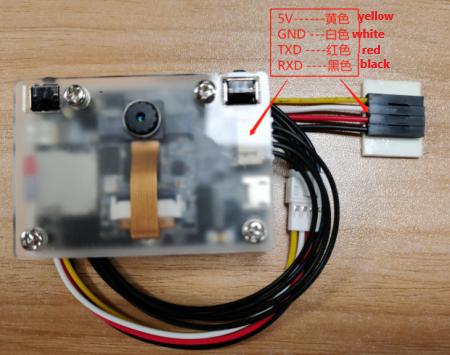
Connect the K210's serial cable to the serial interface of the 24-way servo driver board (5V---5V, GND---GND, TX---RX3, RX---TX3)
2. Lab Objectives
This lesson focuses on learning K210 module with 2D gimbal to do visual tracking function.
The reference code path for this experiment is: CanMV\06-export\tracking_colour.py
3. Experimental operation
- 24-way servo driver board burn firmware: K210-track.hex
- Download the cart driver library and PID control library in the CanMV\06-export\library directory to the root directory of the memory card in advance.
- Open CanMV IDE to open the tracking_colour.py code and download it to the K210 module.
- Connect the K210 module to the 24-channel servo driver board through the 4PIN cable.
- Put the gimbal in the white or black background, and then turn on the power of the 24-channel servo driver board.
- A white box will be displayed in the middle of the screen, put the colour to be tracked into the box, wait for the box to turn green to start learning the colour, wait for the green box to disappear to finish learning.
When the green box disappears, the learning will be finished, and the gimbal will move in the direction of the colour just learned.
4. Experimental effect
Wait for the system initialization to complete, the K210 module learns the colour and then immediately follow the colour movement, you can move the colour block upwards, downwards, left or right, the gimbal will track the movement of the colour block, so that the colour block will try to stay in the middle of the screen.
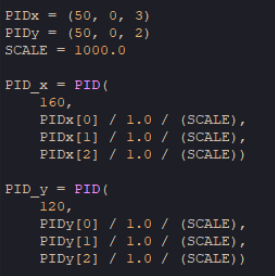
If the tracking response is too fast or too slow, you can modify the PID parameters in the programme.
5. Experimental summary
The gimbal tracking colour play is based on the colour recognition function, which takes the positional coordinates of the recognised colours and uses the PID algorithm to calculate the gimbal's required motion
position so that the gimbal can track the colour block in motion. Due to the frame rate and recognition limitations, the colour block cannot move too fast, otherwise the gimbal may not be able to keep up with the response.
Otherwise, the gimbal may not be able to keep up with the response.