5. Voice control color recognition
5. Voice control color recognition 5.1. Description 5.2. Steps5.2.1. Function package path 5.2.2. Start 5.3. Code analysis 5.3.1. Import the speech recognition library and create speech recognition objects 5.3.2. Get mouse events and specify the area selected by the mouse 5.3.3. Get the HSV value of the selected area 5.3.4. Determine the area where the HSV value is located, and broadcast the identification result according to the interval 5.3.5. Program flow chart 5.3.6. Voice module communication protocol
5.1. Description
Start or stop the color recognition function of ROSMASTER by voice module.
5.2. Steps
5.2.1. Function package path
x
~/yahboomcar_ws/src/yahboomcar_voice_ctrl/ 5.2.2. Start
xxxxxxxxxx#Raspberry Pi 5 master needs to enter docker first, please perform this step#If running the script into docker fails, please refer to ROS/07, Docker tutorial~/run_docker.shxxxxxxxxxxcd ~/yahboomcar_ws/src/yahboomcar_voice_ctrl/scripts #switch directory python3 voice_Ctrl_color_identify.py #Run program After the program is run, we put the object to be identified in front of the camera, select the color area of the object with the mouse, keep the mouse and do not release it.
Then, say "Hi Yahboom" to the voice module, wait until the voice module replies saying "Hi, i‘m here".
We can say "What color is this?" and the voice module will announce the color of the area selected by the mouse.
Note: Since the camera is more sensitive to light, the recognition results of the same color will be different in environments with different intensities of light.
5.3. Code analysis
5.3.1. Import the speech recognition library and create speech recognition objects
xxxxxxxxxxfrom Speech_Lib import Speech self.spe = Speech() 5.3.2. Get mouse events and specify the area selected by the mouse
xxxxxxxxxxdef onMouse(self, event, x, y, flags, param): if event == 1: self.select_flags = True self.Mouse_XY = (x,y) if event == 4: self.select_flags = False if self.select_flags == True: self.cols = min(self.Mouse_XY[0], x), min(self.Mouse_XY[1], y) self.rows = max(self.Mouse_XY[0], x), max(self.Mouse_XY[1], y) self.Roi_init = (self.cols[0], self.cols[1], self.rows[0], self.rows[1])This step is mainly to get the value of self.Roi_init, which is used to obtain the HSV value of the area
5.3.3. Get the HSV value of the selected area
xxxxxxxxxxif self.Roi_init[0]!=self.Roi_init[2] and self.Roi_init[1]!=self.Roi_init[3]: HSV = cv.cvtColor(rgb_img,cv.COLOR_BGR2HSV) for i in range(self.Roi_init[0], self.Roi_init[2]): for j in range(self.Roi_init[1], self.Roi_init[3]): H.append(HSV[j, i][0]) S.append(HSV[j, i][1]) V.append(HSV[j, i][2]) H_min = min(H); H_max = max(H) S_min = min(S); S_max = 253 V_min = min(V); V_max = 2555.3.4. Determine the area where the HSV value is located, and broadcast the identification result according to the interval
xxxxxxxxxxcommand_result = self.spe.speech_read() if command_result !=999: print(command_result) if command_result == 60: if H_min == 0 and H_max == 179 : self.spe.void_write(61) print("red") elif H_min >= 23 and H_min <= 56: print("yellow") self.spe.void_write(64) elif H_min >= 56 and S_min < 200: print("green") self.spe.void_write(63) elif H_min >= 60 and S_min >200: print("blue") self.spe.void_write(62)5.3.5. Program flow chart
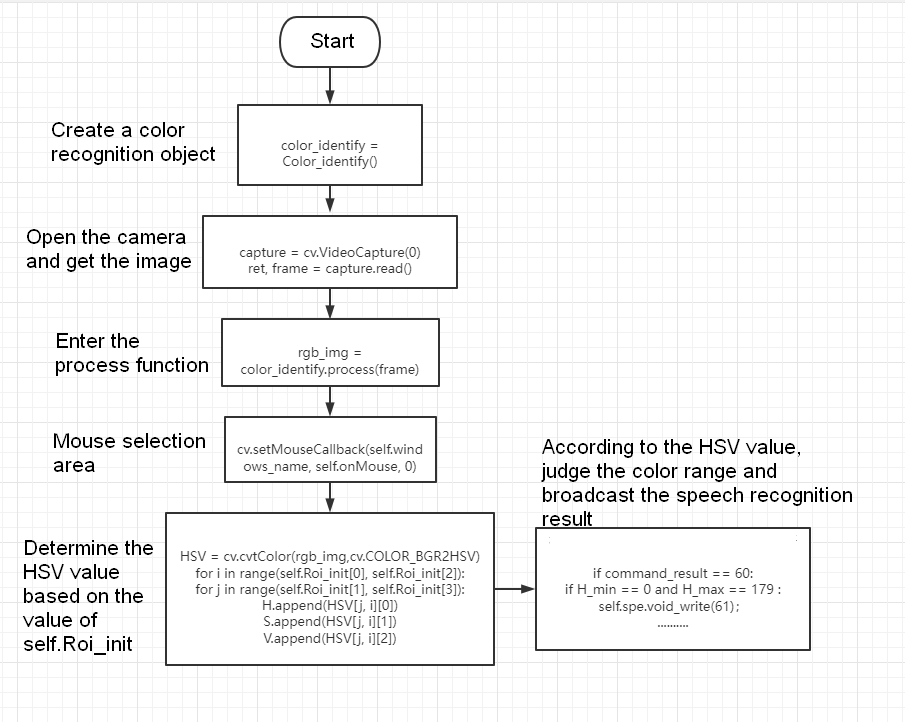
Code path:
x
~/yahboomcar_ws/src/yahboomcar_voice_ctrl/scripts/voice_Ctrl_color_identify.py 5.3.6. Voice module communication protocol
| function word | Speech Recognition Module Results | Voice broadcast content |
|---|---|---|
| What color is this? | 60 | Reply according to the color identified, as following table |
| color | The host sends the result of the recognition | Voice broadcast content |
|---|---|---|
| red | 61 | This is red |
| blue | 62 | This is blue |
| green | 63 | This is green |
| yellow | 64 | This is yellow |