1 How to use the Astra camera
1 How to use the Astra camera 1.1 SDK usage - Linux 1.1.1 dependent environment 1.1.2 Camera SDK&Samples 1.1.3 OpenNI camera test tool 1.2 AstraSDK-win 1.2.1 Install the driver 1.2.2 Download SDK 1.3 OrbbecViewer-win 1.4 Web monitoring
Official website link: http://www.orbbec.com.cn/
Developer Community: https://developer.orbbec.com.cn/
Astra Camera: https://github.com/orbbec/ros_astra_camera
Normal camera: https://github.com/bosch-ros-pkg/usb_cam.git
Astra SDK: https://developer.orbbec.com.cn/download.html?id=53
Basic use of Astra SDK for Windows: https://developer.orbbec.com.cn/course_details.html?id=53
Astra SDK environment setup: https://developer.orbbec.com.cn/course_details.html?id=16
Create astra udev rule
In the new environment, you need to execute the [create_udev_rules] file in the [scripts] folder of the [astra_camera] function package, enter the directory where the file is located, and execute the command
./create_udev_rules
launch start command
| Launch file | Start the camera model |
|---|---|
| astra.launch | Astra, Astra S, Astra mini, Astra mini S |
| astraplus.launch | more |
| astrapro.launch | Astra pro |
| embedded_s.launch | Deeyea |
| dabai_u3.launch | Nature |
| gemini.launch | Gemini |
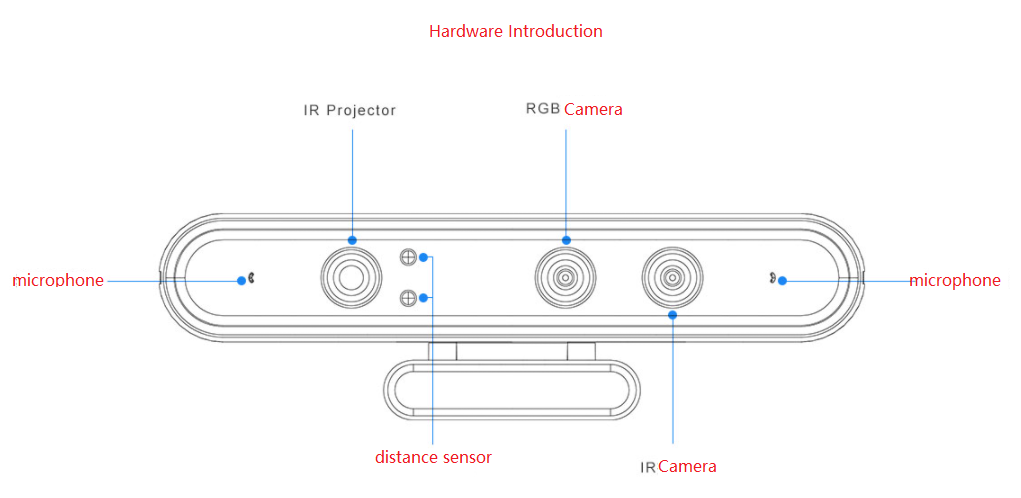
Camera hardware structure diagram:
1.1 SDK usage - Linux
Operating environment: virtual machine or dual system
Developer Community: https://developer.orbbec.com.cn/download.html?id=53
1.1.1 dependent environment
xxxxxxxxxxsudo apt-get install ros-melodic-serial ros-melodic-bfl ros-melodic-mbf-msgs ros-melodic-pointcloud-to-laserscan ros-melodic-rgbd-launch ros-melodic-libuvc-* ros-melodic-uvc-camera ros-melodic-usb-cam ros-melodic-ar-track-alvar ros-melodic-camera-calibration build-essential freeglut3 freeglut3-dev libsfml-dev
Go to the developer community to download the SDK file, that is(Astra SDK and OpenNI2 SDK, the version and system architecture must match).
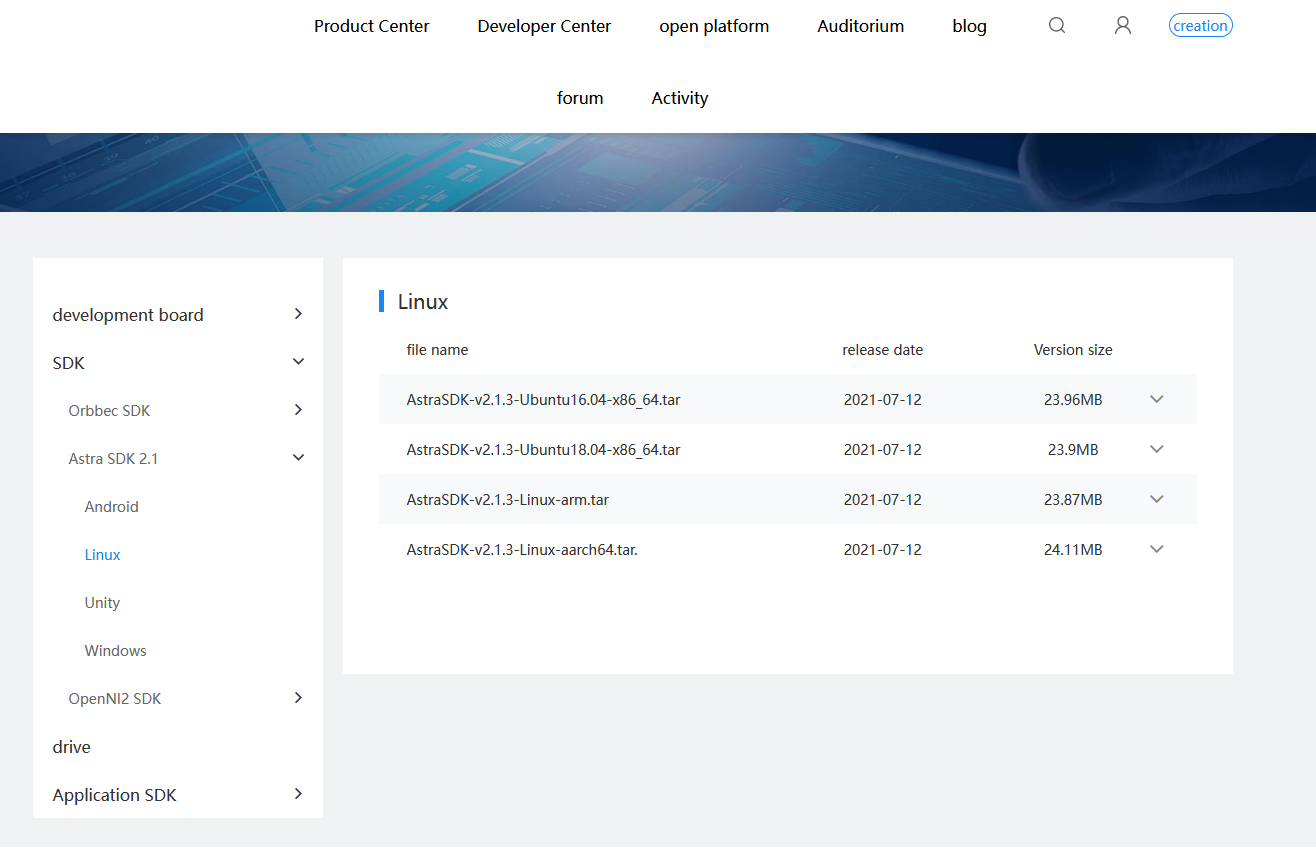
Note: All searches on the Internet are for the latest version. The versions in our supporting materials include [v2.1.2], [v2.1.3], etc. The following takes [v2.1.2] as an example, other versions are similar.
1.1.2 Camera SDK&Samples
The folder name and file path may not be the same, change them according to your needs.
xxxxxxxxxxtar -zxvf AstraSDK-v2.1.2-Ubuntu18.04-x86_64.tar.gzcd AstraSDK-v2.1.2-Ubuntu18.04-x86_64/install # Go to the install foldersudo sh ./install.sh
The output contains the following two lines, pay attention to delete the install in the penultimate path:
xxxxxxxxxxexport ASTRA_SDK_INCLUDE=/home/yahboom/software/AstraSDK-v2.1.2-Ubuntu18.04-x86_64/install/includeexport ASTRA_SDK_LIB=/home/yahboom/software/AstraSDK-v2.1.2-Ubuntu18.04-x86_64/install/lib
After deleting install:
xxxxxxxxxxexport ASTRA_SDK_INCLUDE=/home/yahboom/software/AstraSDK-v2.1.2-Ubuntu18.04-x86_64/includeexport ASTRA_SDK_LIB=/home/yahboom/software/AstraSDK-v2.1.2-Ubuntu18.04-x86_64/lib
Copy the output to the end of ~/.bashrc
xxxxxxxxxxgedit ~/.bashrcsource ~/.bashrc
The amples directory is the sample program, which needs to depend on the include and lib directories
SFML effect demo
The bin folder is as follows:

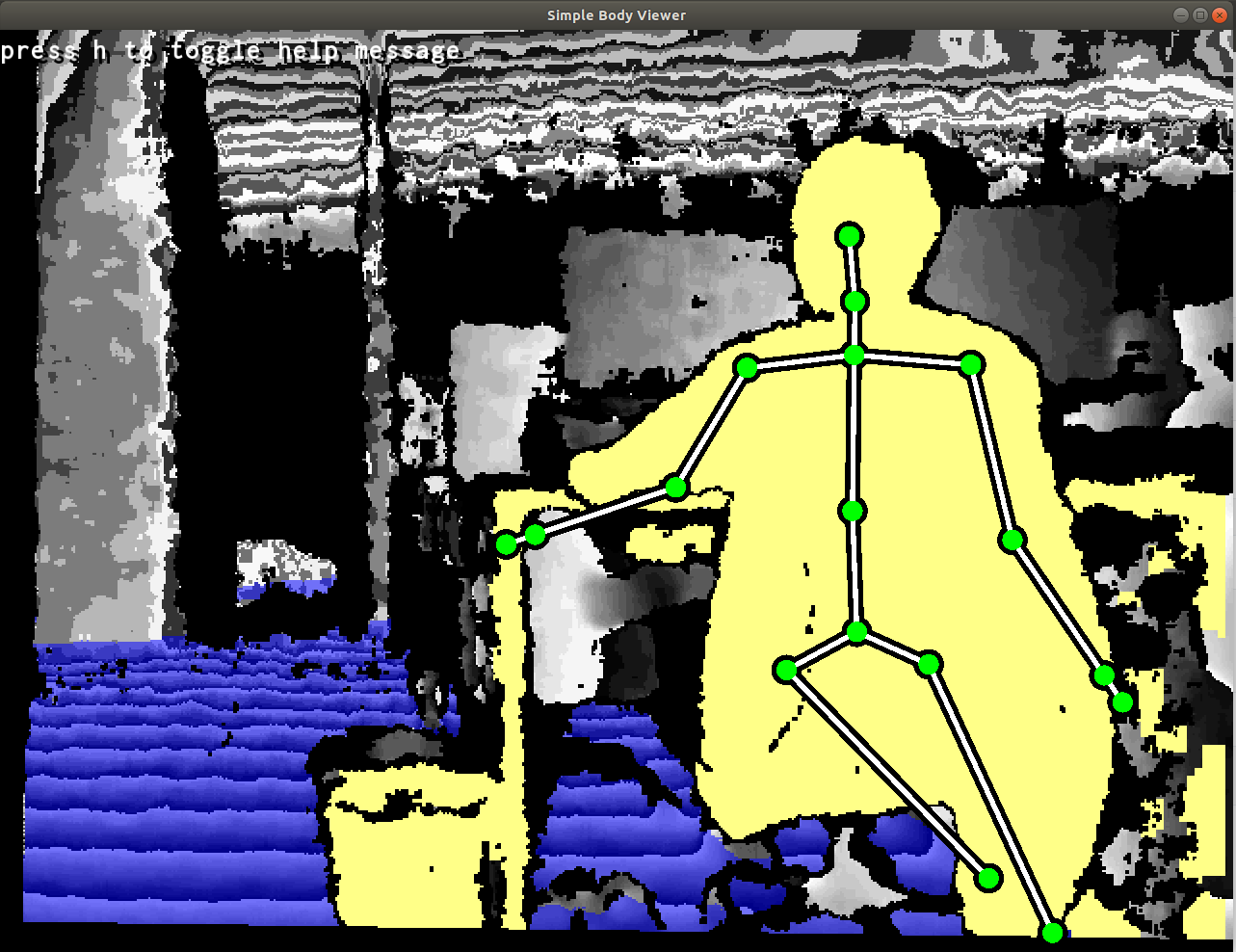
Note: sudo ./ or ./ can be used to start the bin folder, and the files with the suffix -SFML will be displayed on the screen; the methods are similar, and other effects can be tested. If the virtual machine fails to start, please try several times, it is easier to start under the dual system.
xxxxxxxxxxcd ~/AstraSDK-v2.1.2-Ubuntu18.04-x86_64/bin/./SimpleBodyViewer-SFML # Skeleton detection./SimpleHandViewer-SFML # finger following
1.1.3 OpenNI camera test tool
Install OpenNI
xxxxxxxxxxunzip OpenNI_2.3.0.55.zipcd OpenNI_2.3.0.55/Linux/OpenNI-Linux-x64-2.3.0.55chmod +x install.shsudo ./install.sh
the device to initialize the OpenNI environment
xxxxxxxxxxsource OpenNIDevEnvironment
compile and run
xxxxxxxxxxcd Samples/SimpleViewermakecd Bin/x64-Release./SimpleViewer

1.2 AstraSDK-win
https://developer.orbbec.com.cn/download.html?id=32
1.2.1 Install the driver
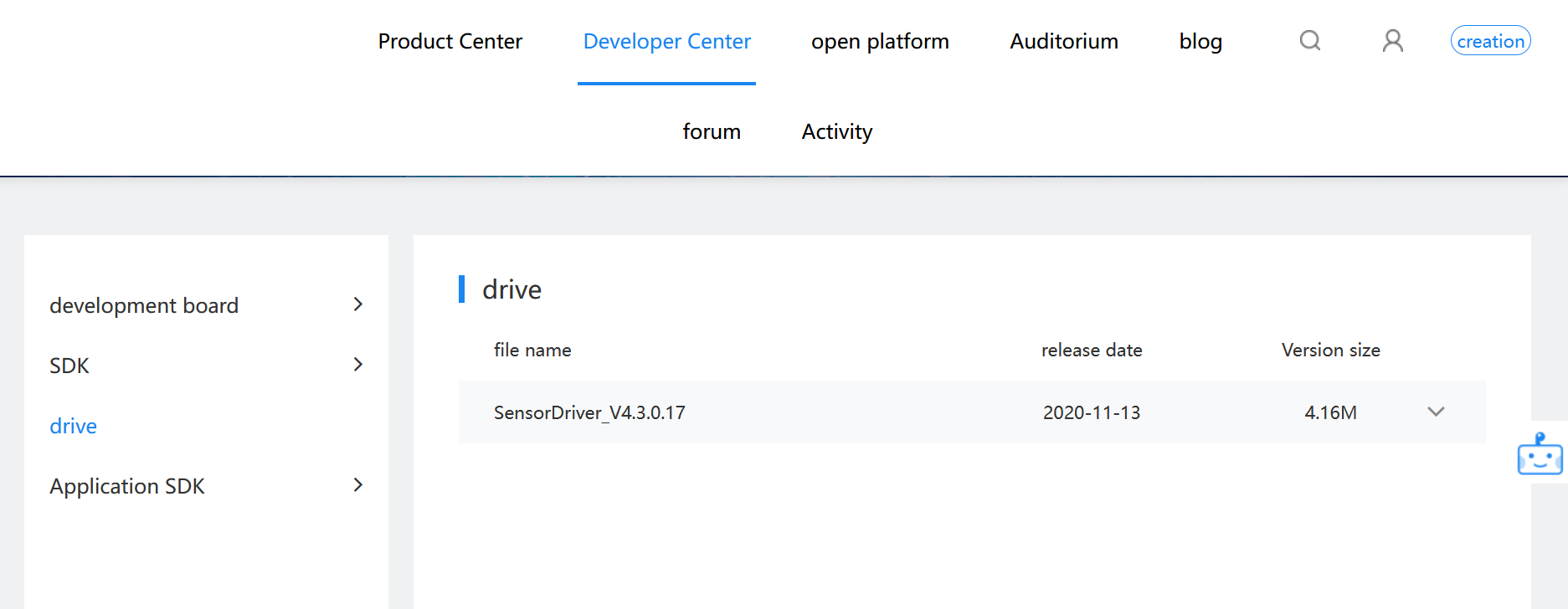
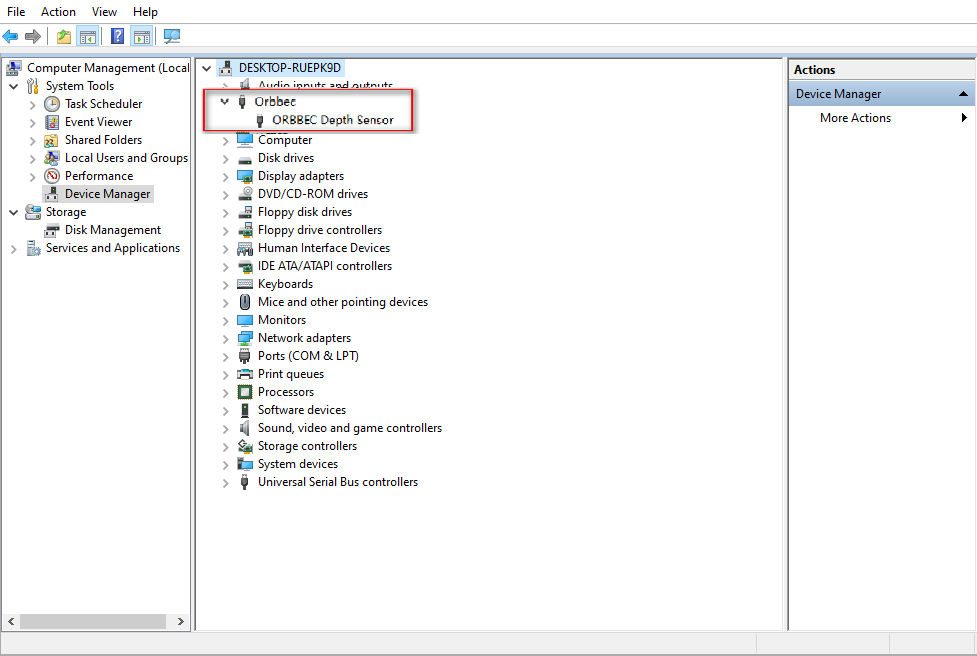
After the download is complete, double-click to install it. The signs of success are as follows
1.2.2 Download SDK
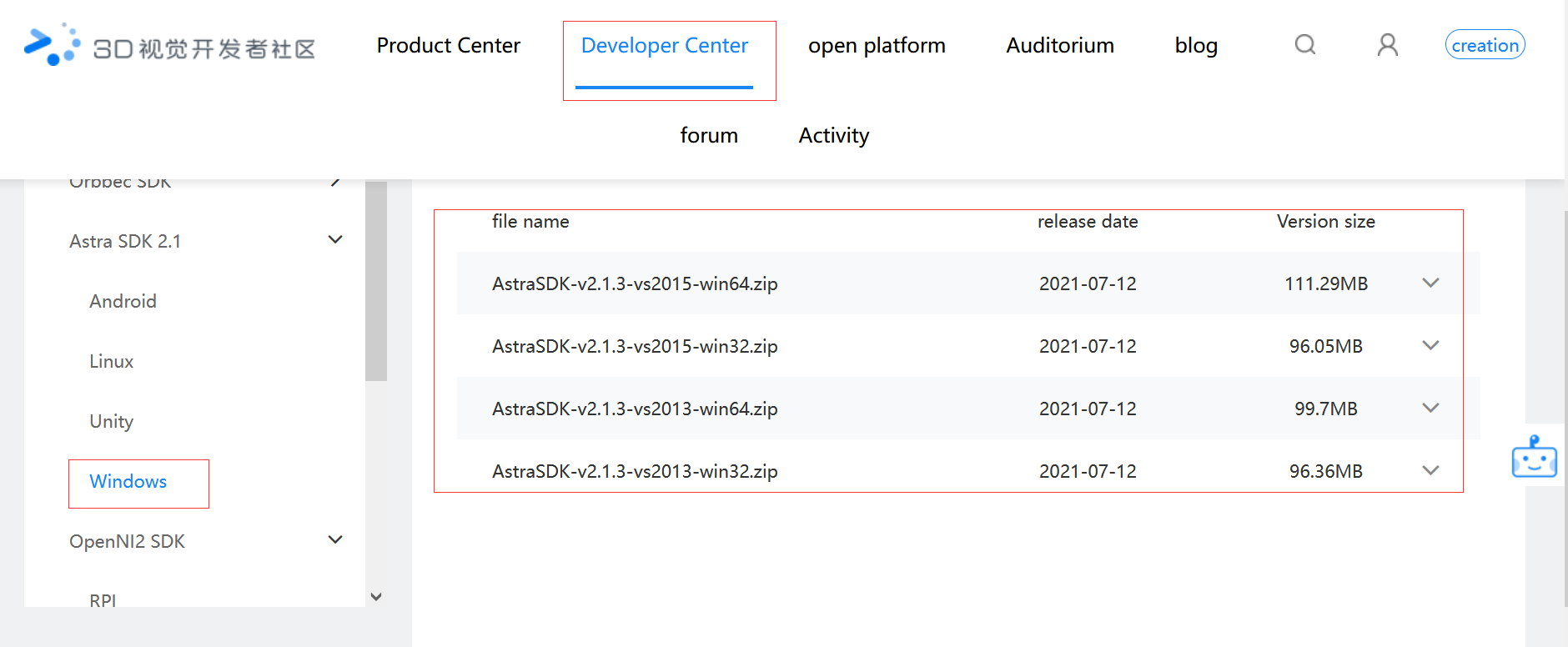
After the download is complete, unzip the folder,

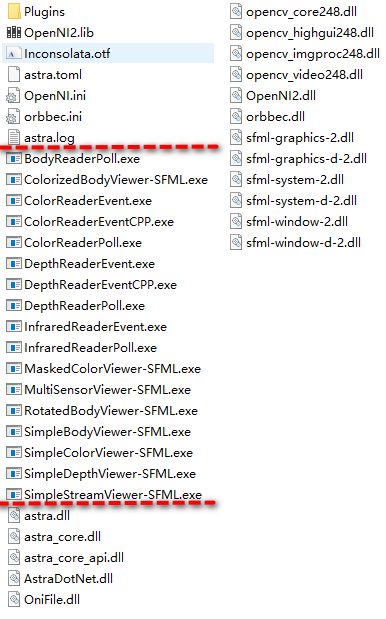
Enter the bin folder and double-click any file with the suffix exe to test it.
1.3 OrbbecViewer-win
https://developer.orbbec.com.cn/download.html?id=77
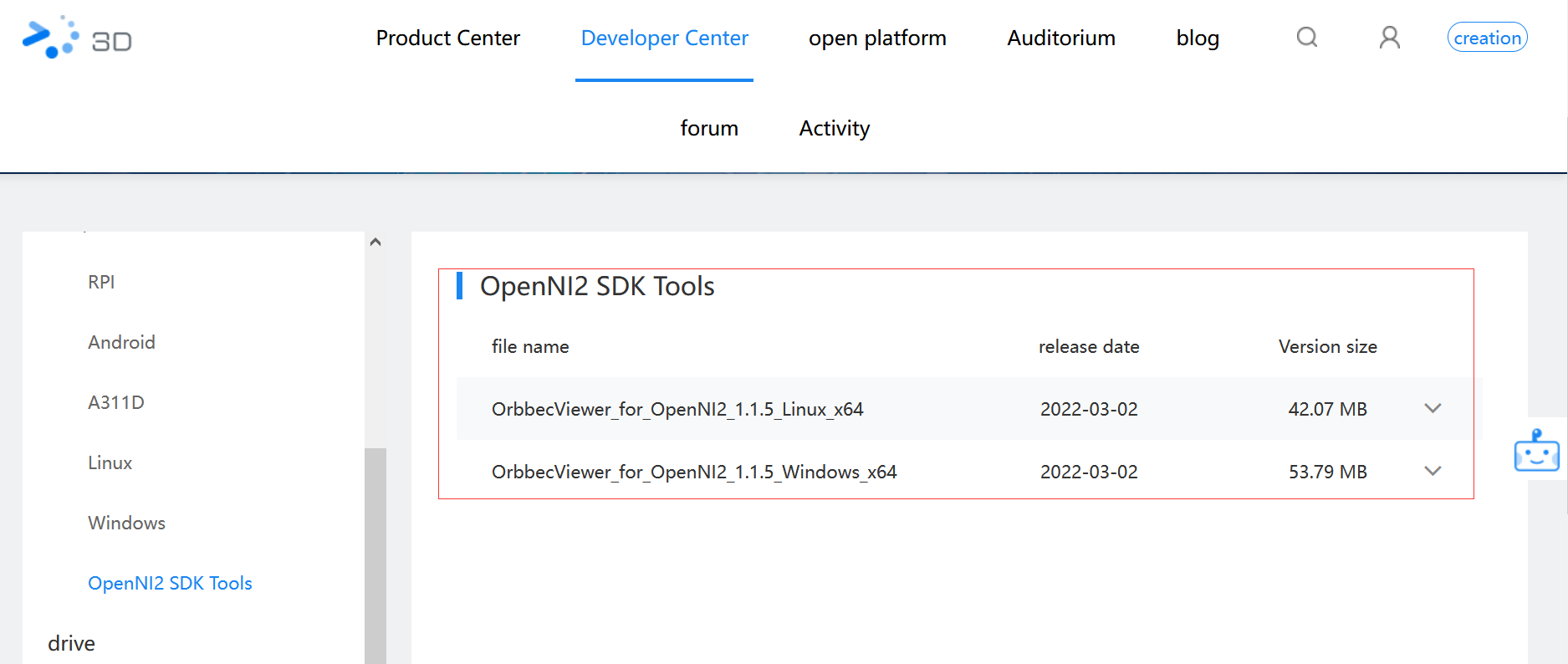
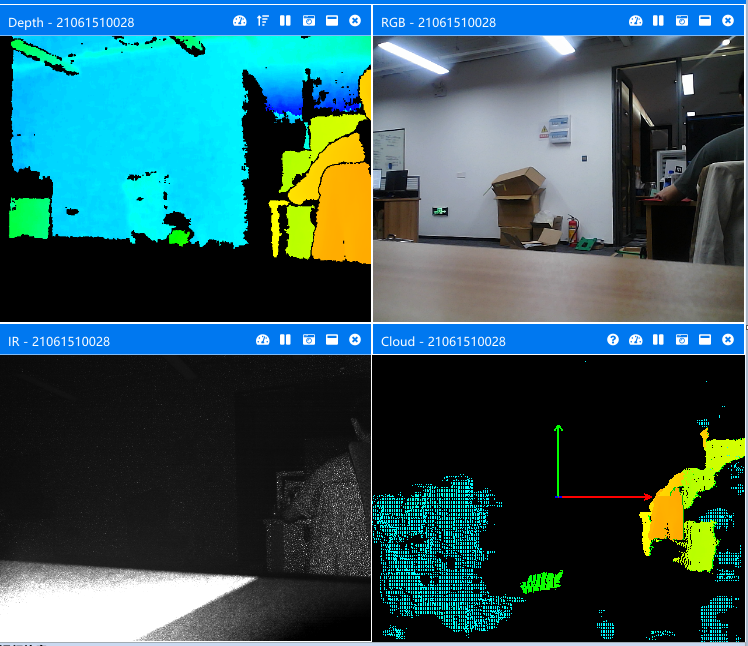
Unzip, enter the OrbbecViewer_v1.1.1 folder, double-click  That's it.
1.4 Web monitoring
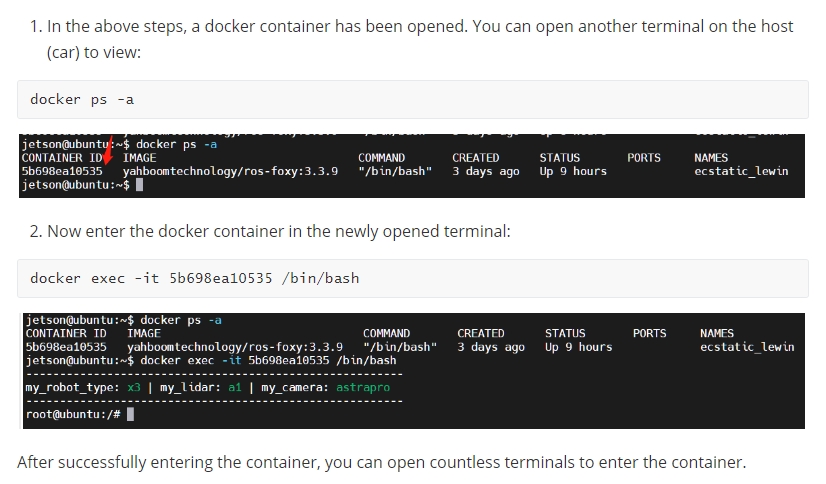
xxxxxxxxxx#Raspberry Pi 5 master needs to enter docker first, please perform this step#If running the script into docker fails, please refer to ROS2/07, Docker tutorial~/run_docker.shEnvironment construction
xxxxxxxxxxsudo apt-get install ros-melodic-async-web-server-cpp ros-melodic-web-video-server ros-melodic-usb-cam
Start the camera
roslaunch astra_camera astraproplus.launch # Astra roslaunch usb_cam usb_cam-test.launch # USB <PI5 needs to open another terminal and enter the same docker container
start web_video_server
xxxxxxxxxxrosrun web_video_server web_video_server
Check
xxxxxxxxxxView in local web browserhttp://localhost:8080/It must be under the same local area network, and other devices can view ithttp://192.168.2.103:8080/(192.168.2.103 is the IP address of the master)Note: It is recommended to use Google Chrome or mobile QQ browser, other browsers may not be able to open the image