1. Camera internal parameter calibration
1.1. Preparation before calibration
A large chessboard of known size. This tutorial uses a 9x6 chessboard with 20 mm squares, which needs to be flattened during calibration. Calibration uses the internal vertices of the chessboard, so a "10x7" chessboard uses the internal vertex parameters "9x6", as shown in the example below. Any size of calibration board can be used, just change the parameters. A more open area without obstacles and calibration board patterns
Monocular camera that publishes images through ROS
1.2, start calibration
Install the calibration function package camera_calibration, take noetic as an example, and enter in the terminal,
xxxxxxxxxxsudo apt install ros-noetic-camera-calibration*
Start the camera before calibration, and turn it off after all calibrations are completed. Start the camera and enter in the terminal,
xxxxxxxxxx#astra camera startuproslaunch orbbec_camera astra.launch#gemini camera startuproslaunch orbbec_camera gemini.launchUse the following command to view the topic terminal input,
xxxxxxxxxxrostopic list
The topic we need to use to calibrate RGB color images is /camera/color/image_raw.
Run the calibration program and enter in the terminal,
xxxxxxxxxxrosrun camera_calibration cameracalibrator.py image:=/camera/color/image_raw
size: calibrate the number of internal corner points of the chessboard, for example, 9X6, the corner points have six rows and nine columns.
square: the side length of the chessboard, in meters.
Topic name: /camera/color/image_raw. If you are starting usb_cam, change it to /image_raw
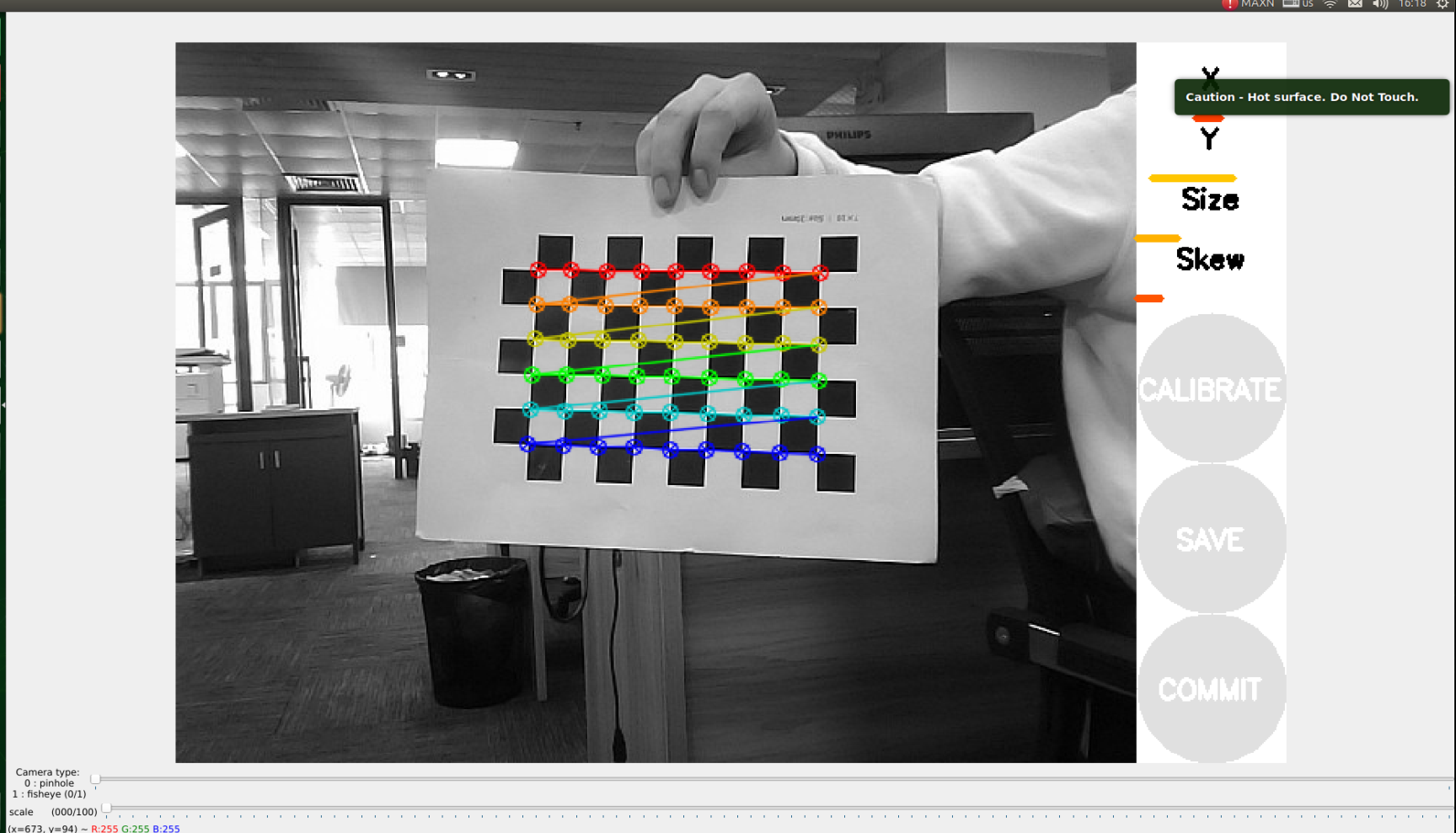
X: Left and right movement of the chessboard in the camera's field of view
Y: Up and down movement of the chessboard in the camera's field of view
Size: Front and back movement of the chessboard in the camera's field of view
Skew: Tilt and rotation of the chessboard in the camera's field of view
As shown in the figure above, you need to capture the image by flipping up and down, front and back, left and right, so that the X, Y, Size, and Skew on the right turn green, as shown in the figure below, and then click CALIBRATE to start calibration.
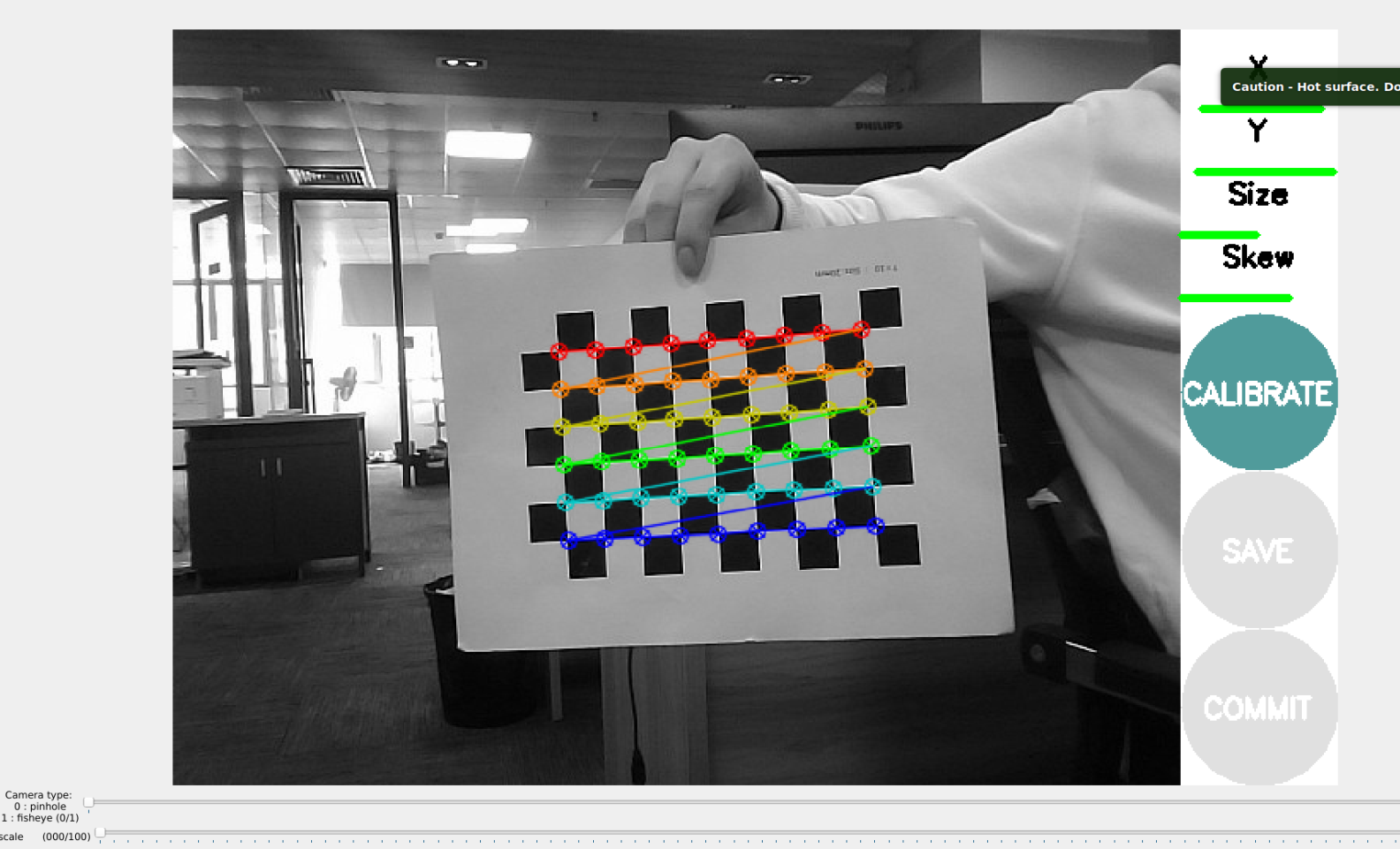
After the calibration is completed, click SAVE, as shown in the figure below.
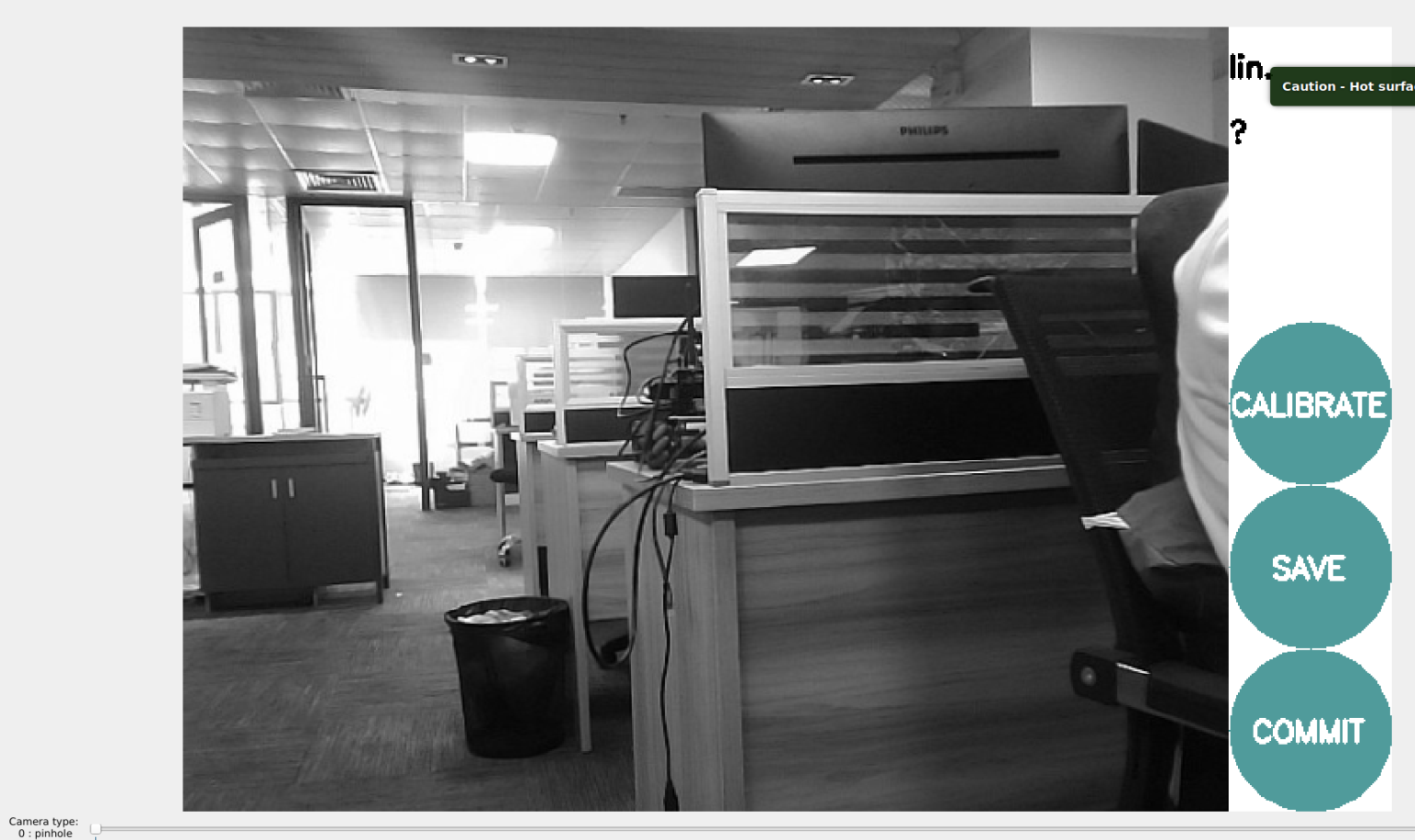
The calibration results are saved to [/tmp/calibrationdata.tar.gz], and the saved path is the terminal directory where the calibration program is started. After the calibration is completed, you can move out the [/tmp/calibrationdata.tar.gz] file to see the content
xxxxxxxxxxsudo mv /tmp/calibrationdata.tar.gz ~
Terminal input,
xxxxxxxxxxcd ~tar -xvf calibrationdata.tar.gz
You will get the calibrated png file, ost.yaml and ost.txt files in the terminal directory
Since the gemini2 driver loads the built-in parameters calibrated in the code when it is started, it is not necessary to load the calibrated parameters, but when the USB camera is started, the parameters need to be loaded. Therefore, after calibration, the parameters need to replace the original built-in parameters, rename the calibrated ost.yaml to camera_info.yaml, and then replace the original camera_info.yaml,
xxxxxxxxxxsudo mkdir /home/yahboom/.ros/camera_infosudo cp ost.yaml /home/yahboom/.ros/camera_info#Switch to the /home/yahboom/.ros/camera_info directorycd /home/yahboom/.ros/camera_info#Rename ost.yaml to camera_info.yamlsudo mv ost.yaml camera_info.yaml