Color sorting
1. Color recognition instructions
Use the HSV color recognition function. The path to save the HSV color calibration file is ~/jetcobot_ws/src/jetcobot_color_identify/scripts/HSV_config.txt. If the color recognition is not accurate enough, please recalibrate the HSV value of the block color according to the 【2.Block color calibration】 course.
After the calibration operation is completed, it will be automatically saved to the HSV_config file. Rerun the program without additional code modification.
The path to save the file for the robot position calibration is ~/jetcobot_ws/src/jetcobot_color_identify/scripts/XYT_config.txt.
After calibration, restart the program and click the calibration mode to automatically read the file information to reduce repeated calibration actions.
2. About code
Code path:~/jetcobot_ws/src/jetcobot_color_identify/scripts/color_sorting_stacking.ipynb
~/jetcobot_ws/src/jetcobot_utils/src/jetcobot_utils/grasp_controller.py
Since the camera may have deviations in the position of the building block, it is necessary to add deviation parameters to adjust the deviation value of the robotic arm to the recognition area.
The type corresponding to color sorting and color stacking is "color", so it is necessary to change the offset parameter under type == "color". The X offset controls the front and back offset, and the Y offset controls the left and right offset.
# Get the XY offset according to the task typedef grasp_get_offset_xy(self, task, type):offset_x = -0.012offset_y = 0.0005if type == "garbage":offset_x = -0.012offset_y = 0.002elif type == "apriltag":offset_x = -0.012offset_y = 0.0005elif type == "color":offset_x = -0.012offset_y = 0.0005return offset_x, offset_y
The coordinate value of the color area to be placed. If the coordinate of the placement position is inaccurate, you can modify this coordinate value appropriately.
x# colordef goBluePose(self):coords = [-60, 230, 110, -175, 0, -45]self.go_coords(coords, 3)def goGreenPose(self):coords = [10, 230, 110, -175, 0, -45]self.go_coords(coords, 3)def goRedPose(self):coords = [75, 230, 110, -175, 0, -45]self.go_coords(coords, 3)def goYellowPose(self):coords = [140, 230, 110, -175, 0, -45]self.go_coords(coords, 3)
3. Start program
Start roscore
- If you are using Jetson Orin NX/Jetson Orin Nano board. You need to enter the Docker environment using the following command.
- Then, run roscore
xxxxxxxxxxsh ~/start_docker.shroscore
- If you are using Jetson Nano board. You need to enter the following command directly.
xxxxxxxxxxroscore
Start the program
Open the jupyterlab webpage and find the corresponding .ipynb program file.
Click the Run button to run the entire code.

4. Experimental operation and results
After the program runs, the Jupyterlab webpage will display the control button.
Camera image on the left side, related buttons on the right side.
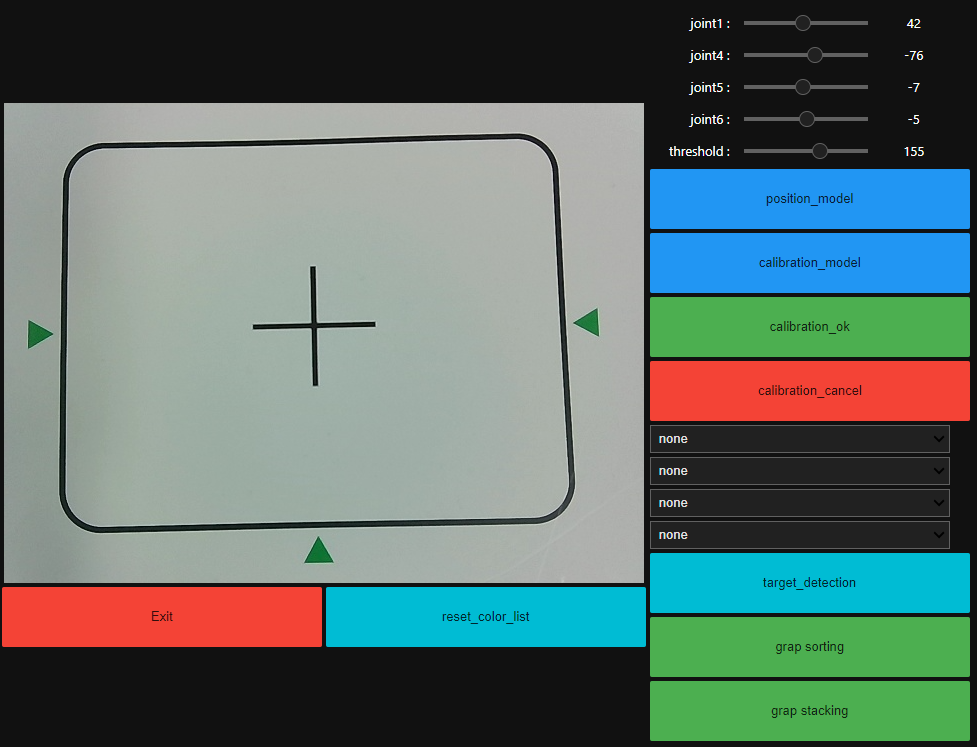
Click the 【position_model】button, drag the joint angle above, update the position of the robot arm, and make the recognition area in the middle of the entire image.
Then, click 【calibration_model】 to enter the calibration mode, and adjust the robot arm joint slider and threshold slider above to make the displayed blue line overlap with the black line of the recognition area.
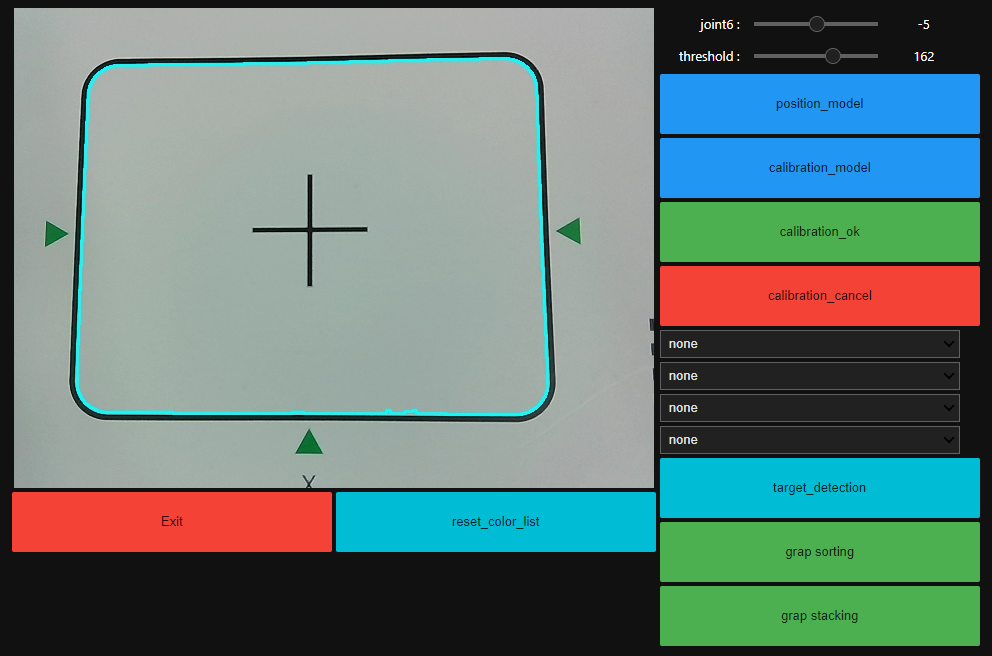
Click 【calibration_ok】 to calibrate OK.
The camera screen will switch to the recognition area perspective.
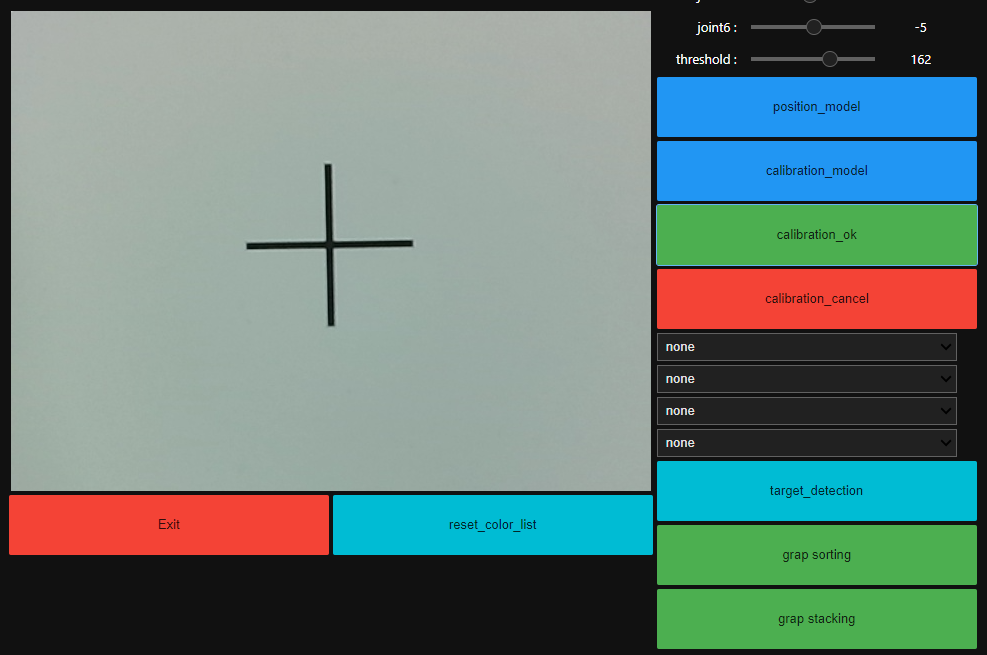
Place the blocks into the recognition area and select the color order on the right.
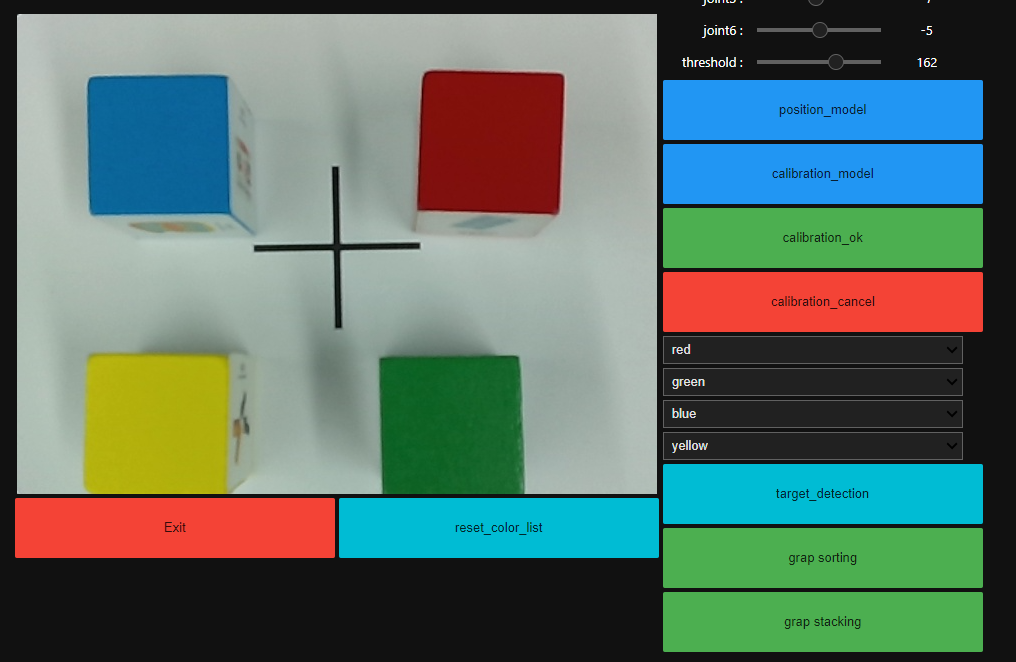
Click 【target_detection】to start color recognition.
If the color recognition is inaccurate, please calibrate the color and then run the program again.
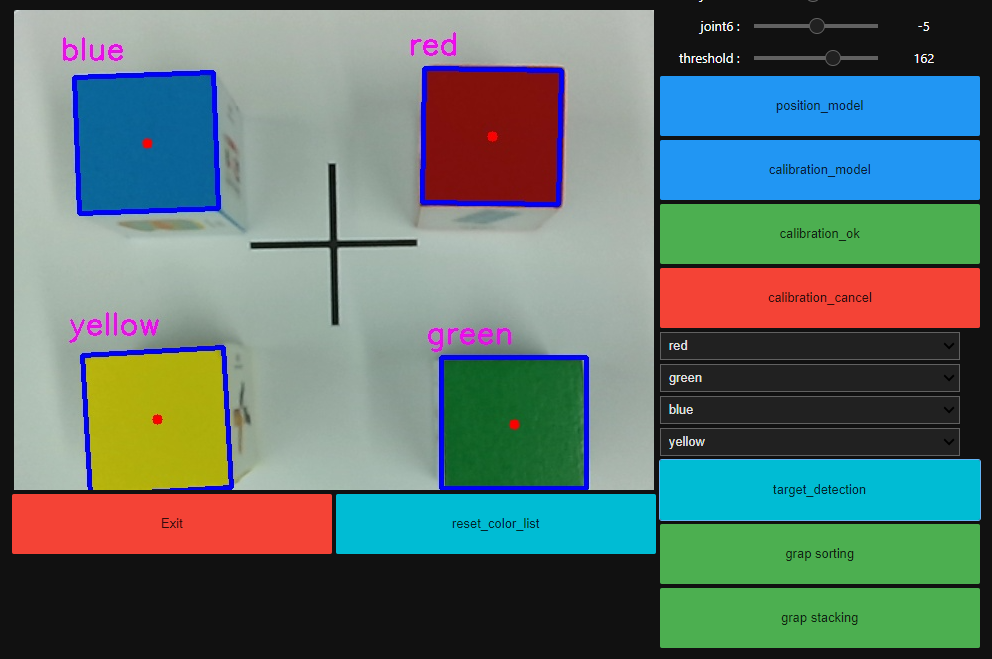
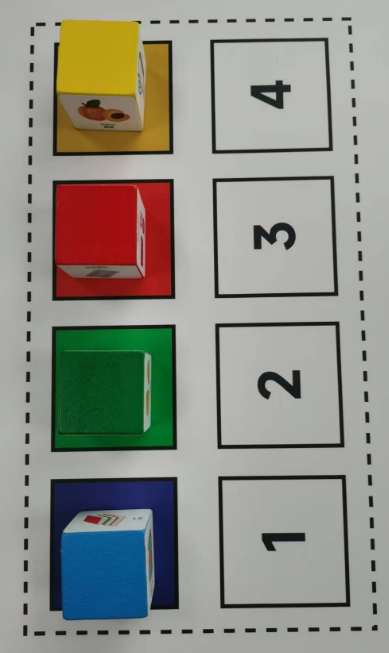
Click the 【grap sorting】 button to start sorting.
The system will sort the recognized colors into the color area in order.
If you need to exit the program, please click the 【Exit】 button.