Pose Estimation
This example demonstrates human pose estimation. It uses the yolov8s_pose model.
1. Detection of the video
Terminal input,
xxxxxxxxxxcd hailo-rpi5-examples/
Then enter the command to enter the virtual environment
xxxxxxxxxxsource setup_env.sh
Enter the command. Run the video to detect
xxxxxxxxxxpython basic_pipelines/pose_estimation.py --input resources/detection0.mp4
Where the .mp4 suffix indicates the path of the video
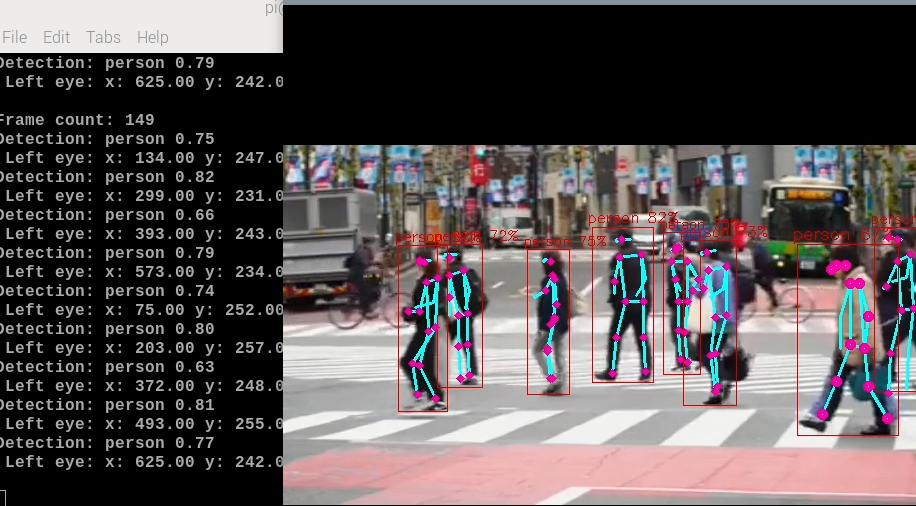
To close it, press ctrl+c.
Contents in this example:
The Callback function shows how to get the pose estimation metadata from the network output. Each pesron is represented as a with 17 key points (objects). The code parses the landmarks and extracts the left and right eye coordinates and prints them to the terminal. If the flag is set, the eyes are drawn on the user frame. The key point dictionary can be obtained from the function. HAILO_DETECTION``HAILO_LANDMARKS``--use-frame``get_keypoints
2. Real-time detection of camera images
In the virtual environment terminal, enter the following command. By default, these examples run with a USB camera (/dev/video0). You can change the input source using the --input flag according to the real-time situation.
xxxxxxxxxxpython basic_pipelines/pose_estimation.py --input /dev/video0 #usb camerapython basic_pipelines/pose_estimation.py --input rpi #csi camera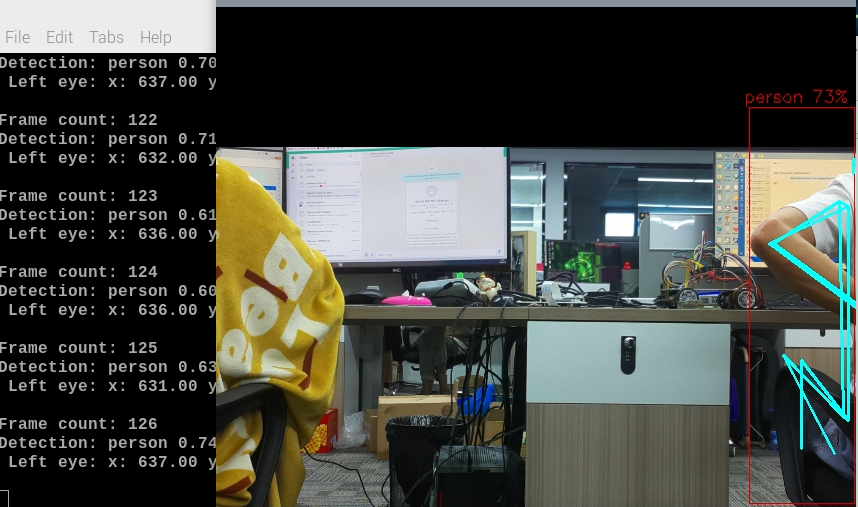
If the camera does not display properly, you can check which video devices are available by running the following command:
xxxxxxxxxxls /dev/video*You can test whether the camera is working properly by running the following command:
xxxxxxxxxxffplay -f v4l2 /dev/video0If you encounter an error, try another device, such as /dev/video2.
Troubleshooting and known issues
If the camera example suddenly stops running in the middle, you can refer to the solution steps below. If it still does not work, you need to restart the Raspberry Pi.
- RPi camera input is still in the Beta stage. It may be unstable and may cause the application to crash.
- The frame buffer is not optimized and may slow down the application. It is shown as a simple example.
- DEVICE_IN_USE() error. This error usually means that the Hailo device (usually ) is currently being accessed or locked by another process. This can happen during concurrent access attempts or if the previous process was not terminated cleanly, leaving the device in a locked state.
Solution steps:
1.Identify the device: Typically, Hailo devices are located at . Make sure this is the correct device file for your setup. /dev/hailo0
2.Find processes using the device: Run the following command to list any processes currently using the Hailo device:
xxxxxxxxxxsudo lsof /dev/hailo0
3.Kill the process: Kill the process using the PID (Process ID) from the output of the previous command. Replace with the actual PID. <PID>
xxxxxxxxxxsudo kill -9 <PID>