Auto-start at boot
1. Set up auto-startservice
Create a startup script
Use any text editor to create a new startup script in the
/etc/init.ddirectory. Assume it is namedyour_script_name. Here is the sample script for reference.xxxxxxxxxx### BEGIN INIT INFO# Provides: your_service_name# Required-Start: $all# Required-Stop:# Default-Start: 2 3 4 5# Default-Stop: 0 1 6# Short-Description: Start your_service_name at boot time# Description: Enable service provided by your_service_name### END INIT INFO/path/to/your/program &exit 0Set the startup script to have executable permissions.
xxxxxxxxxxsudo chmod +x /etc/init.d/your_script_nameUse the update-rc.d command to add the script to the system startup item.
xxxxxxxxxxsudo update-rc.d your_script_name defaultsUse the systemctl command to enable automatic startup.
xxxxxxxxxxsudo systemctl enable your_script_nameRestart the development board to verify whether the self-start service program is running normally.
xxxxxxxxxx systemctl status your_script_name.service 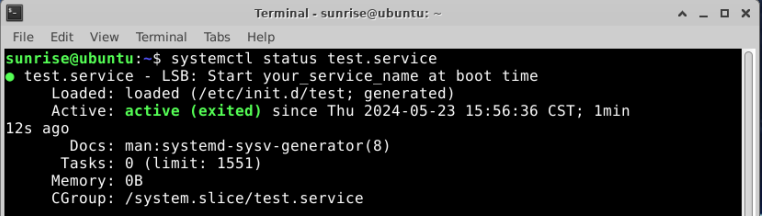
2. Add to rc.local service
rc.local is a system service that is used to automatically execute some scripts or commands when the system starts.
This service will be automatically called when the system starts, and execute some user-specified scripts or commands after the system starts, so as to perform custom configuration or operations when the system starts.
In early Linux distributions, rc.local was the last service that ran by default during the system startup process. With the popularity of systemd, rc.local is regarded as a legacy system service.
It is implemented by adding a startup command at the end of the sudo vim /etc/rc.local file, for example.
## rc.local#re# This script is executed at the end of each multiuser runlevel.# Make sure that the script will "exit 0" on success or any other# value on error.## In order to enable or disable this script just change the execution# bits.## By default this script does nothing.
# Insert what you need
exit 0