03.RGB light bar control
03.RGB light bar control1. Learning objectives2. Experimental preparation3. Core code analysis4. Experimental phenomenon
1. Learning objectives
Control the RGB light bar connected to the expansion board.
2. Experimental preparation
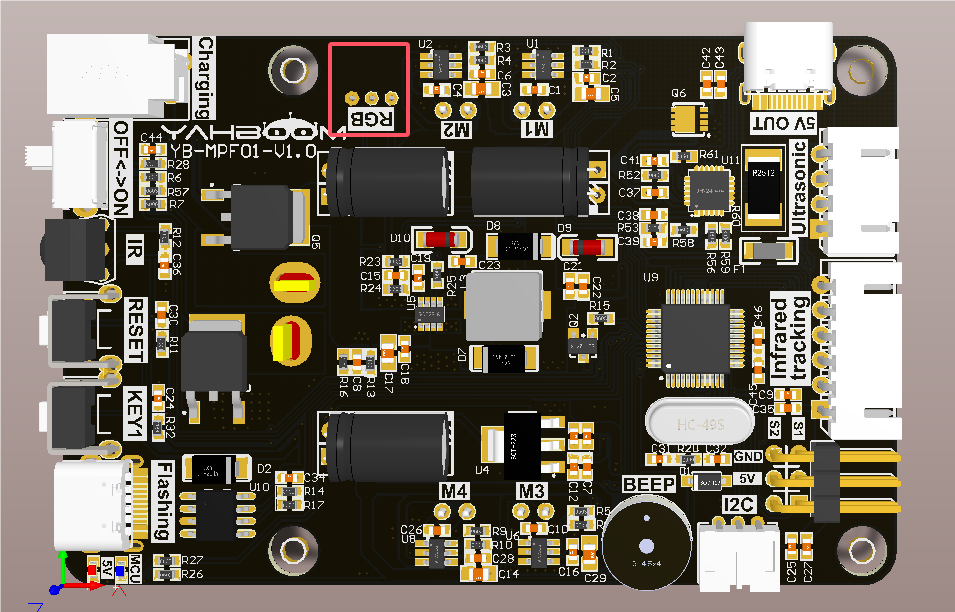
As shown in the figure below, the RGB light bar needs to be connected to the RGB interface.
3. Core code analysis
Raspbot_Lib library functions needed to control the RGB light bar:
xxxxxxxxxxCtrl_WQ2812_ALL(state,color)
Parameter explanation: Control the color display of the RGB light bar
state=0: Turn off the color display of the RGB light bar, state=1: Turn on the color display of the RGB light bar.
color =[0,7], 0: red, 1: green, 2: blue, 3: yellow, 4: purple, 5: cyan, 6: white, 7: turn off
Return value: None.
xxxxxxxxxxCtrl_WQ2812_brightness_ALL(R,G,B)
Parameter explanation: Control the RGB value of the RGB light bar
R, G, B=[0,255], indicating the color RGB value
xxxxxxxxxxexecute_effect(effect_name, effect_duration, speed, current_color)
Parameter explanation: Control the lighting effect of the RGB light bar
effect_name: gradient, river, random_running, starlight, breathing
effect_duration: effect duration, not less than 0
speed: lighting effect speed, the smaller the value, the faster, the speed is not less than 0
current_color: [0,6], the default value is 0, only valid when in the breathing light effect, 0: red, 1: green, 2: blue, 3: yellow, 4: purple, 5: cyan , 6: white
Source code path: project_demo/03.Basic_car_course
4. Experimental phenomenon
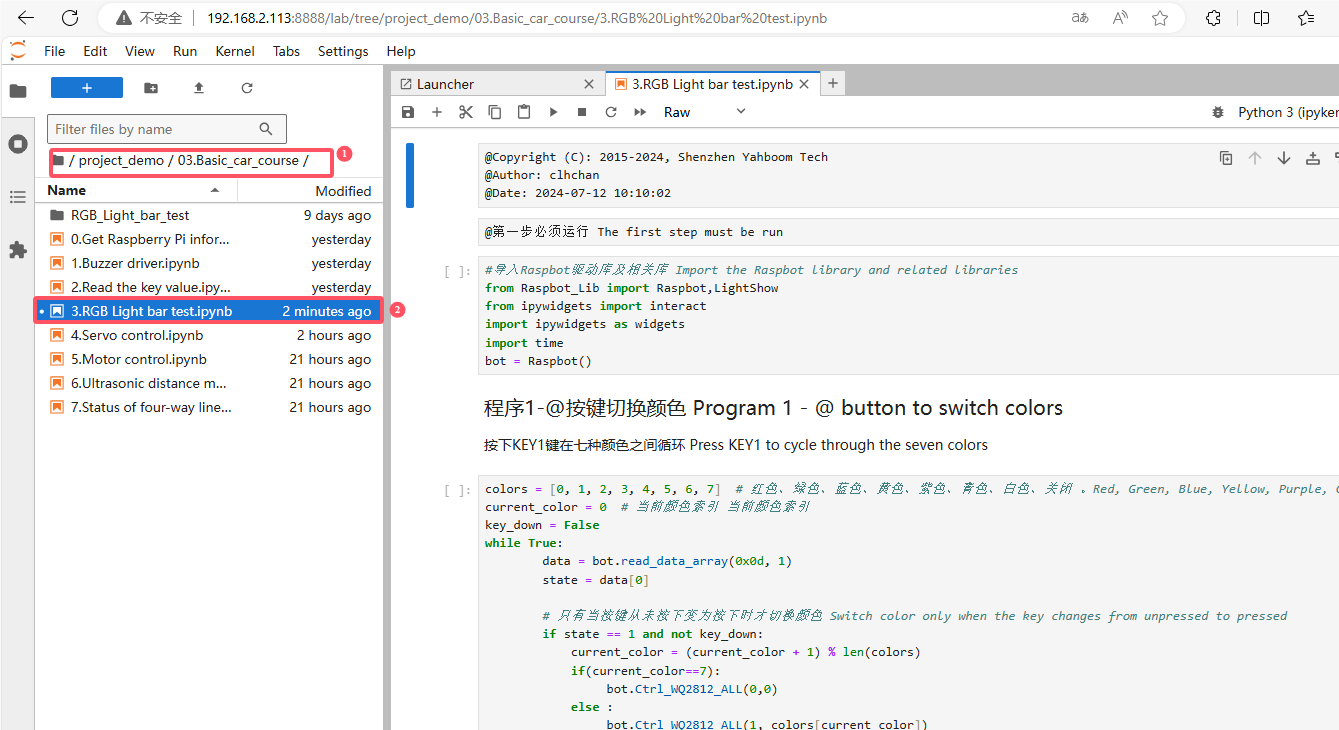
Turn on the robot, open the computer browser to enter the Jupyter lab editor
Enter the source code path, double-click the code to be run
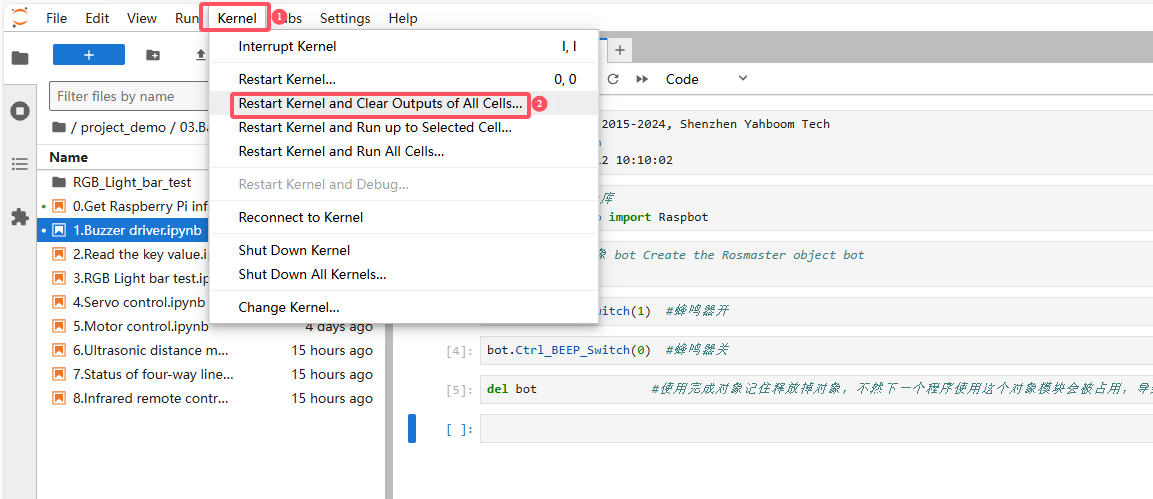
Restart the kernel and clear all outputs
Click the first code block, then click the run button to start running one by one
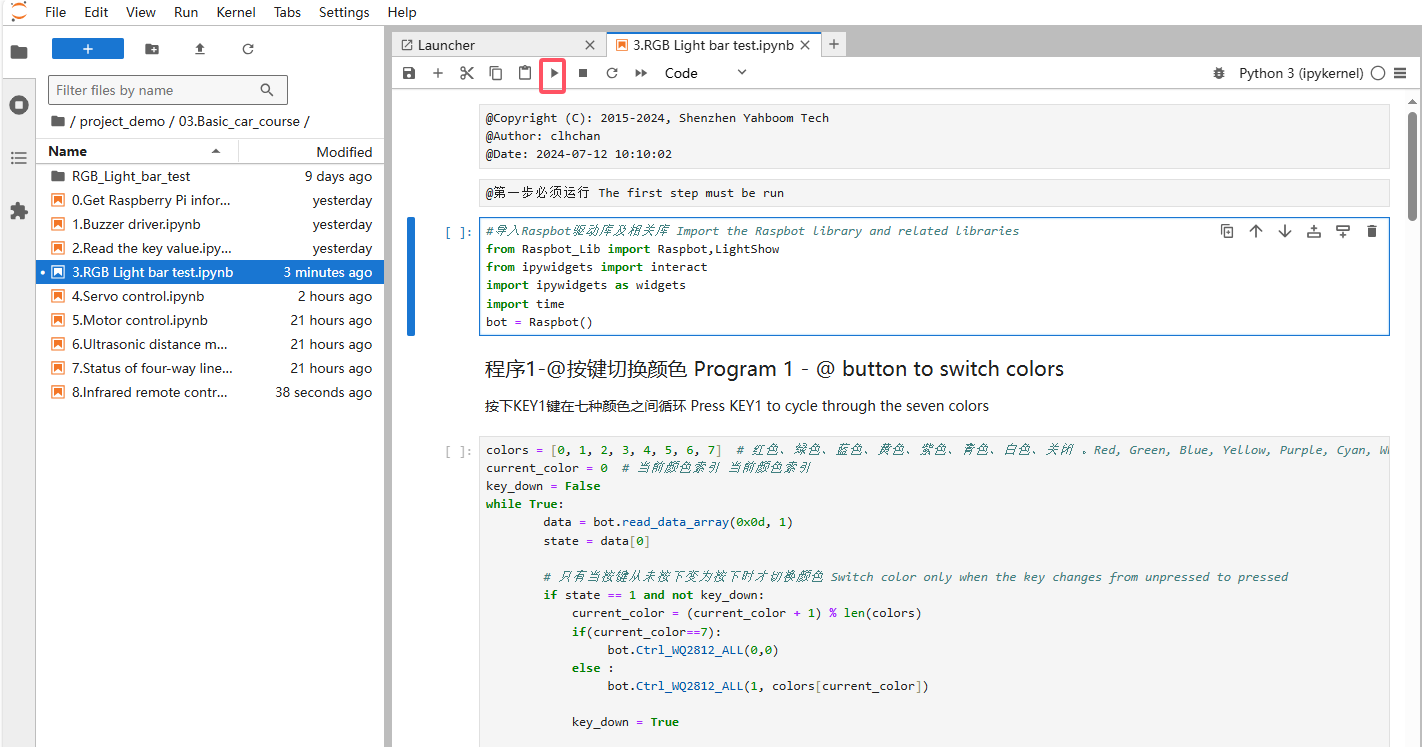
After the program runs, as the code block runs, we can control the light bar to switch different colors through buttons, switch different light bar colors through sliders and buttons, and switch different lighting effects through the drop-down bar
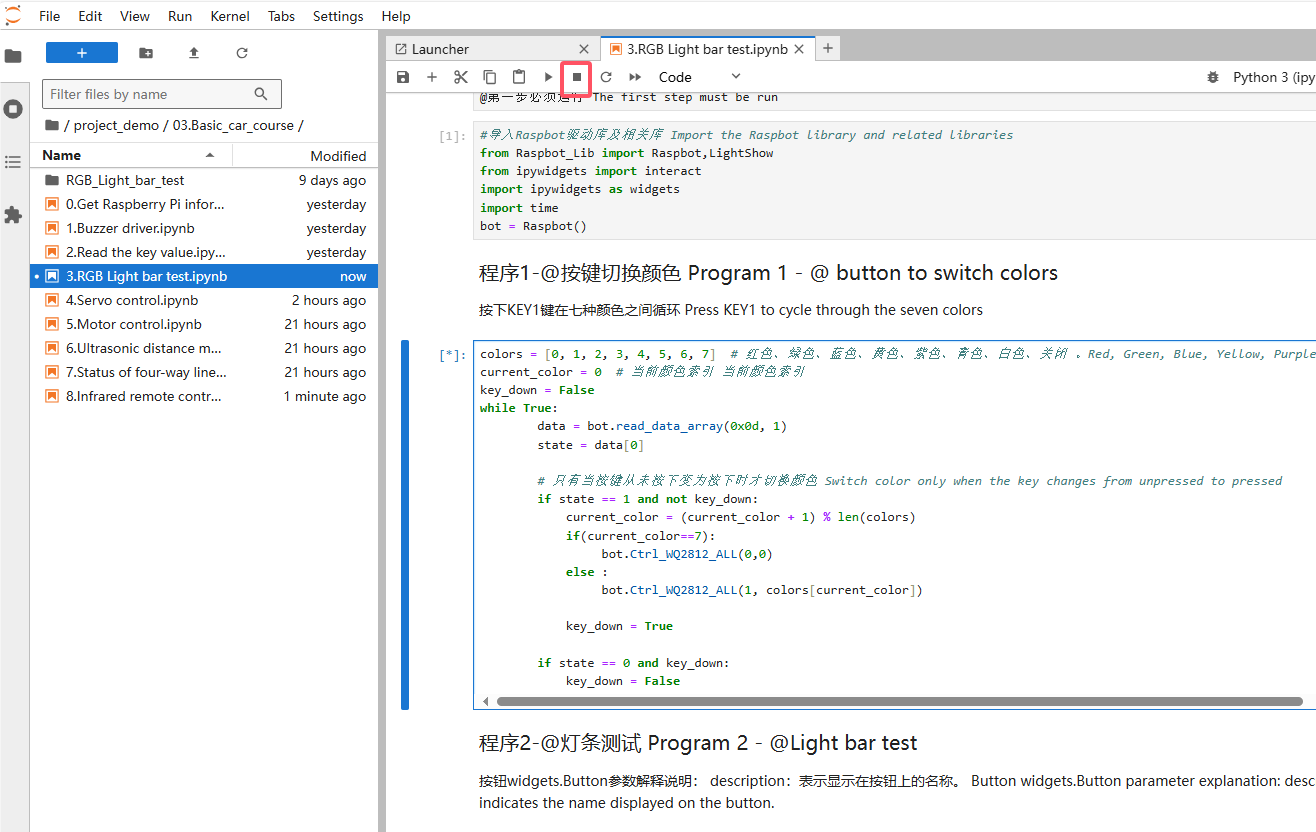
Note: Before running program 2, you need to stop program 1.
The operation is shown in the figure below. First click the code block, then click the stop button.
For the python program of RGB lighting effect, you can enter the following path to view
project_demo/03.Basic_car_course/RGB_Light_bar_test/