JETSON NANO is controlled via VNC remote desktop
Hint: Configured image, username: jetson original password: yahboom
If you are using a configured image, VNC is already configured, you can jump directly to step 6 and log in to VNC based on the current IP address
- Install vino
xxxxxxxxxxsudo apt update
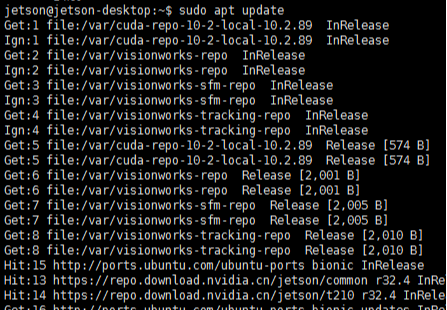
xxxxxxxxxxsudo apt install vino
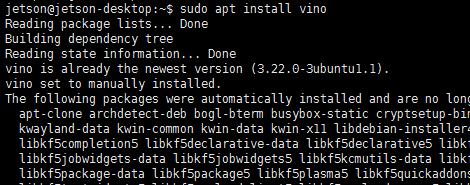
- Set Enable VNC service (you can manually open the vnc server at this time)
xxxxxxxxxxsudo ln -s ../vino-server.service/usr/lib/systemd/user/graphical-session.target.wants

xxxxxxxxxx# Configure VNC server:gsettings set org.gnome.Vino prompt-enabled falsegsettings set org.gnome.Vino require-encryption false
Edit org.gnome, restore the lost "enabled" parameter, enter the following command to enter the file, and add the key content below to the end of the file. Save and exit.
xxxxxxxxxxsudo vi /usr/share/glib-2.0/schemas/org.gnome.Vino.gschema.xml

xxxxxxxxxx<key name='enabled' type='b'><summary>Enable remote access to the desktop<summary><description>If true, allows remote access to the desktop via the RFB protocol. Users on remote machines may then connect to the desktop using a VNC viewer.<description><default>false<default><key>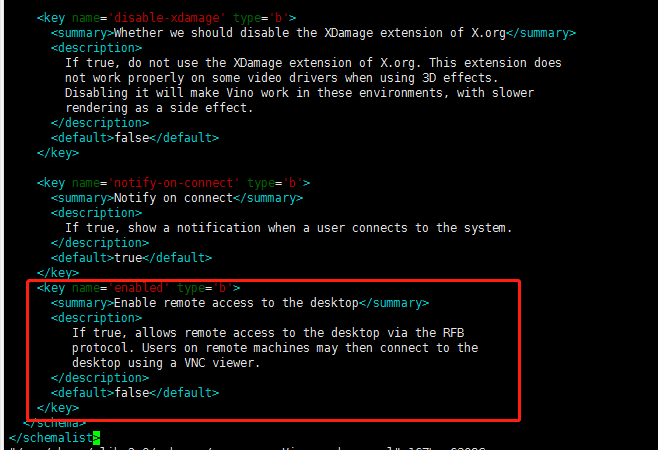
Set to Gnome compilation mode
sudo glib-compile-schemas /usr/share/glib-2.0/schemas
Now the screen sharing panel works in the unit control center... but this is not enough to get vino running! So you need to add the program: Vino-server when the session starts, using the following command line:
xxxxxxxxxx/usr/lib/vino/vino-server

This is a manual start. If you need to start it manually every time, it will be troublesome. The following will set the form of automatic startup at boot.
- Set the VNC login password (change 'thepassword' to your own password)
xxxxxxxxxxgsettings set org.gnome.Vino authentication-methods "['vnc']"gsettings set org.gnome.Vino vnc-password $(echo -n 'thepassword' |base64)
- Restart the machine to verify whether the VNC setting is successful
xxxxxxxxxxsudo reboot- Set the VNC Server to start automatically at boot
The VNC server is only available after you log in to Jetson locally. If you want VNC to be automatically available, use the System Settings application to enable automatic login.
xxxxxxxxxxgsettings set org.gnome.Vino enabled truemkdir -p ~/.config/autostartvi ~/.config/autostart/vino-server.desktopAdd the following content to the file, save and exit.
xxxxxxxxxx[Desktop Entry]Type=ApplicationName=Vino VNC serverExec=/usr/lib/vino/vino-serverNoDisplay=true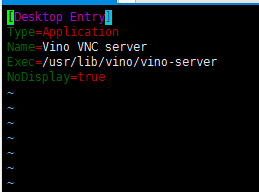
If the system is set to require a user password to enter the desktop, the above script will not start until you enter the desktop. It is recommended to set the system so that users can automatically log in to the desktop.
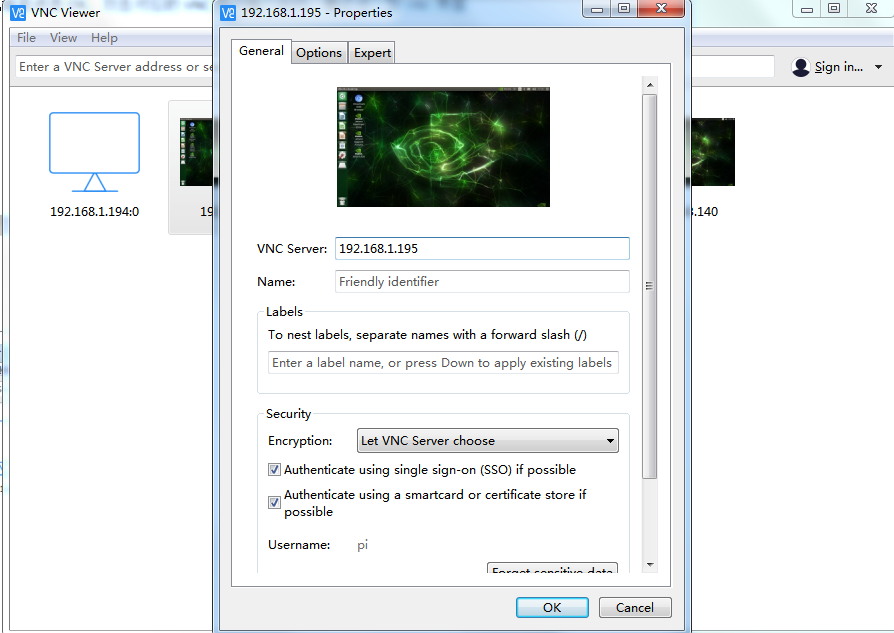
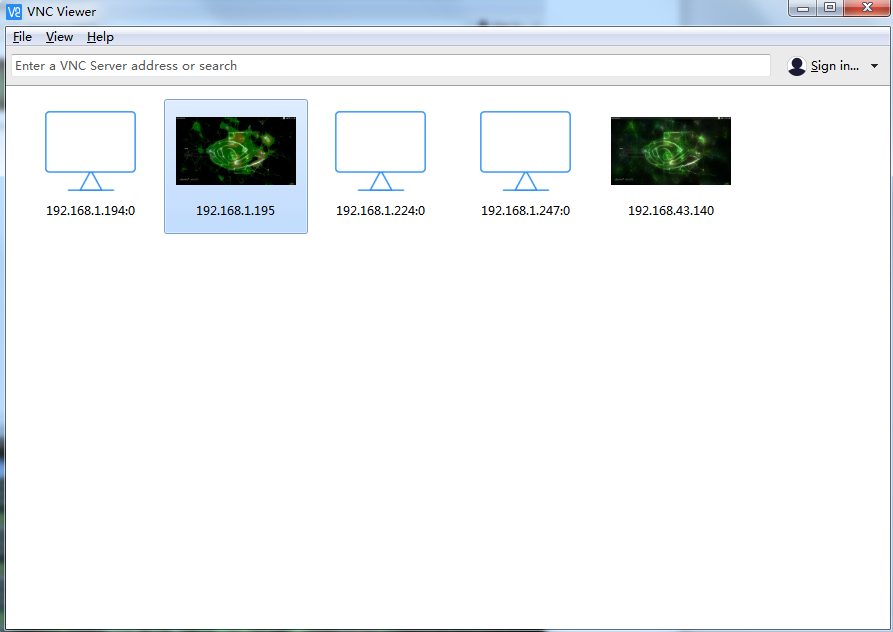
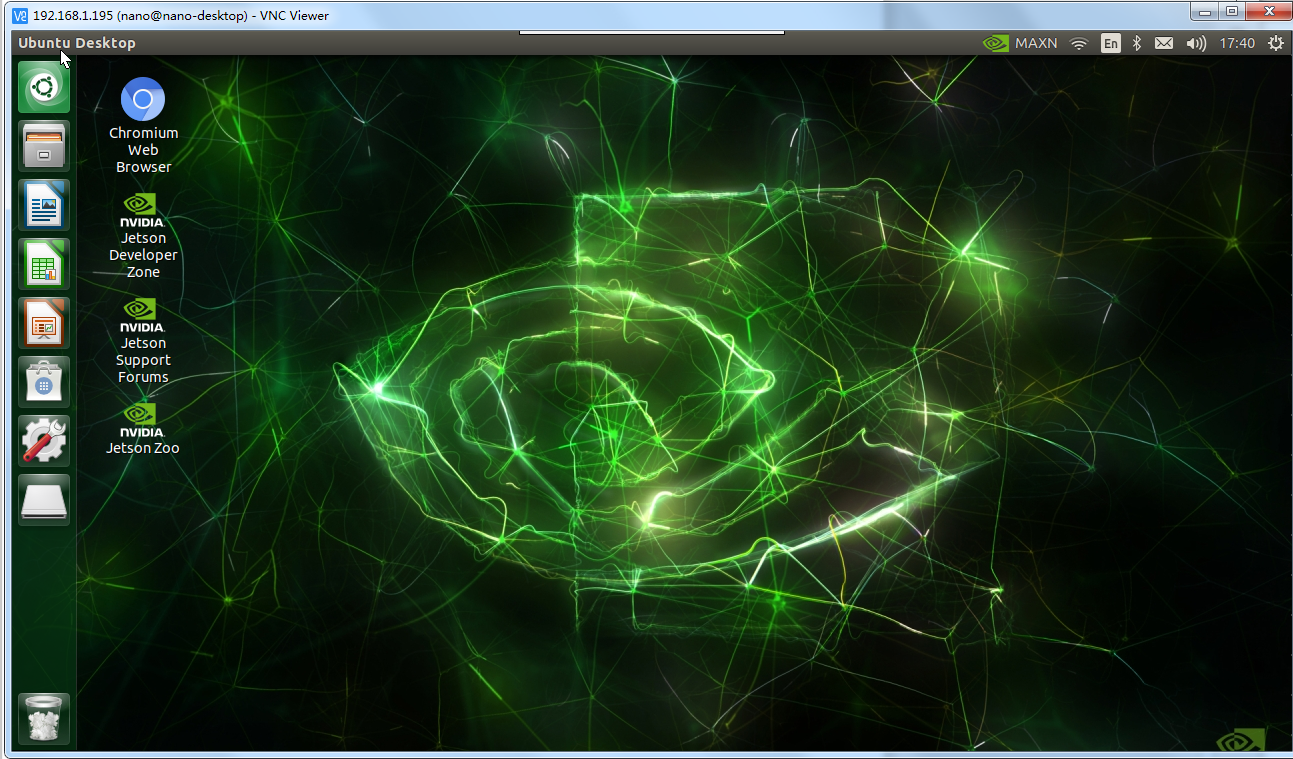
Use vnc viewer software to connect to VNC. First, you need to query the IP address. I found 192.168.1.195 here. Enter the IP address and click OK. Double-click the corresponding VNC user and enter the password. Finally, enter the VNC interface