4. JupyterLab construction
The use of the JupyterLab environment requires that the computer and the Raspberry Pi be in the same LAN for normal use. The DOGZILLA factory system starts the JupyterLab service by default.
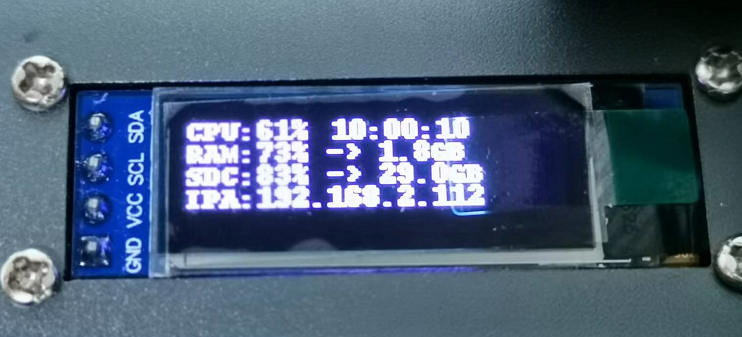
The OLED that comes with the factory image will display the IP address and other information when it is turned on. Check the last line of IPA to know the IP address. As shown in the figure below, the IP address is 192.168.2.112
4.2 Start the JupyterLab environment
Open the browser on the computer and enter the IP address + port number of the Raspberry Pi in the address bar.
192.168.2.112:8888
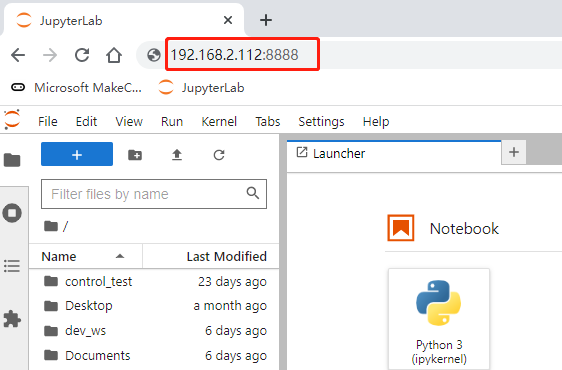
Then enter the JupyterLab login password (yahboom) to log in.
4.3 JupyterLab usage method
The Jupyter Lab interface is a dashboard that provides access to interactive iPython notebooks in folder structures and terminal windows on Linux operating systems.
The first view you will see includes the menu bar at the top and the directory tree in the left sidebar, as well as the main workspace initially opened to the Launcher page.
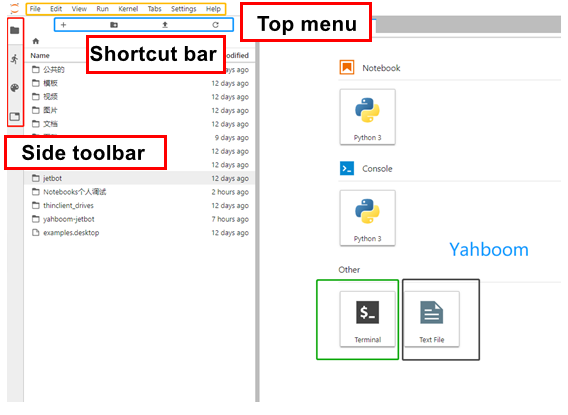
· File browser:
The file browser in the left column allows to navigate the file structure. Double-clicking on a notebook or file will open it in the main workspace.
· iPython Notebook:
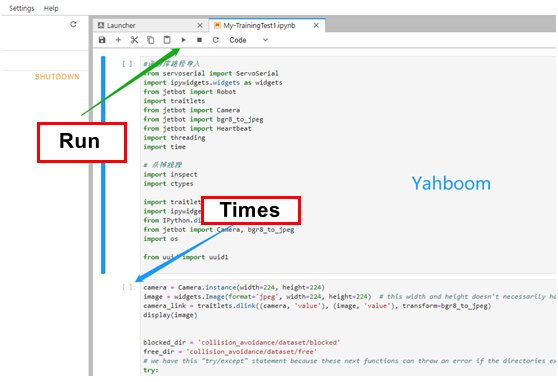
The interactive notebooks used in this course have the ".ipynb" file extension. When you double-click the notebook from the file browser, it will open in the main workspace and its process will begin. Notebooks include text and code "cells". When a code cell is "run", by clicking the run button at the top of the notebook or the keyboard shortcut [CTRL] + [ENTER], the code block in the cell is executed and the output (if any) is displayed below the notebook. To the left of each executable cell, there are "execution count" or "prompt number" in parentheses. If the cell takes longer than a few seconds to run, you will see an asterisk mark there, indicating that the cell has not finished executing. A number will appear in parentheses when the cell has been processed.
· Kernel operation:
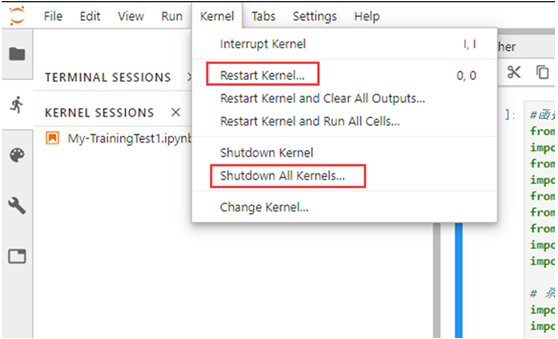
The kernel of each running notebook is a separate process running user code. The kernel starts automatically when the notebook is opened from the file browser. The Kernel menu on the main menu bar contains commands to shut down or restart the kernel, which you will need to use regularly. After the kernel is shut down, no unit of code can be executed. When restarting the kernel, all memory is lost due to imported packages, variable assignments, etc.
· Cell labels:
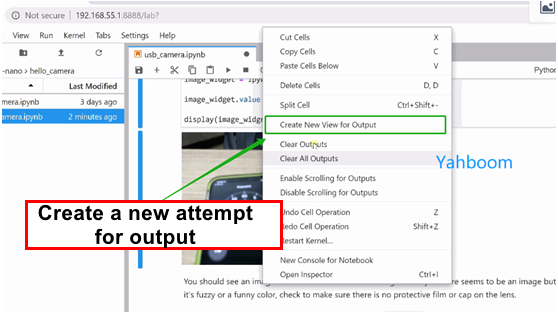
Any cell can be moved to a new window tab in the main workspace by right-clicking the cell and selecting "Create New View for Output". This way you can keep scrolling down the JupyterLab notebook while still watching a specific cell. This is especially useful in cells containing camera views!
· Terminal window:
You can telnet directly through Jupyter to work in a terminal window on the Raspberry Pi. In the Launcher page, click on the terminal icon under "Other". To bring up the Launcher page, if it is no longer visible, click the "+" icon at the top of the left sidebar.