Turn on and off hotspot mode
Turn on and off hotspot mode5.1. What is hotspot mode5.2. Temporary shutdown5.3, Permanently close5.4, Set up startup5.5. Temporary startup
5.1. What is hotspot mode
In order to facilitate the experience of getting started right away, the robot is turned on by default in "hotspot mode", that is, the factory image will start transmitting WiFi hotspot signals, which is convenient for users to connect to the mobile APP.
WiFi hotspot name: RDK-X5-Robot Password: 12345678
In hotspot mode, the robot IP address is: 192.168.8.88
5.2. Temporary shutdown
If there is a display screen and mouse and keyboard, log in to the desktop after connecting.
If there is no display screen and mouse and keyboard, please use a computer in the same LAN to open the VNC Viewer software to remotely log in to the desktop to enter the desktop.
If there is no desktop environment, open the terminal and run the following command to close it:
xxxxxxxxxxsh /home/sunrise/sunriseRobot/app_SunriseRobot/close_AP.sh
Note: When closing the hotspot, the network will be disconnected. If you use remote login, please consider connecting the network cable first.
5.3, Permanently close
Open the application of the Ubuntu system and follow the steps below to permanently close the hotspot.
xxxxxxxxxxSince the system will disable the network card driver when the hotspot is turned on, you need to uncheck Open_AP and check Close_AP
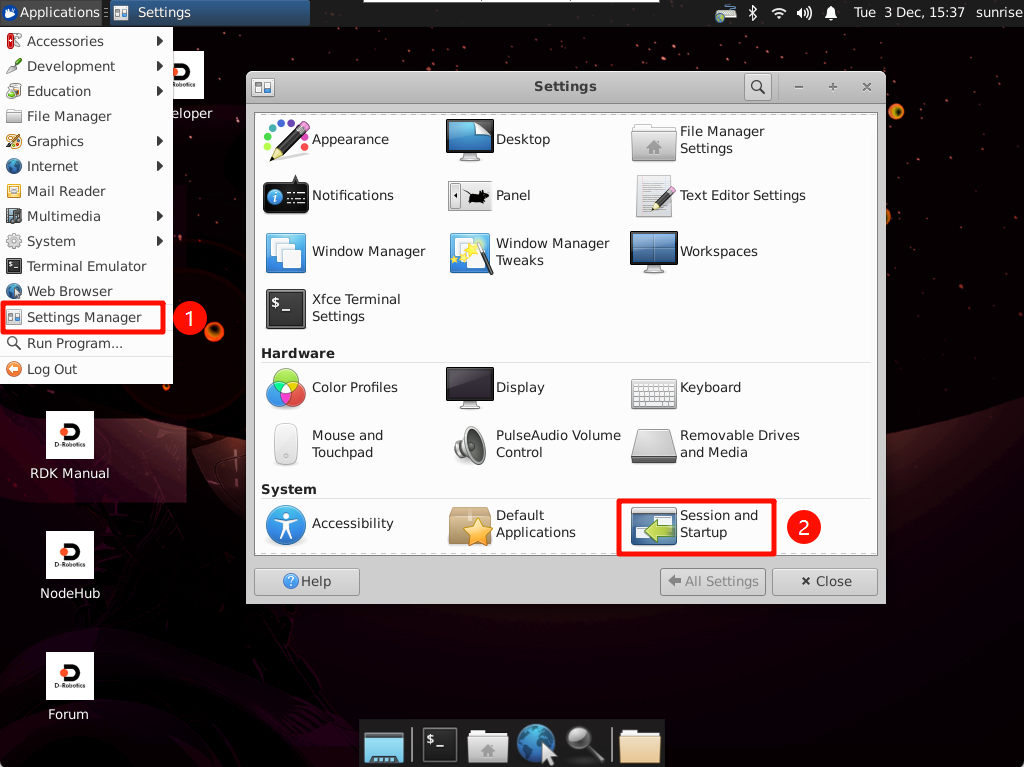
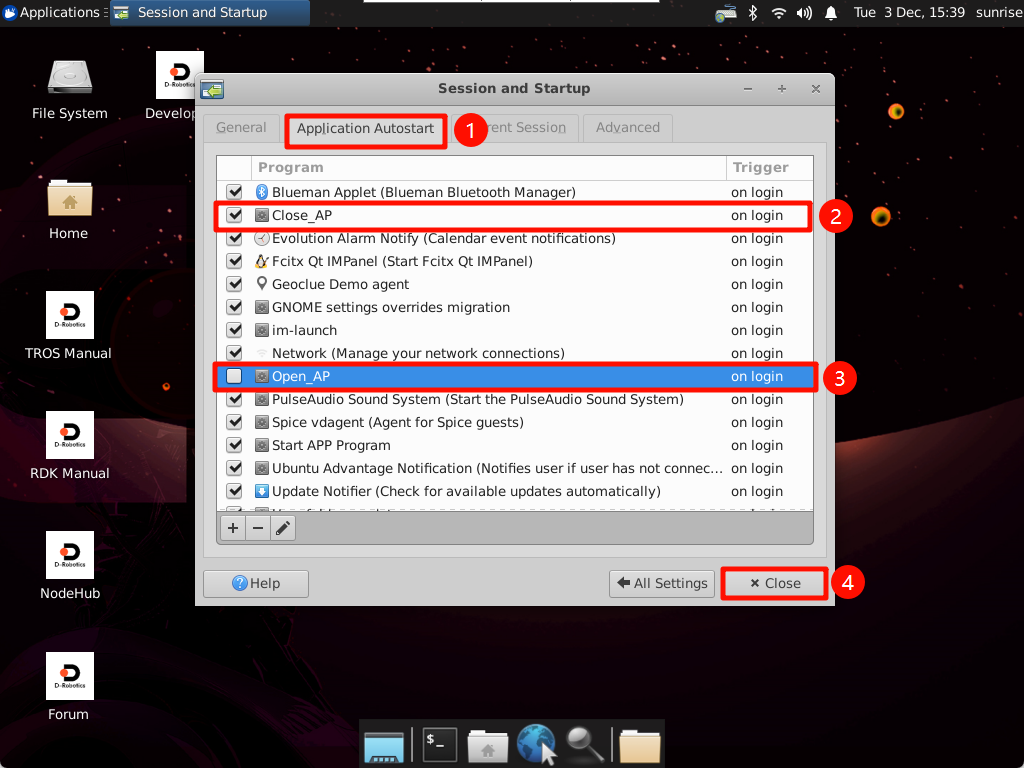
Restart the system after the modification is completed!
5.4, Set up startup
Open the Ubuntu system application and follow the steps below to permanently turn on the hotspot.
xxxxxxxxxxSince the system will disable the network card driver when the hotspot is turned on, you need to check Open_AP and uncheck Close_AP
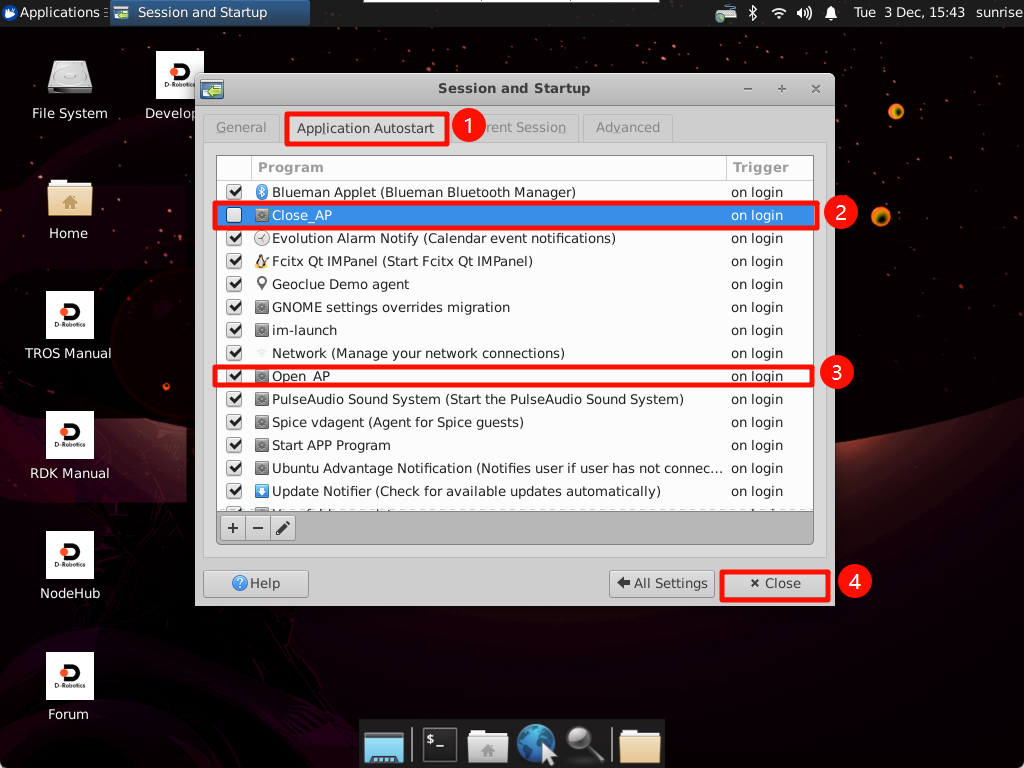
Restart the system after the modification is completed!
5.5. Temporary startup
If you need to manually open the hotspot signal, please open the Ubuntu terminal first, and then enter the following command:
xxxxxxxxxxsh /home/sunrise/sunriseRobot/app_SunriseRobot/open_AP.shNote: Opening the hotspot will disconnect the router WiFi. If you use wireless WiFi remote login, please reconnect the robot hotspot signal and then log in remotely.