Connect to microROS agent
Note: Before connecting to the agent, you need to select the alarm level and radar model through the oled screen before starting the connection.
1. Open the agent
If you are using the factory virtual machine system, you can enter in the terminal:
xxxxxxxxxxsh ~/start_agent_computer.sh
If you are using a third-party virtual machine system, you need to install the docker development environment first, and open the terminal to enter:
xxxxxxxxxxdocker run -it --rm -v /dev:/dev -v /dev/shm:/dev/shm --privileged --net=host microros/micro-ros-agent:humble udp4 --port 8090 -v4
2. Connect to the agent
Turn on the power switch of the robot, automatically connect to the agent, and the connection is successful as shown in the figure below
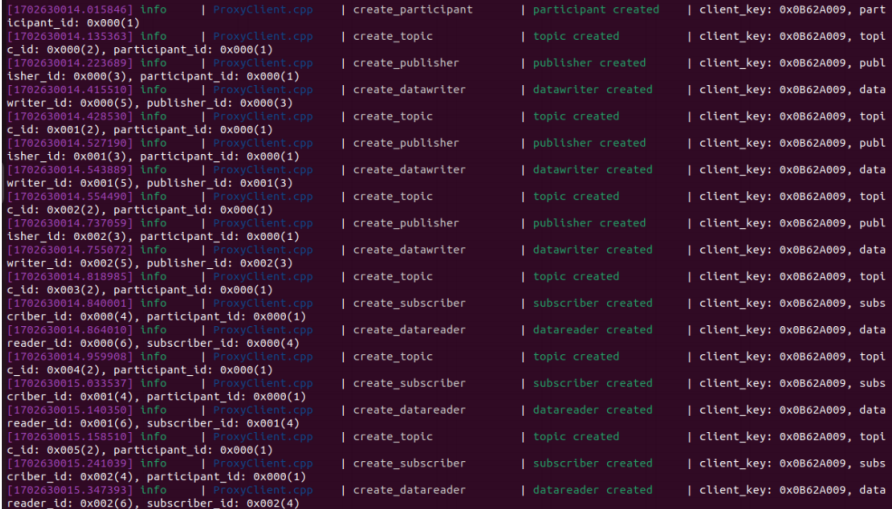
Note: If the connection is not successful, please check and confirm the configuration parameters of the robot, whether it can connect to the local area network normally, and whether the agent IP address and port number correspond.
3. Test ROS node
Open the ROS2 terminal environment and enter the following command to view the /YB_PLAMSLAM_Node node name
xxxxxxxxxxros2 node list

If the /YB_PLAMSLAM_Node node cannot be searched, please check and confirm that the ROS DOMAIN ID of the .bashrc file on the virtual machine/computer must be consistent with the configuration on the microROS control board to search for node information.

