YOLOv11 Environment Construction
YOLOv11 Environment Construction1. Overview2. Environmental requirements3. Docker setup3.1. Official installation of Docker3.2, Alibaba Cloud install Docker3.3. Add access rights4. Install Ultralytics5. Edit the startup script6. Execute the scriptReferences
This chapter is applicable to self-construction of Jetson nano official image. If you use the YAHBOOM version of the image, this tutorial can be ignored.
1. Overview
YOLO11 is UltralyticsYOLO is the latest product in the real-time object detector series, redefining what is possible with state-of-the-art accuracy, speed, and efficiency. Building on the impressive progress of previous YOLO versions, YOLO11 has made significant improvements in architecture and training methods, making it a versatile choice for a wide range of computer vision tasks.
2. Environmental requirements
Due to limitations, only the older version of JetPack4.6.6 can be burned on jetson nano. The version used in our image is JetPack4.6.3. In this version, CUDA 10.2, cuDNN 8.2.1, TensorRT 8.2.1, and the system comes with python version 3.6.
However, the python version required to install Ultralytics is 3.8, so this article chooses to use docker to install.
3. Docker setup
3.1. Official installation of Docker
If Docker is not installed, you can use the script to install Docker in one click.
xxxxxxxxxxDomestic users may not be able to install Docker through official methods. We recommend using Alibaba Cloud to install Docker or directly using our image.
- Update the local package list
xxxxxxxxxxsudo apt update
- Upgrade the installed package
xxxxxxxxxxsudo apt upgrade
- Download and run the script
Download the get-docker.sh file and save it in the current directory.
xxxxxxxxxxsudo apt install curlcurl -fsSL https://get.docker.com -o get-docker.sh
Use sudo privileges to run the get-docker.sh script file.
xxxxxxxxxxsudo sh get-docker.sh
3.2, Alibaba Cloud install Docker
If you cannot install it yourself, please use the image we provide.
- Update the local package list
xxxxxxxxxxsudo apt update
- Install the required software
xxxxxxxxxxsudo apt install apt-transport-https ca-certificates curl gnupg2 lsb-release software-properties-common
- Add the GPG key of the software source
xxxxxxxxxxcurl -fsSL https://mirrors.aliyun.com/docker-ce/linux/ubuntu/gpg | sudo gpg --dearmor -o /usr/share/keyrings/docker-archive-keyring.gpg
- Add Alibaba Cloud mirror software source
xxxxxxxxxxecho "deb [arch=arm64 signed-by=/usr/share/keyrings/docker-archive-keyring.gpg] https://mirrors.aliyun.com/docker-ce/linux/ubuntu bionic stable" | sudo tee /etc/apt/sources.list.d/docker.list > /dev/null
- Install Docker
xxxxxxxxxxsudo apt updatesudo apt install docker-ce docker-ce-cli containerd.io docker-compose-plugin
3.3. Add access rights
Add the current user's access rights to the Docker daemon: You can use Docker commands without using the sudo command
xxxxxxxxxxsudo usermod -aG docker $USERnewgrp docker
4. Install Ultralytics
xxxxxxxxxxdocker pull yahboomtechnology/ultralytics:1.0.3

Query docker image
xxxxxxxxxxdocker images

5. Edit the startup script
[yolov11_docker.sh] The contents of the script are as follows:
xxxxxxxxxx#!/bin/bashxhost +docker run -it \--net=host \--env="DISPLAY" \--env="QT_X11_NO_MITSHM=1" \-v /tmp/.X11-unix:/tmp/.X11-unix \-v /home/jetson/temp:/ultralytics/ultralytics/temp \--device=/dev/video0 \-p 9090:9090 \-p 8888:8888 \yahboomtechnology/ultralytics:1.0.3 /bin/bashCommented script description:
Note: When adding a host device to the container below, if the host is not connected to the device, you need to remove the corresponding addition operation to start the container
xxxxxxxxxx#!/bin/bashxhost +docker run -it \--net=host \--env="DISPLAY" \--env="QT_X11_NO_MITSHM=1" \-v /tmp/.X11-unix:/tmp/.X11-unix \-v /home/jetson/temp:/ultralytics/ultralytics/temp \--device=/dev/video0 \ # USB camera, add a host device to the container. If the camera is not connected, please remove this line. Video* needs to be modified according to the specific device port found in your system-p 9090:9090 \-p 8888:8888 \yahboomtechnology/ultralytics:1.0.3 /bin/bash6. Execute the script
After editing the docker startup script, open the terminal on the docker host (on VNC or on the motherboard display)
Note: This must be executed on VNC or on the motherboard display, and cannot be executed in a terminal accessed remotely via ssh (such as a terminal accessed via MobaXterm), otherwise the GUI image may not be displayed in the container.
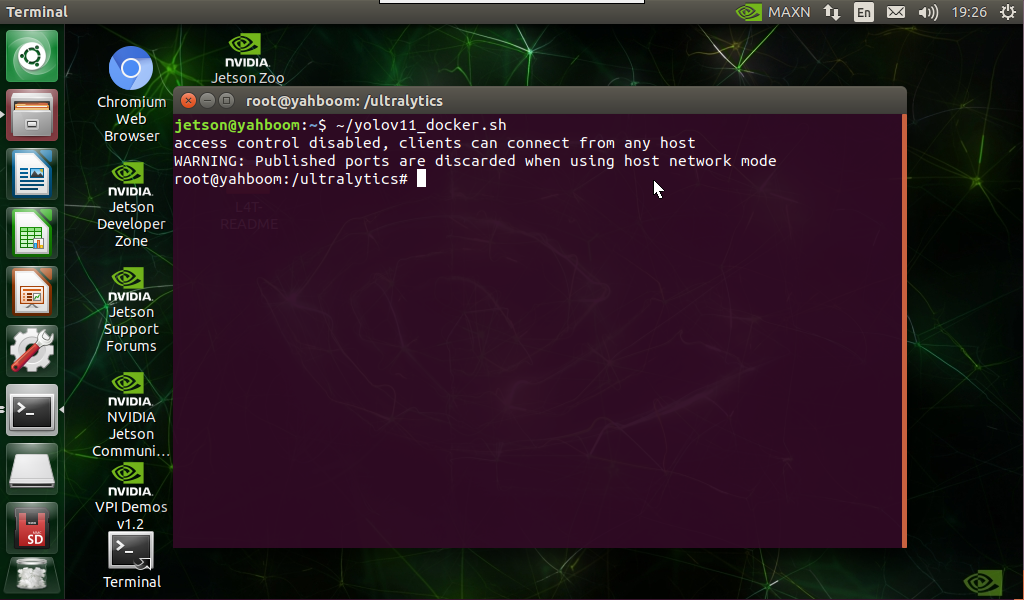
Run the previously created startup script in the VNC interface or on the screen (Note: Each execution of the script creates a new container from the image)
xxxxxxxxxx./yolov11_docker.sh
You can enter the container correctly, and run the real-time detection case to display the camera image.