Pose Estimation
Pose Estimation1. Model Introduction2. Start2.1. Enter docker2.2. Pose estimation: imageEffect preview2.3, Pose Estimation: VideoEffect Preview2.4, Pose Estimation: Real-time DetectionEffect PreviewReferences
Use Python to demonstrate the effect of Ultralytics: Pose Estimation in image, video, and real-time detection.
1. Model Introduction
Pose estimation is a task that involves identifying the location of specific points (usually called key points) in an image. Key points can represent parts of an object, such as joints, landmarks, or other significant features. The location of key points is usually represented by a set of two-dimensional [x, y] or 3D [x, y, visible] coordinates
The output of the pose estimation model is a set of points representing the key points of objects in the image, and usually also includes a confidence score for each point. Pose estimation is a good choice when you need to identify specific parts of objects in the scene and their positional relationship with each other.
In the default pose model of YOLO11, there are 17 key points, each representing a different part of the human body. Here is the mapping of each index to the corresponding body joint:
- Nose
- Left eye
- Right eye
- Left ear
- Right ear
- Left shoulder
- Right shoulder
- Left elbow
- Right elbow
- Left wrist
- Right wrist
- Left hip
- Right hip
- Left knee
- Right knee
- Left ankle
- Right ankle
2. Start
2.1. Enter docker
Run YOLOv11's docker script
xxxxxxxxxxsh ~/yolov11_dcoker.sh
2.2. Pose estimation: image
Use yolo11n-pose.pt to predict the image under the ultralytics project (not the image that comes with ultralytics).
Enter the code folder:
xxxxxxxxxxcd /ultralytics/ultralytics/yahboom_demo
Run the code:
xxxxxxxxxxpython3 03.pose_image.py
Effect preview
Yolo recognizes the output image location: /ultralytics/ultralytics/output/
1. View using jupyter lab
Open another terminal to enter the docker container and use jupyter lab to view the image
xxxxxxxxxxdocker ps -a

xxxxxxxxxxdocker exec -it be79bf10e970 /bin/bash #Container ID needs to be modified according to the actual one you findcd /ultralyticsjupyter lab --allow-root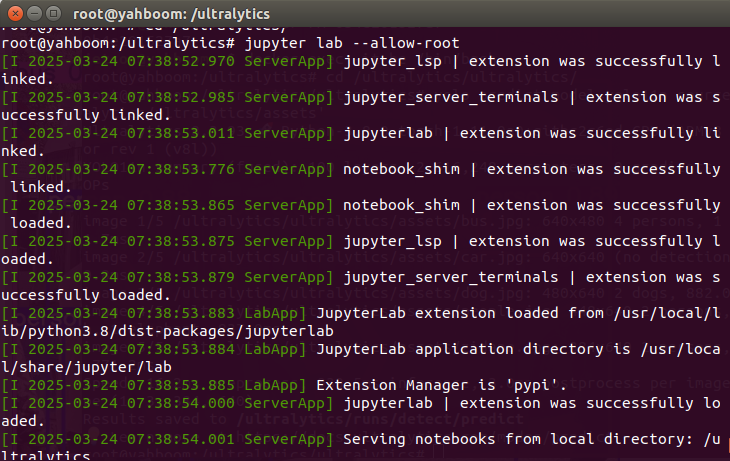
Access directly through http://localhost:8080/ in the system browser:
xxxxxxxxxxhttp://localhost:8080/

2. Copy the file to the host machine for viewing
Enter the following command in the host terminal
xxxxxxxxxxdocker cp be79bf10e970:/ultralytics/ultralytics/output/ /home/jetson/ultralytics/ultralytics/ #Container ID needs to be modified according to the actual one you find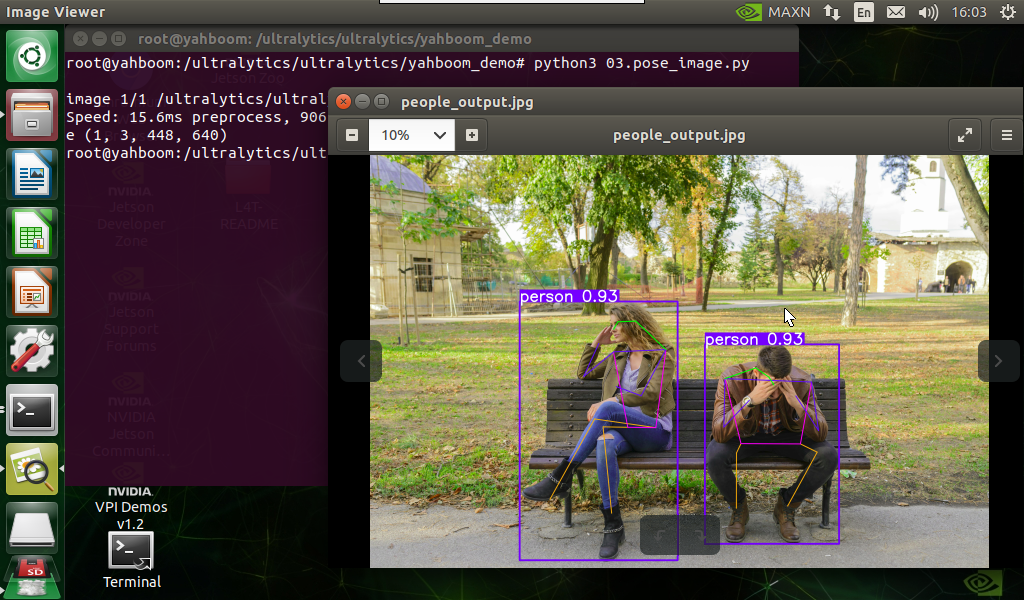
Sample code:
xxxxxxxxxxfrom ultralytics import YOLO# Load a modelmodel = YOLO("/ultralytics/ultralytics/yolo11n-pose.pt")# Run batched inference on a list of imagesresults = model("/ultralytics/ultralytics/assets/people.jpg") # return a list of Results objects# Process results listfor result in results: # boxes = result.boxes # Boxes object for bounding box outputs # masks = result.masks # Masks object for segmentation masks outputs keypoints = result.keypoints # Keypoints object for pose outputs # probs = result.probs # Probs object for classification outputs # obb = result.obb # Oriented boxes object for OBB outputs result.show() # display to screen result.save(filename="/ultralytics/ultralytics/output/people_output.jpg") # save to disk2.3, Pose Estimation: Video
Use yolo11n-pose.pt to predict the video under the ultralytics project (not the video that comes with ultralytics).
Enter the code folder:
xxxxxxxxxxcd /ultralytics/ultralytics/yahboom_demo
Run the code:
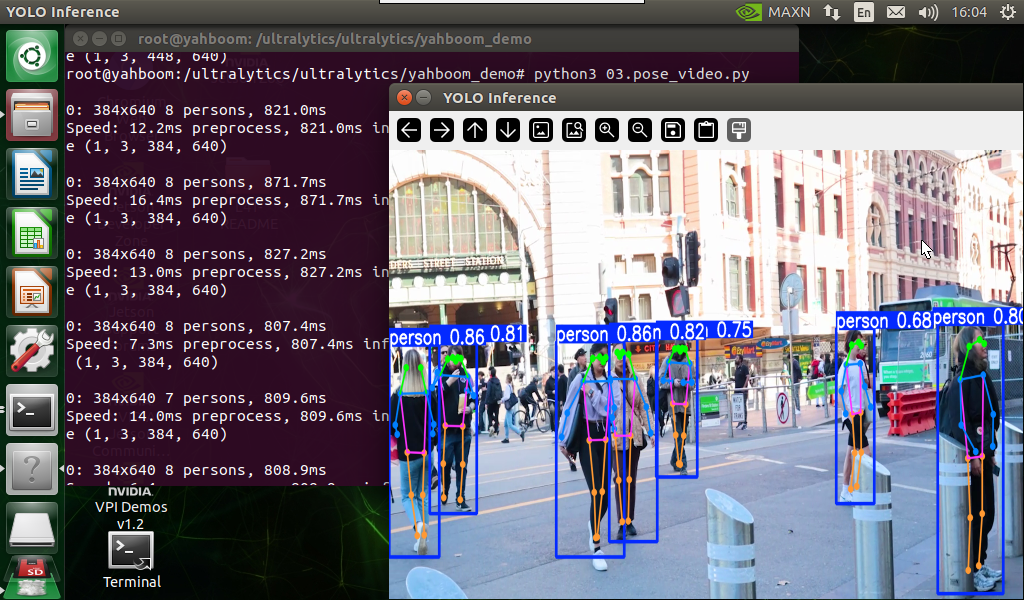
xxxxxxxxxxpython3 03.pose_video.py
Effect Preview
Video location of yolo recognition output: /ultralytics/ultralytics/output/
The output video will be displayed in real time during the code running process. If you want to view the video later, you can refer to the above [2. Copy the file to the host machine for viewing] tutorial operation.
Sample code:
xxxxxxxxxximport cv2from ultralytics import YOLO# Load the YOLO modelmodel = YOLO("/ultralytics/ultralytics/yolo11n-pose.pt")# Open the video filevideo_path = "/ultralytics/ultralytics/videos/people_animals.mp4"cap = cv2.VideoCapture(video_path)# Get the video frame size and frame rateframe_width = int(cap.get(cv2.CAP_PROP_FRAME_WIDTH))frame_height = int(cap.get(cv2.CAP_PROP_FRAME_HEIGHT))fps = int(cap.get(cv2.CAP_PROP_FPS))# Define the codec and create a VideoWriter object to output the processed videooutput_path = "/ultralytics/ultralytics/output/03.people_animals_output.mp4"fourcc = cv2.VideoWriter_fourcc(*'mp4v') # You can use 'XVID' or 'mp4v' depending on your platformout = cv2.VideoWriter(output_path, fourcc, fps, (frame_width, frame_height))# Loop through the video frameswhile cap.isOpened(): # Read a frame from the video success, frame = cap.read() if success: # Run YOLO inference on the frame results = model(frame) # Visualize the results on the frame annotated_frame = results[0].plot() # Write the annotated frame to the output video file out.write(annotated_frame) # Display the annotated frame cv2.imshow("YOLO Inference", cv2.resize(annotated_frame, (640, 480))) # Break the loop if 'q' is pressed if cv2.waitKey(1) & 0xFF == ord("q"): break else: # Break the loop if the end of the video is reached break# Release the video capture and writer objects, and close the display windowcap.release()out.release()cv2.destroyAllWindows()2.4, Pose Estimation: Real-time Detection
Use yolo11n-pose.pt to predict the USB camera screen.
Enter the code folder:
xxxxxxxxxxcd /ultralytics/ultralytics/yahboom_demo
Run the code: Click the preview screen, press the q key to terminate the program!
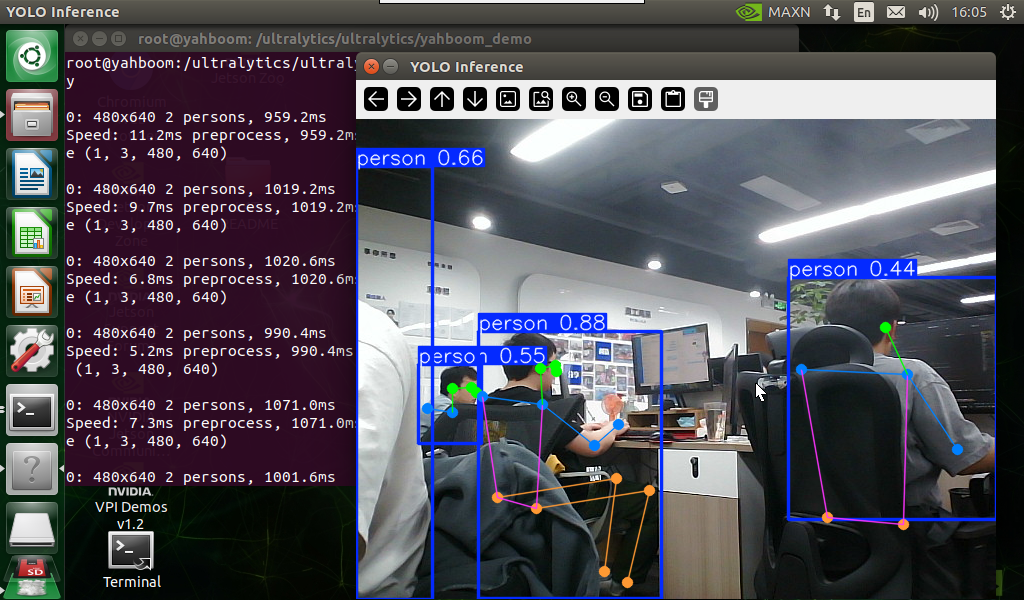
xxxxxxxxxxpython3 03.pose_camera_usb.py
Effect Preview
Video location of yolo recognition output: /ultralytics/ultralytics/output/
The camera screen will be displayed in real time during the code running. If you want to view the video later, you can refer to the above [2. Copy the file to the host machine for viewing] tutorial operation.
Sample code:
xxxxxxxxxximport cv2from ultralytics import YOLO# Load the YOLO modelmodel = YOLO("/ultralytics/ultralytics/yolo11n-pose.pt")# Open the cammeracap = cv2.VideoCapture(0)# Get the video frame size and frame rateframe_width = int(cap.get(cv2.CAP_PROP_FRAME_WIDTH))frame_height = int(cap.get(cv2.CAP_PROP_FRAME_HEIGHT))fps = int(cap.get(cv2.CAP_PROP_FPS))# Define the codec and create a VideoWriter object to output the processed videooutput_path = "/ultralytics/ultralytics/output/03.pose_camera_usb.mp4"fourcc = cv2.VideoWriter_fourcc(*'mp4v') # You can use 'XVID' or 'mp4v' depending on your platformout = cv2.VideoWriter(output_path, fourcc, fps, (frame_width, frame_height))# Loop through the video frameswhile cap.isOpened(): # Read a frame from the video success, frame = cap.read() if success: # Run YOLO inference on the frame results = model(frame) # Visualize the results on the frame annotated_frame = results[0].plot() # Write the annotated frame to the output video file out.write(annotated_frame) # Display the annotated frame cv2.imshow("YOLO Inference", cv2.resize(annotated_frame, (640, 480))) # Break the loop if 'q' is pressed if cv2.waitKey(1) & 0xFF == ord("q"): break else: # Break the loop if the end of the video is reached break# Release the video capture and writer objects, and close the display windowcap.release()out.release()cv2.destroyAllWindows()