RGB Lights
RGB LightsIntroductionQuick StartSimulated breathing lightWS2812 Driverrepresents binary 0Additional knowledge
Introduction
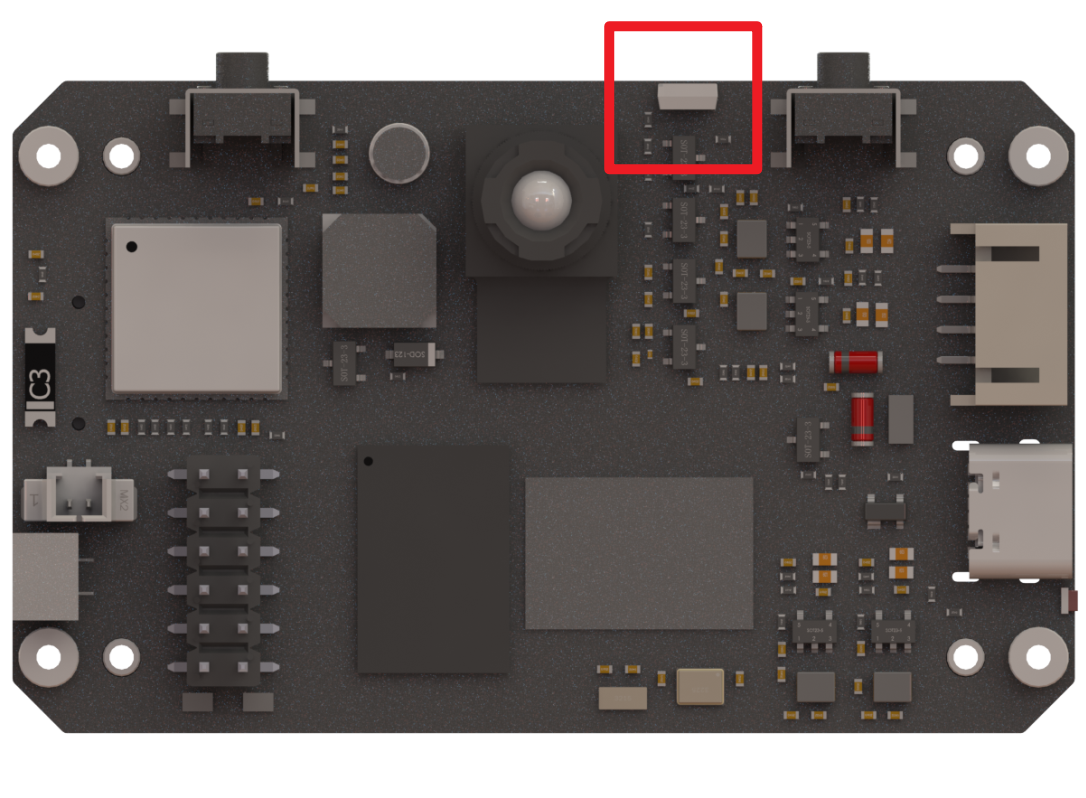
In this section, we will learn how to use code to control the RGB light on the YAHBOOM K230
Quick Start
We open CanMV IDE and connect K230 to the computer.
Press Ctrl + N to create a new code and delete all automatically generated code content
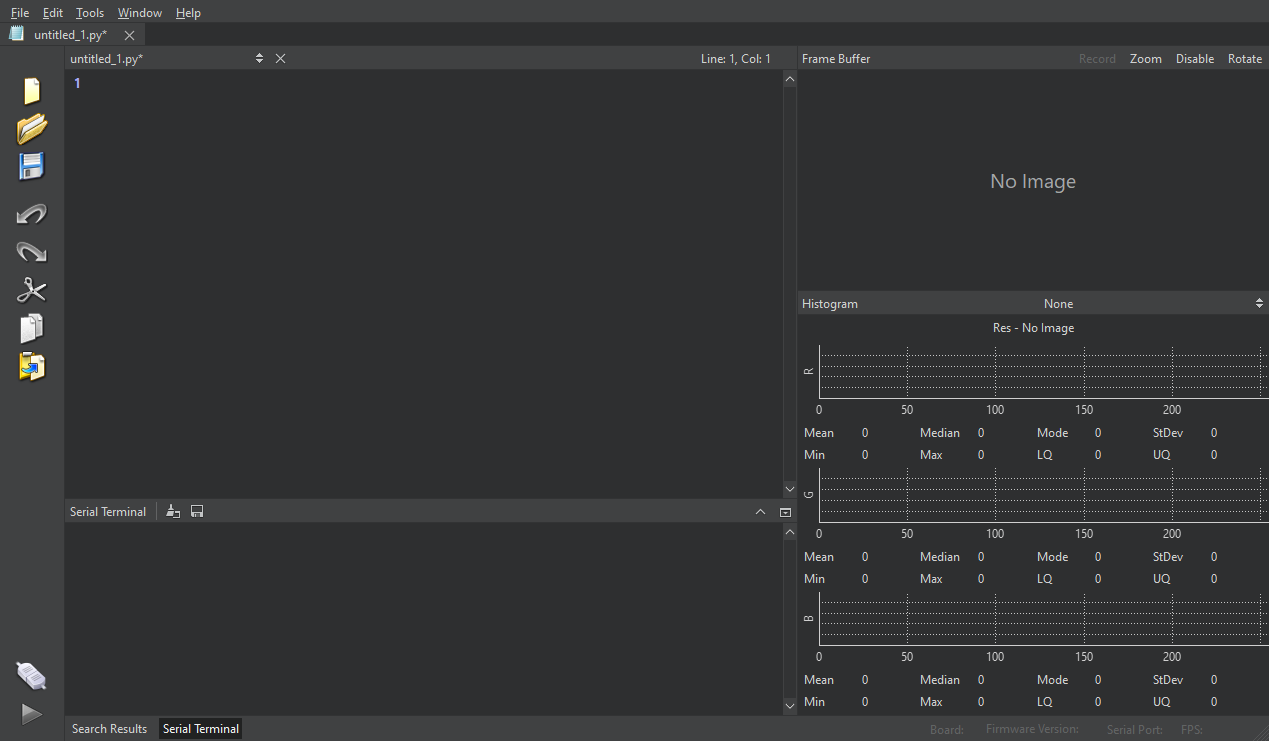
Copy the following code and paste it into the IDE [Source Code/02.Basic/02.1_rgb.py]
x
# 导入YbRGB库 (Import YbRGB library)from ybUtils.YbRGB import YbRGB# 导入时间库 (Import time library)import time# 实例化YbRGB对象 (Initialize YbRGB object)YbRGB = YbRGB()# 让RGB灯显示蓝色 (82, 139, 255) (Make the RGB light display blue color (82, 139, 255))YbRGB.show_rgb((82, 139, 255))# 程序阻塞等待3秒 (Block the program for 3 seconds)time.sleep(3)# 关闭RGB灯 (0,0,0) (Turn off the RGB light by setting color to (0,0,0))YbRGB.show_rgb((0,0,0))Simulated breathing light
We can also combine the time module and the math module to simulate a better-looking breathing light effect.
The code is as follows [Source Code/02.Basic/02.2_better_rgb.py]
x
# 导入YbRGB库 (Import YbRGB library)from ybUtils.YbRGB import YbRGB# 导入时间库 (Import time library)import time# 导入数学库 (Import math library)import math# 初始化RGB LED (Initialize RGB LED)rgb = YbRGB()def breath_effect(r, g, b, duration=2): """ 实现呼吸灯效果 (Implement breathing light effect) r, g, b: 目标颜色的RGB值(0-255) (Target color RGB values (0-255)) duration: 一次呼吸效果的持续时间(秒) (Duration of one breathing cycle in seconds) """ steps = 1000 # 渐变步数 (Number of gradient steps) for i in range(steps): # 使用正弦函数使亮度变化更加平滑 (Use sine function to make brightness change smoother) brightness = math.sin(i / steps * math.pi) current_r = int(r * brightness) current_g = int(g * brightness) current_b = int(b * brightness) rgb.show_rgb([current_r, current_g, current_b]) time.sleep(duration / (2 * steps)) # 渐暗过程 (Fade-out process) for i in range(steps-1, -1, -1): brightness = math.sin(i / steps * math.pi) current_r = int(r * brightness) current_g = int(g * brightness) current_b = int(b * brightness) rgb.show_rgb([current_r, current_g, current_b]) time.sleep(duration / (2 * steps))# 定义几种好看的颜色 (Define several beautiful colors)colors = [ (255, 0, 0), # 红色 (Red) (0, 255, 0), # 绿色 (Green) (0, 0, 255), # 蓝色 (Blue) (255, 0, 255), # 紫色 (Purple) (255, 165, 0), # 橙色 (Orange) (0, 255, 255), # 青色 (Cyan)]# 主循环 (Main loop)try: while True: for color in colors: breath_effect(color[0], color[1], color[2])except Exception: # 确保程序结束时关闭LED (Ensure LED is turned off when the program ends) rgb.show_rgb([0, 0, 0])WS2812 Driver
This part is relatively complex and requires some basic knowledge. Skipping this part will not affect the subsequent use of K230.
- Basic hardware setup :
- YAHBOOM K230 uses WS2812B type RGB LED
- We communicate with the LED via SPI (Serial Peripheral Interface) and set the baud rate to 2.5MHz
- The control signal of the LED is connected to the QSPI0_D0 pin (pin 16) of the development board
- Color setting principle :
xxxxxxxxxxdef set_led(self, index, r, g, b): if 0 <= index < self._num_leds: self . _buf [ index * 3 ] = g # Note that the order is GRB instead of RGB self._buf[index*3 + 1] = r self._buf[index*3 + 2] = b- Each LED requires 3 bytes of data, representing green (G), red (R), and blue (B) respectively.
- The value range is 0-255, the larger the value, the brighter the color
- Data transmission principle (show function) : The communication protocol of WS2812B LED is quite special:
Each bit "1" is represented by a high level 110 and a low level 000
Each bit "0" is represented by a high level 100 and a low level 000
So in the code:
xxxxxxxxxx# represents binary 1timing_buf[pos] = 0b11100000 # 110xxxxx
represents binary 0
timing_buf[pos] = 0b10000000 # 100xxxxx
xxxxxxxxxx1. **Data sending process** :- Split each color byte into 8 bits- Each bit is converted into a corresponding timing signal- Send data in batches (maximum 1024 bytes per batch) to avoid memory overflow- After sending, wait for 300 microseconds as a reset signalFor example, if you want to set an LED to red (R=255, G=0, B=0):```pythonrgb = YbRGB ( 1 ) # Create an LED objectrgb . set_led ( 0 , 255 , 0 , 0 ) # Set to redrgb.show () # Send data
Internal Process:
- In
set_led, data is stored as: [0, 255, 0] show()The function converts this data into a time series signal- Send to LED via SPI interface
- The LED displays the corresponding color after receiving the signal
Because the WS2812B LED uses a special single-wire communication protocol to receive data, the functions in YbRGB show()actually convert ordinary RGB values into timing signals that the LED can understand.
Additional knowledge
The RGB of the RGB lamp is different from the RGB displayed on the computer screen?
This is because there is a fundamental difference between the display principles of WS2812B RGB LED and computer monitors:
How the display works:
- The display is a light-emitting diode or liquid crystal panel that displays colors by blocking or transmitting backlight.
- RGB(0,0,0) means all color channels emit no light/completely block the backlight, thus appearing black
- RGB(255,255,255) means all color channels are fully lit/fully transparent to the backlight, appearing white
Working principle of WS2812B LED:
- RGB LED is controlled by sending electrical signals to the LED
- RGB(0,0,0) means no signal is sent and the LED is "off"
- RGB(255,255,255) means that all three color channels emit light at full power, showing white