Line segment detection
Line segment detectionIntroduction to the experimental results of the routineCode explanationComplete codeCode explanationDetect line segmentsfind_line_segmentsHough Transform
Introduction to the experimental results of the routine
The routine code in this section is located at: [Source code summary / 04.Detecting / 01.find_lines]
We use CanMV IDE to open the routine code and connect K230 to the computer via USB
Click the run button in the lower left corner of CanMV IDE,
Aim the camera of K230 at the line segment
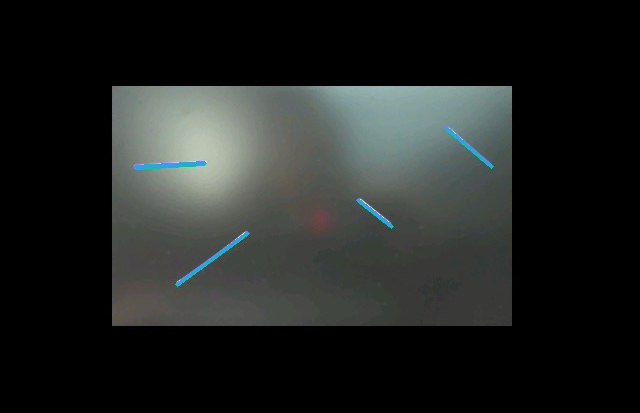
You can see that the line segment in the picture will be marked on the screen (if there is no screen, look at the frame buffer)
Original image:
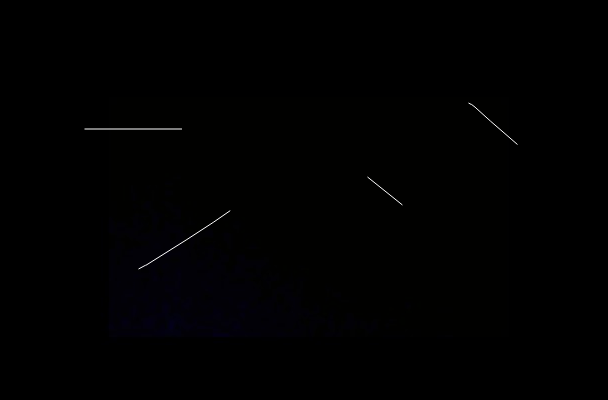
K230 recognition result:
Code explanation
The peripherals we will use in this section are mainly camera modules
Line segment detection is done by find_line_segments() in K230 Method implementation, this method belongs to the image module
The code used in the routine is as follows:
Complete code
*Subject to the content of the file [Source code summary / 04.Detecting / 01.find_lines.py]
xxxxxxxxxx# 导入必要的模块:时间、操作系统、系统、垃圾回收# (Import required modules: time, operating system, system, garbage collection)import time, os, sys, gc# 导入媒体相关模块:传感器、显示、媒体管理# (Import media-related modules: sensor, display, media management)from media.sensor import *from media.display import *from media.media import *# 导入PipeLine库,用于图像处理Pipeline和性能计时# (Import PipeLine library for image processing pipeline and performance timing)from libs.PipeLine import PipeLine, ScopedTiming# 设置图像处理分辨率常量# (Set image processing resolution constants)PICTURE_WIDTH = 160PICTURE_HEIGHT = 120# 初始化摄像头变量为空# (Initialize camera variable as None)sensor = None# 设置显示分辨率常量# (Set display resolution constants)DISPLAY_WIDTH = 640DISPLAY_HEIGHT = 480def scale_coordinates(data_tuple, target_resolution="640x480"): # 声明全局变量 # (Declare global variables) global PICTURE_WIDTH, PICTURE_HEIGHT """ 将160x120分辨率下的坐标元组等比例缩放到目标分辨率 (Scale coordinate tuple from 160x120 resolution proportionally to target resolution) 参数 (Parameters): data_tuple: 包含坐标信息的元组 (x1, y1, x2, y2) (Tuple containing coordinate information (x1, y1, x2, y2)) target_resolution: 目标分辨率,可选 "640x480" 或 "640x480" (Target resolution, optional "640x480" or "640x480") 返回 (Returns): 包含缩放后坐标的新元组 (x1, y1, x2, y2, length) (New tuple containing scaled coordinates (x1, y1, x2, y2, length)) """ # 检查输入类型,确保是至少包含4个元素的元组 # (Check input type, ensure it's a tuple with at least 4 elements) if not isinstance(data_tuple, tuple) or len(data_tuple) < 4: raise TypeError(f"期望输入至少包含4个元素的元组,但收到了 {type(data_tuple).__name__}") # (Expected a tuple with at least 4 elements, but received {type}) # 从元组中解析坐标点 # (Extract coordinates from the tuple) x1, y1, x2, y2 = data_tuple[:4] # 设置原始分辨率 # (Set source resolution) src_width, src_height = PICTURE_WIDTH, PICTURE_HEIGHT # 根据目标分辨率参数设置目标宽高 # (Set target width and height based on target resolution parameter) if target_resolution == "640x480": dst_width, dst_height = 640, 480 elif target_resolution == "640x480": # 注意:这里条件与上面相同,可能是代码错误 # (Note: this condition is the same as above, might be a code error) dst_width, dst_height = 640, 480 else: raise ValueError("不支持的分辨率,请使用 '640x480' 或 '640x480'") # (Unsupported resolution, please use '640x480' or '640x480') # 计算横向和纵向的缩放比例 # (Calculate horizontal and vertical scaling ratios) scale_x = dst_width / src_width scale_y = dst_height / src_height # 对坐标进行缩放,并四舍五入保证是整数 # (Scale coordinates and round to ensure integers) scaled_x1 = round(x1 * scale_x) scaled_y1 = round(y1 * scale_y) scaled_x2 = round(x2 * scale_x) scaled_y2 = round(y2 * scale_y) # 计算缩放后线段的长度(欧几里得距离) # (Calculate length of scaled line segment (Euclidean distance)) dx = scaled_x2 - scaled_x1 dy = scaled_y2 - scaled_y1 length = round((dx**2 + dy**2)**0.5) # 返回缩放后的坐标元组 # (Return tuple of scaled coordinates) return (scaled_x1, scaled_y1, scaled_x2, scaled_y2)# 设置显示模式为LCD# (Set display mode to LCD)display_mode = "LCD"# 创建图像处理Pipeline,设置RGB888格式尺寸和显示尺寸# (Create image processing pipeline with RGB888 format size and display size)pl = PipeLine(rgb888p_size=[640,360], display_size=[640,480], display_mode=display_mode)# 创建Pipeline实例,设置通道1的帧大小# (Create pipeline instance, set frame size for channel 1)pl.create(ch1_frame_size=[PICTURE_WIDTH,PICTURE_HEIGHT])# 主循环# (Main loop)while True: # 从通道1捕获图像 # (Capture image from channel 1) img = pl.sensor.snapshot(chn=CAM_CHN_ID_1) # 在图像中查找线段,合并距离为20,最大theta差异为5度 # (Find line segments in the image, merge distance 20, max theta difference 5 degrees) lines = img.find_line_segments(merge_distance=15, max_theta_diff=10) # 创建一个新的ARGB8888格式的图像用于显示 # (Create a new ARGB8888 format image for display) img = image.Image(640, 480, image.ARGB8888) # 清空图像 # (Clear the image) img.clear() # 遍历找到的所有线段 # (Iterate through all found line segments) for i, line in enumerate(lines): # 获取线段坐标并缩放到显示分辨率 # (Get line segment coordinates and scale to display resolution) line = scale_coordinates(line.line()) # 在图像上绘制红色线段,线宽为6 # (Draw red line on the image with thickness 6) img.draw_line(line, color=(255,0,0), thickness=6) # 在OSD3层显示图像 # (Display the image on OSD3 layer) Display.show_image(img, 0, 0, Display.LAYER_OSD3) # 短暂休眠微秒级延时,避免CPU过度占用 # (Brief microsecond sleep to avoid excessive CPU usage) time.sleep_us(1)Code explanation
The basic structure of this section of the code is as follows
Import and initialization part:
Imported basic modules (time, os, sys, gc) for system operation and memory management
Imported media-related modules for processing image acquisition, display and other functions
Imported PipeLine library for image processing Pipeline and performance timing
Defined two sets of resolution constants:
- Image processing resolution: 160x120
- Display resolution: 640x480
scale_coordinates function:
Function: Convert coordinates at 160x120 resolution to 640x480 resolution
Input: Tuple containing coordinates (x1, y1, x2, y2)
Processing steps:
- Input validation
- Calculate the scaling ratio
- Proportional conversion of coordinates
- Calculate the length of the line segment
Return: the converted coordinate tuple
Image processing Pipeline settings:
Create a PipeLine instance and configure:
- RGB888 format size: 640x360
- Display size: 640x480
- Display mode: LCD
Set the frame size of channel 1 to 160x120
Main loop processing:
Loop through the following steps:
Capture image from camera
Find line segments in image (merge distance 15, maximum angle difference 10 degrees)
Create a new display image (640x480, ARGB8888 format)
For each detected line segment:
- Convert coordinates to display resolution
- Draw line segment in red (thickness 6)
Display processed image in display layer OSD3
Sleep briefly to control CPU usage
In this section of code, we did not use a more conventional way to do line segment detection, but took advantage of the K230's feature of supporting multiple layers
Detect graphics at a lower resolution and then scale the result to a high-resolution background image
After doing this, the frame rate of the program will increase significantly
All subsequent codes in this chapter use the original detection method, the code will be simpler, but the frame rate will be much lower
Detect line segments
find_line_segments
xxxxxxxxxximage.find_line_segments([roi[, merge_distance=0[, max_theta_difference=15]]])
Uses the Hough transform to find line segments in an image. Returns a list of image.line objects.
roi is the region of interest rectangle (x, y, w, h) to copy. If not specified, roi is the image rectangle. Only pixels within the roi are operated on.
merge_distance specifies the maximum number of pixels two line segments can be apart from each other without being merged.
max_theta_difference is the maximum angle difference between two line segments to be merged by merge_distance above.
This method uses the LSD library (also used by OpenCV) to find line segments in an image. It is a bit slow, but very accurate and line segments do not jump.
Not supported on compressed images or bayer images.
Hough Transform
Hough Transform is a mathematical method for detecting geometric shapes such as lines and circles from images.
For example, imagine that you have a drawing with many dots scattered in front of you.
If you want to find the straight line that these dots can form:
- The traditional method is to try to connect any two points to see if a straight line can be formed, which is very time-consuming
- The idea of Hough transform is the opposite - for each point, assume that it may be on countless straight lines, and find the straight line that multiple points fall on
Take an example in life: you stand on the side of the road and look at the telephone poles. Although the telephone poles are distributed in different positions, you can see at a glance that they are arranged in a straight line. This is similar to the principle of Hough transform.
Practical application
- Lane detection: Identify road markings in autonomous driving
- Document scanning: Find document boundaries
- Building recognition: Detect edge lines of buildings
Algorithm steps
- First perform edge detection on the image
- Build an accumulator array in the parameter space
- Vote for each edge point in the parameter space
- Find the local maximum in the accumulator
- Determine the straight lines in the original image based on these maximum values