RTAB-Map Mapping
RTAB-Map Mapping1. Contents1.1 Introduction to RTAB-Map1.2. RTAB-Map Working Principle2. Preparation3. Program Startup4. Instruction analysis
1. Contents
This section explains how to combine a vehicle chassis, LiDAR, and a depth camera to implement RTAB-Map mapping.
1.1 Introduction to RTAB-Map
RTAB-MAP (Real-Time Appearance-Based Mapping) is a vision-based real-time simultaneous localization and mapping (SLAM) algorithm primarily used for mapping and navigation tasks in fields such as robotics and augmented reality. RTAB-Map has the following features.
- Appearance-based loop closure detection: Primarily uses visual features for location recognition
- Real-time performance: Real-time performance is ensured through memory management
- Multi-sensor support: Supports RGB-D cameras, stereo cameras, and monocular cameras
- 3D map construction: Creates dense 3D point cloud maps
1.2. RTAB-Map Working Principle
- Front-end processing
- Acquire image data from sensors
- Extract visual features (such as SIFT, SURF, ORB, etc.)
- Calculate the pose transformation between the current frame and the previous frame
- Back-end optimization
- Optimize the pose graph using graph optimization techniques (such as g2o)
- Detect loop closures (when the robot returns to a previously visited location)
- Memory management
- Utilizes a working memory (WM) and long-term memory (LTM) mechanism
- Recent data is stored in the WM, while older data is transferred to the LTM
- When a loop closure is detected, the relevant data is transferred from the LTM back to the WM
This section requires entering commands in the terminal. The terminal you open depends on your motherboard type. This lesson uses the Raspberry Pi 5 as an example. For Raspberry Pi and Jetson-Nano boards, you need to open a terminal on the host computer and enter the command to enter the Docker container. Once inside the Docker container, enter the commands mentioned in this section in the terminal. For instructions on entering the Docker container from the host computer, refer to this product tutorial [Configuration and Operation Guide]--[Enter the Docker (Jetson Nano and Raspberry Pi 5 users, see here)].
For Orin boards, simply open a terminal and enter the commands mentioned in this lesson.
2. Preparation
Due to performance limitations, the Raspberry Pi 5 and Jetson Nano cannot smoothly run the RTAB-Map algorithm in Docker on the motherboard. Therefore, a virtual machine is required to facilitate this. To enable distributed communication between the vehicle and the virtual machine, two steps are required:
- Both systems must be on the same local area network. This is most easily achieved by connecting to the same Wi-Fi network.
- Both systems must have the same ROS_DOMAIN_ID. The default ROS_DOMAIN_ID for the vehicle is 30, and the default ROS_DOMAIN_ID for the virtual machine is also 30. If they are different, you need to modify the virtual machine's ROS_DOMAIN_ID. To do this, modify the ~/.bashrc file and change the ROS_DOMAIN_ID value to match the vehicle's. Save and exit the file, then enter the command source ~/.bashrc to refresh the environment variables.
- To verify distributed communication between the two systems, enter ros2 node list on the virtual machine. If you see /YB_Node, communication is established.
The Orin motherboard can be run directly on the motherboard.
3. Program Startup
First, enter the following command in the robot terminal to start the chassis, radar, and camera.
xxxxxxxxxxros2 launch M3Pro_navigation rtab_bringup.launch.pyThen, open a terminal in the virtual machine and enter the following command to control the robotic arm to move to the mapping pose.
xxxxxxxxxxros2 topic pub /arm6_joints arm_msgs/msg/ArmJoints {"joint1: 90,joint2: 180,joint3: 5,joint4: 0,joint5: 90,joint6: 0,time: 1500"} --onceOpen a terminal in the virtual machine and enter the following command to start RTAB-Map mapping.
xxxxxxxxxxros2 launch rtabmap_launch rtabmap.launch.py rgb_topic:=/camera/color/image_raw depth_topic:=/camera/depth/image_raw camera_info_topic:=/camera/color/camera_info odom_topic:=/odom frame_id:=base_link use_sim_time:=false rviz:=true rtabmap_viz:=false approx_sync:=true approx_sync_max_interval:=0.01 qos:=2 visual_odometry:=false icp_odometry:=false subscribe_scan:=true sync_queue_size:=50 topic_queue_size:=50 rtabmap_args:="--delete_db_on_start"After successful startup, the image below appears.
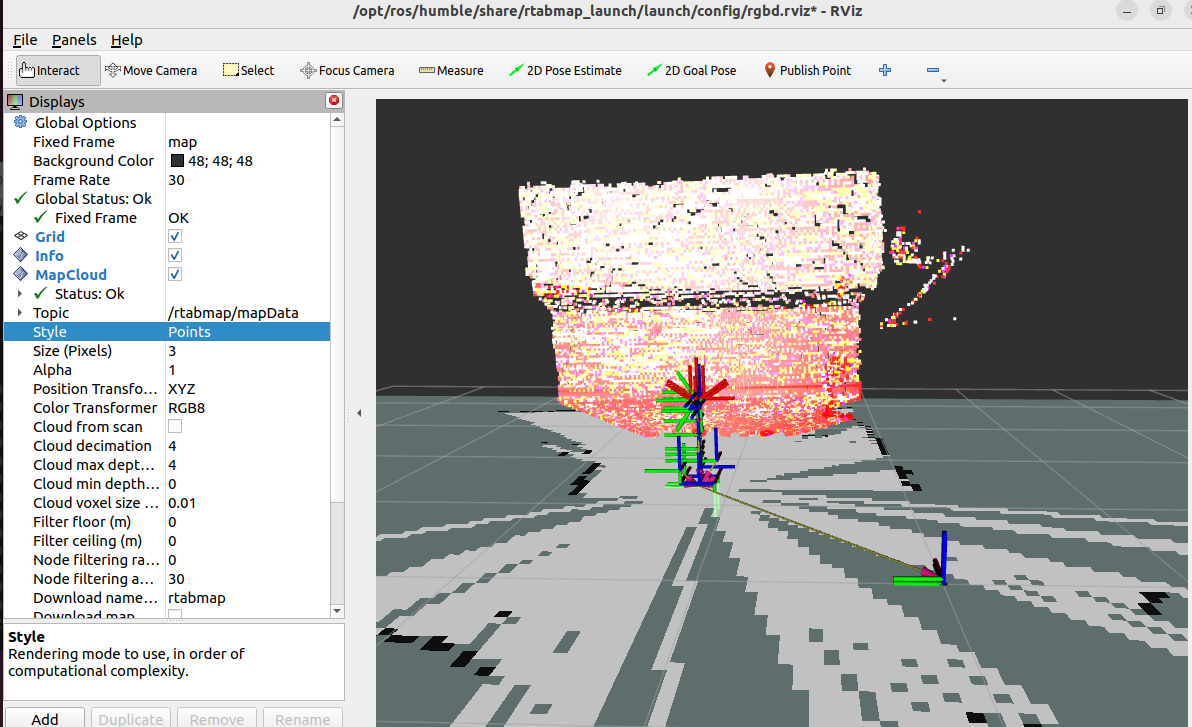
Modify the settings in rviz to change the point cloud display to RGB, as shown below.
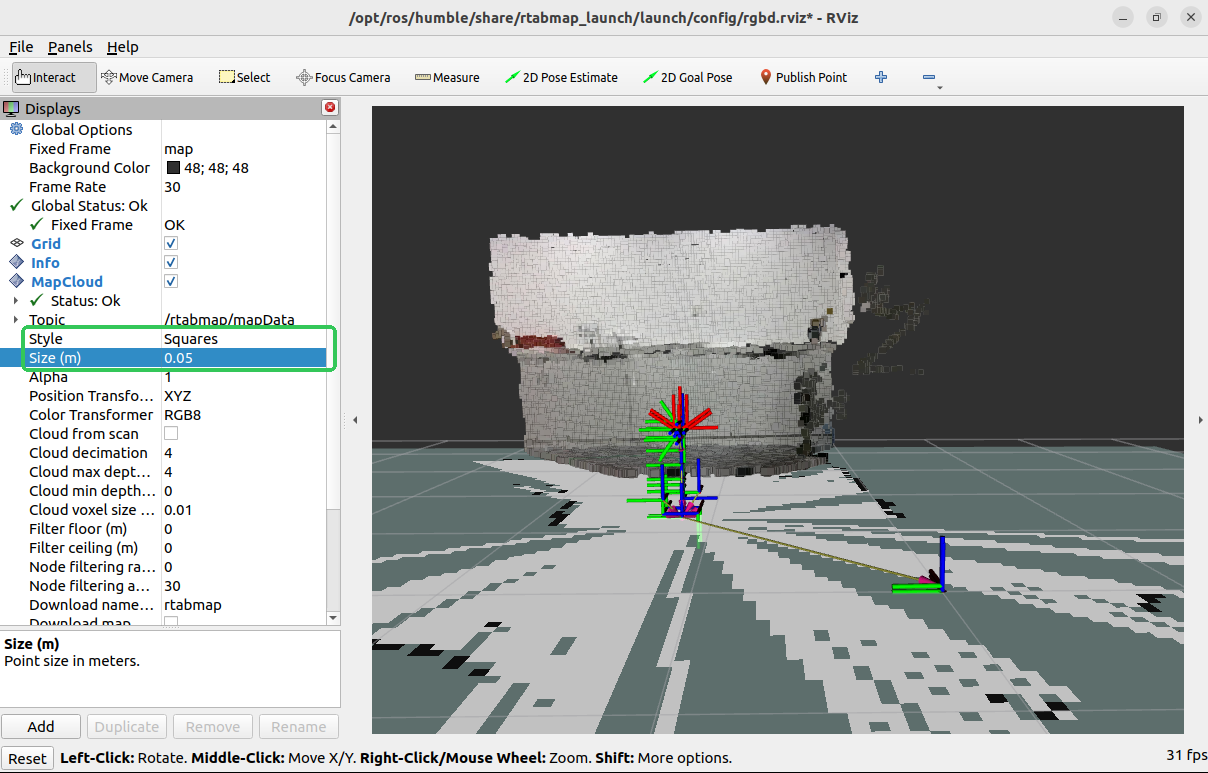
Finally, open a terminal in the virtual machine and enter the following command to enable keyboard control of the car's movement and mapping.
xxxxxxxxxxros2 run yahboomcar_ctrl yahboom_keyboard
Here, control the car's movement as slowly as possible. Press the [z] key to reduce the linear velocity and deceleration. Then, press the [i] key to move the car forward, the [,] key to move it backward, the [j] key to rotate the car left, and the [l] key to rotate the car right.
As shown below, the map is complete.
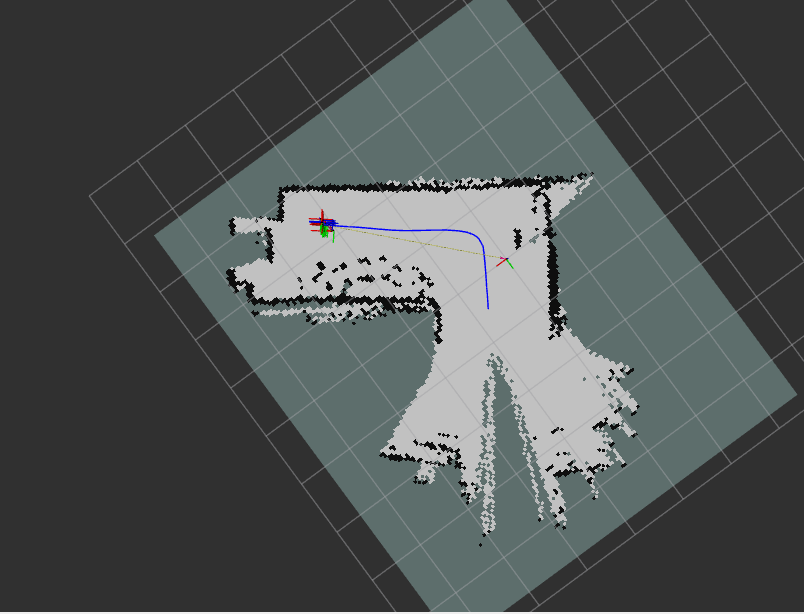
After the map is created, press Ctrl+C in the terminal where you launched rtabmap.launch.py to close the program. The map will be saved in /home/yahboom/.ros/rtabmap.db.
4. Instruction analysis
RTAB-Map mapping instructions are as follows:
xxxxxxxxxxros2 launch rtabmap_launch rtabmap.launch.py rgb_topic:=/camera/color/image_raw depth_topic:=/camera/depth/image_raw camera_info_topic:=/camera/color/camera_info odom_topic:=/odom frame_id:=base_link use_sim_time:=false rviz:=true rtabmap_viz:=false approx_sync:=true approx_sync_max_interval:=0.01 qos:=2 visual_odometry:=false icp_odometry:=false subscribe_scan:=true sync_queue_size:=50 topic_queue_size:=50 rtabmap_args:="--delete_db_on_start"rgb_topic: Color image topic
depth_topic: Depth image topic
camera_info_topic: Color camera internal reference topic
odom_topic: Odometry topic
frame_id: Robot base coordinate system name
use_sim_time: Whether to use simulation time
rviz: Whether to enable rviz display
rtabmap_viz: Whether to enable rtabmap plugin display
approx_sync: Whether to enable approximate time synchronization
approx_sync_max_interval: Maximum allowed synchronization time difference
visual_odometry: Whether to enable visual odometry
icp_odometry: Whether to enable ICP point cloud matching odometry
subscribe_scan: Whether to subscribe to lidar data
sync_queue_size: Time synchronization queue size
topic_queue_size: Single topic subscription queue size
rtabmap_args: Parameters passed directly to the RTAB-MAP core. Optional parameters include the following:
--delete_db_on_start:Clears the previous map database at startup.--Mem/IncrementalMemory false:Disables incremental memory mode (for pure positioning).--Rtabmap/DetectionRate 2:Sets the closed-loop detection rate (Hz).
qos:Quality of Service (QoS policy). Optional parameters include:
- 0: SYSTEM_DEFAULT
- 1: RELIABLE (guaranteed delivery)
- 2: BEST_EFFORT (possible loss).