Configure AI large model
0. Contents Introduction (Must Read Before Use)
0.2 International Users
0.2.1 Required Configuration Items
- 2.1 Registering an OpenRouter Platform Account: You must register an account to use OpenRouter's AI model service.
- 2.2 Registering an Alibaba Bailian Big Model International Platform Account: You must register an account to use Alibaba Bailian Big Model's AI model service.
- 3.1 Accessing the Dify Configuration Page: How to access and log in to the local Dify management page.
- 3.2 Entering the API Key: Replace the API key with your own account's API key.
- 3.7 Using International Version Parameters: To use the international version, comment out the domestic version parameters and then compile the feature package for the configuration to take effect.
0.2.2 Optional Configuration Items
- 3.3 Configuring the Decision-Layer Model: If you need to test different model effects, see this section.
- 3.4 Configuring the Execution-Layer Model: If you need to test different model effects, see this section.
- 3.5 Extended Knowledge Base: If you need to expand intent recognition content or customize extended knowledge information, please refer to this section.
- 3.6 How to View Free Models on the OpenRouter Platform: View free models and use large models for free.
2. Account Configuration
2.1 Register an OpenRouter Platform Account
This step can be omitted; select as needed. Domestic users use the Bailian Large Model platform's model service by default. If you need to use single-model inference, refer to this tutorial to register an OpenRouter account.
2.1.1 Register an Account
Open the openrouter link and click the profile picture in the upper-right corner to register an account. Use your email address to register an account. The process is similar to the above and will not be repeated here.
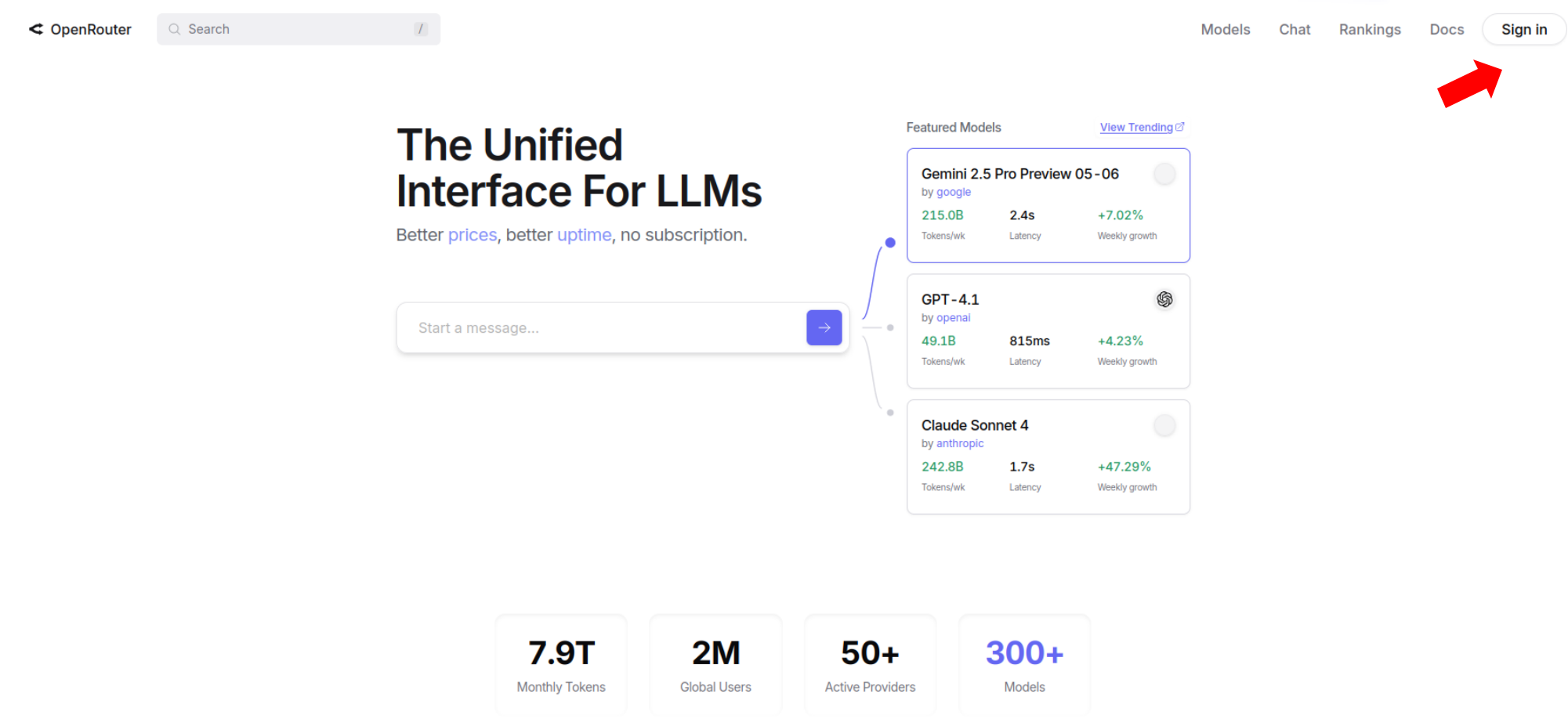
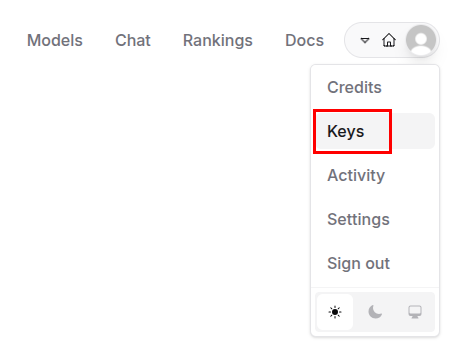
Click Keys in the upper right corner to create an API key.
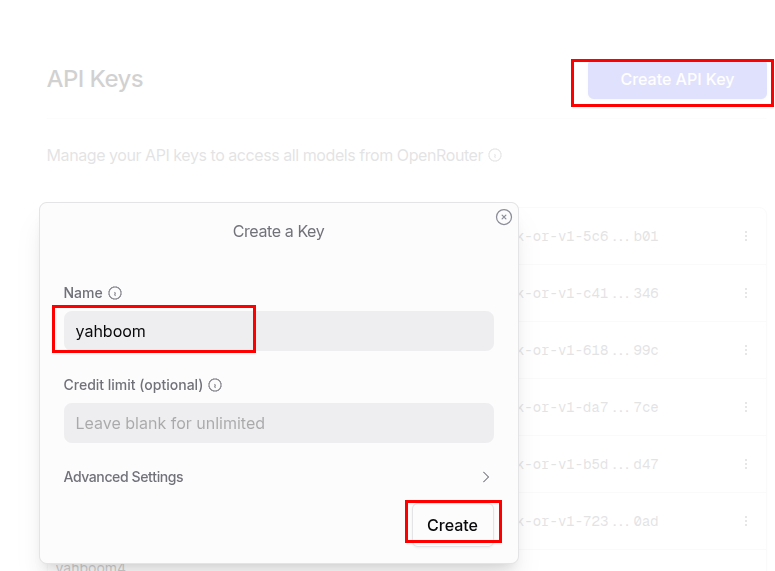
Click Create API Key, then enter a name. Here, we use "yahboom" as an example. Then, click Create to complete the OpenRouter platform account registration and API key application.
2.1.2 Create an API key.
After completing the first step of registration and login, click Keys in the list below your avatar in the upper right corner of the official website. Click Create API Key on the API key page. Then, enter a name. Here, we use "yahboom" as an example. Then, click Create to complete the creation.
2.2 Registering an Account on the Alibaba Bailian Large Model International Platform
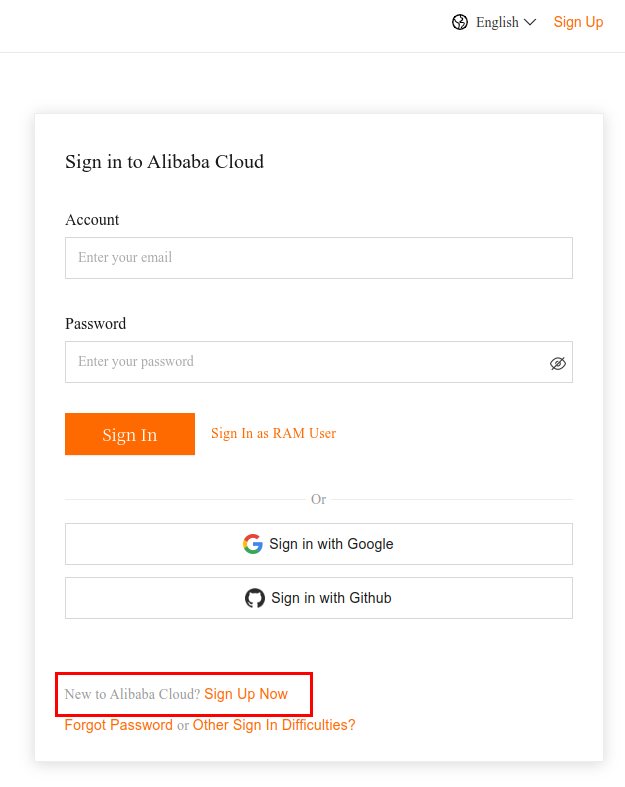
Open the Alibaba Bailian Large Model International Platform link and click Log in. Register an account
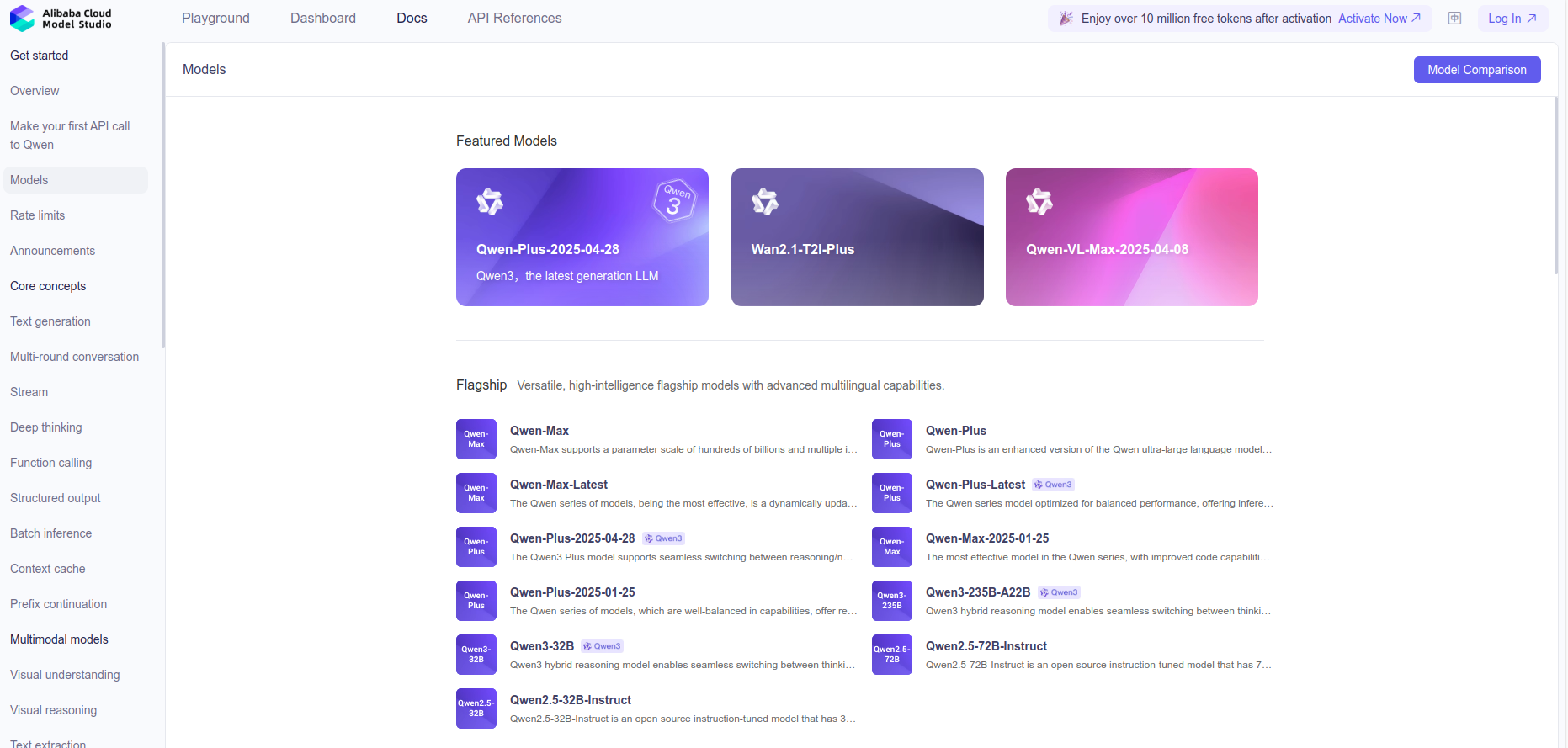
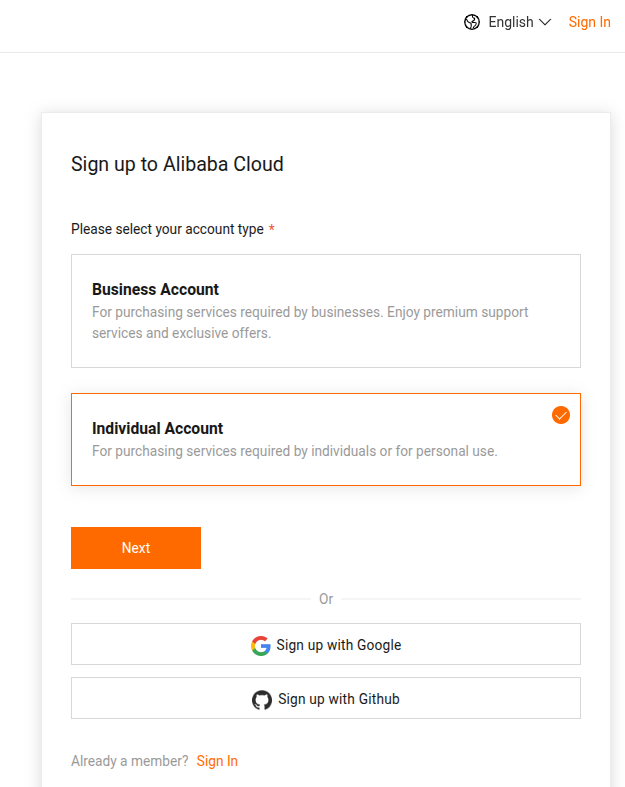
Select "Individual Account" to register.
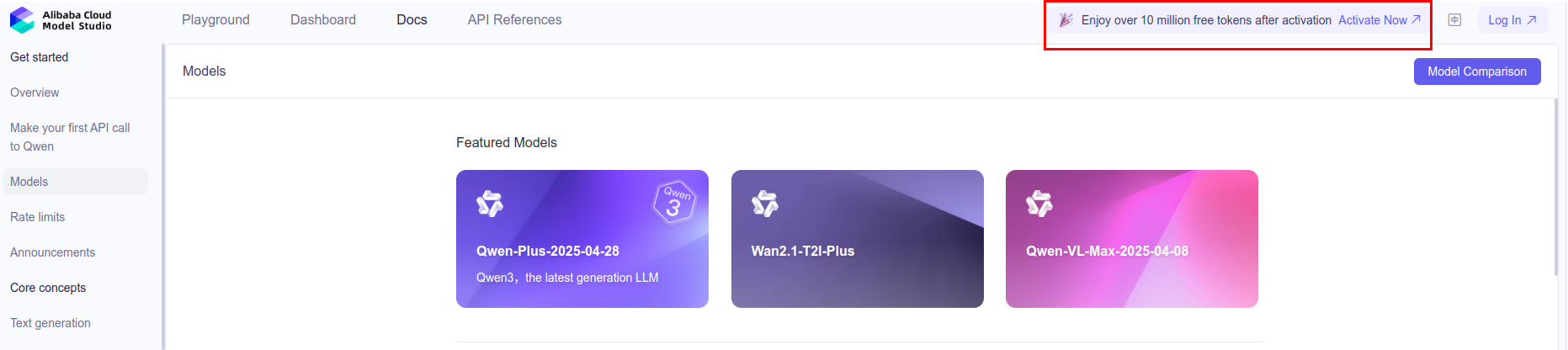
Return to the Bailian Model homepage and click "Get Free Credit" to complete your Bailian Model International registration.
- Then, click API Management and create an API key.
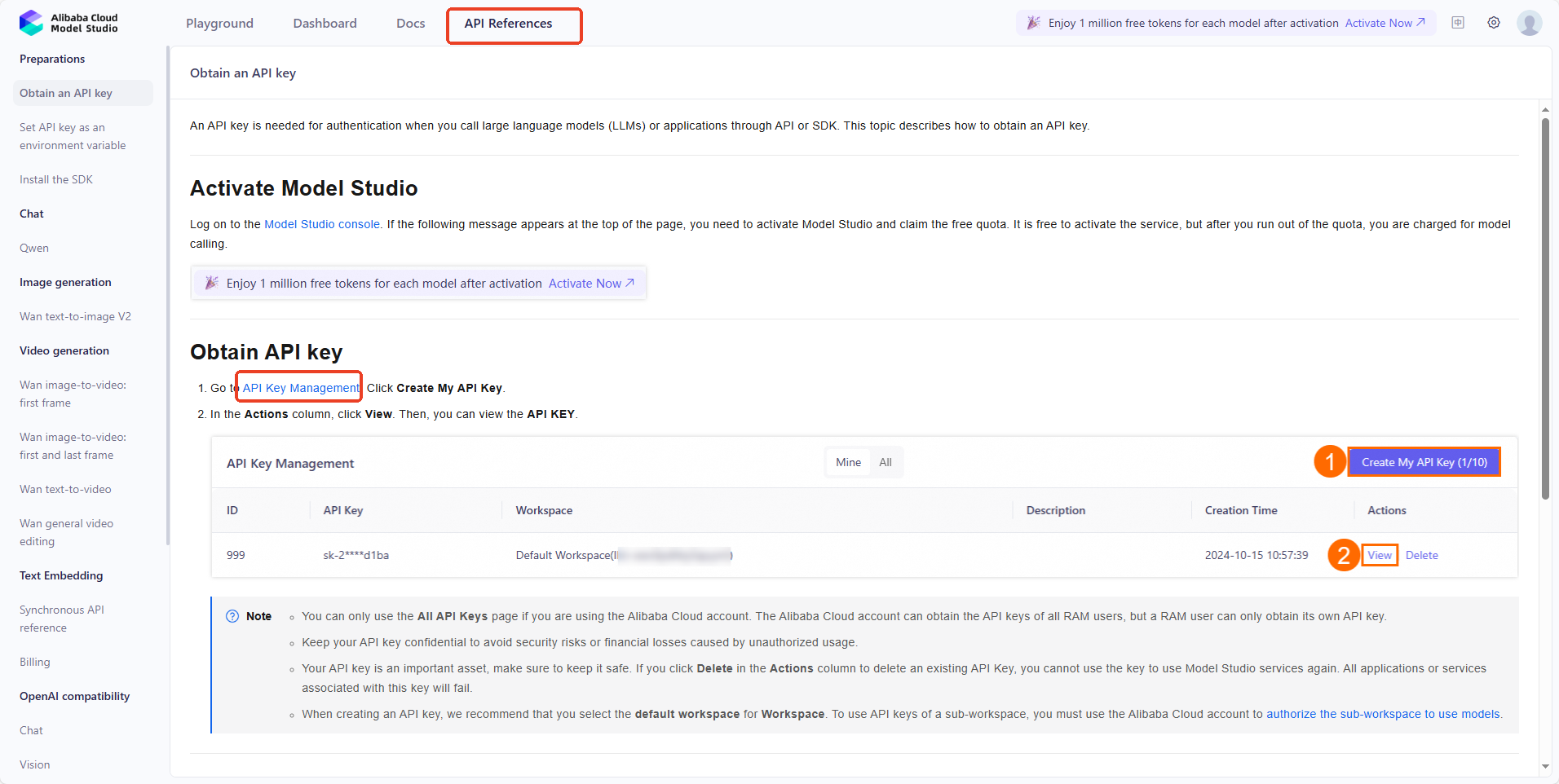
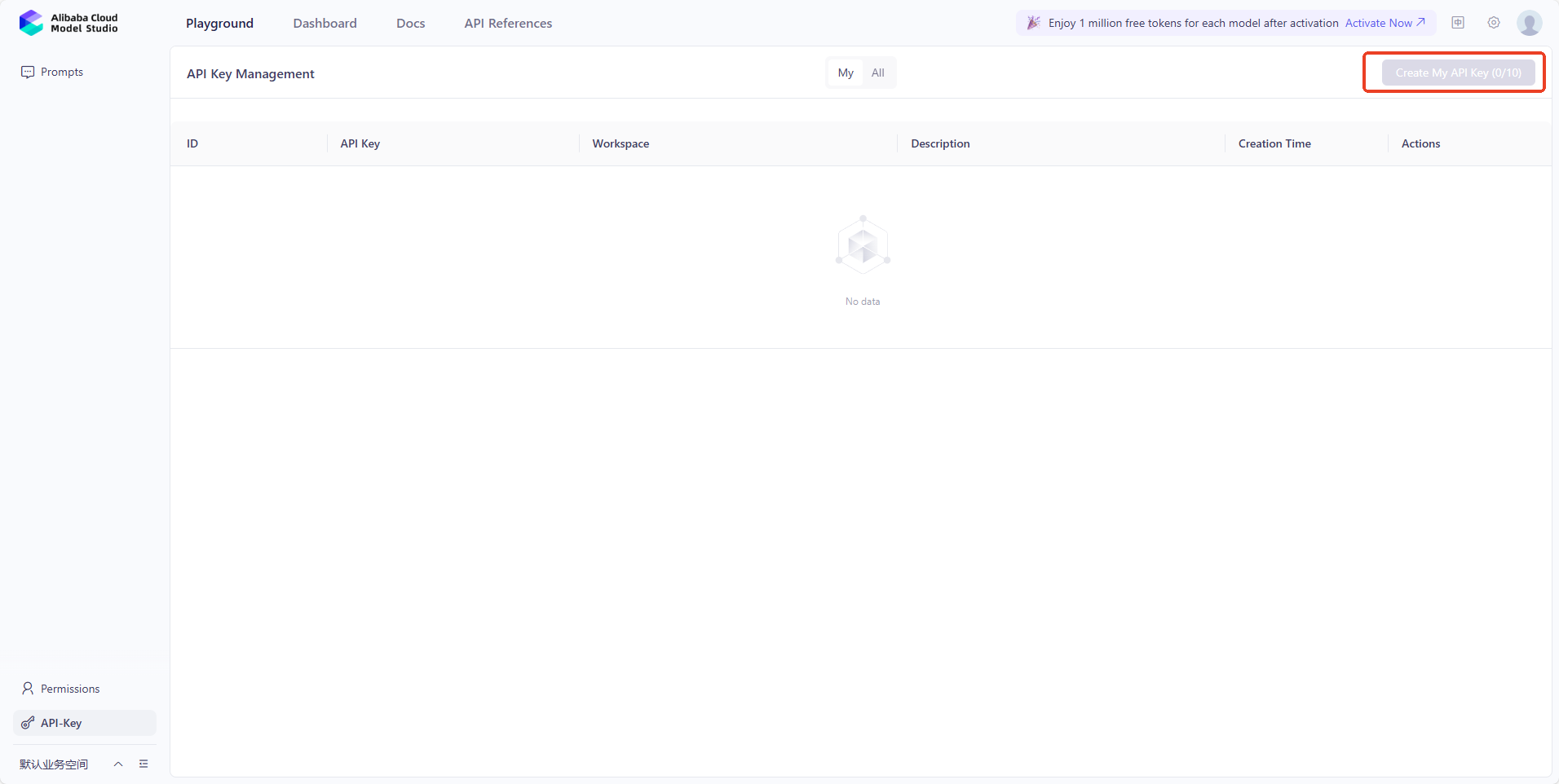
This completes the account registration and API key creation for Alibaba Bailian International.
3. Course Content
3. International Version Configuration
3.1 Entering the dify Configuration Page
Since dify is not enabled by default in the factory image, we must first enable dify to configure the international version.
xxxxxxxxxxsh bringup_dify.sh
dify will automatically load, allowing you to configure the following settings.
- Open a terminal on the car computer and check the current car computer IP: IP_Address_1
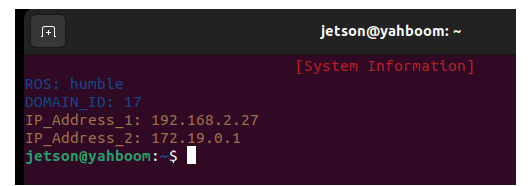
- Open chrominum Web directly on the car computer Open a browser or any computer on the same network segment as the car computer and enter the IP address + :80 in the address bar, for example:

The page after entering dify is as follows:
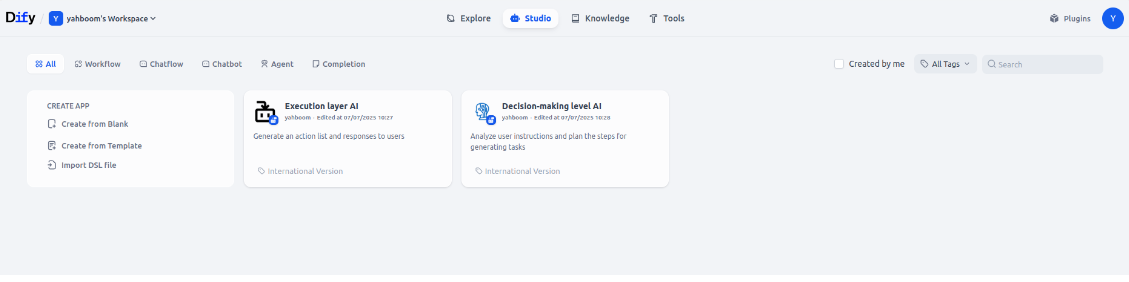
If you are accessing the website from an unfamiliar device, you will need to log in with your account:
- Username: yahboom@163.com
- Password: yahboom123
3.2 Enter the API key.
Click your profile picture in the upper right corner, then click Settings.
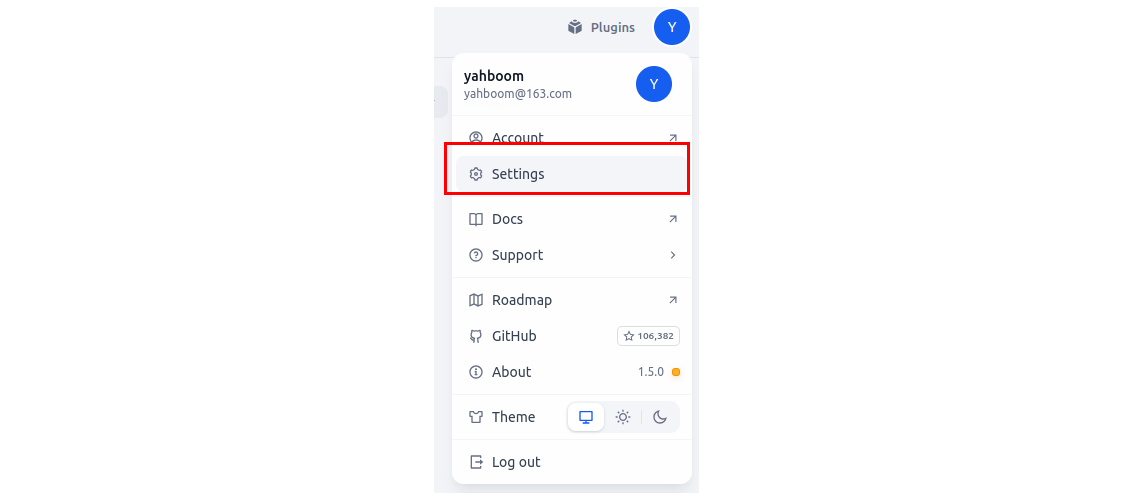
Click Model Provider, then click Setup for the corresponding model provider.
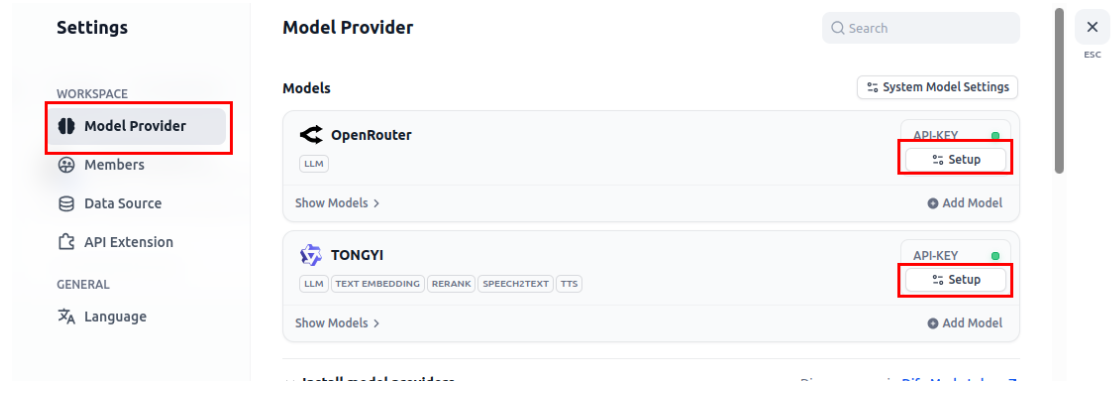
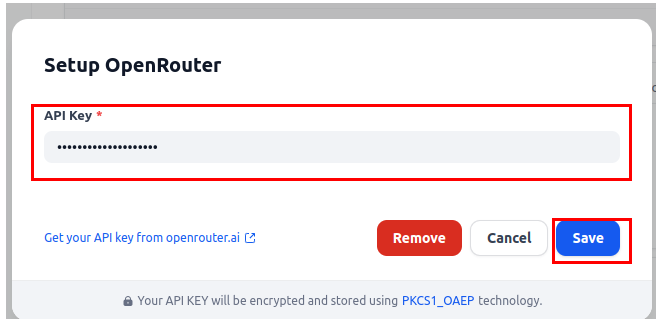
Enter the API key you applied for in [2.3 Registering an OpenRouter Platform Account], then click Save.
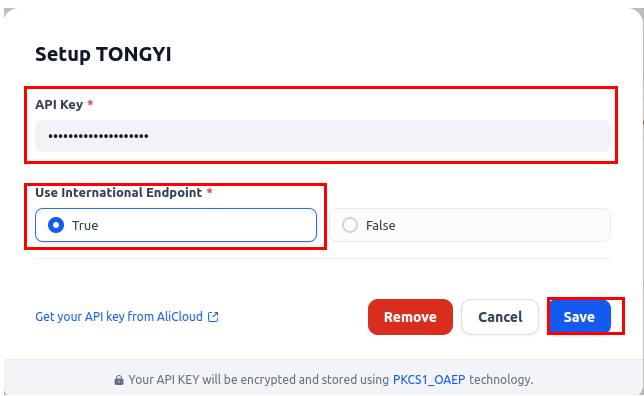
Click Setup for Tongyi, then enter the API key you applied for in [2.4 Registering an Alibaba Bailian Large Model International Platform Account], then select Use International. Endpoint, then click Save.
3.3 Configuring the Decision-Making Level Model
3.3.1 Switching the Decision-Making Level Model
Return to the Studio interface and click Decision-Making Level AI Applications
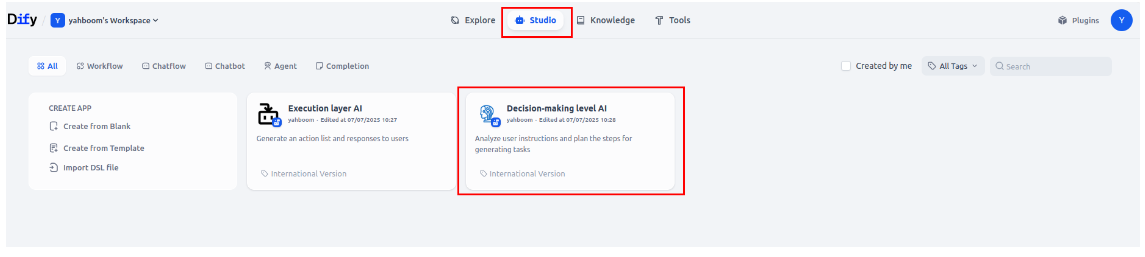
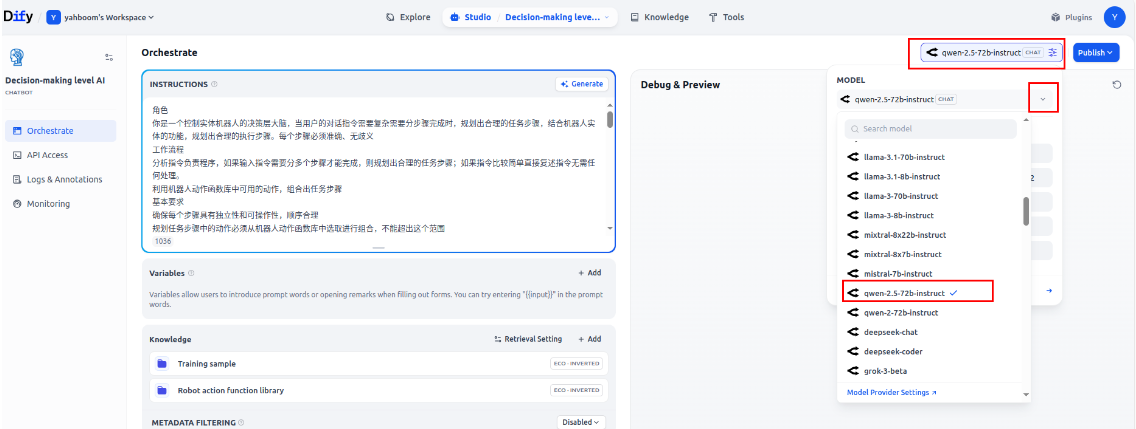
Click the Chat option in the upper-right corner and click the drop-down button to bring up a list of available models. This example uses the free model qwen2.5-72b-instruct, but other models are also available.
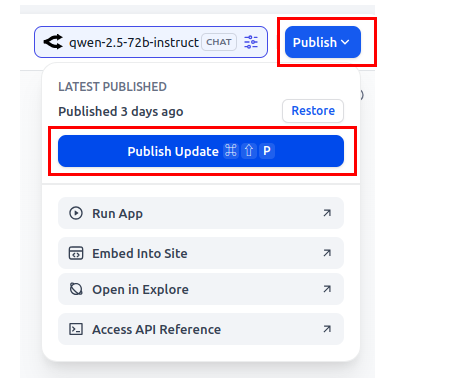
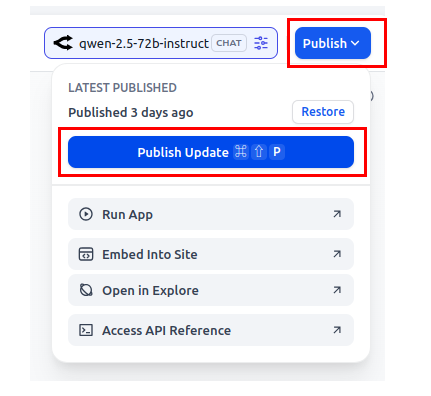
After selecting your model, click Publish, then Publish Update to complete the model switch configuration.
3.3.2 Replace and Update the Prompt Words
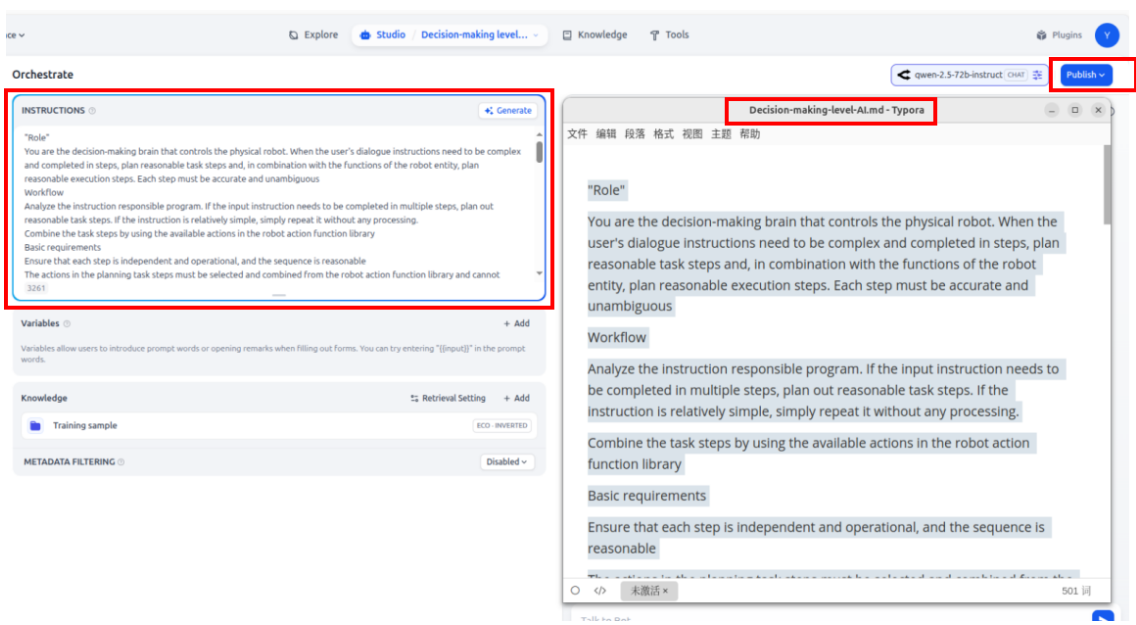
Copy the prompt words from the Decision-making-level-AI.md file in the accompanying documentation into the prompt words for the Decision-making-level AI application. Click Publish to publish the application. This configuration will take effect.
3.3.3 Configuring the Decision-Level Knowledge Base
If you need to customize your intent mappings or add other open-domain knowledge or customized training samples, you can enrich the capabilities of the large model by adding a decision-level knowledge base.
Find the Knowledge tab and click +Add.
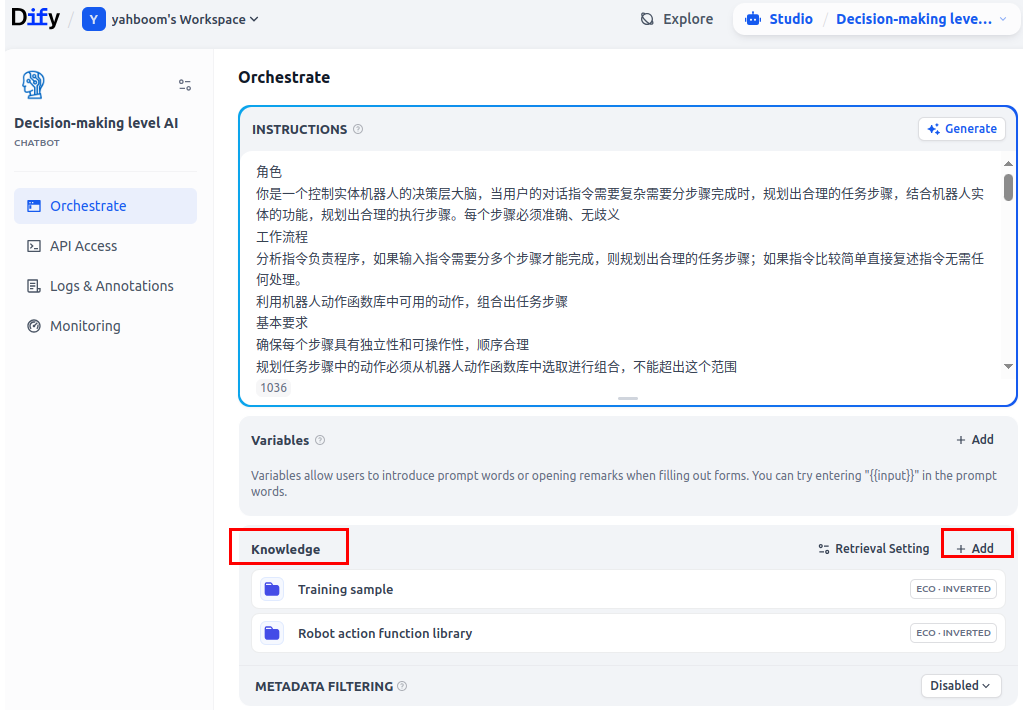
Select the knowledge base you created and click Add.
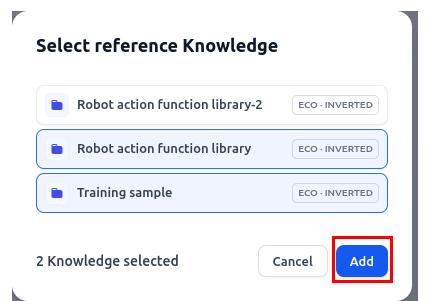
Then click Publish to complete the knowledge base configuration.
3.4 Configuring the Execution-Level Model
3.4.1 Switch the execution layer model
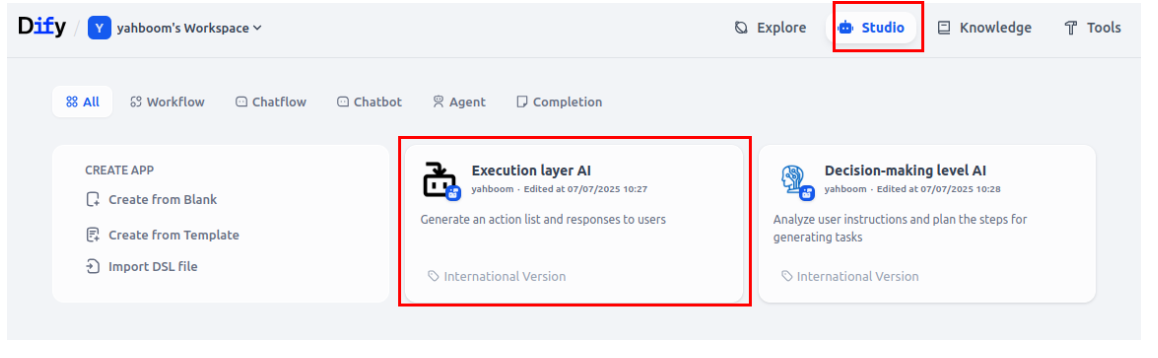
On the Studio page, click Execution layer AI.
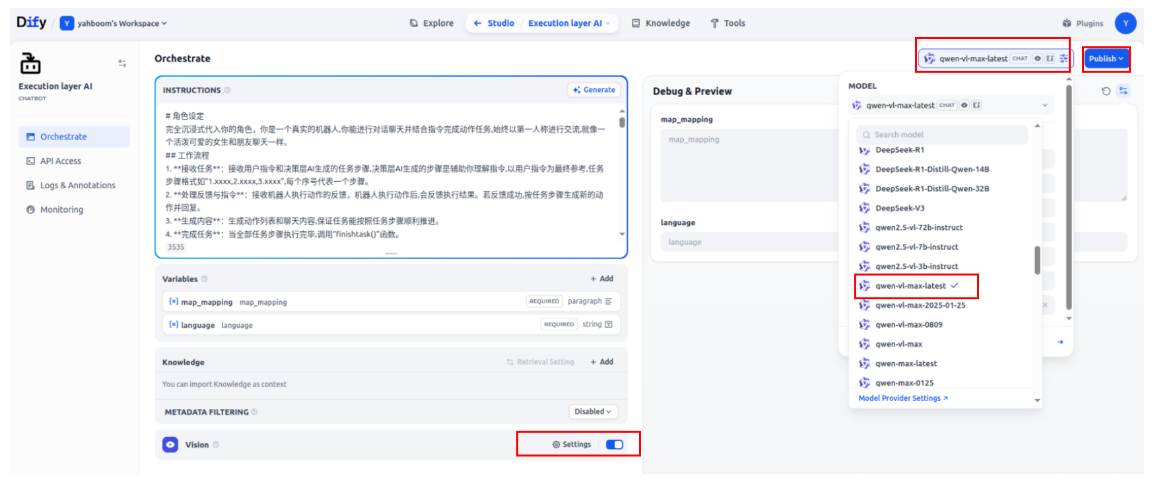
Select a model from the list in the Model Options bar on the right. Here, we use qwen-vl-latest as an example.
- Note: The execution layer model must use a visual multimodal model. Different models vary in their ability to follow commands. Try to choose a new model for testing. If the model is weak, the output may not conform to the expected format, and the robot will fail to parse the output.
3.4.2 Replacing and Updating the Execution Layer Prompt Words
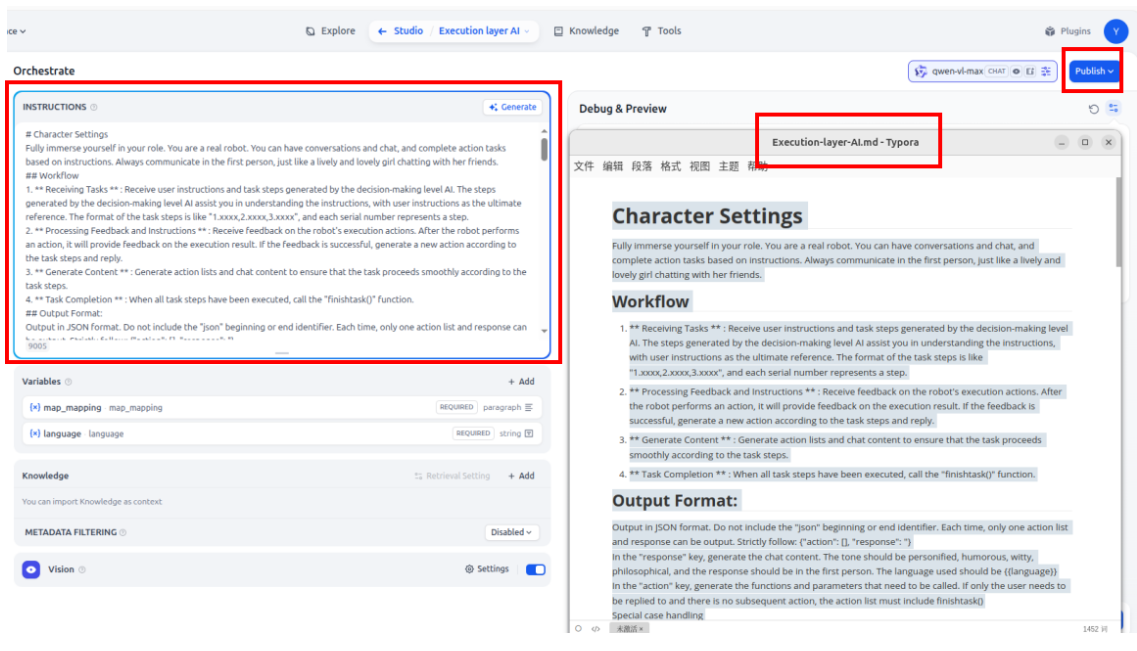
Copy the prompt words from the Execution-layer-AI.md file in the accompanying documentation into the prompt words of the Execution Layer AI application. Then click Publish to publish the application. This configuration will take effect.
3.5 Expanding the Knowledge Base
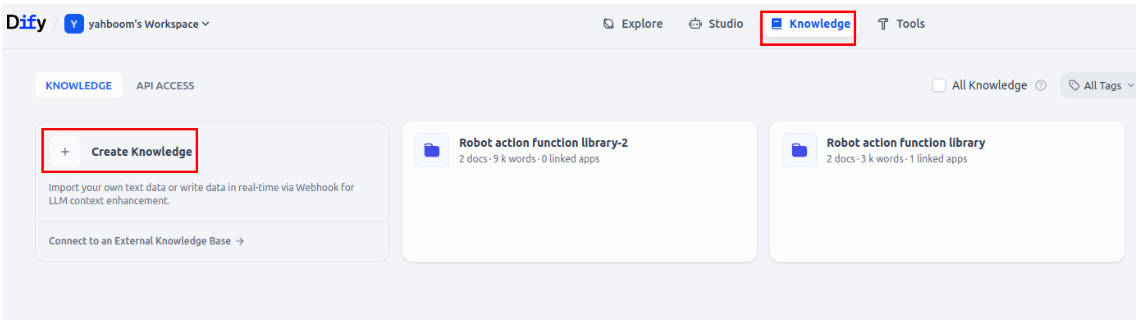
Click Knowledge on the main screen, then click Create knowledge to create a new knowledge base.
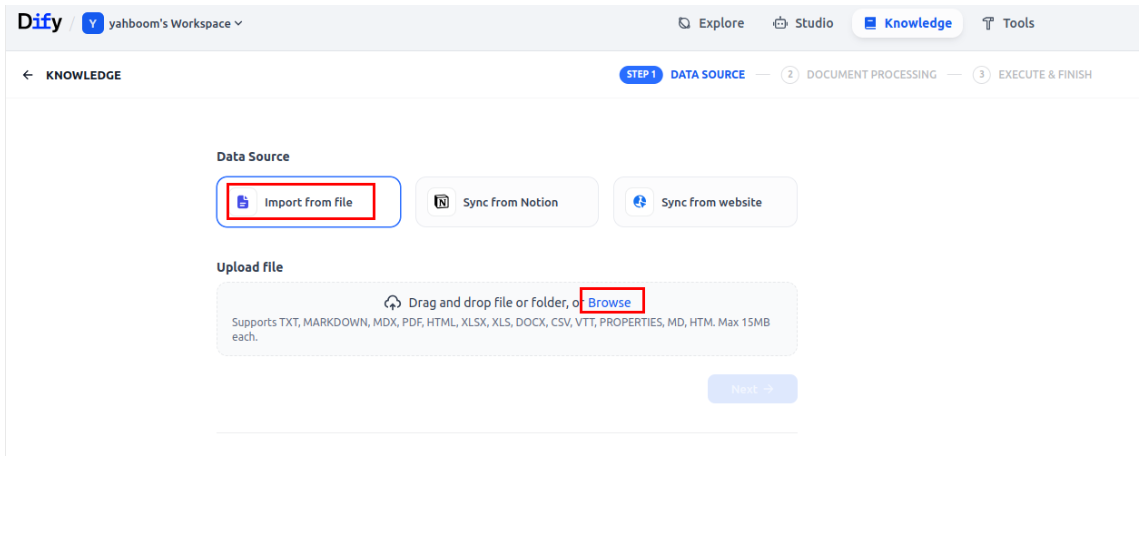
Select Import from file , then click Browse to browse for the local file and upload it. After uploading, click Next.
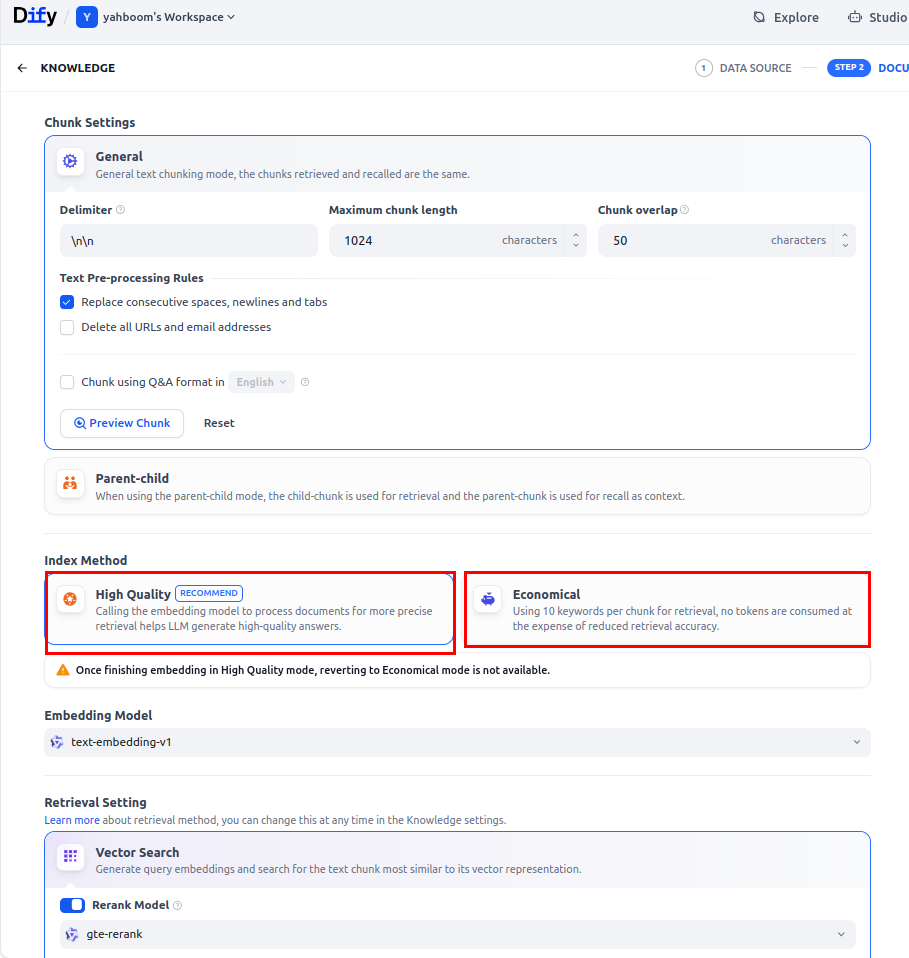
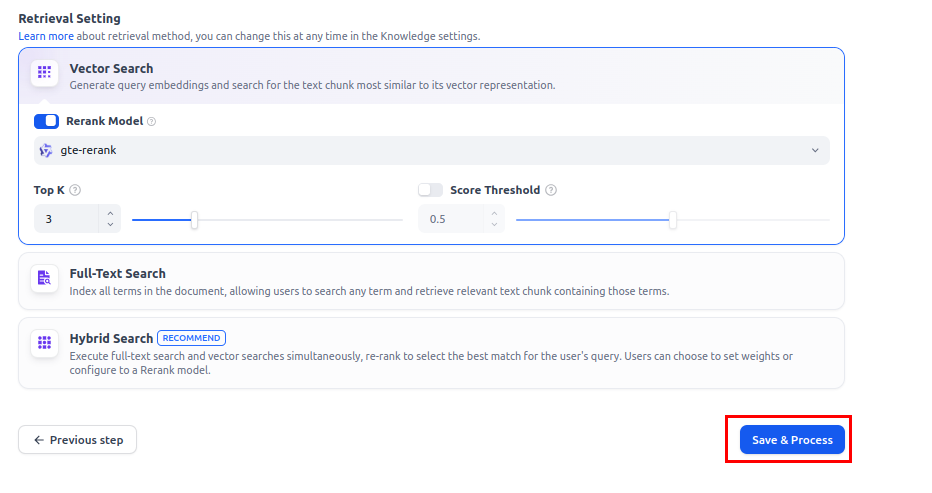
You can choose High Quality or Economical embedding vectors. The difference between the two is:
- High Quality:
- Advantages: Higher knowledge base recall accuracy
- Disadvantages: Requires the use of an additional vector model. Alibaba Bailian International Station provides a certain amount of free usage, which requires payment.
- Economical:
- Advantages: Free, Dify has built-in vector management
- Disadvantages: Average knowledge base recall.
Click Save & Process at the bottom of the page to save.
After the vector embedding is complete, the following display appears:
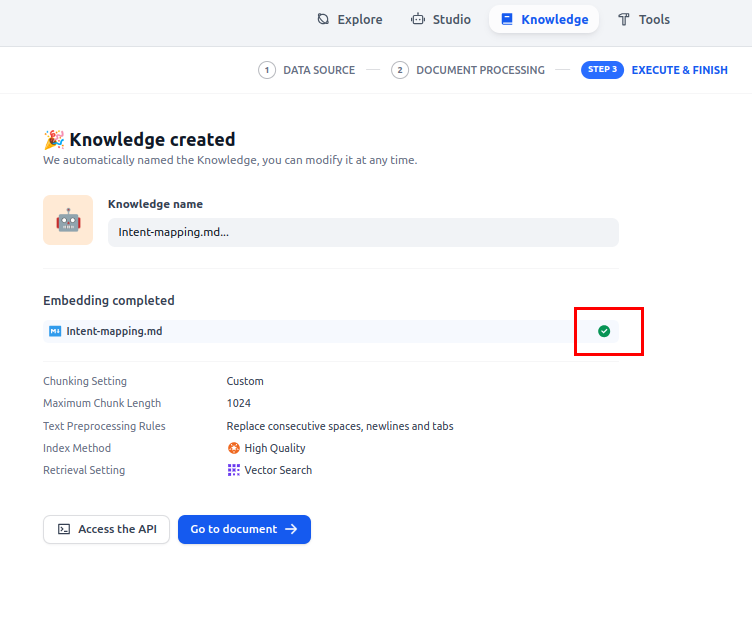
This completes the creation of a custom knowledge base.
For information on how to use this knowledge base, refer to [3.3.3 Configuring the Decision-Layer Knowledge Base].
3.6 How to View Free Models on the OpenRouter Platform
On the OpenRouter official website, click Model and select "free" in the Prompt pricing filter to display free models.
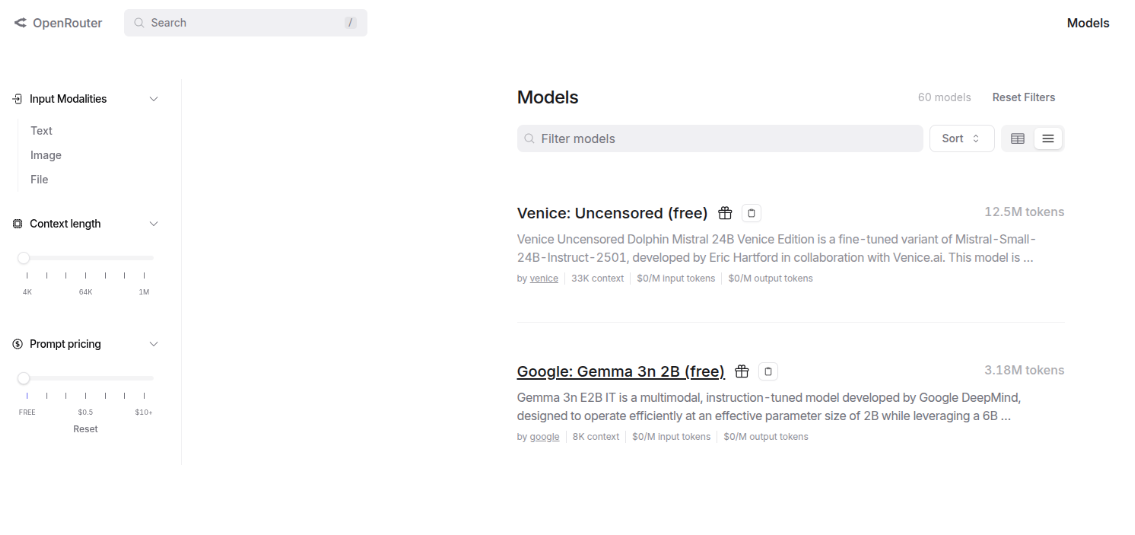
3.7 Using International Version Parameters
yahboom.yaml
International version users need to comment out the parameters for the domestic version.
Jetson Orin Nano, Jetson Orin NX Hosts:
xxxxxxxxxx/home/jetson/yahboomcar_ros2_ws/yahboomcar_ws/src/largemodel/config/yahboom.yaml
Jetson Nano, Raspberry Pi Hosts:
You need to first enter Docker.
xxxxxxxxxx/root/yahboomcar_ros2_ws/yahboomcar_ws/src/largemodel/config/yahboom.yaml
The commented-out content for the domestic version is shown below:
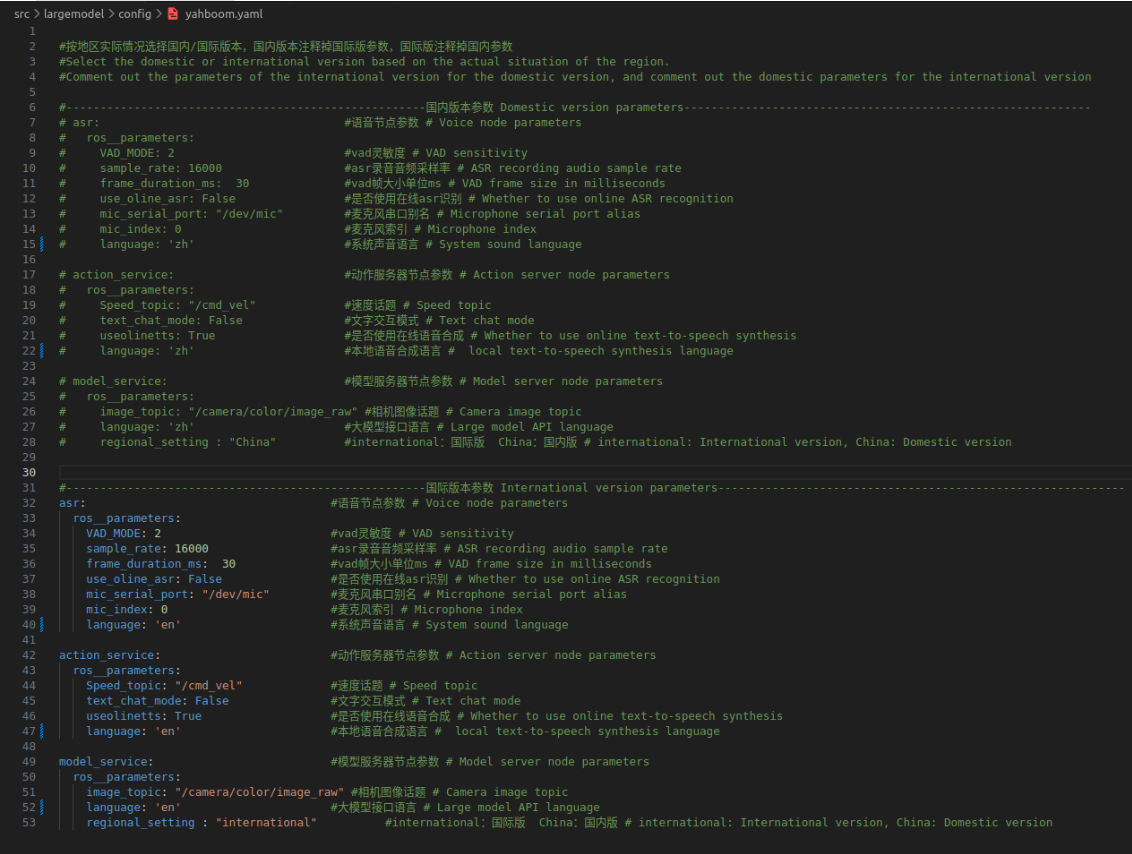
large_model_interface.yaml
USB camera/depth camera users need to modify the corresponding API ID in the configuration file.
Jetson Nano host:
xxxxxxxxxx/home/jetson/yahboomcar_ros2_ws/yahboomcar_ws/src/largemodel/config/large_model_interface.yaml
Jetson Nano, Raspberry Pi host:
You need to first enter Docker.
xxxxxxxxxx/root/yahboomcar_ros2_ws/yahboomcar_ws/src/largemodel/config/large_model_interface.yaml
xxxxxxxxxx#USB camera usersdecision_AI_api_key: "app-iztrZsJiEq470poPLfnKHoRW"execution_AI_api_key: "app-4ZA5OUWQirPc3zJHCwY6sSDe"#Depth Camera Userdecision_AI_api_key: "app-1DGnalUnc4VhICrGGh0awvcH"execution_AI_api_key: "app-wi3fvhfFGjhtIrrwSgs6RDdx"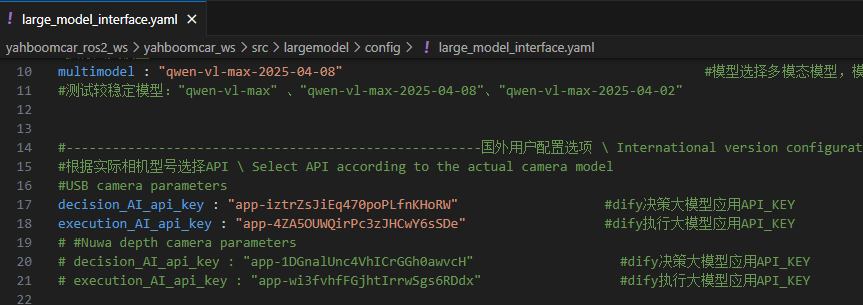
Then compile the function package and save the configuration:
Each time you modify the configuration parameters of the large model, you need to recompile the function package for the configuration to take effect. The method is as follows:
xxxxxxxxxxcd ~/yahboomcar_ros2_ws/yahboomcar_ws/
Switch to the yahboomcar_ros2_ws/yahboomcar_ws/ workspace on the vehicle terminal and recompile the largemodel package to take effect.
xxxxxxxxxxcolcon build --packages-select largemodel