Navigation2 single-point navigation avoid
1. Program Functionality
After running the program, a map will load in rviz. In the rviz interface, use the [2D Pose Estimate] tool to set the car's initial pose, and then use the [2D Goal Pose] tool to set a target point. The car will then calculate a path based on its surroundings and move to its destination. If it encounters obstacles, it will automatically avoid them and stop at its destination.
2. Navigation2 Introduction
2.1 Introduction
Navigation2 Overall Architecture
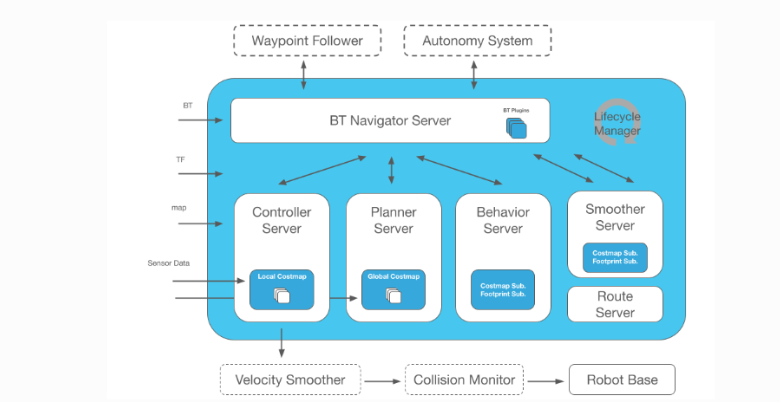
Navigation2 provides the following tools:
- Tools for loading, serving, and storing maps (Map Server)
- Tools for localizing the robot on a map (AMCL)
- Tools for planning paths from point A to point B while avoiding obstacles (Nav2 Planner)
- Tools for controlling the robot while following a path (Nav2 Controller)
- Tools for converting sensor data into a costmap representation of the robot's world (Nav2 Costmap 2D)
- Tools for building complex robot behaviors using behavior trees (Nav2 Behavior Trees and BT Navigator)
- Tools for calculating recovery behaviors in the event of a failure (Nav2 Recoveries)
- Tools for following sequential waypoints (Nav2 Waypoint Follower)
- Tools and watchdogs for managing server lifecycles (Nav2 Lifecycle Manager)
- Plugins for enabling user-defined algorithms and behaviors (Nav2 Core)
Navigation 2 (Nav2) is the native navigation framework in ROS 2. Its purpose is to safely move mobile robots from point A to point B. Nav2 implements behaviors such as dynamic path planning, motor speed calculation, obstacle avoidance, and structure recovery.
Nav2 uses behavior trees (BTs) to call modular servers to perform an action. Actions can include path calculation, control efforts, recovery, or other navigation-related actions. These actions are independent nodes that communicate with the behavior tree (BT) through the action server.
2.2 Related Materials
Navigation2 Documentation: https://navigation.ros.org/index.html
Navigation2 GitHub: https://github.com/ros-planning/navigation2
Navigation2 Paper: https://arxiv.org/pdf/2003.00368.pdf
3. Running Examples
3.1 Pre-use Notes
This lesson uses the Raspberry Pi 5 as an example. For Raspberry Pi 5 and Jetson Nano boards, you need to open a terminal on the host computer and enter the command to enter the Docker container. Once inside the Docker container, enter the commands mentioned in this lesson in the terminal. For instructions on entering the Docker container from the host computer, refer to [01. Robot Configuration and Operation Guide] -- [5.Enter Docker (For JETSON Nano and RPi 5)]. For Orin boards, simply open a terminal and enter the commands mentioned in this lesson.
3.2 Single-Point Navigation
Note:
Jetson Nano and Raspberry Pi series controllers must first enter a Docker container (for steps, see [Docker Course] --- [4. Docker Startup Script])
All the following Docker commands must be executed from the same Docker container (for steps, see [Docker Course] --- [3. Docker Submission and Multi-Terminal Access])
This section requires at least one existing map. Refer to [5.Gmapping-SLAM mapping], [6.Cartographer-SLAM mapping], [7.slam_toolbox mapping] or any of the SLAM Mapping courses.
Robot car terminal launches the underlying sensor command:
xxxxxxxxxxros2 launch yahboomcar_nav laser_bringup_launch.py
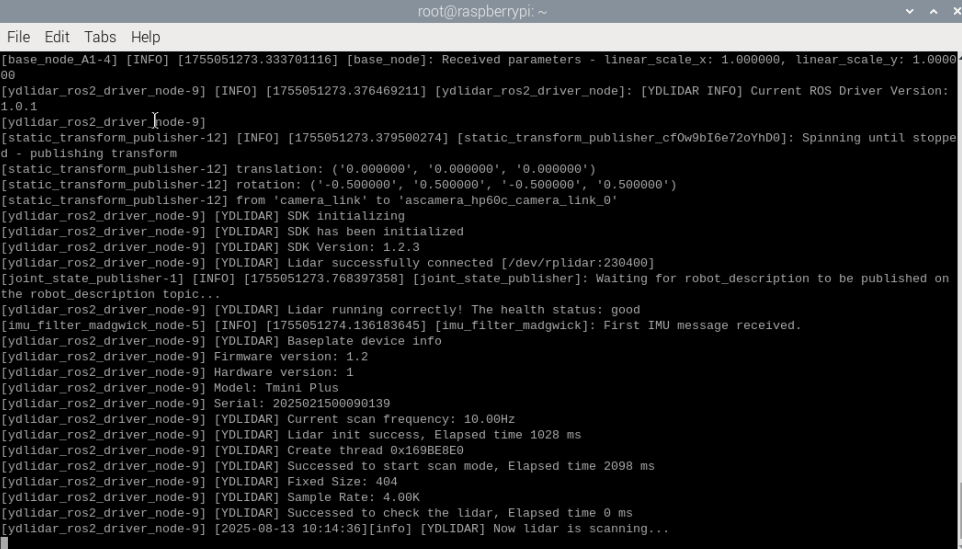
Enter this command to start rviz visualization mapping (the rviz visualization function can be started on either the car computer or the virtual machine. Select either method. Do not start both the virtual machine and the car computer simultaneously. ). The following figure shows the command entered on the car computer.
xxxxxxxxxxros2 launch yahboomcar_nav display_nav_launch.py
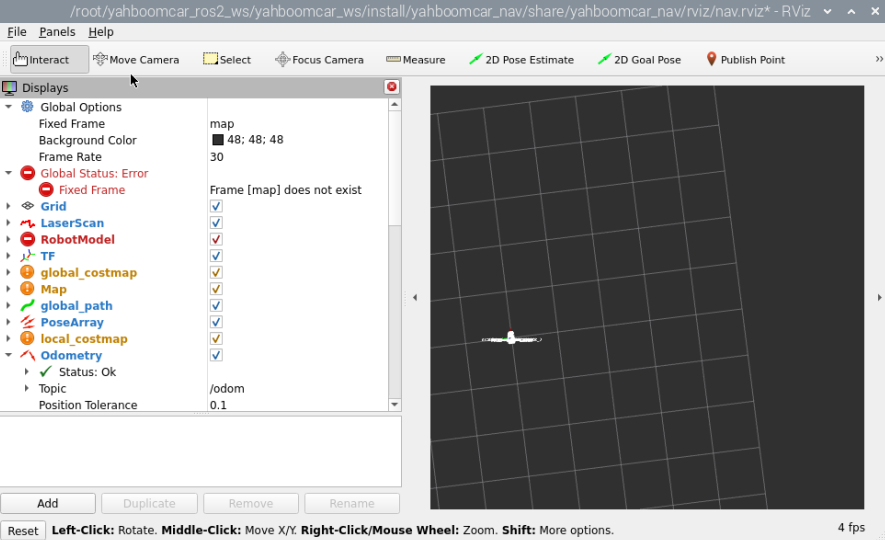
At this point, the map is not loading because the navigation program has not yet been started. Next, run the navigation node by entering **in the terminal (you need to enter the same Docker terminal as above).
xxxxxxxxxxros2 launch yahboomcar_nav navigation_teb_launch.py
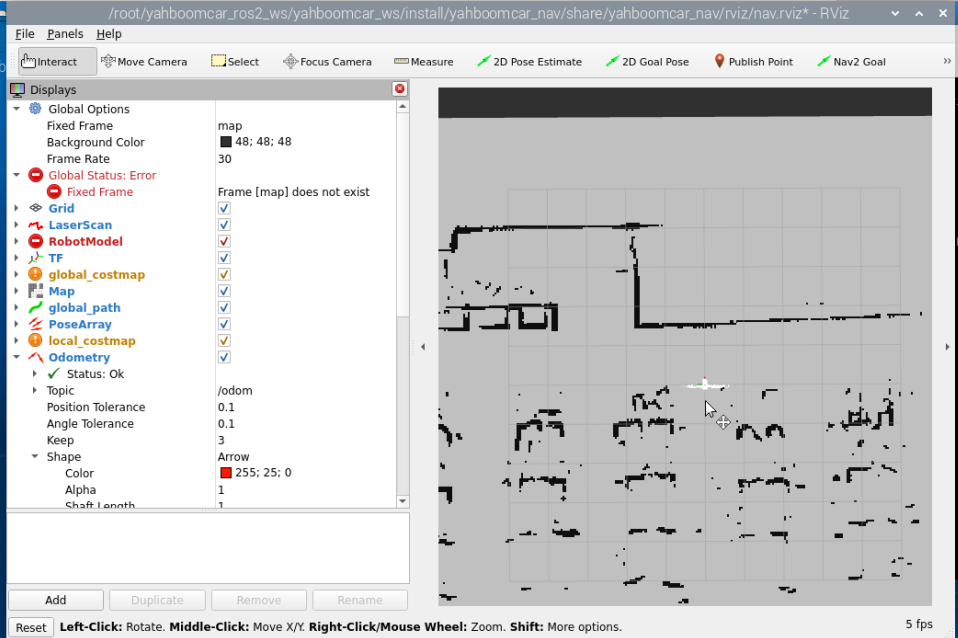
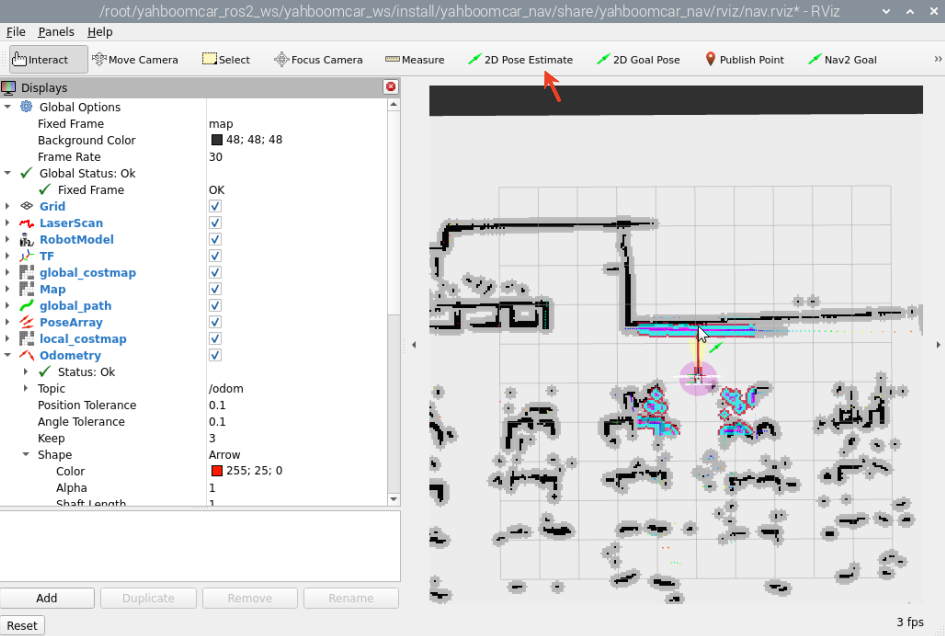
You'll see the map loaded. Click [2D Pose Estimate] to set the initial pose for the car. Based on the car's actual position in the environment, click and drag the mouse in rviz to move the car model to the set position. As shown in the figure below, if the lidar scan area roughly overlaps with the actual obstacle, the pose is accurate. After pose initialization is complete, the robot model and expansion region will appear in the RVIZ interface.
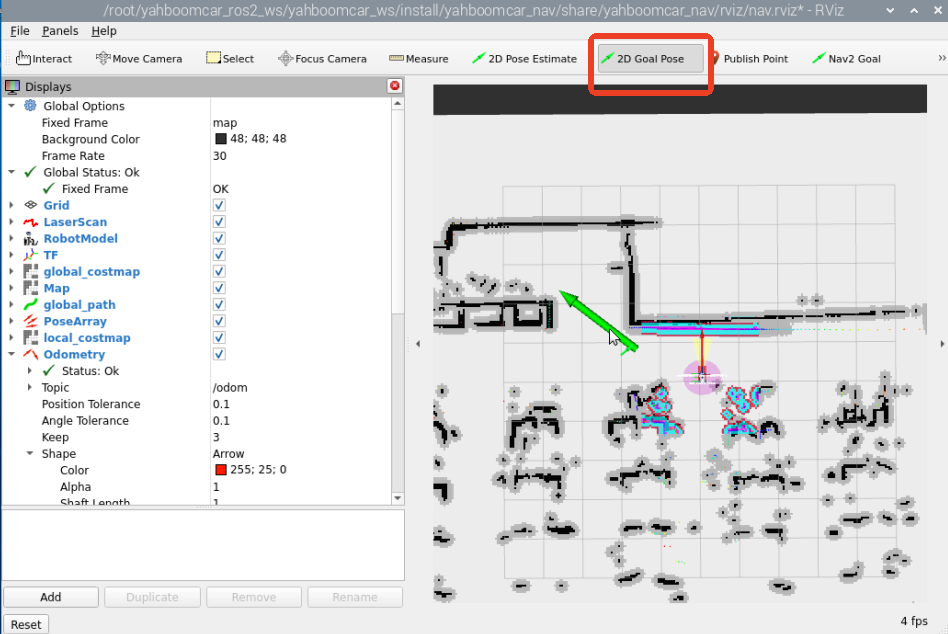
For single-point navigation, click the [2D Goal Pose] tool, then use the mouse to select a target point and orientation in RVIZ, then release.
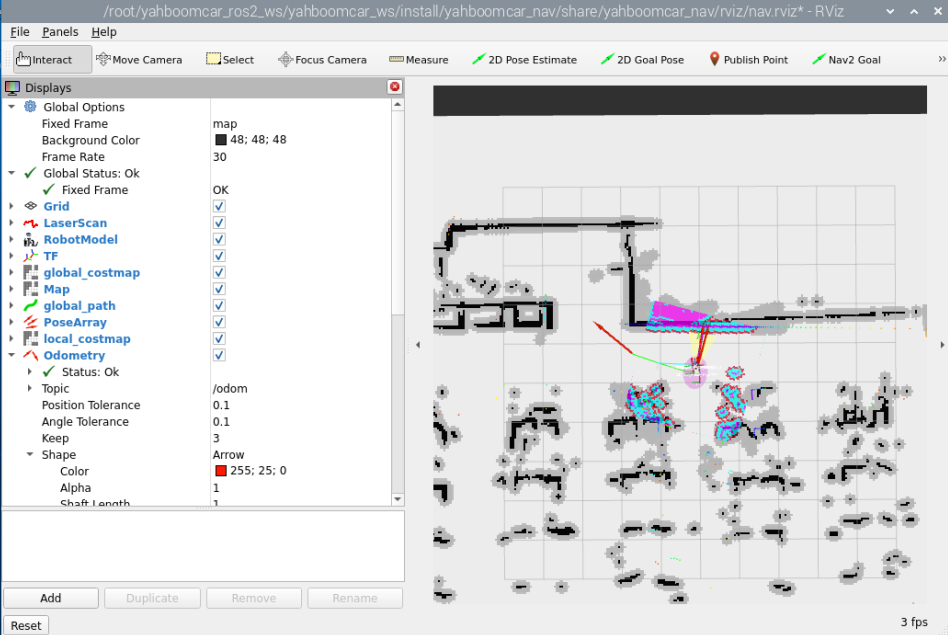
The robot plans a path based on its surroundings and moves along it to the target point.
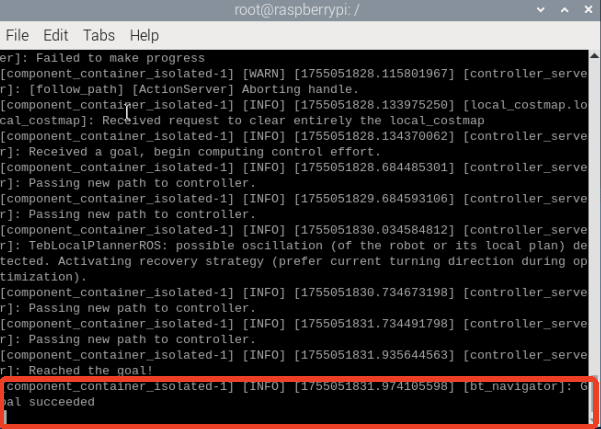
After the robot successfully reaches the target point, the vehicle terminal will display "Goal succeeded," indicating successful navigation.
4. View the Node Communication Graph
Enter the terminal:
xxxxxxxxxxros2 run rqt_graph rqt_graph
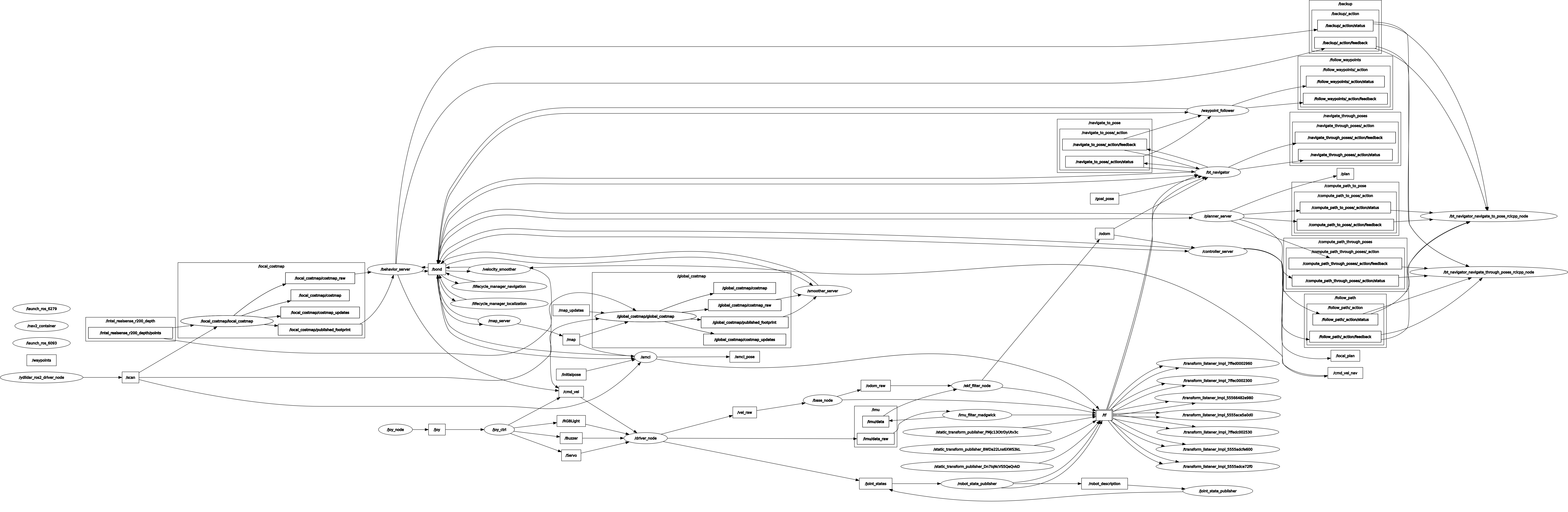
If the graph does not display initially, select [Nodes/Topics (all)] and click the refresh button in the upper left corner. The original graph is too large; you can view it in the current lesson folder.
5. View the TF Tree
Enter the terminal:
xxxxxxxxxxros2 run rqt_tf_tree rqt_tf_tree
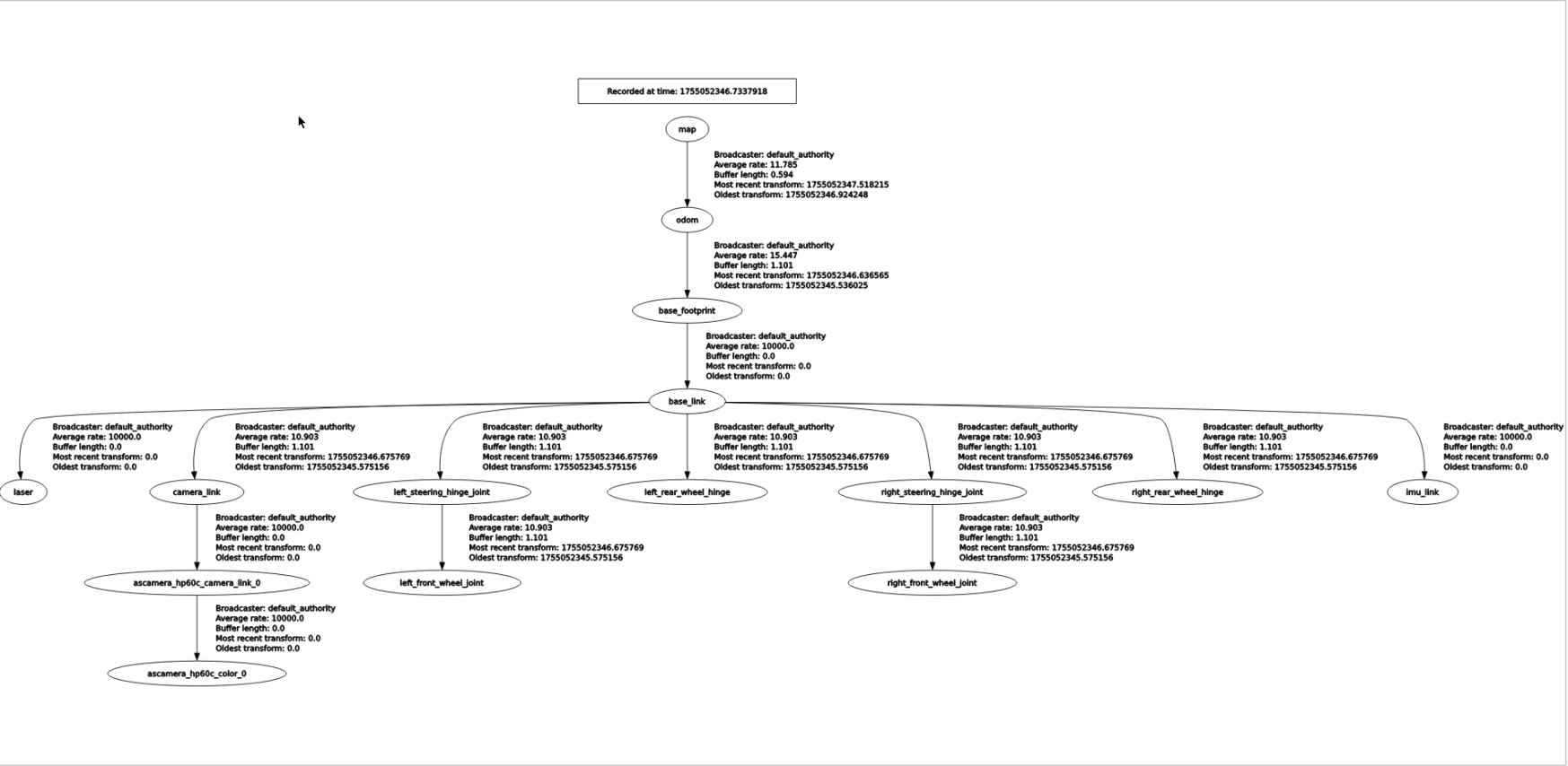
If the page doesn't display initially, click the refresh icon in the upper left corner to refresh the page. The original image is too large; you can view it in this lesson's folder.
6. Navigation Explanation
6.1 Core Steps of the Navigation Process
6.1.1 Phase 1: System Initialization and Map Loading
- Map Acquisition
- Load a pre-built raster map from
map_server - The map contains static obstacle information and serves as the basic environment model for navigation.
Cost Map Initialization
- Global Costmap: Based on the static map, used for global path planning.
- Local Costmap: Integrates the real-time
scantopic of the lidar for dynamic obstacle avoidance.
6.1.2 Phase 2: Sensor Data Processing and Environmental Perception
Sensor Data Access
- LiDAR (/scan), IMU (/imu/data), and odometry (/odom) data are input via ROS topics.
Cost Map Update
- The local cost map updates dynamic obstacle information in real time. Each grid cell calculates an occupancy probability and cost based on sensor data (e.g., the closer to the obstacle, the higher the cost).
- Inflation: Expands the edges of obstacles to prevent the robot from getting too close.
6.1.3 Phase 3: Path Planning (Global and Local Planning)
Global Path Planning
- Input: Start point (current robot pose), end point (goal pose), and global cost map.
- The Dijkstra planner algorithm generates an optimal path (a series of discrete coordinate points) from the start point to the end point.
Local Path Planning and Tracking
The local planner, DWBLocalPlanner, generates short-term control commands that the robot can execute based on the global path and the local costmap.
6.1.4 Phase 4: Control Execution and Behavior Decision-Making
Controller Output
- The controller converts the local path into the robot's linear velocity (
linear.x) and angular velocity (angular.z), which are published via the/cmd_veltopic. - Velocity Smoothing: This prevents abrupt changes in robot motion and improves stability.
Behavior Tree Decision Process
The behavior tree defines the priority and state transition logic for navigation tasks. A typical process is as follows:
- Checking if the target is reachable: If global planning fails, trigger a "recovery behavior" (e.g., replanning).
- Performing Local Obstacle Avoidance: When an obstacle is detected in the local costmap, temporarily deviate from the global path.
- Reaching the Target: When the error between the robot's pose and the target pose is less than a threshold, the task is completed.
Recovery Behavior Mechanism
When navigation encounters an anomaly (such as a completely blocked path), a pre-set recovery strategy (such as rotating to search for a new path or backing off to replan) is triggered.
6.2 Key Technical Principles
6.2.1 Cost Map
- Probabilistic Grid Representation: Each grid stores an occupancy probability (0-1), which is updated based on sensor data (such as ray detection from a LiDAR).
- Multi-layer Cost Overlay: Static cost (for obstacles in the map) + dynamic cost (for obstacles detected by real-time sensors) + inflation cost (for safety distance).
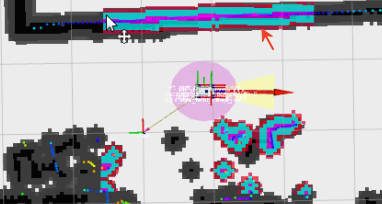
A cost map is a two-dimensional or three-dimensional map created and updated by the robot using sensor information. The figure below provides a brief overview.
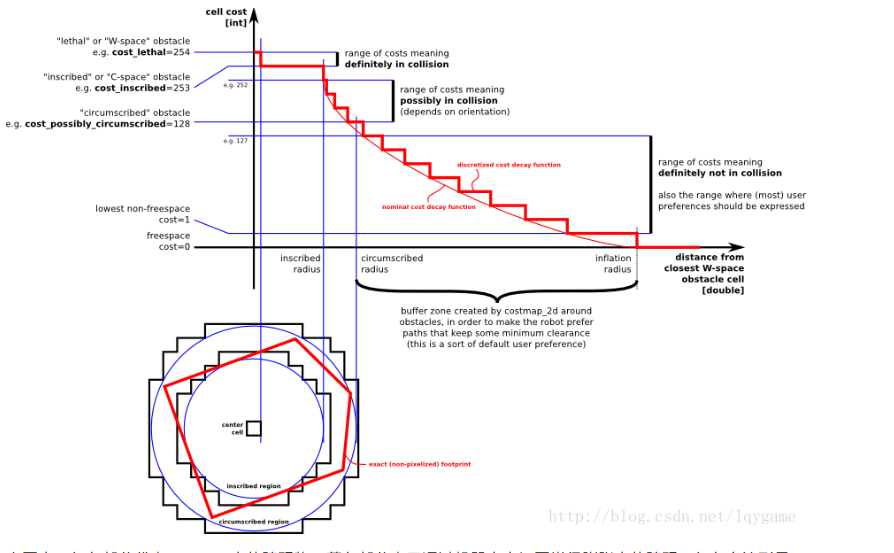
In the image above, the red area represents obstacles in the costmap, the blue area represents obstacles expanded by the radius of the robot's inscribed circle, and the red polygon represents the footprint (the vertical projection of the robot's outline). To avoid collisions, the footprint should not intersect the red area, and the robot's center should not intersect the blue area.
The ROS costmap uses a grid format, with each cell value (cell cost) ranging from 0 to 255. It is divided into three states: occupied (obstacles present), free area (no obstacles), and unknown area.
The specific states and values are shown in the following figure:
The image above can be divided into five sections, with the red polygon representing the robot's outline:
- Lethal: If the robot's center coincides with the center of this grid, the robot will inevitably collide with the obstacle.
- Inscribed: If the grid's circumcircle is inscribed within the robot's outline, the robot will inevitably collide with the obstacle. - Possibly circumscribed: The mesh's circumscribed circle circumscribes the robot's outline. In this case, the robot is essentially near an obstacle, so there's no collision.
- Freespace: Space without obstacles.
- Unknown: Space without known obstacles.
Global costmap:
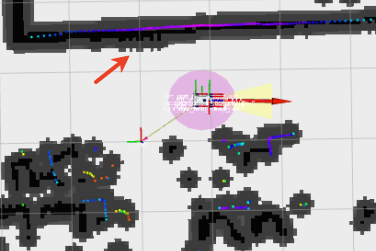
Local costmap:
6.2.2 AMCL Localization Algorithm
AMCL (Adaptive Monte Carlo Localization) is a probabilistic localization system for 2D mobile robots. It implements an adaptive (or KLD sampling) Monte Carlo localization method that uses a particle filter to estimate the robot's position based on a given map.
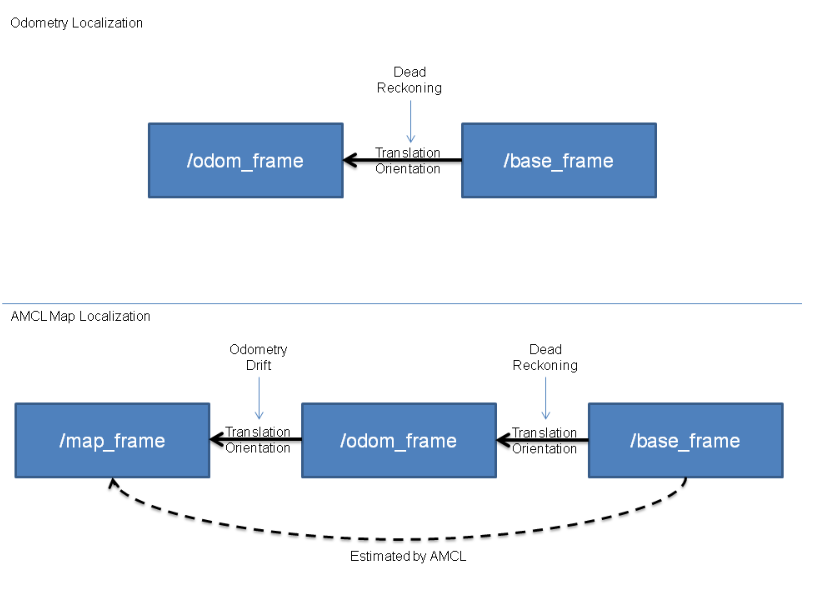
As shown in the figure below, if the odometry is error-free, in a perfect world, we can directly use the odometry information (top half) to infer the robot's (base_frame) position relative to the odometry coordinate system. However, in reality, odometry drift and non-negligible cumulative errors exist. Therefore, AMCL uses the method in the bottom half. This method first uses the odometry information to preliminarily locate the base_frame. Then, using the measurement model, we determine the base_frame's position relative to the map_frame (global map coordinate system), thus determining the robot's position within the map. (Note that while the base-to-map transformation is estimated here, the final published transformation is the map-to-odom transformation, which can be understood as odometry drift.)
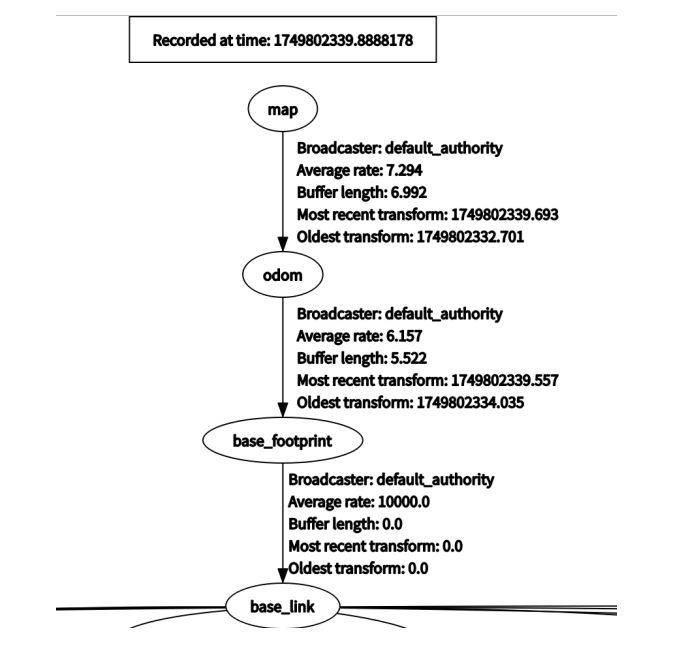
In the TF tree during robot navigation, the coordinate transformation between the map (map coordinate system) and the odom (odometry coordinate system) is published by the AMCL localization algorithm, while the coordinate transformation between the odom (odometry coordinate system) and the besel_footprint (robot chassis center projection coordinate system) is published by the ekf_filter_node node in the robot_localization package. Its function is to publish odometry information after fusion of the raw odometry from the IMU sensor and encoder.
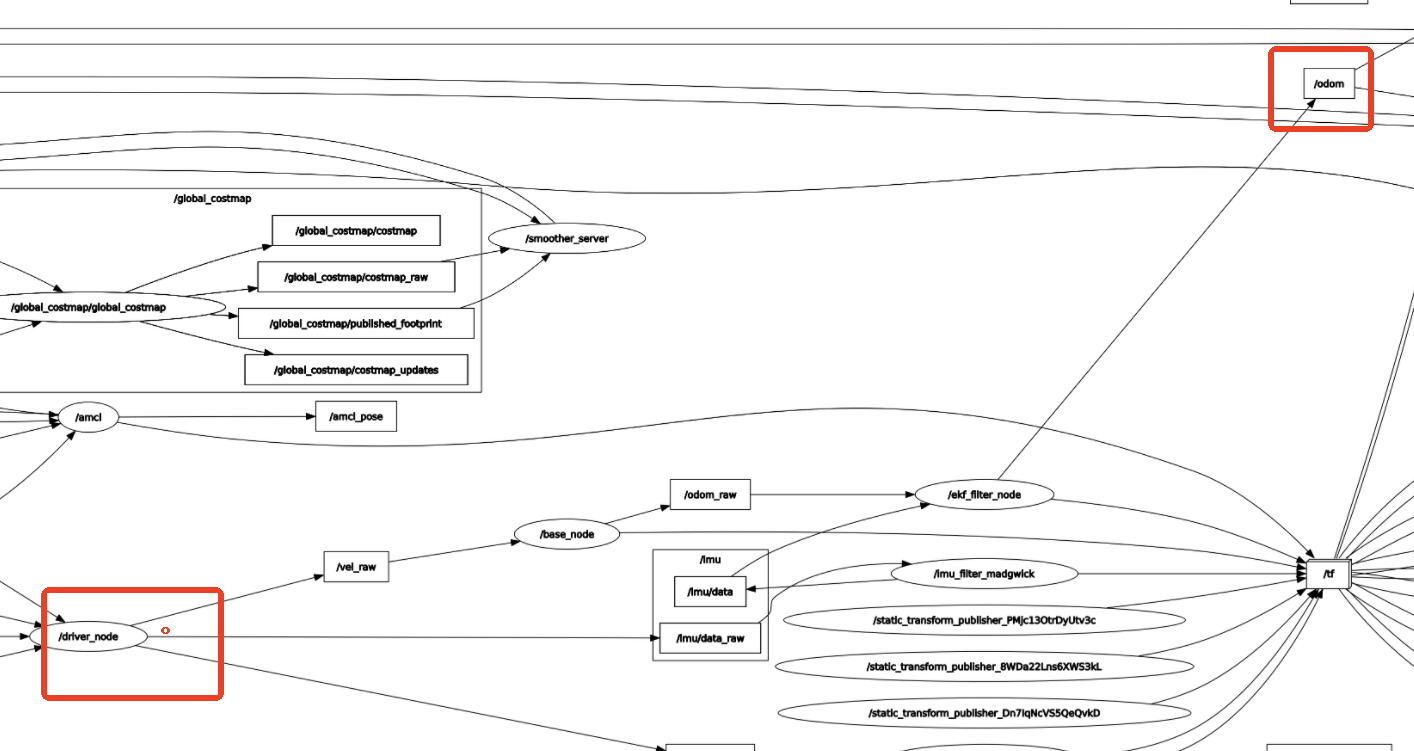
In the node communication diagram above, we can see the communication data flow for the ekf_filter_node.
The /driver_node node is the robot chassis node, publishing /imu/data_raw (raw IMU sensor data) and /odom_raw (raw encoder odometry data).
The imu_filter node subscribes to / imu/data_raw (raw IMU sensor data). The imu_filter node filters the raw IMU sensor data and publishes it to the /imu/data topic.
The ekf_filter_node node subscribes to the /odom and /imu/data topics, fuses the multi-sensor data, and publishes it to the /odom topic.
6.3 Path Planning
6.3.1 Global Path Planning
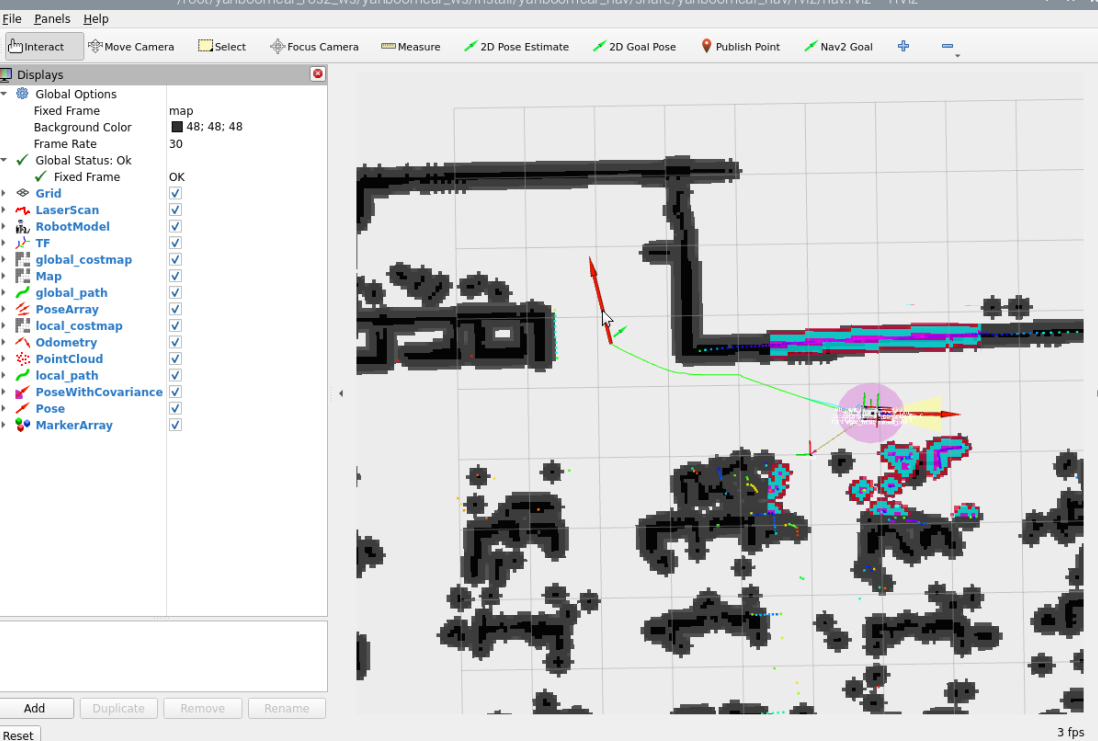
Global path planning calculates an optimal or feasible global path from a start point to a destination within a known environment map, disregarding real-time obstacles. The path from the start point to the destination is calculated with the global optimum as the goal. As shown in the figure below, the path connected by arrows is the global path.
6.3.2 Local Path Planning
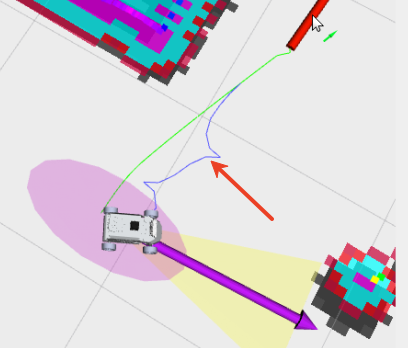
Local path planning dynamically adjusts the robot's path based on real-time LiDAR sensor data during movement to avoid obstacles (obstacles are displayed in the costmap). As shown in the figure below, the blue path is the local path.
6.4 Navigation Parameter Configuration
Jetson Nano and Raspberry Pi require Docker first
Configuration file path:
xxxxxxxxxx~/yahboomcar_ros2_ws/yahboomcar_ws/src/yahboomcar_nav/params/teb_nav_params.yaml
The default configuration parameters for the navigation function are as follows:
xxxxxxxxxxamcl: ros__parameters: use_sim_time: False # 是否使用仿真时间 Use simulation time alpha1: 0.1 # 里程计旋转误差模型参数 Odometry rotation error model parameters alpha2: 0.1 # 里程计平移误差模型参数 Odometry translation error model parameters alpha3: 0.3 # 里程计平移误差模型参数 Odometry translation error model parameters alpha4: 0.3 # 里程计旋转误差模型参数 Odometry rotation error model parameters alpha5: 0.1 # 里程计旋转误差模型参数 Odometry rotation error model parameters base_frame_id: "base_footprint" # 机器人基座坐标系 Robot base coordinate system beam_skip_distance: 0.5 # 光束跳过距离阈值 Beam skip distance threshold beam_skip_error_threshold: 0.9 # 光束跳过误差阈值 Beam skip error threshold beam_skip_threshold: 0.3 # 光束跳过阈值 Beam skip threshold do_beamskip: false # 是否启用光束跳过 Enable beam skipping global_frame_id: "map" # 全局坐标系 Global coordinate system lambda_short: 0.1 # 激光模型短距离权重 Laser model short distance weight laser_likelihood_max_dist: 2.0 # 激光似然场最大距离 Maximum distance of the laser likelihood field laser_max_range: 100.0 # 激光最大有效距离 Maximum effective laser range laser_min_range: -1.0 # 激光最小有效距离 Minimum effective laser range laser_model_type: "likelihood_field" # 激光模型类型(似然场) Laser model type (likelihood field) max_beams: 50 # 每次处理的最大激光束数 Maximum number of laser beams processed per shot max_particles: 4000 # 最大粒子数 Maximum number of particles min_particles: 1000 # 最小粒子数 Minimum number of particles odom_frame_id: "odom" # 里程计坐标系 Odometry frame pf_err: 0.05 # 粒子滤波器误差阈值 Particle filter error threshold pf_z: 0.99 # 粒子滤波器权重指数 Particle filter weight exponent recovery_alpha_fast: 0.0 # 快速恢复参数 Fast recovery parameter recovery_alpha_slow: 0.0 # 慢速恢复参数 Slow recovery parameter resample_interval: 1 # 重采样间隔 Resampling interval robot_model_type: "nav2_amcl::DifferentialMotionModel" # 机器人运动模型 Robot motion model save_pose_rate: 0.5 # 保存位姿的速率 Save pose rate sigma_hit: 0.2 # 激光模型标准差 Laser model standard deviation tf_broadcast: true # 是否广播TF变换 Broadcast TF transforms transform_tolerance: 1.0 # TF变换容差 TF transform tolerance update_min_a: 0.15 # 最小角度变化触发更新 Minimum angle change to trigger an update update_min_d: 0.15 # 最小距离变化触发更新 Minimum distance change to trigger an update z_hit: 0.5 # 激光模型命中权重 Laser model hit weight z_max: 0.05 # 激光模型最大距离权重 Laser model maximum distance weight z_rand: 0.5 # 激光模型随机权重 Laser model random weight z_short: 0.05 # 激光模型短距离权重 Laser model short distance weight scan_topic: scan # 激光扫描话题 Laser scan topicamcl_map_client: ros__parameters: use_sim_time: False # 是否使用仿真时间 Whether to use simulation timeamcl_rclcpp_node: ros__parameters: use_sim_time: False # 是否使用仿真时间 Whether to use simulation timebt_navigator: ros__parameters: use_sim_time: False # 是否使用仿真时间 Whether to use simulation time global_frame: map # 全局坐标系 Global coordinate system robot_base_frame: base_footprint # 机器人基座坐标系 Robot base coordinate system odom_topic: /odom # 里程计话题 Odometry topic plugin_lib_names: # 行为树插件库列表 Behavior tree plugin library list - nav2_compute_path_to_pose_action_bt_node - nav2_compute_path_through_poses_action_bt_node # ...(其他行为树节点插件 other behavior tree node plugins)bt_navigator_rclcpp_node: ros__parameters: use_sim_time: False # 是否使用仿真时间 Whether to use simulation timecontroller_server: ros__parameters: use_sim_time: False # 是否使用仿真时间 Whether to use simulation time controller_frequency: 30.0 # 控制器频率 Controller frequency min_x_velocity_threshold: 0.001 # X方向最小速度阈值 Minimum velocity threshold in the X direction min_y_velocity_threshold: 0.0 # Y方向最小速度阈值 Minimum velocity threshold in the Y direction min_theta_velocity_threshold: 0.001 # 旋转最小速度阈值 Minimum rotation velocity threshold progress_checker_plugin: "progress_checker" # 进度检查器插件 Progress checker plugin goal_checker_plugin: "goal_checker" # 目标检查器插件 Goal checker plugin controller_plugins: ["FollowPath"] # 控制器插件列表 List of controller plugins # 进度检查器参数 Progress checker parameters progress_checker: plugin: "nav2_controller::SimpleProgressChecker" # 简单进度检查器 Simple progress checker required_movement_radius: 0.3 # 要求移动半径 Required movement radius movement_time_allowance: 3.5 # 移动时间容限 Movement time allowance# Goal checker parameters # 目标检查器参数 goal_checker: plugin: "nav2_controller::SimpleGoalChecker" # 简单目标检查器 Simple Goal Checker xy_goal_tolerance: 0.25 # XY位置容差 XY position tolerance yaw_goal_tolerance: 0.25 # 航向角容差 Heading angle tolerance stateful: True # 是否保持状态 Maintain state # TEB局部规划器参数 TEB local planner parameters FollowPath: plugin: "teb_local_planner::TebLocalPlannerROS" # TEB局部规划器 TEB local planner footprint_model.type: circular # 机器人足迹模型(圆形) Robot footprint model (circular) footprint_model.radius: 0.1 # 机器人半径 Robot radius min_obstacle_dist: 0.1 # 最小障碍物距离 Minimum obstacle distance inflation_dist: 0.1 # 膨胀距离 Inflation distance costmap_converter_plugin: "costmap_converter::CostmapToPolygonsDBSMCCH" # 代价地图转换插件 Costmap conversion plugin costmap_converter_spin_thread: True # 转换器是否使用独立线程 Whether to use a separate thread for the converter costmap_converter_rate: 20 # 转换器频率 Converter rate enable_homotopy_class_planning: True # 启用同伦类规划 Enable homotopy class planning enable_multithreading: True # 启用多线程 Enable multithreading optimization_verbose: False # 优化过程是否详细输出 Verbose output for the optimization process teb_autoresize: True # 自动调整轨迹点数量 Automatically adjust the number of trajectory points min_samples: 3 # 最小轨迹点数 Minimum number of trajectory points max_samples: 20 # 最大轨迹点数 Maximum number of trajectory points max_global_plan_lookahead_dist: 1.0 # 全局规划前瞻距离 Global plan lookahead distance visualize_hc_graph: True # 是否可视化同伦图 Visualize the homotopy graph max_vel_x: 0.26 # 最大线速度Maximum linear velocity min_vel_x: -0.26 # 最小线速度(后退) Minimum linear velocity (reverse) max_vel_theta: 3.0 # 最大角速度 Maximum angular velocity min_vel_theta: -3.0 # 最小角速度 Minimum angular velocity acc_lim_x: 2.5 # X方向加速度限制 X-axis acceleration limit acc_lim_theta: 3.2 # 旋转加速度限制 Rotational acceleration limitcostmap_converter: ros__parameters: use_sim_time: False # 是否使用仿真时间 Use simulation timecontroller_server_rclcpp_node: ros__parameters: use_sim_time: False # 是否使用仿真时间 Use simulation timelocal_costmap: local_costmap: ros__parameters: use_sim_time: False # 是否使用仿真时间 Use simulation time update_frequency: 5.0 # 更新频率 Update frequency publish_frequency: 2.0 # 发布频率 Publish frequency global_frame: odom # 全局坐标系 Global coordinate system robot_base_frame: base_footprint # 机器人基座坐标系 Robot base coordinate system rolling_window: true # 是否使用滚动窗口 Use rolling window width: 3 # 代价地图宽度(米) Costmap width (meters) height: 3 # 代价地图高度(米) Costmap height (meters) resolution: 0.05 # 分辨率(米/像素) Resolution (meters/pixel) robot_radius: 0.1 # 机器人半径 Robot radius plugins: ["obstacle_layer", "voxel_layer", "inflation_layer"] # 图层插件 Layer plugin inflation_layer: # 膨胀层参数 Inflation layer parameters plugin: "nav2_costmap_2d::InflationLayer" # 膨胀层插件 Inflation layer plugin cost_scaling_factor: 5.0 # 代价缩放因子 Cost scaling factor inflation_radius: 0.11 # 膨胀半径 Inflation radius obstacle_layer: # 障碍物层参数 Obstacle layer parameters plugin: "nav2_costmap_2d::ObstacleLayer" # 障碍物层插件 Obstacle layer plugin enabled: True # 是否启用 Enable or disable observation_sources: scan # 观测源(激光) Observation source (laser) scan: # 激光参数 Laser parameters topic: /scan # 激光话题 Laser topic max_obstacle_height: 2.0 # 最大障碍物高度 Maximum obstacle height obstacle_min_range: 0.1 # 最小障碍物距离 Minimum obstacle distance clearing: True # 是否用于清除空间 Clearing space marking: True # 是否用于标记障碍 Whether to mark obstacles data_type: "LaserScan" # 数据类型 Data type voxel_layer: # 体素层参数 Voxel layer parameters plugin: "nav2_costmap_2d::VoxelLayer" # 体素层插件 Voxel layer plugin enabled: True # 是否启用 whether is it enable publish_voxel_map: True # 是否发布体素地图 Whether to publish voxel map origin_z: 0.0 # Z轴原点 Z-axis origin z_resolution: 0.2 # Z轴分辨率 Z-axis resolution z_voxels: 10 # Z轴体素数 Z-axis voxel number max_obstacle_height: 2.0 # 最大障碍物高度 Maximum obstacle height mark_threshold: 0 # 标记阈值 Marking threshold observation_sources: pointcloud # 观测源(点云) Observation source (point cloud) pointcloud: # 点云参数 Point cloud parameters topic: /intel_realsense_r200_depth/points # 点云话题 Point cloud topic max_obstacle_height: 2.0 # 最大障碍物高度 Maximum obstacle height clearing: True # 是否用于清除空间 Clear space marking: True # 是否用于标记障碍 Whether to use it to mark obstacles data_type: "PointCloud2" # 数据类型 Data type static_layer: # 静态层参数 Static layer parameters map_subscribe_transient_local: True # 使用瞬态本地订阅 Use transient local always_send_full_costmap: True # 总是发送完整代价地图 Always send the full costmapvlocal_costmap_client: ros__parameters: use_sim_time: False # 是否使用仿真时间 Use simulation timelocal_costmap_rclcpp_node: ros__parameters: use_sim_time: False # 是否使用仿真时间 Use simulation timeglobal_costmap: global_costmap: ros__parameters: use_sim_time: False # 是否使用仿真时间 Use simulation time footprint_padding: 0.03 # 足迹填充 Footprint padding update_frequency: 1.0 # 更新频率 Update frequency publish_frequency: 1.0 # 发布频率 Publish frequency global_frame: map # 全局坐标系 Global coordinate system robot_base_frame: base_footprint # 机器人基座坐标系 Robot base coordinate system robot_radius: 0.1 # 机器人半径 Robot radius resolution: 0.05 # 分辨率 Resolution plugins: ["static_layer", "obstacle_layer", "voxel_layer", "inflation_layer"] # 图层插件 Layer plugin obstacle_layer: # 障碍物层参数 Obstacle layer parameters plugin: "nav2_costmap_2d::ObstacleLayer" # 障碍物层插件 Obstacle layer plugin enabled: True # 是否启用 Enable or disable observation_sources: scan # 观测源(激光) Observation sources (laser) footprint_clearing_enabled: true # 是否启用足迹清除 Enable footprint clearing max_obstacle_height: 2.0 # 最大障碍物高度 Maximum obstacle height combination_method: 1 # 组合方法 Combination method scan: # 激光参数 Laser parameters topic: /scan # 激光话题 Laser topic obstacle_range: 3.0 # 障碍物检测范围 Obstacle detection range obstacle_min_range: 0.3 # 最小障碍物距离 Minimum obstacle distance raytrace_range: 4.0 # 光线追踪范围 Ray tracing range max_obstacle_height: 1.0 # 最大障碍物高度 Maximum obstacle height min_obstacle_height: 0.0 # 最小障碍物高度 Minimum obstacle height clearing: True # 是否用于清除空间 Clearing space marking: True # 是否用于标记障碍 Marking obstacles data_type: "LaserScan" # 数据类型 Data type inf_is_valid: false # 无限距离是否有效 Infinite distance valid voxel_layer: # 体素层参数 Voxel layer parameters plugin: "nav2_costmap_2d::VoxelLayer" # 体素层插件 Voxel layer plugin enabled: True # 是否启用 Enable or disable footprint_clearing_enabled: true # Enable or disable是否启用足迹清除 Whether to enable footprint clearing max_obstacle_height: 2.0 # 最大障碍物高度 Maximum obstacle height publish_voxel_map: True # 是否发布体素地图 Whether to publish voxel map origin_z: 0.0 # Z轴原点 Z-axis origin z_resolution: 0.05 # Z轴分辨率 Z-axis resolution z_voxels: 16 # Z轴体素数 Number of voxels on the Z axis unknown_threshold: 15 # 未知区域阈值 Unknown region threshold mark_threshold: 0 # 标记阈值 Marking threshold observation_sources: pointcloud # 观测源(点云) Observation sources (point cloud) combination_method: 1 # 组合方法 Combination method pointcloud: # 点云参数 Point cloud parameters topic: /intel_realsense_r200_depth/points # 点云话题 Point cloud topic max_obstacle_height: 2.0 # 最大障碍物高度 Maximum obstacle height min_obstacle_height: 0.0 # 最小障碍物高度 Minimum obstacle height obstacle_range: 2.5 # 障碍物检测范围 Obstacle detection range raytrace_range: 3.0 # 光线追踪范围 Ray tracing range clearing: True # 是否用于清除空间 Clearing space marking: True # 是否用于标记障碍 Marking obstacles data_type: "PointCloud2" # 数据类型 Data type static_layer: # 静态层参数 Static layer parameters plugin: "nav2_costmap_2d::StaticLayer" # 静态层插件 Static layer plugin map_subscribe_transient_local: True # 使用瞬态本地订阅 Use transient local subscriptions enabled: true # 是否启用 Enable or disable subscribe_to_updates: true # 是否订阅更新 Whether to subscribe to updates transform_tolerance: 0.1 # 变换容差 Transformation tolerance inflation_layer: # 膨胀层参数 Inflation layer parameters plugin: "nav2_costmap_2d::InflationLayer" # 膨胀层插件 Inflation layer plugin enabled: true # 是否启用 Enable or disable cost_scaling_factor: 5.0 # 代价缩放因子 Cost scaling factor inflation_radius: 0.11 # 膨胀半径 Inflation radius inflate_unknown: false # 是否膨胀未知区域 Whether to expand the unknown area inflate_around_unknown: true # 是否在未知区域周围膨胀 Whether to inflate around unknown areas always_send_full_costmap: True # 总是发送完整代价地图 Always send the full costmapglobal_costmap_client: ros__parameters: use_sim_time: False # 是否使用仿真时间 Use simulation time global_costmap_rclcpp_node: ros__parameters: use_sim_time: False # 是否使用仿真时间 Use simulation timemap_server: ros__parameters: use_sim_time: False # 是否使用仿真时间 Use simulation time yaml_filename: "yahboomcar.yaml" # 地图YAML文件路径 Map YAML file pathmap_saver: ros__parameters: use_sim_time: False # 是否使用仿真时间 Use simulation time save_map_timeout: 5.0 # 保存地图超时时间 Map save timeout free_thresh_default: 0.25 # 空闲阈值默认值 Default idle threshold occupied_thresh_default: 0.65 # 占用阈值默认值 Default occupied threshold map_subscribe_transient_local: True # 使用瞬态本地订阅 Use transient local subscriptionplanner_server: ros__parameters: expected_planner_frequency: 20.0 # 期望规划器频率 Expected planner frequency use_sim_time: False # 是否使用仿真时间 Use simulation time planner_plugins: ["GridBased"] # 规划器插件列表 Planner plugin list GridBased: plugin: "nav2_navfn_planner/NavfnPlanner" # Navfn规划器 Navfn planner tolerance: 0.5 # 目标点容差 Target point tolerance use_astar: false # 是否使用A*算法 Use A* algorithm allow_unknown: true # 是否允许未知区域 Whether to allow unknown regionsplanner_server_rclcpp_node: ros__parameters: use_sim_time: False # 是否使用仿真时间 Use simulation timebehavior_server: ros__parameters: costmap_topic: local_costmap/costmap_raw # 代价地图话题 Costmap topic footprint_topic: local_costmap/published_footprint # 足迹话题 Footprint topic cycle_frequency: 10.0 # 行为执行频率 Behavior execution frequency behavior_plugins: ["backup"] # 行为插件列表 Behavior plugin list backup: # 后退行为参数 Backup behavior parameters plugin: "nav2_behaviors/BackUp" # 后退行为插件 Backup behavior plugin backup_speed: -1.0 # 后退速度 Backup speed backup_duration: 1.5 # 后退持续时间 Backup duration simulate_ahead_time: 2.0 # 模拟提前时间 Simulation advance time global_frame: odom # 全局坐标系 Global coordinate system robot_base_frame: base_footprint # 机器人基座坐标系 Robot base coordinate system transform_timeout: 0.1 # 变换超时 Transformation timeout use_sim_time: False # 是否使用仿真时间 Use simulation time simulate_ahead_time: 2.0 # 模拟提前时间 Simulation advance time max_rotational_vel: 1.0 # 最大旋转速度 Maximum rotational velocity min_rotational_vel: 0.4 # 最小旋转速度 Minimum rotational velocity rotational_acc_lim: 3.2 # 旋转加速度限制 Rotational acceleration limitrobot_state_publisher: ros__parameters: use_sim_time: False # 是否使用仿真时间 Use simulation timewaypoint_follower: ros__parameters: loop_rate: 20 # 循环频率 Loop rate stop_on_failure: false # 失败时是否停止 Stop on failure waypoint_task_executor_plugin: "wait_at_waypoint" # 航点任务执行器插件 Waypoint task executor plugin wait_at_waypoint: # 航点等待参数 Waypoint wait parameters plugin: "nav2_waypoint_follower::WaitAtWaypoint" # 航点等待插件 Waypoint Wait Plugin enabled: True # 是否启用 Enable or disable waypoint_pause_duration: 200 # 航点暂停时间(毫秒) Waypoint pause duration (milliseconds)