MDK Arm
MDK Arm1. MDK-ARM installationARM Compiler 5 (AC 5)Install AC 5Add AC 5Verify AC 5Install the MSPM0G chip package2. SysConfig installation3. Configure SysConfig for KEIL 5syscfg.batMSPM0_SDK_syscfg_menu_import.cfgKEIL 5 Add SysConfig toolUse SysConfig tool
MDK Arm (Microcontroller Development Kit for ARM): An integrated development environment (IDE) for microcontroller applications based on Cortex™-M, Cortex-R4, ARM7™ and ARM9™ processors.
xxxxxxxxxxThe installation package path and the software installation path should not contain Chinese characters. Please install the installation package in a full English path
1. MDK-ARM installation
To build the TI development environment, you need to use Keil MDK-Arm uVision v5.38a or higher!
xxxxxxxxxxSince MDK-ARM is a paid software, the tutorial only covers the MDK-ARM installation process
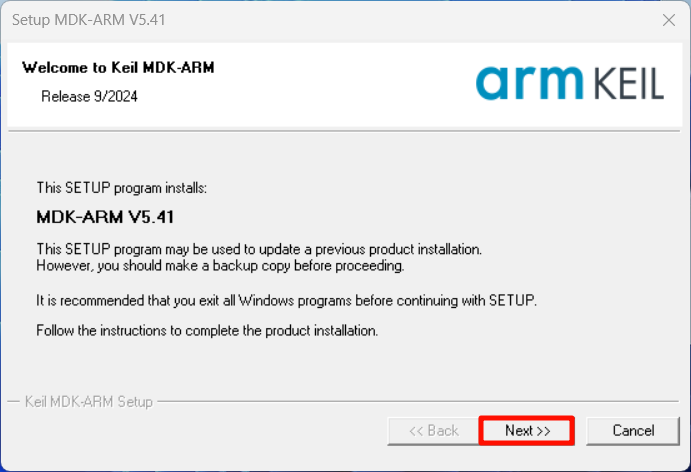
Open MDK_541.exe as an administrator and install according to the prompts:
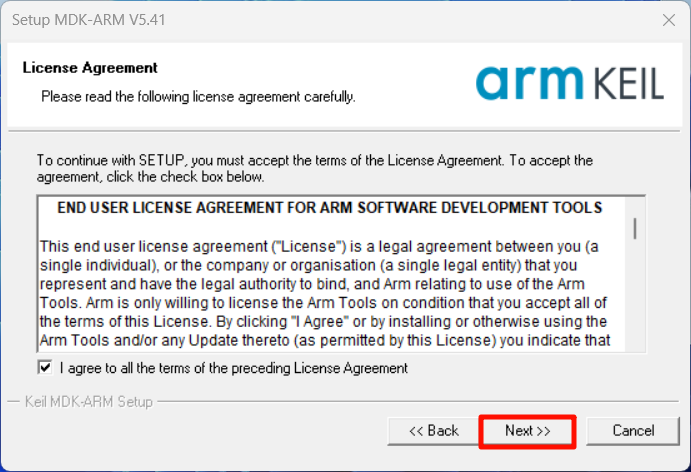
Agree to the agreement
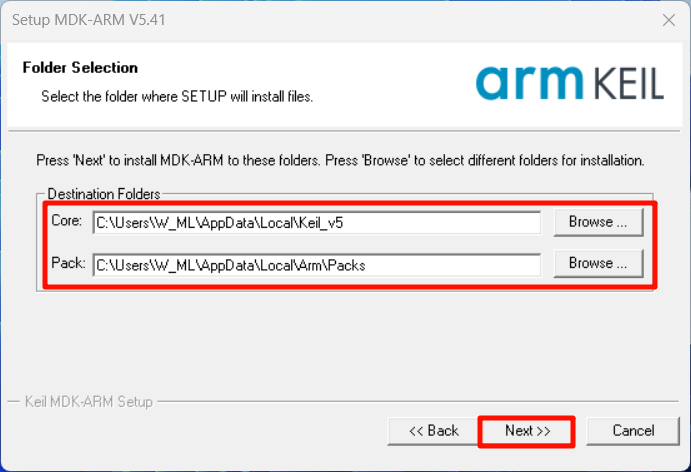
Installation location
The recommended default location for the software:
User Information
You can fill in as you like:
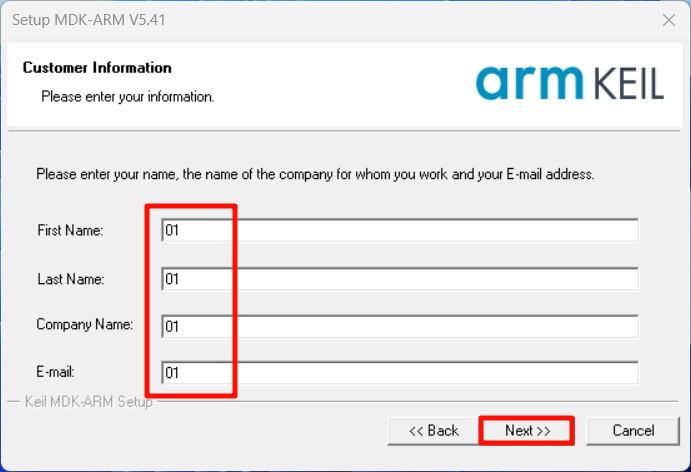
If the driver installation pops up during the installation process, select Install All:
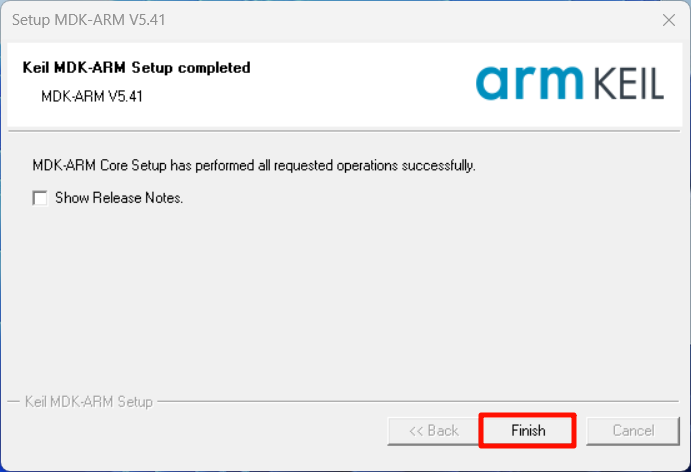
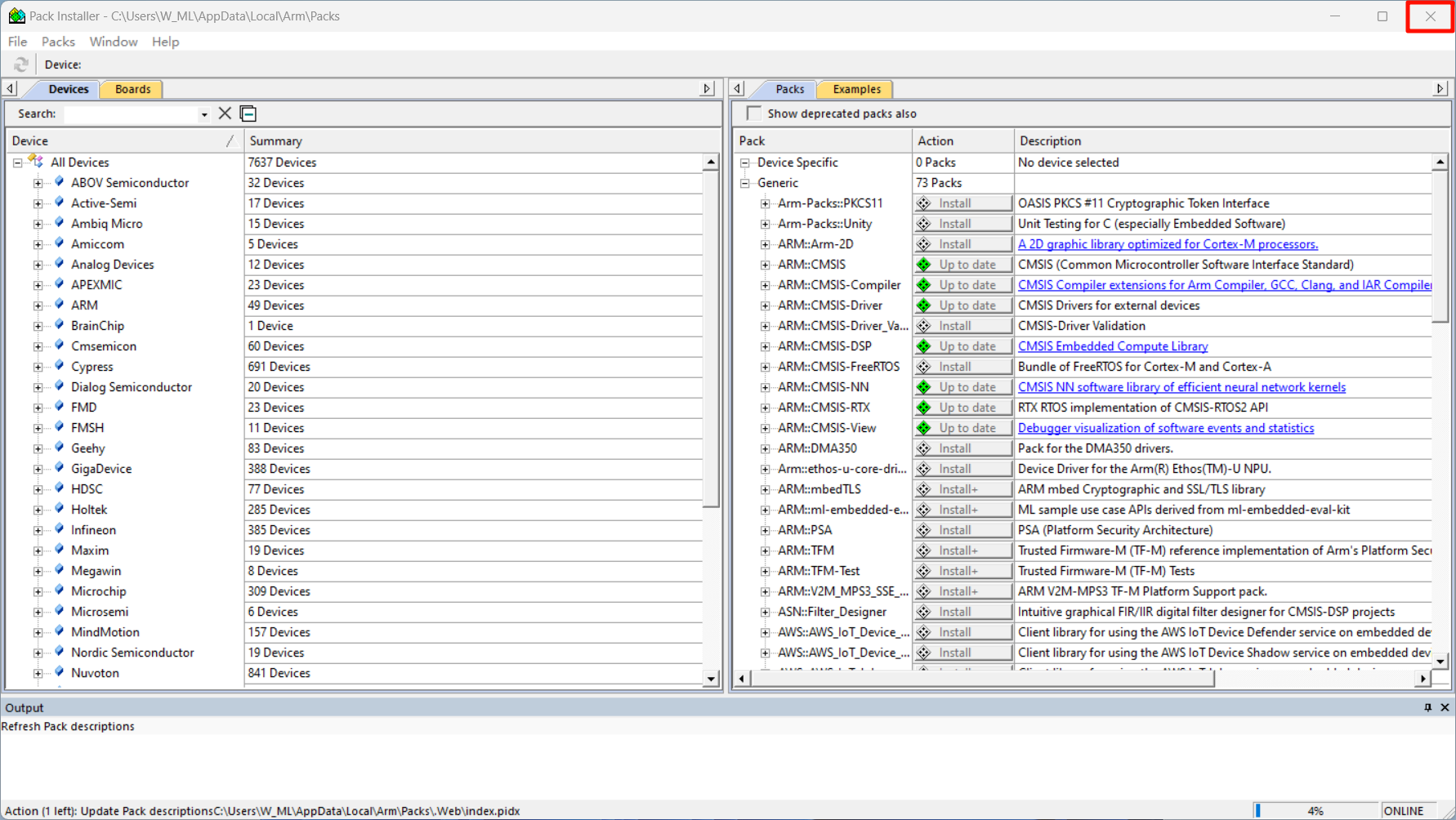
You need to close the software package/component interface for the first time: This interface can install chip packages, but it requires a network connection!
ARM Compiler 5 (AC 5)
Starting from MDK5.37, the AC5 compiler is no longer installed by default and needs to be installed independently!
xxxxxxxxxxTo compile with the old version of the project source code, you need to use AC5 to compile. To install the AC5 compiler, you need to open the project first.
Install AC 5
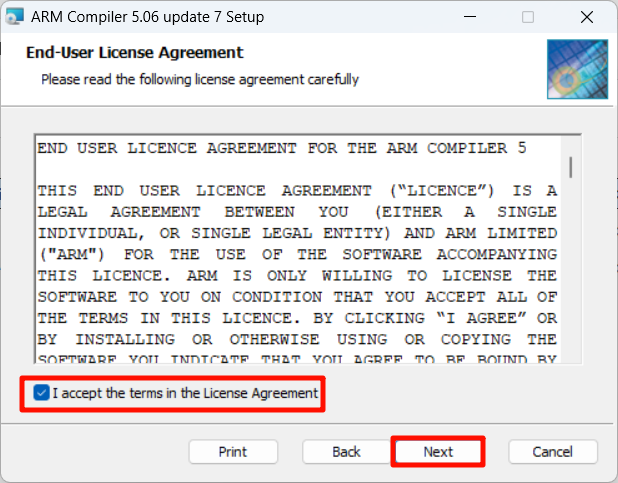
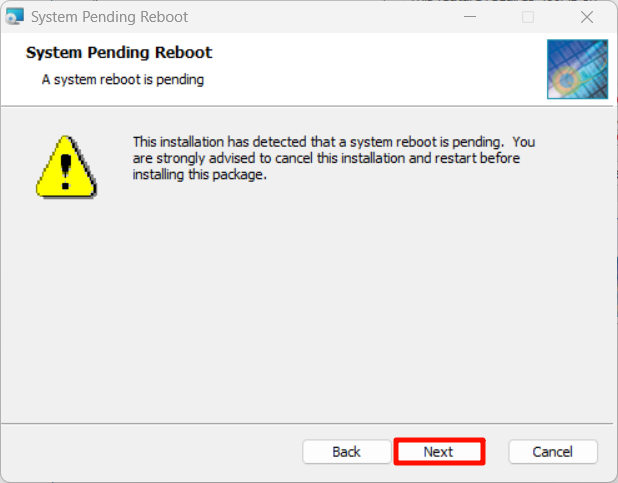
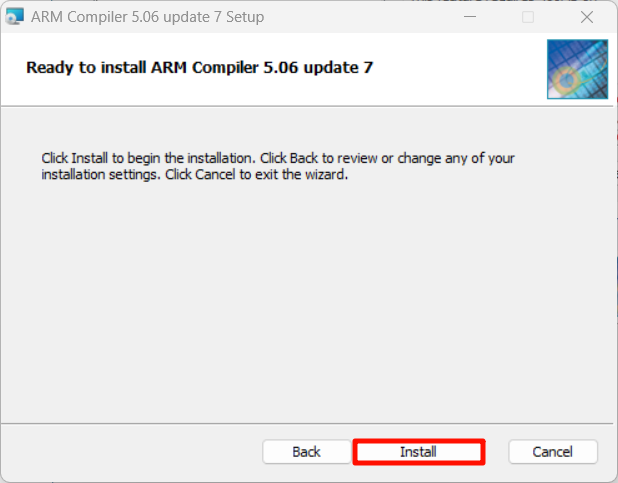
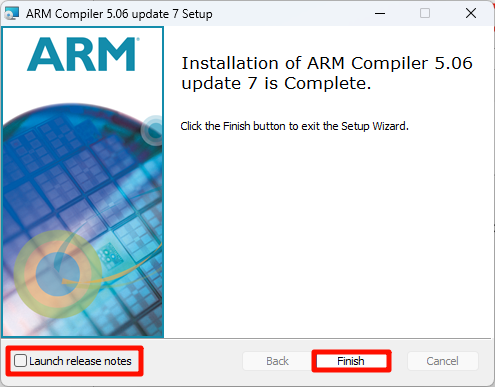
Open setup.exe under ARMCompiler_5.zip as an administrator and install according to the prompts:
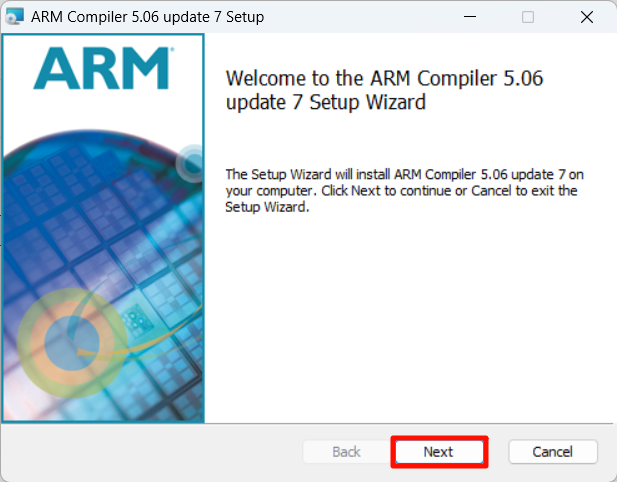
Agree to the agreement
Installation location
Modify the installation location: Create a new ARMCC folder in the C:\Users\W_ML\AppData\Local\Keil_v5\ARM folder, and select this folder as the installation location of AC5
xxxxxxxxxxYou need to create a new ARMCC folder according to your own MDK-ARM installation location

Add AC 5
The following operations involve MDK-ARM software, and you need to open a project; otherwise, the relevant menu options cannot be selected.
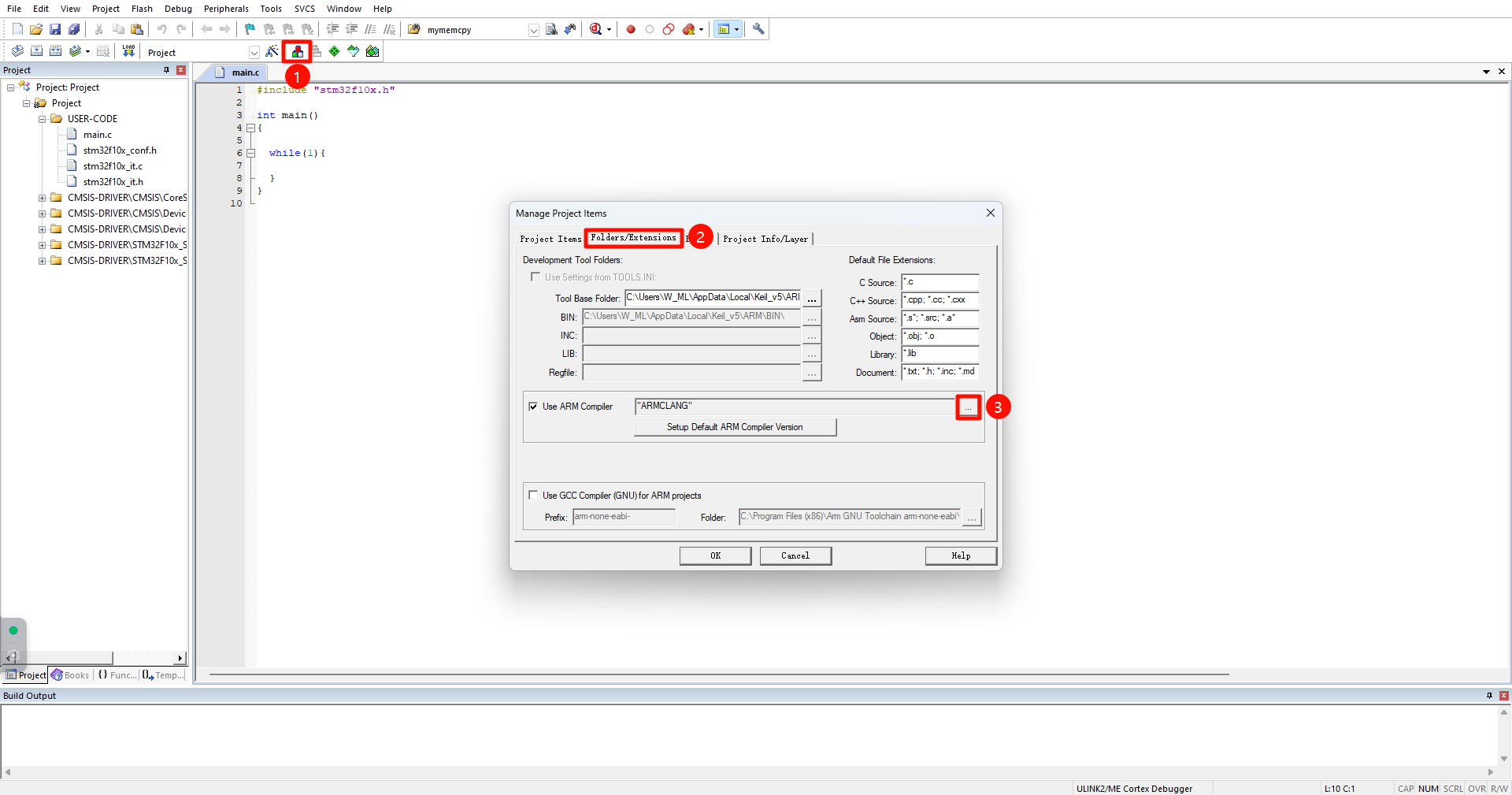
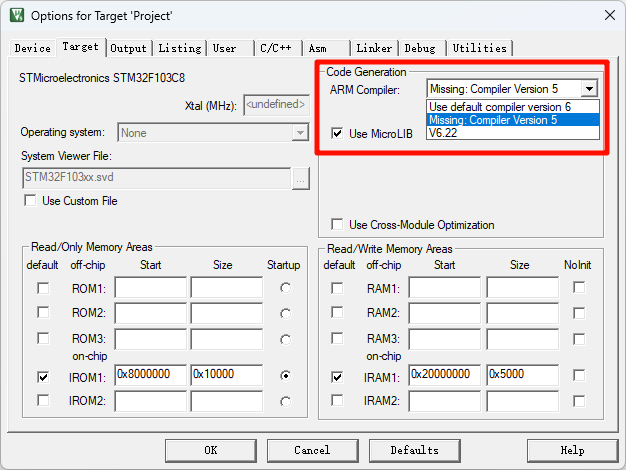
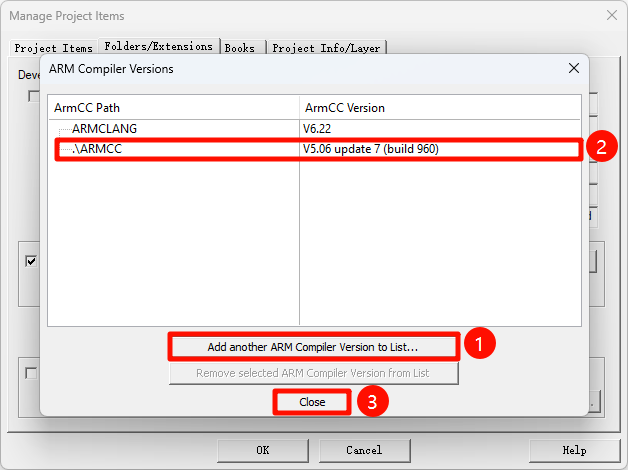
Add compiler: Select C:\Users\W_ML\AppData\Local\Keil_v5\ARM\ARMCC folder
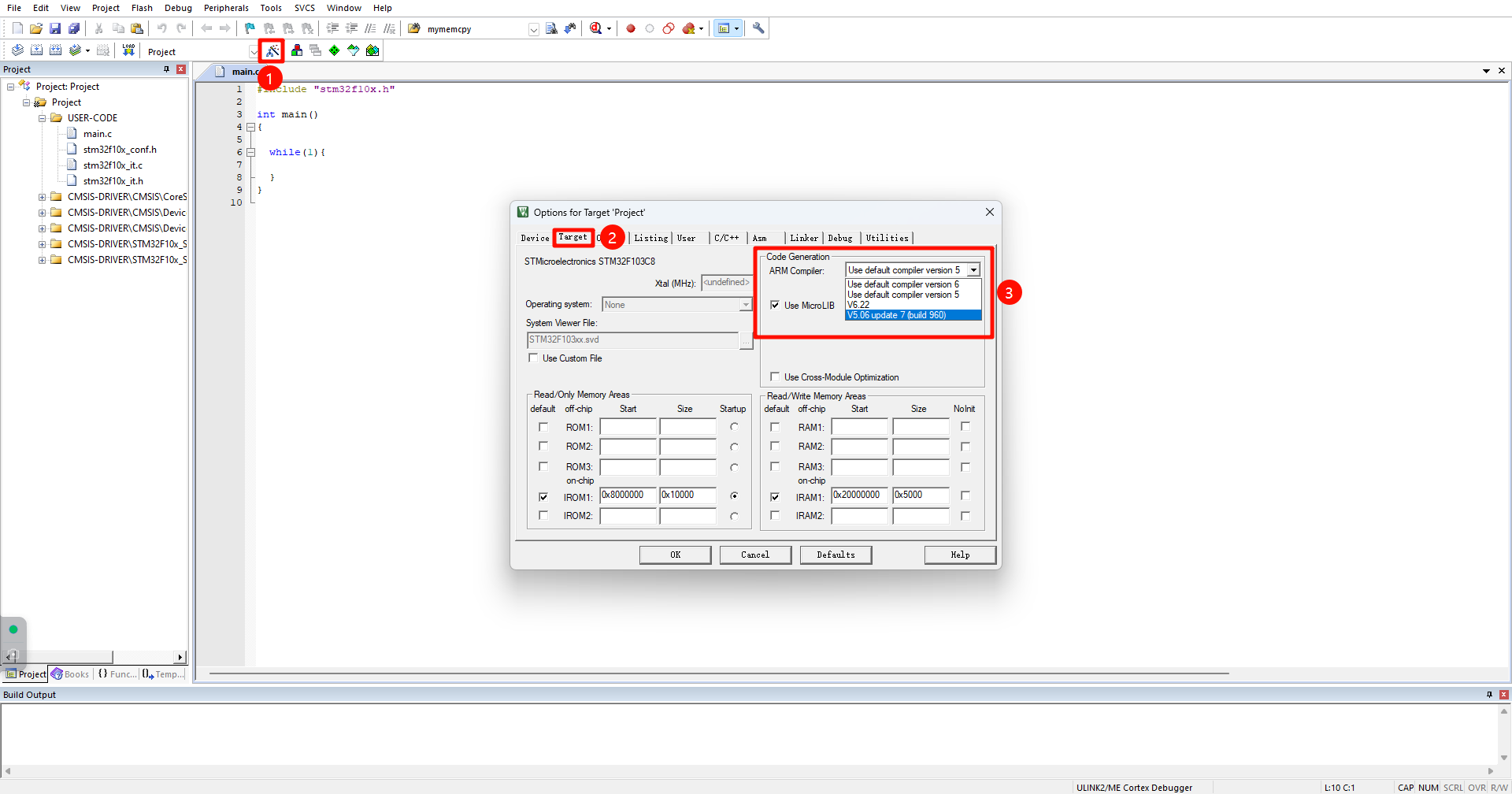
Verify AC 5
The appearance of compiler version 5 indicates that the installation is successful!
Install the MSPM0G chip package
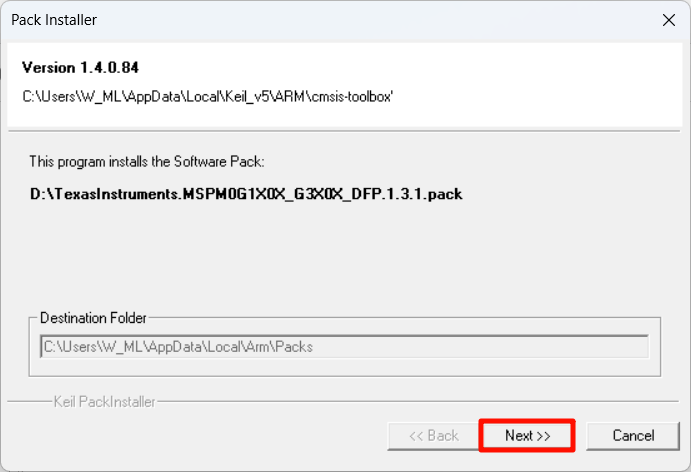
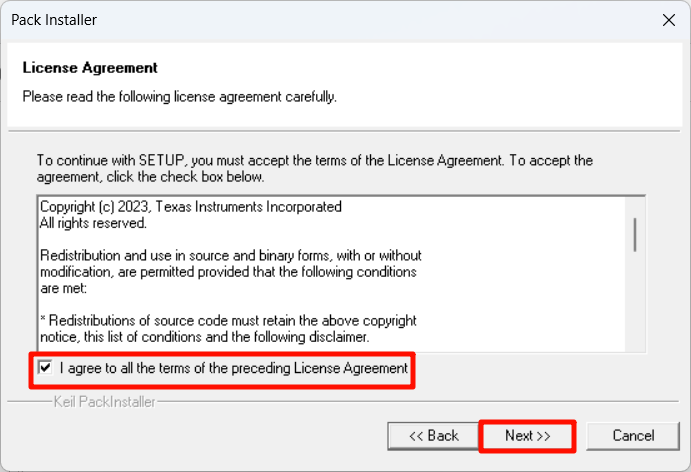
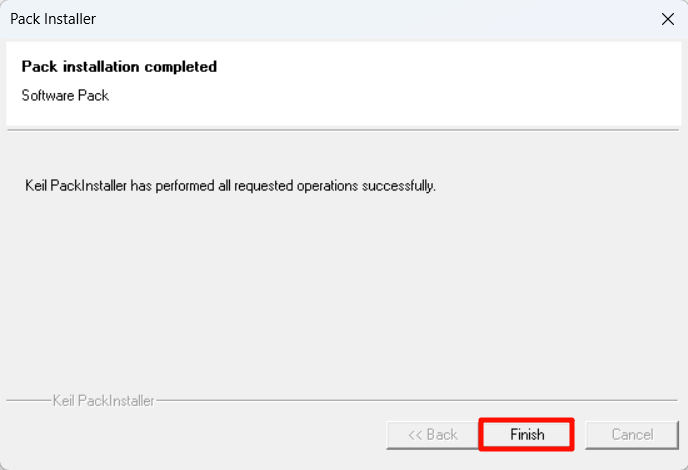
Double-click to open the TexasInstruments.MSPM0G1X0X_G3X0X_DFP.1.3.1.pack file to install the chip package:
2. SysConfig installation
xxxxxxxxxxSysConfig is a configuration tool for TI microcontrollers and processors, designed to simplify hardware and software configuration for TI developers and accelerate software development!
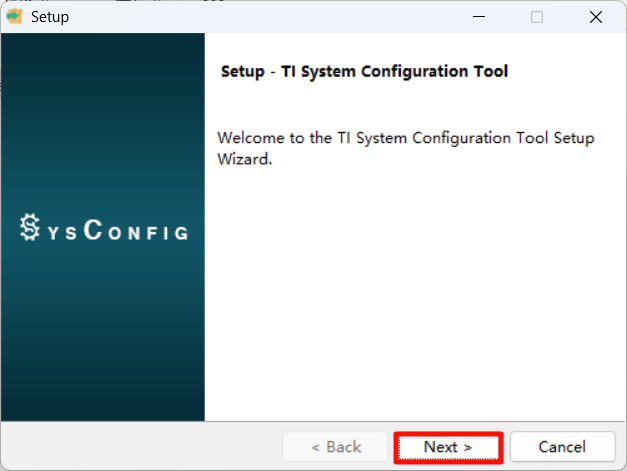
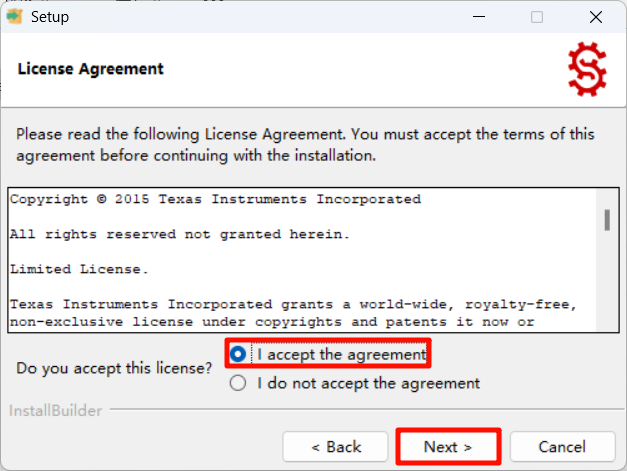
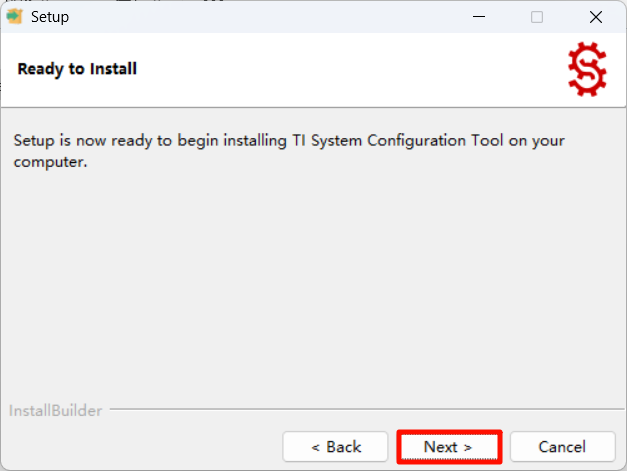
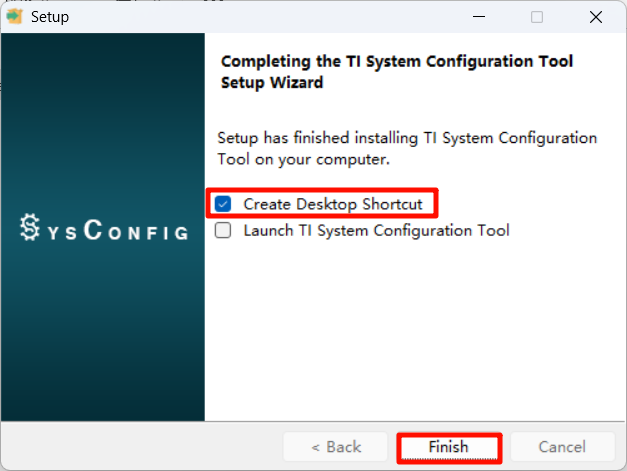
Open sysconfig-xxx-setup.exe as an administrator and install according to the prompts:
Agree to the agreement
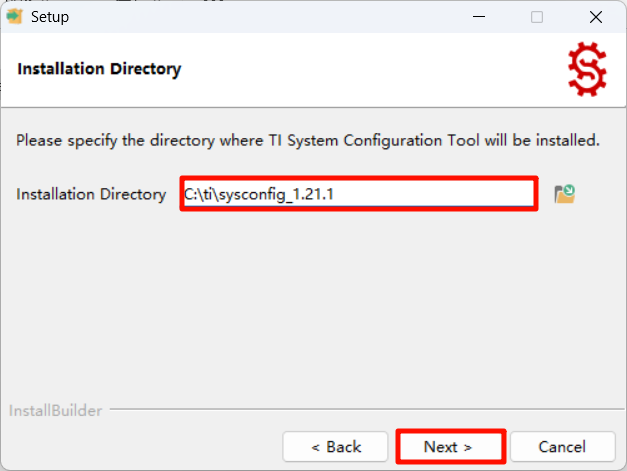
Installation location
The recommended default location for the software is:
3. Configure SysConfig for KEIL 5
Use the SysConfig tool on KEIL MDK-ARM.
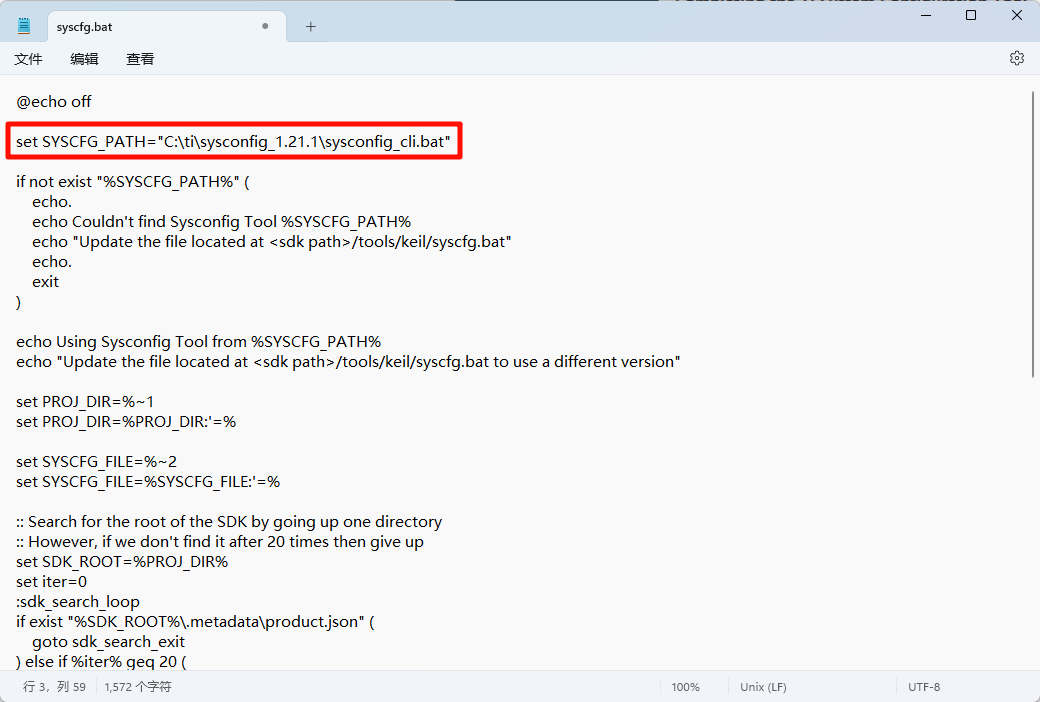
syscfg.bat
Use Notepad to edit the syscfg.bat file, and then check whether SYSCFG_PATH is correct: ** Fill in the sysconfig_cli.bat file path in the SysConfig installation directory, pay attention to whether the version number and path are consistent! **
xxxxxxxxxxsyscfg.bat file path: C:\ti\mspm0_sdk_2_02_00_05\tools\keilsysconfig_cli.bat file path: C:\ti\sysconfig_1.21.1If the user changes the default installation location of the software, he needs to find the syscfg.bat file under the MSPM0-SDK installation location and modify it
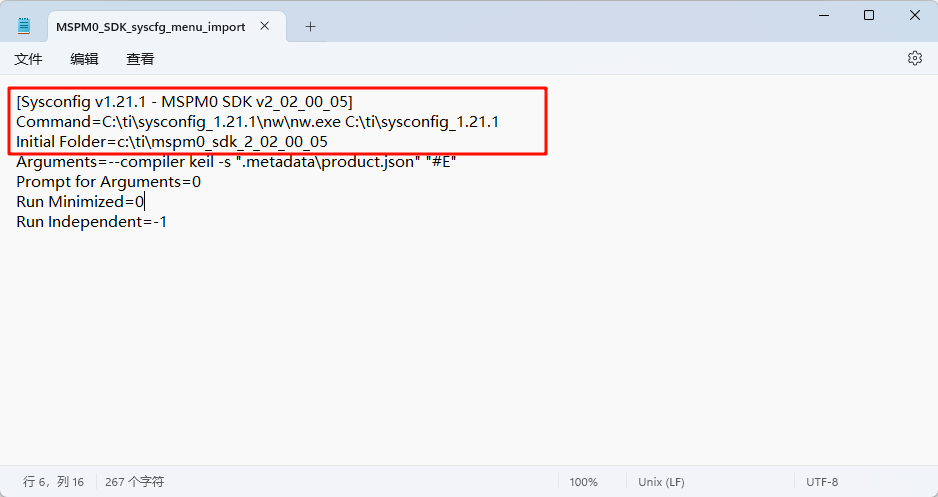
MSPM0_SDK_syscfg_menu_import.cfg
Use Notepad to edit the MSPM0_SDK_syscfg_menu_import.cfg file, and then check if the path and version number are correct:
KEIL 5 Add SysConfig tool
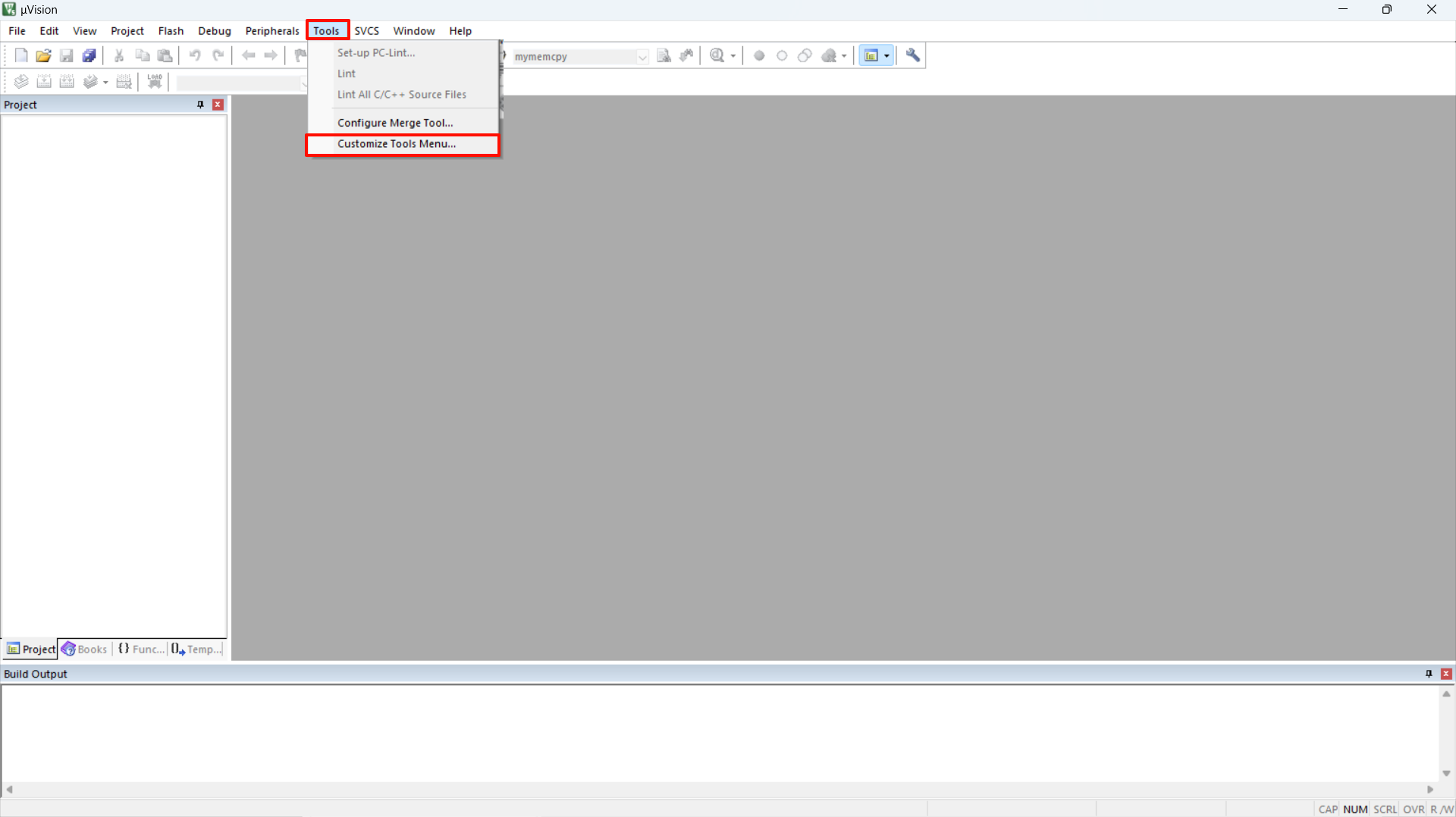
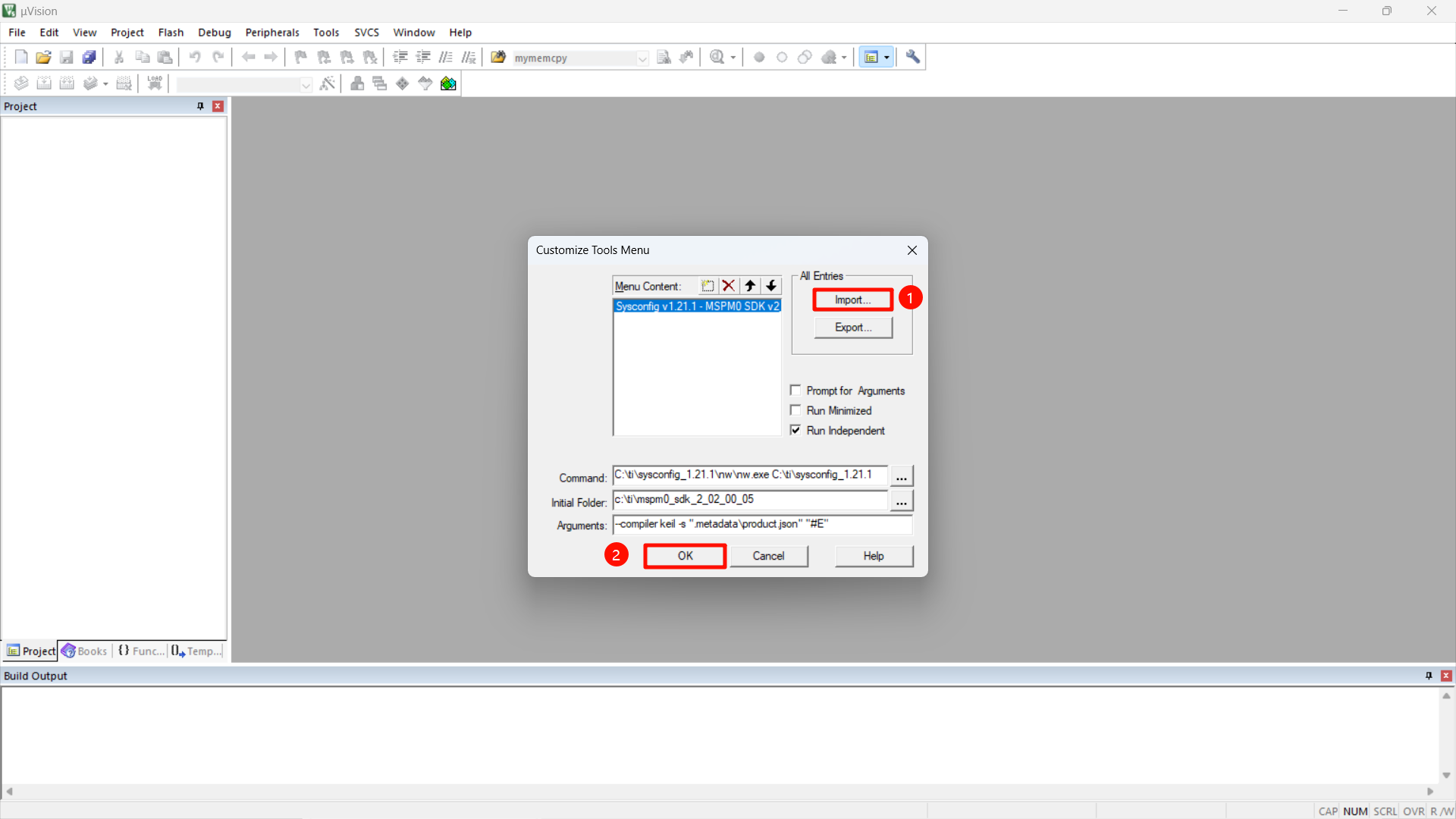
Find and open the MSPM0_SDK_syscfg_menu_import.cfg file:
xxxxxxxxxxMSPM0_SDK_syscfg_menu_import.cfg file location: C:\ti\mspm0_sdk_2_02_00_05\tools\keilIf the user changes the default installation location of the software, he needs to find the MSPM0_SDK_syscfg_menu_import.bat file under the MSPM0-SDK installation location
Use SysConfig tool
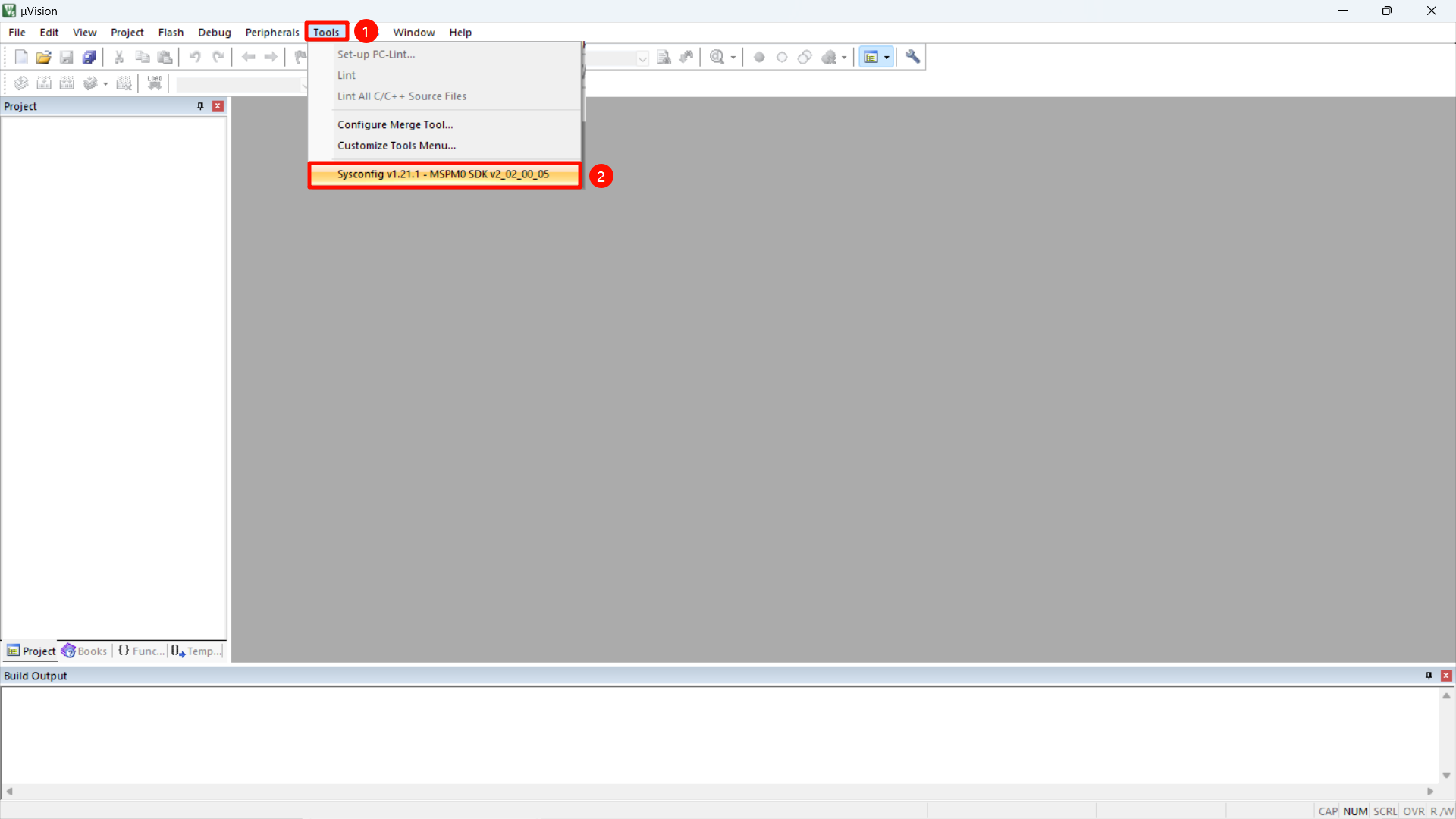
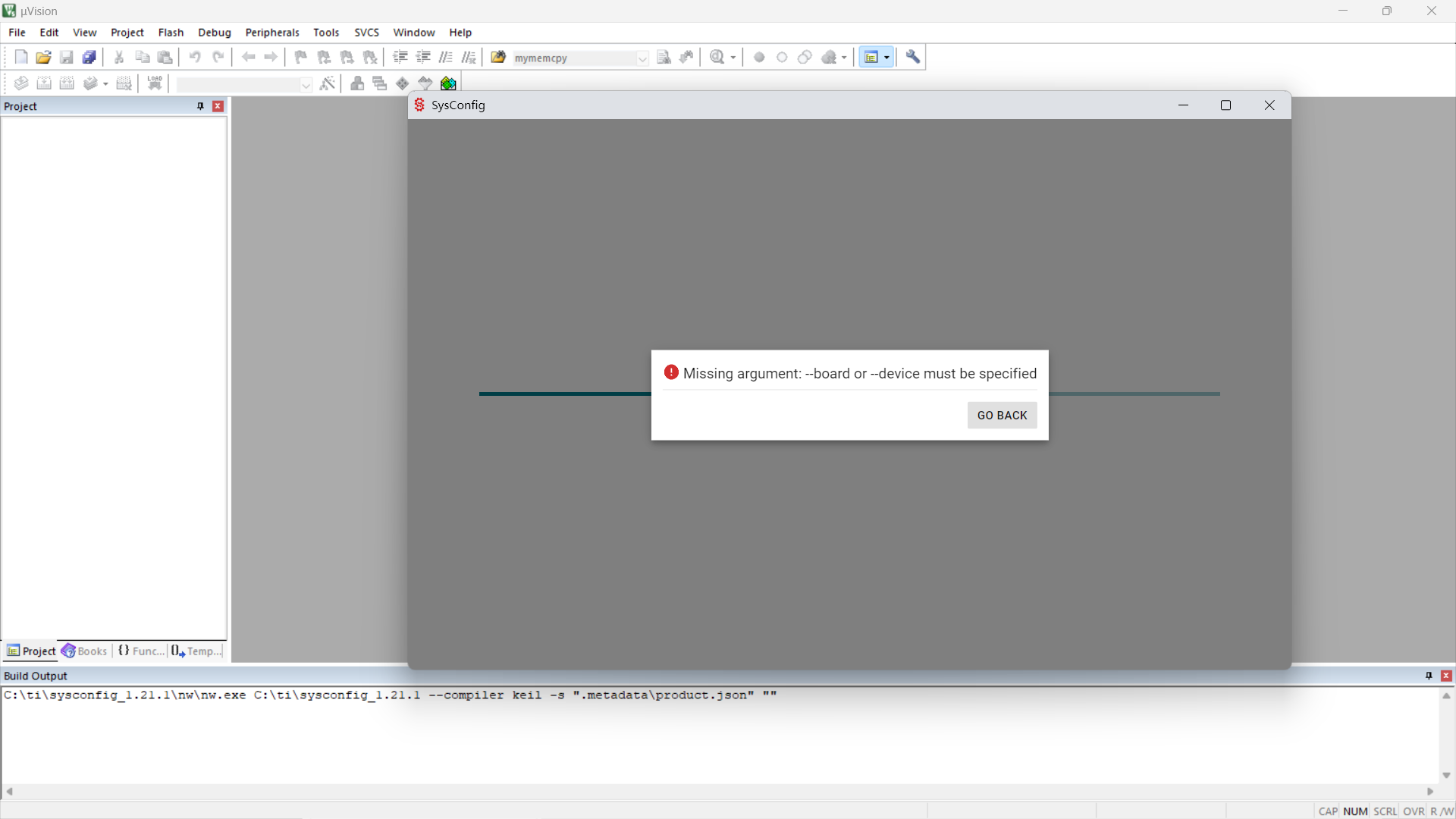
The following interface appears, indicating that the configuration is successful!
xxxxxxxxxxOpening the SysConfig tool in the .cfg file of the TI project will not cause this prompt!