Training Dataset Annotation
Training Dataset Annotation1. Course Content2. Example Dataset3. Traffic Sign Dataset Annotation3.1 Label Studio Introduction3.2 Start Label Studio3.3 Access Label Studio3.4 Create Project3.5 Import Images3.6 Label Settings3.7 Dataset Annotation3.8 Export Dataset3.9 Organize Dataset Directory Structure3.10 Dataset Configuration File4. Lane Detection Dataset Annotation4.1 Create Project4.2 Organize Exported Dataset4.3 Dataset Configuration File
[!IMPORTANT]
- The factory image already includes preset datasets required for training traffic sign recognition and lane detection models. This tutorial is provided for users who need to train their own YOLOv11 models and want to learn how to collect and annotate datasets
- If you want to experience the complete functionality directly, you can skip this section!!!
- This tutorial is mainly conducted on the Orin Nano board
1. Course Content
- Master the data annotation methods required for training YOLOv11 object detection model datasets
2. Example Dataset
- Only Orin boards are recommended for on-board model training. RDK boards have insufficient performance and require annotation and training on a host with GPU. The training source code is in the yolo_train folder under Model Training in the source code summary. If training is needed, you can place the yolo_train folder programs in the root directory of the board
- Traffic sign dataset path
/home/jetson/yolo_train/train_sign/roadsign_dataset.zip
- Lane dataset path
xxxxxxxxxx/home/jetson/yolo_train/train_lane/lane_dataset.zip
3. Traffic Sign Dataset Annotation
3.1 Label Studio Introduction
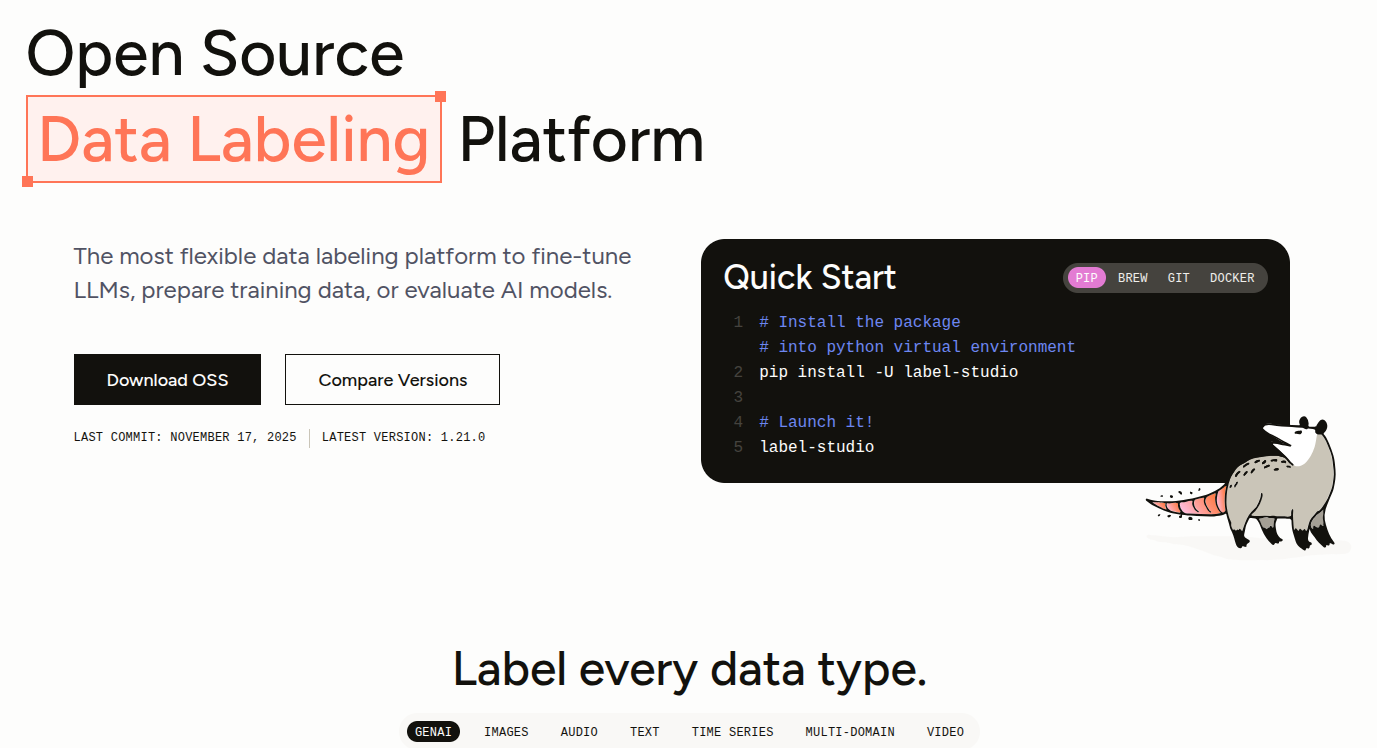
Label Studio is an open-source data annotation platform for data annotation and annotation task management, supporting various types of data input and annotation formats.
[!NOTE]
The factory image environment already has Label Studio installed!!! If users need to set up a data annotation environment on their own computers, they need to install Label Studio first
xxxxxxxxxxpip install label-studio
3.2 Start Label Studio
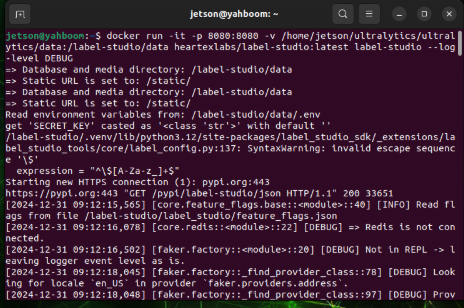
- Start Label Studio
xxxxxxxxxxsudo docker run -it -p 8080:8080 -v /home/jetson/ultralytics/ultralytics/data:/label-studio/data heartexlabs/label-studio:latest label-studio --log-level DEBUGxs
3.3 Access Label Studio
Make sure the computer and the vehicle are in the same local network. Enter the vehicle's IP + port 8080 in the browser address bar. The vehicle's IP can be viewed from the OLED screen in front of the vehicle or by opening a new terminal. Here we use IP:192.168.12.33 as an example:
xxxxxxxxxx192.168.12.33:8080
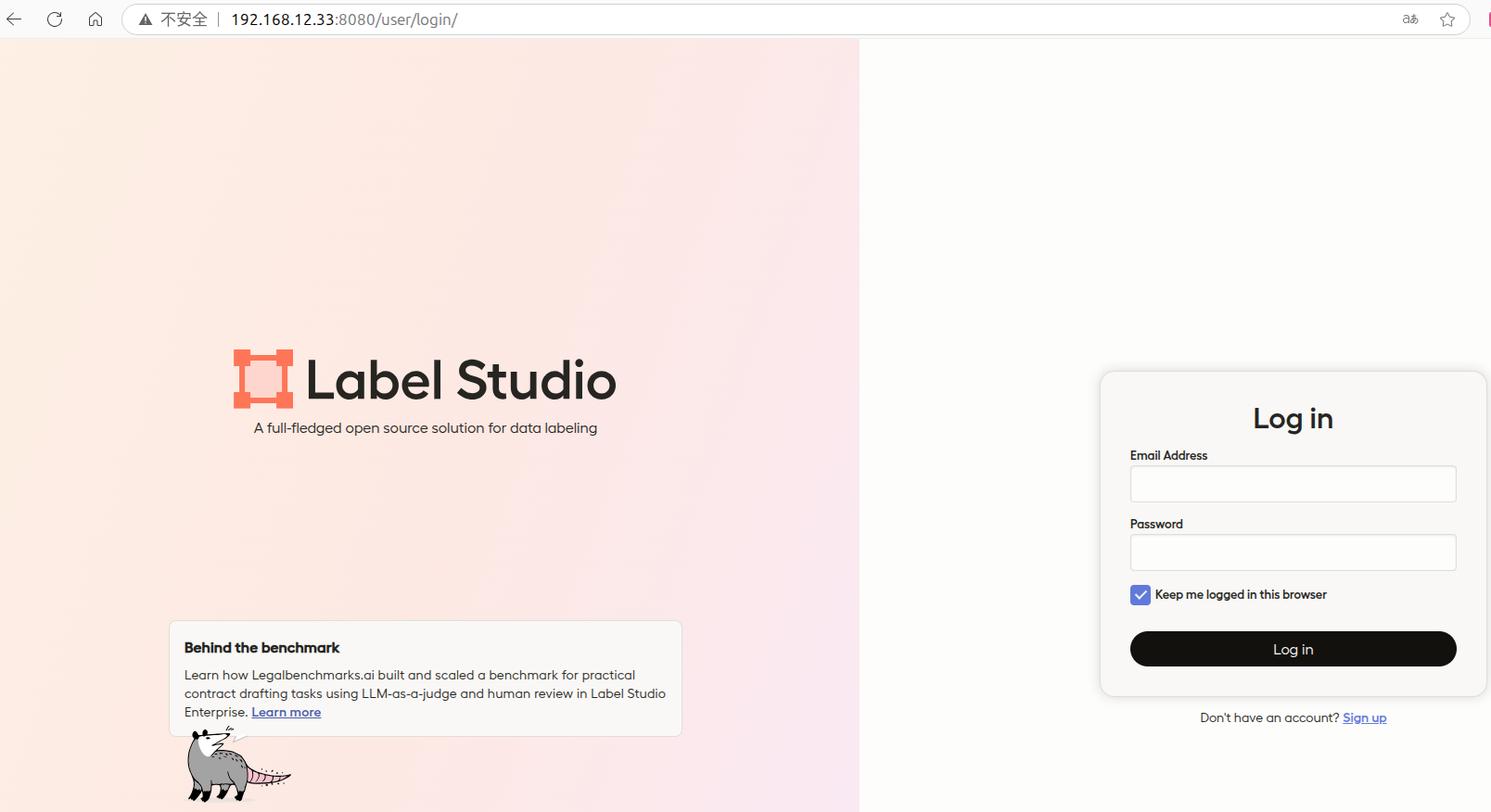
- Default account information (all locally stored information, no data leakage risk):
xxxxxxxxxxAccount: yahboom@163.comPassword: yahboom@163.com
- If you need to create a new account, click
sign up
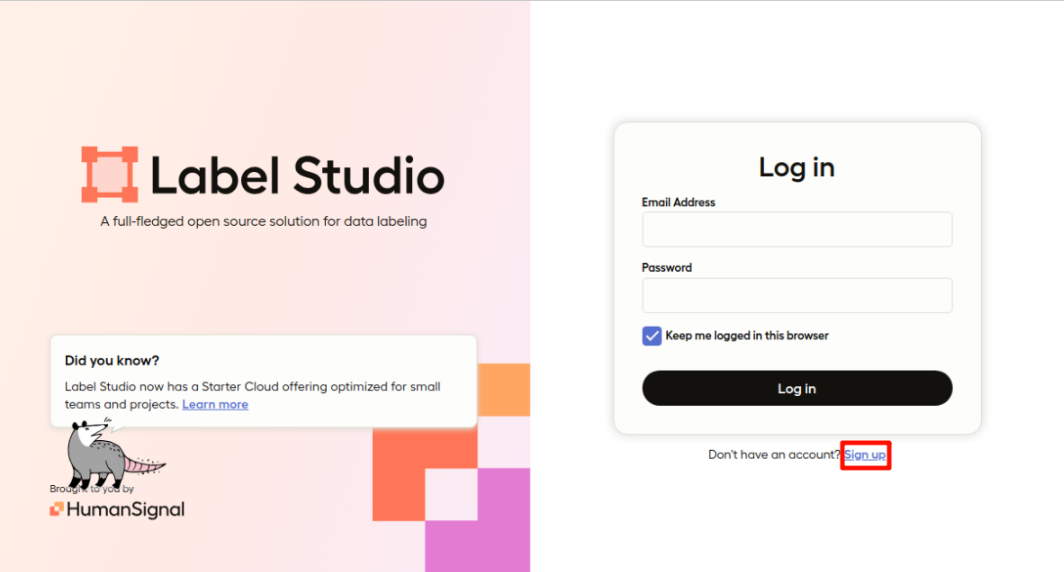
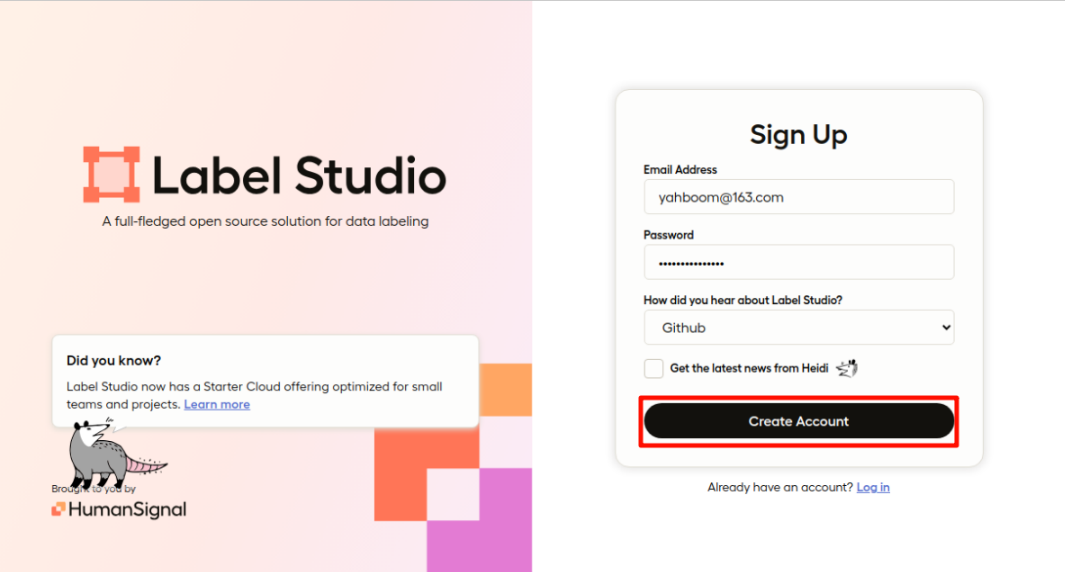
After registration is completed, the website will automatically log in:
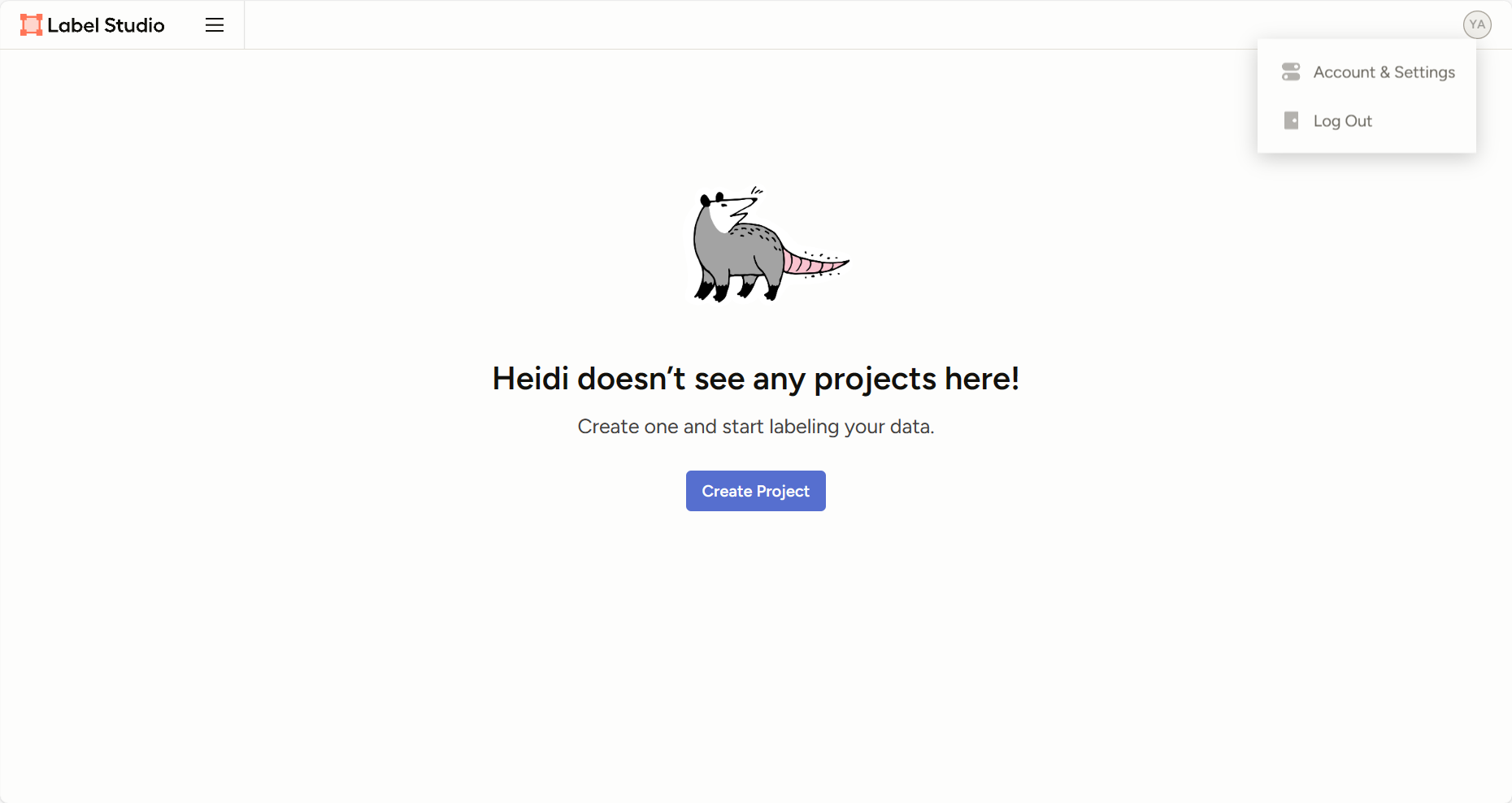
3.4 Create Project
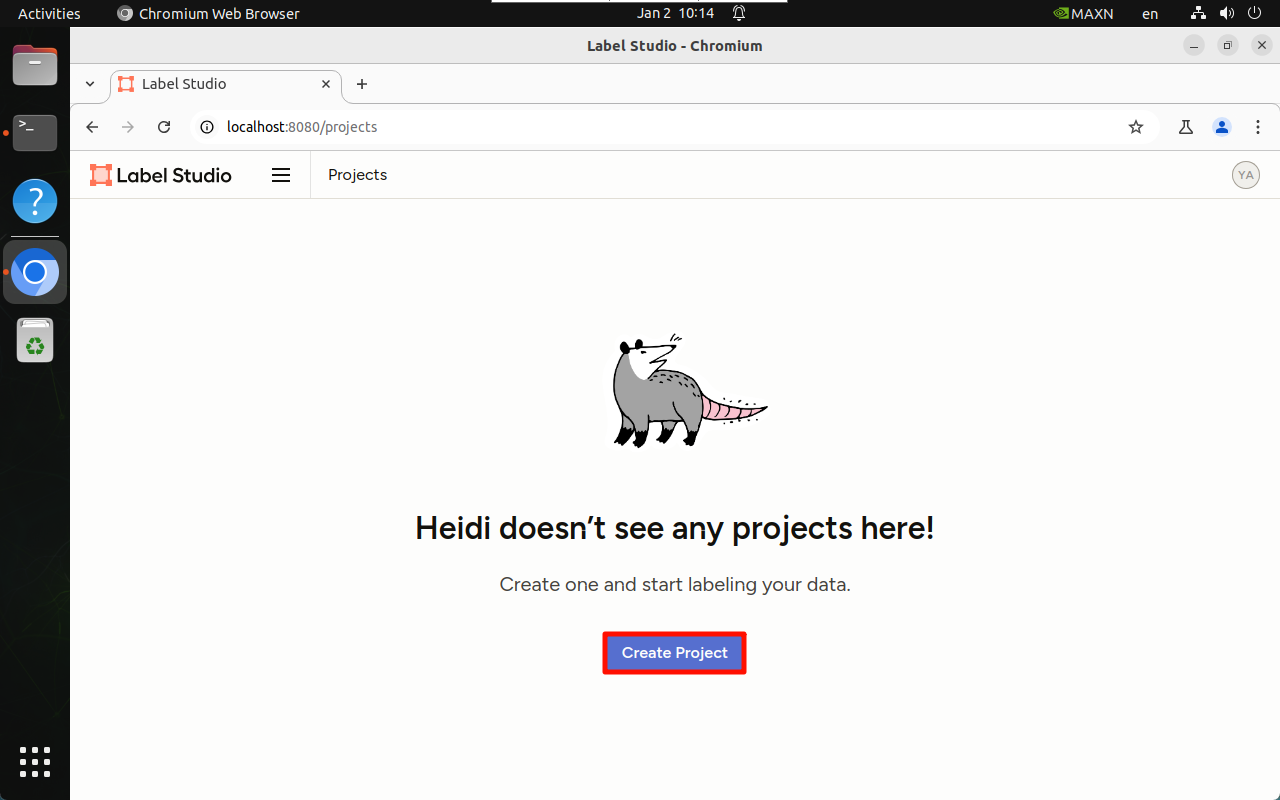
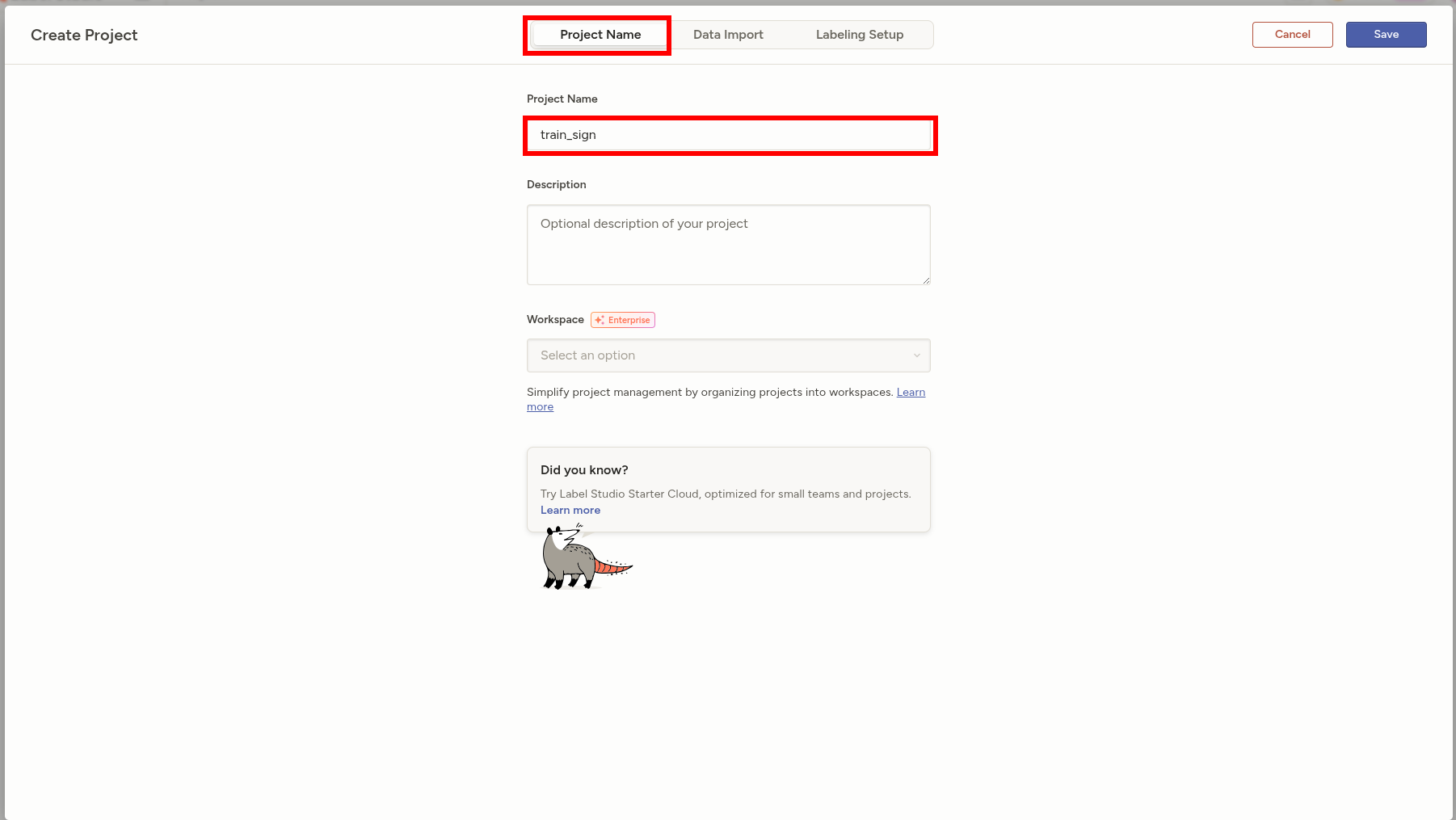
The project name can be named arbitrarily, name it according to your training set:
3.5 Import Images
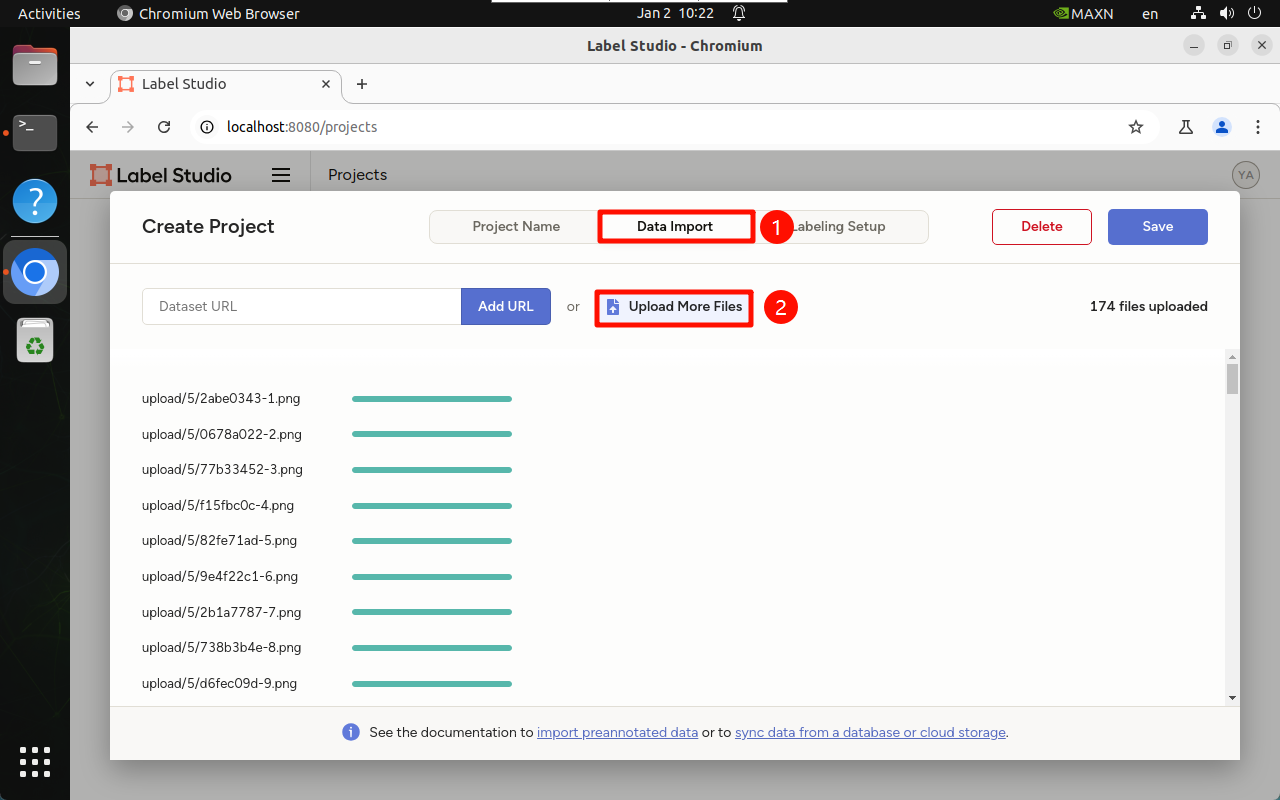
- Import the images previously split from the video: cannot import too many images at once, it is recommended to select 50-100 images each time, then import multiple times
3.6 Label Settings
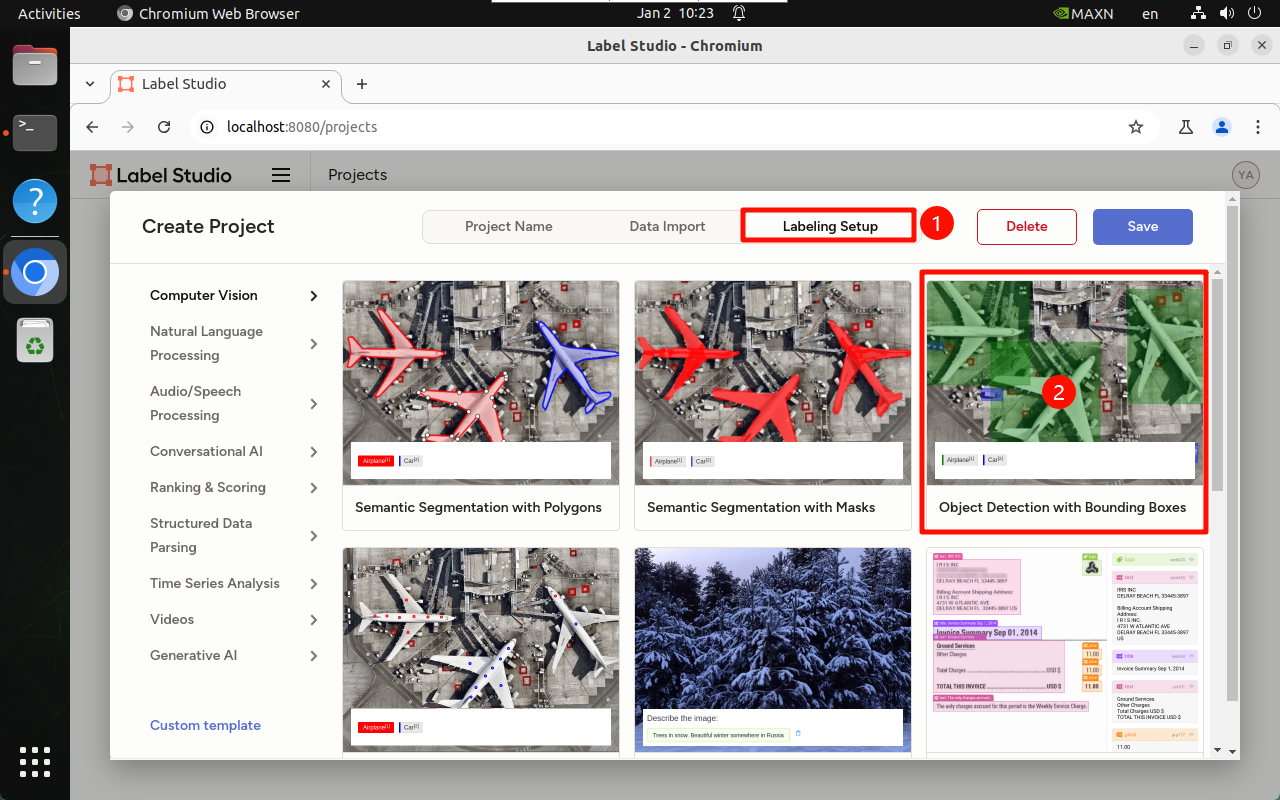
We are demonstrating orange recognition, so select "Object Detection"
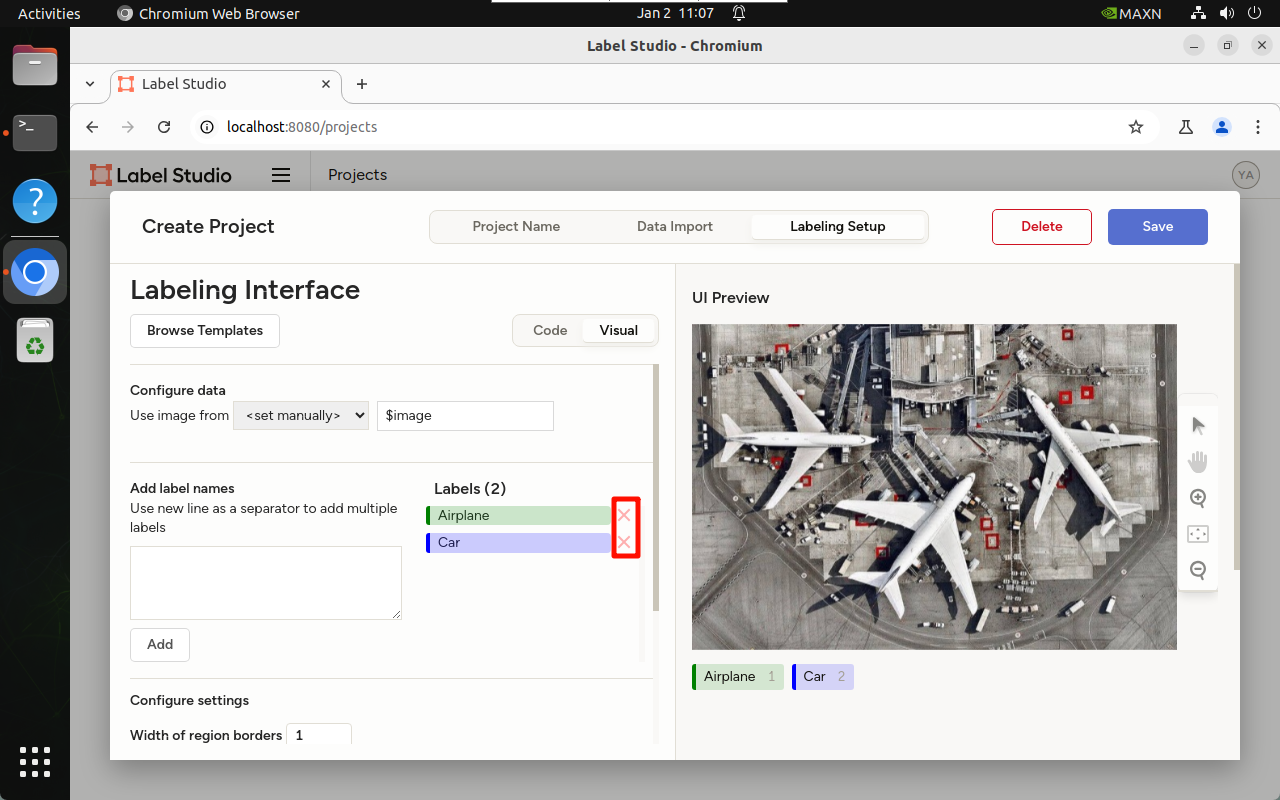
- Delete built-in labels:
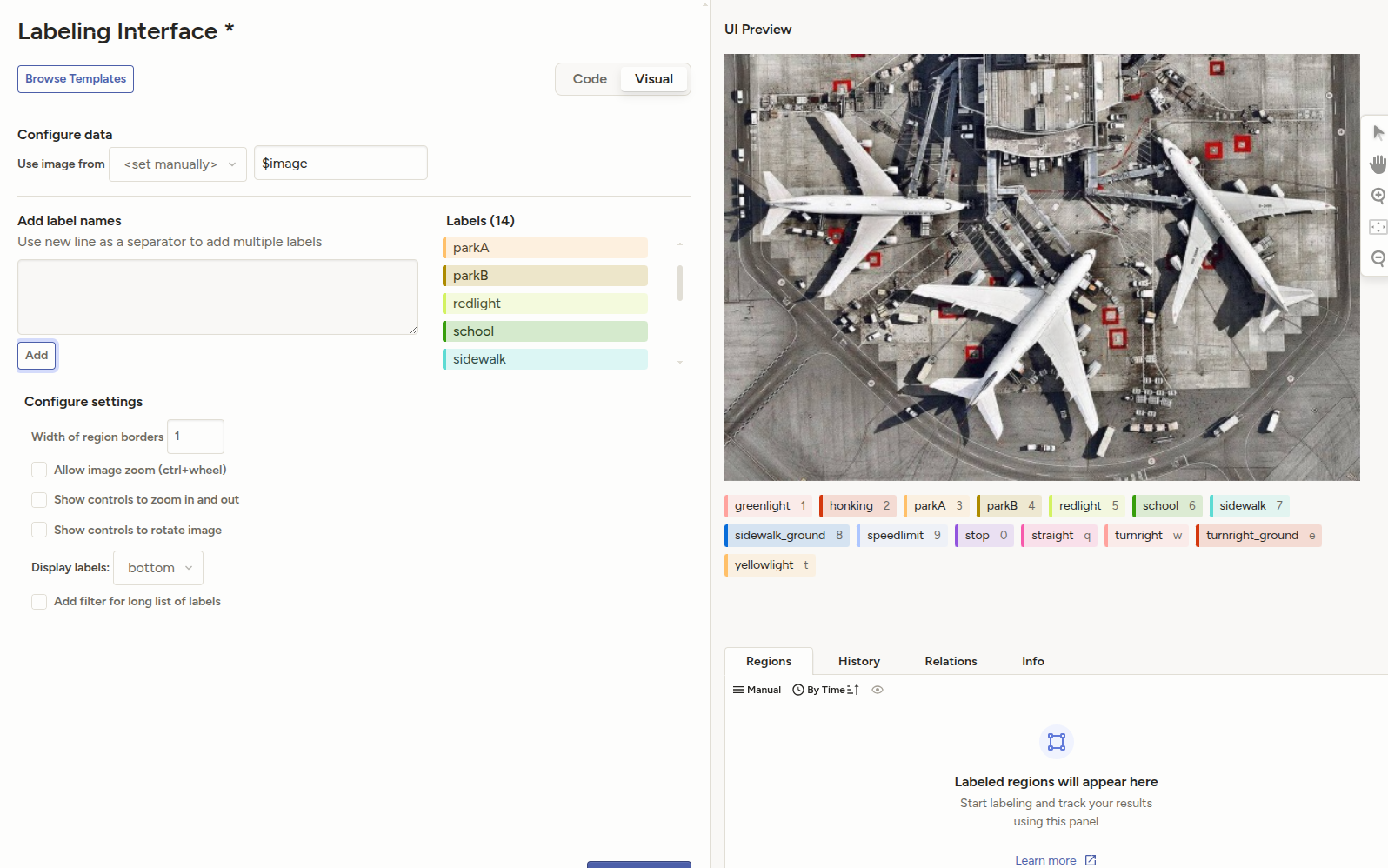
- Add new labels, here in the example we name all traffic signs and ground markings in the sandbox map
[!TIP]
If users want to train other types of object detection models, and the detection targets are not traffic signs or lanes, name the labels according to the targets that need to be detected in your dataset.
3.7 Dataset Annotation
- Click Annotate All Tasks:
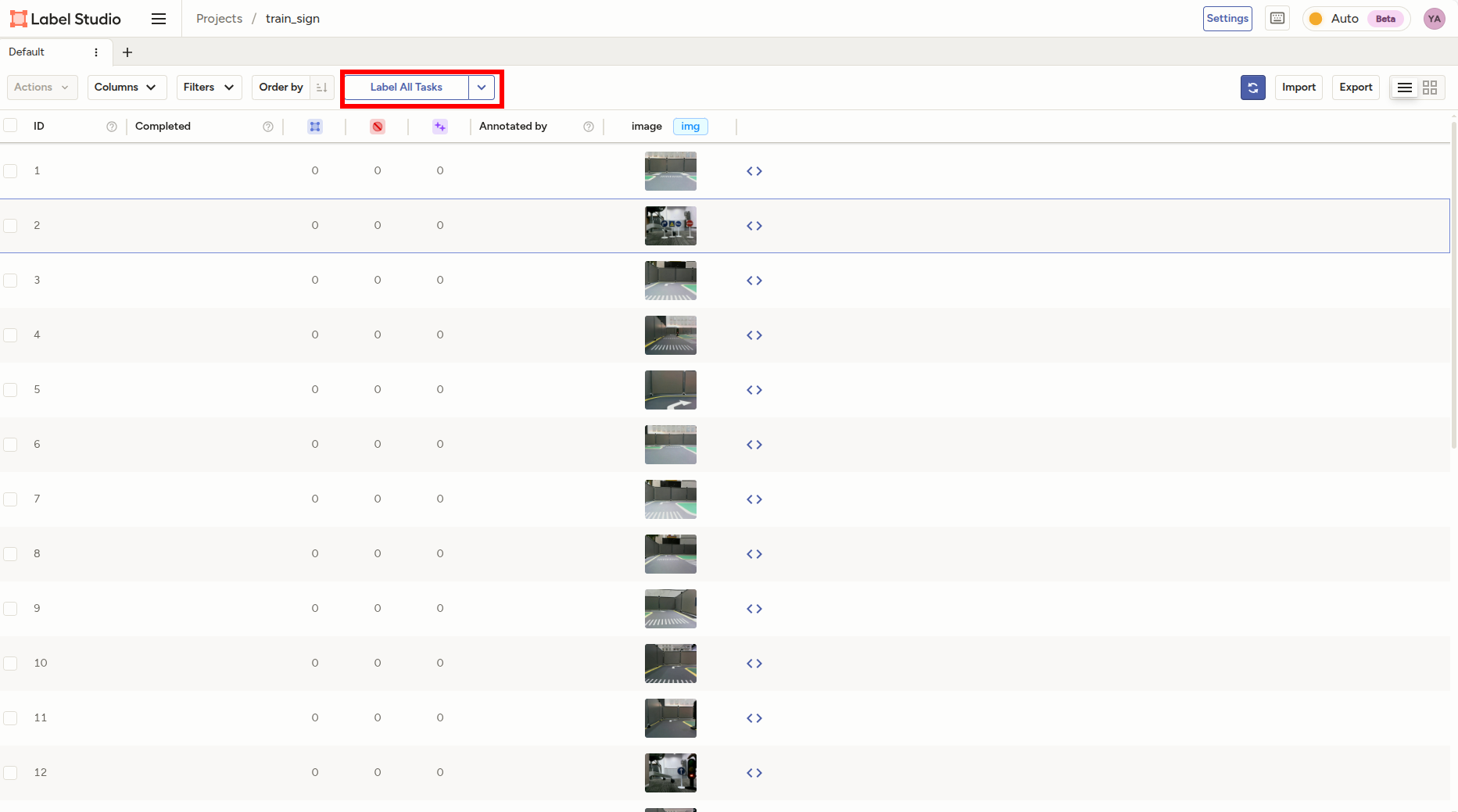
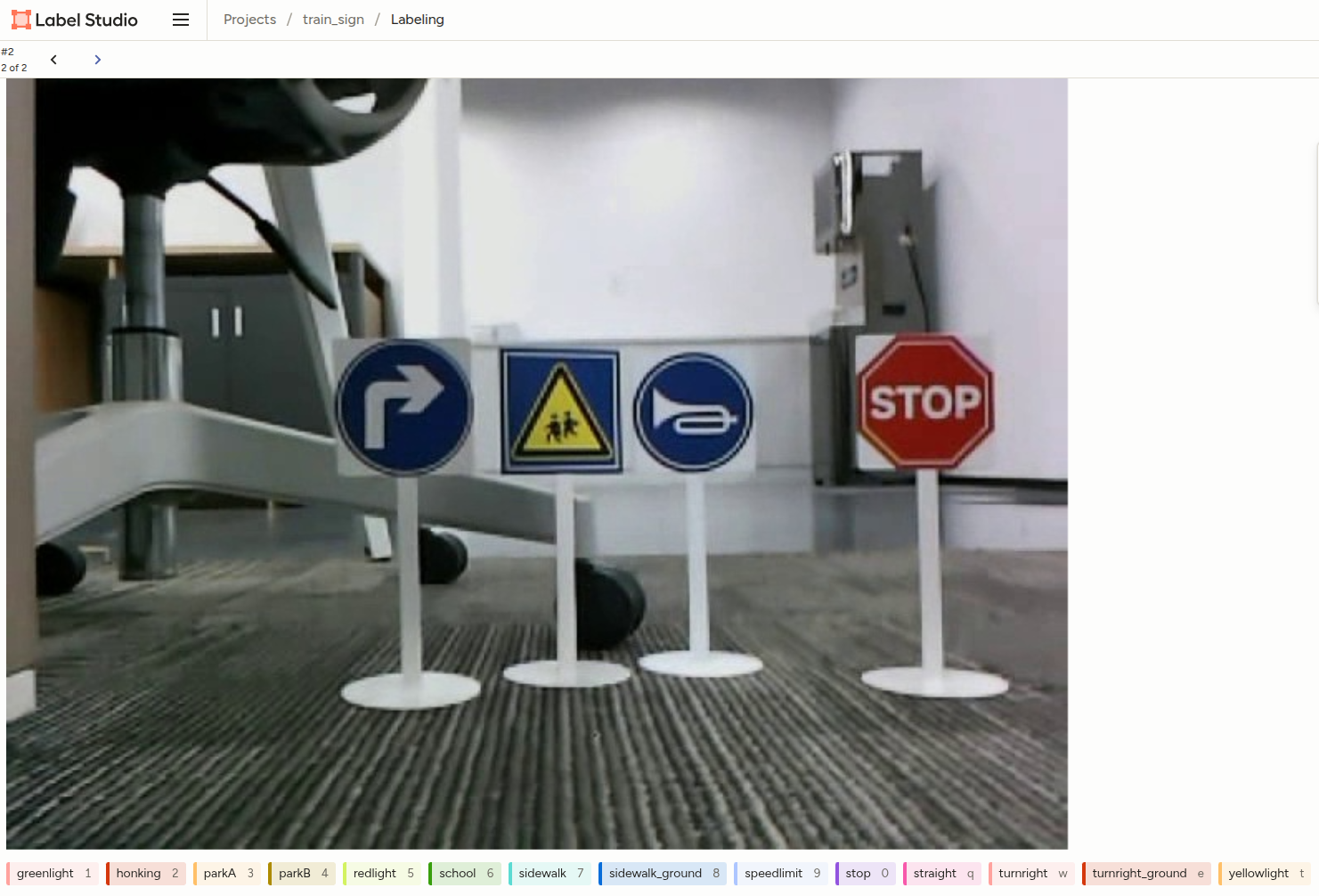
- The corresponding target category shortcuts are displayed on the labels below. Press the corresponding shortcut key on the keyboard to quickly select that label.
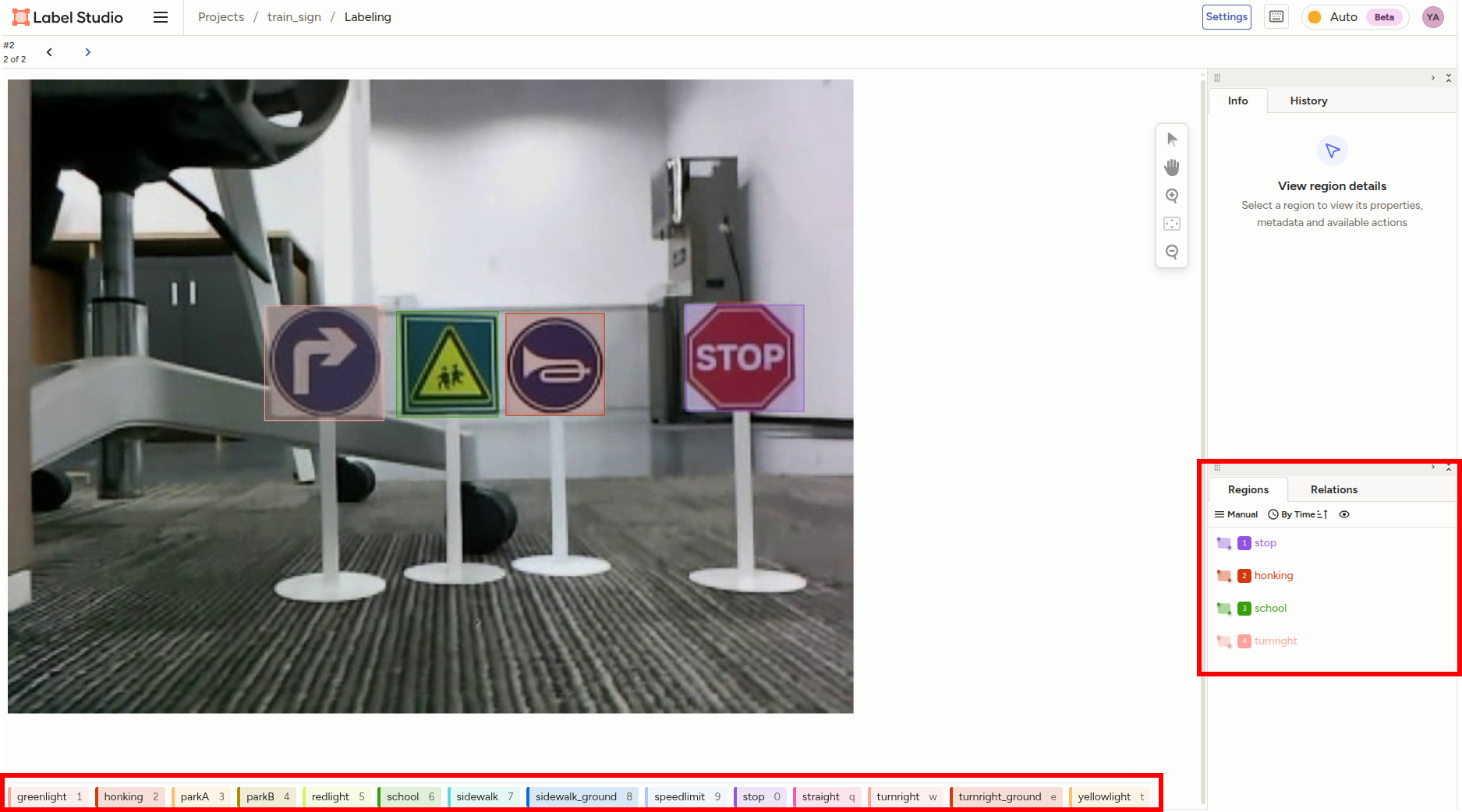
- Then drag the mouse to select the corresponding target. There are 4 types of targets in this image. After marking is completed, the marked labels will be displayed in the
Regionscolumn on the right, where you can check whether the marking is correct.
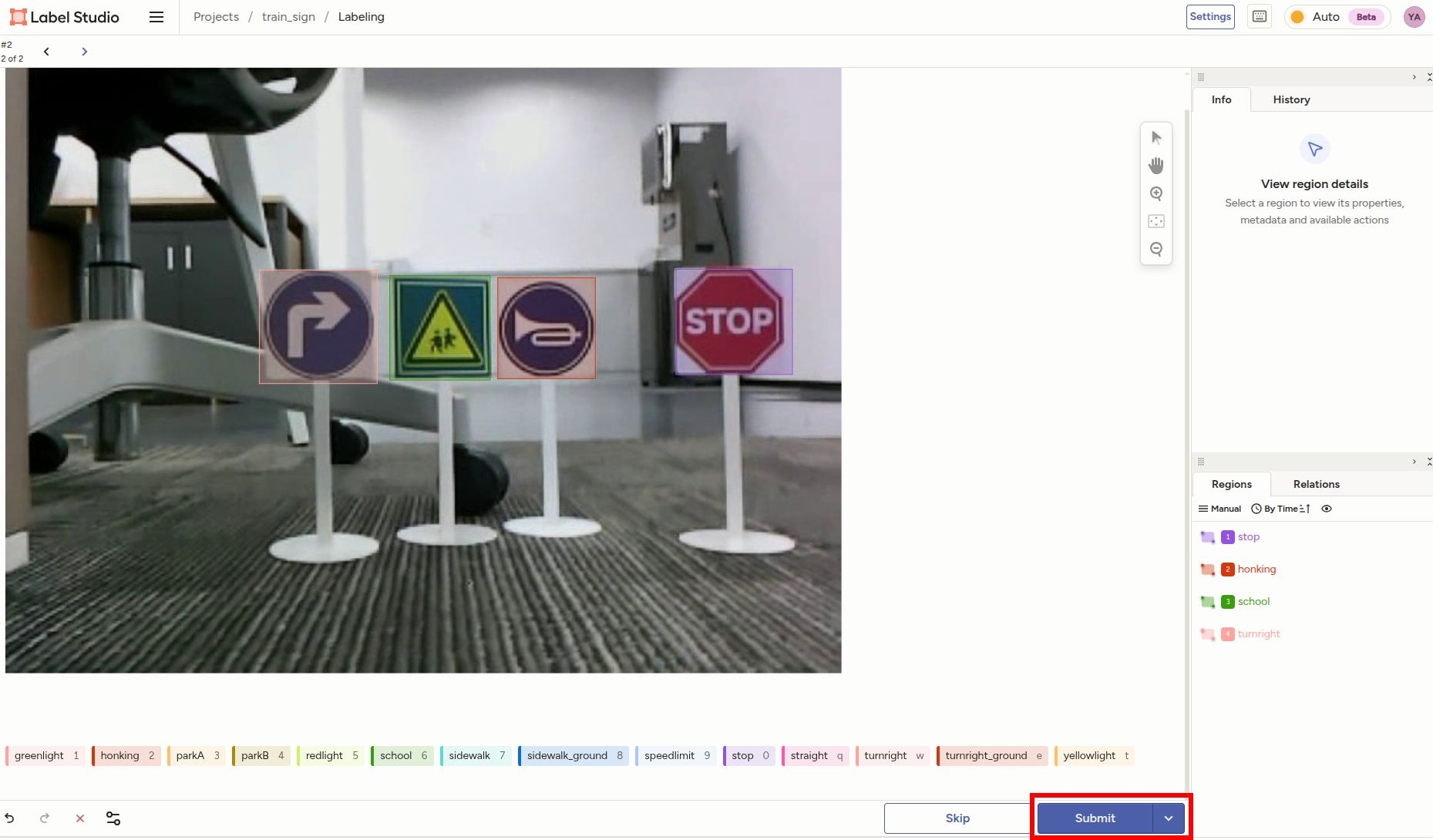
- After marking is completed, click
Submitto submit, and it will automatically jump to the next image. Repeat annotation until all image data annotation is completed.
3.8 Export Dataset
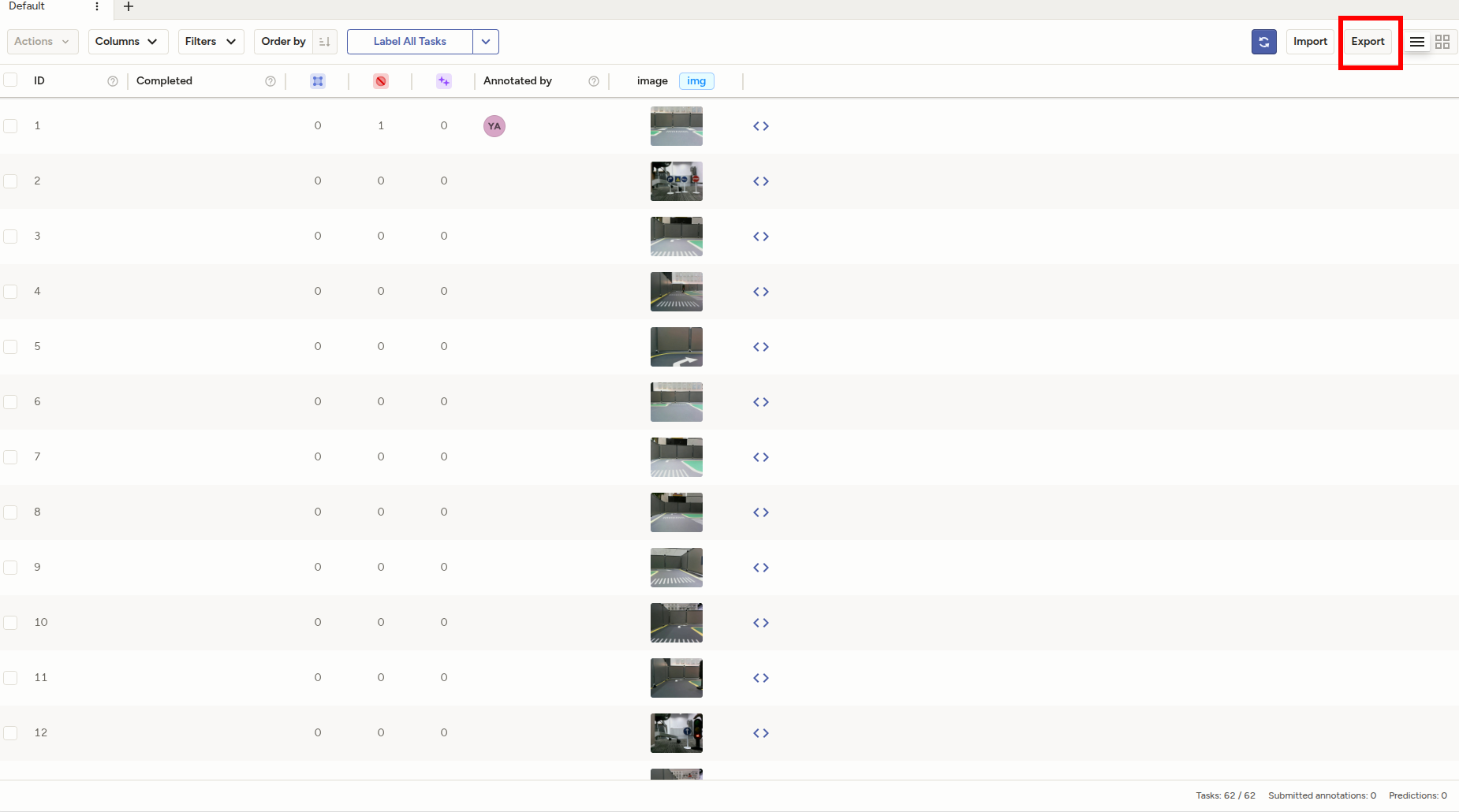
- Select the project to export, click
Exportin the upper right corner
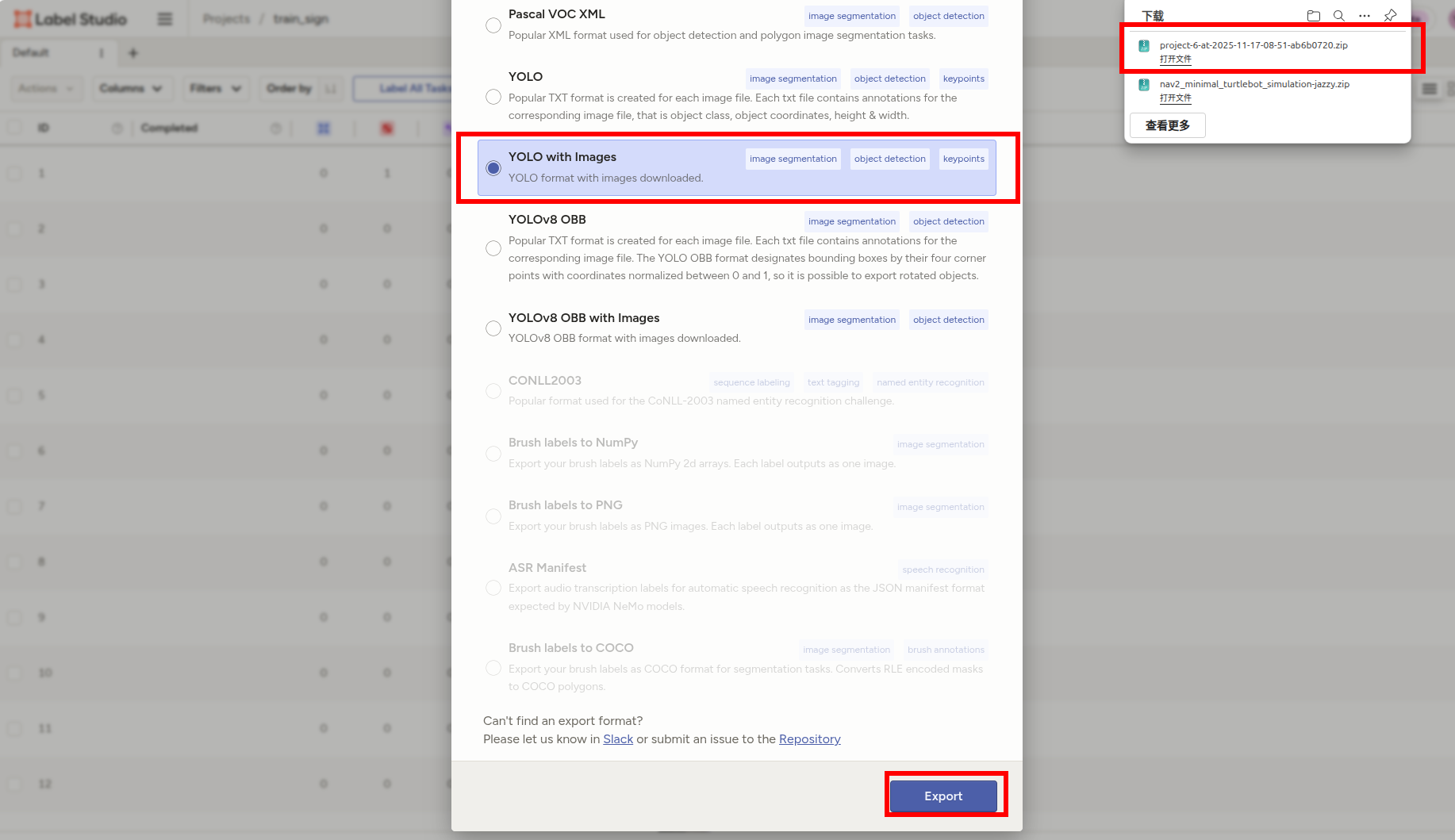
- Select
YOLO with Imagesformat for export, the browser will automatically download a compressed package
3.9 Organize Dataset Directory Structure
- The directory structure corresponding to the compressed package exported using Label Studio is as follows:
xxxxxxxxxx.├── images├── labels├── classes.txt└── notes.json
Folder and file description:
- images: stores original images
- labels: annotation data corresponding to each image
- classes.txt: target classification
- notes.json: target classification and corresponding numbers
- To enable YOLOv11 to recognize the dataset, some adjustments need to be made to the directory structure of data exported from Label Studio
- Divide the images and labels exported from Label Studio into train (training set) and val (validation set). The images and labels in both train and val need to have corresponding names
- Here for the example, directly copy the images and labels under the train directory into the val directory
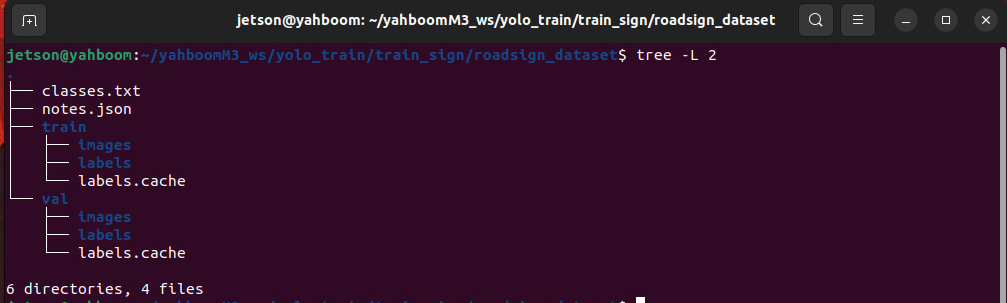
xxxxxxxxxx.├── classes.txt├── notes.json├── train│ ├── images│ └── labels└── val├── images└── labels
- The following is the directory structure of the tutorial example dataset (the factory vehicle image and the dataset provided in this tutorial folder are in .zip compressed package format, need to be decompressed first to see the complete directory structure)
3.10 Dataset Configuration File
- When training YOLOv11 models, you need to specify the dataset path and detection target categories through a YAML format configuration file
- Traffic sign dataset configuration file path:
xxxxxxxxxx/home/jetson/yolo_train/train_sign/sign.yaml
Content analysis:
- path: dataset path
- train: training set path
- val: validation set path
- names: detection target categories (need to be consistent with the serial number categories in notes.json exported from Label Studio)
xpath/home/jetson/yolo_train/roadsign_dataset # dataset root dirtraintrain/images valval/images # Classesnames 0greenlight 1honking 2parkA 3parkB 4redlight 5school 6sidewalk 7sidewalk_ground 8speedlimit 9stop 10straight 11turnright 12turnright_ground 13yellowlight
4. Lane Detection Dataset Annotation
Lane detection dataset annotation is basically the same as traffic sign dataset annotation process, both use YOLOv11 object detection model for object detection (here we recommend using object detection model, do not recommend using segmentation model for lane detection, model inference speed is slower)
4.1 Create Project
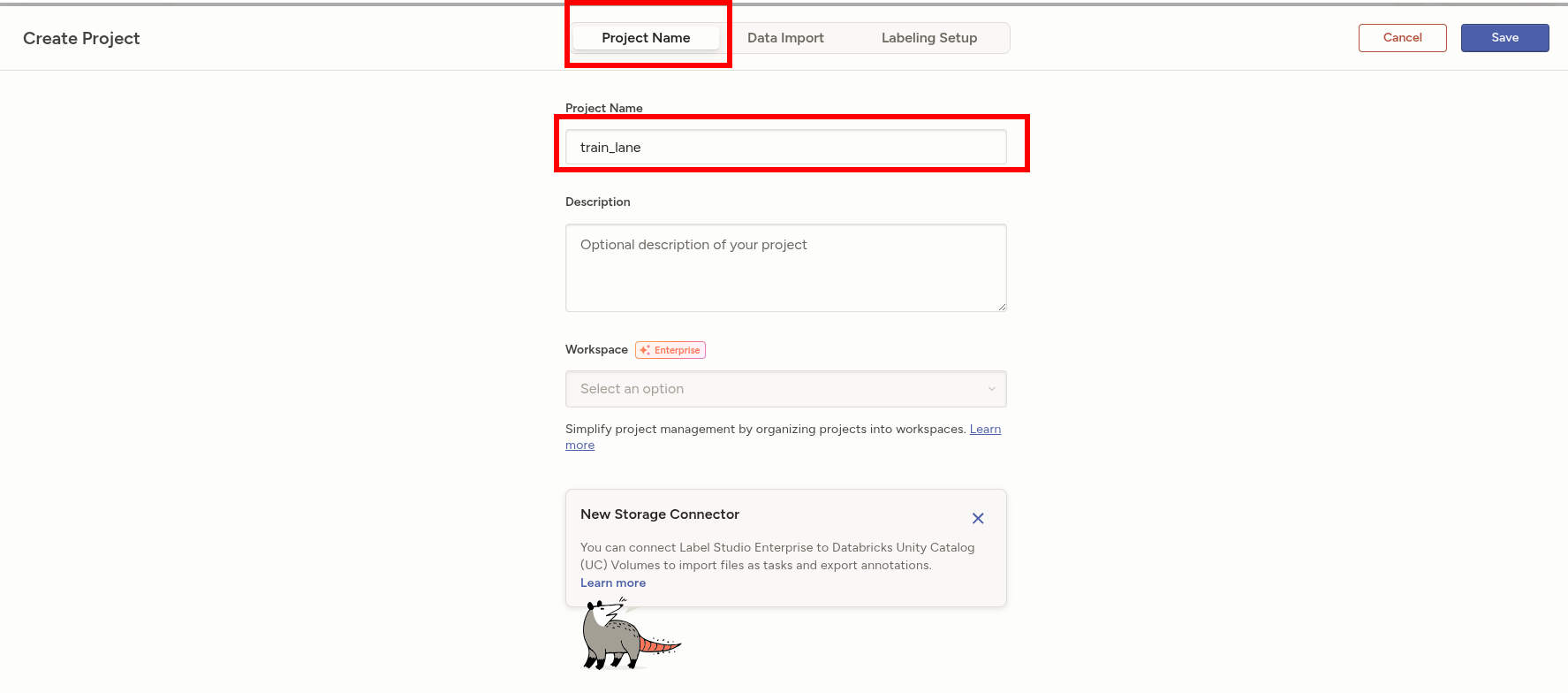
- The creation process is the same as before, here fill
train_laneinProject Name
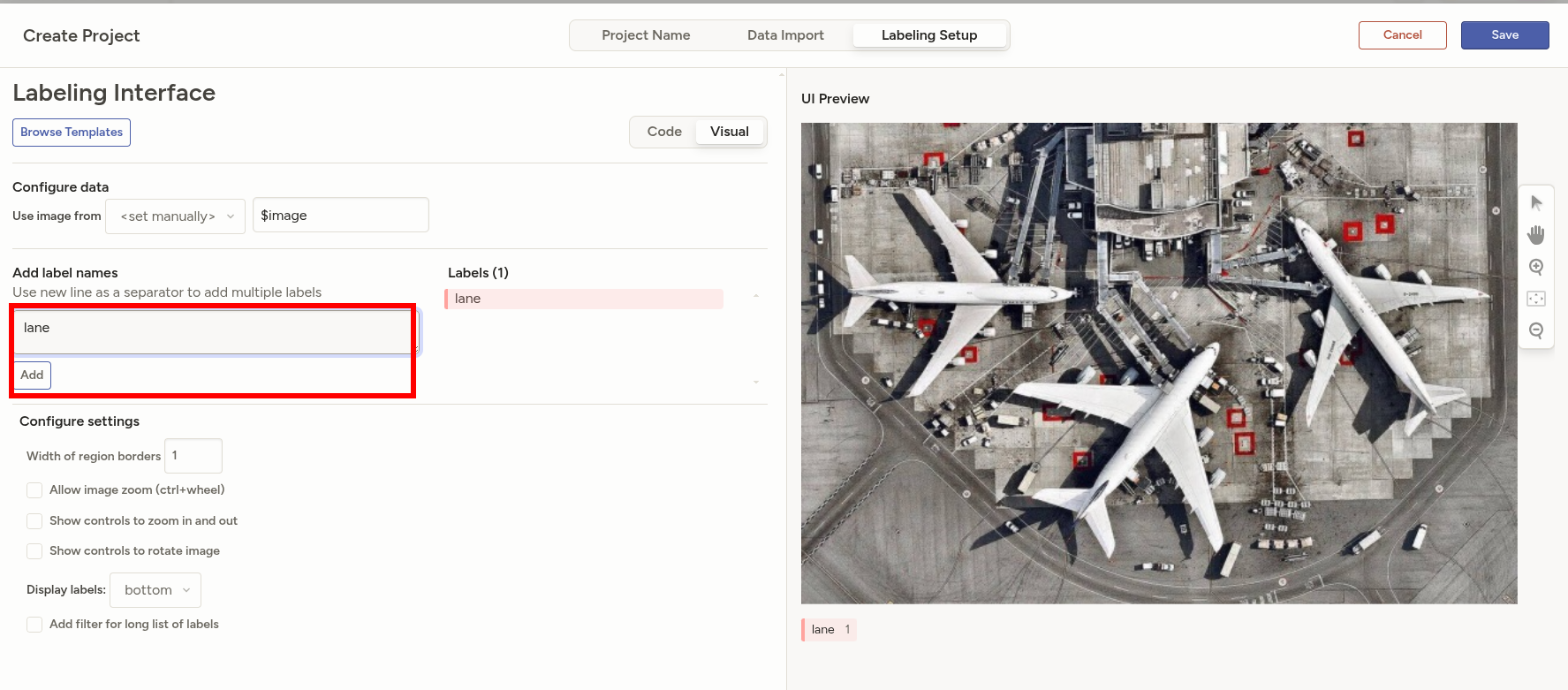
- Here the lane detection model category has only one, fill in
lane
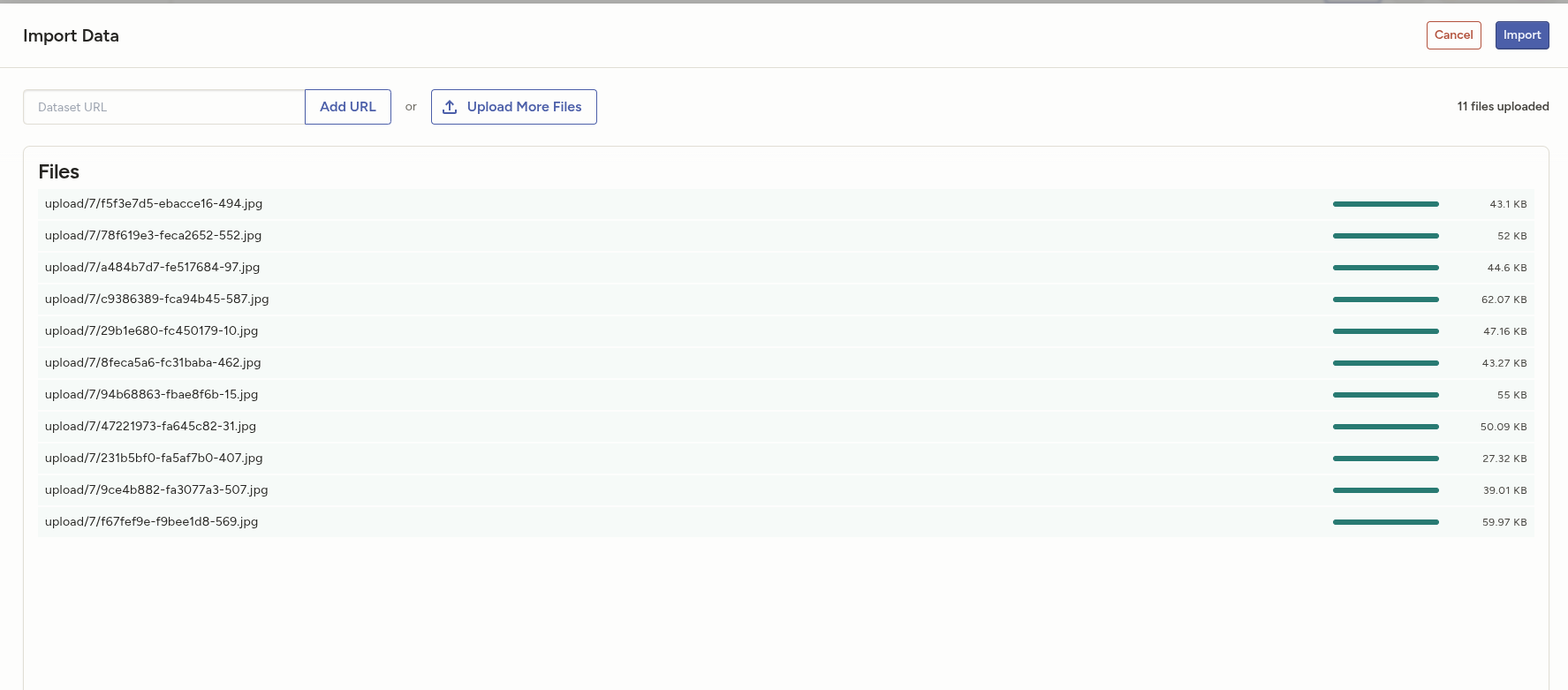
- Import the split lane video frame dataset
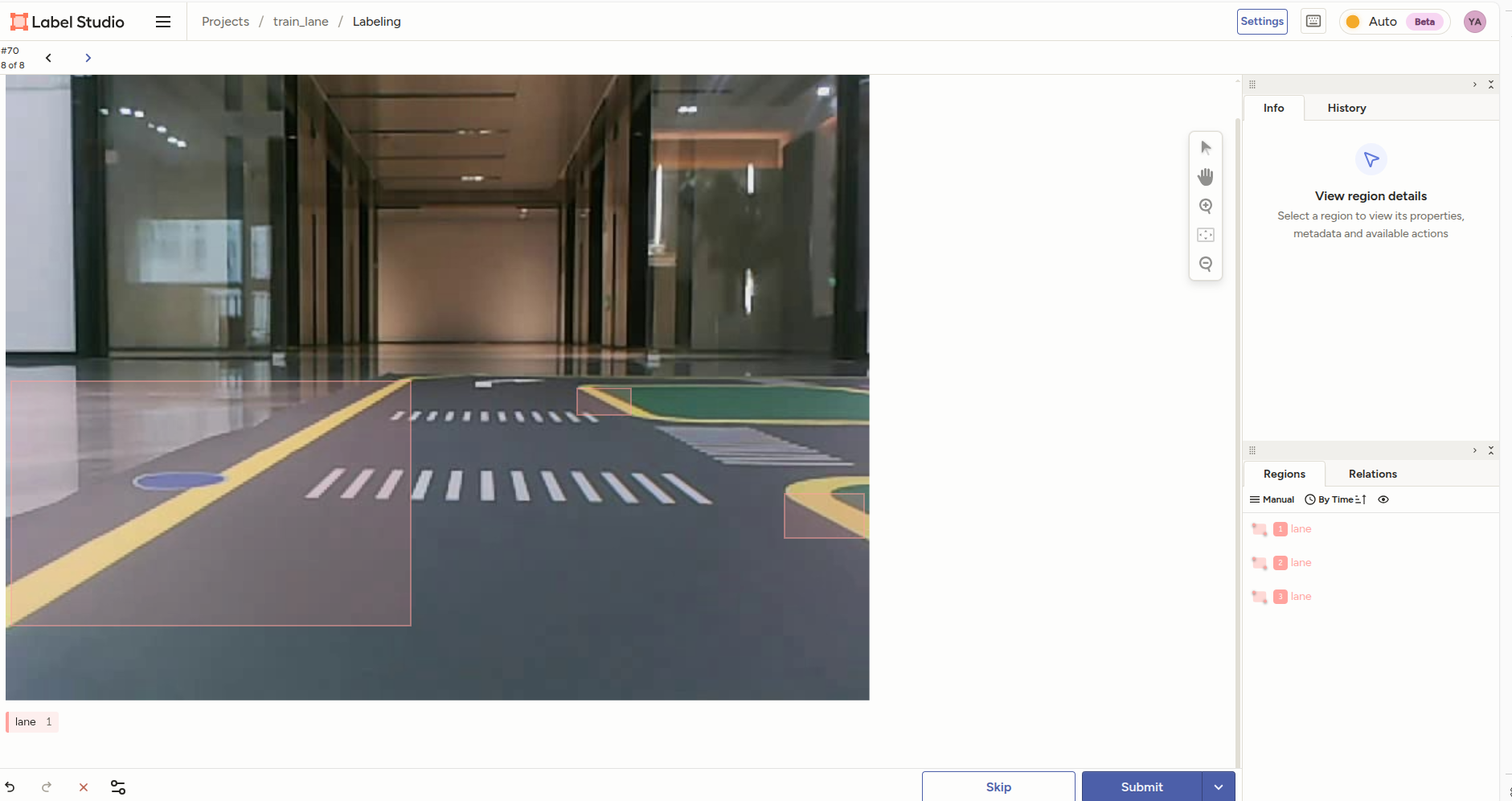
- The annotation method is the same as before, here we box and annotate all lane lines
4.2 Organize Exported Dataset
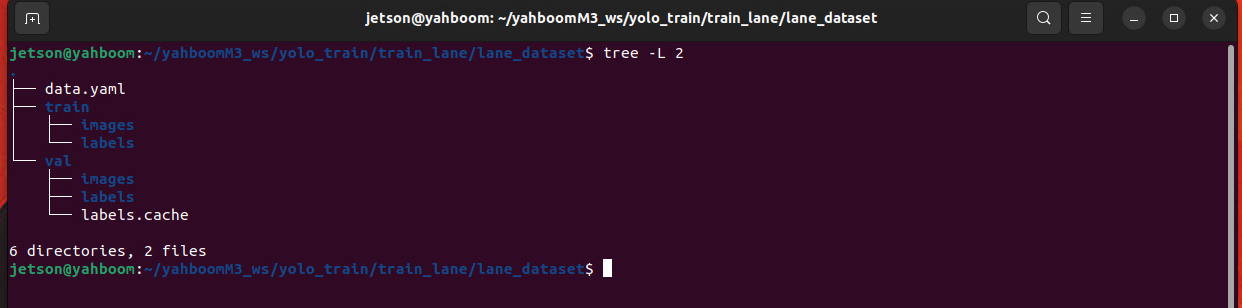
- After annotation is completed, we export and organize the dataset into a target structure that YOLO can recognize. The method is completely consistent with the previous traffic sign dataset export and organization method
- Reference target structure is as follows:
4.3 Dataset Configuration File
- Lane detection dataset configuration file path:
xxxxxxxxxx/home/jetson/yolo_train/train_lane/lane.yaml
- Example configuration file is as follows:
xxxxxxxxxxpath: /home/jetson/yolo_train/train_lane/lane_dataset # dataset root dirtrain: train/imagesval: val/images# Classesnames:0: lane