RAG Knowledge Base Deployment
RAG Knowledge Base Deployment1. Course Content2. Start the Dify Service3. View the Preset Knowledge Base4. Expanding the RAG Knowledge Base4.1 Economic Mode Knowledge4.2 High-Quality Knowledge4.3 Retrieval Testing
1. Course Content
- Master the process and methods for local deployment, debugging, and testing of the RAG knowledge base.
- Master the methods for expanding the RAG knowledge base according to your own task scenarios.
[!TIP]
- The RAG knowledge base helps provide reference knowledge for general AI large models in vertical fields, avoiding the illusionary responses of AI large models and increasing the model's ability to respond to knowledge in vertical fields.
- The RAG knowledge base can help robots quickly expand their generalization capabilities in different task scenarios.
2. Start the Dify Service
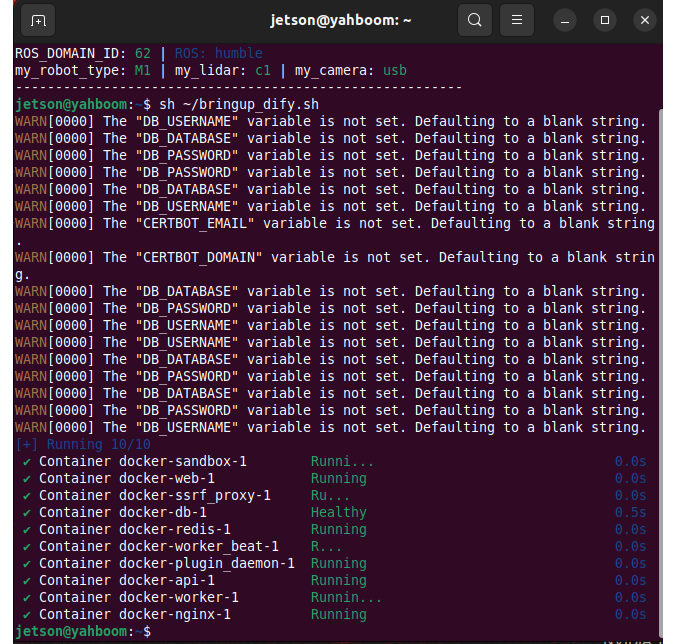
- Connect to the car's infotainment system via VNC or SSH, and enter the following command in the terminal:
sh ~/bringup_dify.sh
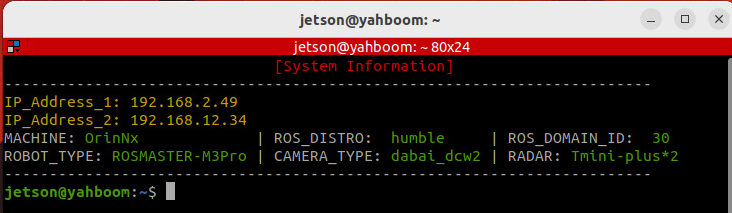
- To check the car's IP address, you can use the OLED screen,
ifconfig, or directly on the terminal. Simply enter the car's IP address into your browser's address bar to access the Dify management page.
3. View the Preset Knowledge Base
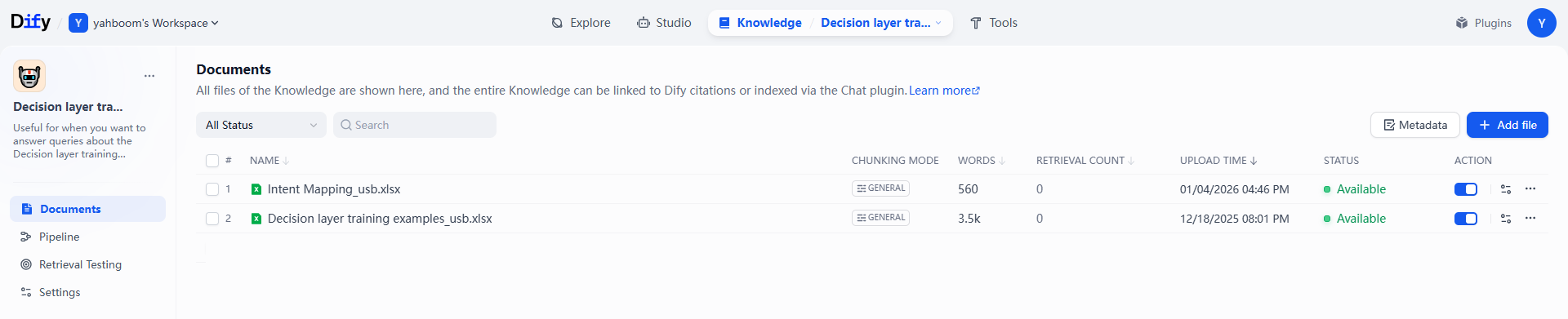
- Click on the Knowledge Base page on the homepage. Dify comes with two pre-set RAG knowledge bases with identical content, only differing in language.
[!TIP]
- The pre-set knowledge bases provide training examples for various task scenarios to help AI models quickly master relevant skills.
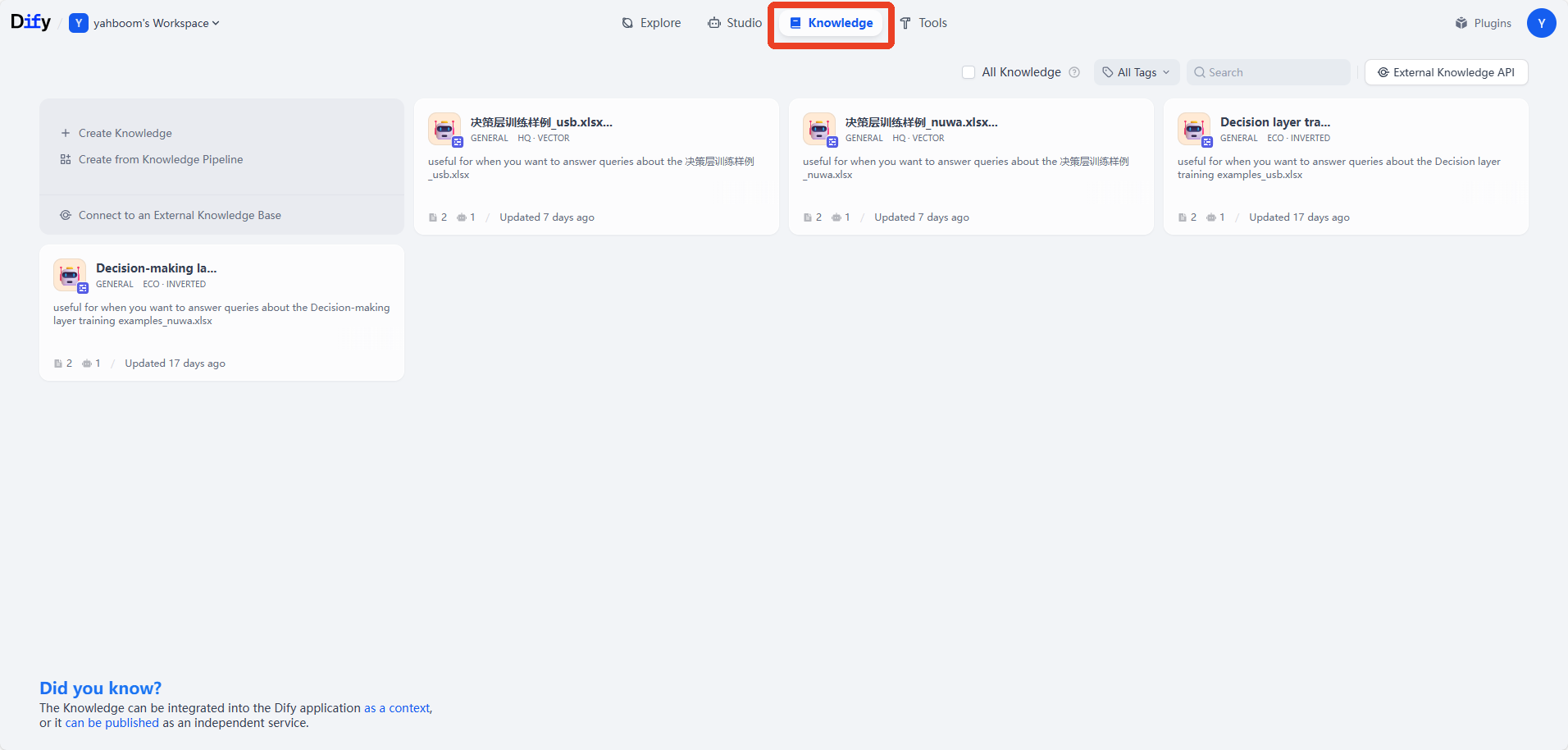
- Open a knowledge base, which contains two preset files:
Intent mapping_usb_a1.xlsxandDecision layer training examples_usb.xlsx. Where: - Intent Mapping: Stores user intents and the corresponding tasks the robot needs to perform.
- Decision Layer Example Library: Stores preset task scenario reference examples.
4. Expanding the RAG Knowledge Base
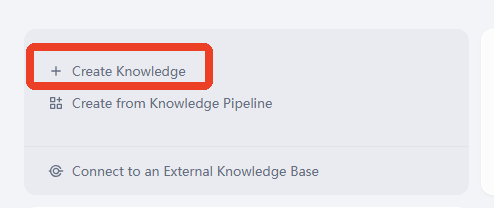
- If you need to expand the knowledge base with a new one, click Create Knowledge.
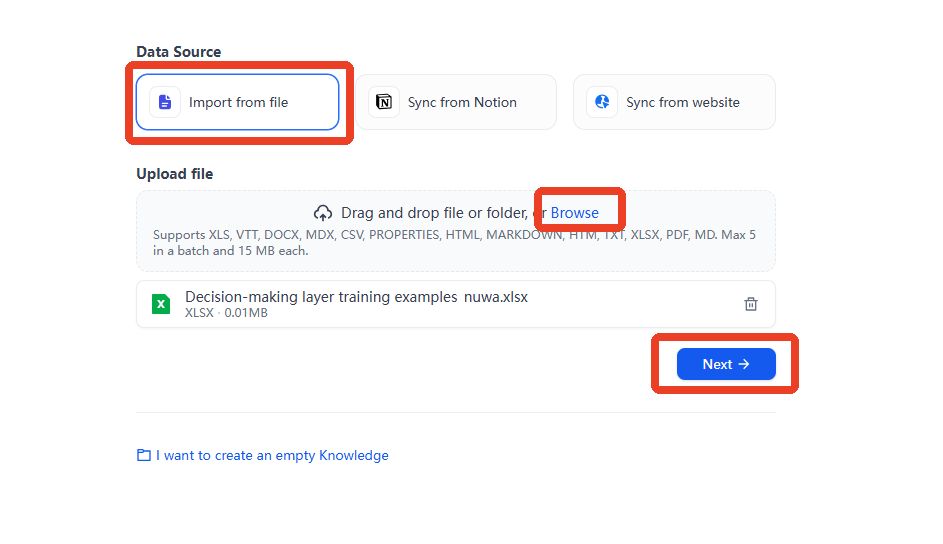
- Here, we'll use imported local data as an example.
- Click Import from file —> Browse —> Next
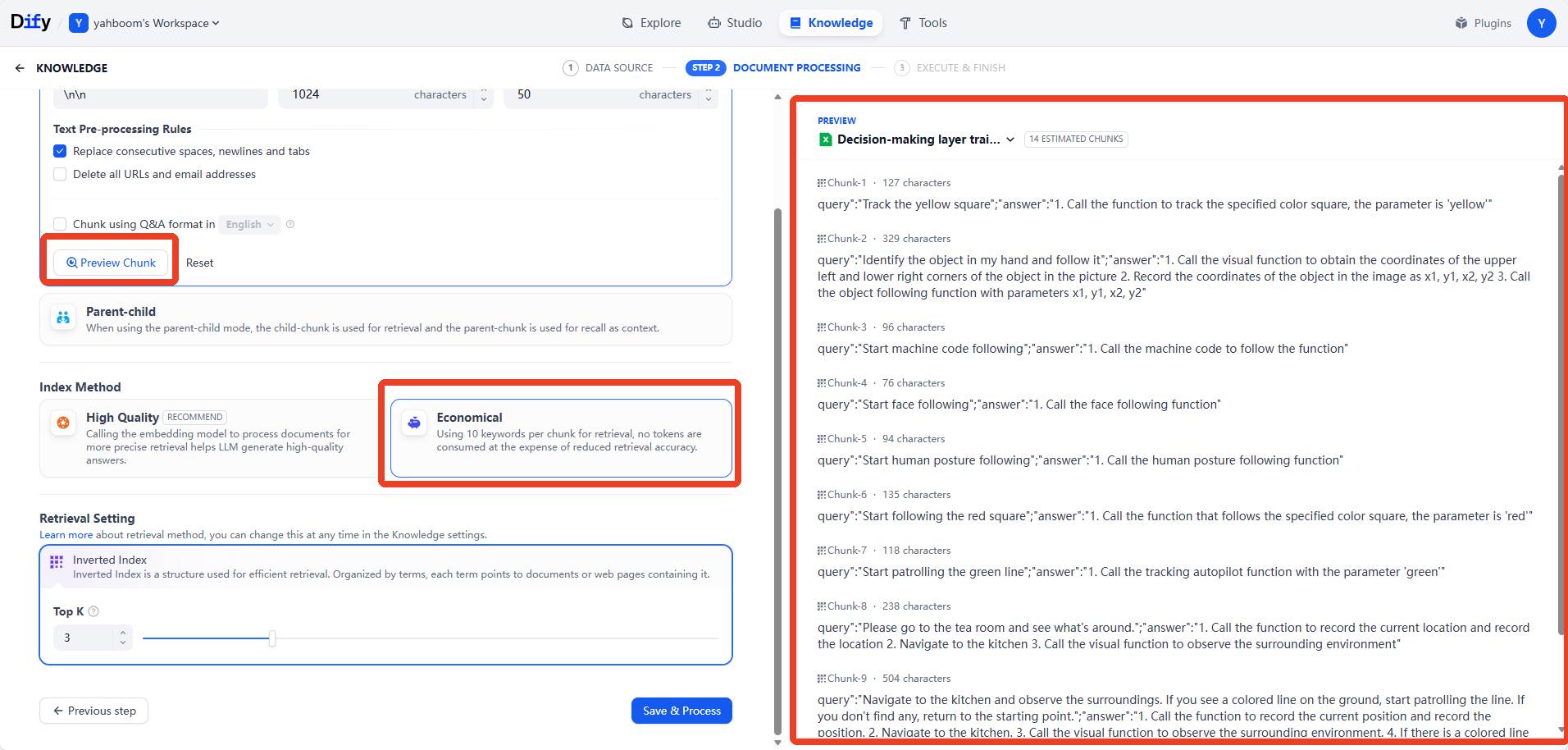
- Afterwards, you'll enter the knowledge base configuration page. Clicking "Preview Block" will show the file's block segmentation effect. Here, we'll select "Economic" as the indexing mode.
[!TIP]
- For beginners, we recommend using the Economic mode for learning and testing first. The differences between the two indexing modes are:
- Economic: Retrieves content from the knowledge base using keywords. It cannot perform extended searches based on similar semantics, and the way it retrieves knowledge fragments is relatively rigid.
- High-Quality Mode: Requires embedding a model, consuming additional tokens, and requires re-ranking the model to achieve more accurate retrieval of similar semantic fragments.
4.1 Economic Mode Knowledge
- After selecting the following configuration, click Save and Process
- Afterwards, wait for the embedding to complete, then click "Go to Documentation"
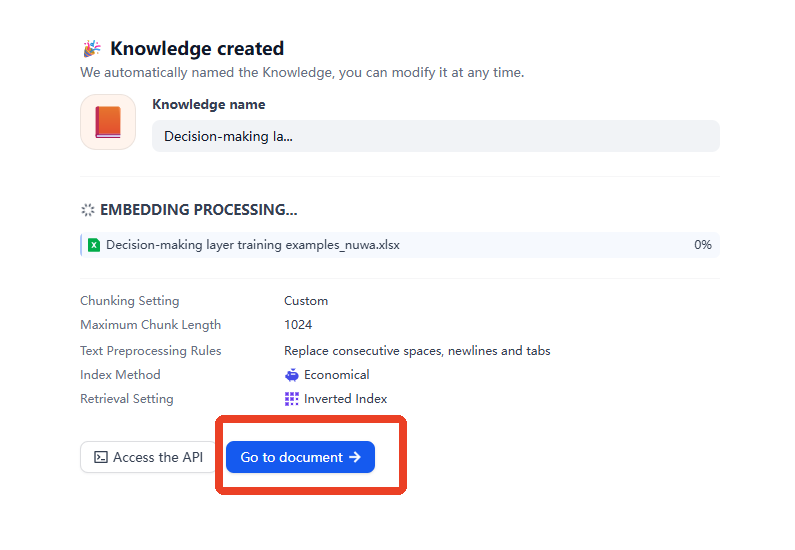
- When the knowledge base is functioning normally, its status will show as "Available." Then, click on the knowledge base file.

- Afterwards, we can see the segmented knowledge base fragments. The small text below each segment is the automatically generated keyword for that segment (only available in the economic mode).
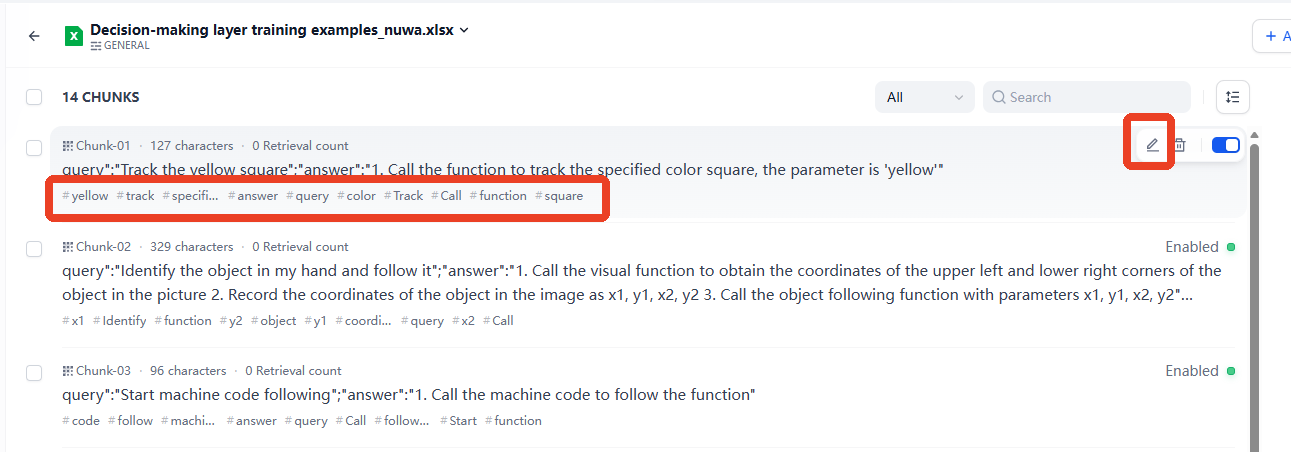
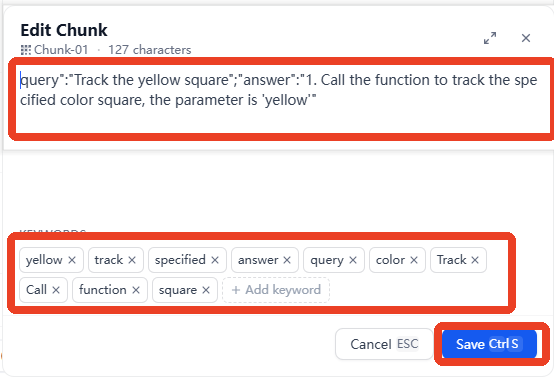
- If the keywords do not accurately describe the knowledge fragment, click "Edit" on the right side of the fragment to edit the fragment content or keywords individually. The image below shows the keywords modified, then click "Save".
4.2 High-Quality Knowledge
- If you need to use a high-quality knowledge base later, refer to the tutorial in this section.
- The knowledge base creation and import file process is the same as before.
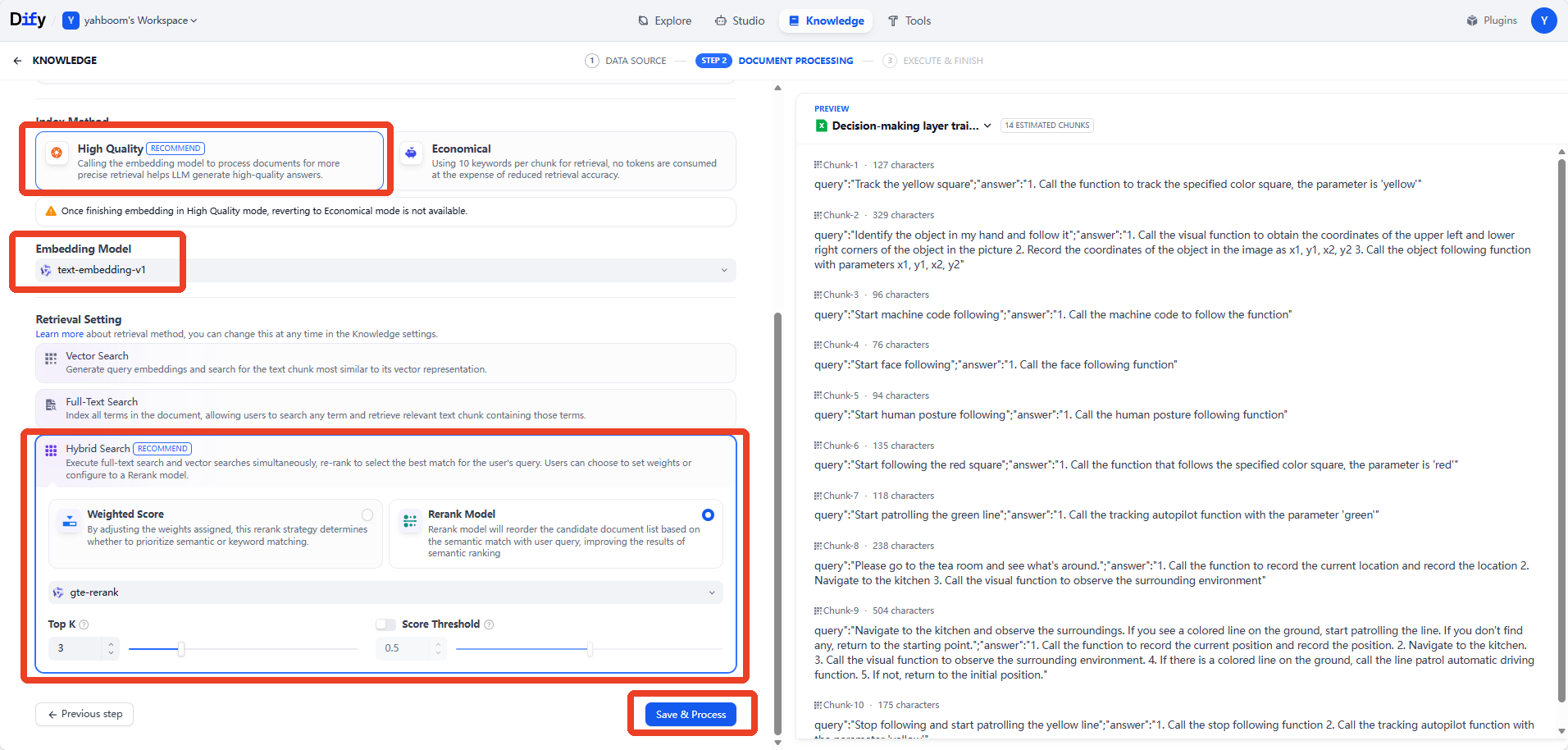
- Here, select high-quality indexing method and choose any retrieval method. We'll use mixed retrieval as an example here. Finally, save and process.
4.3 Retrieval Testing
- Recall testing tests the actual effect of recalling relevant knowledge fragments from the knowledge base based on the input, helping to optimize the AI model's response performance.
- After opening a knowledge base, click "Recall Testing" on the left.
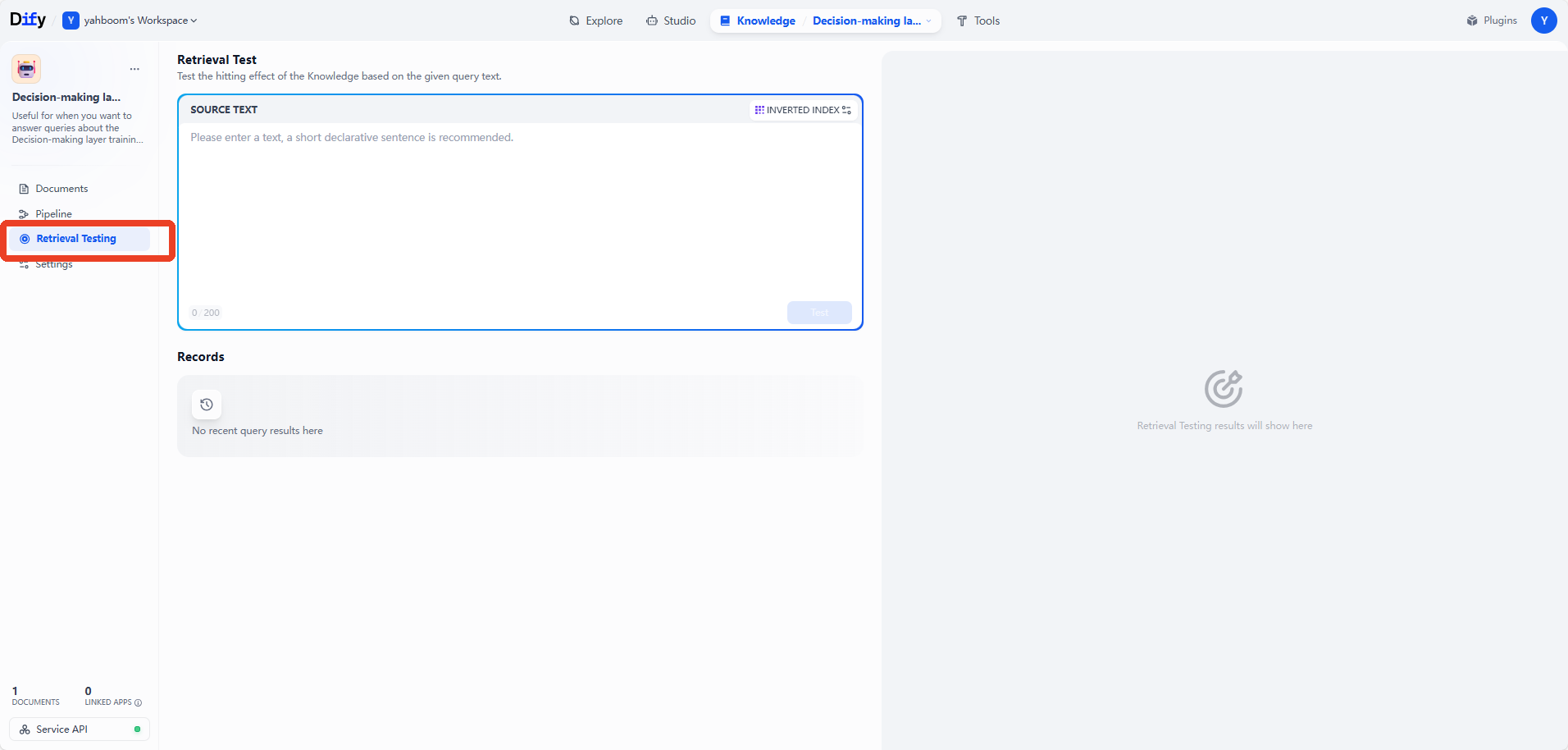
- Enter test content (simulating user input in actual use) in the source text, then click Test.
- The right side will display the recalled segments and the knowledge base related to the input content. Here, the test knowledge base is the Economic Model knowledge base, which is searched based on keywords.
[!TIP]
- The default reference knowledge base is the Economic Model. If the recalled segments are not performing well when creating your own extended knowledge base, refer to
4.1 Economic Model Knowledgeto adjust the keywords for the corresponding segments.
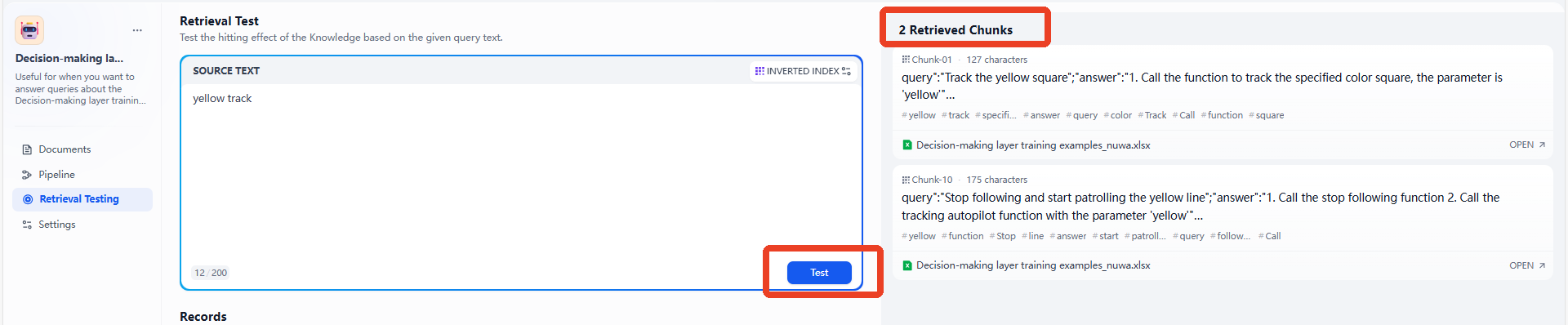
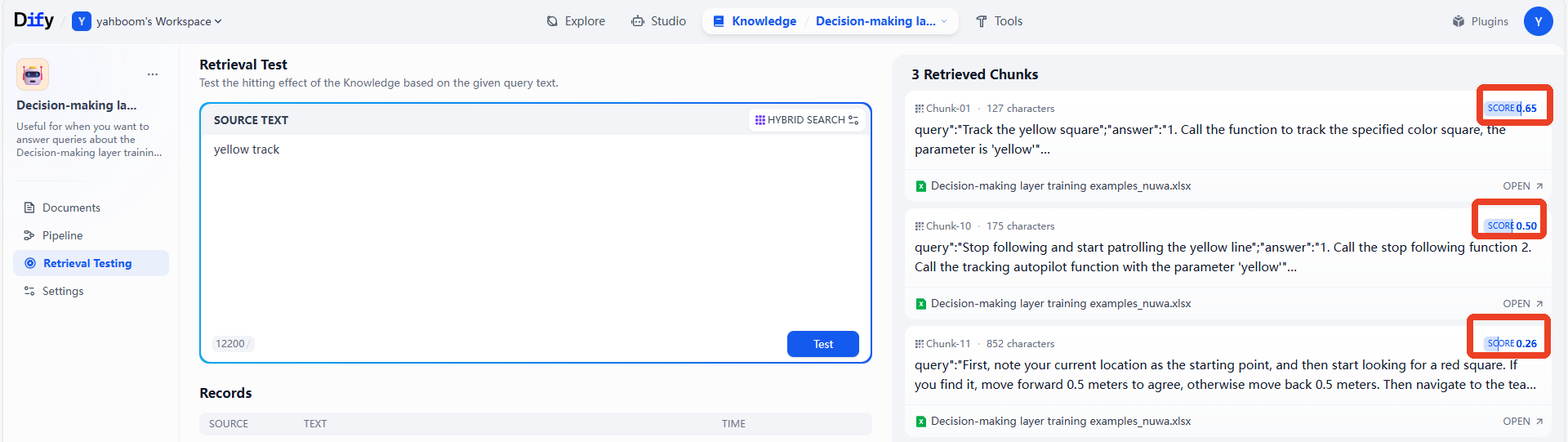
- If it's a high-quality mode knowledge base, the recalled segments will have a
SCOREscore. The higher the score, the higher the match between the segment and the input content. The high-quality mode knowledge base can perform associative searches based on similar semantics, but it also requires tokens.