OpenClaw Deployment
Note: It is recommended to refer to the Feishu configuration for the installation method. Downloading openclaw from RDK Studio is relatively simple and easy to use.
1. OpenClaw Installation
One-click installation:
curl -fsSL https://openclaw.ai/install.sh | bash -s -- --install-method gitTo elaborate, this script performs the following operations:
Install corresponding dependencies:
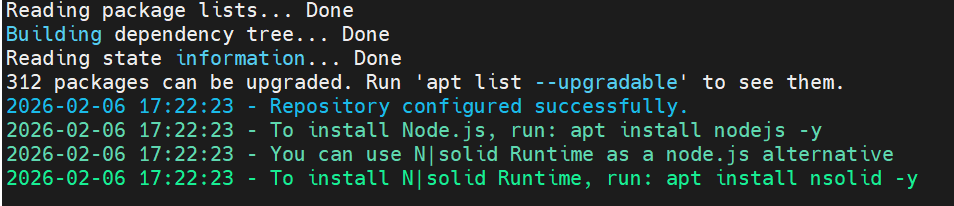
Note that GitHub repository needs to be cloned at this step:
Prepare a scientific internet tool that can clone git repositories, otherwise this step may fail

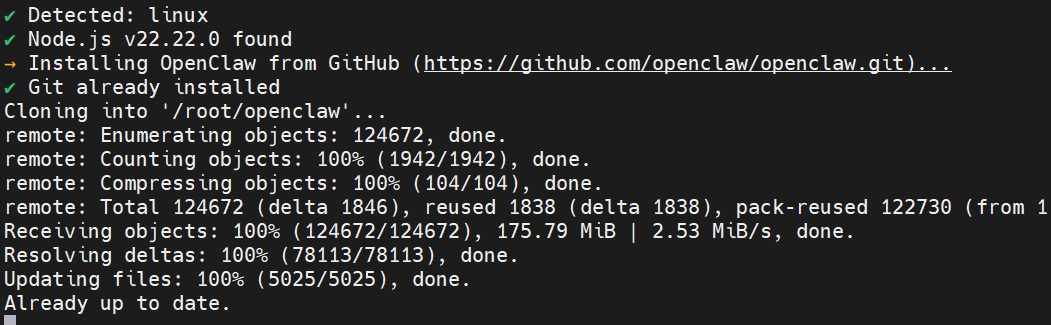
After installation is complete, you will see the following screenshot:
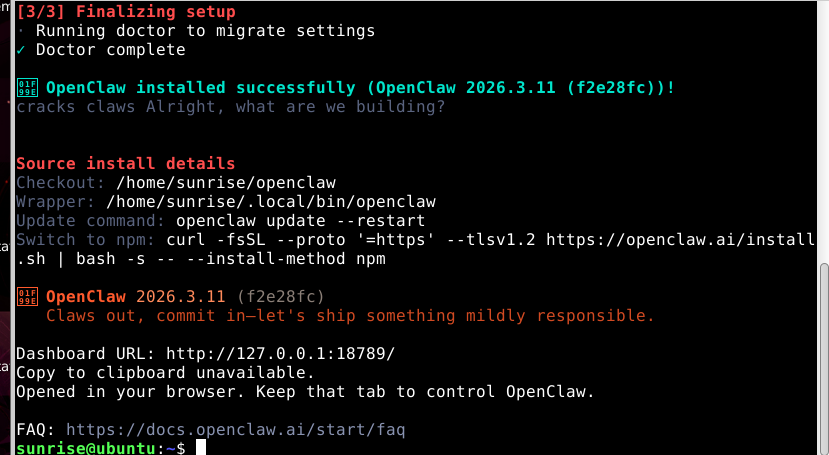
After installation, add the environment variable to ~/.bashrc. The specific path depends on where you installed the files:
xxxxxxxxxxecho 'export PATH="/root/.local/bin:\/root/.local/bin:/usr/hobot/bin/:/usr/local/sbin:/usr/local/bin:/usr/sbin:/usr/bin:/sbin:/bin:/usr/games:/usr/local/games:/snap/bin"' >> ~/.bashrcorecho'export PATH="$PATH:/home/sunrise/.npm-global/bin"'>> ~/.bashrcLet's refresh and configure the environment variables:
xxxxxxxxxxsource ~/.bashrcNow you can start using openclaw via command line.
2. OpenClaw Initial Configuration
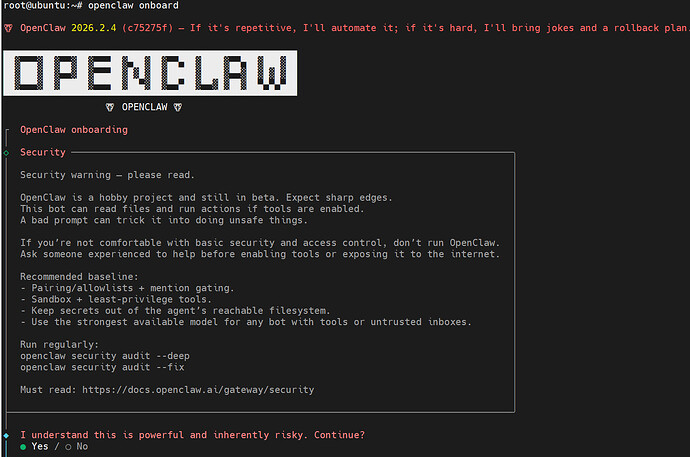
Use the following command for initial configuration:
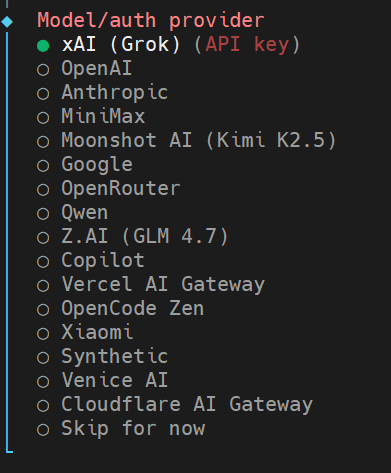
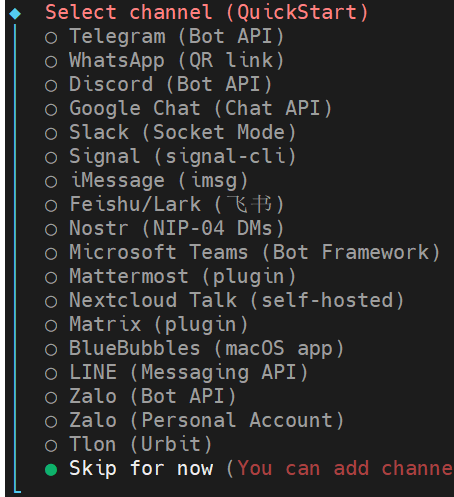
xxxxxxxxxxopenclaw onboardLet's configure the options. You can follow the green circles for corresponding configuration:

For this step, use your own API key for the relevant configuration:
Social software configuration can be skipped:
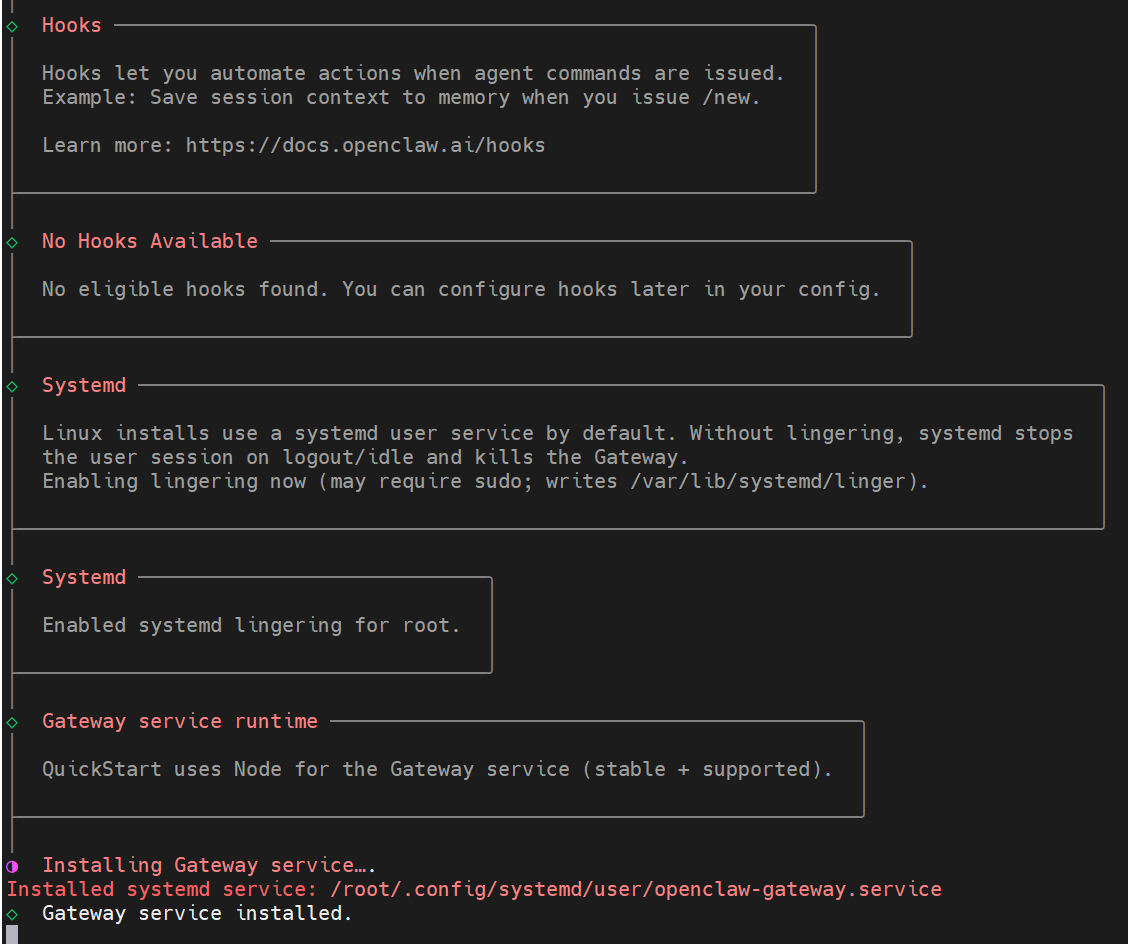
Skills can be skipped for now

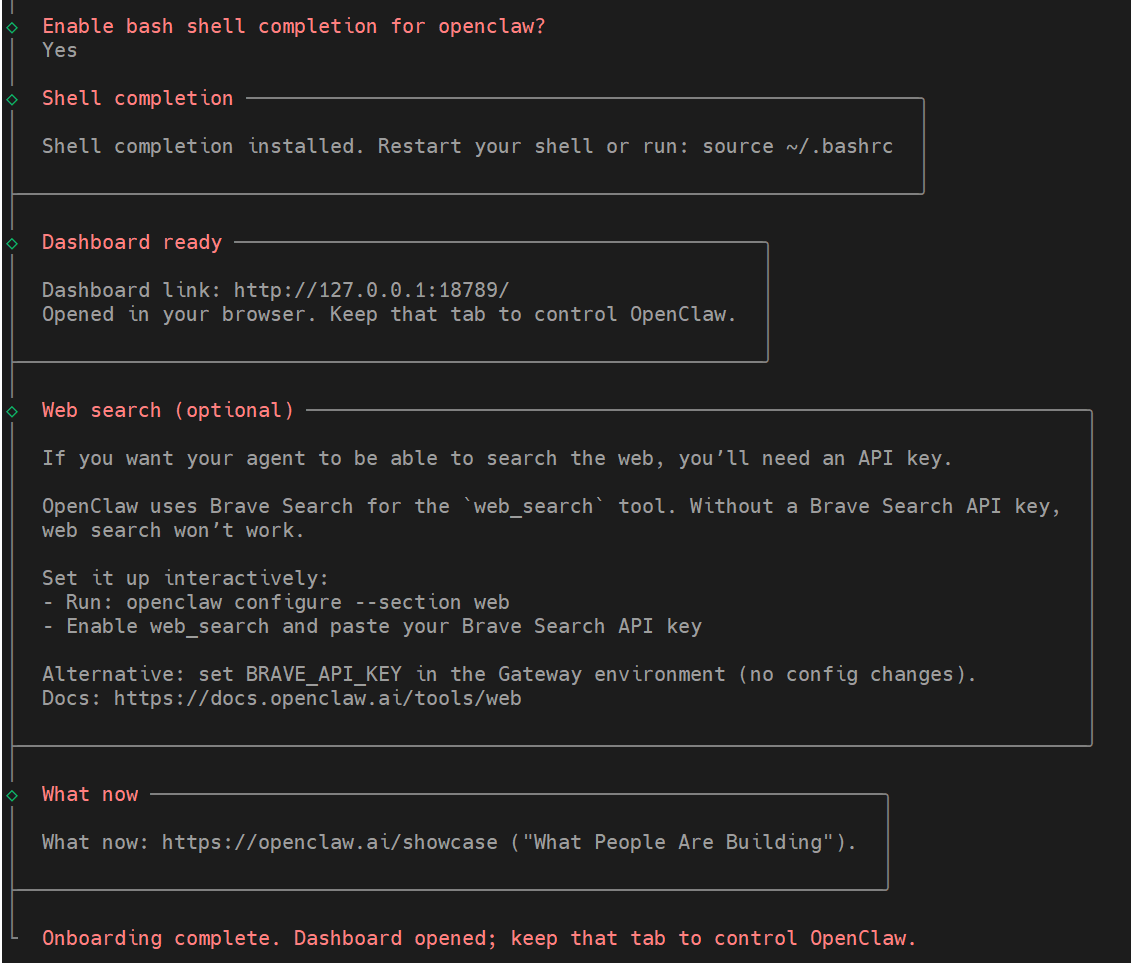
You will see that the gateway service has been installed:
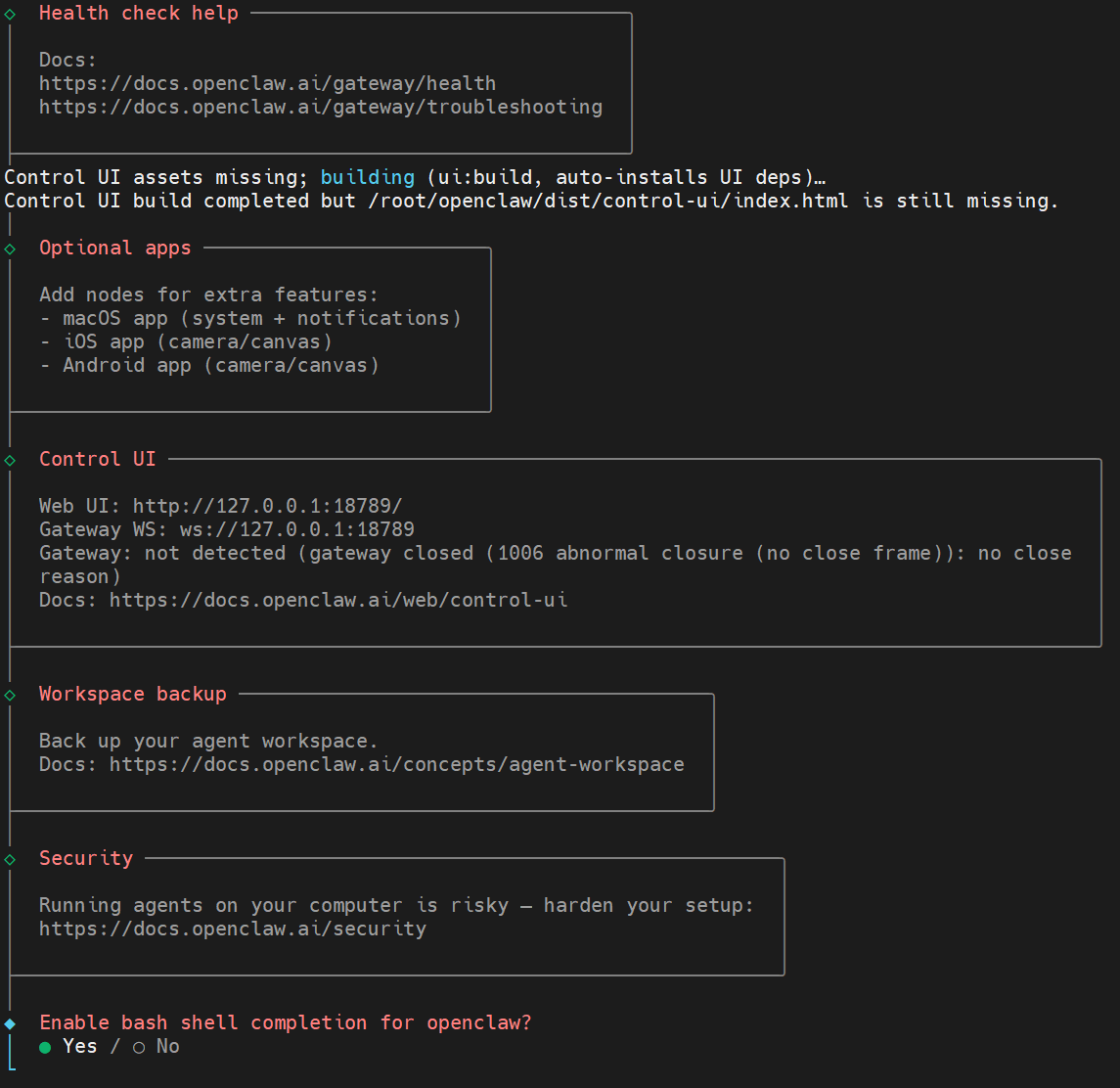
Enable bash completion
3. Configuring Agent and Persona
In the latest OpenClaw version, users need the OpenClaw Gateway Token to activate the web interface, so that you can use the graphical UI.
In the ~/.openclaw/openclaw.json file, find the corresponding OpenClaw Gateway Token:
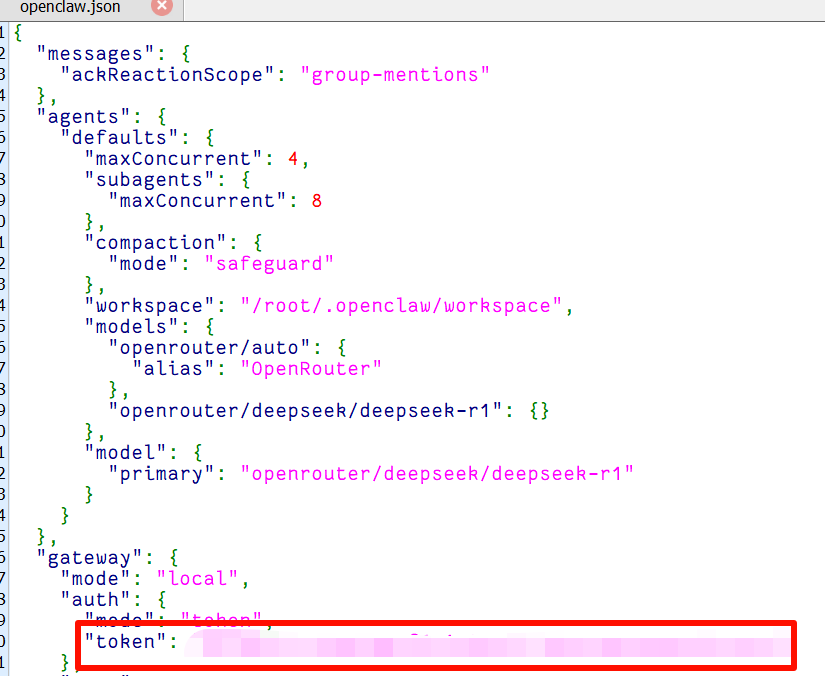
Copy the token, then connect the RDK X5 to an HDMI display, open a browser, and open the UI interface. Enter:
xxxxxxxxxxlocalhost:18789In the top Overview section, enter the Gateway Token to activate the UI graphical interface. Copy it into the red box below:
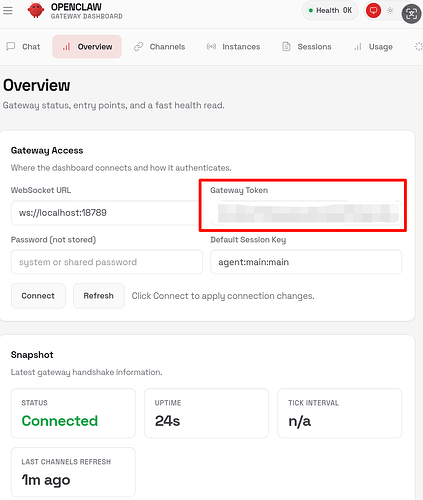
Then select Chat in the top bar to start a conversation:
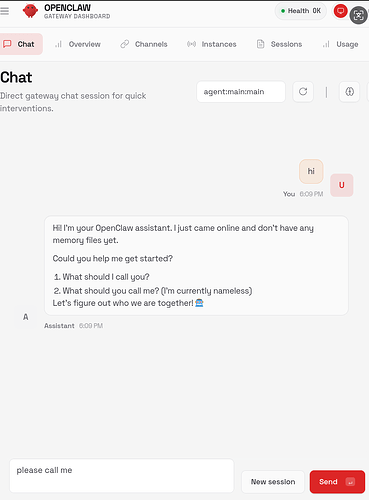
You can see that for first-time use, you need to configure some information. You can refer to this写法:
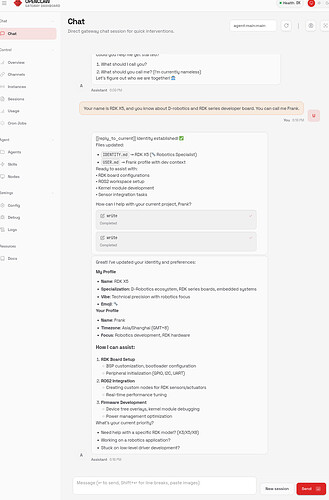
At this point, we have completed the first call to the RDK Agent and given the RDK Agent its corresponding positioning.
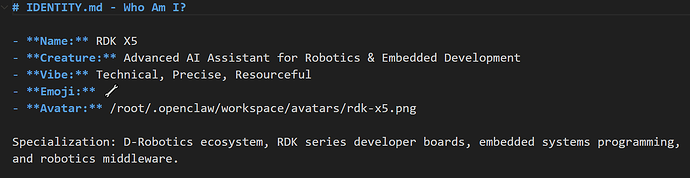
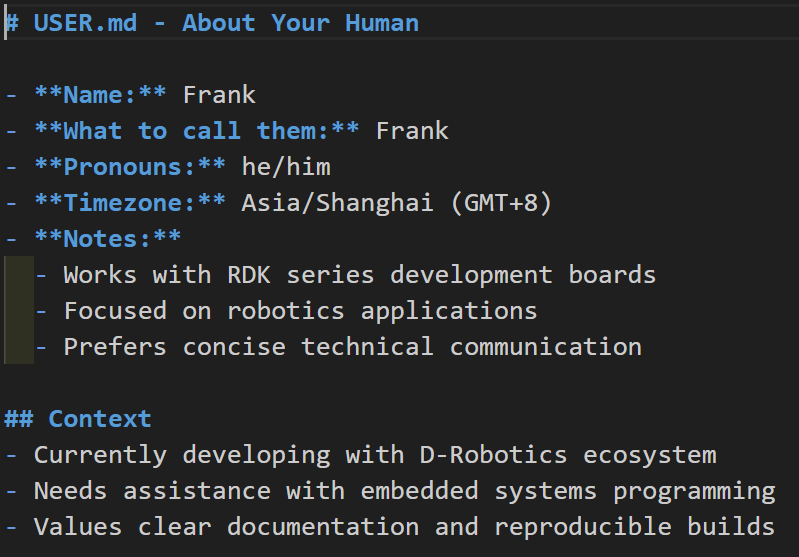
From the response, we can see that the RDK Agent modified the IDENTITY.md and USER.md files. We can navigate to the corresponding files to check if they have been modified by OpenClaw. The default paths for the two files are:
xxxxxxxxxx~/.openclaw/workspace/IDENTITY.mdand
xxxxxxxxxx~/.openclaw/workspace/USER.mdThe following shows the modifications to IDENTITY.md:
The following shows the modifications to USER.md:
Here is a brief explanation of the persona files in OpenClaw:
IDENTITY.md (Identity Model, Role Setting)
- Who is this Agent? What identity does it exist as?
- Such as name, code name, role positioning, worldview settings, etc.
SOUL.md (Personality Model, Thinking Method)
- How should the Agent think? How should it express itself?
- Is the output personality style humorous or rational? Is the expression concise or verbose?
TOOLS.md (Capability Model, API Permission Table)
- What tools can the Agent call?
- Rules for tool calls, descriptions of tool purposes
AGENTS.md (Behavior Model, Decision System)
- When to think? When to act? When to call tools?
- Decision flow, execution strategy, task decomposition rules, etc.
USER.md (User Model, User Profile)
- Who is this Agent's user? What are their preferences? What are their permissions?
- What is the user's technical level? What style do they prefer, etc.
BOOTSTRAP (Birth Protocol)
- How should the Agent awaken on first startup?
- How to establish initial self-awareness and environmental perception
HEARTBEAT.md (Life Signal Protocol)
- Is the Agent alive? Is it online?
- Agent self-recovery mechanism, etc.