Autoware Navigation Lidar Adaptation
Disclaimer: This lesson has been successfully compiled on the Orin-Nano motherboard. Orin-Nano motherboard system environment: Ubuntu22.04+ROS2-Humble, the compiled autoware algorithm is Autoware.Universe. Since the actual motherboards used are different, the content of this chapter only provides reference source code and reference tutorials. It explains how to use the 32-line lidar point cloud and IMU data from our product in Autoware navigation. The actual Autoware navigation also needs to adapt to your own vehicle chassis. This part requires you to do the adaptation yourself. This lesson does not explain how to adapt your own chassis.
From the official navigation startup tutorial, it can be seen that when Autoware starts, it subscribes to lidar point cloud data and IMU data. The node that subscribes to the lidar point cloud data is /pointcloud_converter, and the node that subscribes to IMU data is /localization/twist_estimator/gyro_odometer. Then, obtain the information of these two nodes through ros2 node as follows,
xros2 node info /pointcloud_converter/pointcloud_converter Subscribers: /parameter_events: rcl_interfaces/msg/ParameterEvent /sensing/lidar/pointcloud: sensor_msgs/msg/PointCloud2 Publishers: /parameter_events: rcl_interfaces/msg/ParameterEvent /rosout: rcl_interfaces/msg/Log /sensing/lidar/concatenated/pointcloud: sensor_msgs/msg/PointCloud2 Service Servers: /pointcloud_converter/describe_parameters: rcl_interfaces/srv/DescribeParameters /pointcloud_converter/get_parameter_types: rcl_interfaces/srv/GetParameterTypes /pointcloud_converter/get_parameters: rcl_interfaces/srv/GetParameters /pointcloud_converter/list_parameters: rcl_interfaces/srv/ListParameters /pointcloud_converter/set_parameters: rcl_interfaces/srv/SetParameters /pointcloud_converter/set_parameters_atomically: rcl_interfaces/srv/SetParametersAtomically Service Clients:
Action Servers:
Action Clients:From the above, we can see that the lidar point cloud node subscribed by /pointcloud_converter is /sensing/lidar/pointcloud
xxxxxxxxxxros2 node info /localization/twist_estimator/gyro_odometer/localization/twist_estimator/gyro_odometer  Subscribers:    /parameter_events: rcl_interfaces/msg/ParameterEvent    /sensing/imu/imu_data: sensor_msgs/msg/Imu    /sensing/vehicle_velocity_converter/twist_with_covariance: geometry_msgs/msg/TwistWithCovarianceStamped  Publishers:    /diagnostics: diagnostic_msgs/msg/DiagnosticArray    /localization/twist_estimator/gyro_twist: geometry_msgs/msg/TwistStamped    /localization/twist_estimator/gyro_twist_raw: geometry_msgs/msg/TwistStamped    /localization/twist_estimator/twist_with_covariance: geometry_msgs/msg/TwistWithCovarianceStamped    /localization/twist_estimator/twist_with_covariance_raw: geometry_msgs/msg/TwistWithCovarianceStamped    /parameter_events: rcl_interfaces/msg/ParameterEvent    /rosout: rcl_interfaces/msg/Log  Service Servers:    /localization/twist_estimator/gyro_odometer/config_logger: logging_demo/srv/ConfigLogger    /localization/twist_estimator/gyro_odometer/describe_parameters: rcl_interfaces/srv/DescribeParameters    /localization/twist_estimator/gyro_odometer/get_parameter_types: rcl_interfaces/srv/GetParameterTypes    /localization/twist_estimator/gyro_odometer/get_parameters: rcl_interfaces/srv/GetParameters    /localization/twist_estimator/gyro_odometer/list_parameters: rcl_interfaces/srv/ListParameters    /localization/twist_estimator/gyro_odometer/set_parameters: rcl_interfaces/srv/SetParameters    /localization/twist_estimator/gyro_odometer/set_parameters_atomically: rcl_interfaces/srv/SetParametersAtomically  Service Clients:
  Action Servers:
  Action Clients:
From the /localization/twist_estimator/gyro_odomete node information queried above, the subscribed imu topic is /sensing/imu/imu_data. Therefore, we get two key pieces of information: the lidar point cloud topic and IMU data topic subscribed by autoware navigation are: /sensing/lidar/pointcloud and /sensing/imu/imu_data. When the 32-line radar publishes topic data, it is necessary to modify the radar and IMU topics to /sensing/lidar/pointcloud and /sensing/imu/imu_data. In the function package we provide, the adaptation has already been done. Enter the following command in the terminal to start the launch file for the 32-line radar adapted to Autoware navigation,
xxxxxxxxxxros2 launch vanjee_lidar_sdk start_autoware.pyThe parameter table config_autoware.yaml for radar startup is as follows,
xxxxxxxxxxcommon msg_source1 # 0: not use lidar # 1: Message from online lidar # 2: Message from pcap # 3: Message from packet (rostopic) send_point_cloud_rostrue # true: Send point cloud to ROS for viewing send_imu_packet_rostrue # true: Send IMU to ROS for viewing send_device_ctrl_state_rosfalse # true: Send device state interaction data to ROS for viewing recv_device_ctrl_cmd_rosfalse # true: Subscribe to device state setting topic send_packet_rosfalse # true: Send radar protocol data packet to ROS for viewing send_lidar_parameter_rosfalse # true: Send lidar parameters to ROS for viewing recv_lidar_parameter_cmd_rosfalse # true: Receive lidar parameter query/set topiclidardriver lidar_typevanjee_722 # LiDAR type (for supported radar models, refer to README_CN.md) connect_type1 # Connection method 1-udp 2-tcp 3-serial port host_msop_port3001 # Host port number for receiving point cloud data lidar_msop_port3333 # Radar port number start_angle270 # Point cloud start angle end_angle90 # Point cloud end angle wait_for_difoptrue # Whether to wait for angle calibration table parameter import min_distance0.3 # Point cloud minimum distance max_distance70 # Point cloud maximum distance use_lidar_clockfalse # true: Use radar time as message timestamp # false: Use computer host time as message timestamp pcap_path# pcap file absolute path pcap_repeattrue # Whether to loop playback pcap pcap_rate1 # pcap playback speed config_from_filefalse # Get parameters from configuration file angle_path_ver# Vertical angle configuration file address angle_path_hor# Horizontal angle configuration file address imu_param_path# imu parameter configuration file address dense_pointsfalse # true-Invalid point coordinates are 0, false-Invalid point coordinates are NAN ts_first_pointtrue # Whether the point cloud timestamp is the first point's time true-first point's time, false-last point's time use_offset_timestamptrue # Use relative timestamp true-Each point in the point cloud uses time difference relative to the topic, false-Each point uses UTC time publish_mode0 # Echo mode 0-Publish first echo, 1-Publish second echo; 2-Publish both; group_address0.0.0.0 # Multicast address host_address192.168.2.88 # Host IP address for receiving point cloud data lidar_address192.168.2.86 # Radar IP address x0 # x direction offset m y0 # y direction offset m z0 # z direction offset m roll0 # Roll angle offset ° pitch0 # Pitch angle offset ° yaw0 # Yaw angle offset ° use_vlanfalse # Whether the Packet in PCAP file contains VLAN layer ros ros_frame_idvanjee_lidar # Frame id of packet message and point cloud message ros_send_point_cloud_topic/sensing/lidar/pointcloud # Topic used to send point cloud through ROS ros_send_imu_packet_topic/sensing/imu/imu_data # Topic used to send imu through ROS ros_send_device_ctrl_state_topic/vanjee_lidar_device_ctrl_state # Topic used to send device ctrl state through ROS ros_recv_device_ctrl_cmd_topic/vanjee_lidar_device_ctrl_cmd # Topic used to recv device ctrl command through ROS ros_packet_topic/vanjee_lidar_packet # Topic used to send packet through ROS ros_send_lidar_parameter_topic/vanjee_lidar_parameter_upload # Topic used to send lidar parameter through ROS ros_recv_lidar_parameter_cmd_topic/vanjee_lidar_parameter_acquire # Topic used to recv lidar parameter through ROSIn the end, we modified the point cloud topic and IMU data topic to /sensing/lidar/pointcloud and /sensing/imu/imu_data.
The location of the radar parameter table is in the vanjee_lidar_sdk function package directory,
xxxxxxxxxxvanjee_lidar_sdk/config/config_autoware.yaml
After Autoware is adapted to the radar, start the Autoware navigation launch file. After calibrating the initial position, rviz is shown as follows,
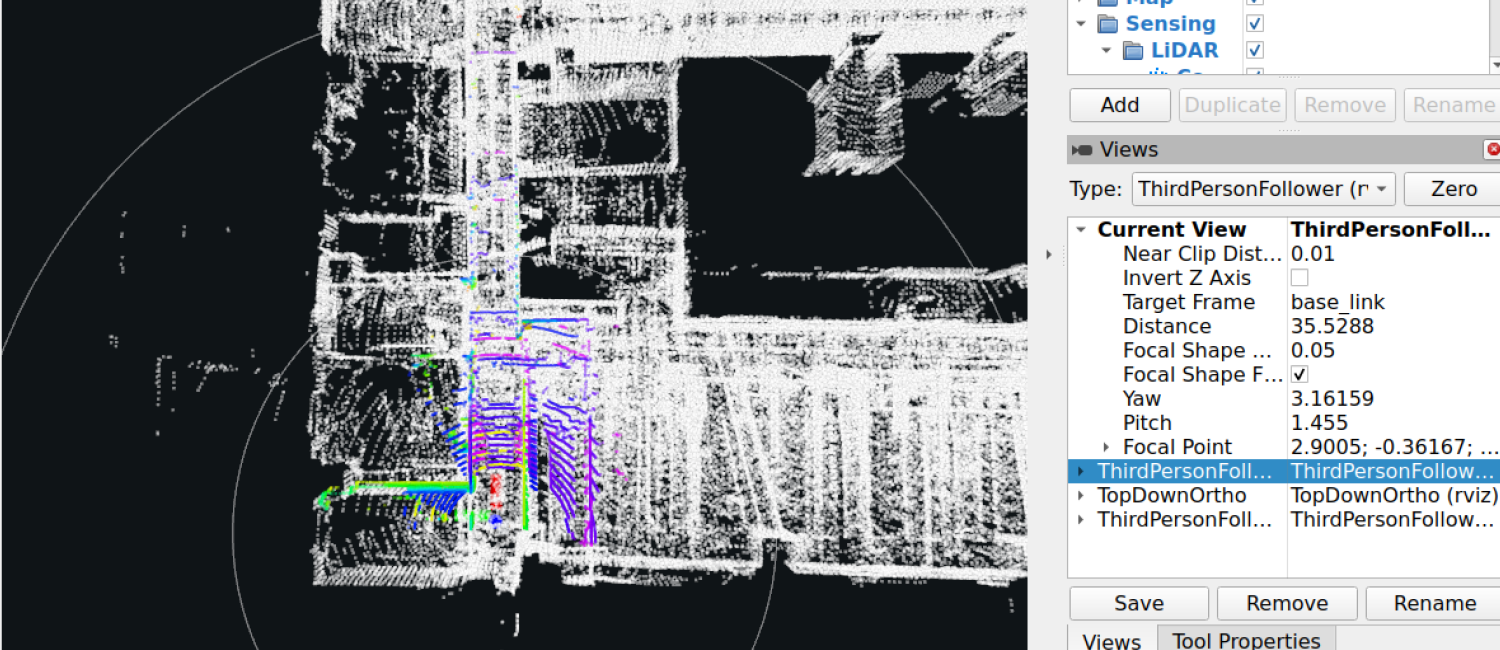
Autoware reference startup navigation command:
xxxxxxxxxxros2 launch autoware_launch autoware.launch.xml map_path:=$HOME/autoware_map/my_map vehicle_model:=sample_vehicle sensor_model:=sample_sensor_kit vehicle_id:=sample_vehicle rviz:=trueThis command is for reference only. Actually running it also requires starting the vehicle chassis and writing the Autoware interface for the lower-level control, as well as requiring point cloud maps and other map files. This part needs to be resolved by yourself.