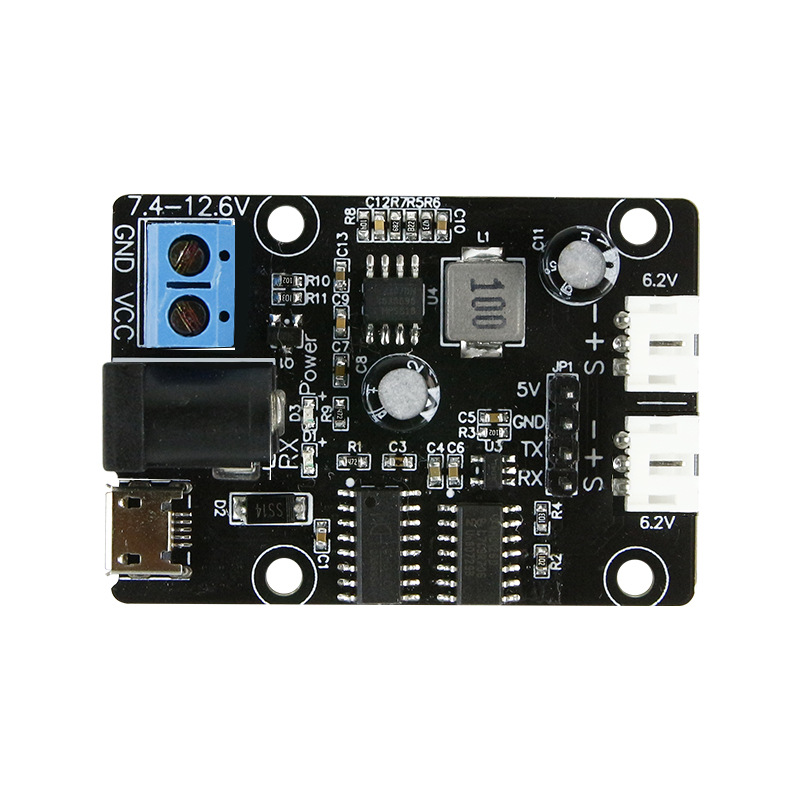
Welcome to Bus Servo Debugging Board repository
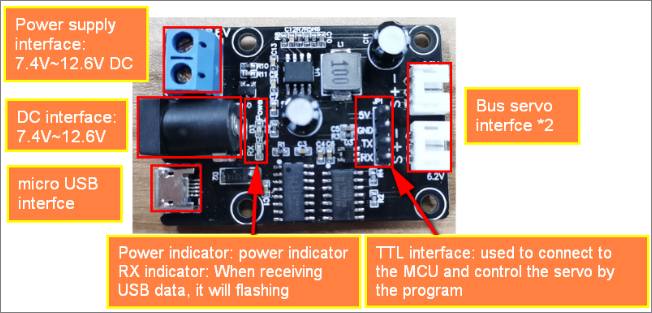
1. Component and function distribution on drive board
Note:
1) At the same time, only one of the micro USB interface and TTL interface can be used.
2) Blue power supply interface and DC socket only need to choose one of them for power supply. In normally, the power indicator will keep on.
3) The RX indicator flashes when the micro USB interface sends data to the driver board.
4) Two bus servo interfaces are connected in parallel, and pin is also the same.
5) 5V of the TTL interface is the input voltage, not is output voltage.
2.Power supply
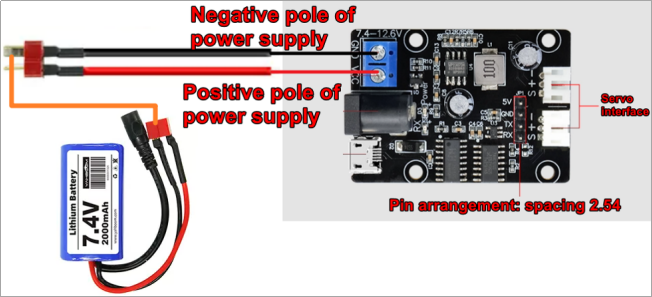
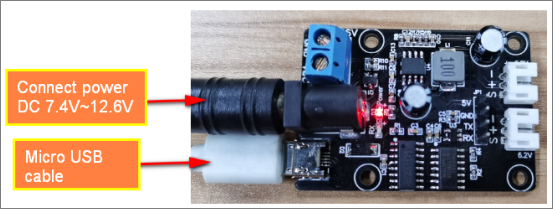
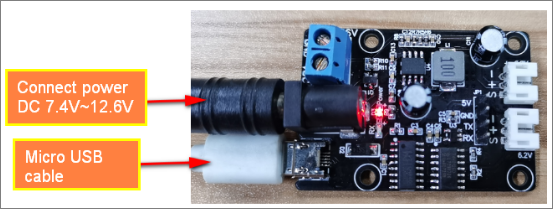
The servo debugging board supports two power supply methods, as shown below.
Method-1:Power connector supply
Method-2:DC power supply
2. Install CH340 Drive
2.1 Enter to the Uart drive (CH340) folder we provided, you will see CH341SER.EXE. Double clicking on this application will bring up the interface as shown below, we need to click [INSTALL].

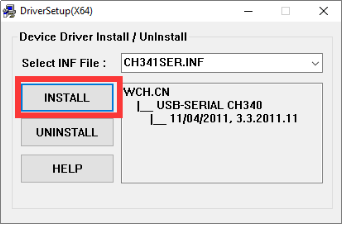
2.2 We need to wait patiently until the screen of the driver installation is successful, indicating that the installation is complete, we need to click [OK].
2.3 Connect the drive board to the computer with the USB cable and power up the robot car. Then open the computer device manager and you will recognize the corresponding CH340 port, as shown below.
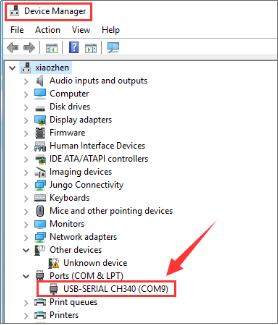
!!Note: The port number of each computer will be different, as long as it recognizes that CH340 is the port we needed.