Welcome to BBC Microbit repository
1.1 Methods of computer programming
Introduction of programming methods
Method1: Programming offline
You need to download programming software and install it on your computer. Our tutorial was written on the offline programming software.
Installation instructions of Micro:bit offline programming software is shown in the following picture:
1.You need to open setup package to find micro-bit V1.0.exe

2.You need to double click to open the installation package micro-bit V1.0.exe and decompress it.
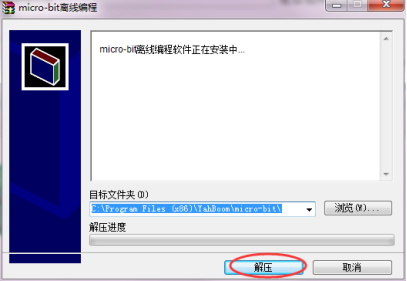
3.The decompression process is shown in the following picture.
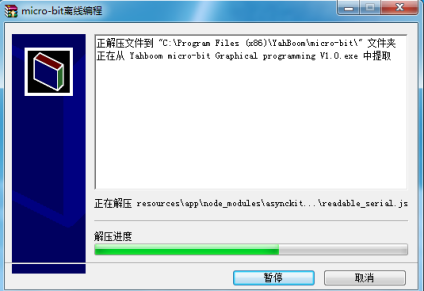
4.You need to wait for the progress bar to complete. When the shortcut to the software appears on the desktop, it means that you have successfully installed the software. As shown in the following figure.

Use instructions of Micro:bit offline programming software is shown in the following picture:
1. You can double-click to use it. As shown in the following figure.

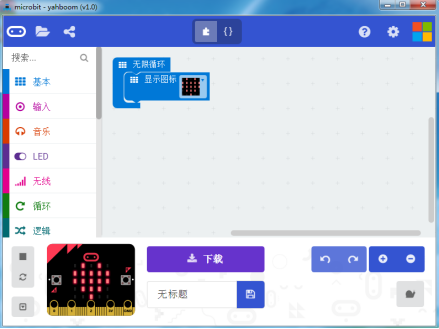
2.You can switch the language by clicking the icon in the upper right corner, as shown below.
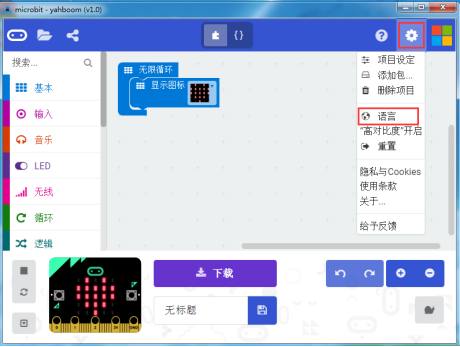
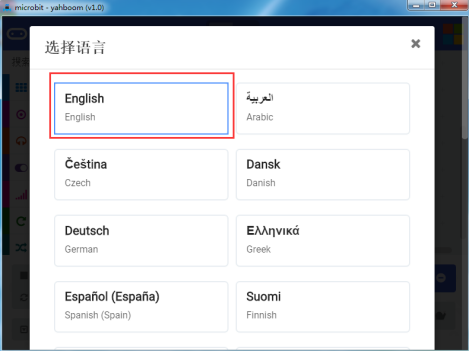
3.After you completed, you can see the English interface. As shown in the following figure.
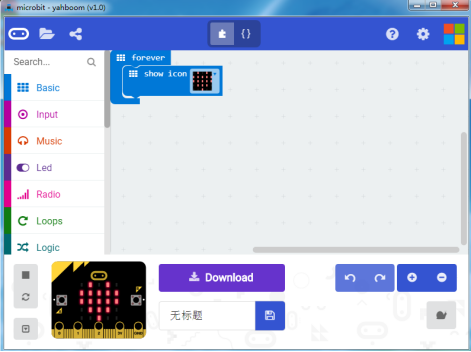
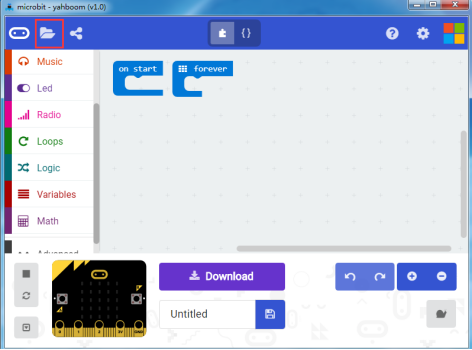
4.You need to click the icon in the upper left corner to create a new project.
5.You need to click the icon as shown below to add a package.
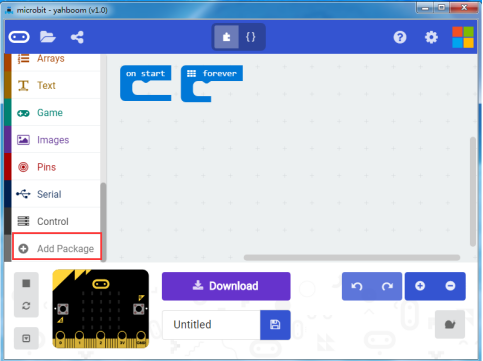
6.You need to input https://github.com/lzty634158/yahboom_mbit_en to obtain package.
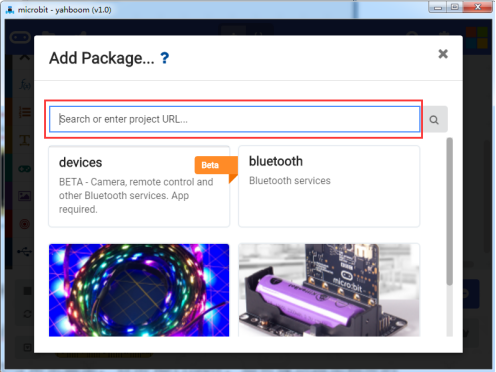
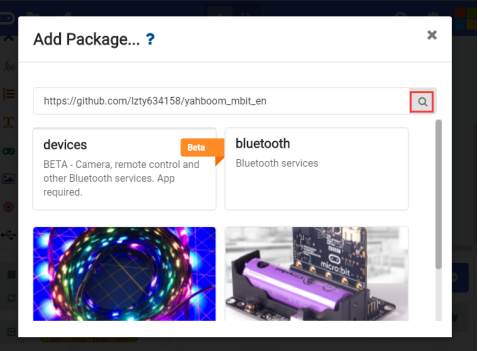
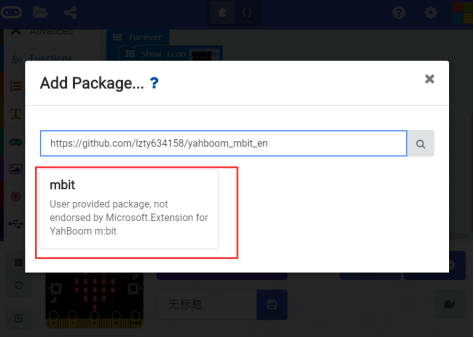
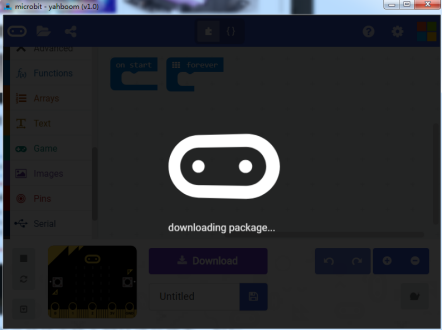
7.After the addition is complete, you can see Yahboom package on the left bar.
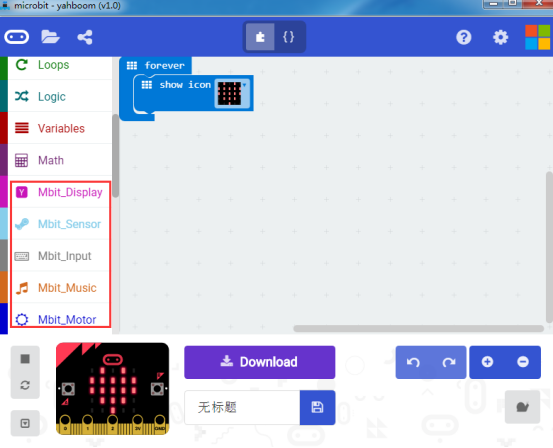
Methods of Download_1:
After the building blocks, click Download, you use the USB cable to connect the micro:bit to the computer. After downloading, you can see the experimental phenomena in the code.
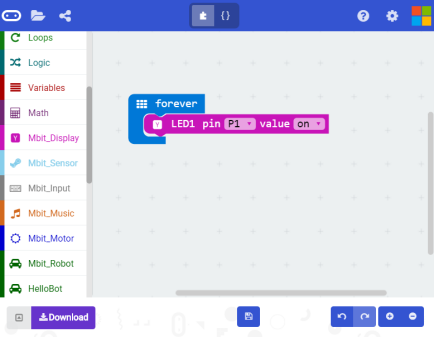
Methods of Download_2:
After the building block, you should click the save button in the middle to save the code you have written. The computer will pop up an interface, which prompting you to name the code, we will name it here, and select the appropriate path to save it, as shown below.
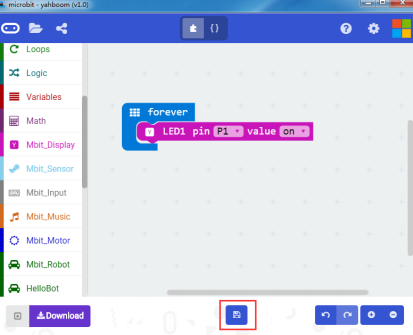
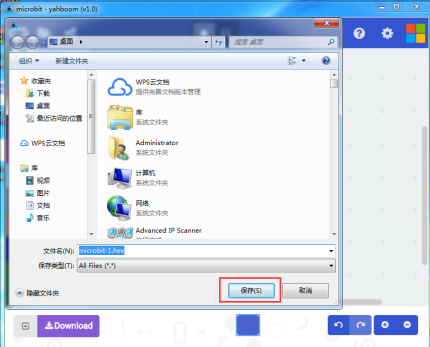
Finally, you need to copy this“.hex”to the U disk in Micro:bit or send it to the U disk in Micro:bit.
Method2: Programming online
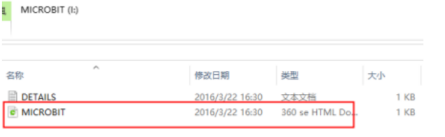
1. You should use the USB cable to connect the micro:bit to the computer, at this point, the computer will have a micro:bit U disk. You need to open it, click micro:bit website, then entered the micro:bit website or you can enter the URL directly in your browser: http://microbit.org/.
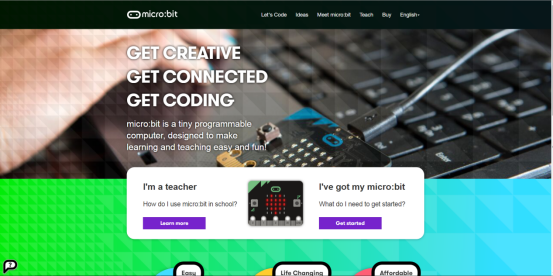
2.After entering the official website, you can see the interface shown below.
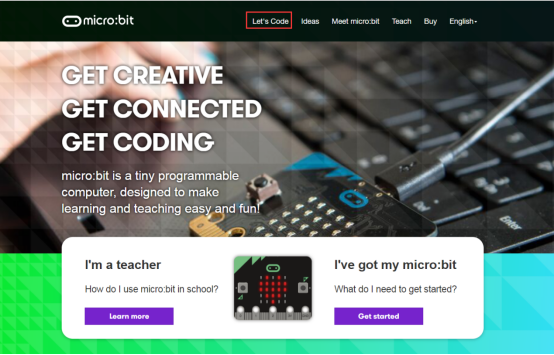
3.You need to click “lets code”.
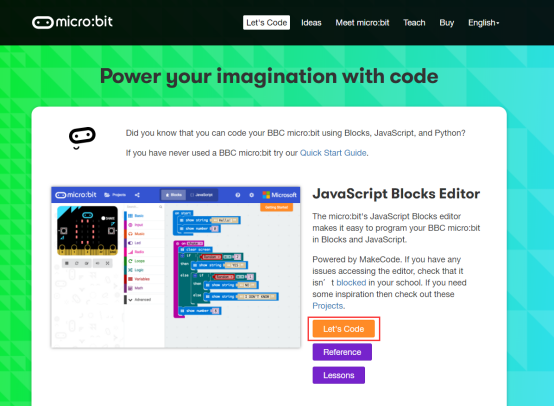
4. Then you can enter the programming interface as shown below.
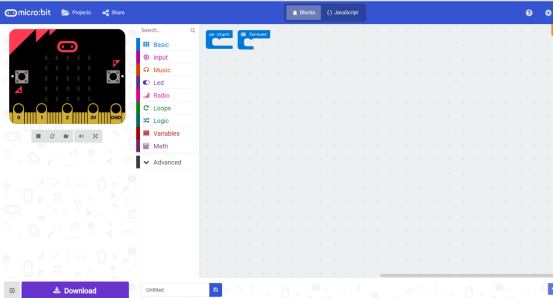
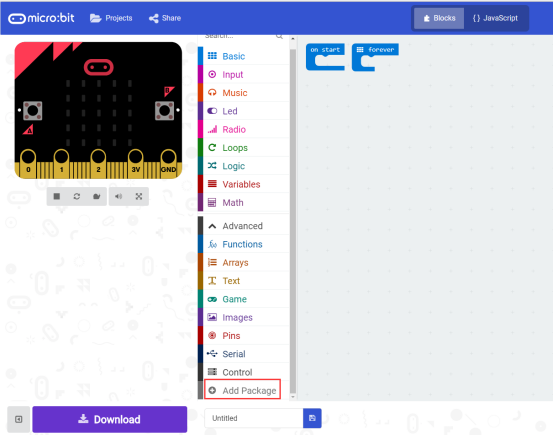
5.You need to click the icon as shown below to add a package.
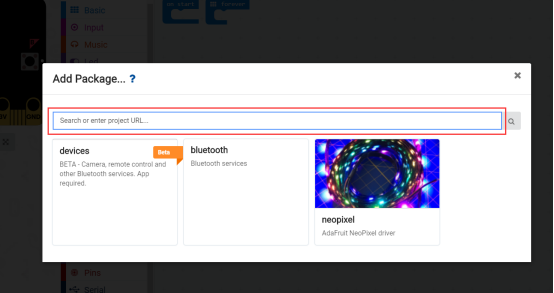
6.You need to input https://github.com/lzty634158/yahboom_mbit_en to obtain package.
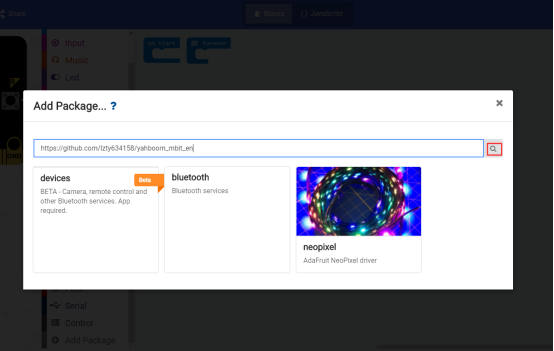
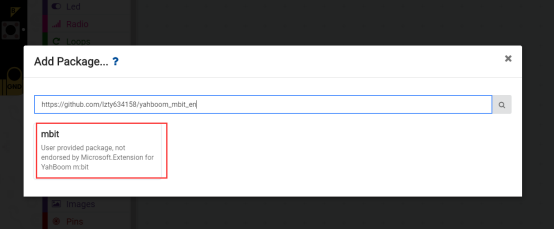
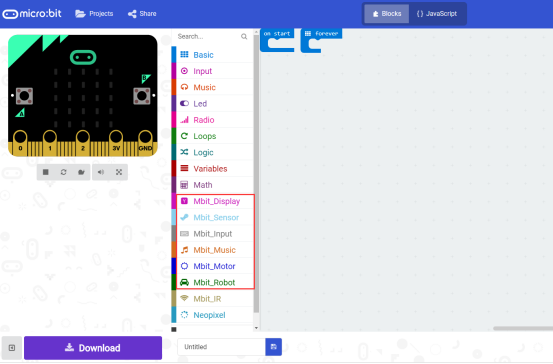
7.After the addition is complete, you can see Yaboom HelloBot package on the left bar.
8.After the building blocks, click Download. You can set the download path in the U disk of micro:bit, download it to the computer, and then copy it to the U disk in micro:bit. As shown in the following figure.
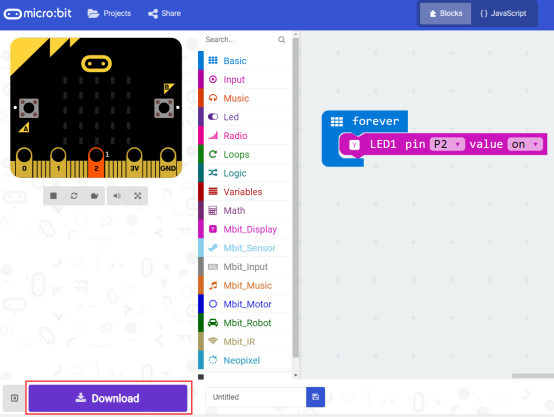
After downloading, you can see the experimental phenomena in the code.