yahboom
HomeLearn
Solution
Blog
Online Store
About Us
EN/中文
Aurora📖
1.Basic course
  • 1. Aurora SLAM official learning website
  • 2. Introduction of SLAMTEC Aurora
  • 3. AuroraCore-remote Visualizer host computer usage tutorial
  • 4. Android APP usage tutorial
  • 5. Power supply instructions
2.ROS course
  • ROS1 Case
  • ROS2 Case
Download
  • SDK_Fireware_Manual
  • System_File
  • VM_File
  • 3D Model File
  • APP_PCSoftware
Download ZIP

Welcome to Aurora repository

4. Android APP usage tutorial

Android APP Usage Tutorial

1. Preparation before drawing

Before drawing, the device needs to be fixed in one place and powered by a stable 12V power supply, as shown below:
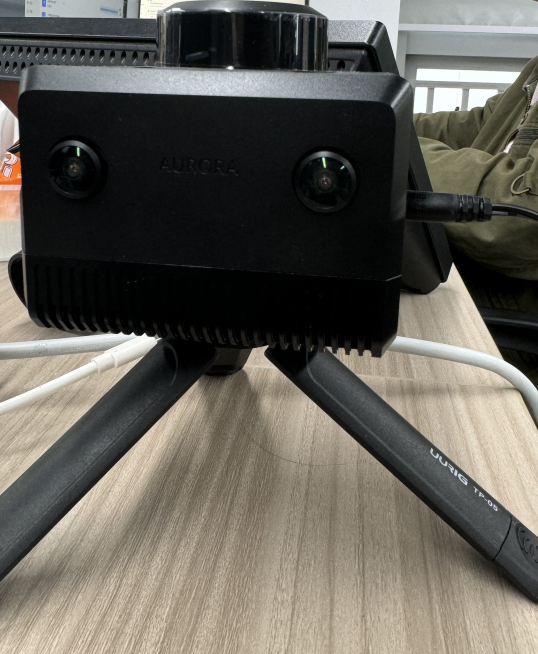
image-20250106114903242

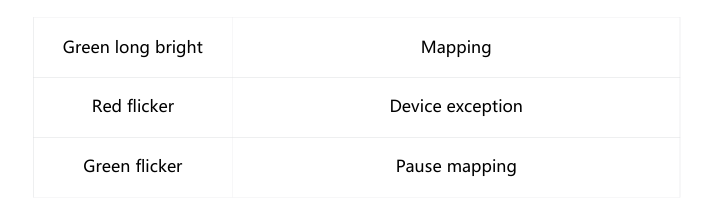
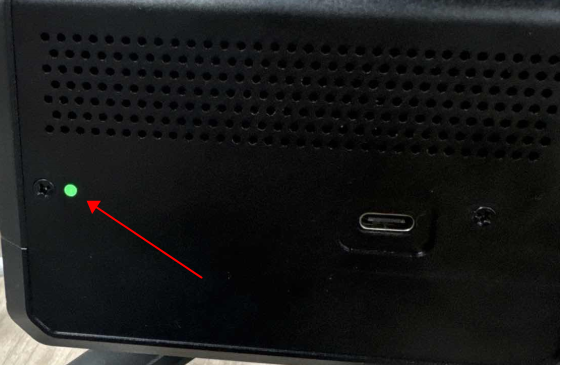
Then check the indicator light and wait for it to be green.
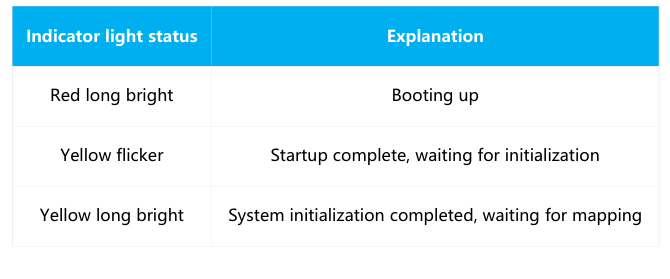
image-20250109114932383

image-20250109114939121

image-20250106115049794

2. Install Android app

Open the aurora-1.0.0-1-alpha software in the attachment to install it.

image-20250106115308155

After successful installation, this icon will appear on the phone
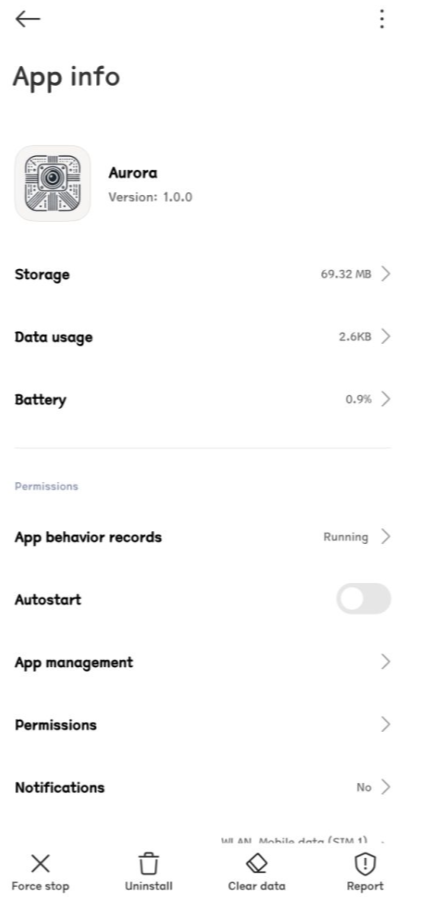
image-20250109121505695

3. Map creation steps

  • Open the app software just now

  • Connect the phone to the hotspot emitted by the device
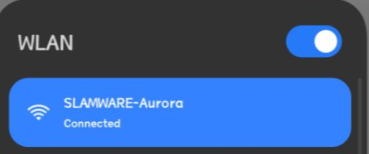
image-20250109121520998

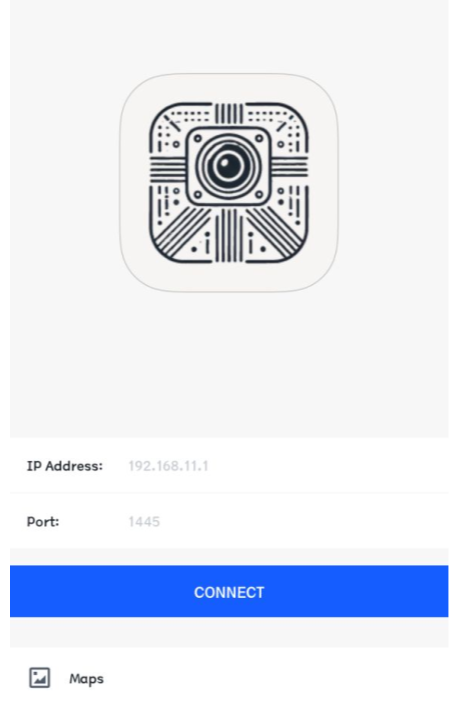
  • Start the mobile app

image-20250109121544314

Click Connect and the following interface will appear, indicating that the connection is successful. If you cannot connect to the device, check whether you are connected to the device hotspot and turn off the network data of your phone)
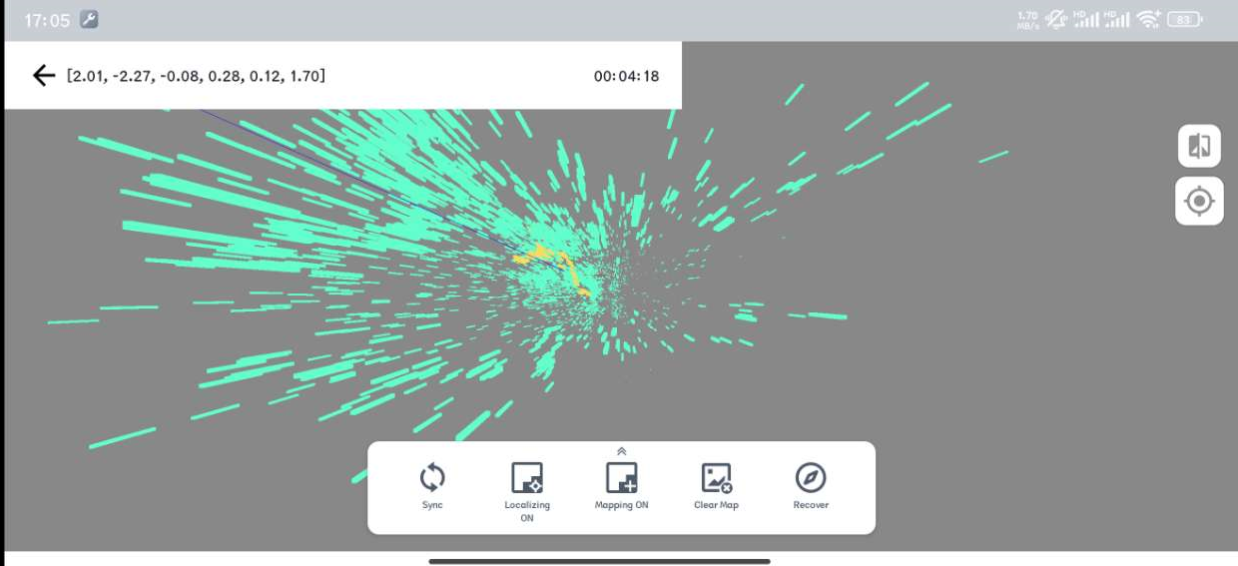
image-20250109115053376

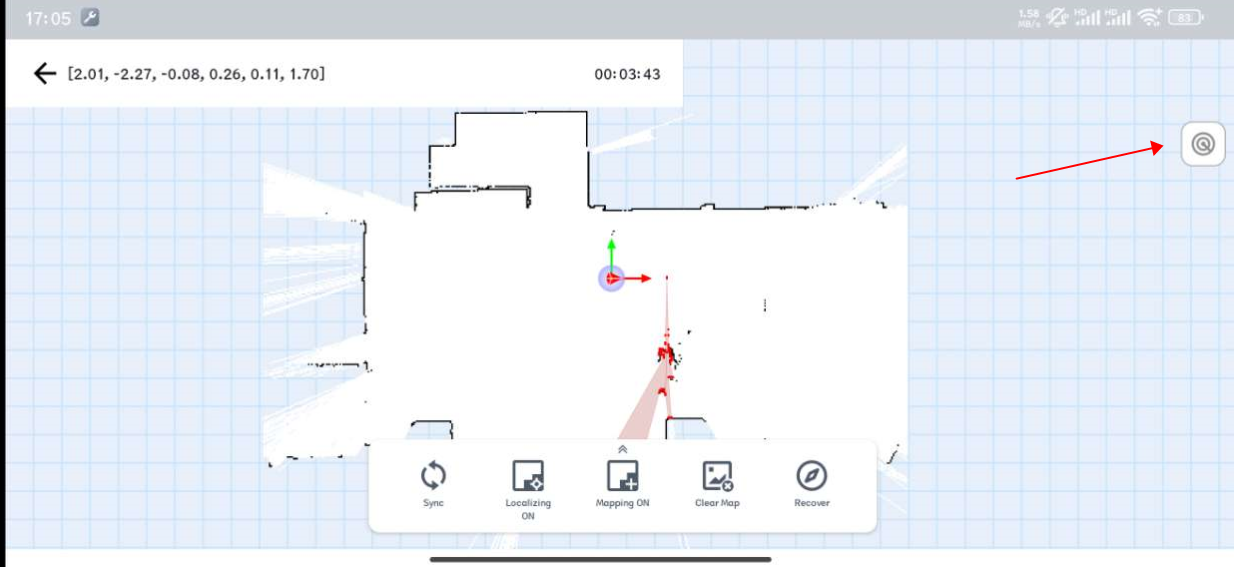
Click the icon in the upper right corner of the app to switch views,
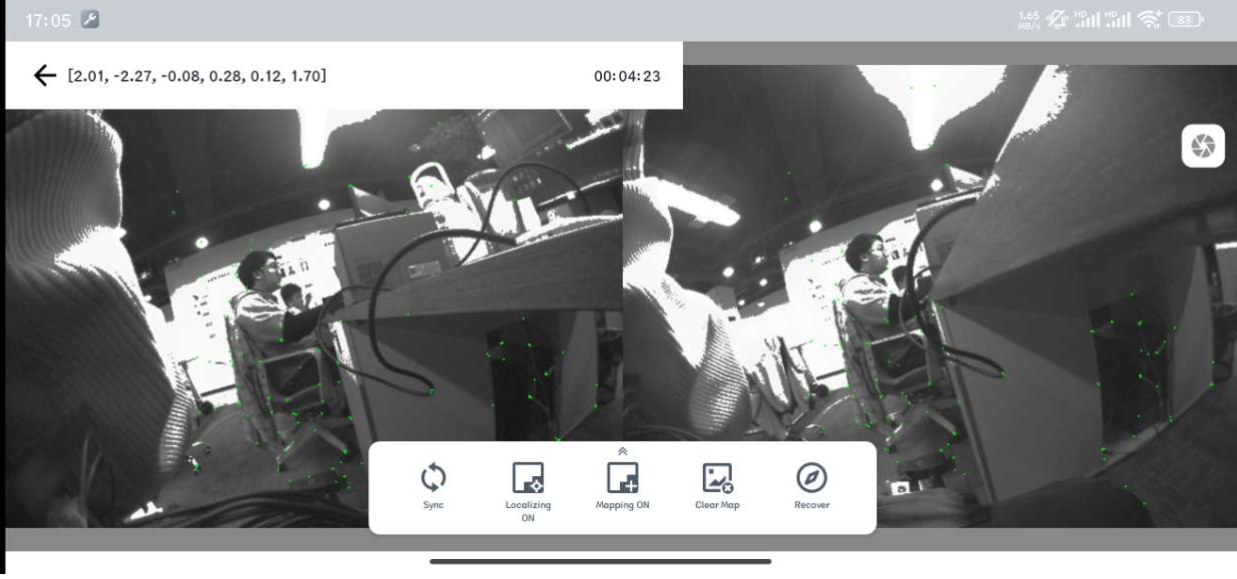
image-20250109115105280

image-20250109115132645

  • Clear the map

In the two-dimensional view, you can click Clear Map below, and the following interface will appear if successful.
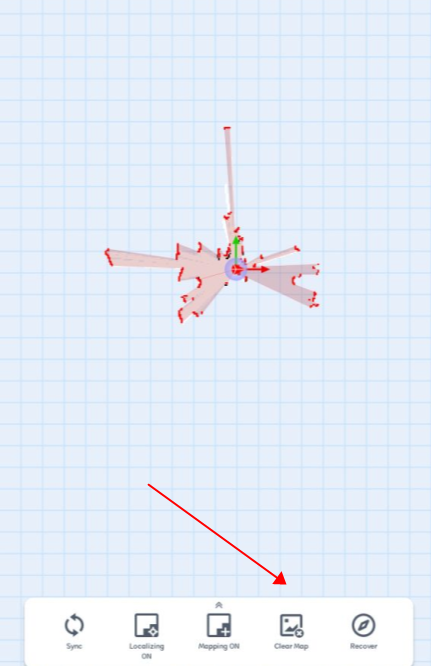
image-20250109121605879

We need to wait for the exclamation mark in the upper right corner to disappear, and then we can build the map normally.
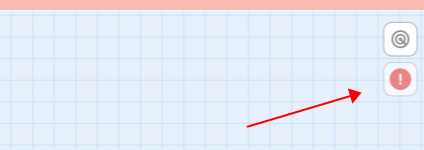
image-20250106121346503

  • Save map

In the two-dimensional view, you can click Save Map below, and the following interface will appear successfully.
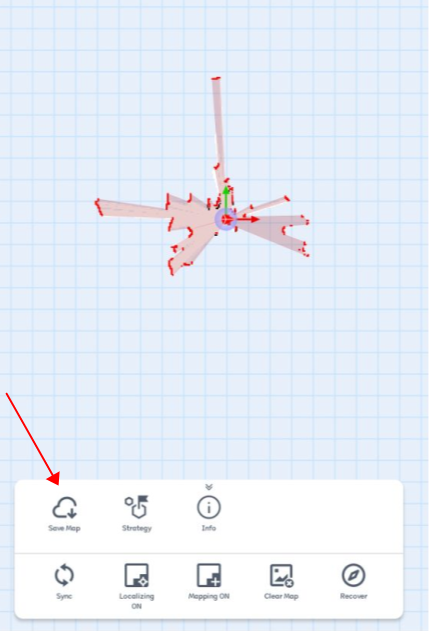
image-20250109121627939

Enter the name of the map to be saved,
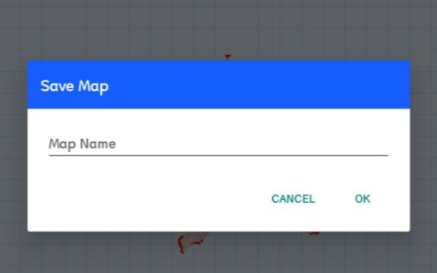
image-20250109121636948

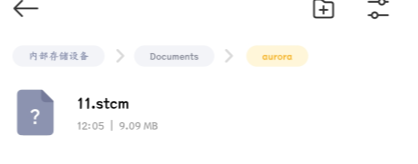
Click OK and the saved path will appear
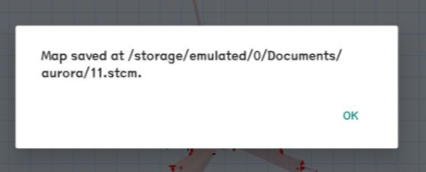
image-20250109121646515

You can view the file in the path,

image-20250106121719579

AuroraCore-remote Visualizer host computer usage tutorial
Power supply instructions

COMPANY

  • About us
  • Team Style
  • Blog

LEARNING & EXPLORATION

  • Tutorials
  • Edge AI hardware
  • Educational robots
  • Embedded intelligent hardware

WHERE TO BUY

  • Yahboom Online Store
  • Amazon
  • Alibaba
  • AliExpress
  • Mercado

TECHNOLOGY SUPPORT

  • Email: support@yahboom.com

BE A DISTRIBUTOR

  • Email: sales@yahboom.com
QR Code

Copyright © 2017-2026 Yahboom. All Rights Reserved.

EN/中文