Welcome to Jetson CUBE case repository
3. Fan drive
Fan drive
Fan driveI. Learning ObjectivesII. Pre-lab PreparationIII. Using the CubeNano driver library to control the fan1. Import the CubeNano driver library and create the objects.2. Setting the fan switch3. Code DemoIV. Using Jupyter lab to control the fan1. Import the CubeNano driver library and create objects2. Turn off the fan3. Turn on the fan4. Deletion of objectsV. Experimental phenomena
I. Learning Objectives
- Master the Jetson Nano series motherboard driver fan
- Control fans using the CubeNano driver library
- Control the fan via Jupyter lab
II. Pre-lab Preparation
Follow the assembly video tutorial to install the Jetson CUBE Nano chassis, or refer to the "Jetson CUBE Nano Chassis_Hardware Wiring" tutorial document for installation, here we show the chassis expansion board and RGB light bar and fan hardware connections.
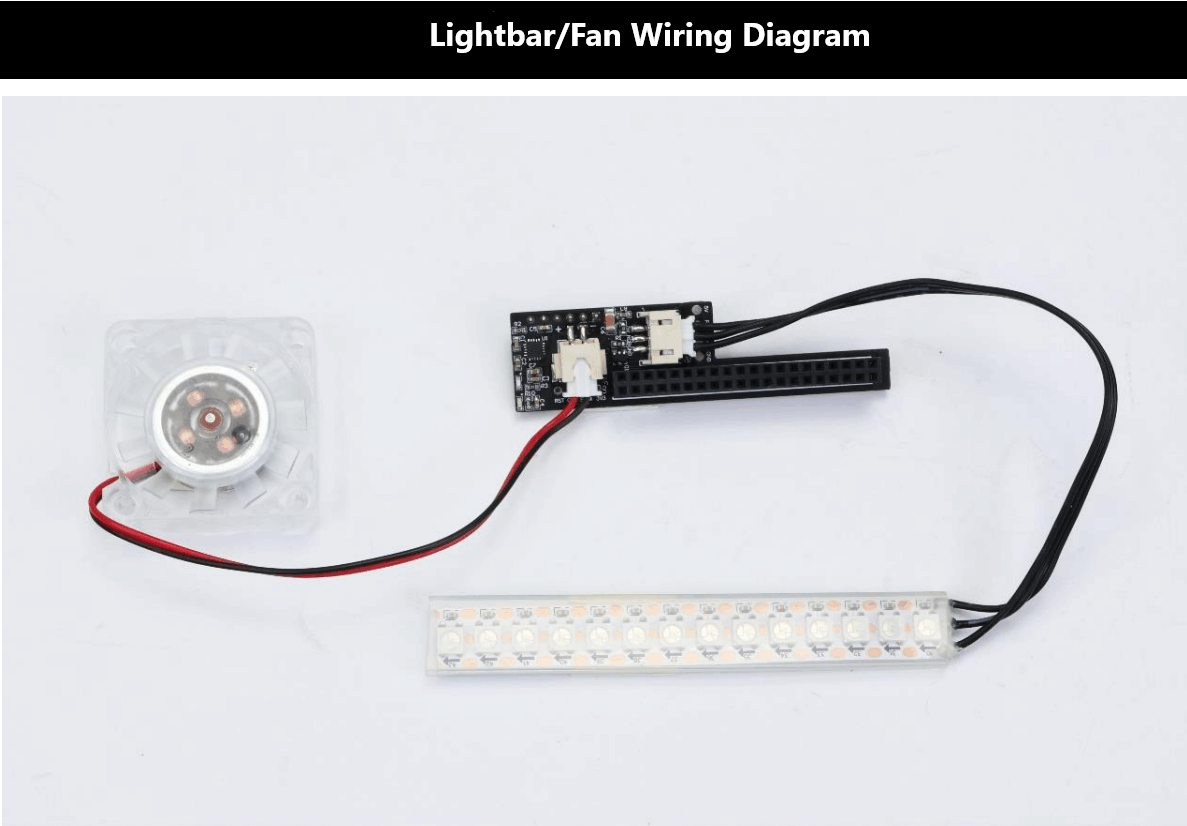
| Chassis expansion board | 3 Pin connector | 2 Pin connector |
|---|---|---|
| RGB light bar | Fan |
III. Using the CubeNano driver library to control the fan
1. Import the CubeNano driver library and create the objects.
The name of CubeNano driver library is CubeNanoLib, use CubeNanoLib to import the library in the programme.
xxxxxxxxxxfrom CubeNanoLib import CubeNano
The CubeNanoLib library functions needed to control the fan:
xxxxxxxxxxset_Fan(state) # 设置风扇开关# Setting the fan switch
2. Setting the fan switch
| set_Fan(state) : set fan switch |
|---|
| state value | Fan state |
|---|---|
| 0 | close |
| 1 | open |
3. Code Demo
- Turning the fan on/off (python interactive interface: each statement needs to be run separately)
xxxxxxxxxxfrom CubeNanoLib import CubeNanobot = CubeNano(i2c_bus=1)bot.set_Fan(0)bot.set_Fan(1)del bot
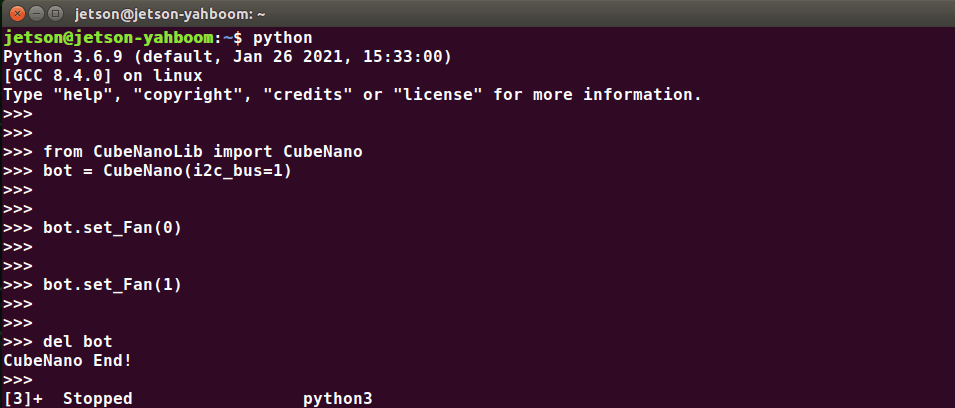
Note: To terminate the run you can press Ctrl + Z
xxxxxxxxxxfrom CubeNanoLib import CubeNanoif __name__ == '__main__':bot = CubeNano(i2c_bus=1)bot.set_Fan(1)
xxxxxxxxxxfrom CubeNanoLib import CubeNanoif __name__ == '__main__':bot = CubeNano(i2c_bus=1)bot.set_Fan(0)

Note: To terminate the run you can press Ctrl + Z
IV. Using Jupyter lab to control the fan
In the Jupyter lab interface create a new file and create the following code block, edit the following content (Fan_Test.ipynb) respectively:
1. Import the CubeNano driver library and create objects
xxxxxxxxxxfrom CubeNanoLib import CubeNanobot = CubeNano(i2c_bus=1)
2. Turn off the fan
xxxxxxxxxxbot.set_Fan(0)
3. Turn on the fan
xxxxxxxxxxbot.set_Fan(1)
4. Deletion of objects
xxxxxxxxxxdel bot
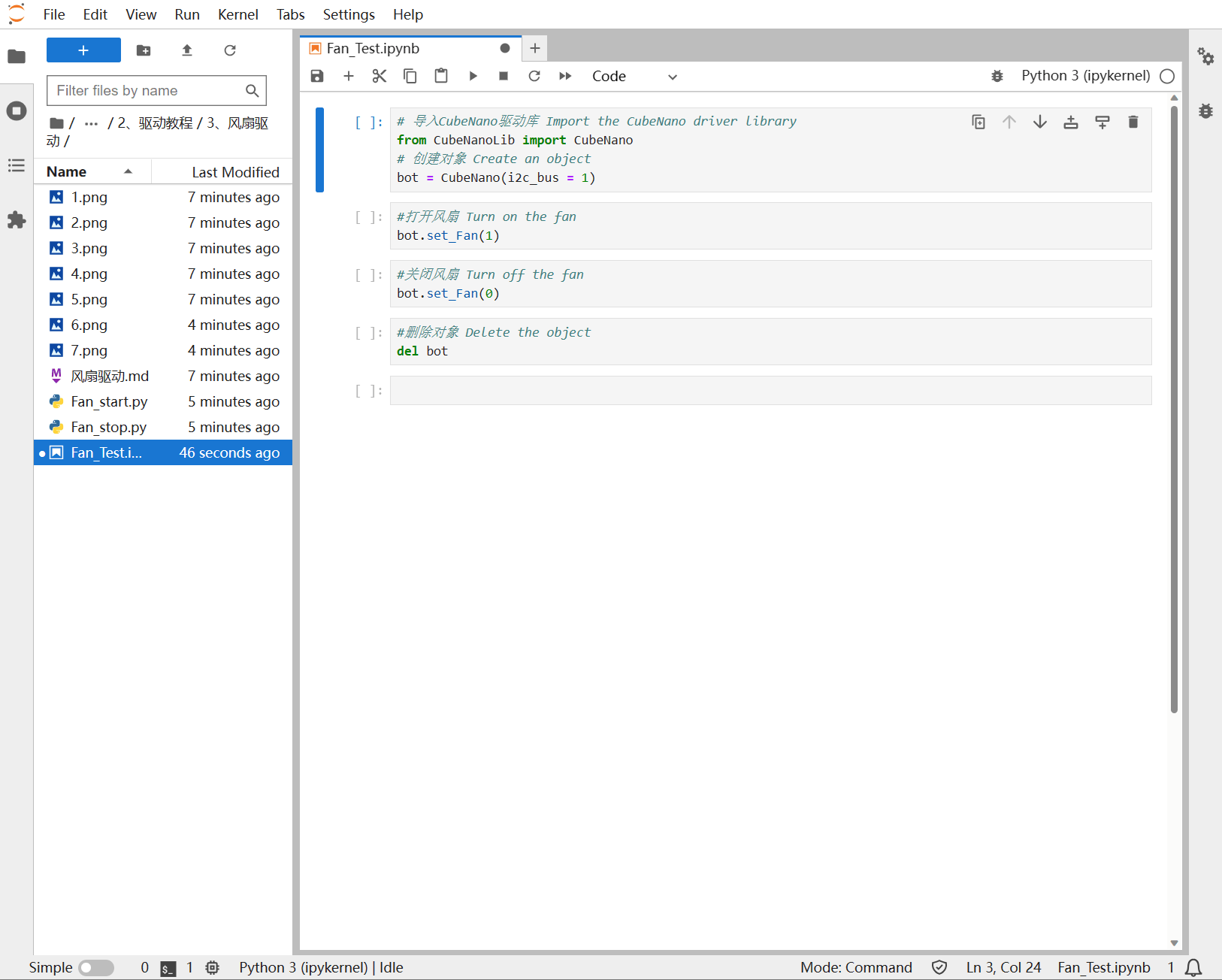
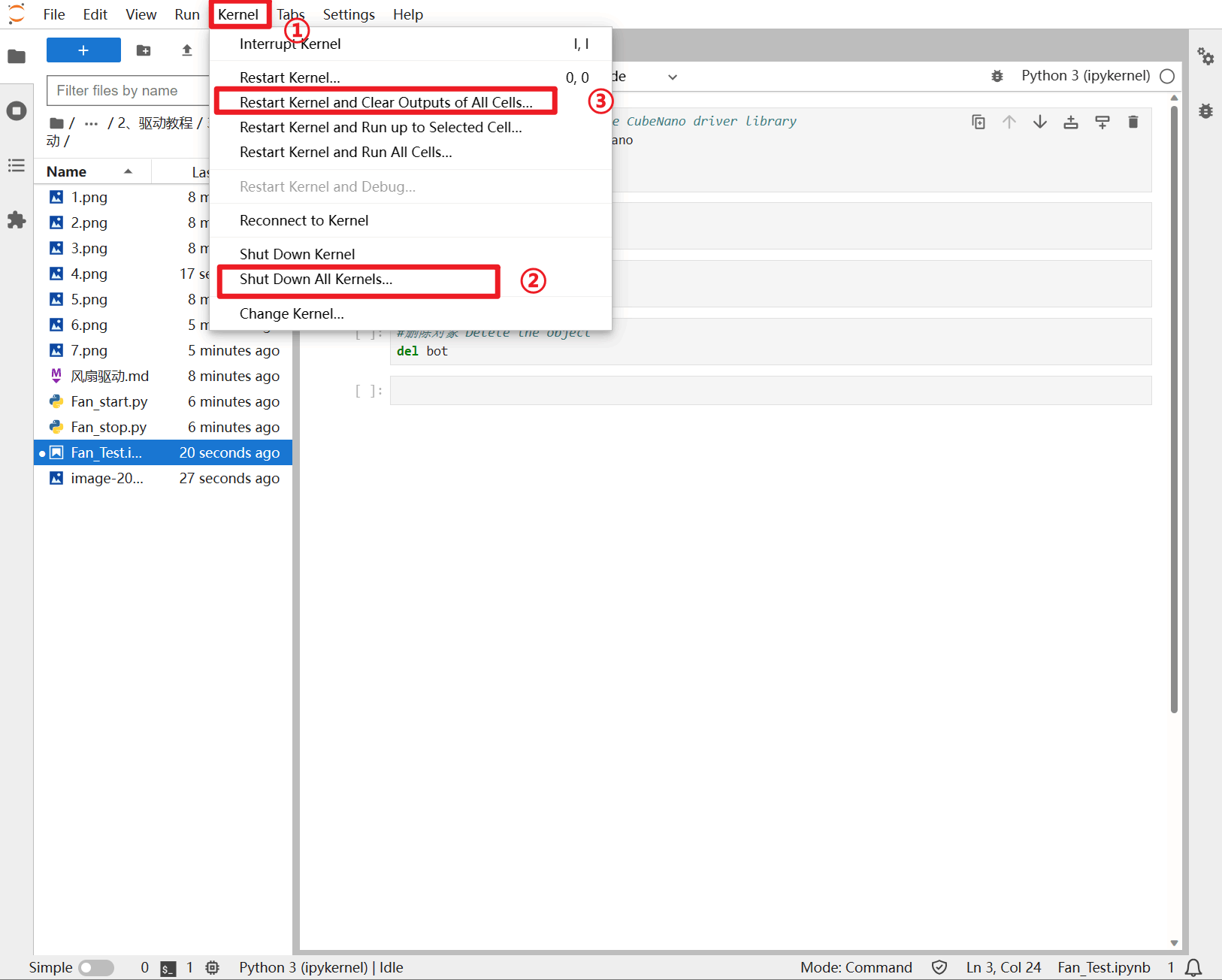
If you find that the code runs abnormally, it is recommended that you follow the steps in the diagram once and then retest the code block.
V. Experimental phenomena
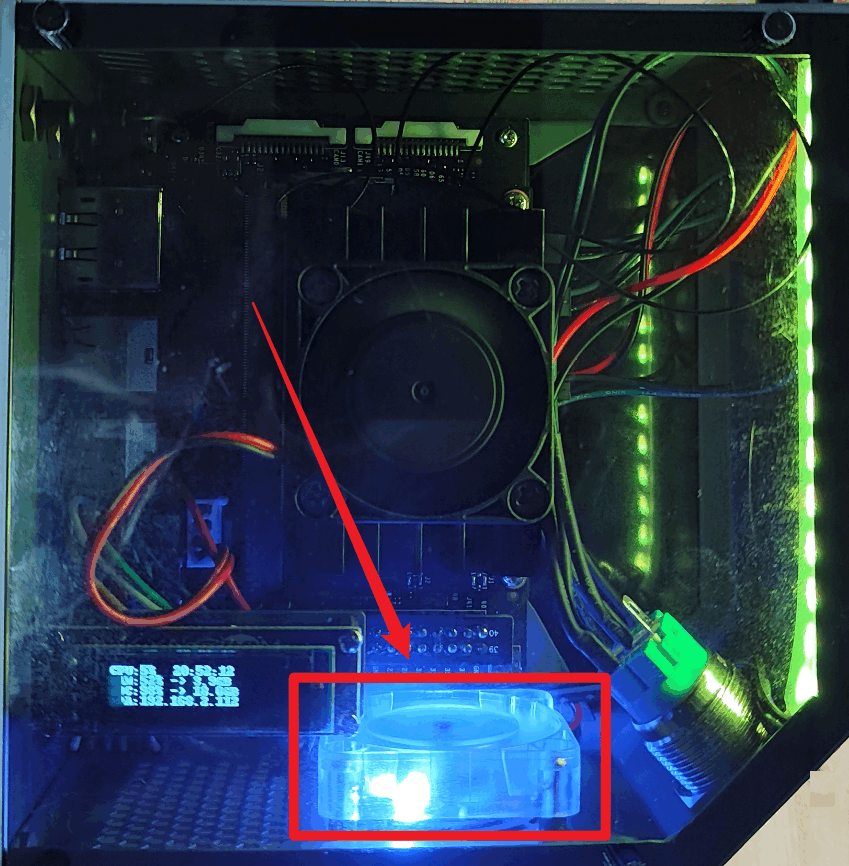
- Run the code or file related to opening the fan:
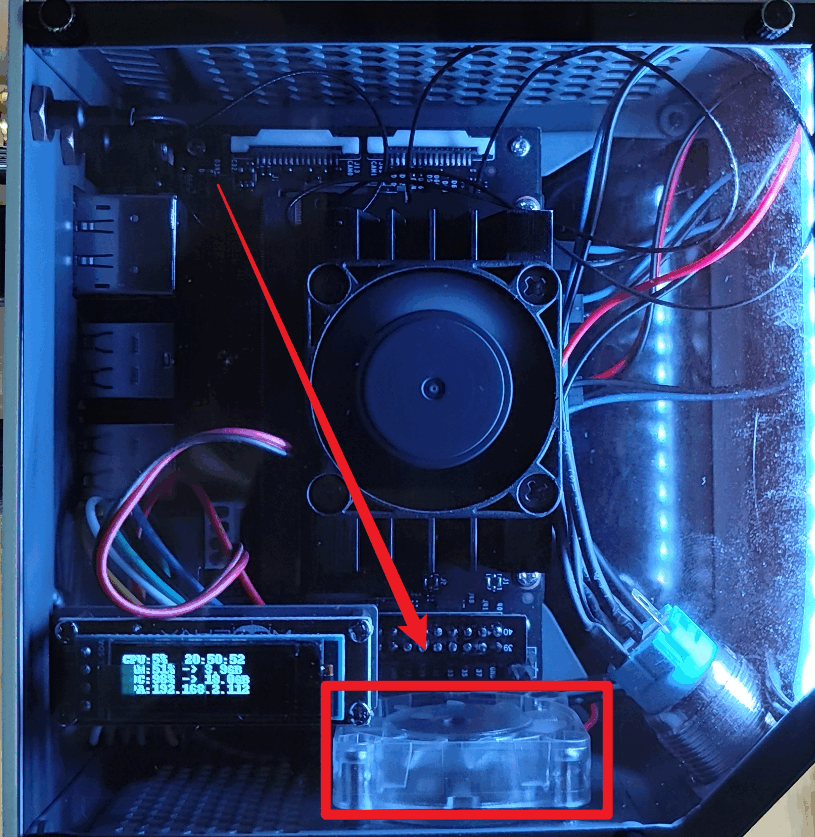
You can see the fan in the chassis box lights up blue and rotates
- Run the code or file related to shutting down the fan:
You can see that the blue light of the fan inside the chassis box goes out and stops spinning.