Welcome to RDK Official Binocular Camera repository
1. Binocular MIPI Image Acquisition
Binocular MIPI Image Acquisition
Binocular MIPI Image Acquisition1. Camera Introduction2. Supported Platforms3. Preparation3.1. RDK Platform3.2. System and Package Versions4. Camera Connection and Preparation4.1. Binocular IMU Camera4.2. Hardware Connection4.3. RDK X5 Configuration5. Image Acquisition5.1 Start Camera Stream5.2 View Binocular Image
1. Camera Introduction
The D-ROBOTICS binocular IMU camera comes with complete calibration parameters, including binocular calibration parameters, IMU intrinsic parameters, and extrinsic parameters between the binocular camera and IMU. Users can use it directly without additional calibration. Using these parameters, high-precision depth maps can be computed through binocular stereo matching algorithms, enabling real-time 3D environment perception. Meanwhile, the camera data can be applied to open-source Visual-Inertial Odometry (VIO) algorithms such as OpenVINS, which can compute camera pose and trajectory information. Suitable for robot navigation, obstacle avoidance and other applications, providing developers with plug-and-play depth perception and visual-inertial fusion capabilities.
MIPI camera code repository: https://github.com/D-Robotics/hobot_mipi_cam
2. Supported Platforms
| Platform | System Support | Example Functionality |
|---|---|---|
| RDK X5, RDK X5 Module | Ubuntu 22.04 (Humble) | Start binocular camera, output binocular images and IMU data |
3. Preparation
3.1. RDK Platform
- RDK has been flashed with RDK OS system
- RDK has successfully installed TogetheROS.Bot
- Confirm that the PC can access RDK through the network
3.2. System and Package Versions
| Version | Query Method | |
|---|---|---|
| RDK X5 system image version | 3.4.1 or above | cat /etc/version |
| tros-humble-hobot-stereonet package | 2.5.0 or above | apt list | grep tros-humble-hobot-stereonet/ |
| tros-humble-mipi-cam package | 2.5.0 or above | apt list | grep tros-humble-mipi-cam/ |
- If the system image version doesn't meet requirements, please refer to the corresponding section for image flashing
- If the package version doesn't meet requirements, execute the following commands to update:
sudo apt updatesudo apt install --only-upgrade tros-humble-hobot-stereonetsudo apt install --only-upgrade tros-humble-mipi-cam- If the above commands cannot update to the latest version, you need to modify the apt source file to beta source:
x# Modify to beta source, execute the following command:sudo echo 'deb [signed-by=/usr/share/keyrings/sunrise.gpg] http://archive.d-robotics.cc/ubuntu-rdk-x5-beta jammy main' | sudo tee /etc/apt/sources.list.d/sunrise.listapt update# If you need to switch back to the official source, execute the following command:sudo echo 'deb [signed-by=/usr/share/keyrings/sunrise.gpg] http://archive.d-robotics.cc/ubuntu-rdk-x5 jammy main' | sudo tee /etc/apt/sources.list.d/sunrise.listapt update4. Camera Connection and Preparation
4.1. Binocular IMU Camera
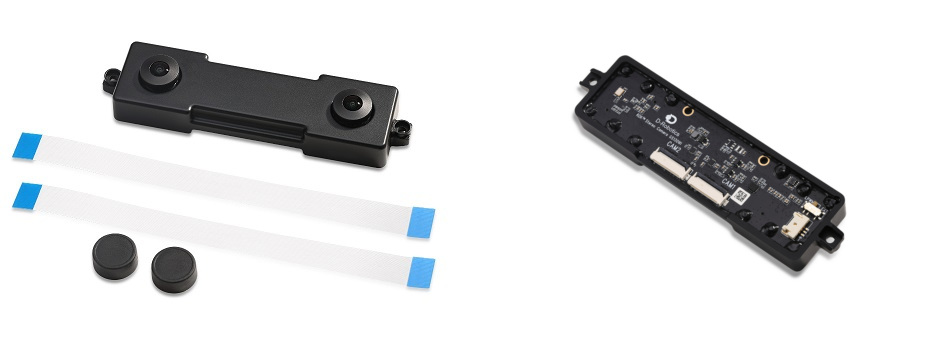
- Note that the camera has two versions: black metal shell and acrylic shell, both with the same functionality (the cable may vary based on what you receive)
4.2. Hardware Connection
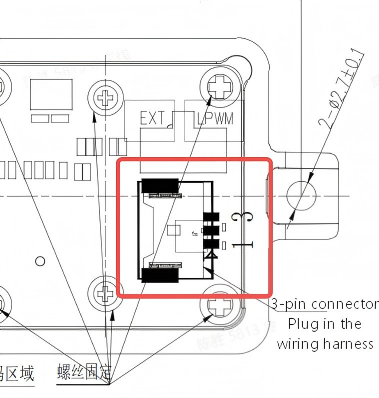
Set the switch behind the module to
EXTmode, notLPWMmodeNo other pins need to be connected except the black Dupont wire connecting to RDK X5's
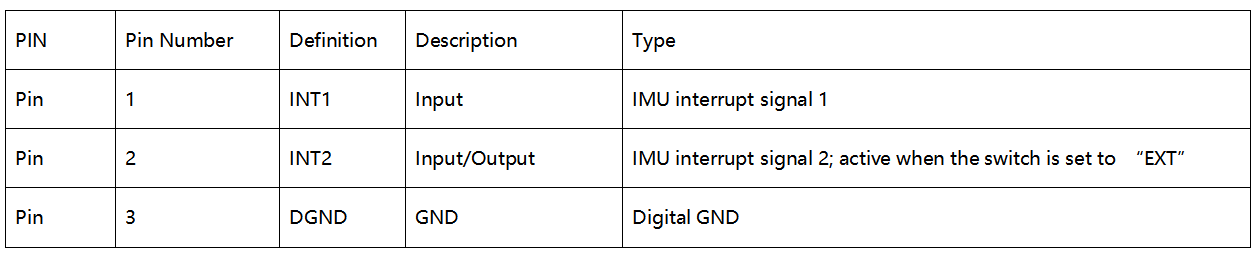
37pin, which is needed for external trigger control of camera and IMU time synchronizationCamera 3Pin pin definition
For the motherboard pin definition, please refer to 3.1.1 Pin Definition and Application
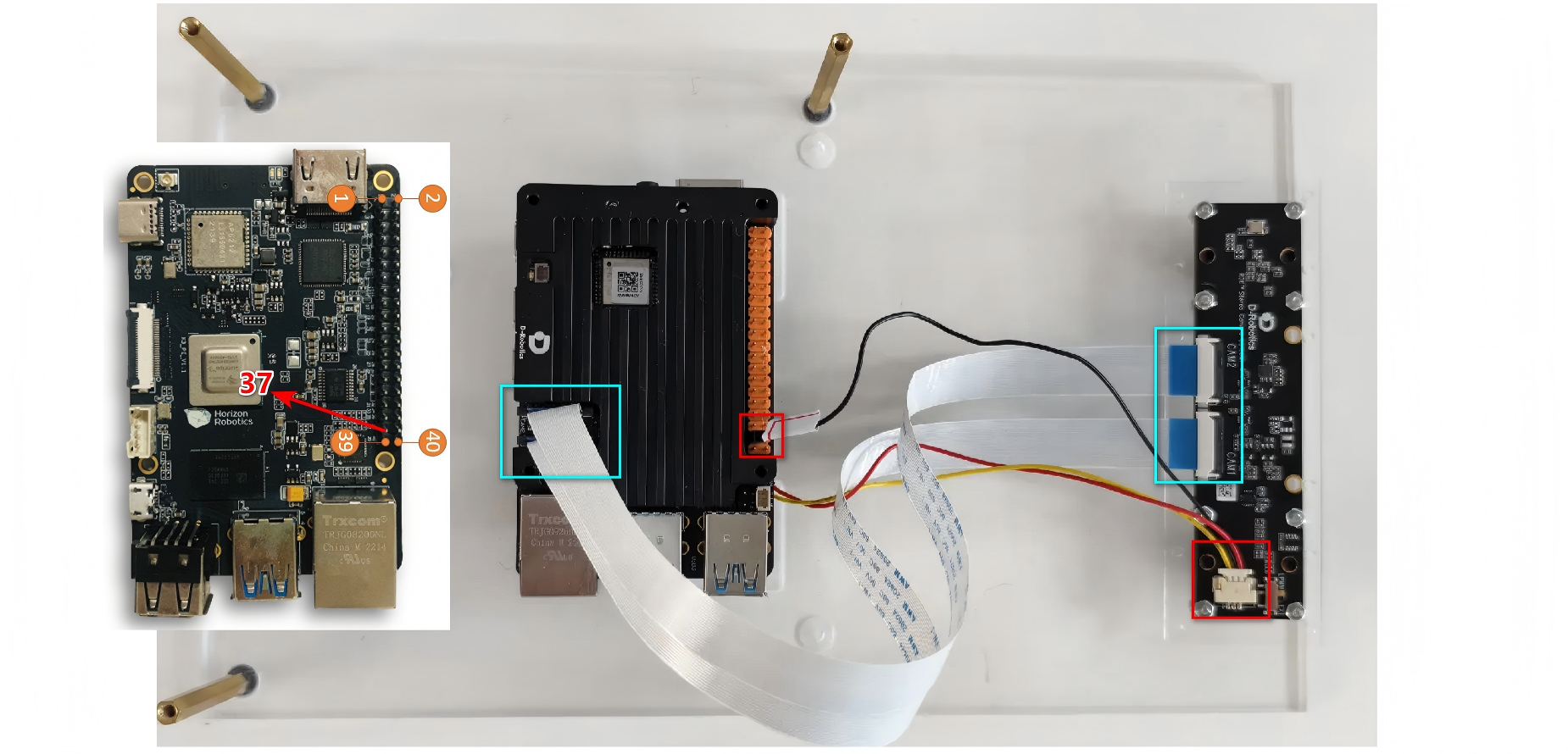
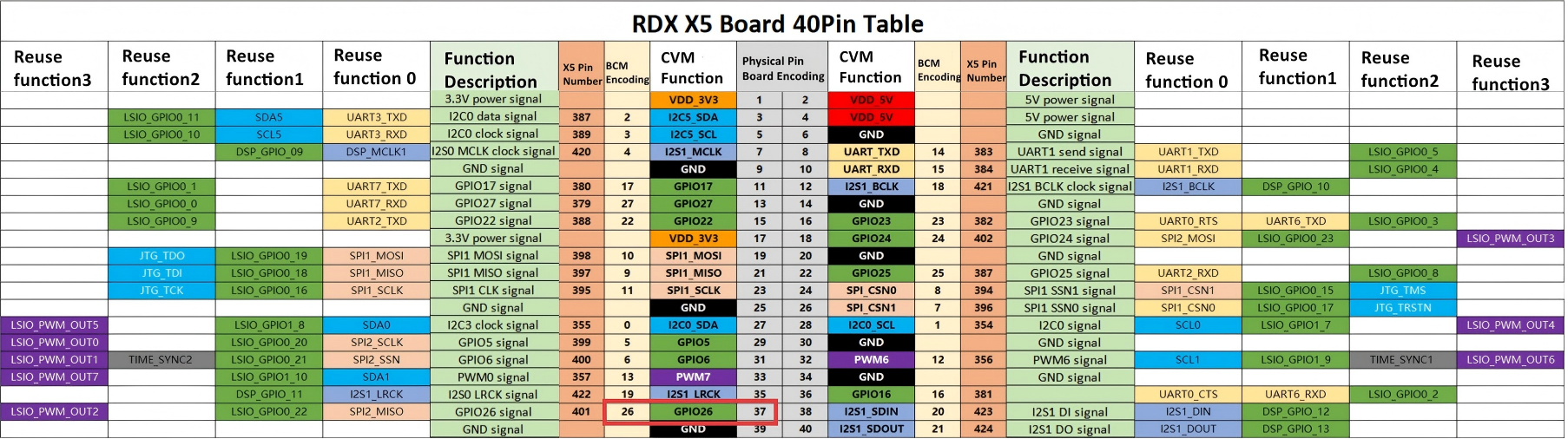
4.3. RDK X5 Configuration
- RDK X5 needs to be configured to read IMU data. First check if the system version meets the requirements, need
3.4.1or above:
xxxxxxxxxxcat /etc/version- Run the following command on RDK X5 for configuration:
xxxxxxxxxxsrpi-config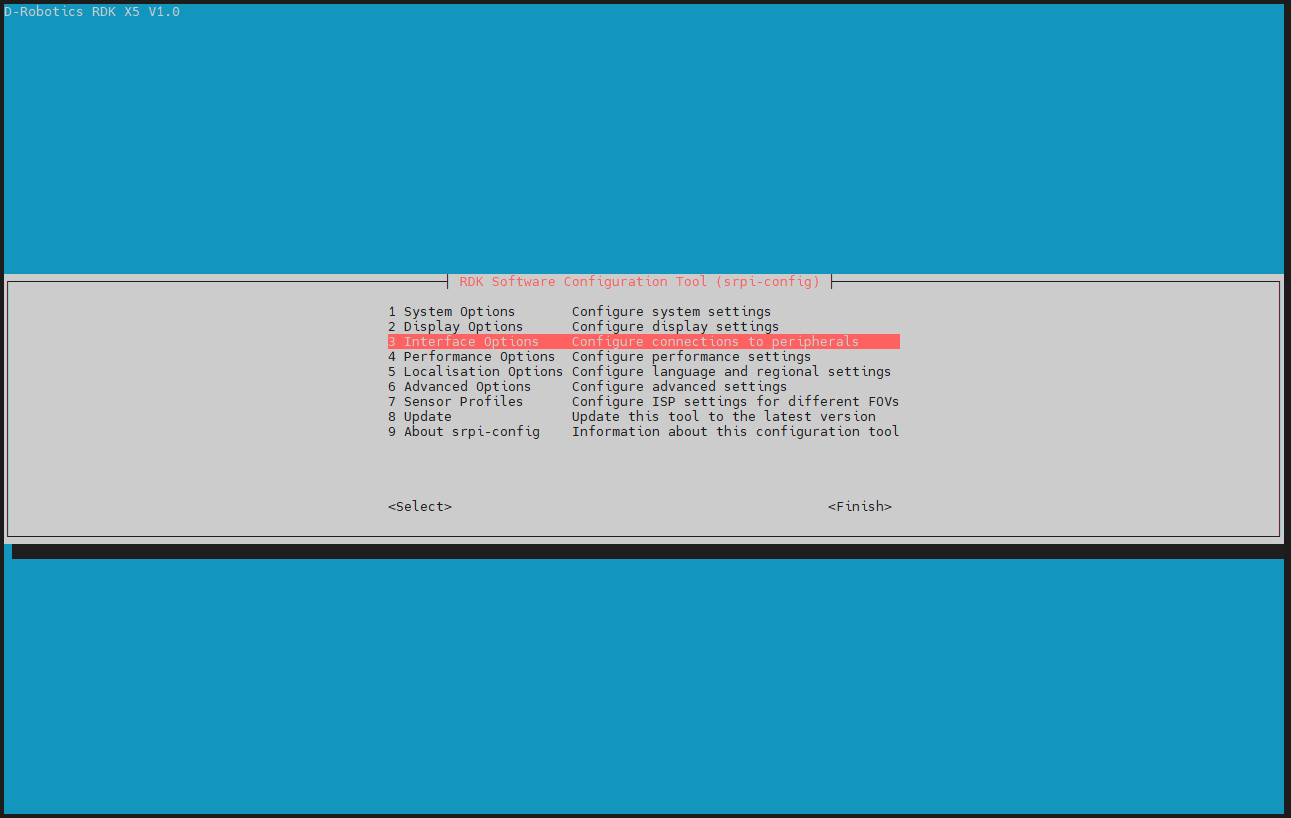
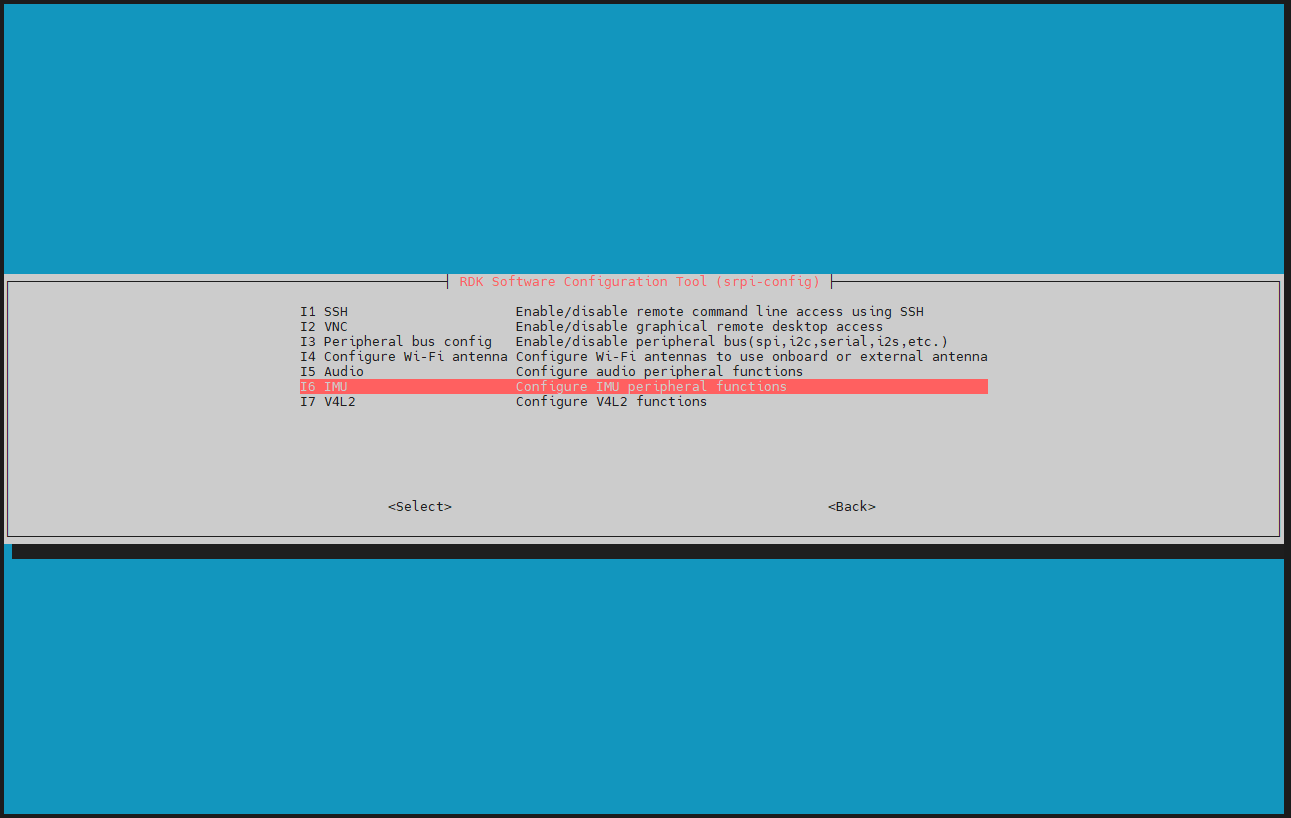
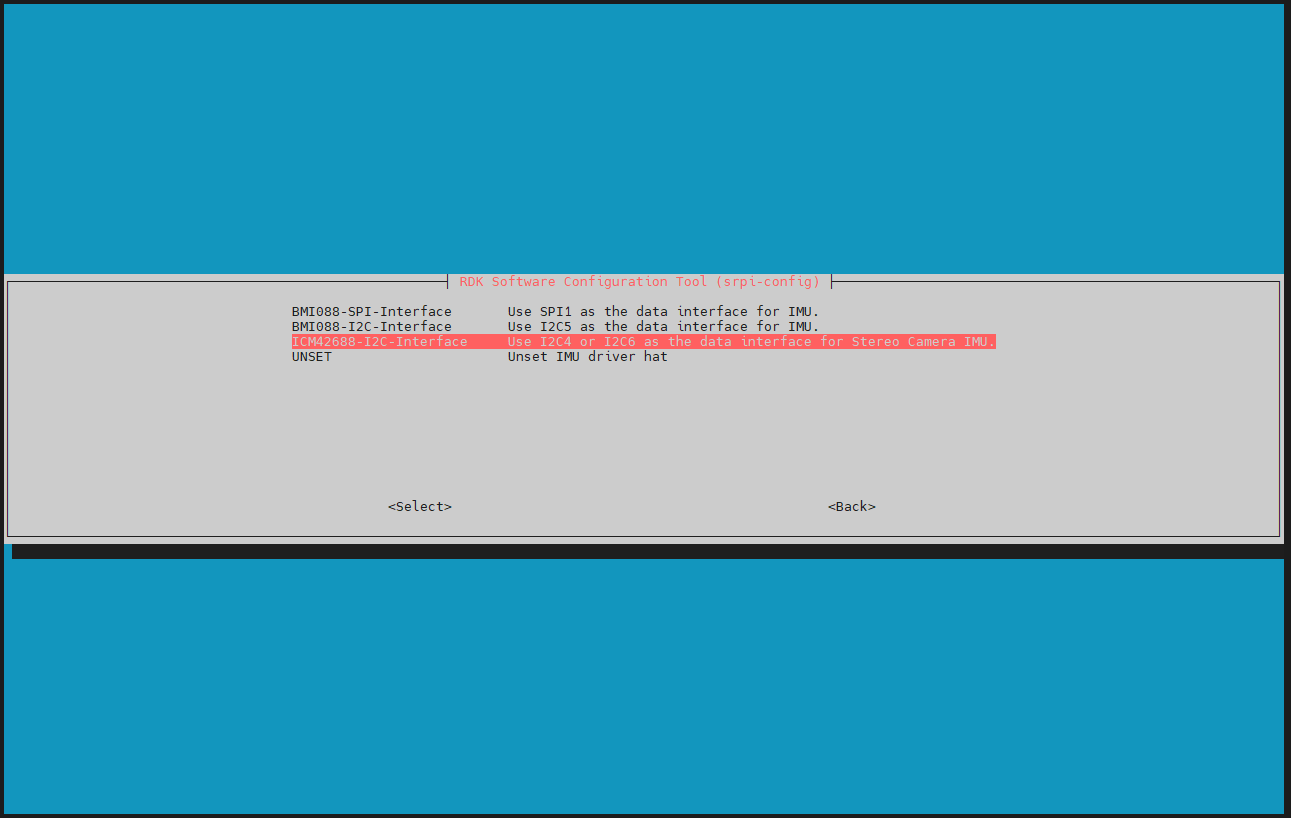
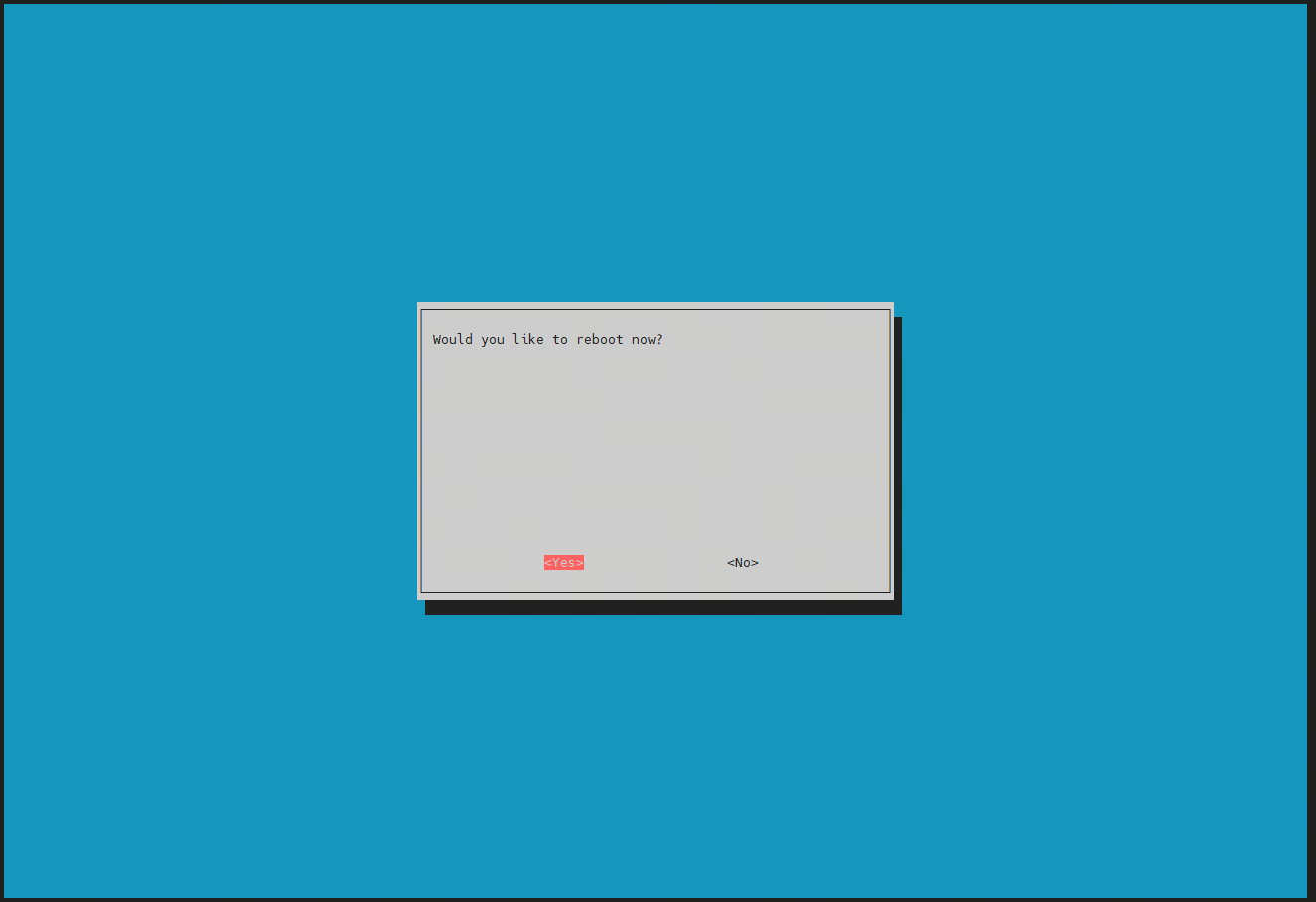
- After reboot, confirm that the directory
/sys/bus/iio/devices/hasiio:device1andiio:device2, which means the configuration is successful:
xxxxxxxxxxll /sys/bus/iio/devices/
5. Image Acquisition
5.1 Start Camera Stream
Switch to root user, username: root, password: root
Confirm that the tros-humble-hobot-stereonet package is installed, then you can copy directly, otherwise you need to go back to the environment installation step and reinstall:
xxxxxxxxxxcp -rv /opt/tros/humble/share/hobot_stereonet/script/run_cam.sh ./
Execute the following command to start the camera:
xxxxxxxxxxbash run_cam.sh --image_width 1088 --image_height 1280 --rotation 0.0
Open a new terminal and enter:
xxxxxxxxxxsource /opt/tros/humble/setup.bash
xxxxxxxxxxros2 launch hobot_stereonet codec_web_visual.launch.py codec_sub_topic:=/image_combine_raw codec_in_format:=nv12
5.2 View Binocular Image
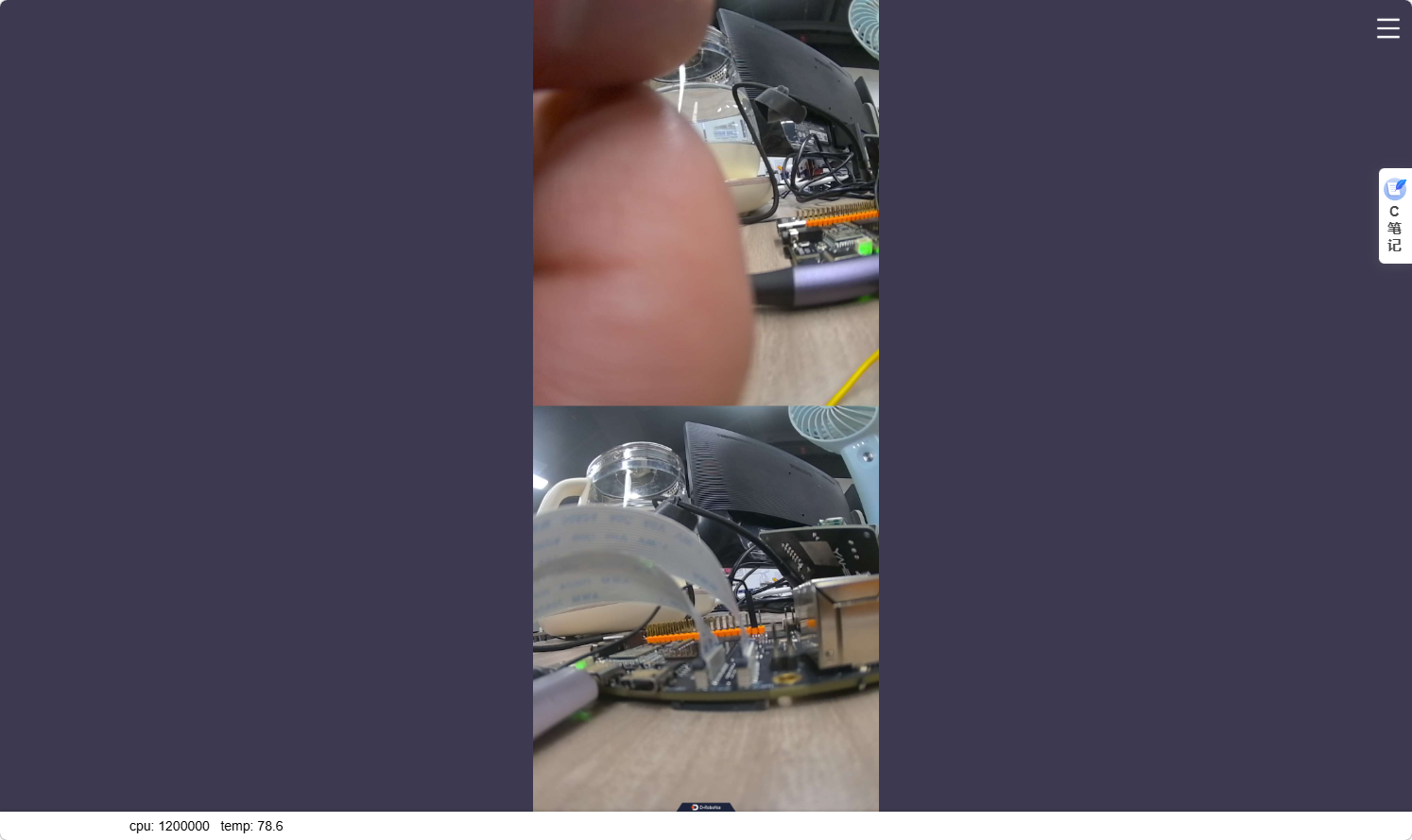
- View binocular image through the web page, enter in browser http://ip:8000 (in the figure, RDK ip is 192.168.1.100):