Welcome to Realsense Depth Camera repository
2.2 Color recognition-object tracking
2、Color recognition and object tracking
2、Color recognition and object tracking2.1、Introduction2.1.1、Color recognition2.1.2、Object tracking2.2、Steps2.2.1、Start up2.2.2、recognition2.2.3、Color calibration2.2.4、View node
Official website:https://learnopencv.com/object-tracking-using-opencv-cpp-python/#opencv-tracking-api
2.1、Introduction
2.1.1、Color recognition
- HSV introduction
HSV (Hue, Saturation, Value) is a color space created by A. R. Smith in 1978 based on the intuitive characteristics of colors.
The color parameters in this model are: hue (H), saturation (S), and lightness (V).
H: 0 — 180
S: 0 — 255
V: 0 — 255

- HSV
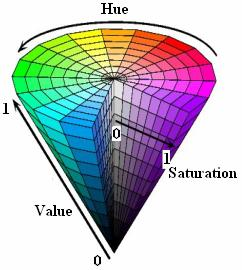
The 3D diagram of the HSV model, as shown below.
2.1.2、Object tracking
Object tracking is to locate an object in consecutive video frames.
2.2、Steps
2.2.1、Start up
Start up camera
roslaunch realsense2_camera rs_camera.launch
Start up function
xxxxxxxxxxroslaunch visual object_Tracker.launch VideoSwitch:=false tracker_type:=color # Color recognitionroslaunch visual object_Tracker.launch VideoSwitch:=false tracker_type:=KCF # Object trackingMethod 2
Note: 【q】key to exit.
xxxxxxxxxxroslaunch visual object_Tracker.launch VideoSwitch:=true tracker_type:=color # Color recognitionpython3 ~/realsense_ws/src/visual/Tracker/object_Tracker.py # Object trackingThis method can only be started in the main control board that has been connected to the camera
- VideoSwitch parameter: whether to use the camera function package to start; for example: start rs_camera.launch, this parameter must be set to true; otherwise, it is false.
- tracker_type parameter: function gameplay, select color recognition.
Set the parameters according to your needs. You can also modify the launch file directly, if you do that, you don't need to attach parameters when you start this function.
2.2.2、recognition
- Color recognition
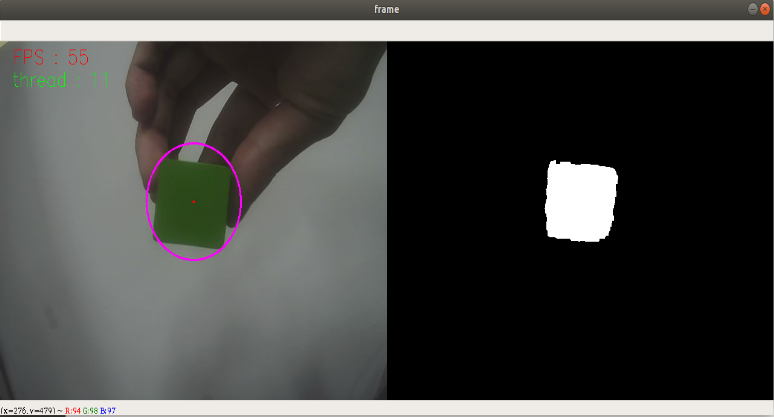
After starting, the system defaults to【Target Detection Mode】, the color image on the left (Color), and the binary image on the right (Binary). As shown below.
Keyboard control:
【r】: Select mode, you can use the mouse to select the target to be identified, as shown above.
【q】: Exit.
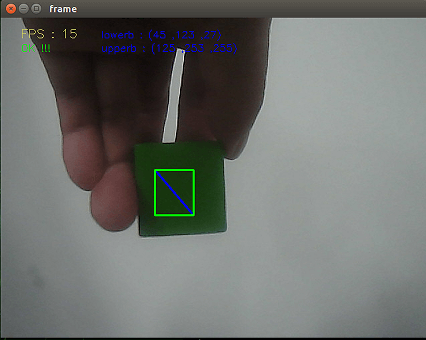
Use the mouse to select the location of the color block, as shown below, and release the mouse to start recognition.
- Object tracking
After starting, enter the selection mode, use the mouse to select the location of the target, as shown below, release mouse to start recognition.
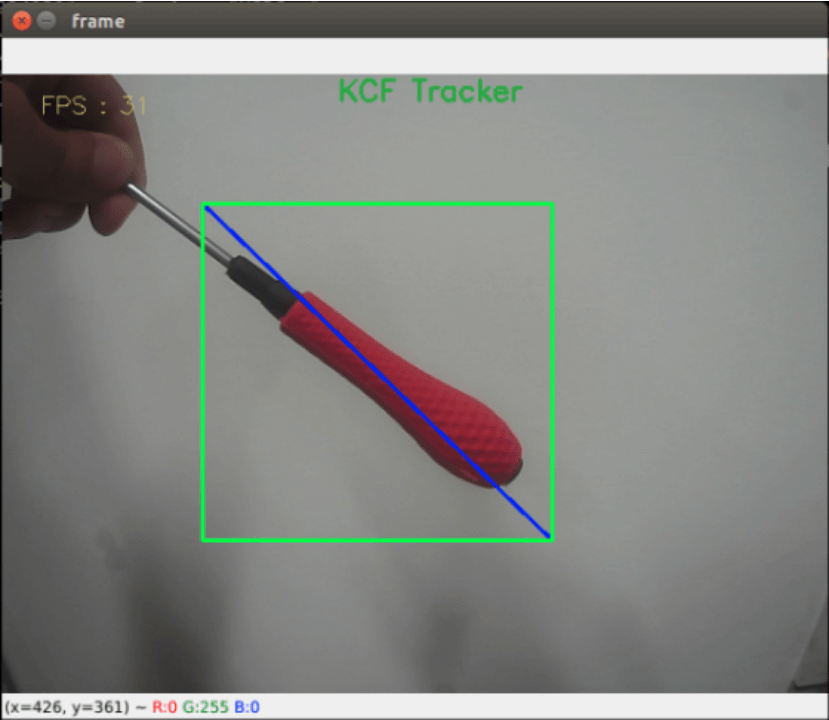
Keyboard control:
【r】: Select mode, you can use the mouse to select the target to be identified, as shown above.
【f】: Switching algorithm; ['BOOSTING','MIL','KCF','TLD','MEDIANFLOW','MOSSE','CSRT','color'].
【space bar】: Target tracking, we need to move the target slowly, moving too fast will lose the target.
2.2.3、Color calibration
Dynamic parameter
xxxxxxxxxxrosrun rqt_reconfigure rqt_reconfigure
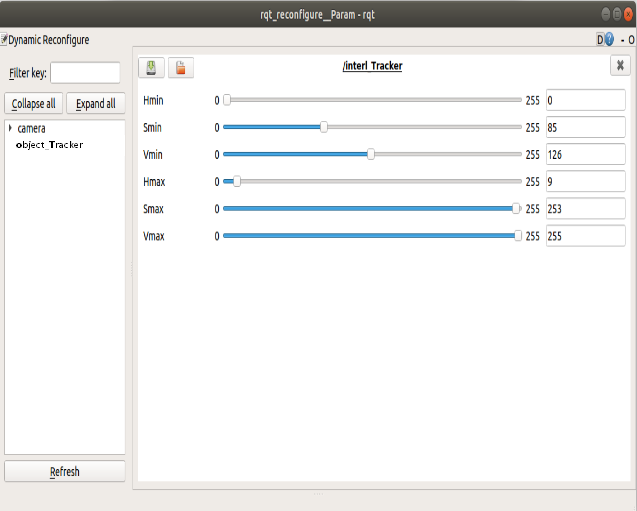
Select 【object_Tracker】node, generally only need to adjust 【Hmin】,【Smin】, 【Vmin】, 【Hmax】, these four parameters can be well identified.
The slide bar is always in the dragging state, and the data will be transferred to the system when you release it.
2.2.4、View node
- view node
xxxxxxxxxxrqt_graph
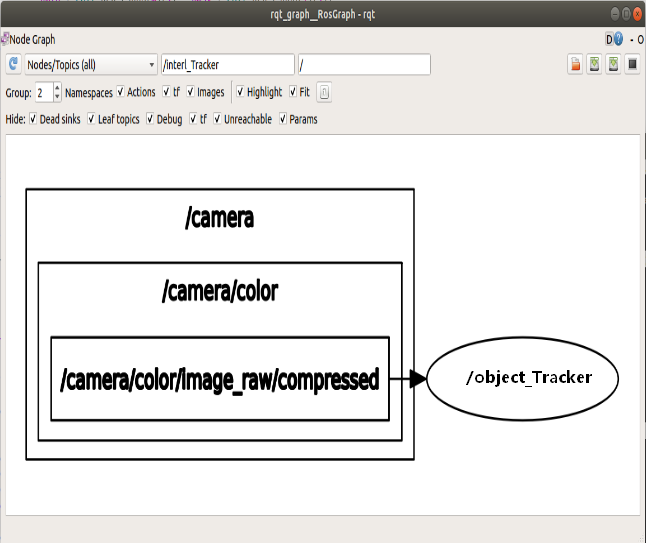
- When method one is started, the node [object_Tracker]