Welcome to Mini Microbit Handle repository
7.Dice game
7. Dice game
1. Learning goals
In this lesson, we will learn to use micro:bit to realize dice game.
2.Code and analysis
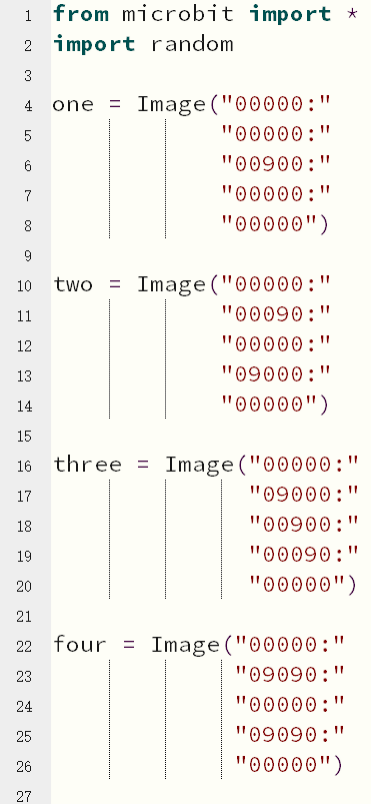
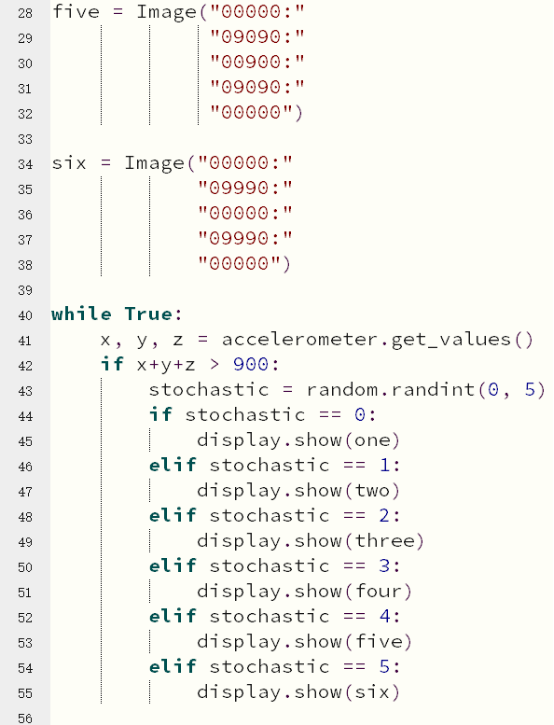
from microbit import *
This code is to import everything from the microbit library, and any program need to uses import this library.
import random
Import random library, we need to use randint() in the library to get random integer.
acceleromete.get_values()
Simultaneously measure the acceleration of all axes to generate a ternary ordered (X, Y, Z) integer group.
The micro:bit possess a dot matrix of 5*5 LEDs, and the brightness of each LED on the dot matrix can be set to a value from 0 to 9.
If the brightness of an LED is set to 0, then it goes out.
If its brightness is set to 9, then it is at the brightest level.
Using this feature, we can display custom images on the micro:bit lattice.
Test whether the microbit is shaking by detecting the acceleration values of the three axes of X, Y and Z, and use random numbers to display random number patterns.
Note:
1 - The capital letter/lowercase letters must be distinguished!
2 - Correct spelling!
3 - Keywords such as # need a space between the content.
4 - You can only use the Tab key (tabulation key) for indentation.
3. Programming and downloading
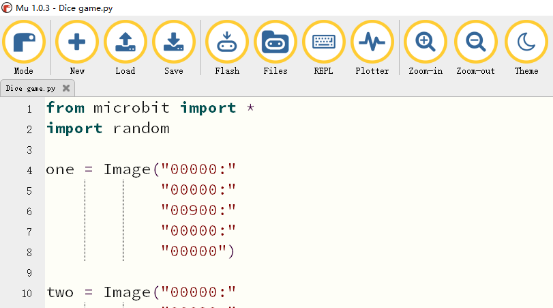
3.1 You should open the Mu software, and enter the code in the edit window, , as shown in Figure .
Note! All English and symbols should be entered in English, and the last line must be a space.
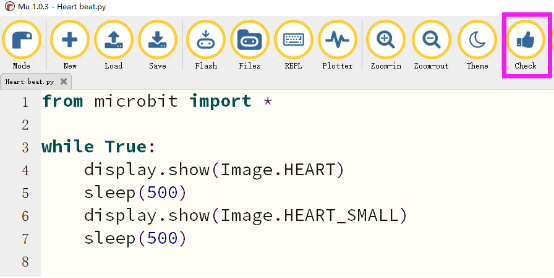
3.2 As shown in Figure, you need to click the Check button to check if our code has an error. If a line appears with a cursor or an underscore, the program indicating this line is wrong.
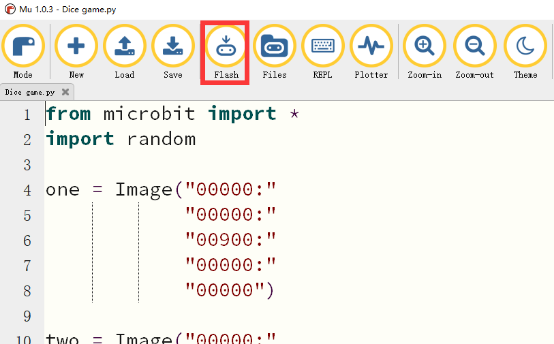
3.3 You need to connect the micro data cable to micro:bit and the computer, then click the Flash button to download the program to micro:bit as shown in Figure.
4. Experimental phenomena
After the program is successfully downloaded, when you shake your micro:bit, the program selects a random number between 1 and 6 and shows it on the LED display.