Welcome to AI Vision USB Camera repository
5.ROS+Opencv basics
ROS+Opencv basics
1. Overview
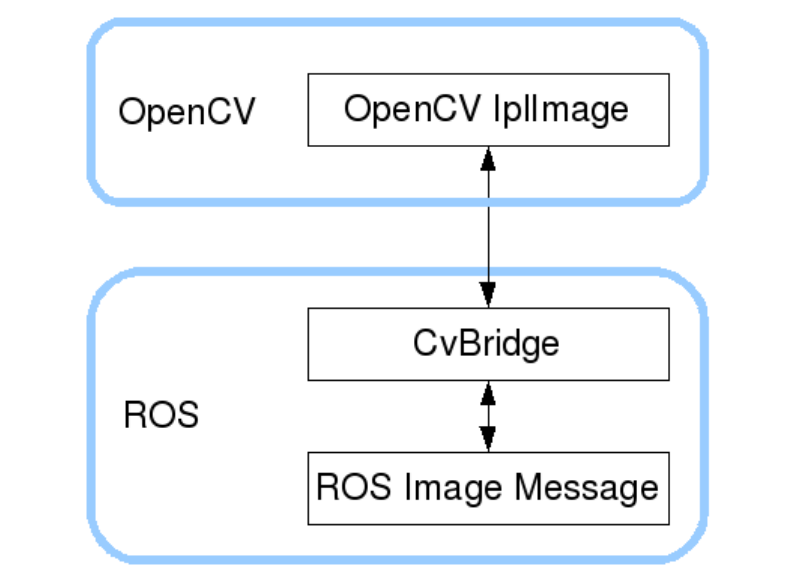
ROS has already integrated Opencv3.0 and above during the installation process, so there is almost no need to think too much about the installation configuration.ROS transmits images in its own sensor_msgs/Image message format and cannot directly perform image processing, but the provided [CvBridge] can perfectly convert and be converted image data formats. [CvBridge] is a ROS library, equivalent to the bridge between ROS and Opencv.
Opencv and ROS image data conversion is shown in the figure below:
Although the installation configuration does not require too much consideration, the usage environment still needs to be configured, mainly the two files [package.xml] and [CMakeLists.txt]. This function package not only uses [CvBridge], but also requires [Opencv] and [PCL], so they are configured together.
package.xml
Add the following:
<build_depend>sensor_msgs</build_depend><build_export_depend>sensor_msgs</build_export_depend><exec_depend>sensor_msgs</exec_depend><build_depend>std_msgs</build_depend><build_export_depend>std_msgs</build_export_depend><exec_depend>std_msgs</exec_depend><build_depend>cv_bridge</build_depend><build_export_depend>cv_bridge</build_export_depend><exec_depend>cv_bridge</exec_depend><exec_depend>image_transport</exec_depend>【cv_bridge】:Image conversion dependency package.
CMakeLists.txt
This file has a lot of configuration content. Please check the source file for specific content.
2. Start USB camera
Terminal input,
xxxxxxxxxxroslaunch usb_cam usb_cam-test.launch
View topics
xxxxxxxxxxrostopic list
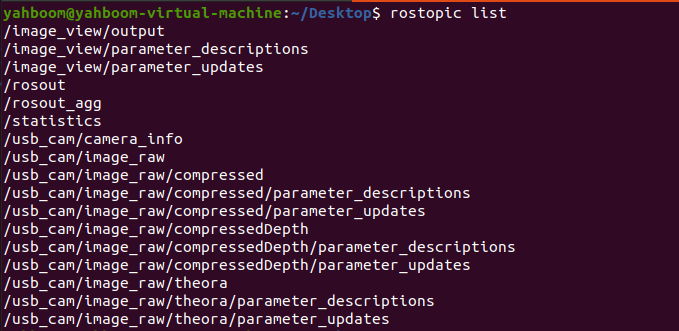
Commonly used ones are /usb_cam/image_raw and /usb_cam/image_raw/compressed. The former is a normal image, and the latter is a compressed image.
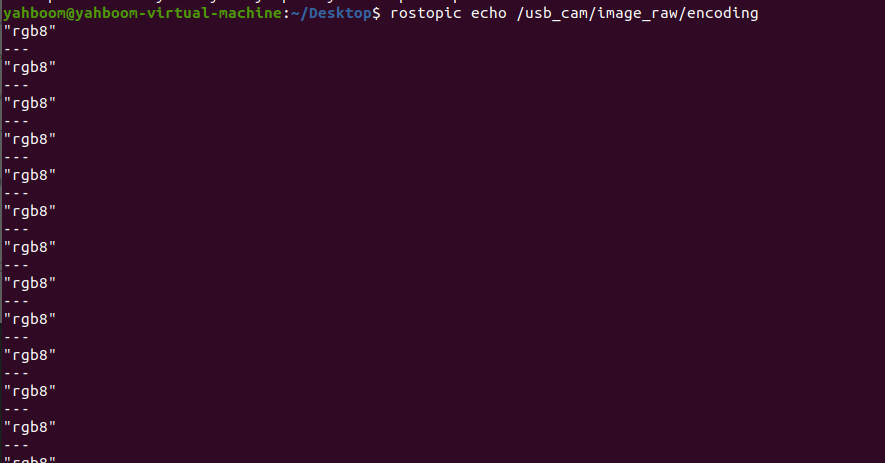
Check the encoding format of the topic: rostopic echo +[topic]+encoding, for example,
xxxxxxxxxxrostopic echo /usb_cam/image_raw/encoding
3. Start the color picture subscription node
xxxxxxxxxxroslaunch usb_cam usb_cam-test.launchrosrun yahboomcar_visual usb_cam_image.py
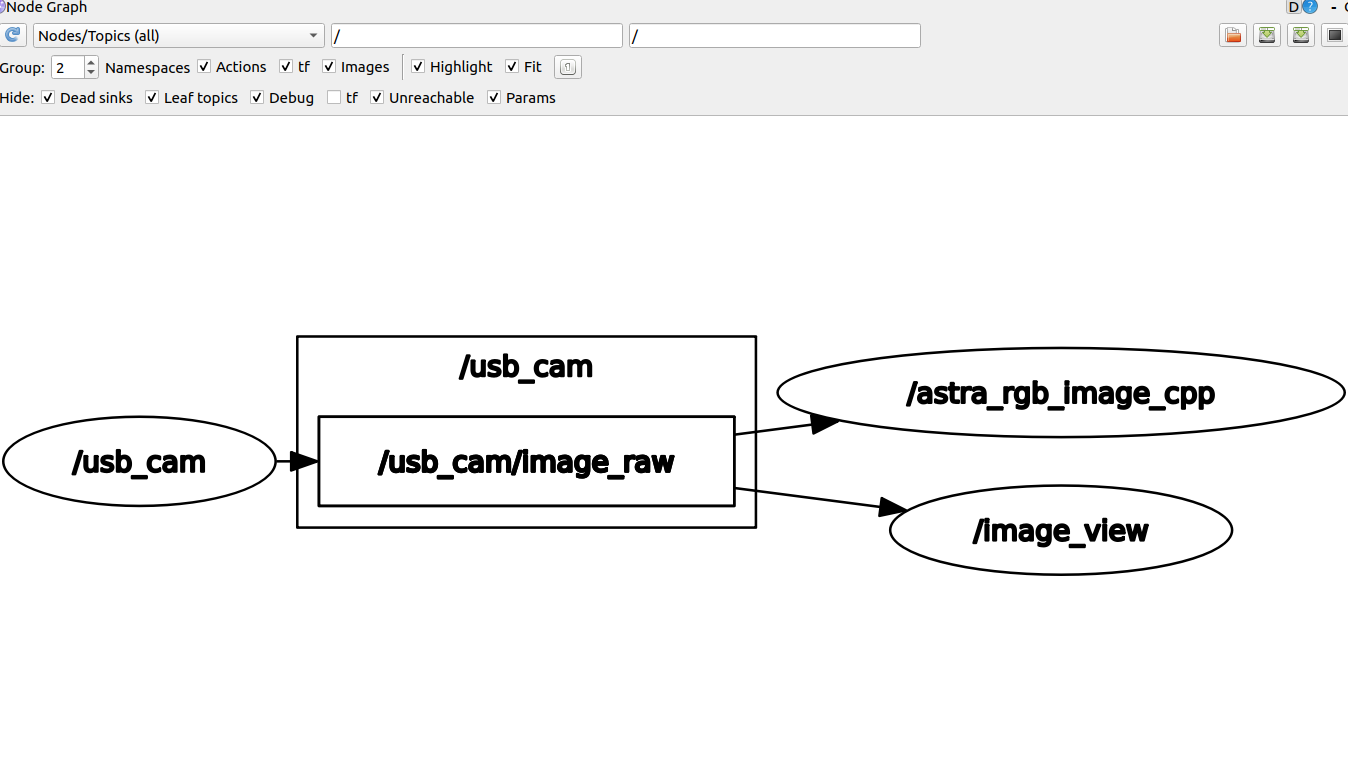
4. View the node graph
Terminal input,
xxxxxxxxxxrqt_graph