Welcome to Game Handle repository
ROS2 Handle Driver
ROS2 Handle Drive
I. Setup of the experimental Environment
Ubuntu22.04
Humble
Note
This tutorial uses a 2.4G test environment as an example!
The controller supports rapid-fire functionality. If you experience jitter when pressing a button, please disable the rapid-fire function for the corresponding button according to the instruction manual.
Before testing, ensure the controller receiver is connected to the motherboard or PC, and switch the controller to DINPUT. ( Press and hold FN+SELECT for 3 seconds ) A solid blue indicator light indicates successful pairing of the controller.
If you use the virtual machine environment we provide, you can skip the following environment setup steps and directly conduct the controller test
Install the handle to control the environment
sudo apt install ros-humble-joy*Type "Y" and press Enter to confirm the installation
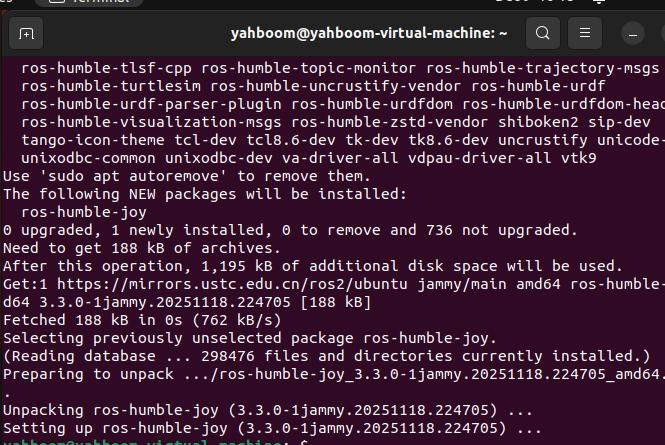
Install joystick
xxxxxxxxxxsudo apt install joystick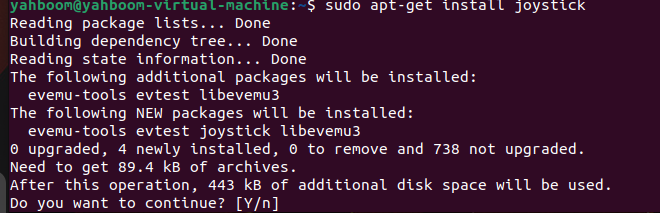
Type "Y" and press Enter to confirm the installation
After the installation is completed, refresh the environment variables again
xxxxxxxxxxsource ~/.bashrcIi.Test the handle
test method 1
Before testing, make sure the handle receiver is connected to the motherboard or PC and successfully paired. Enter the following command to check if the handle device can be detected
xxxxxxxxxxll /dev/input/js0

As shown in the figure, it indicates that the handle receiver has been successfully recognized. Note that if a mouse or keyboard is connected, the js device may also be recognized, but the program only recognizes js0. Therefore, if there are multiple js devices, the handle receiver should be connected first, and then the other devices. If the handle is connected, the indicator light will be in a constant green state. If it flashes, it indicates that the connection is disconnected.
Execute the test instructions
Here, the actual device number is taken as the standard. We take js0 as an example
xxxxxxxxxxsudo jstest /dev/input/js0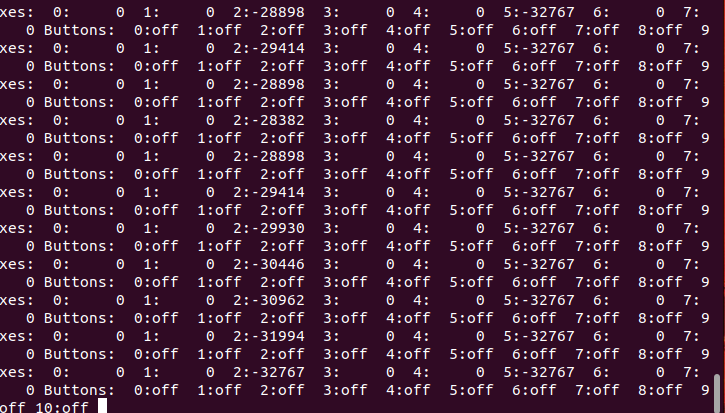
test method 2:
Enter the following instructions to the terminal to run the handle node program
xxxxxxxxxxros2 run joy joy_nodeOpen another terminal and input
xxxxxxxxxxros2 topic echo /joy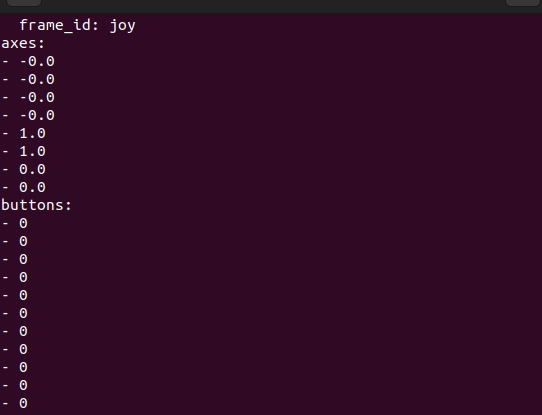
Open another topic about terminal print controllers
Iii. Button Introduction
【Buttons】Represent physical buttons
| Buttons Index | Gamepad Button |
|---|---|
| buttons[0] | A |
| buttons[1] | B |
| buttons[2] | |
| buttons[3] | X |
| buttons[4] | Y |
| buttons[5] | |
| buttons[6] | L1|LB |
| buttons[7] | R1|RB |
| buttons[8] | L2|LT |
| buttons[9] | R2|RT |
| buttons[10] | SELECT |
| buttons[11] | START |
| buttons[12] | Left Stick Press |
| buttons[13] | Right Stick Press |
【Axes】Represent joysticks
| Axes Index | Gamepad Control |
|---|---|
| axes[0] | Left Joystick (Left = Positive, Right = Negative) |
| axes[1] | Left Joystick (Up = Positive, Down = Negative) |
| axes[2] | Right Joystick (Left = Positive, Right = Negative) |
| axes[3] | Right Joystick (Up = Positive, Down = Negative) |
| axes[4] | R2|RT (Pressed: -1, Released: 1) |
| axes[5] | L2|LT (Pressed: -1, Released: 1) |
| axes[6] | D-pad (Horizontal) (Left = Positive, Right = Negative) |
| axes[7] | D-pad (Vertical) (Up = Positive, Down = Negative) |
Iv. Control Turtle with Gamepad
Execute the following commands:
xxxxxxxxxxros2 run turtlesim turtlesim_node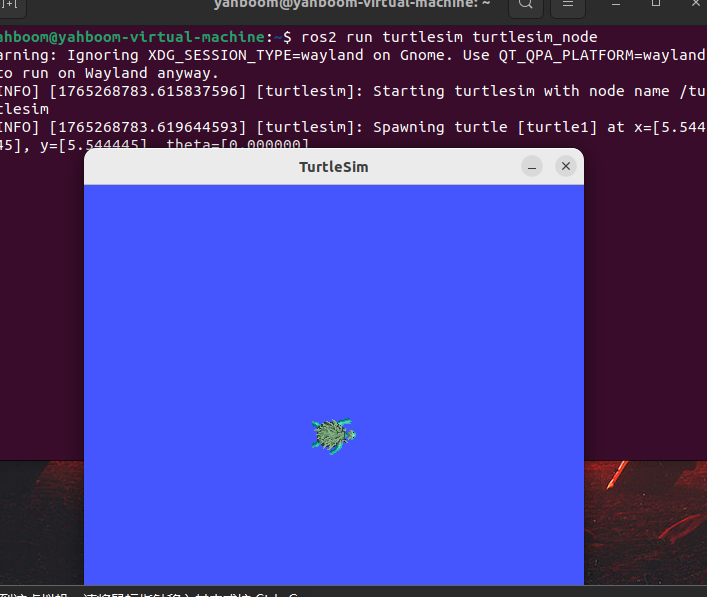
Start the handle to control the node
xxxxxxxxxxros2 launch joy_turtle_ctrl joy_turtle_ctrl_launch.pyThe little turtle can be controlled by moving the left and right joysticks
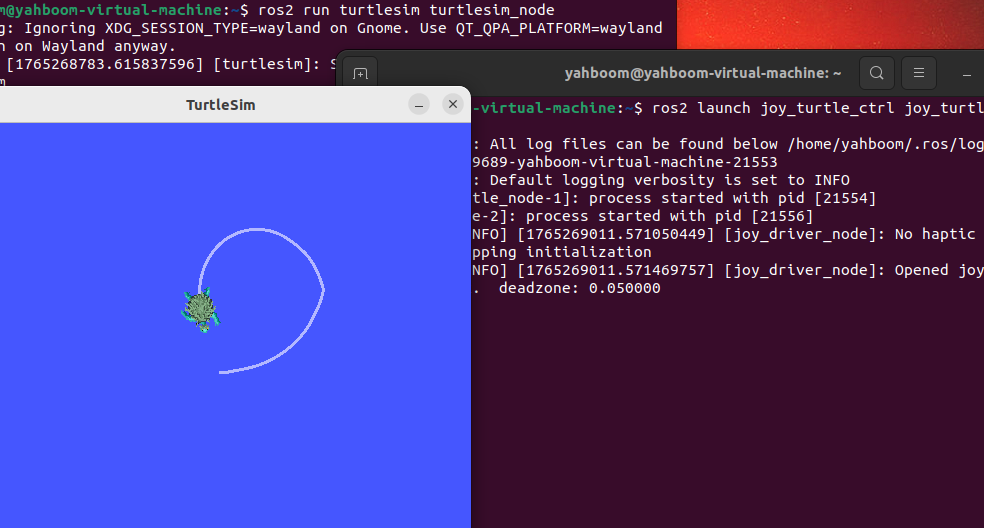
| Gamepad Button | Function Description |
|---|---|
| Left Joystick Up | Move Forward |
| Left Joystick Down | Move Backward |
| Right Joystick Up | Turn Left |
| Right Joystick Down | Turn Right右转 |