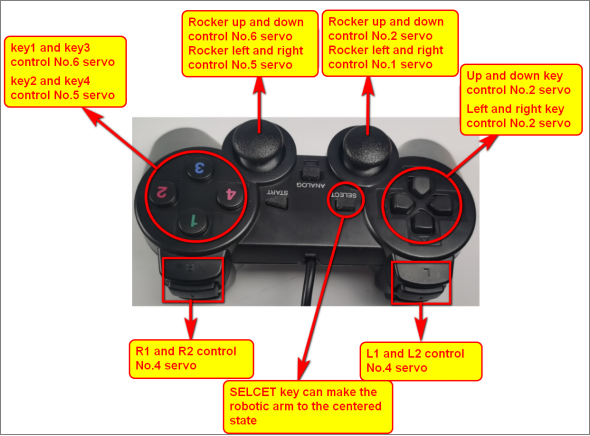
Welcome to ROS USB Handle repository
3.Control DOFBOT
1. Handle key test
First of all, we open the http://html5gamepad.com webpage, and connect your Handle to your computer.
Because maybe your PC computer can not only connect a handle, so the default value of the index of the handle you connect is not 0, so we need to go to this page to view the handle we are currently using. The index can be used correctly.
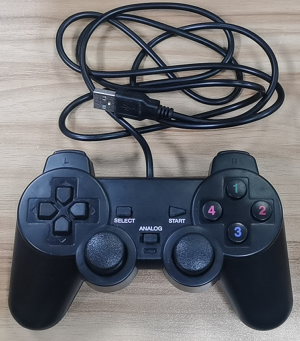
After entering the webpage, the button on Handle must be pressed to trigger the detection and recognition.
The handle displays the corresponding handle information. The following is the detection interface of my handle. When we press the button of the handle, the corresponding button will also be pressed. We can view the mapped value of the currently pressed button and then call it into the corresponding function in our program.
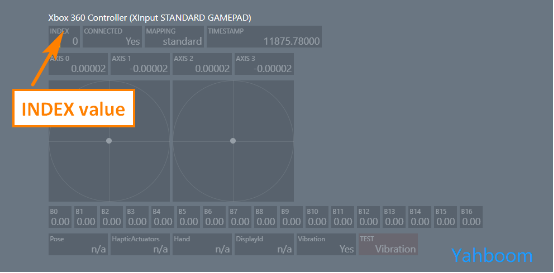
2. Running code
Code Path: /home/jetson/Dofbot/1.telecontrol/arm_handle.ipynb
3. The handle controls the omnidirectional movement
This is useful if you have multiple controllers, or if some gamepads appear as multiple controllers. In order to properly use your handle to control, we need to set the index value tested by the handle test page mentioned above:
Set the index value in the following code:

After executing the above code, the handle key map shown in the figure below will be displayed:
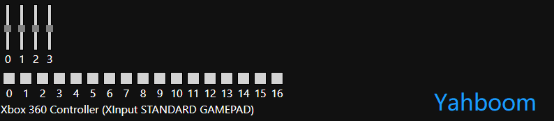
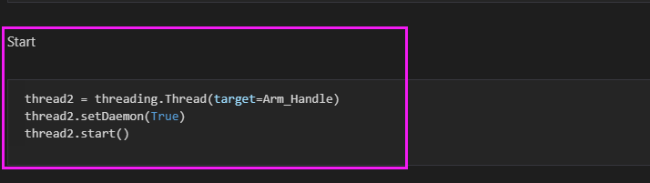
The code only needs to run to the position shown in the figure below.
4. The remote control function of the handle is shown below.