Welcome to GPS Module repository
3.0 Instructions for use
Preparing the GPS module for use
1. GPS module compilation instructions
(1)After the workspace is established, copy the contents of the gps_src folder to the src folder of the workspace, and then use catkin_make to compile, there is no error, indicating that the compilation is passed;
(2)ROS package content description:
- nmea_navsat_driver:GPS module start, read GPS module data, draw GPS data and other functions;
- nmea_msgs-master:msg file that stores some GPS messages
- imu_gps_localization-master:IMU and GPS data fusion function
- gps_goal:Convert latitude and longitude data into move_base target navigation data
2、Bind GPS port
The GPS module is connected to the computer or the main control through the serial port, so we need to bind the port to the GPS,In order to avoid the problem of the port number, the GPS module cannot be recognized by the computer or the main control.
(1)Check the connected USB device, find the GPS module, enter lsusb in the terminal to find the device ID number of the GPS connected device, as shown in the figure below, it is the device identification ID of the GPS module
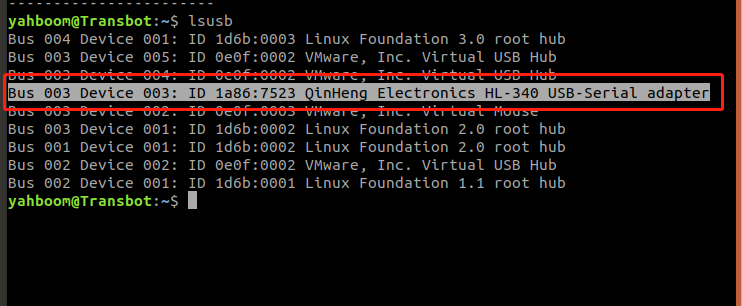
(2)Know the device ID, then write the rules file, bind the port, and enter the terminal:
sudo vim /etc/udev/rules.d/my_serial.rules
Copy the following into it,
xxxxxxxxxxKERNEL=="ttyUSB*", ATTRS{idVendor}=="1a86", ATTRS{idProduct}=="7523", MODE:="0777", SYMLINK+="myserial"
Save and exit, then give it execute permission, terminal input,
xxxxxxxxxxsudo chmod 777 /etc/udev/rules.d/my_serial.rules
(3)Re-plug the GPS module, enter ll /dev/myserial in the terminal to check whether the binding is successful, and the following screen appears, indicating that the binding is successful,
