Welcome to RPi AI Camera repository
6. Color recognition
6. Color recognition
1. Introduction to HSV color space:
RGB color space is the most familiar color space, that is, the three-primary color space. Any color can be mixed from these three colors. However, the effective processing of color space images is generally carried out in HSV space. HSV (hue, saturation, brightness value) is a color space created based on the intuitive characteristics of color, also known as the hexagonal cone model.
Why choose HSV space instead of RGB space? For images, it is feasible to identify the corresponding color in RGB space, HSV space or other color spaces. The reason for choosing HSV is that the hue represented by H can basically determine a certain color, and then combined with the saturation and brightness information to judge whether it is greater than a certain threshold. RGB is composed of three components, and the contribution ratio of each component needs to be judged. That is, the recognition range of HSV space is wider and more convenient.
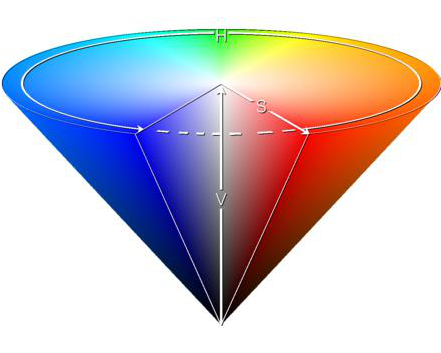
HSV color space model
2. Conversion of three color spaces (gray BGR HSV):
There are more than 150 color space conversion methods in OpenCV, but we often use only two, namely BGR->Gray and BGR->HSV. Note that Gray and HSV cannot be converted to each other. Color space conversion: cv2.cvtColor(input_image, flag)
BGR->Gray: flag is cv2.COLOR_BGR2GRAY
BGR->HSV: flag is cv2.COLOR_BGR2HSV
The value range of HSV color space in OpenCV: H [0, 255] S [0, 255] V [0, 255]
Note: In this case, the AI camera does not have a computing power bonus, and it is called as a normal camera!
Code path:/home/pi/AI_Camera/Color_recognition_CSI.ipynb
import enumimport cv2def bgr8_to_jpeg(value, quality=75):return bytes(cv2.imencode('.jpg', value)[1])
xxxxxxxxxxdef _async_raise(tid, exctype):"""raises the exception, performs cleanup if needed"""tid = ctypes.c_long(tid)if not inspect.isclass(exctype):exctype = type(exctype)res = ctypes.pythonapi.PyThreadState_SetAsyncExc(tid, ctypes.py_object(exctype))if res == 0:raise ValueError("invalid thread id")elif res != 1:# """if it returns a number greater than one, you're in trouble,# and you should call it again with exc=NULL to revert the effect"""ctypes.pythonapi.PyThreadState_SetAsyncExc(tid, None)def stop_thread(thread):_async_raise(thread.ident, SystemExit)
ximport cv2 as cvimport numpy as npimport ipywidgets.widgets as widgetsimport libcamerafrom picamera2 import Picamera2cv.startWindowThread()picam2 = Picamera2()config = picam2.create_preview_configuration(main={"format": 'RGB888', "size": (640, 480)})config["transform"] = libcamera.Transform(hflip=0, vflip=1)picam2.configure(config)picam2.start()color_lower = np.array([0, 43, 46])color_upper = np.array([10, 255, 255])# Green intervals# color_lower = np.array([35, 43, 46])# color_upper = np.array([77, 255, 255])# Blue intervals# color_lower=np.array([100, 43, 46])# color_upper = np.array([124, 255, 255])# Yellow intervals# color_lower = np.array([26, 43, 46])# color_upper = np.array([34, 255, 255])# Orange intervals# color_lower = np.array([11, 43, 46])# color_upper = np.array([25, 255, 255])def Color_Recongnize():while(1):# get a frame and showframe = picam2.capture_array()#cv2.imshow('Capture', frame)origin_widget.value = bgr8_to_jpeg(frame)# change to hsv modelhsv = cv2.cvtColor(frame, cv2.COLOR_BGR2HSV)# get maskmask = cv2.inRange(hsv, color_lower, color_upper)#cv2.imshow('Mask', mask)mask_widget.value = bgr8_to_jpeg(mask)# detect blue res = cv2.bitwise_and(frame, frame, mask=mask)#cv2.imshow('Result', res)result_widget.value = bgr8_to_jpeg(res)# if cv2.waitKey(1) & 0xFF == ord('q'):# breaktime.sleep(0.01)cap.release()#cv2.destroyAllWindows()
xxxxxxxxxximport traitletsimport ipywidgets.widgets as widgetsimport timeimport threadingimport inspectimport ctypesorigin_widget = widgets.Image(format='jpeg', width=320, height=240)mask_widget = widgets.Image(format='jpeg',width=320, height=240)result_widget = widgets.Image(format='jpeg',width=320, height=240)# create a horizontal box container to place the image widget next to eachotherimage_container = widgets.HBox([origin_widget, mask_widget, result_widget])display(image_container)
xxxxxxxxxx# Start the processthread1 = threading.Thread(target=Color_Recongnize)thread1.daemon = Truethread1.start()
xxxxxxxxxx# End the processstop_thread(thread1)
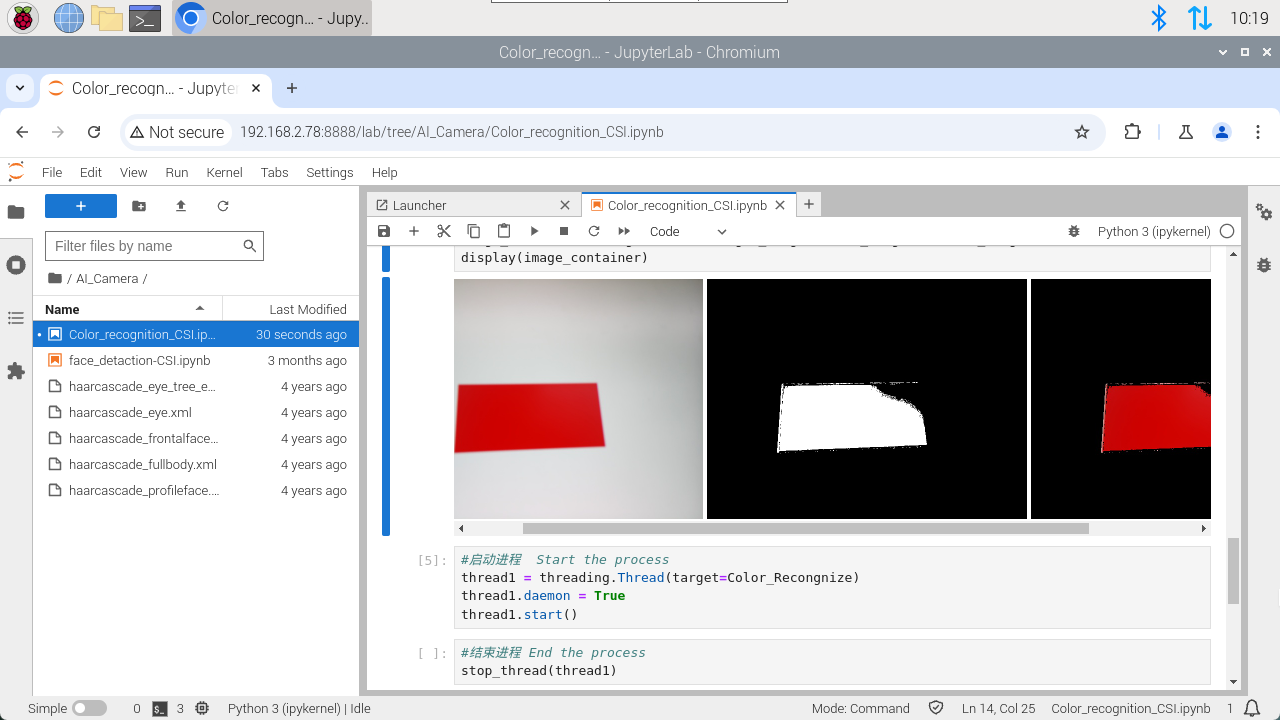
This is the effect of red recognition. If you want to recognize other colors, you can annotate the red interval and open other color intervals.
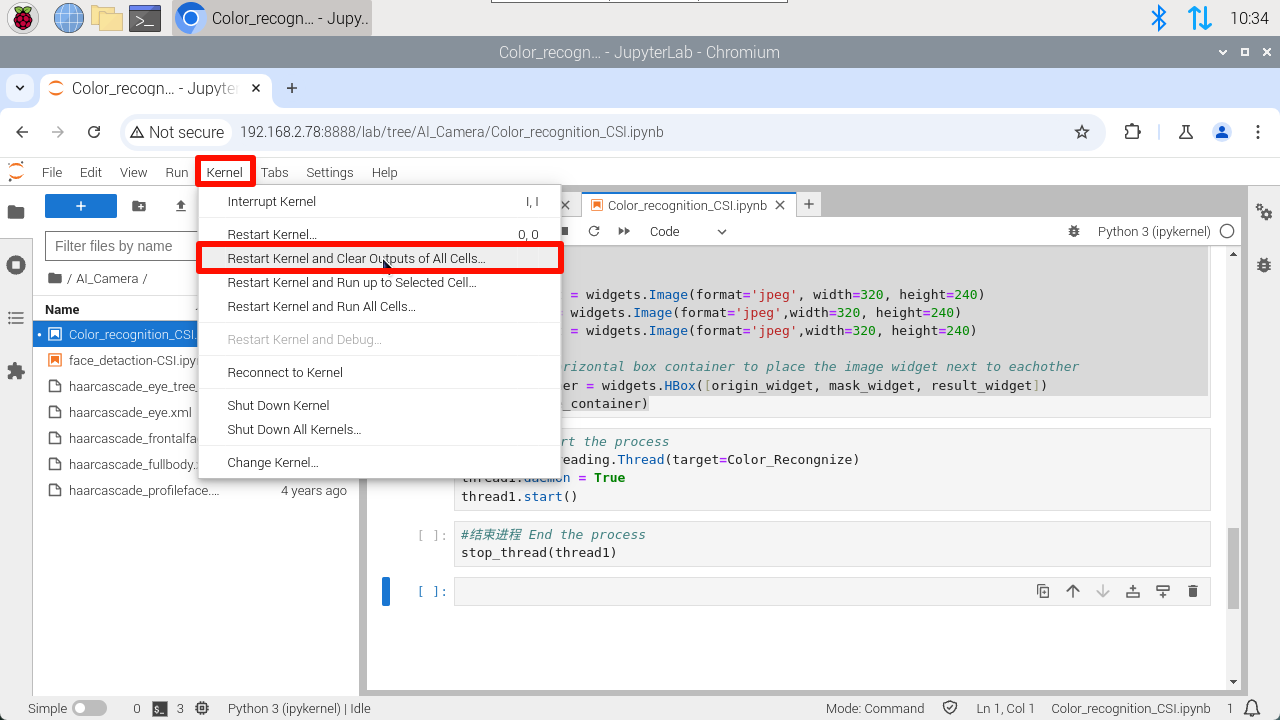
Note: If you want to rerun the program, you need to do the following: