Welcome to SLAM LiDAR repository
15.ROS-TF transformation
15.ROS-TF transformation
TF transformation is coordinate transformation, including transformation of position and attitude. It uses a tree data structure to buffer and maintain coordinate transformation relationships between multiple coordinate systems based on time, which can help developers complete coordinate transformations such as points and vectors at any time and between coordinate systems. This course explains what are the commonly used TF tools in the ros system and how to broadcast/monitor transformations.
15.1 TF common tools
When introducing the TF tool, first understand two important concepts: source_frame and target_frame, also called parent_frame and child_frame. They each represent a coordinate system. When we broadcast or monitor the TF transformation, we are actually broadcasting and monitoring the relative pose transformation of the two.
15.1.1 tf_monitor
Used to print the release status of all coordinate systems in the TF tree, terminal input,
rosrun tf tf_monitorAfter running, all the publishing status will be printed out in the running terminal. Of course, the publishing status of the specified coordinates can also be printed. You need to add the name of the specified coordinate system at the end and enter it in the terminal.
xxxxxxxxxxrosrun tf tf_monitor source_frame target_frame15.1.2 tf_echo
Used to view the transformation relationship between specified coordinate systems, terminal input,
xxxxxxxxxxrosrun tf tf_echo source_frame target_frame15.1.3、static_transform_publisher
Used to publish static coordinate transformations between two coordinate systems that do not undergo relative position changes. This tool needs to set the offset parameters and rotation parameters of the coordinates, and the publishing frequency is in ms. Terminal input,
xxxxxxxxxx#Euler angle format display#Euler angle yaw (yaw angle rotating around the z-axis) pitch (pitch angle rotating around the y-axis) roll (roll angle rotating around the x-axis)rosrun tf static_transform_publisher x y x yaw pitch roll frame_id child_frame_id period_in_ms#Quaternion format displaystatic_transform_publisher x y z qx qy qz qw frame_id child_frame_id period_in_ms15.1.4 rqt_tf_tree
This is a real-time tool that observes the coordinate system tree published on ros and uses the refresh button to update the contents of the tree. Terminal input,
xxxxxxxxxxrosrun rqt_tf_tree rqt_tf_tree15.2. TF transformation broadcast and monitoring programming implementation (C++)
Steps to create tf broadcaster:
- Define tf broadcaster (TransformBroadcaster);
- Initialize tf data and create coordinate transformation values;
- Publish coordinate transformation (sendTransform);
Steps to create tf listener:
- Define TF listener (TransformListener);
- Look up coordinate transformation (waitForTransform, lookupTransform)
First create a function package, the command is learn_tf, enter in the terminal,
xxxxxxxxxxcd ~/ros_ws/srccatkin_create_pkg learn_tf rospy roscpp turtlesim tfAfter creation, return to the workspace and compile.
xxxxxxxxxxcd ~/ros_wscatkin_make15.2.1. Create TF broadcaster
In the src folder of the function package learn_tf, create a c++ file (the file suffix is .cpp), name it turtle_tf_broadcaster.cpp, and copy the following code into it,
xxxxxxxxxxstd::string turtle_name;void poseCallback(const turtlesim::PoseConstPtr& msg){ static tf::TransformBroadcaster br;// Create a tf broadcaster // Initialize tf data tf::Transform transform; transform.setOrigin( tf::Vector3(msg->x, msg->y, 0.0) );//Set xyz coordinates tf::Quaternion q; q.setRPY(0, 0, msg->theta);//Set Euler angles: Rotate with x-axis, y-axis, z-axis transform.setRotation(q); br.sendTransform(tf::StampedTransform(transform, ros::Time::now(), "world",turtle_name));// Broadcast tf data between world and turtle coordinate systems}int main(int argc, char** argv){ ros::init(argc, argv, "turtle_world_tf_broadcaster");// Initialize ROS node if (argc != 2) { ROS_ERROR("Missing a parameter as the name of the turtle!"); return -1; } turtle_name = argv[1];// Enter the parameter as the name of the turtle // Subscribe to turtle position topics/pose ros::NodeHandle node; ros::Subscriber sub = node.subscribe(turtle_name+"/pose", 10,&poseCallback); // Loop waiting for callback function ros::spin(); return 0;};Modify the CMakeLists.txt file and add the following content,
xxxxxxxxxxadd_executable(turtle_tf_broadcaster src/turtle_tf_broadcaster.cpp)target_link_libraries(turtle_tf_broadcaster ${catkin_LIBRARIES})Return to the workspace to compile,
xxxxxxxxxxcd ~/ros_wscatkin_make
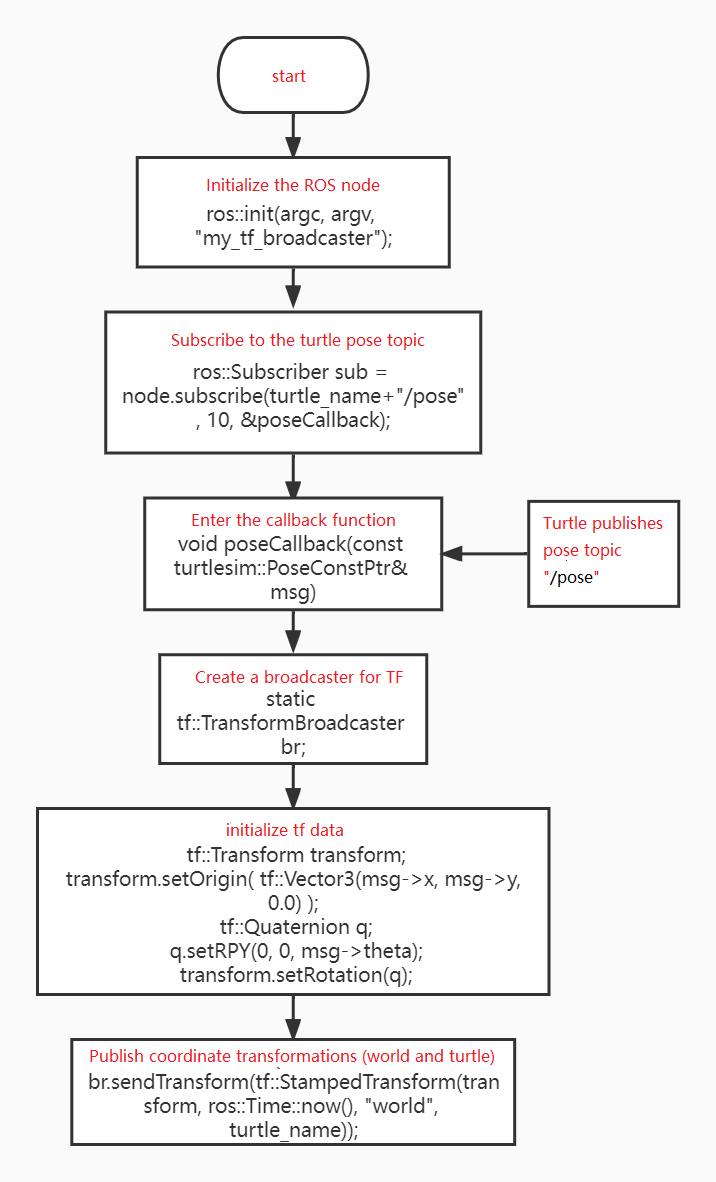
Program flow chart,
The code is analyzed as follows,
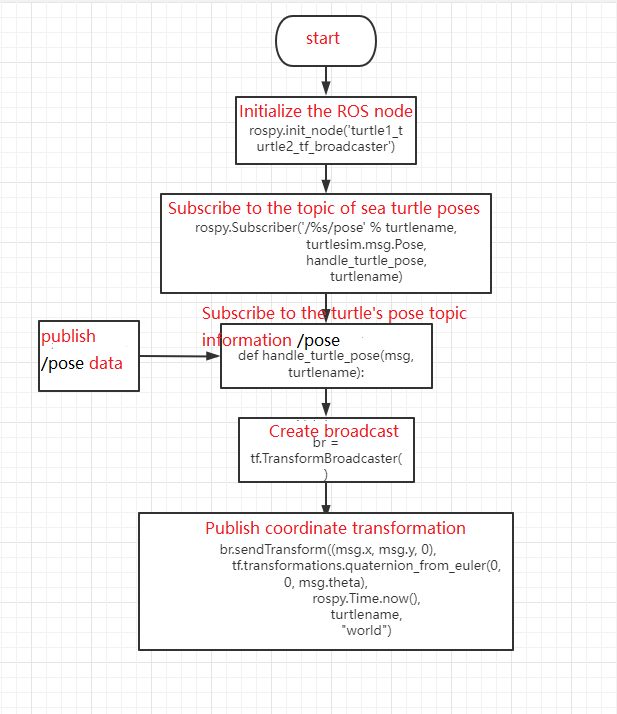
First, subscribe to the /pose topic of the little turtle. If the topic is published, then enter the callback function. In the callback function, first create the tf broadcaster, and then initialize the tf data. The value of the data is the data passed by the subscription/pose topic. Finally, the little turtle's transformation of the world coordinates is published through br.sendTransform. Here is the sendTransform function. There are 4 parameters. The first parameter represents the coordinate transformation of the tf::Transform type (that is, the previously initialized tf data).The second parameter is the timestamp, and the third and fourth are the source and target coordinate systems of the transformation.
15.2.2 Create TF listener
In the src folder of the function package learn_tf, create a c++ file (the file suffix is .cpp), name it turtle_tf_listener.cpp, and copy the following code into it,
xxxxxxxxxx/*** This routine monitors tf data, calculates and issues turtle2 speed instructionsturtle2->turtle1 = world->turtle*world->turtle2*/int main(int argc, char** argv){ ros::init(argc, argv, "turtle1_turtle2_listener");// Initialize ROS node ros::NodeHandle node; // Create node handle // Request service produces turtle2 ros::service::waitForService("/spawn"); ros::ServiceClient add_turtle = node.serviceClient<turtlesim::Spawn>("/spawn"); turtlesim::Spawn srv; add_turtle.call(srv); // Create a publisher that publishes turtle2 speed control instructions ros::Publisher vel = node.advertise<geometry_msgs::Twist> ("/turtle2/cmd_vel", 10); tf::TransformListener listener;// Create a tf listener ros::Rate rate(10.0); while (node.ok()) { // Get the tf data between turtle1 and turtle2 coordinate systems tf::StampedTransform transform; try { listener.waitForTransform("/turtle2", "/turtle1", ros::Time(0),ros::Duration(3.0)); listener.lookupTransform("/turtle2", "/turtle1", ros::Time(0),transform); } catch (tf::TransformException &ex) { ROS_ERROR("%s",ex.what()); ros::Duration(1.0).sleep(); continue; } // According to the positional relationship between turtle1 and turtle2 coordinate systems, the angular velocity and linear velocity are obtained through mathematical calculation formulas, and the speed control instructions of turtle2 are issued. geometry_msgs::Twist turtle2_vel_msg; turtle2_vel_msg.angular.z = 6.0 * atan2(transform.getOrigin().y(),transform.getOrigin().x()); turtle2_vel_msg.linear.x = 0.8 * sqrt(pow(transform.getOrigin().x(), 2)+pow(transform.getOrigin().y(), 2)); vel.publish(turtle2_vel_msg); rate.sleep(); } return 0;};Modify the CMakeLists.txt file and add the following content,
xxxxxxxxxxadd_executable(turtle_tf_listener src/turtle_tf_listener.cpp)target_link_libraries(turtle_tf_listener ${catkin_LIBRARIES})Return to the workspace to compile,
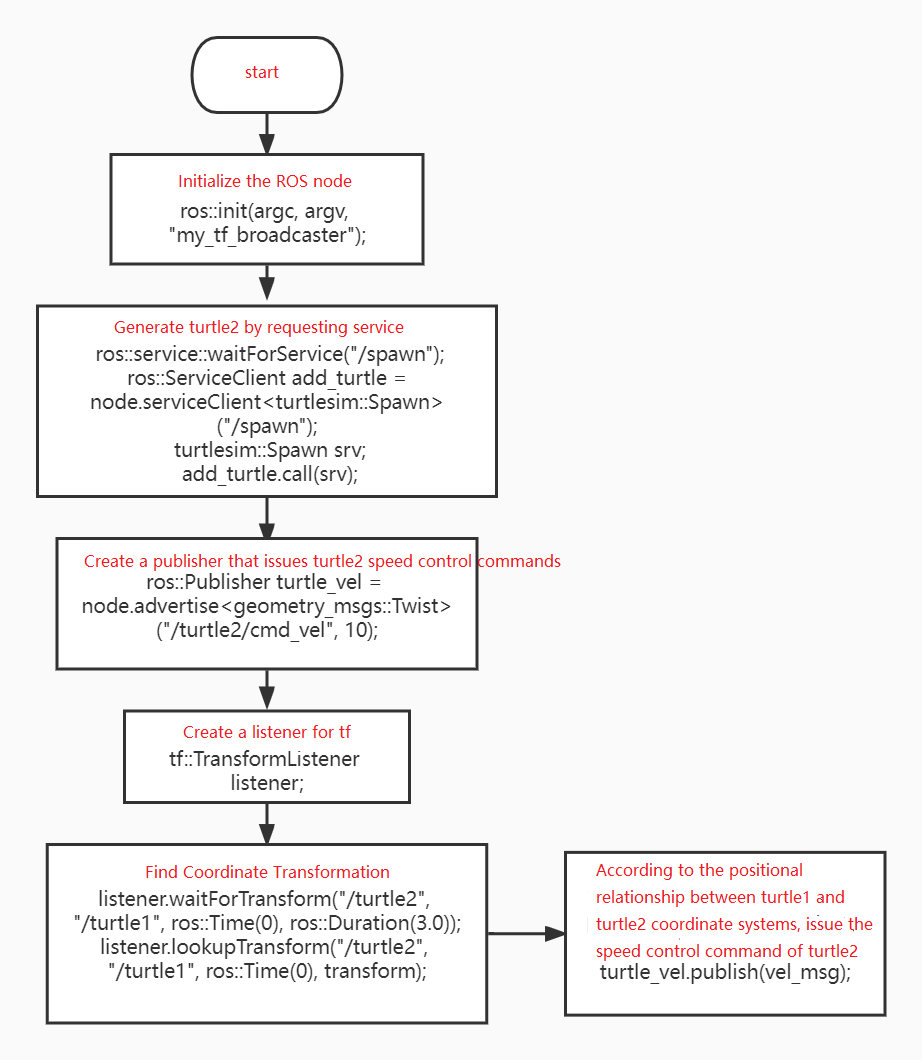
xxxxxxxxxxcd ~/ros_wscatkin_makeProgram flow chart,
The code is analyzed as follows,
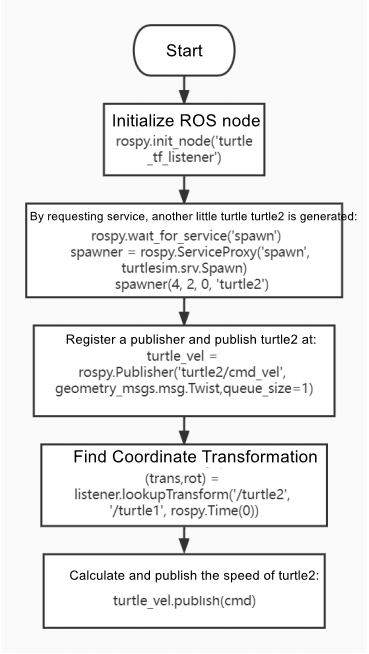
First, another little turtle turtle2 is generated through service calls, and then a turtle2 speed control publisher is created; then a listener is created to monitor and find the left transformation of turtle1 and tuetle2. This involves two functions, waitForTransform and lookupTransform.
waitForTransform(target_frame,source_frame,time,timeout): The two frames represent the target coordinate system and the source coordinate system respectively.Time represents the time to wait for the transformation between the two coordinate systems. Because the coordinate transformation is a blocking program, timeout needs to be set to represent the timeout time.
lookupTransform(target_frame,source_frame,time,transform): Given the source coordinate system (source_frame) and the target coordinate system (target_frame), obtain the coordinate transformation (transform) at the specified time (time) between the two coordinate systems.
After lookupTransform, we get the result of coordinate transformation, transform, and then get the values of x and y through transform.getOrigin().y(), transform.getOrigin().x(),Then the angular velocity angular.z and linear velocity linear.x are obtained through mathematical operations, and finally published to let turtle2 move.
15.3. Run the program
After starting roscore, open the little turtle node. At this time, a little turtle will appear in the terminal; then we publish two tf transformations, turtle1->world, turtle2->world, because we want to know the changes between turtle2 and turtle1, You need to know the transformation between them and the world;Then, start the tf listening program. At this time, you will find that another small turtle turtle2 is generated in the terminal, and turtle2 will move towards turtle1;Then, we turn on the keyboard control and control the movement of turtle1 by pressing the direction keys, and then turtle2 will chase turtle1 to move.
First open roscore and enter in the terminal,
xxxxxxxxxxroscore
Run the little turtle node,
xxxxxxxxxxrosrun turtlesim turtlesim_node
Run the broadcast tf program and broadcast turtle1->world,
xxxxxxxxxxrosrun learn_tf turtle_tf_broadcaster __name:=turtle1_tf_broadcaster /turtle1Run the broadcast tf program and broadcast turtle2->world,
xxxxxxxxxxrosrun learn_tf turtle_tf_broadcaster __name:=turtle2_tf_broadcaster /turtle2Run the listening tf program,
xxxxxxxxxxrosrun learn_tf turtle_tf_listener
Run the keyboard to control the little turtle node,
xxxxxxxxxxrosrun turtlesim turtle_teleop_key
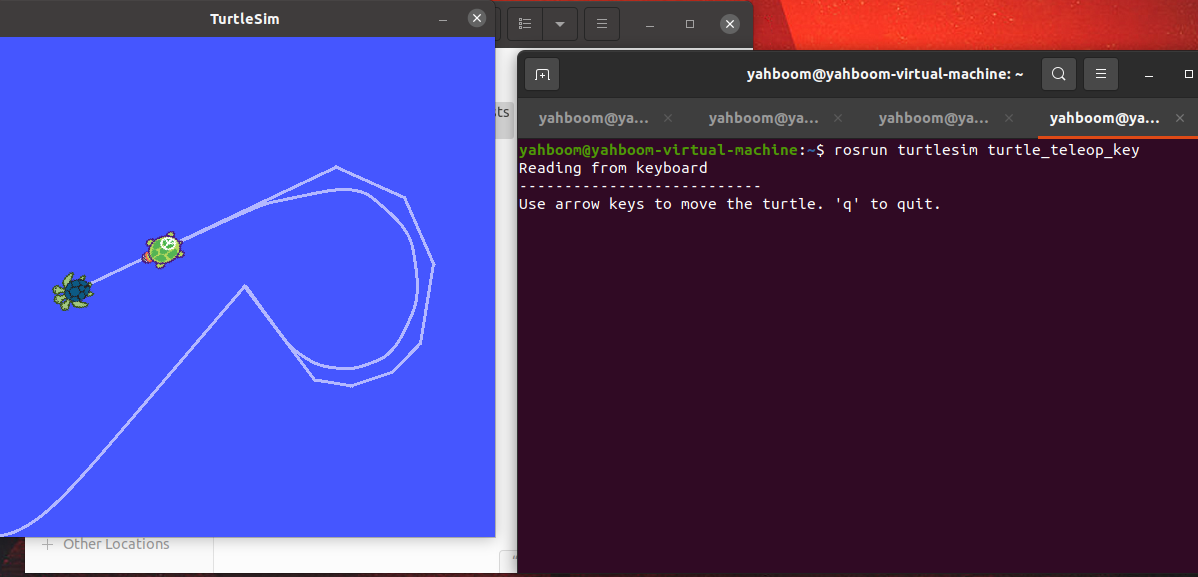
You can enter rosrun rqt_tf_tree rqt_tf_tree to view the TF tree and enter it in the terminal.
xxxxxxxxxxrosrun rqt_tf_tree rqt_tf_tree
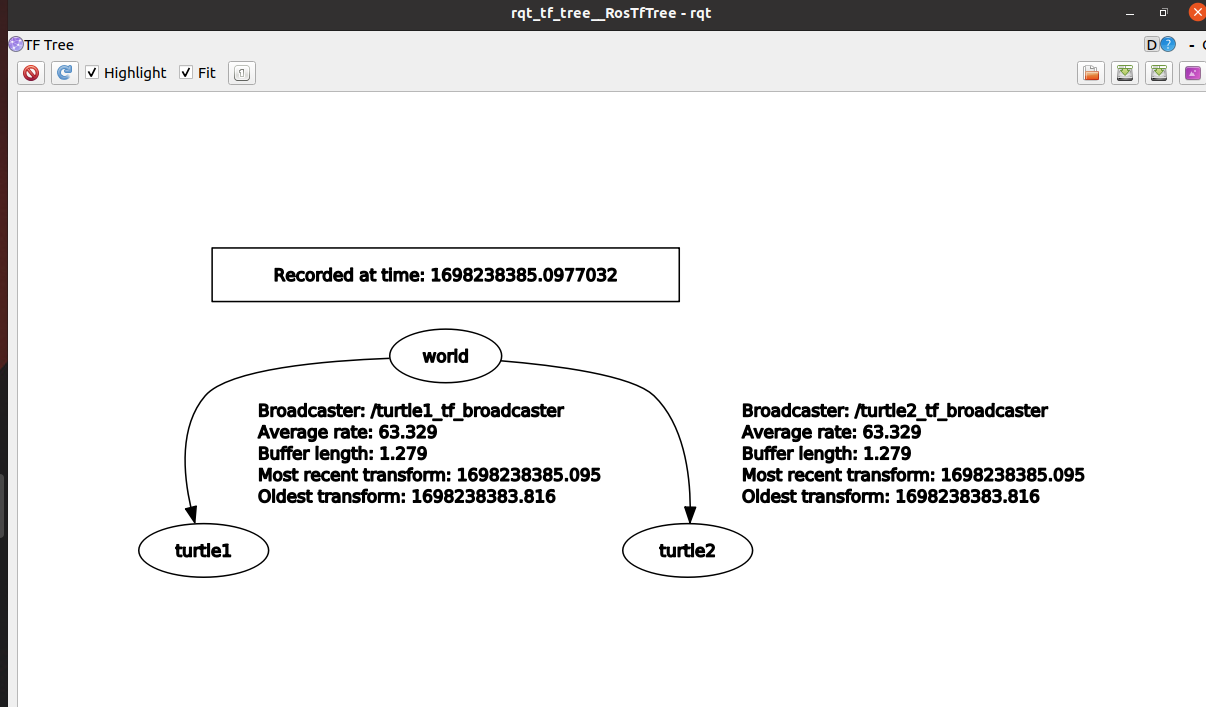
As shown in the figure above, both turtle1 and turtle2 have a TF transformation relationship with the world. Therefore, when turtle1 undergoes relative coordinate transformation relative to the world, turtle2 knows where turtle1 is.Then calculate the relative posture of the two, adjust the linear velocity and angular velocity of turtle2, and move to the position of turtle1.
15.4 TF transformation broadcast and monitoring programming implementation (Python)
15.4.1 Create TF broadcaster
In the function package learn_tf, create a folder script, switch to the directory, create a new .py file, name it turtle_tf_broadcaster.py, copy and paste the following program code into the turtle_tf_broadcaster.py file,
xxxxxxxxxx#!/usr/bin/env python# -*- coding: utf-8 -*-import roslibroslib.load_manifest('learn_tf')import rospyimport tfimport turtlesim.msgdef handle_turtle_pose(msg, turtlename): br = tf.TransformBroadcaster()#Define a tf broadcast #tf transformation between broadcast world and input named turtle br.sendTransform((msg.x, msg.y, 0),tf.transformations.quaternion_from_euler(0, 0, msg.theta),rospy.Time.now(),turtlename,"world")if __name__ == '__main__': rospy.init_node('turtle1_turtle2_tf_broadcaster')#Initialize ros node turtlename = rospy.get_param('~turtle',"turtle_name") #Get the turtle's name from the parameter server #Subscribe/pose topic data, which is the turtle’s pose information rospy.Subscriber('/%s/pose' % turtlename,turtlesim.msg.Pose,handle_turtle_pose,turtlename) rospy.spin()Program flow chart,
15.4.2 Create TF listener
In the function package learn_tf, create a folder script, switch to the directory, create a new .py file, name it turtle_tf_listener.py, copy and paste the following program code into the turtle_tf_listener.py file,
xxxxxxxxxx#!/usr/bin/env python# -*- coding: utf-8 -*-import rospyimport mathimport tfimport geometry_msgs.msgimport turtlesim.srvif __name__ == '__main__': rospy.init_node('turtle_tf_listener')#Initialize ros node listener = tf.TransformListener()#Initialize a listener rospy.wait_for_service('spawn') #Call the service to spawn another turtle turtle2 spawner = rospy.ServiceProxy('spawn', turtlesim.srv.Spawn) spawner(8, 6, 0, 'turtle2') #Declare a publisher to publish the speed of turtle2 turtle_vel = rospy.Publisher('turtle2/cmd_vel',geometry_msgs.msg.Twist,queue_size=1) rate = rospy.Rate(10.0) while not rospy.is_shutdown(): try: #Find tf changes between turtle2 and turtle1 (trans,rot) = listener.lookupTransform('/turtle2', '/turtle1',rospy.Time(0)) except (tf.LookupException, tf.ConnectivityException,tf.ExtrapolationException): continue #Through mathematical calculations, calculate the linear velocity and angular velocity, and then publish them angular = 6.0 * math.atan2(trans[1], trans[0]) linear = 0.8 * math.sqrt(trans[0] ** 2 + trans[1] ** 2) cmd = geometry_msgs.msg.Twist() cmd.linear.x = linear cmd.angular.z = angular turtle_vel.publish(cmd) rate.sleep()Program flow chart,
15.4.3. Write launch file to start
After the two python files are written, you need to give execution permission and enter in the terminal.
xxxxxxxxxxcd ~/ros_ws/src/learn_tf/scriptssudo chmod a+x turtle_tf_listener.pysudo chmod a+x turtle_tf_broadcaster.pyIn the function package directory, create a new folder launch, switch to launch, create a new launch file, name it start_tf_demo_py.launch, and copy the following content into it,
xxxxxxxxxx<launch> <!-- Turtle Node--> <node pkg="turtlesim" type="turtlesim_node" name="sim"/> <!--broadcast turtle1->world--> <node name="turtle1_tf_broadcaster" pkg="learn_tf" type="turtle_tf_broadcaster.py" respawn="false" output="screen" > <param name="turtle" type="string" value="turtle1" /> </node> <!--broadcast turtle2->world--> <node name="turtle2_tf_broadcaster" pkg="learn_tf" type="turtle_tf_broadcaster.py" respawn="false" output="screen" > <param name="turtle" type="string" value="turtle2" /> </node> <!--listener--> <node pkg="learn_tf" type="turtle_tf_listener.py" name="listener" /> <!--Turtle keyboard control node--> <node pkg="turtlesim" type="turtle_teleop_key" name="teleop" output="screen"/></launch>15.5 Startup
Terminal starts,
xxxxxxxxxxroslaunch learn_tf start_tf_demo_py.launch
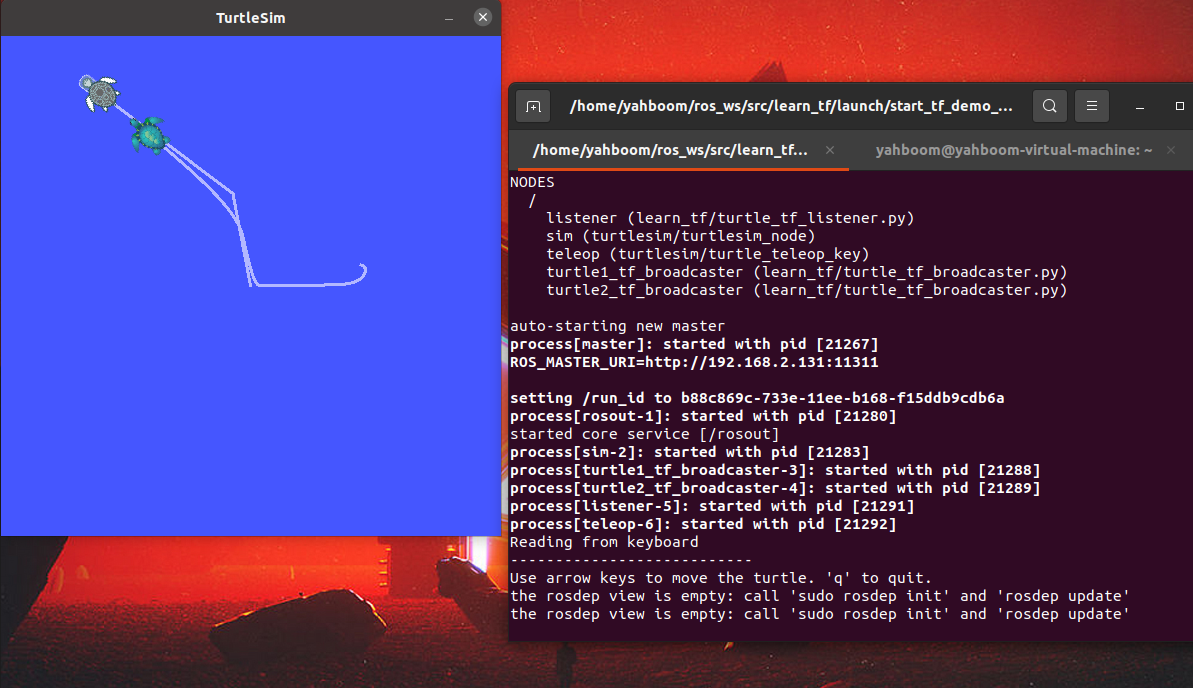
After the program is running, click the mouse on the window running launch and press the arrow keys. Turtle2 will move with turtle1.