yahboom
HomeTutorialsProduct
Solution
Blog
Online Store
About Us
EN/中文
Store
Raspberry Pi Pico 2📖
1. About Pico 2
  • Introduction to Raspberry Pi PICO 2
2. Development-python
  • 1. Flash the firmware
  • 2. Software environment configuration
  • 3. Download a program
3. Development-C
  • 1. Software environment configuration
  • 2. Download a program
4. Python course
  • 1. Flash the onboard LED light
  • 2. Onboard temperature sensor reading
  • 3. Button control LED light
  • 4. Buzzer
  • 5. PWM pin
5. C course
  • 1. Flash the onboard LED light
  • 2. Onboard temperature sensor reading
  • 3. Button control LED light
  • 4. Buzzer
  • 5. PWM pin
Download
  • C software
  • Python software
  • Official information
Download ZIP

Welcome to Raspberry Pi Pico 2 repository

1. Flash the firmware

1. Flash the firmware

Download the microPython firmware from the network disk to the computer and get the following file

You can also download the latest firmware on this page: MicroPython - Python for microcontrollers

Press and hold the button on the Pico 2 board, connect the Pico 2 to the USB port of the computer via the Micro USB cable, and then release the button. After connecting, the computer will automatically recognize a removable disk (RP2350)
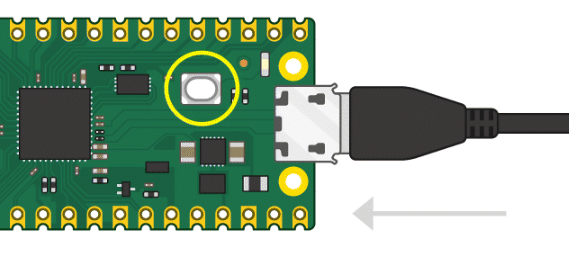

image-20240906122742482

Copy and drag the firmware file downloaded earlier to the RP2350 removable disk. After the copy is completed, Pico 2 will automatically restart. After the automatic restart, Pico 2 will be recognized as a virtual serial port
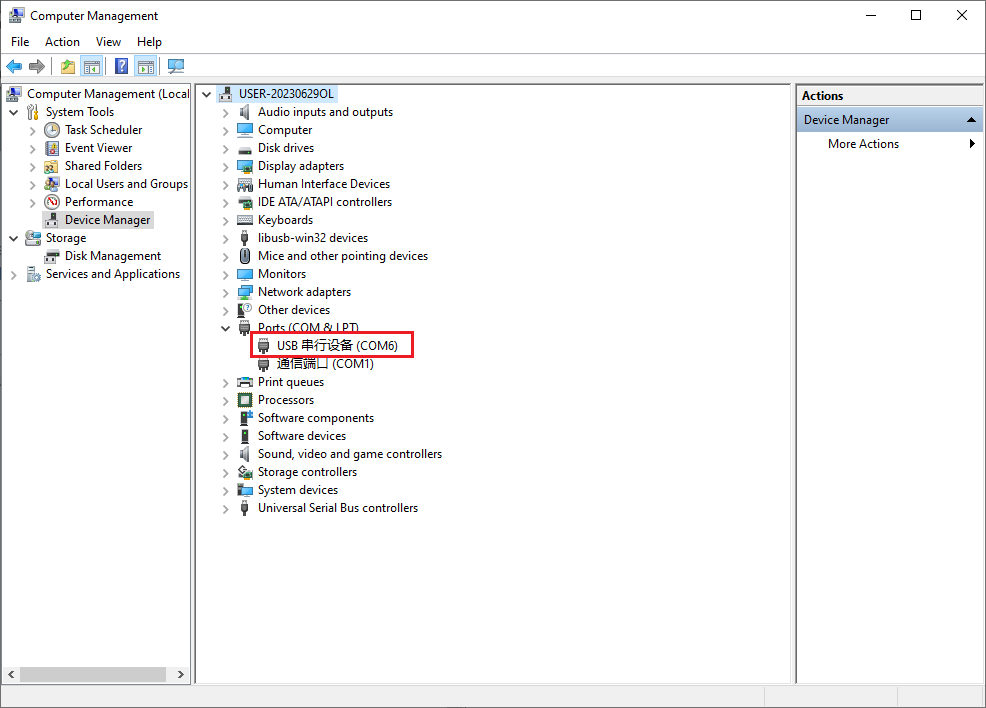
Note

  1. What if the removable disk is not automatically recognized after connecting Pico 2?

▶ Check if the BOOTSEL button is not pressed or released in the middle. ▶ The Micro USB cable used must be a data cable. The USB cable that can only provide power cannot be used.

  1. You can also operate on the Raspberry Pi. The operation steps are the same. Connect the Pico 2 to the Raspberry Pi and then drag the firmware to the mobile disk.
Introduction to Raspberry Pi PICO 2
Software environment configuration

COMPANY

  • About us
  • Team Style
  • Blog

LEARNING & EXPLORATION

  • Tutorials
  • Edge AI hardware
  • Educational robots
  • Embedded intelligent hardware

WHERE TO BUY

  • Yahboom Online Store
  • Amazon
  • Alibaba
  • AliExpress
  • Mercado

TECHNOLOGY SUPPORT

  • Email: support@yahboom.com

BE A DISTRIBUTOR

  • Email: sales@yahboom.com
QR Code

Copyright © 2017-2026 Yahboom. All Rights Reserved.

EN/中文