Welcome to Raspberry Pi Pico 2 repository
2. Software environment configuration
2. Software environment configuration
Software environment configuration (Windows)
In order to facilitate the use of MicroPython development on the computer, it is recommended to download Thonny IDE.
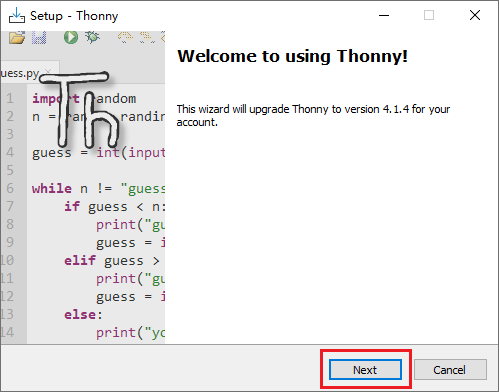
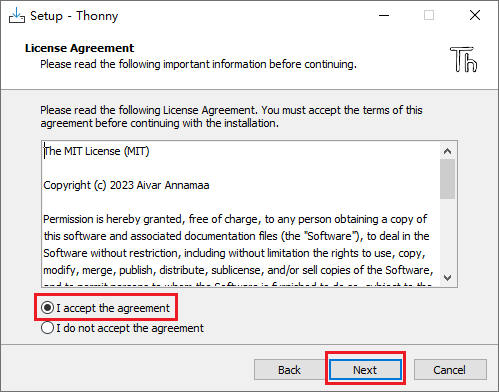
Here we go directly to our data attachment folder to get the installation package file and double-click to install it. The following are the installation steps

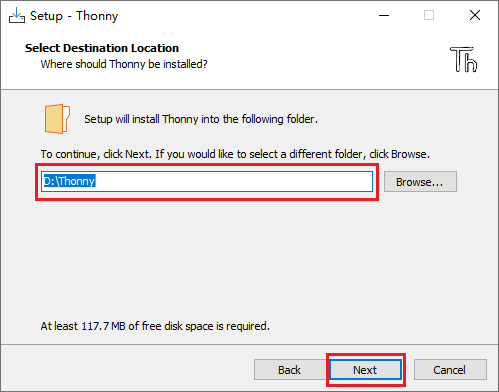
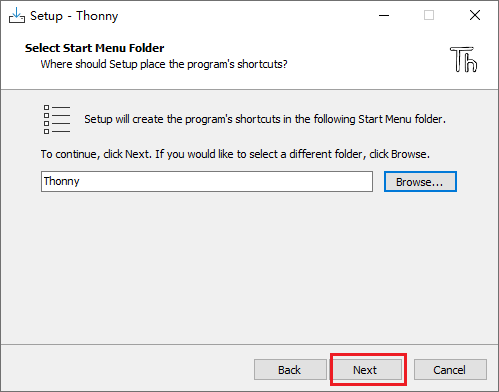
Here choose the path you want to install
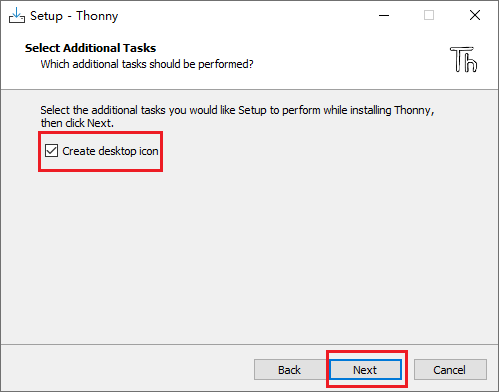
Checking here is to install the desktop icon, you can uncheck it if you don’t want to
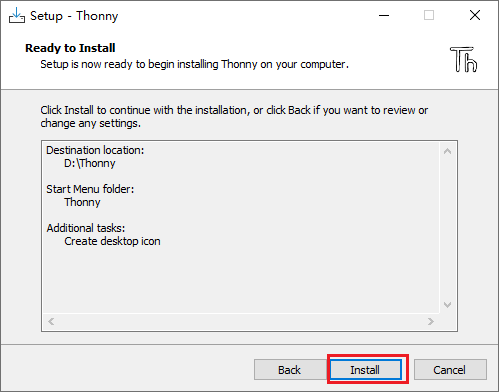
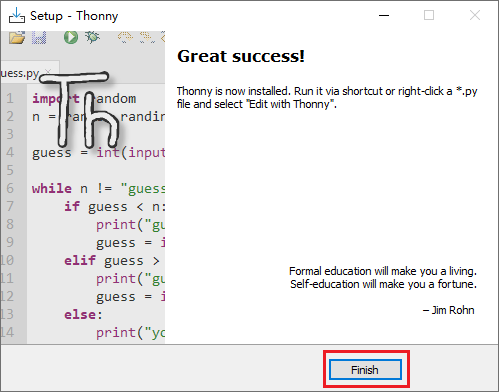
After the installation is complete, click Finish

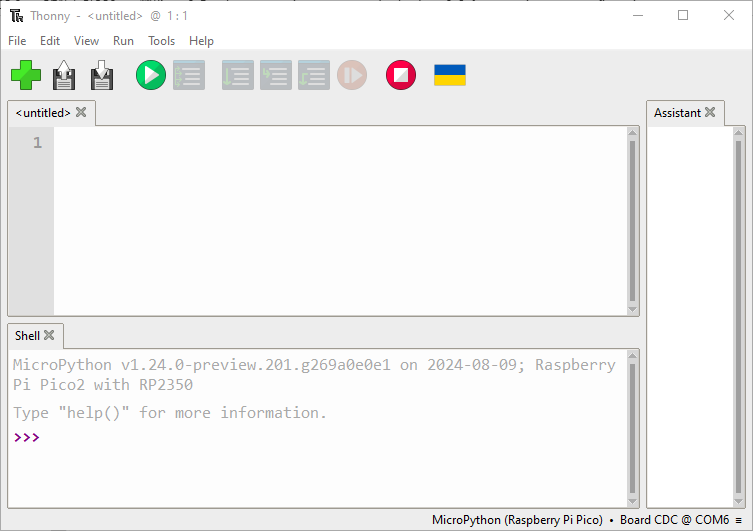
Double-click the icon to open and you will see the following interface
Software environment configuration (Raspberry Pi)
If you want to control Pico 2 on Raspberry Pi, please refer to this configuration step
The current Raspberry Pi system comes with Thonny IDE. However, if Thonny is not updated to the latest v3.3.3 version or above, there is no Pico support package. If this is the case, Thonny needs to be updated.
- Open the terminal and enter the following command to update thonny
xxxxxxxxxxsudo apt upgrade thonny
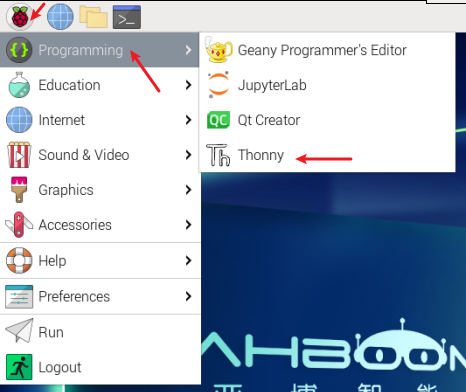
Then open Thonny IDE (click Raspberry logo -> Programming -> Thonny Python IDE)
- Connect Pico 2 to the computer (no need to press keys). If you have not flashed MicroPython firmware before, please follow 1. Flash firmware
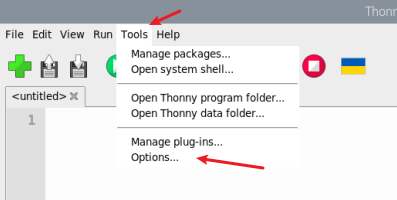
Select Tools -> Options... -> Interpreter
Select Raspberry Pi Pico in the interpreter option (please download the latest version of Thonny, Otherwise, there is no such option), the port is identified as /dev/ttyACM0 (it may also be other port numbers)
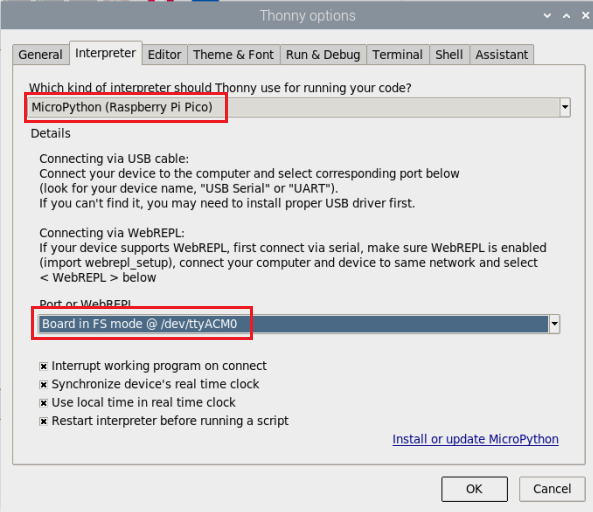
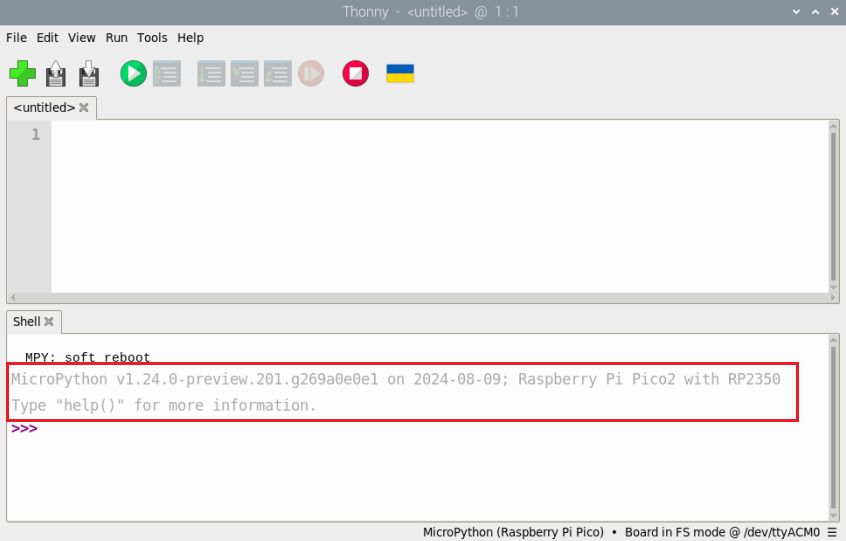
Then confirm. After confirming, you can see that there will be multiple Pico information in the command line interface. Now you can enter the MicroPython program here to control Pico 2