yahboom
HomeLearn
Solution
Blog
Online Store
About Us
EN/中文
4G Remote Communication Module📖
1.4G Module Guide
  • 1.4G Module Introduction
  • 2.Installation Steps
  • 3.USB Device Connection
  • 4.Indicator Light Status
  • 5.Common AT Commands
2.Win System Tutorial
  • Win System Tutorial
3.Linux System Tutorial
  • Linux System Tutorial
4.Network Image Transmission Tutorial
  • Network Image Transmission Tutorial
Download
  • Chip_DataSheet
  • AT Command Manual
  • Tools
Download ZIP

Welcome to 4G Remote Communication Module repository

3.USB Device Connection

USB Device Connection

USB Device Connection1. Direct Connection to Motherboard USB Port2. Connect to Motherboard USB Port via Extension Cable

There are two ways to connect the 4G module via USB. The first is to directly connect to the motherboard's USB port, and the second is to connect to the motherboard's USB port through a USB extension cable.

Before connecting to the motherboard, please confirm that the 4G module has been inserted with a usable Nano-SIM card.

Here we take Raspberry Pi USB port connection as an example, other motherboards are similar.

1. Direct Connection to Motherboard USB Port
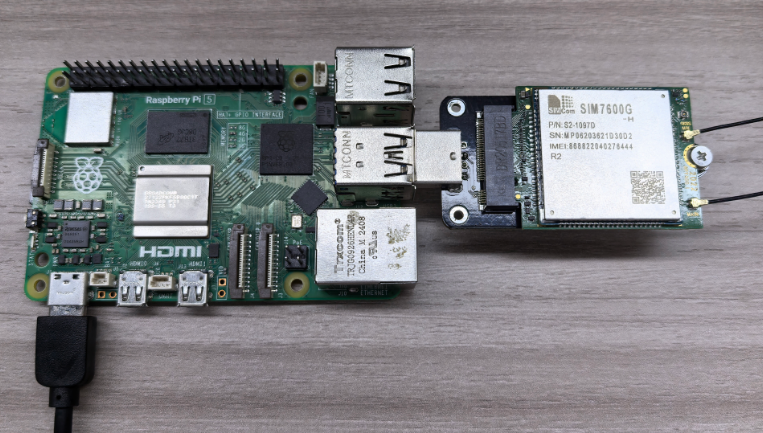
image-20260602175728145


2. Connect to Motherboard USB Port via Extension Cable
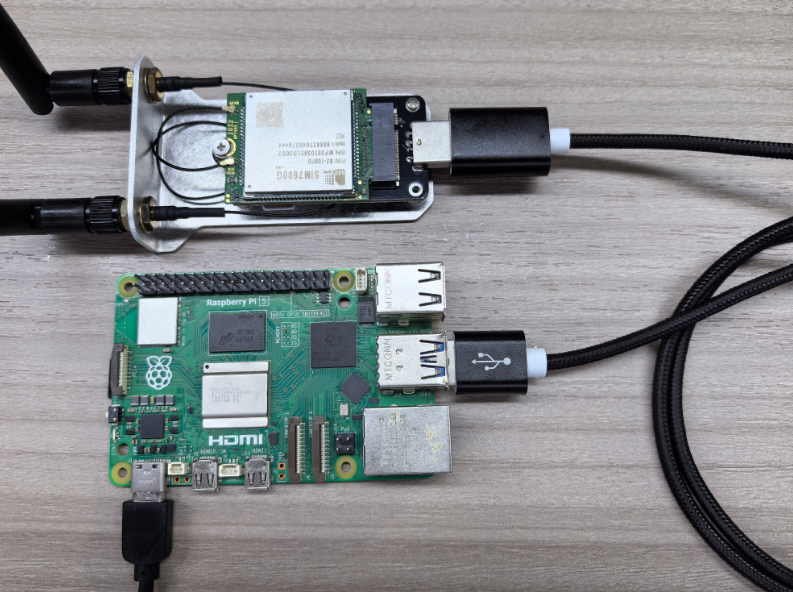
image-20260602175321209


Installation Steps
Indicator Light Status

COMPANY

  • About us
  • Team Style
  • Blog

LEARNING & EXPLORATION

  • Tutorials
  • Edge AI hardware
  • Educational robots
  • Embedded intelligent hardware

WHERE TO BUY

  • Yahboom Online Store
  • Amazon
  • Alibaba
  • AliExpress
  • Mercado

TECHNOLOGY SUPPORT

  • Email: support@yahboom.com

BE A DISTRIBUTOR

  • Email: sales@yahboom.com
QR Code

Copyright © 2017-2026 Yahboom. All Rights Reserved.

EN/中文