Welcome to 4G Remote Communication Module repository
Network Image Transmission Tutorial
Network Image Transmission Tutorial
Network Image Transmission Tutorial1. Preparation2. Linux Motherboard Operation (Controlled End)1. Install ToDesk-arm64 Version2. Get Remote Control Code3. Windows Computer Operation (Control End)1. Install ToDesk-Win Version2. Remote LoginIV. Fix Remote Desktop Display Issues
1. Preparation
The network image transmission function uses ToDesk remote desktop control software. Taking the 4G module connected to the Linux motherboard as an example, remotely control the Linux motherboard on a Windows computer.
This function requires that the 4G module has been inserted with a supported Nano-SIM card and configured, connected to the Linux motherboard, and can access the Internet normally.
The Windows computer needs to be connected to an Ethernet cable or WiFi to ensure normal Internet access.
2. Linux Motherboard Operation (Controlled End)
1. Install ToDesk-arm64 Version
Open the system browser and visit the ToDesk official website
https://www.todesk.com/linux.html
Select the Debian/Ubuntu/Mint (arm64) version and click Download Now.
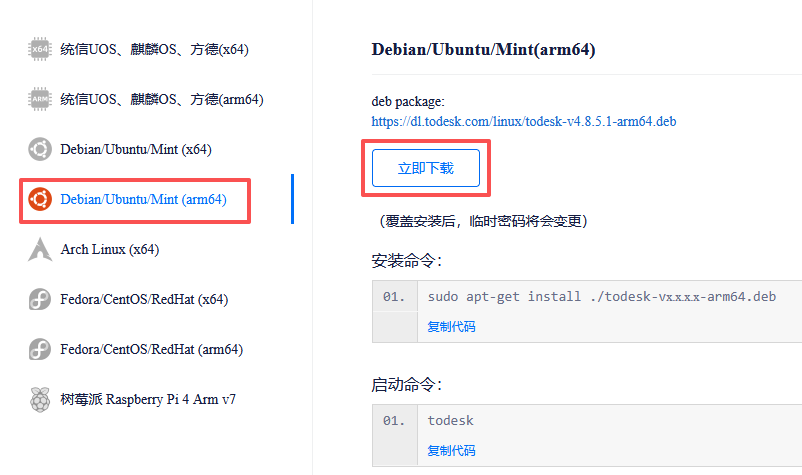
Then open the system terminal and enter the following command to install the software, where vx.x.x.x needs to be replaced with the downloaded version number.
xxxxxxxxxxcd ~/Downloadssudo apt-get install ./todesk-vx.x.x.x-arm64.deb
Wait for the installation to complete.
2. Get Remote Control Code
Open the system terminal and enter the following command to start ToDesk
xxxxxxxxxxtodesk
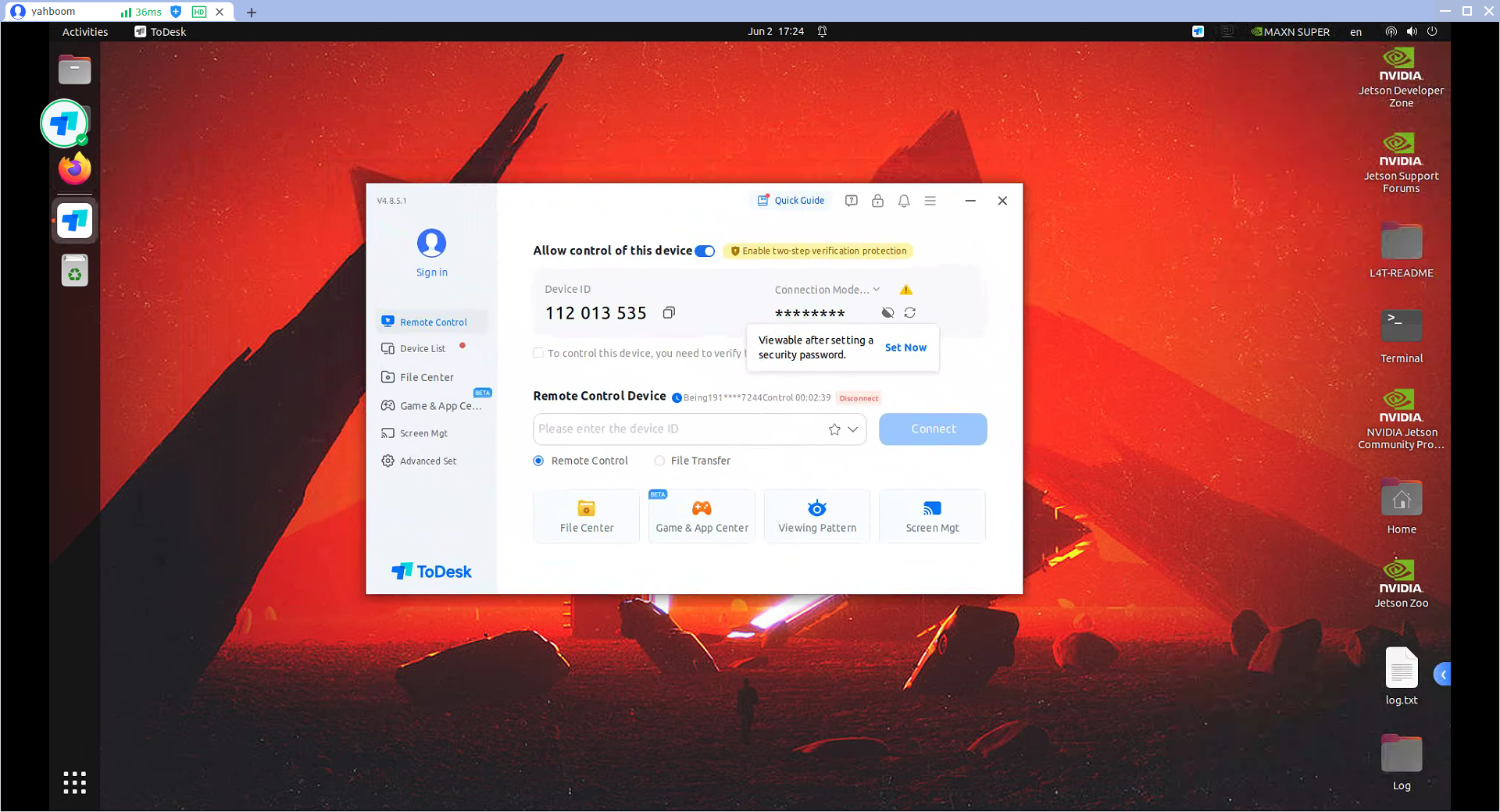
If the verification code is hidden, please click the button in the figure below to display the verification code. This device number and verification code need to be recorded, and you will need to enter this value for remote login later.
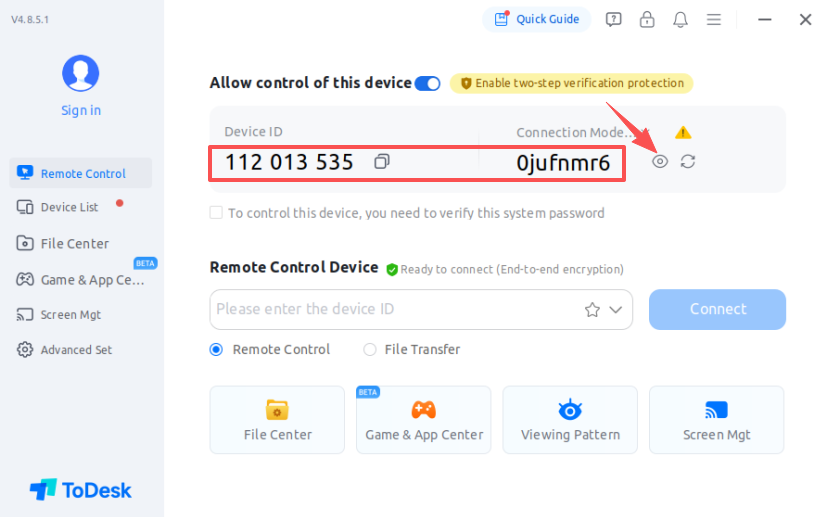
At this point, the Linux motherboard side has been set up and is waiting to be remotely controlled.
3. Windows Computer Operation (Control End)
1. Install ToDesk-Win Version
Open the browser, visit the ToDesk official website to download the Windows version software
xxxxxxxxxxhttps://www.todesk.com/download.html
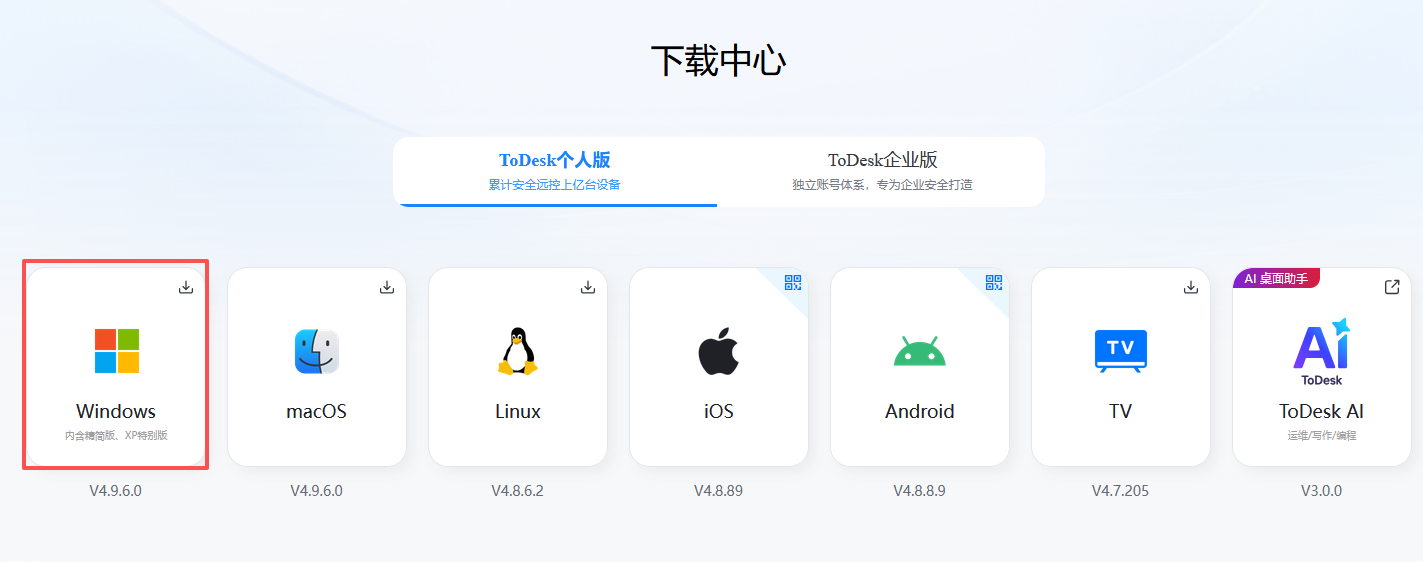
After downloading, double-click to run the installation package file and install according to the prompts.
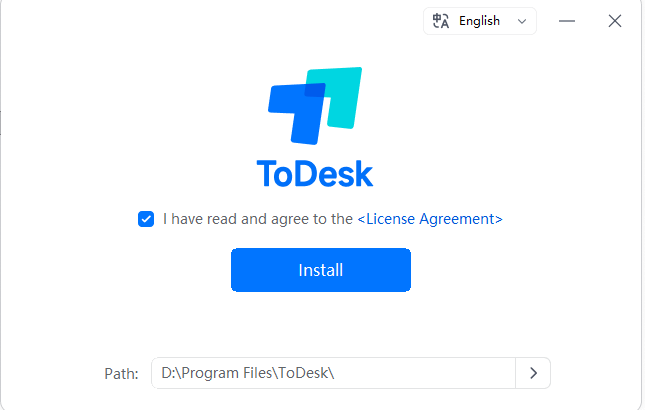
Then find the ToDesk icon in the desktop shortcut and double-click to run the program.

2. Remote Login
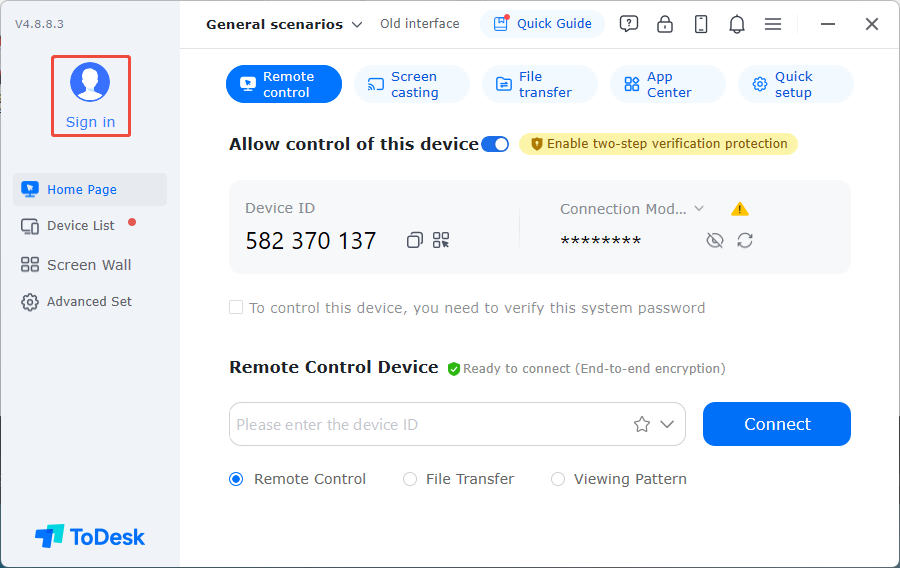
As the control end, you need to log in to your account to initiate control, so click Login
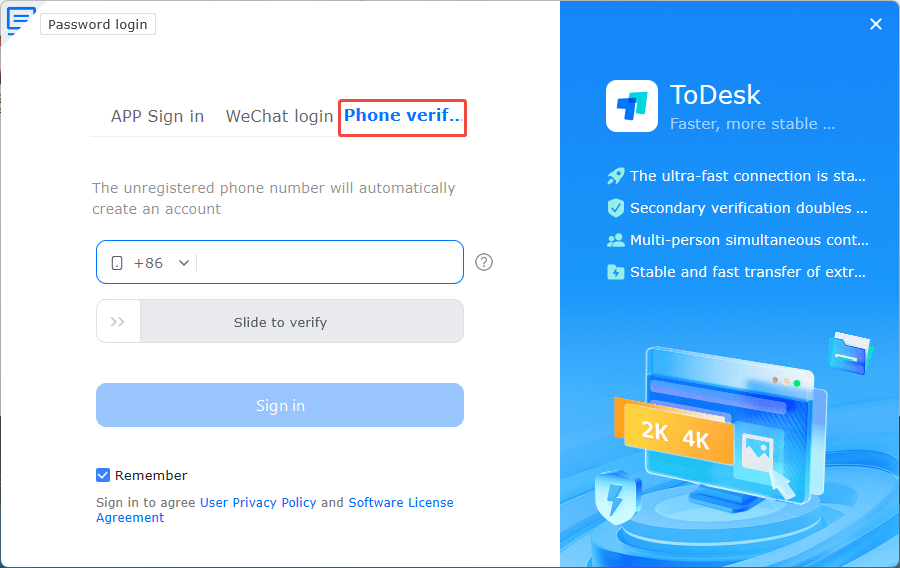
For convenience, choose mobile phone verification code login, then enter the relevant information and verify.
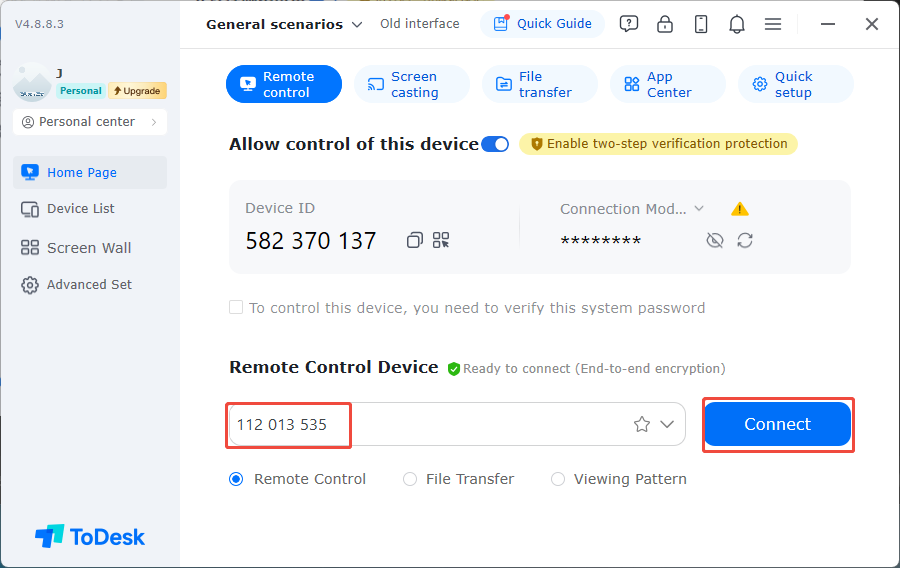
Enter the device number you just recorded in the remote control device column.
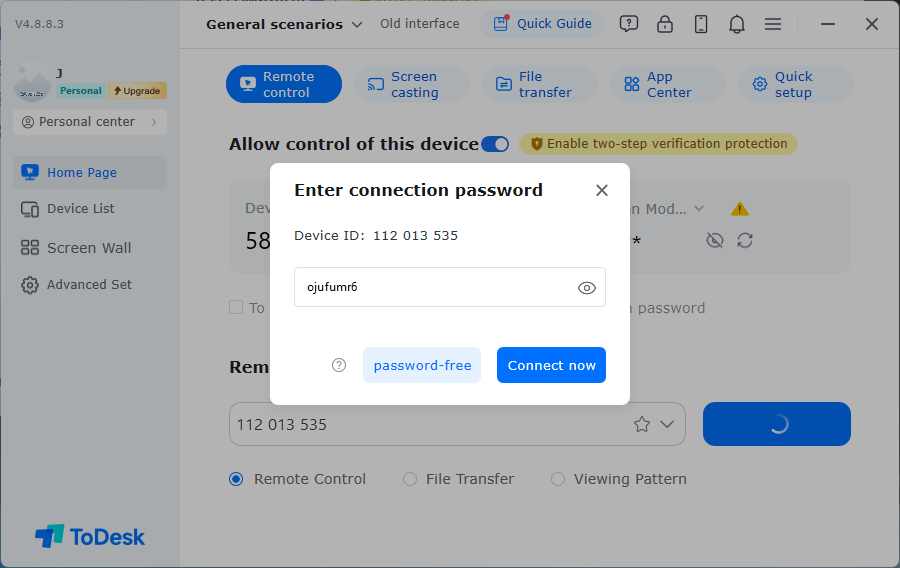
Then enter the verification code corresponding to the device number, and click Connect Now.
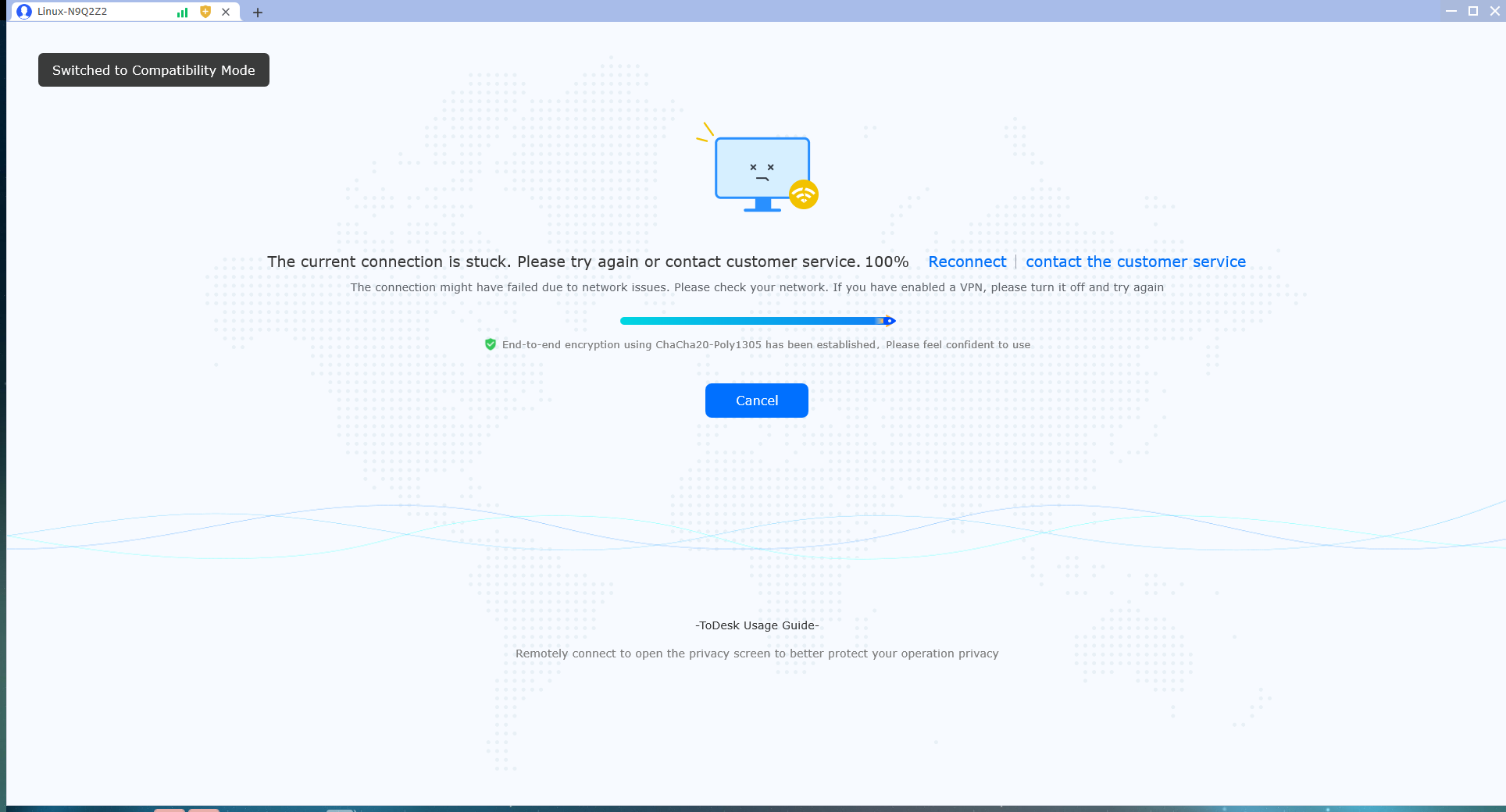
Wait for the connection to complete to remotely control the device.
If it gets stuck at 100%, please click [Reconnect].
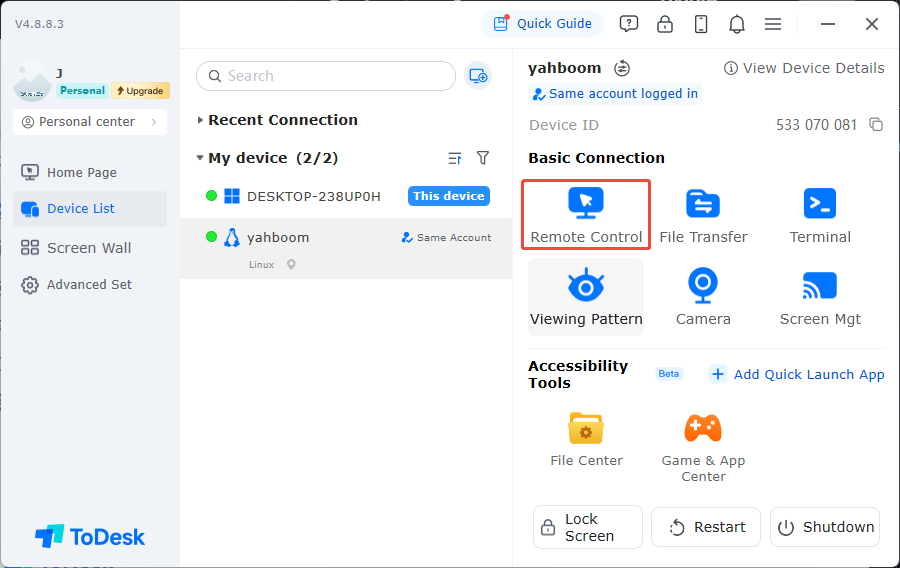
Note: If you don't want to enter the verification code every time, you can also log in to the same account on the controlled device, and set and enable secure password connection, so you can find the device in the control end device list and initiate control.
IV. Fix Remote Desktop Display Issues
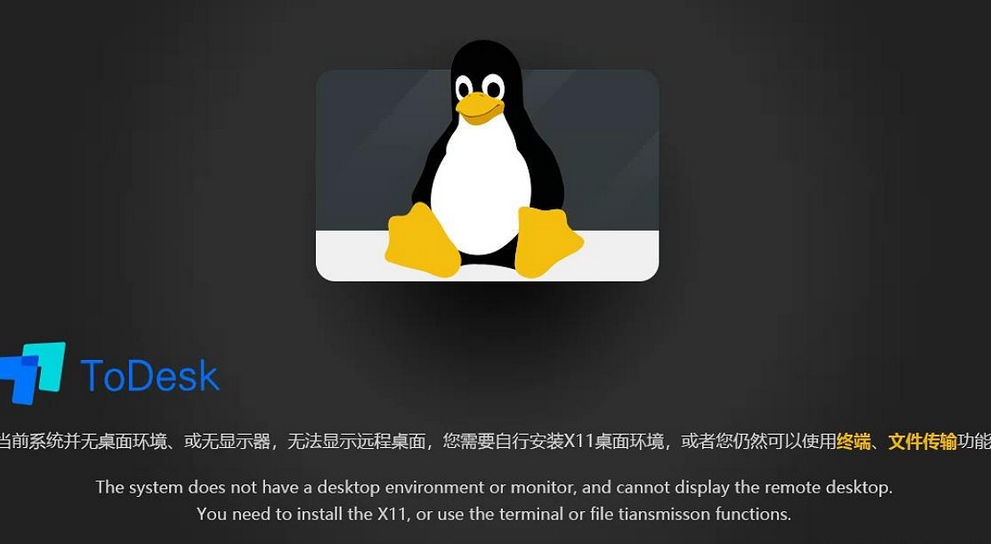
Problem: After installing ToDesk on some Linux systems, when used as the controlled end, the desktop environment cannot be displayed. The control end shows the message [Current system has no desktop environment, or no monitor, unable to display remote desktop].
Analysis: Since ToDesk only supports X11 desktop environment, and new systems (such as Ubuntu) default to Wayland desktop environment, causing display issues. Simply changing the desktop environment to X11 will fix the problem.
Fix Process:
Modify the configuration file to disable wayland
xxxxxxxxxxsudo vim /etc/gdm3/custom.conf
Remove the comment symbol before WaylandEnable.
xxxxxxxxxxWaylandEnable=false
Then restart the system
xxxxxxxxxxsudo reboot
Check in system settings that the desktop environment is X11.
