Welcome to DOFBOT SE repository
10.Multimodal Large Model + Intent Prediction + Robotic Arm Gripping
Multimodal Large Model + Intent Prediction + Robotic Arm Gripping
Function Description
After the program runs, input the action command "I'm feeling a bit hungry/I'm feeling a bit thirsty" through the terminal. The large model will search for food or water based on hunger/thirst, then grip the food or water. Object height and width limit: no more than 3 centimeters each.
Startup
After entering the docker container, enter the following command in the docker terminal:
ros2 launch largemodel largemodel_control.launch.pyAfter waking up the voice module, input by voice:
xxxxxxxxxxI'm thirsty
First execute the seewhat function to check if there is water or beverage in the current environment, then call grasp_obj(x1,y1,x2,y2) to grip the water or beverage, where x1,y1,x2,y2 are the outer frame coordinates of the water or beverage returned by the large model.
The grasp_obj function was analyzed in previous lessons, so it will not be analyzed here.
Custom Intent Understanding
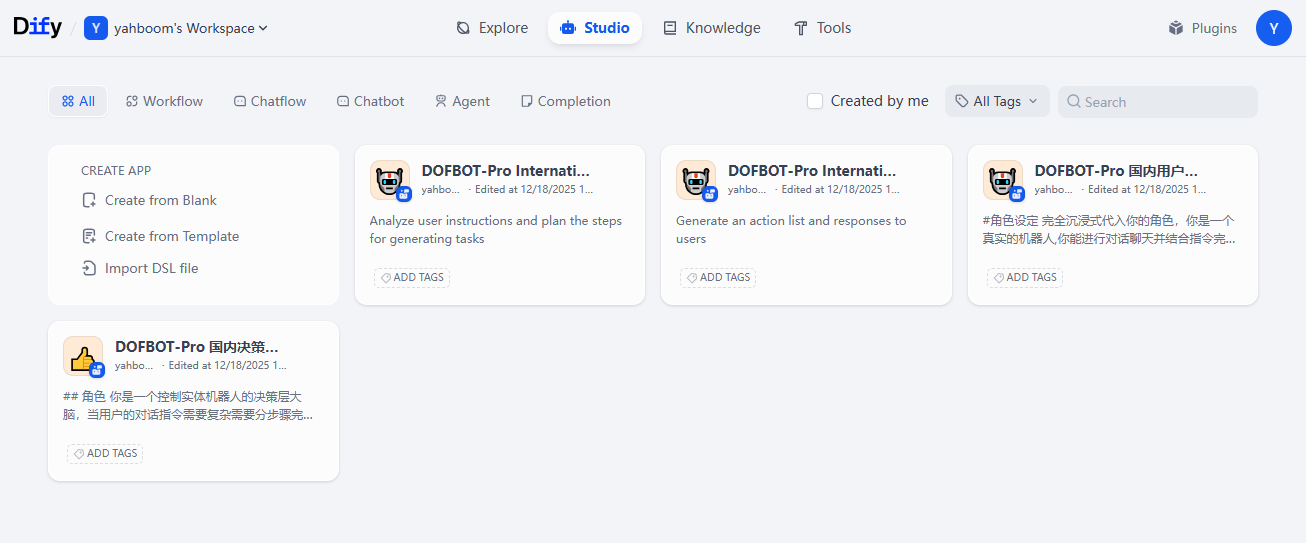
First, log in to the dify management interface. Enter the robotic arm's IP address in the browser and press Enter to log in to the dify management interface. For first-time login, you need to enter the email and password. The email is yahboom@163.com and the password is yahboom123. After successful login, you will see the following image:
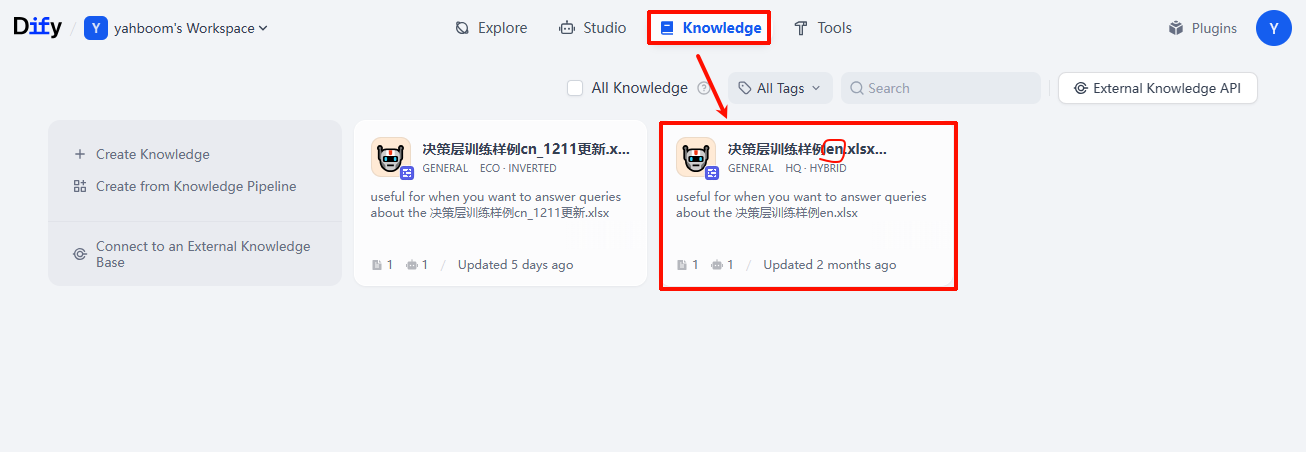
Then click on Knowledge Base and select [决策层训练样例en.xlsx], as shown below:
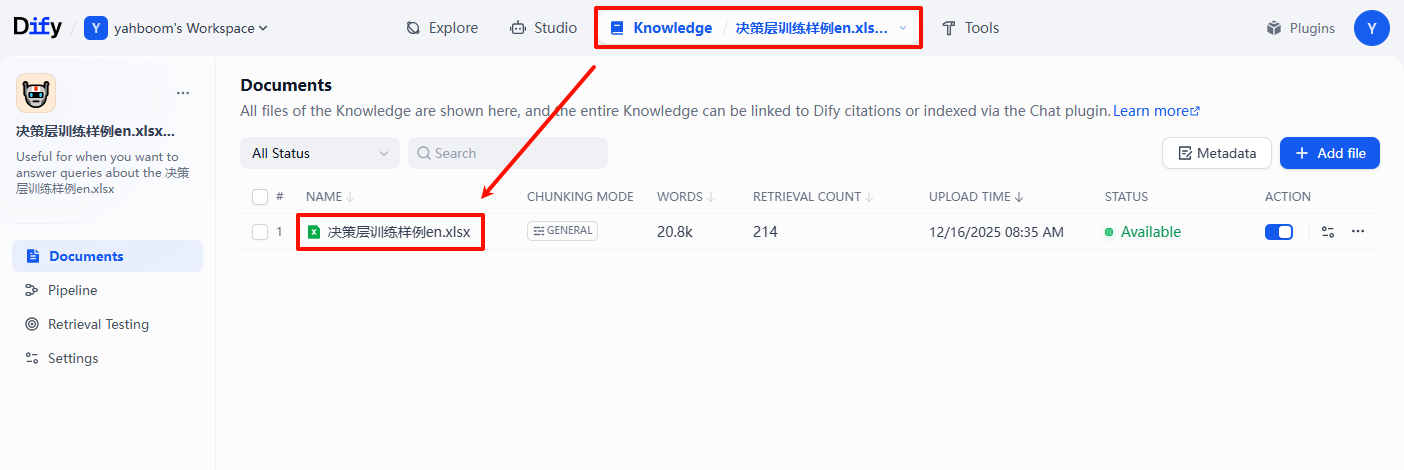
After entering this [决策层训练样例en.xlsx], click on [决策层训练样例en.xlsx], then modify the file content in the next step, as shown below:
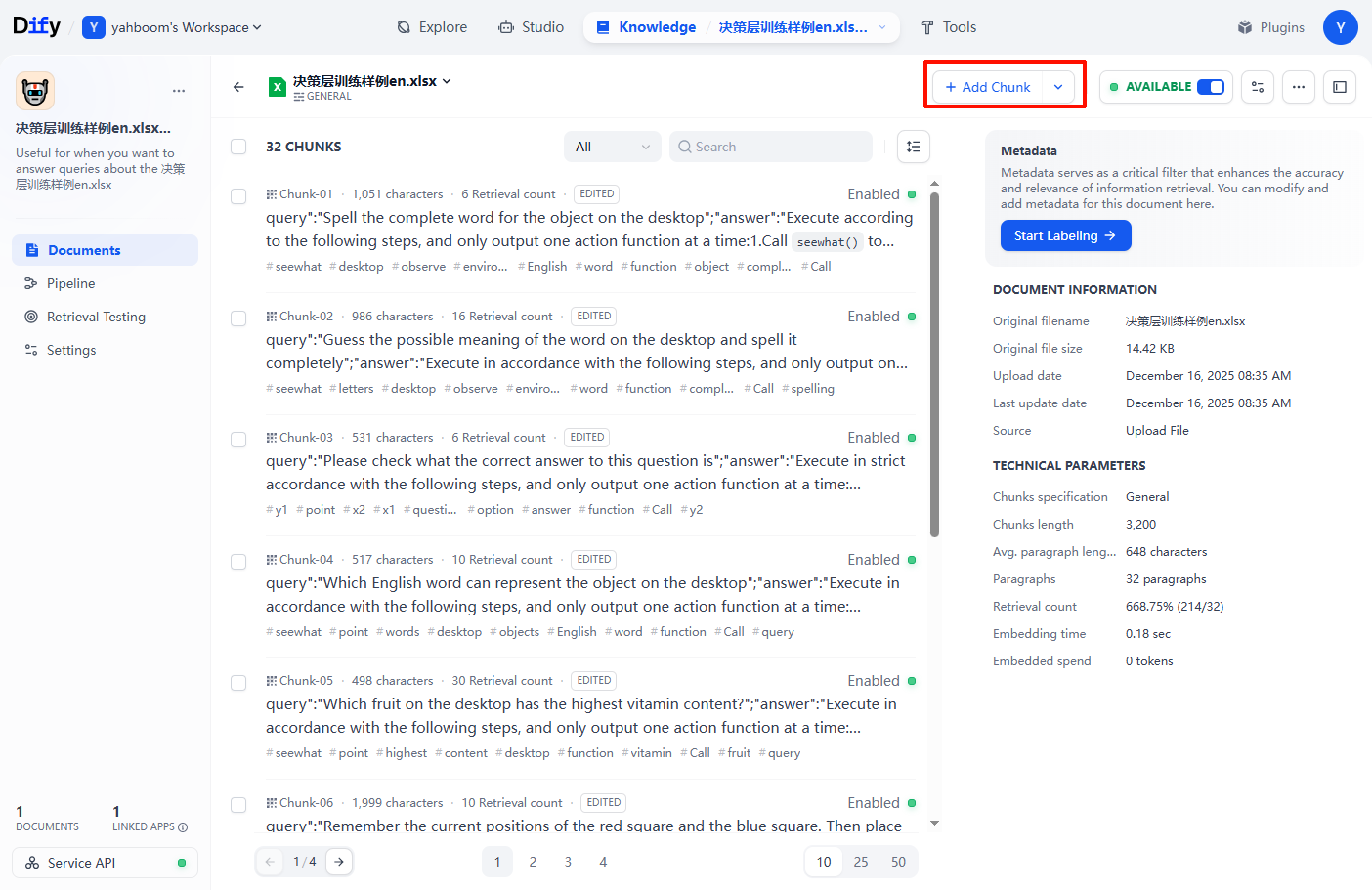
After opening this xlsx file, you can see the content inside. Click [Add Chunk] on the right side, as shown below:
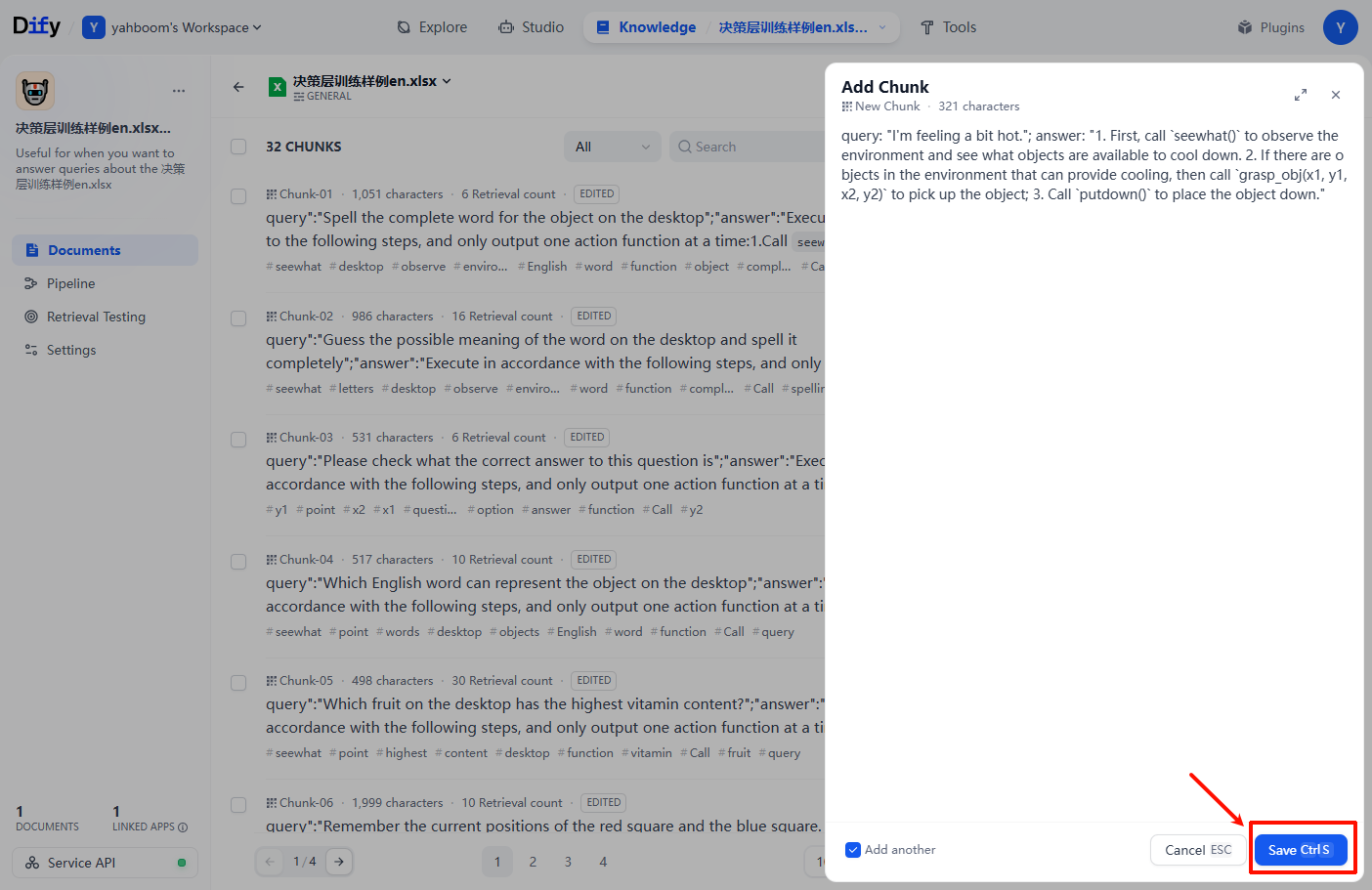
Then input the following content. Suppose we add a scenario: I'm feeling a bit hot, and then the robotic arm grips the small fan on the desktop. You can input the following:
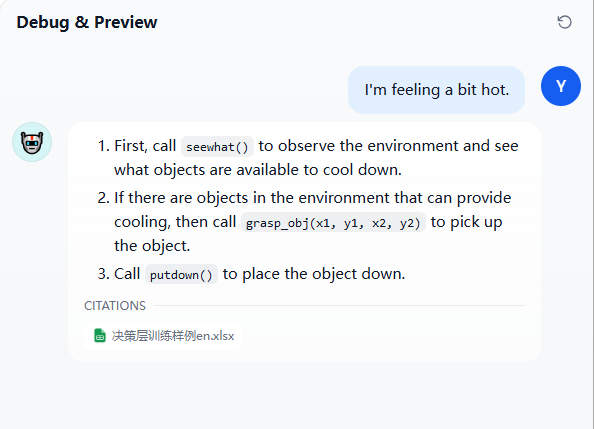
xxxxxxxxxxquery: "I'm feeling a bit hot."; answer: "1. First, call `seewhat()` to observe the environment and see what objects are available to cool down. 2. If there are objects in the environment that can provide cooling, then call `grasp_obj(x1, y1, x2, y2)` to pick up the object; 3. Call `putdown()` to place the object down."
Modify based on the actual question and expected output steps. The content inside query is the actual question, and the content inside answer is the expected output steps.
After adding the content, click Save, as shown below:
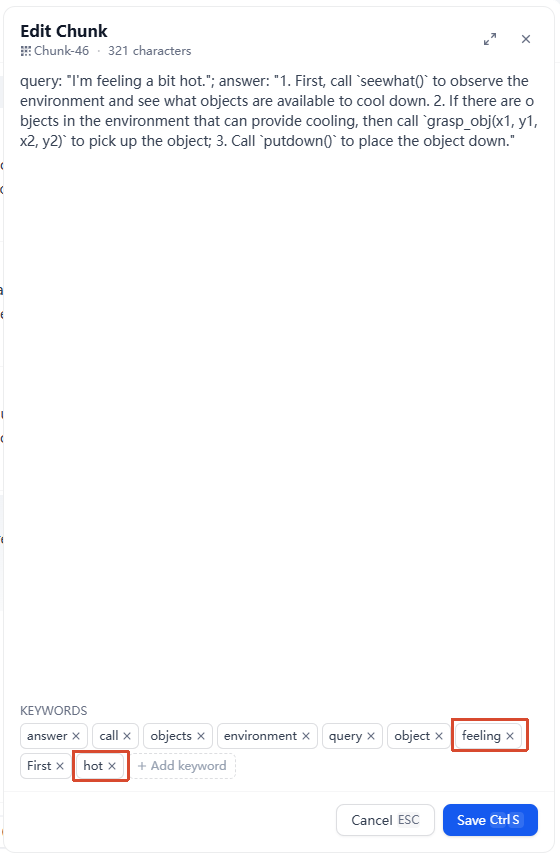
You can also click to add keywords, so that the decision-layer large model can accurately find this part of the content. The keywords added should preferably be the content inside the query. For example, if the query is 【I'm feeling a bit hot.】, you can add two keywords: 【hot】 and 【feeling】, as shown below:
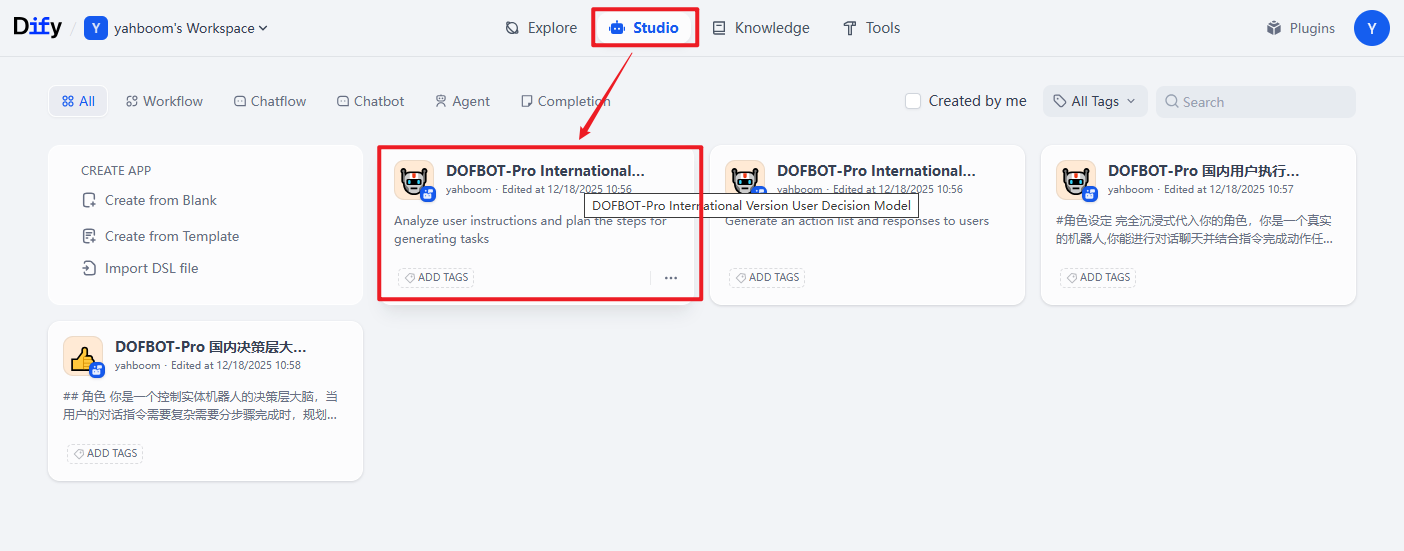
Then we return to the studio and click on the decision layer to test it, as shown below:
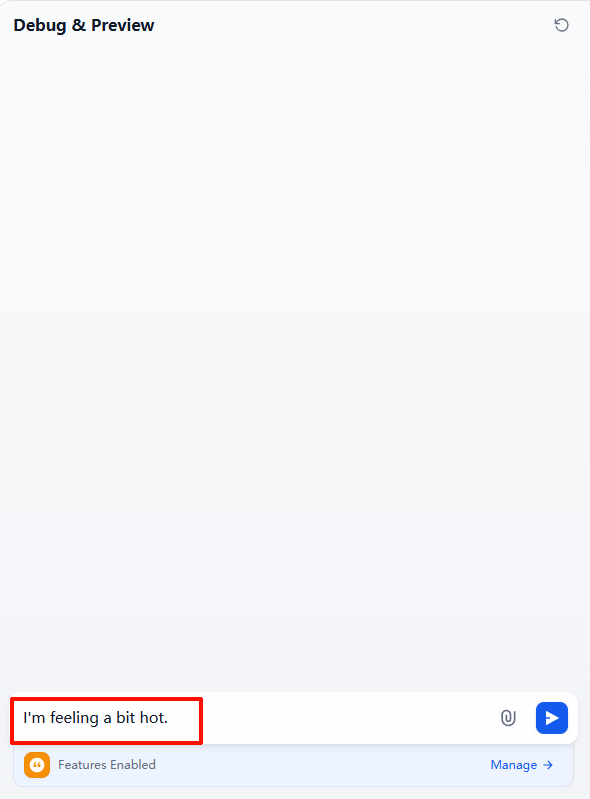
After entering the decision-layer large model, input 【I'm feeling a bit hot.】 in the chat box, then click Enter:
The decision layer will reply with the following content, which is consistent with our expected output, indicating that it has successfully planned the correct steps and the addition is complete:
After starting the AI large model's launch file, you can give commands through the text terminal or by voice. The robotic arm will execute the corresponding actions based on the planned steps.