Welcome to Building:bit Superkit repository
3.7 Temperature control fan
Temperature control fan
Temperature control fan1. Learning Objectives2. Building Blocks3. Sensor Wiring4. Code Analysis5. Write and download the program6. Experimental phenomenon
1. Learning Objectives
In this course, we mainly learn how to make a temperature control fan through Python programming.
2. Building Blocks
For the steps of building blocks, please refer to the installation drawings of [Assembly Course]--[Temperature-control fan] in the materials or the building block installation brochure.
3. Sensor Wiring
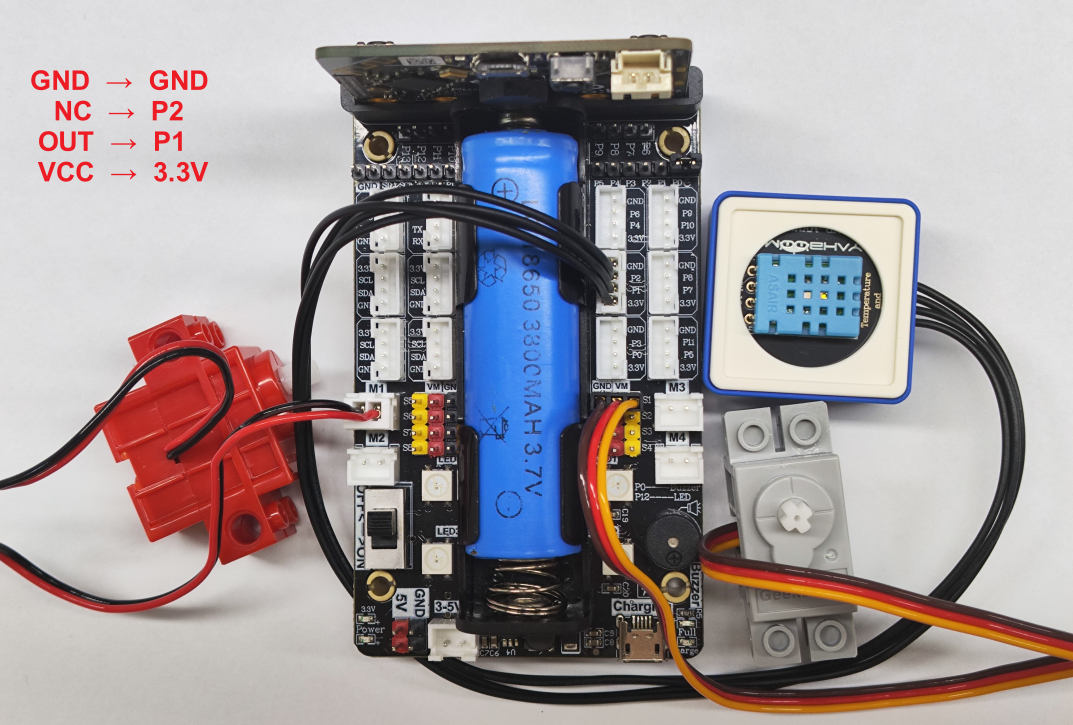
Insert the building block motor wiring into the M1 interface of the Super:bit expansion board, and the black wiring into the side close to the battery.
Insert the building block servo wiring into the S1 interface of the Super:bit expansion board, and the orange servo wiring into the yellow pin of S1.
Connect the temperature and humidity sensor to the P1P2 interface.
4. Code Analysis
For the program of this course, please refer to the Temperature-control-fan.py file.
from microbit import *import WOM_Sensor_Kitimport superbitFirst, import the libraries needed for this lesson from microbit: the WOM_Sensor_Kit library is used for sensors; the superbit library is dedicated to the superbit expansion board.
xxxxxxxxxxangle = 135b = 0Initialize the servo angle and a variable b
xxxxxxxxxxwhile True:display.scroll(WOM_Sensor_Kit.WOM_dht11(pin1, WOM_Sensor_Kit.WOM_temp_C))sleep(500)if WOM_Sensor_Kit.WOM_dht11(pin1, WOM_Sensor_Kit.WOM_temp_C) > 27:display.show(1)sleep(500)superbit.motor_control(superbit.M1, 255, 0)if b == 0:superbit.servo270_V2(superbit.S1, angle)angle = angle + 30if angle > 180:angle = 180b = 1elif b == 1:superbit.servo270_V2(superbit.S1, angle)angle = angle - 30if angle < 0:angle = 0b = 0else:display.show(0)sleep(500)superbit.motor_control(superbit.M1, 0, 0)superbit.servo270_V2(superbit.S1, 0)Scroll the Celsius temperature value obtained by the temperature and humidity sensor (pin1) in an infinite loop. If the temperature is greater than 27°C, set the motor to rotate forward at a speed of 255. If b==0, the servo angle increases by 30° each time, with a maximum of 180°, and then switches direction; if b==1, the servo angle decreases by 30° each time, with a minimum of no less than 0°, and then switches direction. If the temperature is not higher than 27°C, display the number 0, stop the motor, and reset the servo to angle 0.
5. Write and download the program
- Open the Mu software and enter the code in the editing window. Note! All English and symbols should be entered in English, use the Tab key for indentation, and the last line ends with a blank program.
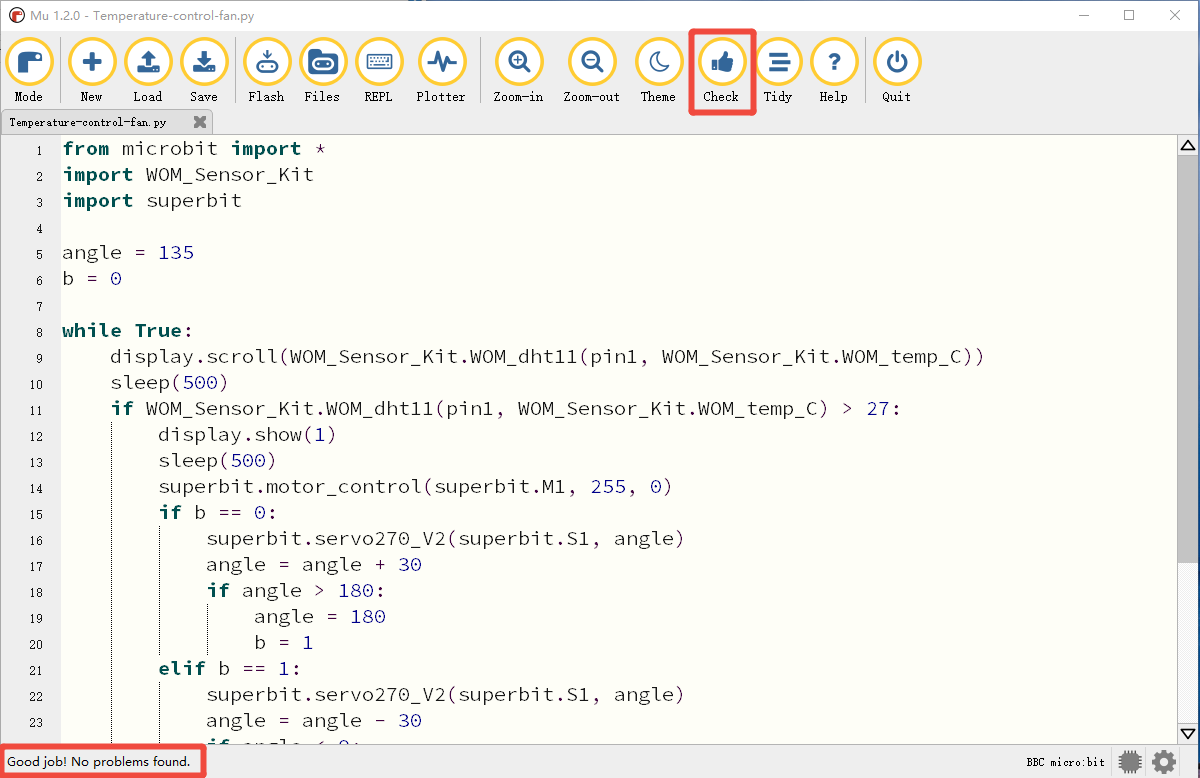
- Click the thumb 'Check' button to check whether our code has errors. If a cursor or underline appears in a line, it means a syntax error. Please check and modify it. If there is no error, the lower left corner will prompt that there is no problem with the detection.
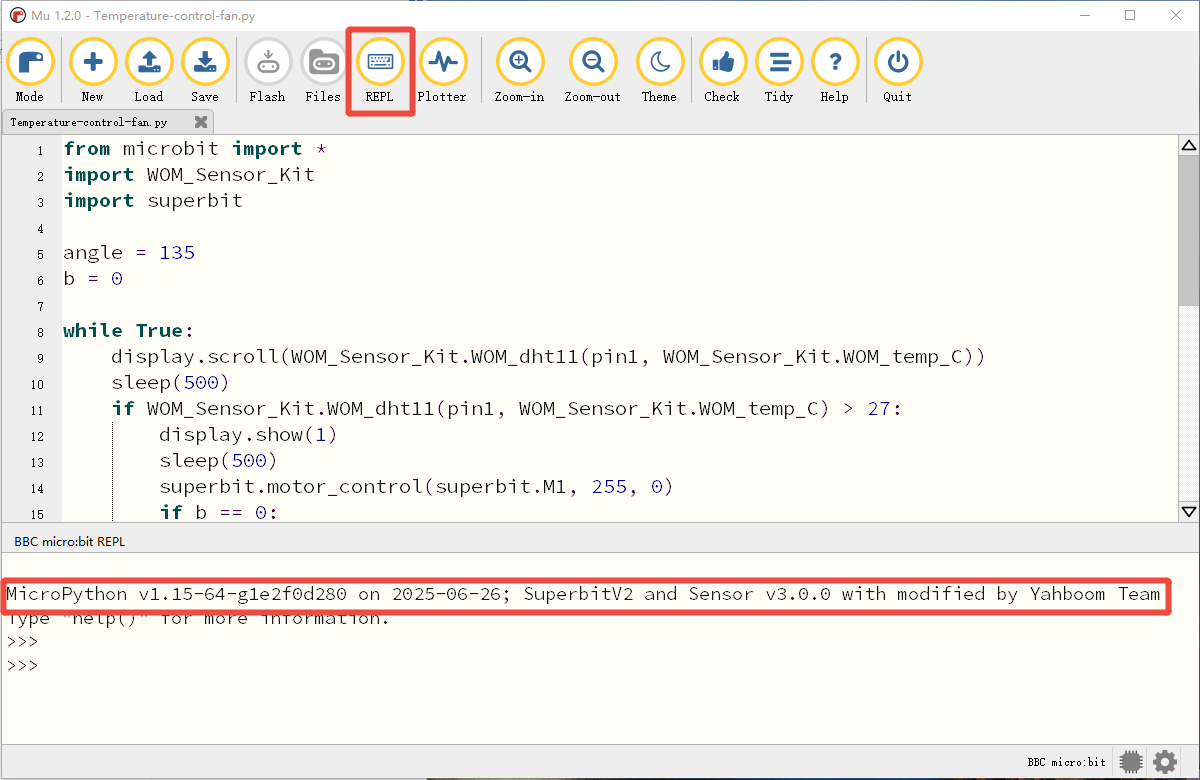
- Click the 'REPL' button to check whether the Superbit library has been downloaded. If not, please refer to [Preparation before class] --> [2.4 Python Programming Guide].
- After the program is written, connect the computer and microbit mainboard with a microUSB data cable, please click the 'Flash' button to download the program to the micro:bit mainboard. (You need to click the 'REPL' button again to turn off the import library file function before you can download the program normally).
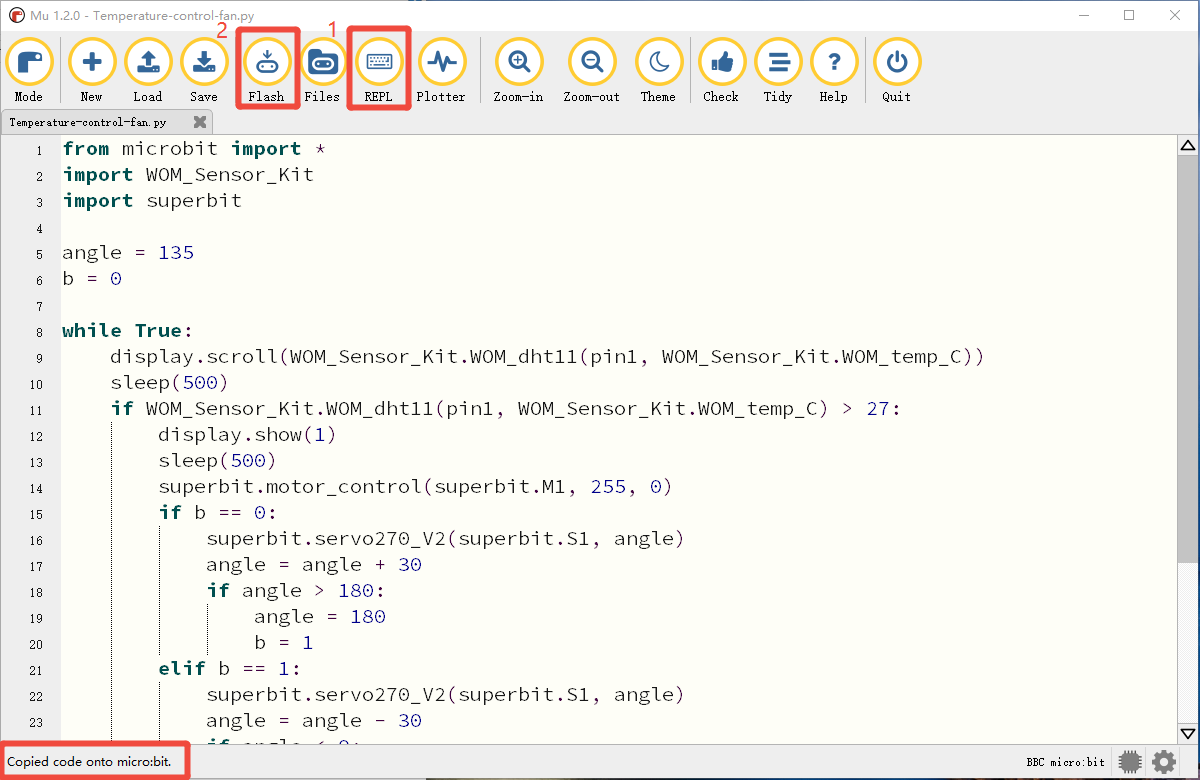
- If the download fails, please confirm whether the microbit is connected to the computer normally via the microUSB data cable and the Superbit Python library has been imported.
6. Experimental phenomenon
After the program runs successfully, the current ambient temperature will be printed on the microbit motherboard. If you hold the temperature and humidity module in your hand to warm it up, after a period of time, when the temperature reaches 27 degrees Celsius, the motherboard dot matrix displays 1, the fan starts to rotate, and the servo rotates left and right. When the temperature is lower than 27 degrees, the fan stops rotating, the servo returns to 0 degrees, and the motherboard dot matrix displays 0.
Note: Temperature detection will have a slow heating and cooling process, and the effect is slightly lower than the real-time performance of humidity detection. If humidity control is required, you can use the case source code provided by the network disk under the same wiring conditions, and continue to blow on the temperature and humidity module for a few seconds, which will meet the triggering conditions. The humidity control code can be viewed in the humidity control fan.py file: