Welcome to Building:bit Superkit repository
1.Changing face
Changing face
Changing face1. Learning objectives2. Building blocks3. Motor wiring4. Programming4.1 Add expansion package4.2 Building blocks used4.3 Add variables and create functions4.4 Combine building blocks5. Experimental phenomenon
1. Learning objectives
In this course, we mainly learn how to use MakeCode graphical programming to make the Changing Face building block shape realize the gameplay of "changing faces in one second".
2. Building blocks
For detailed steps of building blocks, please refer to the installation drawings of [Assembly Course]--[Changing Face] in the materials or the building block installation album.
3. Motor wiring
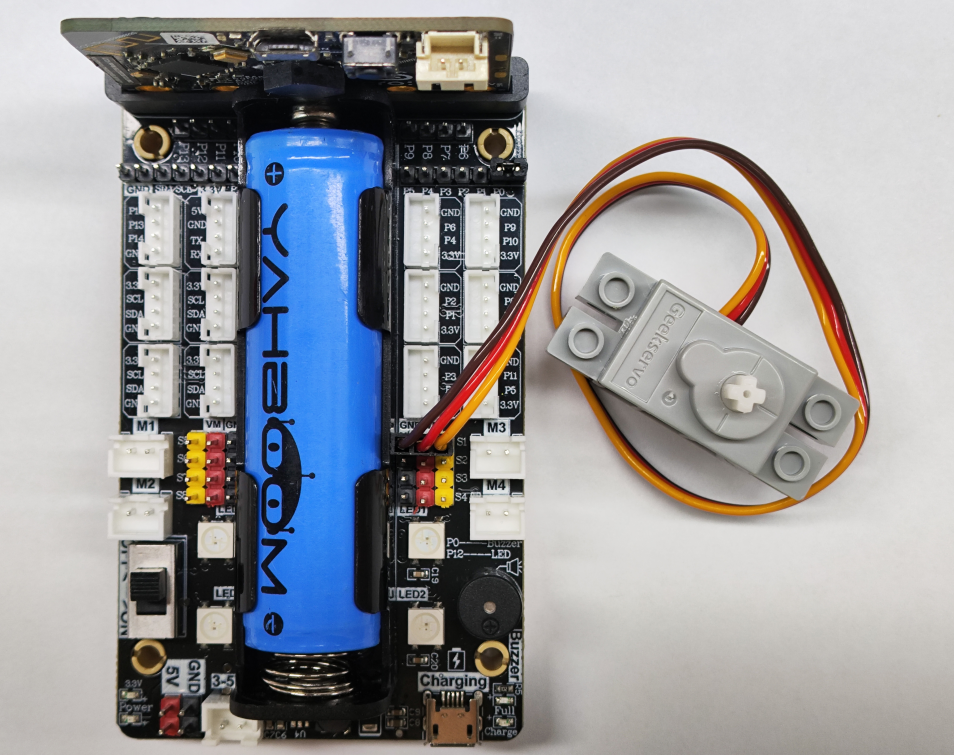
Insert the building block servo wiring into the S1 interface of the Super:bit expansion board, and the orange servo wiring into the yellow pin of S1.
As shown in the figure below:
! Notes:
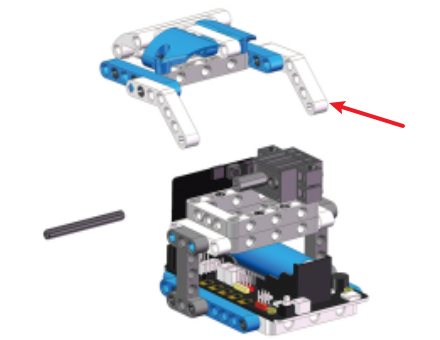
When taking the course related to the building block servo for the first time, we need to remove the white building blocks installed on the servo and upload the program of this course to the micro:bit; then turn on the power switch of the Super:bit expansion board and wait for the building block servo to turn to the initial position; then, we can turn off the power, adjust the Changing Face mask to the closed state, as shown in the figure below, and then install the building blocks. (If you have used the Changing Face and servo-related programs before, you can skip this step)
4. Programming
Method 1 Online Programming:
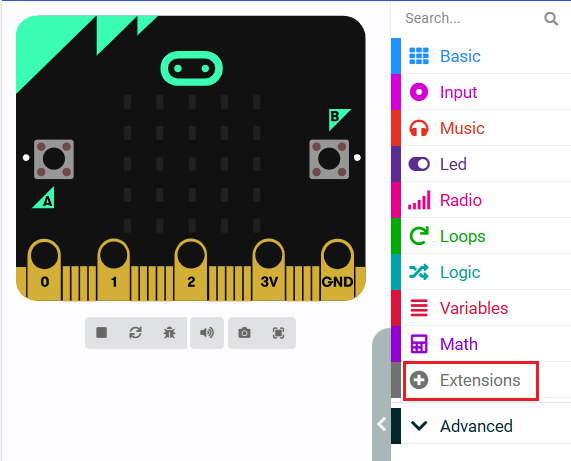
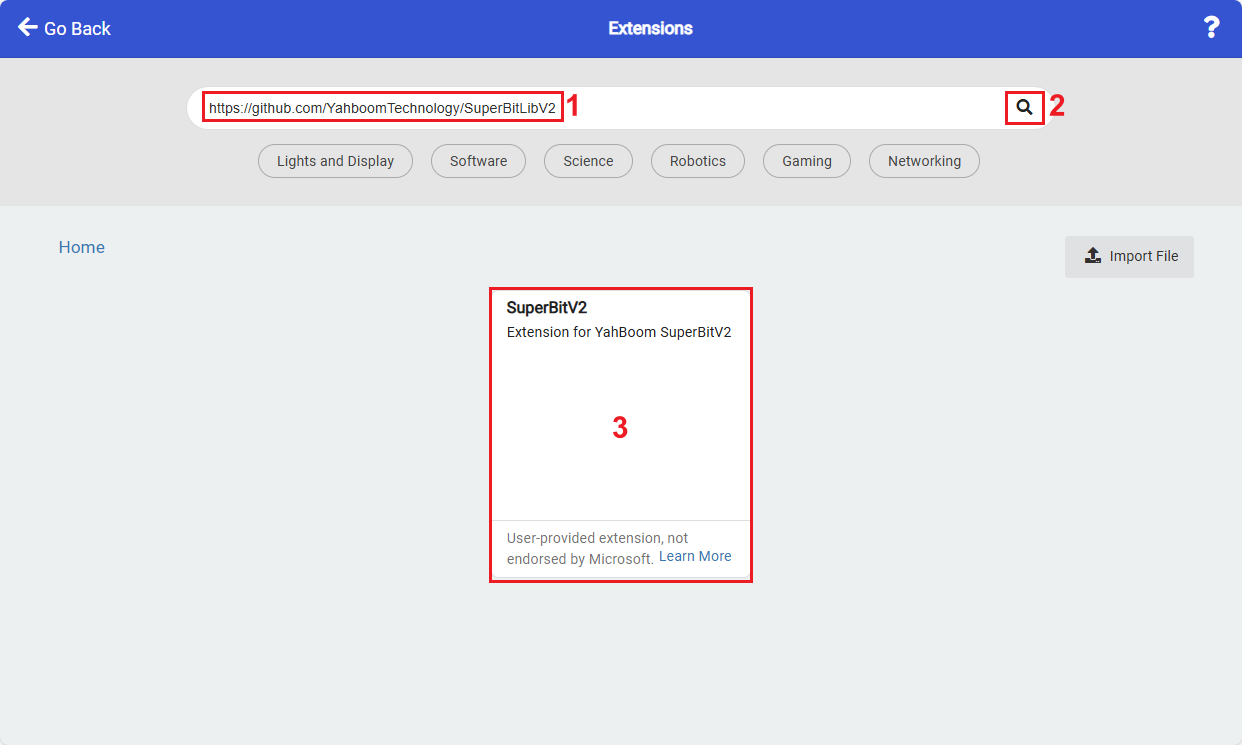
First, connect the micro:bit to the computer via a USB data cable, and the computer will pop up a U disk. Click the URL in the U disk: https://makecode.microbit.org/ to enter the programming interface. Then, add the Yahboom software package https://github.com/YahboomTechnology/SuperBitLibV2, and you can start programming.
Method 2 Offline programming:
Open the offline programming software MakeCode and enter the programming interface. Click [New] and add the Yahboom software package https://github.com/YahboomTechnology/SuperBitLibV2 to start programming.
4.1 Add expansion package
4.2 Building blocks used
The location of the building blocks required for this programming is shown in the figure below.
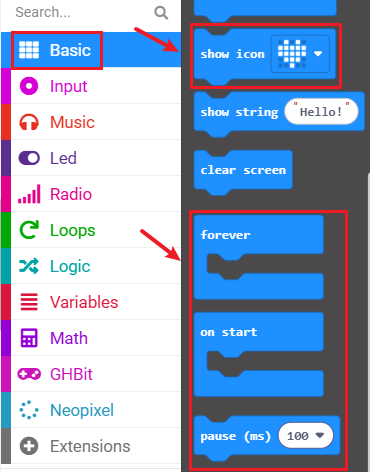
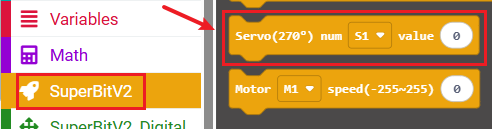
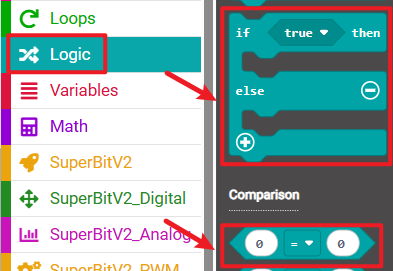
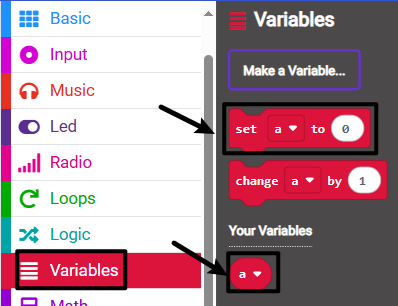
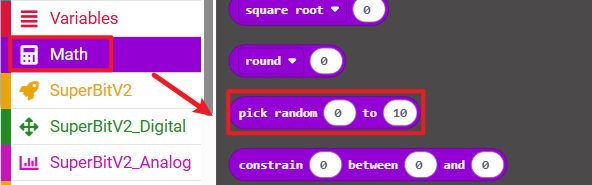
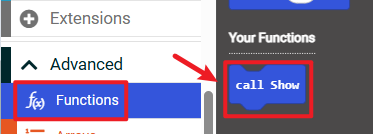
4.3 Add variables and create functions
Add variables
①Find the [Variable] option in the building block bar----[Set variables]
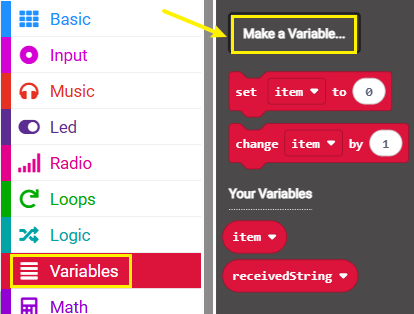
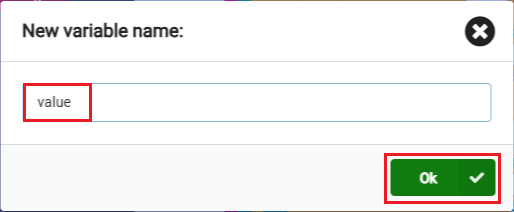
②Enter the variable name to complete the new variable.
Create a function
①Find the [Function] option in the building block bar----[Create a function]
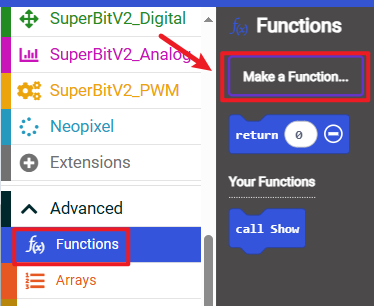
②Enter the function name to complete the function creation.
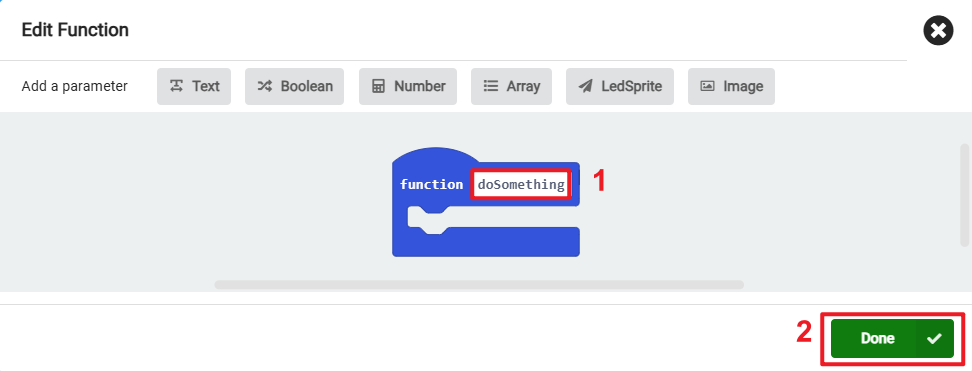
4.4 Combine building blocks
The summary program is shown in the figure below.
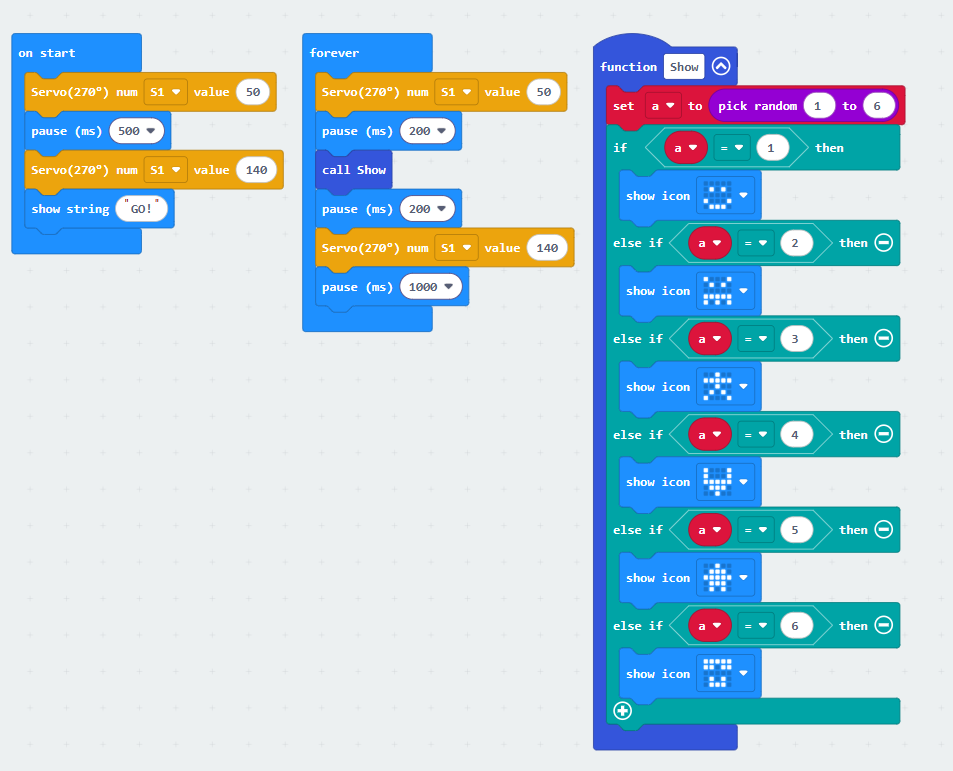
You can also directly open the microbit-Changing-face.hex file provided in this experiment and drag it into the browser that opens the URL, and the program diagram of this project source code will be automatically opened
5. Experimental phenomenon
After the program is successfully downloaded, turn on the power switch, the servo will initialize to 50° (Changing Face mask closed), and after 500 milliseconds, the servo will rotate to 140° (Changing Face mask opened), and "GO!" will be displayed on the dot matrix. Then it will start to change faces randomly and keep looping in this state.
Six patterns are written in this program, and you can modify the program to add more patterns.